1
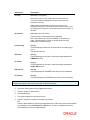
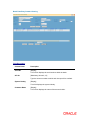
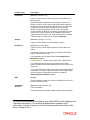
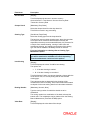
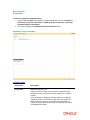
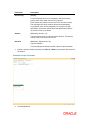
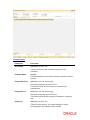
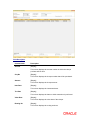
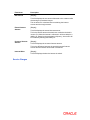
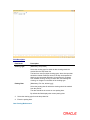
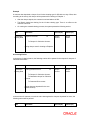
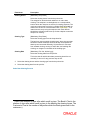
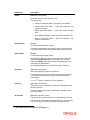
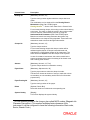
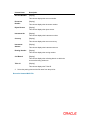
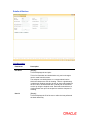
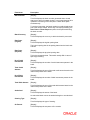
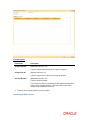
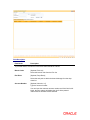
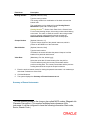
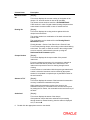
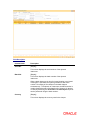
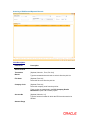
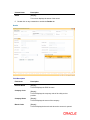
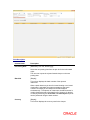
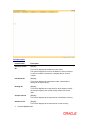
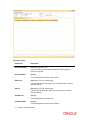
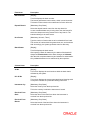
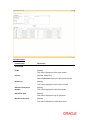
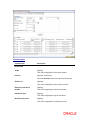
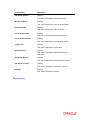
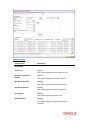
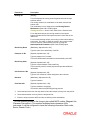
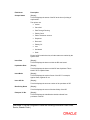
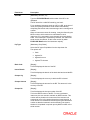
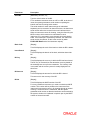
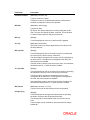
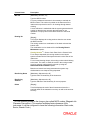
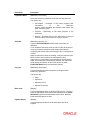
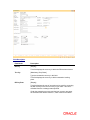
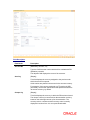
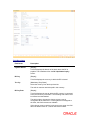
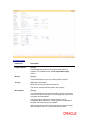
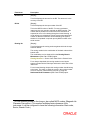
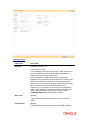
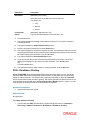
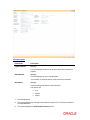
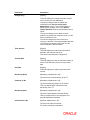
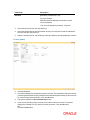
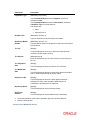
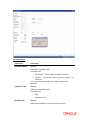
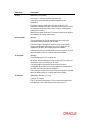
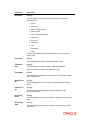
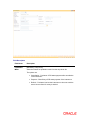
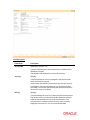
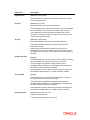
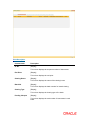
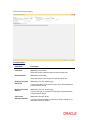
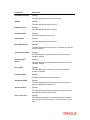
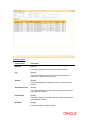
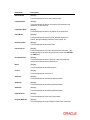
Column Name
Description
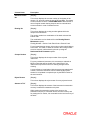
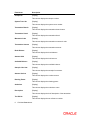
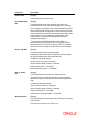
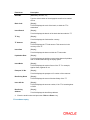
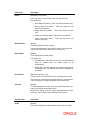
ACLCY Rate
[Display]
This field displays the rate at which the account currency is
converted to the local currency of the bank. The exchange rate
values need to be defined and downloaded.
The teller's right to change the account currency rate is
configurable at the bank level. If such rights are not assigned to
the teller, this field becomes non-editable.
If the account currency and the local currency are same, the field
takes the default value as 1, which cannot be modified.
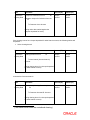
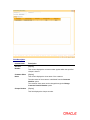
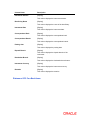
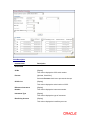
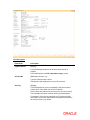
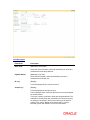
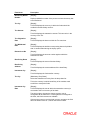
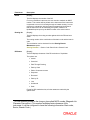
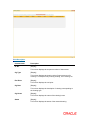
TCLCY Rate
[Display]
This field displays the rate at which the transaction currency is
converted to the local currency of the bank. The exchange rate
values need to be defined and downloaded.
The teller's right to change the transaction currency rate is
configurable at the bank level. If such rights are not assigned to
the teller, this field becomes non-editable.
If the transaction currency and the local currency are same, the
field takes the default value as 1, which cannot be modified.
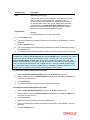
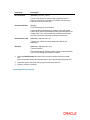
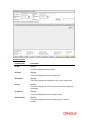
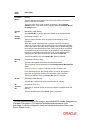
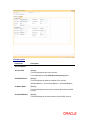
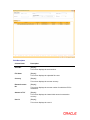
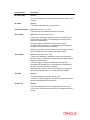
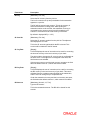
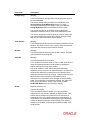
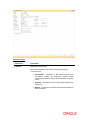
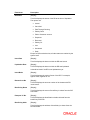
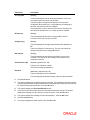
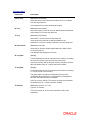
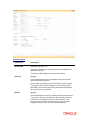
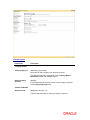
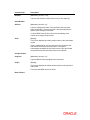
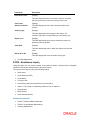
Transaction
Narration
[Mandatory, Alphanumeric, 20]
Type the narration.
This field displays the default narration, based on the transaction.
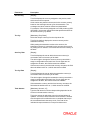
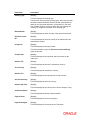
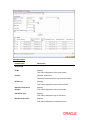
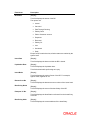
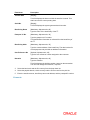
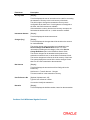
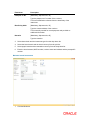
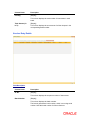
System Identity
[Display]
This field displays the system identity.
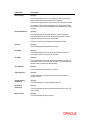
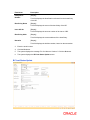
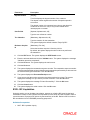
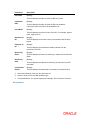
Payee Branch
[Display]
This field displays the code of the payee bank.
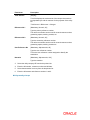
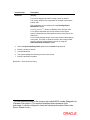
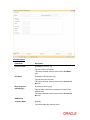
Delete
[Optional, Check Box]
Select the Delete check box (es) to delete the rows.
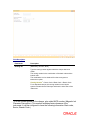
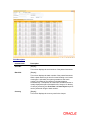
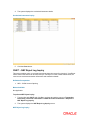
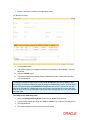
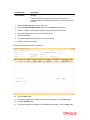
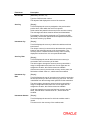
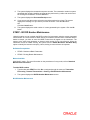
Note: You can add additional rows to the batch by clicking Add button. Incase a particular row
needs to be dropped, double click and select the Delete Checkbox.
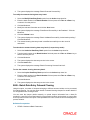
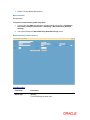
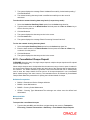
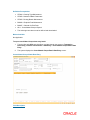
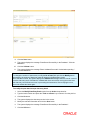
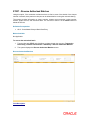
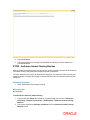
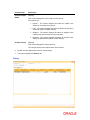
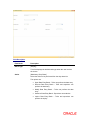
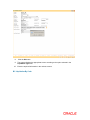
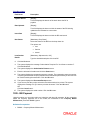
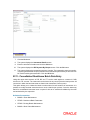
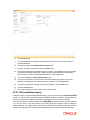
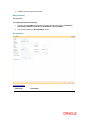
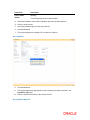
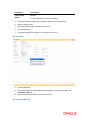
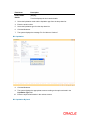
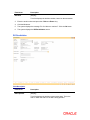
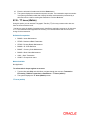
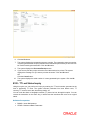
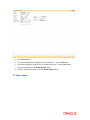
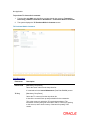
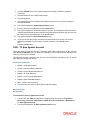
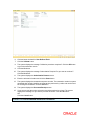
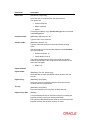
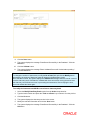
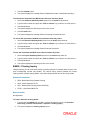
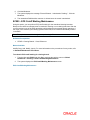
3.
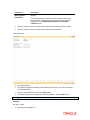
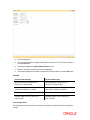
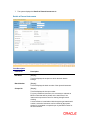
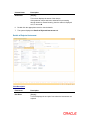
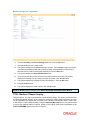
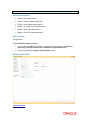
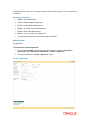
Select the Open Data Entry Batch option from the Action drop-down list.
4.
Select the deposit branch and the currency from the drop-down list.
5.
Enter the number of instruments.
6.
Click the Ok button.
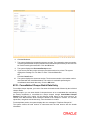
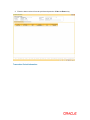
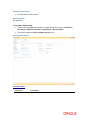
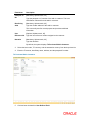
7.
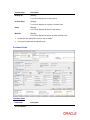
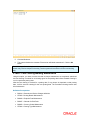
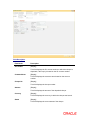
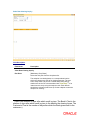
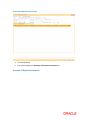
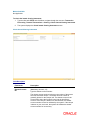
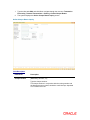
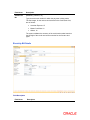
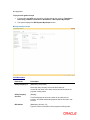
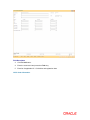
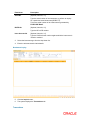
The system displays the data entry section.
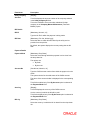
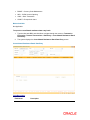
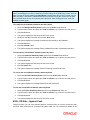
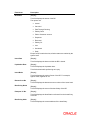
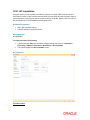
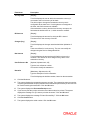
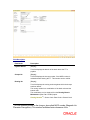
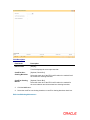
8.
Enter the relevant information in the data entry section.
OR
Enter the batch details by selecting the appropriate file in which the individual check details
are maintained, using the Browse and Load button. This file is a delimited file and its
format depends on the site implementation.