1
be further edited by clicking the ID number next mailing. This allows you to edit the
mailing itself. This can best be described as follows:
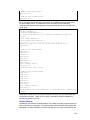
Sequential page (displays sequential mailings) > Sequential Details page (displays
individual mailings in sequence for the selected sequential mailing).
In addition, a new sequential mailing can be created from this page by clicking "create
new sequential mailing". For more information on how to create sequential mailings,
see Mailings: Advanced Mailings: New Sequential Mailing and Mailings: Advanced
Mailings: New Sequential Mailing Wizard.
Finding a Sequential Mailing
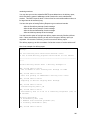
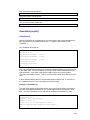
Ten sequential mailings are shown at a time. Note that the view here displays each
sequential mailing, NOT the individual mailings that comprise a sequential mailing. To
see the individual mailings that belong to a sequential mailing, click on the sequential
mailing name to be taken to the Sequential Details page, from where new mailings can
be added to the sequence.
To view more than ten at a time, click Show More. Repeatedly clicking Show More will
show greater numbers of triggered mailings at a time.
You may change the sorting order of the sequential mailings by clicking the up or down
triangles next to the Sequential Mailing Name or Count. By clicking the top triangle, the
sort order will be ascending (a-z); clicking the bottom arrow makes the sort order
descending (z-a).
Viewing or Editing an Existing Sequential Mailing
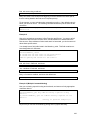
To view a sequential mailing, click the ID for that mailing. You will be taken to the
Sequential Details page, where you can test, reschedule, or delete the mailing in the
sequence, or further edit it by clicking the ID.
Testing an Existing Sequential Mailing
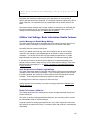
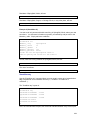
Sequential mailings must be tested from the Sequential Details page. Click Test next to
the mailing in the sequence like to test. ListManager will show you the name and
subject of the mailing. Enter a valid email address to test that the mailing arrives and to
verify the content. Enter a sample size (usually 1), and set whether or not to perform
spam analysis. It is strongly recommended that segments are tested when saved, to
make sure that no errors occur.
Rescheduling a Sequential Mailing
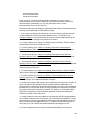
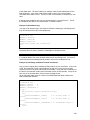
Sequential mailings can be rescheduled to be sent out on a different date or at a
different time. When you click "reschedule", this opens the "Reschedule Sequential
Mailing" page. Here, the Mailing name and Subject are hard coded and cannot be
edited, and the current send date and time are displayed. To unschedule this triggered
mailing completely, click "unschedule". This will prevent the mailing from going out at
all in the future. Enter the new rescheduled date and time, previous send date and time
(if necessary) upon which to base the send date calculations, or the new send
frequency. Changing these values allows you to skip sending mailings for a period of
time, or resend the mailing for a period of time.
Deleting a Sequential Mailing
Sequential mailings must be deleted from the Sequential Details page. Click Delete
next to the mailing you'd like to delete. ListManager will ask you if you're sure before
deleting the mailing.
146