1
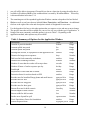
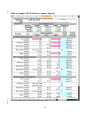
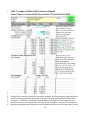
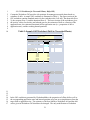
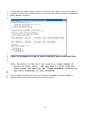
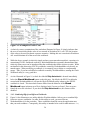
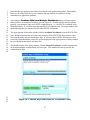
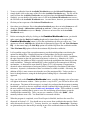
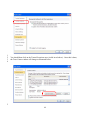
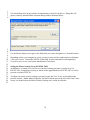
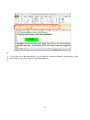
1 3. Using WorksheetMaker Workbooks 2 3 4 5 6 7 8 9 10 11 12 13 14 15 16 17 18 19 3.1. Mini-Documentation for Different Groups of Users 20 21 22 23 24 25 26 27 28 29 30 31 32 33 3.1.1. Reviewers or Readers Most individuals involved in reviewing or using the worksheets in combination with the full risk assessment will only need to look at Series E and Series G worksheets. These are the worksheets that summarize both the exposure assessments and risk characterizations. All of the worksheets which summarize exposures (e.g., Worksheets E01, E03 and G01) make reference to the more detailed calculation worksheets in which the exposure assessments are derived. These detailed calculation worksheets can be readily identified (see Section 3.2 for a discussion of the workbook structure). The calculation worksheets should be very easy to follow and all calculations should be totally transparent. Nonetheless, the rationale for the calculations is described in the risk assessments and documentation for the risk assessments (SERA 2007b) rather than in the worksheets. All risk summary worksheets (e.g., E02, E04, and G02) follow a consistent numeric formatting as summarized in the bottom section of Table 2 and detailed in Section 3.2.2.2. The worksheets are contained in a single file, an EXCEL workbook. The worksheets may be used by individuals reviewing or reading the risk assessments, individuals involved in the preparation of environmental documentation, or individuals modifying the worksheets for a different chemical. Each of these uses is discussed in the subsequent subsections. As discussed in Section 2.3, the workbooks created by WorksheetMaker contain macros. If you open the workbook in EXCEL, you may receive a message asking if you want the macros to be enabled. If you are just going to look at the worksheets (and not modify anything) it does not matter if you allow the macros to be activated. If you plan on changing any values, the macros must be enabled or some of the automatic rounding and formatting features as well as the workbook utilities (Section 3.4) will not work. If the worksheets do not appear to function at all, your security options in EXCEL may be set to the highest level. In this case, you will not receive any notice concerning macros but the macros will be disabled and the features of the workbook discussed in this documentation will not work. Use the menu series Tools Macros Security to check your security setting in EXCEL. Additional details of security settings in EXCEL are given in Appendix 1. 16