
1
Programmable AC/DC Power Source APS-1102A USER MANUAL GW INSTEK PART NO. 82PS-1102AM01 ISO-9001 CERTIFIED MANUFACTURER This manual contains proprietary information, which is protected by copyrights. All rights are reserved. No part of this manual may be photocopied, reproduced or translated to another language without prior written consent of Good Will company. The information in this manual was correct at the time of printing. However, Good Will continues to improve products and reserves the rights to change specification, equipment, and maintenance procedures at any time without notice. Good Will Instrument Co., Ltd. No. 7-1, Jhongsing Rd., Tucheng City, Taipei County 236, Taiwan. Preface Thank you for purchasing the APS-1102A programmable AC/DC power source. To ensure safe and proper use of this electric equipment, please read first Safety Precautions on the following pages. Caution Symbols Used in This Manual The following caution symbols are used in this manual. Be sure to observe these caution symbols and their contents to ensure the safety of the user and avoid damage to the equipment. ! WARNING This mark indicates information for the avoidance of a hazard such as electric shock that may endanger human life or cause injury during handling of the equipment. ! CAUTION This mark indicates information for the avoidance of damage to the equipment during handling. This manual has the following chapter organization. If reading this manual for the first time, start from 1. OVERVIEW. 1. OVERVIEW Briefly describes and explains the features, applications, and functions as well as brief operation principles of the APS-1102A. 2. PREPARATIONS BEFORE USE Describes various cautions regarding preparations to be made before using the APS-1102A, ranging from installation to connection of the power supply. 3. PANEL AND BASIC OPERATIONS Describes the functions and actions of the panel controls and their basic operations. Read this chapter while operating the APS-1102A. 4. ADVANCED OPERATION EXAMPLE Describes how to use advanced functions. 5. MENUS Explains the LCD screen configuration and setting items of each menu. 6. REMOTE INTERFACE Describes the commands for controlling the APS-1102A via the USB interface or RS232 interface. 7. TROUBLESHOOTING Describes error messages and handlings when problems occur. 8. MAINTENANCE Describes basic operation tests and daily maintenance procedures. 9. SPECIFICATIONS Lists the specifications (functions and performance) of the APS-1102A. i APS-1102A Safety Precautions To ensure safe use, be sure to observe the following warnings and cautions. GW Instek shall not be held liable for damages that arise from a failure to observe these warnings and cautions. This product is a Class 1 product (with protective conductor terminal) that conforms to the JIS and IEC insulation standards. Be sure to observe the contents of this instruction manual. This instruction manual contains information for the safe operation and use of this product. Be sure to read this information first before using this product. All the warnings in the instruction manual must be heeded to prevent hazards that ma y cause major accidents. Be sure to ground the product. This product uses a line filter and must be grounded to avoid the risk of electric shock. To prevent electric shock, be sure to safely implement grounding according to Japanese Standard for Electrical Equipment Technology D (100 or lower) or higher. The APS-1102A is automatically grounded when the 3-prong power plug is connected to a 3-prong power outlet with a protective grounding contact. This product does not come with a 3-prong to 2-prong conversion adapter. When using a separately sold 3-prong to 2-prong conversion adapter, be sure to connect the grounding wire of the adapter to the grounding terminal next to the outlet. Check the power supply voltage. This product operates on the power supply voltage indicated in Grounding and Power Supply Connection in this instruction manual. Prior to connecting the power supply, check that the voltage of the power supply matches the rated power supply of the product. In case of suspected anomaly If this product emits smoke, an abnormal smell, or abnormal noise, immediately power it off and stop using it. If such an anomaly occurs, do not use this product until it has been repaired, and immediately report the problem to the location of purchase (either GW Instek or our agent). Do not use this product when gas is present. An explosion or other such hazard may result. Do not remove the cover. This product contains high-voltage parts. Absolutely never remove its cover. Even when the inside of this product needs to be inspected, do not touch the inside. All such inspections are to be performed by service technicians designated by GW Instek. Do not modify this product. Absolutely never modify this product, as this may cause new hazards and may di squalify this product from repair in case of failure. APS-1102A ii Prevention of electrical shock due to output voltage The maximum output voltage of the APS-1102A is 440 V. Operate carefully the APS-1102A to avoid electrical shock. Directly touching the output or changing cable connections while output is on may cause electrical shock. Safety-related symbols The general definitions of the safety-related symbols used on this product and in the instruction manual are provided below. Instruction Manual Reference Symbol ! This symbol is displayed to alert the user to potential danger and refer him/her to the instruction manual. Electric Shock Danger Symbol This symbol indicates locations that present a risk of electric shock under specific conditions. Protective Ground-Terminal Symbol This symbol identifies a pin that must be grounded to avoid electric shock. Before operating the device, be sure to safely implement grounding according to Japanese Standard for Electrical Equipment Technology D (Type 3, 100 Ω or lower) or higher. ! Warning Symbol WARNING This symbol indicates information for avoiding danger to human life or bodily injury while handling this product. ! Caution Symbol CAUTION This symbol indicates information for preventing damage to the product when handling it. Other symbols This symbol indicates the “on” position of the power switch. This symbol indicates the “off” position of the power switch. This symbol indicates that the external conductor of the connector is connected to the case. This symbol indicates that the external conductor of the connector is connected to the signal ground. Waste disposal To help ensure environmental protection, please note the following precautions regarding disposal of this product. <1> This product contains a lithium battery. <2> The LCD backlight unit contains mercury. <3> Use a professional industrial waste contractor to dispose of this product. iii APS-1102A Contents page Preface ................................................................................................................ i Safety Precautions .............................................................................................. ii 1. OVERVIEW ........................................................................................................ 1-1 1.1 General ......................................................................................................... 1-2 1.2 Features ........................................................................................................ 1-2 1.3 Applications ................................................................................................... 1-3 1.4 List of Functions ............................................................................................ 1-5 1.5 Operation Principles ...................................................................................... 1-7 2. PREPARATIONS BEFORE USE ......................................................................... 2-1 2.1 Checking Before Use ..................................................................................... 2-2 2.2 Installation Environment ................................................................................ 2-3 2.3 Grounding and Power Supply Connection ..................................................... 2-6 2.4 Simple Operation Checks .............................................................................. 2-8 2.5 Calibration ................................................................................................... 2-10 3. PANEL AND BASIC OPERATIONS ..................................................................... 3-1 3.1 Panel Components and Operations ............................................................... 3-2 3.1.1 Operation panel ........................................................................................ 3-2 3.1.2 Front panel ............................................................................................... 3-3 3.1.3 Rear panel ............................................................................................... 3-4 3.2 Display and Initial Settings at Power-on ........................................................ 3-5 3.3 I/O Terminals ................................................................................................. 3-8 3.3.1 Output terminals (front and rear) .............................................................. 3-8 3.3.2 RS232 connector..................................................................................... 3-11 3.3.3 USB connector ....................................................................................... 3-12 3.3.4 External control I/O ................................................................................ 3-13 3.3.5 External signal input/external sync signal input terminal ......................... 3-15 3.4 Main Operation Example ............................................................................. 3-16 3.4.1 Power on/off ........................................................................................... 3-17 3.4.2 Setting output mode ............................................................................... 3-19 3.4.3 Setting output voltage range ................................................................... 3-21 3.4.4 Setting waveform ................................................................................... 3-23 3.4.5 Setting output voltage ............................................................................ 3-24 3.4.6 Setting output frequency ........................................................................ 3-26 3.4.7 Using limiter functions ............................................................................ 3-28 3.4.8 Output on/off .......................................................................................... 3-32 3.4.9 Using measurement functions ................................................................ 3-33 3.5 Output Characteristics ................................................................................. 3-36 4. ADVANCED OPERATION EXAMPLE .................................................................. 4-1 4.1 Use as a DC Power Source ........................................................................... 4-2 4.1.1 Connecting output terminal to load during DC output................................ 4-2 APS-1102A iv Contents 4.1.2 Selecting an output mode (AC+DC-INT mode) ......................................... 4-3 4.1.3 Setting the output voltage range ............................................................... 4-5 4.1.4 Setting the output voltage ......................................................................... 4-7 4.1.5 Setting output frequency of superimposed AC .......................................... 4-9 4.1.6 Setting superimposed AC waveform ....................................................... 4-10 4.1.7 Using the measurement function ............................................................. 4-11 4.2 Measurement of Inrush Current ................................................................... 4-15 4.2.1 Inrush current ......................................................................................... 4-15 4.2.2 Set phase at output on ........................................................................... 4-16 4.2.3 Set measurement display to peak value ................................................. 4-17 4.2.4 Reset the peak current hold value .......................................................... 4-18 4.3 Measurement of Harmonic Current .............................................................. 4-20 4.4 Using the Sequence Function ...................................................................... 4-22 4.4.1 Sequence operations ............................................................................. 4-22 4.4.2 Sequence settings .................................................................................. 4-29 4.4.3 Programming sequences ........................................................................ 4-31 4.4.4 Control of sequence operations .............................................................. 4-37 4.4.5 Clear sequence memory......................................................................... 4-39 4.4.6 Example of sequence operation settings ................................................ 4-40 4.4.7 Execution of sequence operations .......................................................... 4-44 4.5 Control Using External Control I/O Connector ............................................. 4-48 4.6 Output of Arbitrary Waveforms ..................................................................... 4-49 4.7 Synchronize the Output with External Signal ............................................... 4-51 4.7.1 External signal synchronization .............................................................. 4-52 4.7.2 Line synchronization .............................................................................. 4-54 4.8 Using Memory Functions ............................................................................. 4-55 4.9 Amplification of External Signal ................................................................... 4-58 4.10 Adding External Signals and Internal Signals .............................................. 4-62 5. MENUS .............................................................................................................. 5-1 5.1 Screen Configuration ..................................................................................... 5-3 5.1.1 Status icons .............................................................................................. 5-5 5.1.2 Warnings and error messages .................................................................. 5-6 5.1.3 Sequence display ..................................................................................... 5-6 5.2 Basic Operations ........................................................................................... 5-7 5.2.1 Menus ...................................................................................................... 5-7 5.2.2 Navigating the menu tree ....................................................................... 5-12 5.2.3 Numerical value input operations ........................................................... 5-13 5.2.4 Selection and input operations that require confirmation ........................ 5-13 5.2.5 EXEC input ............................................................................................ 5-14 5.2.6 Shortcut keys ......................................................................................... 5-14 5.3 SET Menu ................................................................................................... 5-15 5.3.1 Output mode setting ............................................................................... 5-16 5.3.2 Output voltage range setting .................................................................. 5-17 5.3.3 Setting output voltage ............................................................................ 5-18 5.3.4 Setting output frequency ........................................................................ 5-19 v APS-1102A Contents 5.3.5 Output initial phase settings ................................................................... 5-19 5.3.6 Waveform settings .................................................................................. 5-20 5.3.7 Peak current limiter settings ................................................................... 5-21 5.3.8 RMS current limiter settings ................................................................... 5-22 5.4 MEASURE Screen....................................................................................... 5-23 5.4.1 Output voltage measurement ................................................................. 5-24 5.4.2 Output current measurement .................................................................. 5-25 5.4.3 Output power measurement ................................................................... 5-26 5.4.4 Load power factor measurement ............................................................ 5-26 5.4.5 Load crest factor measurement .............................................................. 5-27 5.4.6 Output harmonic current measurement .................................................. 5-27 5.4.7 External synchronization frequency measurement .................................. 5-27 5.5 MISC Menu ................................................................................................. 5-28 5.5.1 Sequence (SEQUENCE) ........................................................................ 5-28 5.5.2 Memory (MEMORY) ............................................................................... 5-32 5.5.3 Remote (REMOTE) ................................................................................ 5-33 5.5.4 System (SYSTEM) ................................................................................. 5-34 5.5.5 Setting range limiter (LIMIT) ................................................................... 5-35 5.5.6 Selection of measurement display (MEASURE)...................................... 5-36 5.5.7 Reset of peak current hold value ............................................................ 5-36 5.5.8 Output on/off .......................................................................................... 5-37 5.5.9 Adjusting DC offset ................................................................................ 5-38 5.6 System Menu .............................................................................................. 5-40 5.6.1 Keylock .................................................................................................. 5-42 5.6.2 Beep sound ............................................................................................ 5-43 5.6.3 LCD contrast adjustment ........................................................................ 5-44 5.6.4 LCD display color setting ........................................................................ 5-45 5.6.5 Time unit setting ..................................................................................... 5-46 5.6.6 Output on/off setting at power-on ........................................................... 5-47 5.6.7 External control input enable/disable setting .......................................... 5-48 5.6.8 Reset function ........................................................................................ 5-49 5.6.9 System information ................................................................................ 5-49 6. REMOTE INTERFACE ........................................................................................ 6-1 6.1 Remote Interface ........................................................................................... 6-2 6.1.1 USB ......................................................................................................... 6-2 6.1.2 RS232 ...................................................................................................... 6-4 6.2 Command List ............................................................................................... 6-7 6.3 Command Descriptions ............................................................................... 6-13 6.3.1 Overview of Programming Language ...................................................... 6-13 6.3.2 Detailed command descriptions .............................................................. 6-18 6.4 Command Tree ............................................................................................ 6-49 6.5 Status System ............................................................................................. 6-50 6.5.1 Status byte ............................................................................................. 6-51 6.5.2 Standard event status ............................................................................. 6-52 6.5.3 Operation status ..................................................................................... 6-54 APS-1102A vi Contents 6.5.4 Warning status ....................................................................................... 6-55 6.6 Error Message List ...................................................................................... 6-56 6.7 Programming example ................................................................................. 6-57 6.8 Programming Precautions ........................................................................... 6-57 6.9 Notes on Remote Control ............................................................................ 6-57 7. TROUBLESHOOTING ........................................................................................ 7-1 7.1 Protection Function ....................................................................................... 7-2 7.2 Error Messages and Error Handling ............................................................... 7-4 7.2.1 Error at power-on ..................................................................................... 7-5 7.2.2 Protection function-related errors ............................................................. 7-6 7.2.3 Panel operation errors .............................................................................. 7-7 7.2.4 Warning messages ................................................................................... 7-9 7.2.5 Remote-related external control errors .................................................... 7-11 7.3 When Failure Is Suspected .......................................................................... 7-12 8. MAINTENANCE .................................................................................................. 8-1 8.1 Introduction ................................................................................................... 8-2 8.2 Routine Maintenance ..................................................................................... 8-2 8.3 Storage, Repackaging, and Transportation .................................................... 8-4 8.4 Checking the Version Number ....................................................................... 8-5 8.5 Backup Battery .............................................................................................. 8-7 9. SPECIFICATIONS .............................................................................................. 9-1 9.1 Output ........................................................................................................... 9-2 9.2 Current Limiter .............................................................................................. 9-6 9.3 Setting Range Limits ..................................................................................... 9-6 9.4 Signal Sources .............................................................................................. 9-7 9.5 Measurement Functions ................................................................................ 9-8 9.6 Sequence Function ...................................................................................... 9-11 9.7 Arbitrary Waveform Memory .......................................................................... 9-12 9.8 Setting Memory ........................................................................................... 9-12 9.9 Protection Functions .................................................................................... 9-12 9.10 General ....................................................................................................... 9-13 9.11 External Control I/O ..................................................................................... 9-14 9.12 External Interface ........................................................................................ 9-15 9.13 Power Input ................................................................................................. 9-15 9.14 Withstand Voltage and Insulation Resistance .............................................. 9-16 9.15 Safety and EMC .......................................................................................... 9-16 9.16 Ambient Temperature Range, Ambient Humidity Range, Etc. ....................... 9-17 9.17 External Dimensions and Weight ................................................................. 9-18 vii APS-1102A Figures Figures page Figure 1-1. Block Diagram............................................................................................... 1-7 Figure 2-1. Ambient Temperature and Humidity Ranges .................................................. 2-4 Figure 2-2. Power Source Inlet ........................................................................................ 2-7 Figure 2-3. Operation Check ........................................................................................... 2-9 Figure 3-1. APS-1102A Operation Panel ......................................................................... 3-2 Figure 3-2. APS-1102A Front Panel ................................................................................. 3-3 Figure 3-3. APS-1102A Rear Panel ................................................................................. 3-4 Figure 3-4. Output Outlets (Front) ................................................................................... 3-8 Figure 3-5. Output Terminals (Rear) ................................................................................ 3-9 Figure 3-6. Connection to Output Terminals .................................................................. 3-10 Figure 3-7. RS232 Connector ......................................................................................... 3-11 Figure 3-8. USB Connector ........................................................................................... 3-12 Figure 3-9. External Control I/O Connector ................................................................... 3-13 Figure 3-10. EXT SIG IN/EXT SYNC IN Terminal .......................................................... 3-15 Figure 3-11. POWER Switch ......................................................................................... 3-17 Figure 3-12. Example of Main Operations Screen (in AC-INT Mode) ............................. 3-18 Figure 3-13. Example of Measured Value Window (AC-INT Mode) ................................ 3-33 Figure 3-14. Output Voltage(AC) vs. Output Current Characteristics ............................. 3-36 Figure 3-15. Output Voltage(AC) vs. Output Current Characteristics ............................. 3-36 Figure 3-16. Output Voltage(DC) vs. Output Current Characteristics ............................. 3-37 Figure 3-17. Output Voltage(DC) vs. Output Current Characteristics ............................. 3-37 Figure 4-1. Connection of Block Diode ............................................................................ 4-3 Figure 4-2. Connection of Backflow Diode ....................................................................... 4-3 Figure 4-3. Example of Measured Value Window (During AC+DC Mode) ....................... 4-11 Figure 4-4. Example of Harmonic Measurement Window Display .................................. 4-21 Figure 4-5. Example of Basic Step Transitions .............................................................. 4-25 Figure 4-6. Block Diagram of Sequence Mode Transitions ............................................ 4-25 Figure 4-7. Example of Sequence Operation from Hold Mode to <Start> ....................... 4-26 Figure 4-8. Example of Sequence Operation at <Branch> ............................................. 4-26 Figure 4-9. Loop Specification Method and Step Transition Example ............................. 4-27 Figure 4-10. Example of Step Synchronized Output ...................................................... 4-28 Figure 4-11. Sequence Operation during Wait for Phase 0°........................................... 4-28 Figure 4-12. Sequence Shortcut Keys ........................................................................... 4-38 Figure 4-13. Step Transition Example (during AC+DC-INT mode) ................................. 4-40 Figure 4-14. LCD Screen During Sequence Execution .................................................. 4-47 Figure 4-15. Synchronized TTL Signal .......................................................................... 4-51 Figure 4-16. Example of Settings from Memory ............................................................. 4-55 Figure 5-1. LCD Screen (When Normal) .......................................................................... 5-3 APS-1102A viii Figures Figure 5-2. LCD Screen (When Warning Is Displayed) .................................................... 5-3 Figure 5-3. Menu Tree ..................................................................................................... 5-7 Figure 5-4. Modification Box ......................................................................................... 5-13 Figure 5-5. Selection Box .............................................................................................. 5-13 Figure 5-6. EXEC Box ................................................................................................... 5-14 Figure 5-7. Block Diagram of Signal Sources ................................................................ 5-17 Figure 6-1. Binary Block Data ....................................................................................... 6-14 Figure 6-2. Partial Command Tree ................................................................................ 6-15 Figure 6-3. Command Tree ........................................................................................... 6-49 Figure 6-4. Status System ............................................................................................. 6-50 Figure 6-5. Standard Event Status Register ................................................................... 6-52 Figure 6-6. Operation Status ......................................................................................... 6-54 Figure 6-7. Warning Status ............................................................................................ 6-55 Figure 7-1. Screen Display When Self Fault Check Errors Have Occurred ...................... 7-5 Figure 7-2. Screen Display When Protection Function-Related Error Has Occurred ........ 7-6 Figure 7-3. Screen Display When Panel Operation Error Has Occurred .......................... 7-7 Figure 7-4. Screen Display When Warning Has Occurred ............................................... 7-9 Figure 8-1. Air Filter Cleaning Steps ................................................................................ 8-3 Figure 8-2. SYSTEM INFORMATION Screen .................................................................. 8-6 Figure 9-1. Temperature and Humidity Ranges ............................................................. 9-17 Figure 9-2. External Dimensions ................................................................................... 9-19 ix APS-1102A Tables Tables page Table 1-1. List of Functions (1/2) ..................................................................................... 1-5 Table1-2. List of Functions (2/2) ...................................................................................... 1-6 Table2-1. Panel Settings for Operation Check ................................................................. 2-9 Table3-1. Settings in Memory (1/3) .................................................................................. 3-5 Table3-2. Settings in Memory (2/3) .................................................................................. 3-6 Table3-3. Settings in Memory (3/3) .................................................................................. 3-7 Table3-4. Specification of RS232 interface ..................................................................... 3-11 Table3-5. Specification of USB interface ....................................................................... 3-12 Table3-6. External Control I/O Connectors .................................................................... 3-14 Table3-7. Output Mode List ........................................................................................... 3-19 Table3-8. List of Setting Ranges for Various Output Voltage Range .............................. 3-21 Table3-9. Waveform List ................................................................................................ 3-23 Table3-10. Output Voltage Settings ............................................................................... 3-24 Table3-11. Output Frequency Setting ............................................................................ 3-26 Table3-12. Current Limiter Setting Ranges .................................................................... 3-28 Table3-13. Voltage and Frequency Setting Range Limiter ............................................. 3-30 Table4-1. Panel Settings When Using APS-1102A as a DC Power Source ...................... 4-2 Table4-2. Setting Range Options for Various Output Voltage Ranges .............................. 4-5 Table4-3. Output Voltage Setting Ranges When AC+DC Mode Is Selected ..................... 4-7 Table4-4. Step Execution Parameters ........................................................................... 4-23 Table4-5. Step Transition Parameters ........................................................................... 4-24 Table4-6. Sequence Modes ........................................................................................... 4-25 Table4-7. Sequence Control .......................................................................................... 4-26 Table4-8. Setting Items in PROGRAM Screen (1/3) ...................................................... 4-32 Table4-9. Setting Items in PROGRAM Screen (2/3) ...................................................... 4-33 Table4-10. Setting Items in PROGRAM Screen (3/3) ..................................................... 4-34 Table4-11. Items in CONTROL Selection Box ................................................................ 4-37 Table4-12. Program Settings ......................................................................................... 4-40 Table4-13. Functions of External Control I/O Connector ................................................ 4-48 Table4-14. Menu Items in MEMORY Screen .................................................................. 4-55 Table4-15. External Input Gain Setting Range ............................................................... 4-58 Table5-1. Status Icons List .............................................................................................. 5-5 Table5-2. Sequence Display ............................................................................................ 5-6 Table5-3. Items in SET Menu .......................................................................................... 5-8 Table5-4. Items in MISC Menu ........................................................................................ 5-9 Table5-5. Items in SEQUENCE Menu............................................................................ 5-10 Table5-6. Items in MEMORY Menu ............................................................................... 5-10 Table5-7. Items in REMOTE Menu ................................................................................. 5-11 APS-1102A x Tables Table5-8. Items in SYSTEM Menu .................................................................................. 5-11 Table5-9. Items in LIMIT Menu ....................................................................................... 5-11 Table5-10. Shortcut Keys .............................................................................................. 5-14 Table5-11. SET Menu Items and Output Modes ............................................................. 5-15 Table5-12. Output Modes .............................................................................................. 5-16 Table5-13. Output Voltage Settings ............................................................................... 5-18 Table5-14. Output Frequency Setting ............................................................................ 5-19 Table5-15. Output Initial Phase Settings ....................................................................... 5-19 Table5-16. Peak Current Limiter Setting Range ............................................................. 5-21 Table5-17. RMS Current Limiter Setting Range ............................................................. 5-22 Table5-18. Display Items in MEASURE Screen ............................................................. 5-23 Table5-19. Items in CONTROL Selection Box ............................................................... 5-28 Table5-20. PROGRAM Screen Items (1/3) .................................................................... 5-29 Table5-21. PROGRAM Screen Items (2/3) .................................................................... 5-30 Table5-22. PROGRAM Screen Items (3/3) .................................................................... 5-31 Table5-23. Setting Range Limit (LIMIT) ......................................................................... 5-35 Table5-24. Setting range of DC offset adjustment value ................................................ 5-38 Table6-1. Command List (SOURce Subsystem)(1/2) ....................................................... 6-7 Table6-2. Command List (SOURce Subsystem)(2/2) ....................................................... 6-8 Table6-3. Command List (MEASure Subsystem) ............................................................. 6-8 Table6-4. Command List (DISPlay Subsystem) ............................................................... 6-8 Table6-5. Command List (STATus Subsystem) ................................................................ 6-9 Table6-6. Command List (OUTPut Subsystem) ............................................................... 6-9 Table6-7. Command List (INPut Subsystem) ................................................................... 6-9 Table6-8. Command List (TRACe Subsystem) ................................................................ 6-9 Table6-9. Command List (SYSTem Subsystem) ............................................................ 6-10 Table6-10. Command List (PROGram Subsystem) ........................................................ 6-10 Table6-11. Common Command List (Common Commands and Queries) ........................ 6-11 Table6-12. Numerical Value Data Format ...................................................................... 6-14 Table6-13. Character Data Format ................................................................................ 6-14 Table6-14. Status Byte Register Definitions ................................................................... 6-51 Table6-15. Standard Event Status Register Definitions .................................................. 6-53 Table6-16. Error Message List ....................................................................................... 6-56 Table7-1. Protection Function .......................................................................................... 7-3 Table7-2. Self Fault Check Messages ............................................................................. 7-5 Table7-3. Protection Function-Related Errors .................................................................. 7-6 Table7-4. Panel Operation Errors (1/2) ............................................................................ 7-7 Table7-5. Panel Operation Errors (2/2) ............................................................................ 7-8 Table7-6. Warning Messages (1/2) .................................................................................. 7-9 Table7-7. Warning Messages (2/2) ................................................................................ 7-10 Table7-8. Remote Error Message List ............................................................................ 7-11 xi APS-1102A Tables Table7-9. When Failure Is Suspected (Problem when Switching Power on/off) .............. 7-12 Table7-10. When Failure Is Suspected (Problem During Key Operation) ....................... 7-12 Table7-11. When Failure Is Suspected (Problem Related to Output Voltage or Output Voltage Range Setting) ........ 7-13 Table7-12. When Failure Is Suspected (Problem Related to Frequency Setting) ........... 7-13 Table7-13. When Failure Is Suspected (Problem Related to Output Error) .................... 7-14 Table7-14. When Failure Is Suspected (Problem Related to Measurement Functions) .. 7-15 Table7-15. When Failure Is Suspected (Problem Related to Sequence Function) ......... 7-15 Table7-16. When Failure Is Suspected (Problem Related to Memory Function) ............. 7-15 Table7-17. When Failure Is Suspected (Problem Related to Limiter Setting Range Limit) ........................................ 7-16 Table7-18. When Failure Is Suspected (Other Problems) .............................................. 7-16 APS-1102A xii Tables xiii APS-1102A 1 OVERVIEW 1. OVERVIEW 1.1 General ............................................................................ 1-2 1.2 Features ........................................................................... 1-2 1.3 Applications ...................................................................... 1-3 1.4 List of Functions ............................................................... 1-5 1.5 Operation Principles ......................................................... 1-7 1-1 APS-1102A APS-1102A User Manual 1.1 General The APS-1102A programmable AC/DC power source is a power source that can output AC and DC power, features a compact design for convenient desktop use, and provides a wealth of measurement functions. Rated output voltage is 100 Varmus (100 V range) or 200 Vrms (200 V range), with maximum output capacity of 1 kVA (during AC 200 V input). It also features eight output modes, with DC output, external input amplification, and line-synchronized output. The APS-1102A can be controlled remotely from an external computer via USB or RS232 interface. The accompanying software supports use of the following functions. Panel operations Sequence editing and execution Arbitrary waveform editing and transfer Data logger (by capturing measured values) Worldwide power supply input is supported. Input power factor control function minimizes power supply input current. 1.2 Features Control panel with large LCD screen Settings and measured values are displayed on a large, easy-to-read backlit screen. Various output modes Output modes include two operation modes: alternate current (AC) and direct current (AC+DC), each of which can be combined with four signal source modes: internal (INT), external (EXT), internal + external (ADD), and external synchronization (SYNC) for a total of eight modes. In the AC mode, DC component is removed. Various measurement functions The APS-1102A is equipped with the following measurement functions. Voltage (RMS value, average DC value, peak value) Current (RMS value, average DC value, peak value, peak hold value) Power (effective, reactive, apparent) Frequency (only in the external synchronization mode) Load power factor Load crest factor APS-1102A 1-2 1 OVERVIEW Harmonic current (up to 40th harmonic, 50 Hz/60 Hz fundamental only) Note: This measurement does not conform to the IEC or other standard. Enables AC-superimposed DC output When in the AC+DC mode, an AC wave (sine wave, square wave, or arbitrary waveform) can be superimposed on the DC output. Also supports capacitor input load (up to crest factor 4 is supported) Enables peak current output of up to four times as large as the maximum current (RMS value). Can be used as an external input amplifier When “internal + external” is selected, an internal signal source can be added to the external signal input. Sequence function When using an internal signal source, output parameters (output voltage, output frequency, etc.) can be successively and rapidly changed or swept. In addition, output of specified patterns can be provided by program in advance. Output current limiter function, voltage and frequency upper limit and lower limit setting functions The output current is limited within the maximum values that have been set independently for positive and negative. As for the output voltage and the output frequency, their setting ranges can be adjustable. USB interface (USBTMC), RS232 interface are standard equipped USB interface and RS232 interface are provided for external control, such as from a personal computer. Output outlets equipped on front panel (universal type) Various types of power plugs from around the world can be connected. Supports worldwide range input power line voltages Input power factor control (PFC) function for 90 V AC to 250 V AC helps minimize input power line current. 1.3 Applications Research, development, and testing of various small-capacity built-in power source units Research, development, and testing of various compact consumer electronics devices Testing of battery-powered modules 1-3 APS-1102A APS-1102A User Manual As power source for testing characteristics of relays and switches As power source for tests included in inspection lines for various devices APS-1102A 1-4 1 OVERVIEW 1.4 List of Functions The main functions of the APS-1102A are listed below. Table 1-1. List of Functions (1/2) Function Output mode Output system Description Total of 8 modes (combinations of operation mode and signal source mode) Alternate current - internal signal source (AC-INT mode) Alternate current - external signal source (AC-EXT mode) Alternate current - internal + external signal sources (AC-ADD mode) Alternate current - external synchronization (AC-SYNC mode) Direct current - internal signal source (AC+DC-INT mode) Direct current - external signal source (AC+DC-EXT mode) Direct current - internal + external signal sources (AC+DC-INT mode) Direct current - external synchronization (AC+DC-SYNC mode) Output on/off switch Output voltage range 100 V range and 200 V range Output voltage waveform (not including external signal Sine wave, square wave, arbitrary waveform (16 types) source mode) Peak current limiter function and RMS current limiter Current limiter function (variable limit values) Setting range limiter function for output voltage and output frequency Setting range limiter Internal mode (AC-INT, AC+DC-INT) and internal + (not including external signal external mode (AC-ADD, AC+DC-ADD) only source mode) Setting range limiter function for output voltage External synchronization mode (AC-SYNC, AC+DC-SYNC) Sequential output Synchronized output Basic measurements Measure ment function Others Output parameters: jump or sweep. Can be synchronized with external sync signal or line frequency Voltage: RMS, average, peak Current: RMS, average, peak, peak hold Power: Effective, reactive, apparent Synchronization frequency: Only in SYNC mode Load power factor Load crest factor Harmonic current: 50 Hz/60 Hz fundamental only, up to 40th 1-5 APS-1102A APS-1102A User Manual Table1-2. List of Functions (2/2) Function USB interface External control operation modes: Enable, disable Control input: Input level: High level: +4.0 V or higher Low level: +1.0 V or lower Non-destructive max. input: +10 V/5 V Input impedance: Pull-up to +5 V at 47 k Control items: Output on/off, sequence start/stop, hold, branch Status output: Output level: 0 V/+5 V (open) Output impedance: 100 Status items: Power on/off, output on/off, limiter operation, software busy, sequence operation step sync output Terminal: D-sub 25-pin multi-connector Standard equipped RS232 interface Standard equipped External control I/O External control APS-1102A Description 1-6 1 OVERVIEW 1.5 Operation Principles Figure 1-1 shows a block diagram of the APS-1102A. <2>CONTROLLER RS232 PANEL USB SYSTEM CONTROL CONTROL I/O DISPLAY AMP CONTROL OSC EXT SIG IN ±2.2V MAX Zin=10kΩ EXT SYNC IN TTL <1>PFC INVERTER <4>AMP INVERTER <3>AMP 1 SUB-DCPS CIRCUIT ~LINE 100V-230V 50Hz/60Hz 1.4kVA MAX ISO CIRCUIT (PRI) POWER PFC CIRCUIT LINE FILTER ISO CIRCUIT (SEC) POWER PROTECT AMP RANGE CHANGER OUTPUT ±440Vpk MAX 1kVA MAX <3>AMP 2 ISO CIRCUIT (PRI) ISO CIRCUIT (SEC) OUTPUT AC250V MAX 1kVA MAX POWER PROTECT AMP Figure 1-1. Block Diagram The APS-1102A is broadly divided into four blocks. <1> DC power source block The DC power source block includes power factor improvement functions. The block provides DC power sources for various devices on PCBs and for the amplifier block, while improving the power factor of power supply input. <2> Signal source and system control block This block includes an internal signal source with sequence functions, and is able to provide AC+DC output. It can also be used with added external inputs and internal signal sources. This block also contains the user interface. <3> Isolation block The isolation block isolates the primary side (mains circuit) and secondary sides. <4> Amplifier block The amplifier block includes a protection circuit. 1-7 APS-1102A 2 PREPARATIONS BEFORE USE 2. PREPARATIONS BEFORE USE 2.1 Checking Before Use ........................................................ 2-2 2.2 Installation Environment ................................................... 2-3 2.3 Grounding and Power Supply Connection ........................ 2-6 2.4 Simple Operation Checks ................................................. 2-8 2.5 Calibration ...................................................................... 2-10 2-1 APS-1102A APS-1102A User Manual 2.1 Checking Before Use Before installing and using the APS-1102A, make sure that it has not been damaged during shipment, and check that all the accessories and all parts of the main unit are included. If anything is missing, contact the GW Instek or our agent from which the product was purchased. Safety check To ensure safety in using the APS-1102A, the user should read the following sections of this instruction manual before using the APS-1102A: See “Safety Precautions” (provided at the beginning of this instruction manual) See “2.3 Grounding and Power Supply Connection” Appearance and accessories check If an abnormality (such as a flaw or dent) is found on the outside surface of the corrugated box, carefully check if the product is adversely affected when removing the product from the corrugated box. After opening the corrugated box, check the items contained in the box. If an abnormality such as a flaw or dent is found on the product, or an accessory is missing, contact GW Instek or our agent. Appearance check Check that no abnormalities such as a flaw and dent are found on the panel, controls, connectors, and so forth. Accessories check The accessories of this product are listed below. Check that there are no missing items and no flaws are found. Instruction Manual (APS-1102A Instruction Manual) 1 Remote Control software (CD-ROM) 1 Power cord set 1 (varies depending on destination, 15 A/125 V for Japan, 2 m approx.) 1 Power cord set 2 (10 A/250 V, without plug, for Japan, North America, and Europe only, 1.5 m approx.) ! 1 WARNING This product contains high-voltage parts. Never remove the cover. All internal inspections of this product are to be performed only by service technicians qualified by GW Instek. APS-1102A 2-2 2 PREPARATIONS BEFORE USE 2.2 Installation Environment Note the following precautions to ensure the safe use and reliability of this product. Installation sites Do not set the product on its rear, top and side when installing it on a floor or desktop. Make sure that the four rubber feet on the bottom of the product are set evenly on a flat surface when placed on a floor or desktop. To prevent risk of toppling, be sure to set this product on a surface that is level and is not subject to vibration, so that it can securely support this product weight (approximately 9.7 kg). Cautions for transport When transporting this product, use the grips on the left side to keep the product upright while moving it horizontally. When transporting this product by hand cart, mount it on a horizontal surface, so that all four rubber feet equally support its weight. ! CAUTION If the APS-1102A is exposed to sudden shifts in ambient temperature and/or humidity during transportation in winter, internal condensation may occur. In such a case, leave the APS-1102A until the condensation has cleared before connecting the APS-1102A to a power supply. 2-3 APS-1102A APS-1102A User Manual Conditions of installation site The APS-1102A should be used indoors, and at altitude up to 2000 m. The APS-1102A uses a fan for forced-air cooling. To allow for ample air flow, be sure to maintain a gap of at least 50 cm between the air inlets and outlets along the sides and rear of this product and walls or other obstructions. Do not stack the product on top of the other, or place it in front or back of the other (arrangement which makes the cabinet placed behind inhale the exhaust heat of the other). Install this product in a location that meets the following conditions for temperature and humidity ranges. 0°C to +40°C 5% to 85%RH Absolute humidity of 1 g/m3 to 25 g/m 3, no condensation. Performance guarantee +5°C to +35°C 5% to 85%RH Absolute humidity of 1 g/m3 to 25 g/m 3, no condensation. Storage condition 10°C to +50°C 5% to 95%RH Absolute humidity of 1 g/m3 to 29 g/m 3, no condensation. Operation guarantee Product reliability may decline in extreme temperature and/or humidity environments. An environment of approximately 25°C and 50%RH is recommended. Figure 2-1 illustrates these ambient temperature and humidity ranges. %RH Storage condition 90 80 Performance guarantee 70 60 Operation guarantee 50 40 30 20 10 0 10 0 10 20 30 40 50 C Figure 2-1. Ambient Temperature and Humidity Ranges APS-1102A 2-4 2 PREPARATIONS BEFORE USE Do not install the APS-1102A in the following locations: Location with flammable gas An explosion may occur. Never install and use this product in such a location. Outdoors, or location exposed to direct sunlight or near a fire or heat source The full performance of this product may not be obtained, or failure may occur. Location with corrosive gas, moisture, or high humidity This product may become corroded or fail. Location near an electromagnetic field source, high-voltage device, or power line This product may malfunction. Location exposed to excessive vibration This product may malfunction or fail. Location with excessive dust In particular, electrically conductive dust may cause failure of this product. 2-5 APS-1102A APS-1102A User Manual 2.3 Grounding and Power Supply Connection Be sure to ground the APS-1102A. WARNING ! This product uses a line filter. Be sure to ground this product. Otherwise, an electric shock may occur. To prevent an electric shock from occurring, be sure to ground the APS-1102A according to "Electric Equipment Technical Standard Class D (100 or less) Grounding" or higher. When the input power line is 100 V AC, use power cord set 1. When a 3-prong power plug that includes a protective ground contact is connected to a 3-prong power supply outlet, this product is grounded automatically. Power cord set 1 (Japan version) is rated at 125 V AC. When the input power line is 200 V AC, use power cord set 2 equipped with a terminal or crimp contact that suits the type of outlet to be used. Always connect a ground when using power cord set 2. Power cord set 2 is rated at 250 V AC. A 3-prong/2-prong conversion adapter is not provided with this product. If a 3-prong/2-prong conversion adapter is used, the adaptor ground wire must be connected to a ground contact next to the outlet. ! CAUTION The power code set can be used for disconnecting the product from AC power line in case of emergency. Maintain enough space around the inlet, to be able to remove the connector of a power cord from the inlet. Use a power socket located at convenient place with adequate space around so that the plug can be removed from socket . The power requirements of this product are as follows: Voltage range: 100 V AC to 230 V AC 10 % (when at 250 V or less) Overvoltage category II Frequency range: 50 Hz 2 Hz /60 Hz 2 Hz (single phase) Power consumption: 1.4 kVA or less APS-1102A 2-6 2 PREPARATIONS BEFORE USE Connect the power in this order. 1. Make sure that the power source voltage to be used is within the specified range. 2. Set the power switch to off. 3. Insert the power cord into the inlet on the rear panel. Inlet Figure 2-2. Power Source Inlet 4. Insert the power cord plug into a 3-prong power source outlet (use the supplied power source cord set 1). ! WARNING Before connecting the accompanying power cord set 2 to a touchable terminal, be sure to interrupt a power supply. An electric shock may occur. ! CAUTION The accompanying power cord set 1 (Japan version) complies with Japan Electrical Appliance and Material Safety Law and is for use in Japan only. The rated voltage is 125 V AC and the withstand voltage is 1250 V AC. This power cord set cannot be used when the voltage exceeds 125 V AC or in locations outside of Japan. ! CAUTION The accompanying power cord set 2 is intended for use in Japan, North America, and Europe. The rated voltage is 250 V AC and the withstand voltage is 2000 V AC. Attach a plug or crimp contact that suits the use environment. When using this cord set in Japan, be sure to use a plug that complies with Japan Electrical Appliance and Material Safety Law. ! CAUTION The accompanying power cord sets are for use with this product only. Do not use them with other products or application systems. Use only the attached power code set for connection to AC power line. The product itself has a withstand voltage of 1500 V AC. 2-7 APS-1102A APS-1102A User Manual 2.4 Simple Operation Checks The following describes simple methods for checking newly purchased products or products that have been in long-term storage. ! WARNING This product contains high-voltage parts. Never remove the cover. All internal inspections of this product are to be performed only by service technicians qualified by GW Instek. Check that the power goes on normally, and that the measured value set via the control panel is displayed correctly on the MEASURE screen. Operation steps 1. Set the APS-1102A power source switch to on. See “3.4.1 Power on/off”. Operation starts once the power is on. <1> Press switch to up ( | ) position. <2> The LCD goes on and displays the initial screen. The main operations screen that appears immediately after the power-on shows the same settings that were displayed the last time the power was turned off. When a newly purchased unit is turned on for the first time, the initial settings (factory settings) are displayed. See “3.2 Display and Initial Settings at Power-on”, for description of the initial settings. APS-1102A 2-8 2 PREPARATIONS BEFORE USE 2. Panel settings See “3.4 Main Operation Example”, for descriptors Set the APS-1102A as shown below. of the settings methods. Table2-1. Panel Settings for Operation Check Item Setting Output mode AC-INT mode Output voltage range 100 V AC output voltage 100 Vrms Selected measurement display RMS OUTPUT 3. Press the key to turn on output. Output on/off LED is on. OUTPUT Output is off. OUTPUT Output is on. ⇒ Check that the control panel MEASURE screen shows 100 Vrms as the AC output voltage. Check display. Figure 2-3. Operation Check ⇒ If the normal values are not displayed, it may be due to an operation fault. Contact GW Instek or our agent. 4. When you turn off the power, check the OUTPUT on/off LED is off. Then press the power switch to the bottom () position. This shuts off the power supply and turns off the power source unit. ! CAUTION Before turning off the power, make sure that the output on/off LED is off. 2-9 APS-1102A APS-1102A User Manual 2.5 Calibration To calibrate the APS-1102A, contact GW Instek or our agent. APS-1102A 2-10 3 PANEL AND BASIC OPERATIONS 3. PANEL AND BASIC OPERATIONS 3.1 Panel Components and Operations .................................. 3-2 3.1.1 Operation panel ......................................................... 3-2 3.1.2 Front panel ................................................................ 3-3 3.1.3 Rear panel ................................................................ 3-4 3.2 Display and Initial Settings at Power-on ........................... 3-5 3.3 I/O Terminals .................................................................... 3-8 3.3.1 Output terminals (front and rear) ............................... 3-8 3.3.2 RS232 connector ...................................................... 3-11 3.3.3 USB connector ........................................................ 3-12 3.3.4 External control I/O ................................................. 3-13 3.3.5 External signal input/external sync signal input terminal . ................................................................................ 3-15 3.4 Main Operation Example ............................................... 3-16 3.4.1 Power on/off ............................................................ 3-17 3.4.2 Setting output mode ................................................ 3-19 3.4.3 Setting output voltage range .................................... 3-21 3.4.4 Setting waveform ..................................................... 3-23 3.4.5 Setting output voltage .............................................. 3-24 3.4.6 Setting output frequency.......................................... 3-26 3.4.7 Using limiter functions ............................................. 3-28 3.4.8 Output on/off ........................................................... 3-32 3.4.9 Using measurement functions ................................. 3-33 3.5 Output Characteristics .................................................... 3-36 3-1 APS-1102A APS-1102A User Manual 3.1 Panel Components and Operations 3.1.1 Operation panel Numbers shown after names in the following figures correspond to item numbers in the detailed descriptions below. LCD 5.1 CANCEL key ENTER key Output ON/OFF LED 3.4.8 MODIFY dial DIGIT key OUTPUT key 3.4.8 UP/DOWN keys Shortcut keys 5.2.6 Figure 3-1. APS-1102A Operation Panel APS-1102A 3-2 5.2 5.2 5.2 5.2 5.2 3 PANEL AND BASIC OPERATIONS 3.1.2 Front panel Numbers shown after names in the following figures correspond to item numbers in the detailed descriptions below. Power switch Intake vent 3.4.1 8.2 Output outlets (universal type) 3.3.1 Figure 3-2. APS-1102A Front Panel 3-3 APS-1102A APS-1102A User Manual 3.1.3 Rear panel External signal input/external sync signal input connector 3.3.5 Exhaust vent Output terminals RS232 connector 3.3.2 LINE INPUT USB connector 3.3.3 External control I/O connector 3.3.4 Figure 3-3. APS-1102A Rear Panel APS-1102A 3.3.1 3-4 2.3 3 PANEL AND BASIC OPERATIONS 3.2 Display and Initial Settings at Power-on Display at power-on When the power switch is set to on, a fault check is performed automatically, and when that ends normally operation mode is set. The settings shown on the panel are those that were shown the last time the power source was turned off. When a newly purchased unit is turned on for the first time, the initial settings are displayed. See “4.8 Using Memory Functions”, for description of how to read settings saved to memory. An error message is displayed when an abnormality has occurred. After reading the error message, turn the power source off immediately. See “7.2.1 Error at power-on”, for description of error messages and recommended responses. Initial settings Table3-1 to Table3-3 list the initial settings for the APS-1102A. When you reset this product, the items with a check mark in Table3-1 to Table3-3 are set to the initial setting value. Turn the output off, before reset. Table3-1. Settings in Memory (1/3) Function Select output mode Select output voltage range Select external sync signal source Setting Initial Setting AC-INT Reset Output voltage range 100 V External sync signal source LINE Output mode SIN/SQU 0.0 Vrms ARB1 to ARB16 0.0 Vp-p AC voltage SIN/SQU 0.0 Vrms 200 V range ARB1 to ARB16 0.0 Vp-p AC voltage frequency 50.0 Hz Phase when the output turns on 0.0 AC voltage waveform Sine wave (SIN) 100 V range 0.0 V DC voltage 200 V range 0.0 V SIN/SQU 0.0 Vrms 100 V range ARB1 to ARB16 0.0 Vp-p AC voltage SIN/SQU 0.0 Vrms 200 V range ARB1 to ARB16 0.0 Vp-p AC voltage frequency 50.0 Hz Phase when the output turns on 0.0 AC voltage waveform Sine wave (SIN) 100 V range AC mode output (AC-INT, AC-ADD, AC-SYNC) AC+DC mode output (AC+DC-INT, AC+DC-ADD, AC+DC-SYNC) 3-5 APS-1102A APS-1102A User Manual Table3-2. Settings in Memory (2/3) Function Current limiter Setting range limit External input gain setting Select measurement display Sequence output Adjusting DC offset System settings APS-1102A Setting Peak current limiter 100 V range (positive) 200 V range Peak current limiter 100 V range (negative) 200 V range 100 V range RMS current limiter 200 V range 100 V range Positive voltage setting limit 200 V range 100 V range Negative voltage setting limit 200 V range Frequency upper limit setting limit Frequency lower limit setting limit 100 V range External input gain 200 V range Measurement display Initial setting +42.0 A +21.0 A 42.0 A 21.0 A 10.5 A 5.3 A +220.0 V +440.0 V 220.0 V 440.0 V 550.0 Hz 1.0 Hz 100 200 Reset RMS Step time Step operation type Step end phase enable/disable Step end phase Step termination Jump steps Jump count Branch steps 100 V range AC mode 200 V range 100 V range DC mode 200 V range Keylock Beep LCD contrast LCD display color Time unit Output on/off at power-on External control input enable/disable 3-6 0.1000 s Constant (CONST) Disable (DISABLE) 0.0 End (STOP) 0 1 0 0.0 mV 0.0 mV 0.0 mV 0.0 mV OFF ON 55 White(WHITE) s OFF Disable(DISABLE) 3 PANEL AND BASIC OPERATIONS Table3-3. Settings in Memory (3/3) Function Setting Interface Remote RS232 Baud rate Terminator Parity Stop bit Data bit Flow control 3-7 Initial setting USB 9600 bps “CR” ”LF” None 1 bit 8 bit None Reset APS-1102A APS-1102A User Manual 3.3 I/O Terminals 3.3.1 Output terminals (front and rear) Connection to output outlet (front) The front panel is equipped with universal type output outlets that accommodate power plug types from various countries. These outputs are isolated from the power inputs and case (ground connection). These outlets are used only for AC power. Use the rear output terminal for DC or AC+DC. Polarity follows the Japanese standard. Use the rear output terminal for polarity-related settings such as the initial phase. Output outlets (universal type) Figure 3-4. Output Outlets (Front) APS-1102A 3-8 3 PANEL AND BASIC OPERATIONS Connection to output terminals (rear) Outputs are isolated from the input power lines and the case (ground connection). When connecting to an output terminal, attach a round crimp contact with a sleeve that has sufficient capacity for the output current. DC output is based on “Lo”, so that the + polarity setting sets “Hi = positive”, and the - polarity setting sets “Hi = negative”. Output terminal Figure 3-5. Output Terminals (Rear) ! WARNING When output is on, do not touch the output terminal block. To ensure safety, always attach the supplied terminal cover. 3-9 APS-1102A APS-1102A User Manual Connect cables to the output terminal block as described below. Outputs are isolated from the input power lines and case. 1. Remove a screw attached to the output terminal block. 2. Insert the screw through the round crimp contact at the end of the cable. 3. Reattach the screw into the OUTPUT terminal while holding the crimp contact in place. 4. Turn the screw until it is securely fastened. The recommended fastening torque is 1.2 (Nm). 5. Connect the Hi, Lo, and ground cables, then attach the terminal cover. To tighten: Turn clockwise. To loosen: Turn counterclockwise. Figure 3-6. Connection to Output Terminals ! WARNING To ensure safety, always turn the power off before connecting to output cables. ! CAUTION When using the APS-1102A as a DC power supply, it is necessary to connect a diode for protection, depending on the load, such as a capacitor and inductor. For how to connect a diode for protection, See “4.1.1 Connecting output terminal to load during DC output”. APS-1102A 3-10 3 PANEL AND BASIC OPERATIONS 3.3.2 RS232 connector APS-1102A is equipped with the RS232 interface to control from an external computer, See “6. REMOTE INTERFACE”. RS232 connector Figure 3-7. RS232 Connector ------- Notes ------------------------------------------------------------------------------------------------------- Binary transmission is not supported. Use a cross cable. To transfer arbitrary waveform data, use the USB interface. ------------------------------------------------------------------------------------------------------------------------The specifications of RS232 interface are shown in “Table3-4. Specification of RS232 interface”. Table3-4. Specification of RS232 interface Item Description or Selection Terminal D-sub 9-pin(male, UNC #4-40 screws) Baud rate 9600 bps / 19200 bps Terminator “CF”“LF” / “CR” / “LF” Parity None/Odd/Even Stop bit 1/2 Data bit 7/8 Flow control None/Hardware/Software 3-11 APS-1102A APS-1102A User Manual 3.3.3 USB connector Use a commercial (off-the-shelf) USB cable to connect the rear USB connector to a PC. See “6. REMOTE INTERFACE”, for description of using USB connection for remote control from a PC. USB connector Figure 3-8. USB Connector ------- Notes ------------------------------------------------------------------------------------------------------- The USB cable should be a commercial Type A (male) to Type B (male) cable. The use of USB hub may cause a communication failure. It is recommended to use fully-shield, short cable. ------------------------------------------------------------------------------------------------------------------------The specifications of USB interface are shown in “Table3-5. Specification of USB interface”. Table3-5. Specification of USB interface Item APS-1102A Description Interface USB1.1, USBTMC ID Already assigned for each device Terminator “LF” 3-12 3 PANEL AND BASIC OPERATIONS 3.3.4 External control I/O The APS-1102A is equipped with an (8-bit) external control I/O connector to enable external control using digital signal input and status output using digital signals. The connector is a D-sub 25-pin type. External control I/O connector Figure 3-9. External Control I/O Connector The signals corresponding to the pins in this connector are listed below in “Table3-6 External Control I/O Connectors” 3-13 APS-1102A APS-1102A User Manual Table3-6. External Control I/O Connectors Pin No. I/O Function 1 Output Power source on/off status 2 Output Output on/off status 3 Output Limiter operation 4 Output Software busy 5 Output Sequence sync output 0 6 Output Sequence sync output 1 7 Output Undefined 8 Output Undefined 9 GND 10 Input Undefined 11 Input Output off Falling detection 12 Input Output on Falling detection 13 Input Sequence start Falling detection 14 Input Sequence stop Falling detection 15 Input Sequence hold Falling detection 16 Input Sequence branch trigger 0 Falling detection 17 Input Sequence branch trigger 1 Falling detection 18 GND 19 Output +5 V 20 Output Reserved 21 Output Reserved 22 Output Reserved 23 Output Reserved 24 Output Reserved 25 Output Reserved Note Remark 0: 1: 0: 1: 0: 1: 0: 1: Off On Off On Off On Normal Busy - 50 mA or less Note When peak current limiter (positive), peak current limiter (negative), RMS current limiter, or output power limiter is operated, it is recognized as a limiter operation on. External control input and output can be used when external control has been set as enabled. See “5.6.7 External control input enable/disable setting”. APS-1102A 3-14 3 PANEL AND BASIC OPERATIONS 3.3.5 External signal input/external sync signal input terminal When using an externally input signal as the signal source with external synchronization, connect to the external signal input/external sync signal input terminals (EXT SIG IN/EXT SYNC IN) on the rear panel. For this connection, use a coaxial cable with a BNC connector. The specifications for these external signal input/external sync signal input terminals are listed below. Common specifications Input terminal: BNC connector (used for external signal input and external sync signal input) 10 kΩ Input impedance: Non-destructive maximum input voltage: 10 V External signal input Frequency range: DC to 550 Hz (sine wave) DC to 100 Hz (other than sine wave) Gain setting range: 100 V range: 0.0 times to 220.0 times (initial value is 100.0) 200 V range: 0.0 times to 440.0 times (initial value is 200.0) Gain setting resolution: 0.1 times Gain accuracy: 5% (DC or 45 Hz to 65 Hz, gain is at initial value, with rated voltage output, no load) Phase between input and output: In-phase Input voltage range: 2.2 V to +2.2 V External synchronization Synchronization frequency range: 40 Hz to 500 Hz External sync signal is not required when line synchronization is selected. Input voltage threshold value: TTL Minimum pulse width 3 ms External signal input/ external sync signal input terminal Figure 3-10. EXT SIG IN/EXT SYNC IN Terminal 3-15 APS-1102A APS-1102A User Manual 3.4 Main Operation Example Main operations are described below in the following order. Power-on 3.4.1 Power on/off Set output mode 3.4.2 Setting output mode Set output voltage range 3.4.3 Setting output voltage range Set waveform 3.4.4 Setting waveform Set output voltage 3.4.5 Setting output voltage Set output frequency 3.4.6 Setting output frequency Use current limiter and setting range limiter 3.4.7 Using limiter functions Output on 3.4.8 Output on/off Check measured value 3.4.9 Using measurement functions Output off 3.4.8 Output on/off Power-off APS-1102A 3.4.1 Power on/off 3-16 3 PANEL AND BASIC OPERATIONS 3.4.1 Power on/off When the POWER switch is set to “|”, the power goes on, and when it is set to “”, the power goes off. POWER switch Figure 3-11. POWER Switch a) Power-on Set the POWER switch to “|”. Startup screen is displayed. 3-17 APS-1102A APS-1102A User Manual Main operations screen is displayed. Output mode 3.4.2 Output voltage range Output voltage 3.4.3 3.4.5 Output frequency Waveform Limiter function 3.4.6 3.4.4 3.4.7 Select measurement display 3.4.9 Figure 3-12. Example of Main Operations Screen (in AC-INT Mode) The main operations screen that appears immediately after the power-on shows the same settings that were displayed the last time the power was turned off. When a newly purchased product is turned on for the first time, the initial settings (factory settings) are displayed. See “3.2 Display and Initial Settings at Power-on”, for description of the initial settings. See “4.8 Using Memory Functions”, for description of how to read settings saved to memory. See “7. TROUBLESHOOTING”, for a list of warnings and error messages, along with recommended responses. b) Power-off After confirming that the output is off, set the POWER switch to “”. OUTPUT Output on OUTPUT Output off ⇒ The power source is cut and turned off. ! CAUTION Before turning off the power, make sure the OUTPUT setting is off. ! CAUTION Before turning off the power of APS-1102A, always finish remote control. If turn off the power during remote control, it may be caused unconformity to internal memory state. APS-1102A 3-18 3 PANEL AND BASIC OPERATIONS 3.4.2 Setting output mode The APS-1102A provides the eight output modes listed in Table3-7. The output mode cannot be changed while output is on. Before changing the output mode, set output to off. Table3-7. Output Mode List Operation Signal Source Mode Mode Output Mode Reference INT (internal) AC-INT “3.4.2 Setting output mode” EXT (external) AC-EXT “4.9 Amplification of External Signal” AC “4.10 Adding External Signals and Internal Signals ” ADD AC-ADD (internal + external) AC-SYNC “4.7 Synchronize the Output with External Signal” INT (internal) AC+DC-INT “4.1 Use as a DC Power Source” EXT (external) AC+DC-EXT “4.9 Amplification of External Signal” SYNC (external sync) AC+DC “4.10 Adding External Signals and Internal Signals ” ADD AC+DC-ADD (internal + external) SYNC (external sync) “4.7 Synchronize the Output with External Signal” AC+DC-SYNC Setting to AC-INT mode is described below as an example. 3-19 APS-1102A APS-1102A User Manual Operation steps Select output mode by selecting 1. Press the or in the SET menu. key to move the cursor to the icon. Cursor CANCEL 2. Press the EN TER ENTER key to display the selection box. CANCEL 3. Press the or CANCEL 4. Press the EN TER CANCEL APS-1102A Selection box ENTER key to move the cursor to the mode to be set. ENTER key to set the selected mode. ENTER 3-20 3 PANEL AND BASIC OPERATIONS 3.4.3 Setting output voltage range Select 100 V range or 200 V range. The output voltage range cannot be changed while output is on. The setting range varies according to the output voltage range. Table3-8. List of Setting Ranges for Various Output Voltage Range Setting DC voltage SIN/SQU Waveform ARB1 to 16 Peak current limiter (positive) Peak current limiter (negative) RMS current limiter Positive voltage setting limit Negative voltage setting limit External input gain AC voltage 100 V range 220.0 to +220.0 0.0 to 155.0 0.0 to 440.0 +10.0 to +42.0 42.0 to 10.0 1.0 to 10.5 +0.1 to +220.0 220.0 to 0.1 0.0 to 220.0 Setting Range 200 V range 440.0 to +440.0 0.0 to 310.0 0.0 to 880.0 +5.0 to +21.0 21.0 to 5.0 1.0 to 5.3 +0.1 to +440.0 440.0 to 0.1 0.0 to 440.0 Unit V Vrms Vp-p A A A V V times Operation steps To set the output voltage range, select 1. Press the or in the SET menu. key to move the cursor to the icon. Cursor CANCEL ENTER 3-21 APS-1102A APS-1102A User Manual 2. Press the EN TER key to display the selection box. Selection box CANCEL 3. Press the or CANCEL 4. Press the ENTER EN TER key to move the cursor to the output voltage range to be selected. ENTER key. Then the icon appears in the status window. Status window CANCEL ⇒ The APS-1102A ENTER icon goes out, then the display will change to the selected output voltage range. 3-22 3 PANEL AND BASIC OPERATIONS 3.4.4 Setting waveform The APS-1102A allows to select a sine wave, square wave, or arbitrary waveform (16 types in all) as the waveform to be output, by using the control panel. Arbitrary waveforms are generated using data transfers via the USB interface. See “4.6 Output of Arbitrary Waveforms”, for details of arbitrary waveforms. Table3-9 lists the waveforms that can be selected. Table3-9. Waveform List As Shown in Operation Panel Type SIN Sine wave SQU Square wave ARB1 to ARB16 Arbitrary waveform (16 types) Operation steps To select a waveform, select 1. Press the or CANCEL 2. Press the EN TER in the SET menu. key to move the cursor to the icon. Cursor ENTER key to display the selection box. Selection box CANCEL ENTER 3-23 APS-1102A APS-1102A User Manual 3. Press the or CANCEL 4. Press the EN TER key to move the cursor to the waveform to be output. ENTER key to set the selected waveform. CANCEL ENTER 3.4.5 Setting output voltage For AC-INT mode, the output voltage settings listed below can be selected. Table3-10. Output Voltage Settings Output Mode Setting AC-INT AC (AC mode) voltage 100 V range 200 V range Setting Range Resolution SIN/SQU 0.0 to 155.0 Vrms 0.1 Vrms ARB1 to ARB 16 0.0 to 440.0 Vp-p 0.1 Vp-p SIN/SQU 0.0 to 310.0 Vrms 0.1 Vrms ARB1 to ARB 16 0.0 to 880.0 Vp-p 0.1 Vp-p See “3.4.7 Using limiter functions”, when using a setting range limit for output voltage. See “5.3.3 Setting output voltage”, for output voltage setting ranges for other output modes. APS-1102A 3-24 3 PANEL AND BASIC OPERATIONS Operation steps To set the output voltage, set 1. Press the or in the SET menu. key to move the cursor to the icon. Cursor CANCEL 2. Press the ENTER EN TER key to display the modification box. Modification box CANCEL 3. Press the ENTER and keys to move the cursor to the digit to be changed, turn the MODIFY dial and set a numerical value. The set value will be reflected in output immediately. Decrease 4. Press the CA NCE L or EN TER Increase key to close the modification box. 3-25 APS-1102A APS-1102A User Manual 3.4.6 Setting output frequency The AC output frequency can be set in the following range. Table3-11. Output Frequency Setting Setting Range Resolution Setting Accuracy 1.0 Hz to 550.0 Hz 0.1 Hz 0.01% (1.0 Hz to 550.0 Hz, 23 5°C) See “3.4.7 Using limiter functions”, when using an output frequency setting range limit. ------- Notes ------------------------------------------------------------------------------------------------------- If the frequency is set 40 Hz or lower in AC-INT mode, there is a possibility that the output waveform will be distorted and DC offset will be output. ---------------------------------------------------------------------------------- Operation steps To set the output frequency, set 1. Press the or in the SET menu. key to move the cursor to the icon. Cursor CANCEL 2. Press the EN TER ENTER key to display the modification box. Modification box CANCEL APS-1102A ENTER 3-26 3 PANEL AND BASIC OPERATIONS 3. Press the and keys to move the cursor to the digit to be changed, turn the MODIFY dial and set a numerical value. The set value will be reflected in output immediately. Decrease 4. Press the CA NCE L or EN TER Increase key to close the modification box. 3-27 APS-1102A APS-1102A User Manual 3.4.7 Using limiter functions a) Using current limiter The APS-1102A includes a peak current limiter function and a RMS current limiter function. Limiter settings are retained separately for 100 V and 200 V ranges. Setting range limits can be set for output voltage and output frequency. See “5.3.7 Set Peak current limiter settings”. See “5.3.8 Set RMS current limiter settings”. Table3-12. Current Limiter Setting Ranges Setting Setting Range Resolution Initial Value Peak current limiter (positive) 100 V range +10.0 A to +42.0 A 0.1 A +42.0 A 200 V range +5.0 A to +21.0 A 0.1 A +21.0 A Peak current limiter (negative) 100 V range 42.0 A to 10.0 A 0.1 A 42.0 A 200 V range 21.0 A to 5.0 A 0.1 A 21.0 A RMS current limiter 100 V range 1.0 A to 10.5 A 0.1 A 10.5 A 200 V range 1.0 A to 0.1 A 5.3 A 5.3 A For a capacitive load or inductive load, the peak current limiter may not achieve the peak current value as set, due to overshooting or undershooting the set current value, or variable output current waveforms while the limiter is operating. For an inductive load, operation of the limiter can cause the current to vary and, as a result, an output overvoltage may occur. ! CAUTION Note with caution that the peak current limiter may allow overshooting, depending on the load, and therefore may not achieve the peak current value as set. For an inductive load, operation of the limiter can cause an output overvoltage, triggering the overvoltage protection function. In this case, the peak current limiter settings (positive and negative) should be reduced. ! CAUTION If the output current or frequency suddenly increases, due to an output short, etc., the limiter response may not be quick enough, so the output overcurrent protection function may be triggered. APS-1102A 3-28 3 PANEL AND BASIC OPERATIONS Operation steps Select the icon in the SET menu corresponding to the desired setting, then set a numerical value. Peak current limiter (positive): Peak current limiter (negative): RMS current limiter: 1. Press the or CANCEL 2. Press the ENTER EN TER ,or or icon. Cursor key to display the modification box. CANCEL 3. Press the key to move the cursor to the ENTER and Modification box keys to move the cursor to the digit to be changed, turn the MODIFY dial and set a numerical value. The set value will be reflected in output immediately. Decrease 4. Press the CA NCE L or EN TER Increase key to close the modification box. 3-29 APS-1102A APS-1102A User Manual b) Using setting range limiter The APS-1102A internal mode (AC-INT, AC+DC-INT) and internal + external mode (AC-ADD, AC+DC-ADD) include setting range limiter functions for output voltage and output frequency. See “5.5.5 Setting range limiter (LIMIT)”, for details. Table3-13. Voltage and Frequency Setting Range Limiter Setting Setting Range Resolution Initial Value Positive voltage setting limit 100 V range +0.1 V to +220.0 V 0.1 V +220.0 V 200 V range +0.1 V to +440.0 V 0.1 V +440.0 V Negative voltage setting limit 100 V range 220.0 V to 0.1 V 0.1 V 220.0 V 200 V range 440.0 V to 0.1 V 0.1 V 440.0 V Frequency upper limit setting limit 1.0 Hz to 550.0 Hz 0.1 Hz 550.0 Hz Frequency lower limit setting limit 1.0 Hz to 550.0 Hz 0.1 Hz 1.0 Hz Operation steps The setting range limit is set via the LIMIT screen under the MISC menu 1. Press the or CANCEL key to move the cursor to the icon. ENTER Cursor 2. Press the EN TER Press the CANCEL APS-1102A key to display the MISC menu. or to move the cursor key to “LIMIT”. ENTER 3-30 . 3 PANEL AND BASIC OPERATIONS 3. Press the EN TER key to display the LIMIT screen. CANCEL ENTER 4. Press the or key to move the cursor to the item to be set. Cursor CANCEL 5. Press the ENTER EN TER key to display the modification box. Modification box CANCEL 6. Press the ENTER and keys to move the cursor to the digit to be changed, turn the MODIFY dial and set a numerical value. The set value will be reflected in output immediately. Decrease 7. After setting all of the items, press the Increase CA NCE L or 3-31 EN TER key to close the modification box. APS-1102A APS-1102A User Manual 3.4.8 Output on/off OUTPUT To turn the APS-1102A output on or off, simply press the key. When output is on, the output on/off LED goes on, and it goes off when the output is off. OUTPUT OUTPUT Output off Output on/off LED on Output on WARNING ! To ensure safety, make sure the power is off before connecting outputs. ! CAUTION Before turning off the power, make sure that the output on/off LED is off. The output on/off setting can be controlled via the MISC menu of the display. See “5.5.8 Output on/off”. APS-1102A 3-32 3 PANEL AND BASIC OPERATIONS 3.4.9 Using measurement functions The APS-1102A is equipped with the following measurement functions. Voltage (RMS, average DC, peak) Current (RMS, average DC, peak, peak hold) Power (effective, reactive, apparent) Synchronization frequency (external synchronization) Load power factor Load crest factor Harmonic current (50 Hz/60 Hz fundamental, up to 40th harmonics) Measured values are displayed in the measured value window MEASURE screen, which enables the output status to be monitored. a) Measured value window Figure 3-13. Example of Measured Value Window (AC-INT Mode) When a measurement is out of range, “” is displayed in the numerical value field. b) Select measurement display Select among RMS, AVG, PEAK, or harmonic current as the measured current and voltage values to be displayed. See “4.3 Measurement of Harmonic Current”, for description of harmonic current measurements. 3-33 APS-1102A APS-1102A User Manual Operation steps To select a measurement display, select “MEASURE” in the MISC menu 1. Press the or CANCEL key to move the cursor to the icon. ENTER Cursor 2. Press the EN TER Press the or CANCEL 3. Press the key to display the MISC menu. EN TER CANCEL key to move the cursor to “MEASURE”. ENTER key to display the selection box. ENTER Selection box APS-1102A 3-34 . 3 PANEL AND BASIC OPERATIONS 4. Press the or CANCEL key to move the cursor to the desired measurement display. ENTER HC1 to HC4 are for measuring harmonic current. See “4.3 Measurement of Harmonic Current”. 5. Press the EN TER key to set the selected measurement display. Selected measurement display is shown. CANCEL ENTER 6. Press the TOP MENU key or CANCEL key to return to the SET menu screen. 3-35 APS-1102A APS-1102A User Manual 3.5 Output Characteristics The following charts show output voltage vs. output current of the APS-1102A (resistance load, 45 Hz to 65 Hz or DC, typical character). Figure 3-14 and Figure 3-15 show AC output characteristics, and Figure 3-16 and Figure 3-17 Output current (Arms)/Maximum output current (Arms) 100 (%) show DC output characteristics. 100.0 75.0 48.4 Maximum output power = 750 VA Output range: Rated voltage/Maximum current ------------------------------------------------------------------------- 100 V range: 100 Vrms/10 Arms 200 V range: 200 Vrms/5 Arms 75.0 100.0 155.0 Output voltage (Vrms)/Rated output voltage (Vrms) × 100 (%) Output current (Arms)/Maximum output current (Arms) 100 (%) Figure 3-14. Output Voltage (AC) vs. Output Current Characteristics (100 V AC Input, AC-INT) 100.0 74.1 Maximum output power = 1000 VA Output range: Rated voltage/Maximum current ------------------------------------------------------------------------ 100 V range: 100 Vrms/10 Arms 200 V range: 200 Vrms/5 Arms 100.0 155.0 Output voltage (Vrms)/Rated output voltage (Vrms) × 100 (%) Figure 3-15. Output Voltage (AC) vs. Output Current Characteristics (200 V AC Input, AC-INT) APS-1102A 3-36 Output current (A)/Maximum output current (A) 100 (%) 3 PANEL AND BASIC OPERATIONS 100.0 75.0 Maximum output power = 750 W 34.1 Output range: Rated voltage/Maximum current ------------------------------------------------------------------------- 100 V range: 100 V/10 A 200 V range: 200 V/5 A 75.0 100.0 200.0 220.0 Output voltage (V)/Rated output voltage (V) × 100 (%) Figure 3-16. Output Voltage (DC) vs. Output Current Characteristics Output current (A)/Maximum output current (A) 100 (%) (100 V AC Input, AC+DC-INT, AC=0) 100.0 45.5 Maximum output power = 1000 W Output range: Rated voltage/Maximum current ------------------------------------------------------------------------- 100 V range: 100 V/10 A 200 V range: 200 V/5 A 100.0 200.0 220.0 Output voltage (V)/Rated output voltage (V) × 100 (%) Figure 3-17. Output Voltage (DC) vs. Output Current Characteristics (200 V AC Input, AC+DC-INT, AC=0) 3-37 APS-1102A APS-1102A User Manual APS-1102A 3-38 4 ADVANCED OPERATION EXAMPLE 4. ADVANCED OPERATION EXAMPLE 4.1 Use as a DC Power Source .............................................. 4-2 4.1.1 Connecting output terminal to load during DC output . 4-2 4.1.2 Selecting an output mode (AC+DC-INT mode) .......... 4-3 4.1.3 Setting the output voltage range ................................ 4-5 4.1.4 Setting the output voltage .......................................... 4-7 4.1.5 Setting output frequency of superimposed AC ........... 4-9 4.1.6 Setting superimposed AC waveform ........................ 4-10 4.1.7 Using the measurement function .............................. 4-11 4.2 Measurement of Inrush Current ...................................... 4-15 4.2.1 Inrush current .......................................................... 4-15 4.2.2 Set phase at output on ............................................ 4-16 4.2.3 Set measurement display to peak value .................. 4-17 4.2.4 Reset the peak current hold value ........................... 4-18 4.3 Measurement of Harmonic Current ................................. 4-20 4.4 Using the Sequence Function ......................................... 4-22 4.4.1 Sequence operations ............................................... 4-22 4.4.2 Sequence settings ................................................... 4-29 4.4.3 Programming sequences ......................................... 4-31 4.4.4 Control of sequence operations ............................... 4-37 4.4.5 Clear sequence memory .......................................... 4-39 4.4.6 Example of sequence operation settings ................. 4-40 4.4.7 Execution of sequence operations ........................... 4-44 4.5 Control Using External Control I/O Connector ................. 4-48 4.6 Output of Arbitrary Waveforms ........................................ 4-49 4.7 Synchronize the Output with External Signal .................. 4-51 4.7.1 External signal synchronization ............................... 4-52 4.7.2 Line synchronization ................................................ 4-54 4.8 Using Memory Functions ................................................ 4-55 4.9 Amplification of External Signal ...................................... 4-58 4.10 Adding External Signals and Internal Signals ................. 4-62 4-1 APS-1102A APS-1102A User Manual 4.1 Use as a DC Power Source When using the APS-1102A as a DC voltage source, select DC - Internal signal mode (AC+DC-INT), then enter the settings listed in Table4-1. AC components (sine wave, square wave, and arbitrary waveform) can be superimposed on the DC power source. A protection diode may be required to be connected, depending on the load, such as a capacitor or inductor. Table4-1. Panel Settings When Using APS-1102A as a DC Power Source DC voltage Setting 100 V range 200 V range 100 V range AC voltage 200 V range AC voltage frequency Phase when output is on Setting Range 220.0 to +220.0 V 440.0 to +440.0 V SIN/SQU 0.0 to 155.0 Vrms ARB1 to ARB16 0.0 to 440.0 Vp-p SIN/SQU 0.0 to 310.0 Vrms ARB1 to ARB16 0.0 to 880.0 Vp-p 1.0 to 550.0 Hz 0.0 to 359.9 Resolution 0.1 V 0.1 V 0.1 Vrms 0.1 Vp-p 0.1 Vrms 0.1 Vp-p 0.1 Hz 0.1 Initial Value 0.0 V 0.0 V 0.0 Vrms 0.0 Vp-p 0.0 Vrms 0.0 Vp-p 50.0 Hz 0.0 The unit for AC voltage settings differs according to the AC voltage waveform setting. 4.1.1 Connecting output terminal to load during DC output Use the output terminal on the rear panel when outputting DC+AC or only DC from the APS-1102A. If the load is a capacitor or inductive load, connect a diode for protection that meets the following specifications between the output terminal of the APS-1102A and the load. Maximum reverse voltage: 600 V or higher Maximum forward current: 15 A or more (100 V range), 7.5 A or more (200 V range) a) Capacitive load such as capacitor (about 50 F or more) and DC-DC converter When a capacitive load is charged, the greater the voltage changes, the more the charge current becomes. Overshoot may be generated in the output currents depending on the l oad, even if the peak current limiter of the APS-1102A operates, thus turning off the output due to overcurrent protection. To avoid this, gradually lower the set voltage so that decrease of the voltage changes per certain unit time or use the sweep function of the sequence. A block diode is required to prevent current from flowing from the load to the output terminal of the APS-1102A even if the output voltage is lowered. Connect the diode and the load serially as shown in Figure 4-1. APS-1102A 4-2 4 ADVANCED OPERATION EXAMPLE Once a diode has been connected, a load that does not consume power keeps its voltage charged. The voltage of the load may be slightly higher due to the overshoot voltage and should be carefully monitored. APS-1102A Block diode Hi Capacitor Lo Figure 4-1. Connection of Block Diode b) Inductive load such as inductor An inductive load generates a back EMF when current suddenly stops flowing, such as when the output is turned off. A backflow diode is required to absorb the back EMF. Connect a backflow diode in parallel with the load, as shown in Figure 4-2. APS-1102A Backflow diode Hi Inductor Lo Figure 4-2. Connection of Backflow Diode 4.1.2 Selecting an output mode (AC+DC-INT mode) To select an output mode, select in the SET menu. Operation steps 1. Press the or key to move the cursor to the icon. Cursor CANCEL ENTER 4-3 APS-1102A APS-1102A User Manual 2. Press the EN TER CANCEL 3. Press the key to display the selection box. Selection box ENTER or key to move the cursor to “AC+DC-INT”. Cursor CANCEL 4. Press the EN TER CANCEL APS-1102A ENTER key to set the AC+DC-INT mode. ENTER 4-4 4 ADVANCED OPERATION EXAMPLE 4.1.3 Setting the output voltage range Select 100 V or 200 V as the output voltage range. As is shown in Table4-2, the range that can be set for the output voltage differs according to the selected output voltage range. Table4-2. Setting Range Options for Various Output Voltage Ranges Setting DC voltage SIN/SQU ARB1 to ARB16 Peak current limiter (positive) Peak current limiter (negative) RMS current limiter Positive voltage setting limit Negative voltage setting limit External input gain AC voltage 100 V range -220.0 to +220.0 0.0 to 155.0 0.0 to 440.0 +10.0 to +42.0 -42.0 to -10.0 1.0 to 10.5 +0.1 to +220.0 -220.0 to -0.1 0.0 to 220.0 Setting range 200 V range -440.0 to +440.0 0.0 to 310.0 0.0 to 880.0 +5.0 to +21.0 -21.0 to -5.0 1.0 to 5.3 +0.1 to +440.0 -440.0 to -0.1 0.0 to 440.0 Unit V Vrms Vp-p A A A V V times To select an output voltage range, select in the SET menu. The output voltage range cannot be changed when output is on. Operation steps 1. Press the or key to move the cursor to the icon. Cursor CANCEL 2. Press the EN TER ENTER key to display the selection box. Selection box CANCEL ENTER 4-5 APS-1102A APS-1102A User Manual 3. Press the or CANCEL 4. Press the EN TER CANCEL The APS-1102A key to move the cursor to 100 V or 200 V. ENTER key. Then the icon appears in the status window. ENTER icon goes out, then the output voltage range changes to the selected range. 4-6 4 ADVANCED OPERATION EXAMPLE 4.1.4 Setting the output voltage The ranges that can be set are listed below. Table4-3. Output Voltage Setting Ranges When AC+DC Mode Is Selected DC voltage Setting 100 V range 200 V range SIN/SQU ARB1 to ARB16 SIN/SQU ARB1 to ARB16 100 V range AC voltage 200 V range Setting range 220.0 to +220.0 V 440.0 to +440.0 V 0.0 to 155.0 Vrms 0.0 to 440.0 Vp-p 0.0 to 310.0 Vrms 0.0 to 880.0 Vp-p resolution 0.1 V 0.1 V 0.1 Vrms 0.1 Vp-p 0.1 Vrms 0.1 Vp-p Output can be set so that AC voltage is superimposed on DC voltage. The unit for AC voltage settings differs according to the AC voltage waveform setting. When the selected AC voltage waveform is SIN/SQU, the AC voltage setting is in Vrms units, and when it is ARB1 to ARB16, the setting is in Vp-p units. To select an output voltage, select “DC voltage” or “AC voltage” in the SET menu, then set a numerical value. Operation steps 1. Press the or key to move the cursor to the or icon. Cursor CANCEL 2. Press the EN TER ENTER key to display the modification box. Modification box CANCEL ENTER 4-7 APS-1102A APS-1102A User Manual 3. Press the and keys to move the cursor to the digit to be changed, turn the MODIFY dial and set a numerical value. The set value will be reflected in output immediately. Decrease 4. Press the APS-1102A CA NCE L or EN TER Increase key to close the modification box. 4-8 4 ADVANCED OPERATION EXAMPLE 4.1.5 Setting output frequency of superimposed AC To set the output frequency, set a numerical value under in the SET menu. Operation steps 1. Press the or key to move the cursor to the icon. Cursor CANCEL 2. Press the ENTER EN TER key to display the modification box. Modification box CANCEL 3. Press the ENTER and keys to move the cursor to the digit to be changed, turn the MODIFY dial and set a numerical value. The set value will be reflected in output immediately. Decrease 4. Press the CA NCE L or EN TER Increase key to close the modification box. 4-9 APS-1102A APS-1102A User Manual 4.1.6 Setting superimposed AC waveform Selects among 16 types of sine waves (SIN), square waves (SQU), and arbitrary waveforms (ARB). Arbitrary waveforms are generated using data transfers via the USB interface. See “4.6 Output of Arbitrary Waveforms”, for details of arbitrary waveforms. To select a waveform, select in the SET menu. Operation steps 1. Press the or CANCEL 2. Press the EN TER CANCEL 3. Press the CANCEL APS-1102A key to move the cursor to the ENTER icon. Cursor key to display the selection box. Selection box ENTER or key to move the cursor to the waveform to be output. ENTER 4-10 4 ADVANCED OPERATION EXAMPLE 4. Press the EN TER CANCEL key to set the selected waveform. ENTER 4.1.7 Using the measurement function Measured values are displayed in the measured value window MEASURE screen, which enables the output status to be monitored. a) Measured value window Figure 4-3. Example of Measured Value Window (During AC+DC Mode) When a measurement is out of range, “” is displayed in the numerical value field. Select “AVG” to measure DC component only, or select “RMS” to measure the superimposed value of DC and AC components. The measurement values of peak voltage, peak current and harmonic current are reference values. 4-11 APS-1102A APS-1102A User Manual b) Calculation method of the measurement values Output voltage and current are sampled and A/D converted at 50 kS/s in general or at 5 kS/s when a sequence program is running. The frequency bandwidth of each analog circuit from a voltage or current point to the A/D converter is 50 kHz. RMS, average and peak values of voltage or current and active power values are calculated with following formulas and sampled values over integer multiples of their periods nearest to 100 ms. The following values are used as the periods: frequency setting values in INT/ADD modes, synchronization frequency measurements in SYNC modes, and fixed values to 100 ms in EXT modes or when the frequency is lower than 10 Hz in any mode. RMS voltage: Vrms 1 N 1 V n 2 N n 0 DC average voltage: Varg RMS current: I rms N 1 1 V n N n 0 N 1 1 I n 2 N n 0 DC average current: I arg N 1 1 I n N n 0 Max voltage: V peak MAX V n Min voltage: V peak MINV n Max current: I peak MAXI n Min current: I peak MINI n Active power: W N 1 1 V n I n N n 0 However, V n , I n : sample output voltage/current measurement data N : Number of samples. Apparent power, reactive power, crest factor and peak current hold are calculated from equations below using previous calculated values. Reactive power: var Apparent power: VA Vrms I rms Power factor: PF W Crest factor: CF VA MAX I peak , I peak I rms Current peak hold: I phhold MAX I peak , I peak APS-1102A 4-12 VA2 W 2 4 ADVANCED OPERATION EXAMPLE c) Select measurement display Select one form among RMS, AVG, or PEAK as the measured current and voltage values to be displayed. To select a measurement display, select “MEASURE” in the MISC menu . Operation steps 1. Press the CANCEL or key to move the cursor to the icon. ENTER Cursor 2. Press the EN TER Press the CANCEL 3. Press the CANCEL key to display the MISC menu. or key to move the cursor to “MEASURE”. ENTER EN TER key to display the selection box. ENTER Selection box 4-13 APS-1102A APS-1102A User Manual 4. Press the or key to move the cursor to the desired measurement display. Select “AVG” to measure only the DC power source. CANCEL ENTER 5. Press the CANCEL EN TER key to set the selected measurement display. ENTER Although harmonic current measurement (HC1 to HC4) is also displayed in the selection box, this cannot be selected when in AC+DC mode. When in AC internal mode (AC-INT), harmonic current measurement can be selected only when the frequency setting is 50.0 Hz or 60.0 Hz. See “4.3 Measurement of Harmonic Current”. 6. Press the TOP MENU key or CANCEL key to return to the SET menu screen. APS-1102A 4-14 4 ADVANCED OPERATION EXAMPLE 4.2 Measurement of Inrush Current 4.2.1 Inrush current In such an electrical product as contains a capacitor input type rectifier circuit for the input power line, a current that is larger than the rated current may flow for a short time immediately after the power source switch is turned on. This current is called an “inrush current.” If the power source is not able to supply such a large current, enough power is not supplied to the product, and sometimes it does not start in the worst case. On the other hand, when such a large current passes through the power source line, the supply voltage is likely to decrease because of the voltage drop at the line impedance. There exists a standard to limit this effect within a certain level. Such a product should be driven by a power source with enough supply capacity Example of an inrush current An electric drill (rated 100 V AC/350 W) Upper: Voltage (100 V/div) Lower: Inrush current (10 A/div) Even in a small electric drill, an inrush current of 14 Apk flows right after the power source is turned on. Since the rated current is 3.5 A, this represents a fourfold increase in the current flow. The APS-1102A can supply four times as a large peaked current as the maximum current supporting such a usage. There is no need to use a power source with an extra large capacity in order to supply the inrush current (for a capacitor input circuit of CF = 4 or less). The initial phase of the output AC voltage is adjustable from 0.0 to 359.9 (in 0.1 steps), so the user can monitor how the current inrushes in the load under various phase conditions. The peak current hold measurement function enables the measurement of the maximum peak value for the current flowing at that time. The measurement value of the peak current is reference value. When measuring the inrush current, set the peak current limiter to the maximum value. If the limiter setting is lowered, the inrush current measurement may be incorrect. 4-15 APS-1102A APS-1102A User Manual 4.2.2 Set phase at output on To set the phase at output on, select “Phase at output on” in the SET menu and set a numerical value. Before changing the phase at output on, set output off. Operation steps 1. Press the or CANCEL 2. Press the key to move the cursor to the Cursor ENTER EN TER icon. key to display the modification box. Modification box CANCEL 3. Press the ENTER and keys to move the cursor to the digit to be changed, turn the MODIFY dial and set a numerical value. The set value will be reflected in output immediately. Decrease 4. Press the APS-1102A CA NCE L or EN TER Increase key to close the modification box. 4-16 4 ADVANCED OPERATION EXAMPLE 4.2.3 Set measurement display to peak value Set the displayed current measurement value to the peak value (PEAK). To change the displayed current measurement value, select “MEASURE” in the MISC menu . Operation steps 1. Press the CANCEL or key to move the cursor to the icon, then press the EN TER key. ENTER Cursor The MISC menu is displayed. 2. Press the or key to move the cursor to “MEASURE”, then press the EN TER key. The selection box is displayed. CANCEL ENTER Selection box 3. Press the or key to move the cursor to “PEAK”, then press the EN TER key. This sets the measurement display to the peak value (PEAK). CANCEL ENTER 4-17 APS-1102A APS-1102A User Manual 4. Press the TOP MENU key or the CANCEL key to return to the SET menu screen. The measured value window shows the peak value set in the measurement display. Peak value Peak hold value 4.2.4 Reset the peak current hold value The APS-1102A includes a function that resets the peak current hold value. A reset sets the peak current hold value to 0 Apk, and the maximum peak value of current is updated until the next reset is performed. The current peak value is reset automatically at power-on. To reset the peak current hold value, select “MEASURE” in the MISC menu . Operation steps 1. Press the CANCEL or key to move the cursor to the icon, then press the EN TER key. ENTER Cursor The MISC menu is displayed. APS-1102A 4-18 4 ADVANCED OPERATION EXAMPLE 2. Press the or key to move the cursor to “RESET Ipkh…”, then press the EN TER key. The EXEC box is displayed. CANCEL EXEC box ENTER 3. When “EXEC” is displayed, press the EN TER key. The peak current hold value is reset. CANCEL ENTER 4. Press the TOP MENU key or CANCEL key to return to the SET menu screen. The peak current hold value shown in measured value window becomes 0 Apk. 4-19 APS-1102A APS-1102A User Manual 4.3 Measurement of Harmonic Current Switching power sources are widely used in both consumer and industrial electrical products. The capacitor input type rectifier circuits that are used with such input power lines have disadvantages such as significant distortion of input current and a large amount of harmonic current. When a large amount of this current flows in the power source line, the equipment may experience operation faults, such as voltage distortion, which can cause the transformer to overheat, possibly resulting in a hazardous accident. The APS-1102A includes a function for measuring harmonic current. This measurement does not conform to the IEC or other standards. This measurement can be performed only in AC-INT mode and when the fundamental wave (panel frequency setting) is either 50 Hz or 60 Hz. Absolute values of harmonic current in RMS and their percentages to the fundamental are displayed up to the 40th harmonics (2 kHz at 50 Hz fundamental). The measurement value of harmonic current is reference value. When harmonic current measurement is selected, RMS value, average DC, and peak value measurements are not performed. If RMS value, average DC, or peak value has been set, harmonic current measurement is not performed. a) Changing to harmonic measurement window To view the harmonic measurement window, select “MEASURE” in the MISC menu . Operation steps 1. Press the CANCEL or key to move the cursor to the icon, then press the EN TER key. ENTER Cursor The MISC menu is displayed. 2. Press the or key to move the cursor to “MEASURE”, then press the EN TER key. The selection box is displayed. CANCEL ENTER Selection box APS-1102A 4-20 4 ADVANCED OPERATION EXAMPLE 3. Press the the EN TER or key to move the cursor to the harmonic order to be displayed, then press key. CANCEL ENTER When HC1 to HC4 have been selected as the displayed measurements, the following harmonic current measured values are displayed. The displayed harmonic order (XXth) changes according to these ranges, and 10 lines of measurement data are displayed in each range. HC1: 1st to 10th HC2: 11th to 20th HC3: 21st to 30th HC4: 31st to 40th Figure 4-4. Example of Harmonic Measurement Window Display 4. Press the or 5. Press the key to end harmonic measurement and return to the TOP MENU (normal display). key to switch the HC1, HC2, HC3, and HC4 screens. 4-21 APS-1102A APS-1102A User Manual 4.4 Using the Sequence Function 4.4.1 Sequence operations When the sequence function of the APS-1102A is used, the pattern to be output can be freely programmed. For example, if a series of voltage change patterns that will be used in voltage variation tests for car electronics are programmed in advance, the output will change according to the sequence, so the test can be completed in one series of operations. In the sequence operation programming, DC, sine waves, and square waves, which are built in the APS-1102A, and arbitrary waveform (16 types) captured via the USB interface is able to use. Maximum step number is 255 (minimum step time is 0.1 ms). In each step, waveform, level, and duration time can be set and constant/keep/sweep can be chosen. In addition, sequences can be repeated from 1 to 999 times (or continuously). The APS-1102A is also equipped with other functions, such as for branching to a specified step during a sequence operation, and for starting, stopping, or holding a sequence operation. Data is saved to sequence memory automatically. These sequence functions can be used in AC-INT mode or AC+DC-INT mode. Number of sequences: Retained for each operation mode (AC/AC+DC) and each output voltage range (100 V/200 V). Number of steps: 1 to 255 (per sequence) Step time: 0.1 ms to 999.9999 s (resolution 0.1 ms or 0.0001 s) Operations within step: Constant, keep, or linear sweep Parameter: DC voltageNote, AC voltageNote, frequency, waveform, phase (start, end), step synchronized output (2 bits) Jump times: 1 to 999 or infinite Sequence control: Start: Starts a sequence. Stop: Stops a sequence. Hold: Maintains current settings. This is restarted when a sequence is started. Branch: Note Branches to the specified step. The setting ranges for AC voltage and DC voltage are determined by the output voltage ranges set when editing the sequence data. Sequence control cannot be executed when the output is off. APS-1102A 4-22 4 ADVANCED OPERATION EXAMPLE a) Sequence A sequence is comprised of a combination of at least two steps (the minimum unit is one step). b) Step Step execution parameters and step transition parameters are specified for each step. When sequence execution is not performed (i.e., during normal output mode), these parameters are specified in the same way. Thereafter, the normal output mode is called normal output step. In the descriptions below, the step parameters are enclosed in brackets ([ ]). The step execution parameters specify the output and related actions in each step. Table4-4. Step Execution Parameters [Output parameters] [Step operation types] Note DC voltage AC voltage Frequency Waveform (SIN/SQU/ARB1 to ARB16) Phase (start phase) Step synchronized output The following parameters are provided to specify actions related to output at each step. Constant (CONST: The values specified by output parameters are output.) Sweep (SWEEP: A linear sweep is performed from the previous step end value to the value specified by the output parameter, using the specified step time.) Keep (KEEPNote: The previous step end value is output.) When the [step operation type] is KEEP, the [output parameter] setting is ignored. 4-23 APS-1102A APS-1102A User Manual The step transition parameters specify the next step and its timing. Table4-5. Step Transition Parameters [Step time] [Step end phase] [Step end] [Jump step] [Jump times] [Branch step] Specified in time Sets step end phase as enabled or disabled. The following parameters are provided to specify the action at the end of the step. Continue sequence (CONT) Hold (HOLD) Idle (STOP) The following parameters are provided to specify the destination step when a jump occurs after ending the current step. Jump to an arbitrary number step (1 to 255) Jump to the next number step (0) The following parameters set a loop for jumping to the step specified by [jump step] the specified number of times. The following parameters are provided to specify the jump times. Specified number (1 to 999) Infinite times (0) The following parameters are provided to specify the destination step for branch control. Change to arbitrary step number (1 to 255) Continue step processing without changing (0) When start is commanded during normal output while in idle mode, step 1 is executed, then the step jumps according to the specified sequence. If the [jump step] has not been specified (= 0), the step jumps according to the sequence of step numbers, but when the [jump step] has been specified (= 1 to 255), the step jumps to the step specified by that parameter. A step ends when the time specified by the [step time] has elapsed. If the [step end phase] has been specified as enabled, the step ends when the [step end phase] value becomes (0) after the [step time] has elapsed. If both [step end] and [jump step] have been specified, the [step end] specification takes priority. APS-1102A 4-24 4 ADVANCED OPERATION EXAMPLE An example of basic step transitions is shown below. Output parameters Steps 1, 2 Step 3 Normal output step Step 1 Step 2 Time Step 3 <START> Figure 4-5. Example of Basic Step Transitions c) Sequence mode Figure 4-6 shows a mode transition diagram for sequence operations. Output on Idle mode (normal output) <Start> <Stop> <Stop> <Start> Run mode (sequence execution) Hold mode (pause) <Hold> Figure 4-6. Block Diagram of Sequence Mode Transitions ---------- Notes ---------------------------------------------------------------------------------------------------- Modes also change according to the [step end] specification. ------------------------------------------------------------------------------------------------------------------------Table4-6. Sequence Modes Idle mode Run mode Hold mode Mode during normal output. Mode during sequence execution. Sequence pause mode. Maintains output at time when <Hold> was set. 4-25 APS-1102A APS-1102A User Manual d) Sequence control The following describes how sequence operations are controlled. Sequence control operations are indicated in triangular brackets (< >). Table4-7. Sequence Control <Start> <Hold> <Stop> <Branch> Sets Run mode. When changing from Idle mode, the operation goes to step 1 when <Start> is set, and the sequence is started. When changing from Hold mode, the sequence is resumed from where it was stopped when <Hold> was set. When <Hold> mode is set by the [step end] parameter, the sequence is resumed at the step specified by [jump step] when <Start> is set. Changes from Run mode to Hold mode. Changes to Idle mode. Immediately changes to normal output step. At that time, the values when <Stop> occurred are retained to the normal output step [output parameter]. If it is tried to set the output voltage at <Stop> to exceed the setting range limit, then the setting will change to 0 V. If it is tried to set the frequency out of the setting range limit, then the setting will change to the lower limit of the setting range. The output will turn off in these cases. Changes to the step specified by [branch step]. Changes from the output at the time when <Branch> occurred to the [branch step]. Step 2 settings • Final value • Step time Output parameter <Hold> <Start> Step 1 Step 2 Step 3 Time Figure 4-7. Example of Sequence Operation from Hold Mode to <Start> Output parameter <Branch> Step 2 settings • Final value • Step time • Branch step 5 Step 5 settings • Final value from previous step is used Step 1 Step 2 Step 5 Time Figure 4-8. Example of Sequence Operation at <Branch> APS-1102A 4-26 4 ADVANCED OPERATION EXAMPLE e) Sequence loop Either an entire sequence or a block of any number of steps within a sequence can be used as a sequence loop. The loop is implemented based on the [jump step] and [jump times] parameters specified for each step. The jump counter, which counts the number of jumps, functions within each step to retain a count, so multiple loops can be implemented. Figure 4-9 below illustrates the loop specification method and the step transitions. Step 4 [jump step] 0 [jump times] NoCare : Specified times (10 times) changes to [jump step] Step 5 [jump step] 0 [jump times] NoCare : Changes to next step, after specified times (10 times) jump Step 6 [jump step] 5 [jump times] 10 : Specified times (3 times) changes to [jump step] Step7 [jump step] 4 [jump times] 3 : Figure 4-9. Loop Specification Method and Step Transition Example ---------- Notes ---------------------------------------------------------------------------------------------------- [jump times] indicates the number of jumps. Consequently, loop times = jump times + 1. In the example above, 10 jump times are specified for Step 6, so Step 5 and Step 6 are executed 11 times. ------------------------------------------------------------------------------------------------------------------------- 4-27 APS-1102A APS-1102A User Manual f) Step synchronized output The code that is specified in the step being executed is output to the external control I/O connector. However, “L” is output during a normal output step. Step synchronized output H L [Step synchronized output] Step 1 Step 2 Step 3 Step 4 Step 5 L H L L H Time Figure 4-10. Example of Step Synchronized Output g) Step end phase setting When the step end phase is set as enabled, the step execution time is as described below. The step execution time = Set step time + Time for superimposed AC phase to become 0 After the set step time elapses, the setting for that step is retained in the subsequent operation. Set value is retained. Value set for this step SWEEP Wait time for 0 phase Time set by [step time] Figure 4-11. Sequence Operation during Wait for Phase 0° APS-1102A 4-28 4 ADVANCED OPERATION EXAMPLE 4.4.2 Sequence settings Sequence settings are made as described below. Input per step via control panel Programmed from PC, with remote interface transfer to APS-1102A Sequence data is edited and transferred using accompanying control software See “4.4.3 Programming sequences” below, for further description of the program messages for sequence operations. See the control software user’s manual, for description of the control software. The operations on the control panel are described below. Operation steps To display the sequence menu, select “SEQUENCE” in the MISC menu 1. Press the or CANCEL key to move the cursor to the . icon. ENTER Cursor 2. Press the EN TER Press the CANCEL key to display the MISC menu. key to move the cursor to “SEQUENCE”. or ENTER 4-29 APS-1102A APS-1102A User Manual 3. Press the EN TER CANCEL 4. Press the key to display the SEQUENCE screen. ENTER or key to select the operation to be performed. To control sequence operations: select “CONTROL…”. ( See “4.4.4 Control of sequence operations”.) Note This cannot be selected when output is off. To program a sequence: Select “PROGRAM”. ( See “4.4.3 Programming sequences”.) To control sequence memory: Select “MEMORY…”. ( See “4.4.5 Clear sequence memory”.) CANCEL 5. Press the EN TER CANCEL APS-1102A ENTER key to display the desired screen . ENTER 4-30 4 ADVANCED OPERATION EXAMPLE 4.4.3 Programming sequences When “PROGRAM” is selected in the SEQUENCE screen, the PROGRAM screen is displayed. The sequence is programmed according to the various settings in the PROGRAM screen. To change to the SEQUENCE screen, the output mode must first be switched to AC-INT or AC+DC-INT. Enter step settings per step. Table4-8 to Table4-10 list the setting items in the PROGRAM screen. 4-31 APS-1102A APS-1102A User Manual Table4-8. Setting Items in PROGRAM Screen (1/3) Setting Name Item STEP Step number TIME Step time DC voltage value DC VOLT (AC+DC-INT only) DC operation type AC voltage value AC VOLT AC operation type APS-1102A Operation Specifies the step number to be set. Setting range: 1 to 255 Specifies the continuation time for the specified step. Setting range: 0.0001 s to 999.9999 s Setting resolution: 0.0001 s (= 0.1 ms) The time unit can be switched between “s” and “ms” via the SYSTEM menu “TIME UNIT” setting. See “5.6.5 Time unit setting”. Sets the DC voltage value for AC+DC mode. The setting range is determined by the range setting used when editing sequence data. Setting range: 100 V range: 220.0 V to +220.0 V 200 V range: 440.0 V to +440.0 V Setting resolution: 0.1 V Sets the method used to change to the specified DC voltage value. Select one of the following three options. CONST: Output specified value KEEP: Output value at end of previous step SWEEP: Start by outputting value at end of previous step, then perform a linear sweep to output the specified value at the end of the current step Sets the AC voltage value. The setting range is determined by the range setting entered when editing the sequence data. Setting range: 100 V range: 0.0 Vrms to 155.0 Vrms 0.0 Vp-p to 440.0 Vp-p 200 V range: 0.0 Vrms to 310.0 Vrms 0.0 Vp-p to 880.0 Vp-p Setting resolution: 0.1 Vrms/0.1 Vp-p The voltage value can be set as “Vp-p” only when arbitrary waveform has been selected. Sets the method used to change to the specified AC voltage value. Select one of the following three options. CONST: Output specified value KEEP: Output value at end of previous step SWEEP: Start by outputting value at end of previous step, then perform a linear sweep to output the specified value at the end of the current step 4-32 4 ADVANCED OPERATION EXAMPLE Table4-9. Setting Items in PROGRAM Screen (2/3) Setting Name Item AC frequency FREQ AC frequency operation type Waveform WAVE Waveform operation type Phase PHS Phase operation type Step synchronized output SYNC CODE Step synchronized output operation type Step end phase enable/disable STOP PHS Step end phase Operation Sets the AC frequency. Setting range: 1.0 Hz to 550.0 Hz Setting resolution: 0.1 Hz Sets the method used to change to the specified frequency. Select one of the following three options. CONST: Output specified value KEEP: Output value at end of previous step SWEEP: Start by outputting value at end of previous step, then perform a linear sweep to output the specified value at the end of the current step Selects arbitrary waveform to be output. Setting range: SIN/SQU/ARB1 to ARB16 Sets the method used to change to the specified waveform. Select one of the following two options. CONST: Output specified waveform KEEP: Output previous step waveform Sets output initial phase. Setting range: 0.0 to 359.9 Setting resolution: 0.1 Sets the method used to change to the specified phase. Select one of the following two options. CONST: Output specified phase KEEP: Output last step phase This sets the code (2 bits) to be output in sync with step execution. The sequence step transitions can checked by monitoring the step synchronized output. Bit 0 is output from pin 5 (DOUT5) of the external control I/O connector and bit 1 is output from pin 6 (DOUT6). Select one of the following four types of step synchronized output (the H/L are displayed in the order “bit 1, bit 0”). During Idle mode, these values are “LL”. LL LH HL HH Specifies the output method for step synchronized output. Select one of the following two options. CONST: Output specified code KEEP: Output same code as at previous step Specifies step end phase as enabled or disabled. Select one of the following two options. DISABLE (phase depends on step time) ENABLE Sets step end phase. Setting range: 0.0 to 359.9 Setting resolution: 0.1 4-33 APS-1102A APS-1102A User Manual Table4-10. Setting Items in PROGRAM Screen (3/3) Setting Name Item STEP TERM Step end JUMP STEP Jump step JUMP NUM Jump times BRANCH0 Branch step 0 BRANCH1 Branch step 1 Operation Sets operation after end of step. Select one of the following three options. CONT: Sequence continuation STOP: Change to Idle mode HOLD: Change to Hold mode Sets the step number to jump to after the end of the previous step. 0: Continue to next step number 1 to 255: Jump to specified step number Sets the number of times to execute the jump operation specified by JUMP STEP. 0: Infinite times jump 1 to 999: Specified times jump Sets the step number to jump to when trigger input has occurred. Two types of branch steps can be set: BRANCH0 and BRANCH1. [Command example] When a STOP is set after a small number of sweeps at the jump destination step, it enables uses where there is a safe region for saving data if necessary. 0: Branch disabled 1 to 255: Jump to specified step number The operation steps for each of the setting items in the PROGRAM screen are described below. Operation step <1> The settings for step number (STEP), step time (TIME), DC voltage (DC VOLT, AC+DC mode only), AC voltage (AC VOLT), AC frequency (FREQ), phase (PHS), step end phase (STOP PHS), jump step (JUMP STEP), jump times (JUMP NUM), and branch (BRANCH0/BRANCH1) are made by entering numerical values for various items in the order described below. The example described below is when entering the setting for step time (TIME). APS-1102A 4-34 4 ADVANCED OPERATION EXAMPLE 1. Open the SEQUENCE screen and display the PROGRAM screen. See “4.4.2 Sequence settings”, for steps for displaying the PROGRAM screen. 2. Press the key to move the cursor to “TIME”. or Cursor CANCEL 3. Press the ENTER EN TER key to display the modification box. Modification box CANCEL 4. Press the ENTER and keys to move the cursor to the digit to be changed, turn the MODIFY dial and set a numerical value. The set value will be reflected in output immediately. Decrease Increase 5. Use these steps to set all columns. 6. After setting all of the columns, press the CA NCE L or 4-35 EN TER key to close the modification box. APS-1102A APS-1102A User Manual Operation step <2> The settings for DC voltage operation type (AC+DC mode only), AC voltage operation type, frequency operation type, waveform (WAVE), waveform operation type, phase operation type, step synchronized output (SYNC CODE), step synchronized output operation type, step end phase enable/disable (STOP PHS), and step end (STEP TERM) are made by selecting settings for the various items in the order described below. The example described below is when entering the step end (STEP TERM) setting. 1. Open the SEQUENCE screen and display the PROGRAM screen. See “4.4.2 Sequence settings”, for steps for displaying the PROGRAM screen. 2. Press the or CANCEL key to move the cursor to “STEP TERM”. ENTER Cursor 3. Press the EN TER key to display the selection box. CANCEL ENTER Selection box 4. Press the or CANCEL 5. Press the APS-1102A EN TER key to move the cursor to the operation to be set. ENTER key to set the operation at the step end. 4-36 4 ADVANCED OPERATION EXAMPLE 4.4.4 Control of sequence operations The CONTROL item in the SEQUENCE screen is used to control sequence operations. A sequence can be started only when output is on. Consequently, the sequence control selection box can be selected only when output is on. Table4-11 lists items in the CONTROL selection box. Table4-11. Items in CONTROL Selection Box Selection Box Items START STOP HOLD BRAN0 BRAN1 Operation Starts sequence operation. Switches to Run mode. Stops sequence operation. Switches to Idle mode. Pauses sequence operation. Switches to Hold mode. Branches to the step specified by the branch step. If the branch step is not specified, it is ignored. The operation steps are described below. a) When operating from a menu Operation steps 1. When output is on, open the SEQUENCE screen and display the CONTROL selection box. See “4.4.2 Sequence settings”, for steps for displaying the CONTROL selection box. 2. Press the or CANCEL 3. Press the EN TER key to move the cursor to the operation to be set. ENTER key to perform the selected operation. 4-37 APS-1102A APS-1102A User Manual b) When operating with the shortcut keys Operation step The control of sequence operations, can also be performed with the shortcut keys at the bottom of the control panel. The START, STOP, and HOLD keys under “SEQUENCE” correspond to items in the CONTROL selection box. Shortcut keys cannot be used to control branching. Sequence shortcut keys Figure 4-12. Sequence Shortcut Keys APS-1102A 4-38 5.2.6 4 ADVANCED OPERATION EXAMPLE 4.4.5 Clear sequence memory Data is saved to sequence memory automatically. Separate sequence data can be saved for 100 V range and 200 V range in AC-INT mode and for 100 V range and 200 V range in AC+DC-INT mode. When clearing the sequence memory, use “MEMORY…” in the SEQUENCE screen. The operation steps are shown below. Operation steps 1. Open the SEQUENCE screen and display the MEMORY EXEC box. See “4.4.2 Sequence settings”, for description of the sequence for displaying the MEMORY EXEC box. 2. Press the EN TER key to display the EXEC box. EXEC box CANCEL ENTER 3. After “CLEAR” has been selected, if the EN TER key is pressed, the entire sequence memory is cleared. During the memory clear operation (which lasts 5 to 6 seconds) key input can be accepted, but the operations set by the key are executed after clearing is completed. After clearing, initial values are set. ( See “3.2 Display and Initial Settings at Power-on”.) 4-39 APS-1102A APS-1102A User Manual 4.4.6 Example of sequence operation settings The following describes the steps for setting a new sequence operation, based on the sequence transition example described in Table4-12. The time unit is seconds (s). ( See “5.6.5 Time unit setting” to change the time unit.) Step 5 setting value Output voltage 100.0 V Jump to step 6 upon branch 0. Jump to step 2 “KEEP” setting is valid. <3> 75.0 V 50.0 V <2> <1> 25.0 V 0.0 V Step 1 (0.1 s) Step 2 (0.2 s) Step 3 (0.1 s) Step 4 (0.2 s) Step 2 (0.2 s) Step 3 (0.1 s) Step 4 (0.2 s) Step 5 (0.2 s) Step 6 (0.3 s) Time Sequence start Branch 0 input Figure 4-13. Step Transition Example (during AC+DC-INT mode) Table4-12. Program Settings Step Number Step time (TIME) DC voltage (DC VOLT) DC voltage operation type Step end (STEP TERM) Jump step (JUMP STEP) Jump times (JUMP NUM) Branch 0 (BRANCH0) 1 0.1 25. 0 SWEEP CONT 0 1 0 2 0.2 75. 0 KEEP CONT 0 1 0 3 0.1 75. 0 CONST CONT 0 1 0 4 0.2 50. 0 SWEEP CONT 2 1 0 5 0.2 100. 0 SWEEP CONT 0 1 6 6 0.3 0.0 SWEEP STOP 0 1 0 Though the DC voltage of step 2 is set to 75.0 V, the output DC voltage will be 25.0 V which is succeeded from the previous step (step 1) because the DC operation type of step 2 is set to KEEP. After executing step 4, the sequence will jump to step 2 because the jump step of step 4 is set to 2 (<1> in Figure 4-13). The output DC voltage will be kept to 50.0 V coming from the previous step (step 4) because the DC operation type of step 2 is set to KEEP. The jump times of step 4 is set to 1, so the sequence will move to the next step (= step 5) after jumping once and executing step 4 (<2> in Figure 4-13). The step time of step 5 is set to 0.2 s and the branch 0 jump step of step 5 is set to step 6, so the sequence will immediately move to step 6 when the branch 0 is input within the step time (<3> in Figure 4-13). APS-1102A 4-40 4 ADVANCED OPERATION EXAMPLE The operation steps are described below. Operation steps using control panel 1. Open the PROGRAM screen. The steps for opening the PROGRAM screen are described in “4.4.2 Sequence settings”. Setting step 1 key to move the cursor to “DC VOLT”. 2. Press the CANCEL ENTER EN TER 3. Press the key to display the modification box. CANCEL 4. Press the ENTER and keys to move the cursor to the 10’s place, then turn the MODIFY dial to set “2”. Next, move the cursor to the 1’s place and turn the MODIFY dial to set “5”. This sets “25.0 V”. Decrease 5. Press the CA NCE L or EN TER Increase key to close the modification box. 4-41 APS-1102A APS-1102A User Manual key to move the cursor to the line displaying “CONST” (fourth line from the top). 6. Press the CANCEL 7. Press the EN TER ENTER key to display the selection box. Selection box CANCEL 8. Press the or CANCEL 9. Press the ENTER EN TER key to move the cursor to “SWEEP”. ENTER key to confirm the setting. The settings for all other items are the same as the default settings, so they are not changed. APS-1102A 4-42 4 ADVANCED OPERATION EXAMPLE Setting step 2 10. Press the key to move the cursor to “STEP”. or EN TER 11. Press the 12. Press the key to display the modification box. and keys to move the cursor to 1’s place, then turn the MODIFY dial to set “2”. The set value will be reflected in output immediately. EN TER CA NCE L 13. Press the or 14. Press the key to move the cursor to “TIME”. key to close the modification box. EN TER 15. Press the 16. Press the key to display the modification box. and keys to move the cursor to the 0.1’s place, then turn the MODIFY dial to set “2” (this sets “0.2 seconds”). The set value will be reflected in output immediately. EN TER CA NCE L 17. Press the or key to close the modification box. 18. Using the same operations as in steps 2 to 5, set DC VOLT = 25, and using the same operations as in steps 7 to 9, set the DC voltage operation type as “KEEP”. Use the same operation steps to set step 3 and subsequent steps. 4-43 APS-1102A APS-1102A User Manual 4.4.7 Execution of sequence operations Once sequence programming has been completed, start the sequence. The execution steps for the sequence operations are described below. a) When using the MISC menu Operation steps 1. Press the TOP MENU key (shortcut key) to return to the top menu. In the top menu, “SET” is shown in the upper left corner of the menu window. The sequence is executed only when output is on. Make sure output is on beforehand. 2. Press the or CANCEL key to move the cursor to the icon. ENTER Cursor 3. Press the EN TER Press the CANCEL APS-1102A key to display the MISC menu or key to move the cursor to “OUTPUT”. ENTER 4-44 4 ADVANCED OPERATION EXAMPLE 4. Press the EN TER key to display the selection box. CANCEL ENTER key to move the cursor to “ON”. 5. Press the CANCEL 6. Press the EN TER ENTER key to set output on, at which time the output on/off LED goes on. OUTPUT OUTPUT Output off Output on 7. Select “SEQUENCE”, then press the CANCEL Output on/off LED is on EN TER key to display the SEQUENCE screen. ENTER 4-45 APS-1102A APS-1102A User Manual key to select “CONTROL”, then press the 8. Press the EN TER key to display the selection box. Selection box CANCEL ENTER 9. Select “START”, then press the EN TER key to start the sequence. b) When using keys on the control panel Operation steps 1. Press the TOP MENU key to return to the top menu, check the settings in the menu, then press the OUTPUT key on the control panel. This set output on, at which time the output on/off LED goes on. OUTPUT OUTPUT Output off Output on Output on/off LED is on 2. Press the START key (shortcut key) to start sequence. APS-1102A 4-46 4 ADVANCED OPERATION EXAMPLE c) Operations after starting sequence When a sequence is started, the status icon ( ) is displayed in the status window to indicate that the sequence is being executed. A message box is also displayed to indicate the step number being executed. After returning to the SET screen, if the sequence is executed, the current step settings will not be shown in the SET screen. When the sequence is completed, the final step settings will be shown. If the final step voltage settings are outside of the setting range limit, both DC voltage and AC voltage will be set to 0 V. If the final step frequency settings are outside of the setting range limit, frequency will be set to the limit value of the setting range limit. In either case, the output will be turned off. Status icon indicates that sequence is being executed Step number being executed Figure 4-14. LCD Screen During Sequence Execution 4-47 APS-1102A APS-1102A User Manual 4.5 Control Using External Control I/O Connector Digital signals that are input to the external control I/O connector can be used to control sequences and the output on/off setting. (Detection cycle 2 ms) The status of the APS-1102A can be monitored by reading the output signals from the external control input/output connector. (Switching cycle 0.1 ms) The sequence step synchronized output signals are output from the external control I/O connector. See “3.3.4 External control I/O”. After the external signal input level was changed, several tens of ms might be required for the controller to execute a function as a maximum response time. “Output ON/OFF” additionally requires the similar time for a response of a relay device. These response times may vary. Table4-13 lists the functions of the connector various pins. Table4-13. Functions of External Control I/O Connector Pin No. Input/Output 1 Output 2 Output 3 Output 4 Output 5 Output 6 Output 11 Input 12 Input 13 Input 14 Input 15 Input 16 Input 17 Input APS-1102A Function Outputs power source on/off status. 0 = Off, 1 = On. Outputs the output on/off status. 0 = Off, 1 = On. Outputs the limiter operation status. 0 = Not operating, 1 = Operating. Outputs the software busy status. 0 = Normal operation, 1 = Busy. Step synchronized output 0. Outputs bit 0 of step synchronized output. Step synchronized output 1. Outputs bit 1 of step synchronized output. Output off. Sets output off when falling of input signal is detected. Output on. Sets output on when falling of input signal is detected. Start sequence. Starts sequence when falling of input signal is detected. Stop sequence. Stops sequence when falling of input signal is detected. Hold sequence. Holds (pauses) sequence when falling of input signal is detected. Sequence branch trigger 0. Jumps to step specified by BRANCH0 when falling of input signal is detected. Sequence branch trigger 1. Jumps to step specified by BRANCH1 when falling of input signal is detected. 4-48 4 ADVANCED OPERATION EXAMPLE 4.6 Output of Arbitrary Waveforms Arbitrary waveforms are generated by transferring data from an external PC to arbitrary waveform memory via USB interface. (It can not be available to transfer via RS232 interface.) Arbitrary waveforms can be edited and transferred using the accompanying control software. See the control software user’s manual, for description of this control software. When output is on, arbitrary waveforms cannot be changed. Make sure that output is off before changing arbitrary waveforms. a) Arbitrary waveform memory The APS-1102A includes arbitrary waveform memory as an internal signal source, and this memory can be written to via the USB interface. Arbitrary waveform memory cannot be written to from the panel screen. Waveform memory count: 16 Waveform length: 4096 [words] Waveform data: 15-bit binary (2’s complement format) The valid range of waveform data is from 16384 to 16383. If a value less than 16384 is input, the waveform data is clipped to 16384, and if a value greater than 16383 is input, the waveform data is clipped to 16383. When the power source is off, arbitrary waveform memory data is retained by battery backup. At the initial settings (factory settings) and when the memory is cleared, a sine wave is written to ARB1 to ARB8, a square wave is written to ARB9 to ARB12, and a triangle wave is written to ARB13 to ARB16. b) Output of arbitrary waveform To select an arbitrary waveform, select in the SET menu. Operation steps 1. Press the or key to move the cursor to the icon, then press the EN TER key to display the selection box. CANCEL ENTER Selection box 4-49 APS-1102A APS-1102A User Manual 2. Press the key to move the cursor to the arbitrary waveform to be selected (“ARB1” or to “ARB16”), then press the EN TER key. This sets the selected arbitrary waveform. CANCEL APS-1102A ENTER 4-50 4 ADVANCED OPERATION EXAMPLE 4.7 Synchronize the Output with External Signal The APS-1102A is equipped with an externally synchronized oscillation function. The software PLL function synchronizes the output frequency to the frequency of the external synchronization TTL signal. The output frequency can be synchronized to any frequency from 40 Hz to 500 Hz. The synchronization phase difference cannot be set. Select either external signal synchronous (EXT) or line synchronous (LINE) as the external sync signal source. When line synchronous is selected, synchronization is with the power source frequency. Output waveform example 1 External sync signal (TTL) 0 Figure 4-15. Synchronized TTL Signal 4-51 APS-1102A APS-1102A User Manual 4.7.1 External signal synchronization This function synchronizes the output frequency to a signal (pulse width 3 ms or more) that is input to the rear panel external sync signal input (BNC connector). The output frequency can be synchronized to any frequency from 40 Hz to 500 Hz. Operation steps Select in the SET menu to select external synchronization mode, then set the sync signal source to external sync signal “EXT”. 1. Make sure that output is off. When output on, line synchronization cannot be switched off or on. OUTPUT Output on 2. Press the or OUTPUT Output off key to move the cursor to the icon. Cursor CANCEL 3. Press the EN TER ENTER key to display the selection box, then press the cursor to “AC-SYNC” or “AC+DC-SYNC”. CANCEL APS-1102A ENTER 4-52 or key to move the 4 ADVANCED OPERATION EXAMPLE 4. Press the EN TER CANCEL 5. Press the key to select the mode to be set. ENTER or key to move the cursor to the icon, then press the EN TER key to display the selection box. CANCEL 6. Press the Selection box ENTER key to move the cursor to “EXT”, then press the or EN TER key. This sets the external sync signal source to external sync signal “EXT”. CANCEL ENTER ---------- Notes ---------------------------------------------------------------------------------------------------- The frequency range for external synchronization is 40 Hz to 5 0 0 H z. Only use settings within this range. ------------------------------------------------------------------------------------------------------------------------- 4-53 APS-1102A APS-1102A User Manual 4.7.2 Line synchronization This function synchronizes the output frequency to the frequency of the AC power source line. The output frequency can be synchronized to power source line frequency (50 Hz/60 Hz). Operation steps Select in the SET menu to select external synchronization mode, then set the sync signal source to line synchronization (“LINE”). 1. Perform the same operations as were described above for steps 2 to 5 in “4.7.1 External signal synchronization” to select external synchronization mode, after which the external sync signal source selection box will be displayed. CANCEL 2. Press the ENTER or Selection box key to move the cursor to “LINE”, the press the This sets the external sync signal source to “LINE”. CANCEL APS-1102A ENTER 4-54 EN TER key. 4 ADVANCED OPERATION EXAMPLE 4.8 Using Memory Functions Various settings are retained in memory with battery backup, and the settings when the power source was last turned off are restored at power-on. Among these various settings, the basic settings (output mode, output range, DC settings, AC settings, output current limiter, and setting range limit) can be stored in store/recall memory No. 1 to No. 30, and these stored settings can be recalled. The recall operation for store/recall memory can be executed only when output is off. Memory control is performed via the “MEMORY” screen. After selecting an operation listed in Table4-14, use the selection box to specify the target memory number. When a memory number is specified, the main settings stored in that memory are displayed in the left side of the menu window. Table4-14. Menu Items in MEMORY Screen Indication on Control Panel STORE... RECALL... CLEAR... Type Stores settings to specified memory number. Recalls settings from specified memory number. Clears settings in specified memory number. Settings from selected memory are shown here Figure 4-16. Example of Settings from Memory 4-55 APS-1102A APS-1102A User Manual Operation steps Select and then “MEMORY” in the MISC menu to store, recall, or clear memory or to set the target memory number. 1. Press the or CANCEL key to move the cursor to the icon. ENTER Cursor 2. Press the EN TER Press the EN TER CANCEL APS-1102A key to move the cursor to “MEMORY”. or CANCEL 3. Press the key to display the MISC menu. ENTER key to display the MEMORY screen. ENTER 4-56 4 ADVANCED OPERATION EXAMPLE 4. Press the or CANCEL 5. Press the EN TER CANCEL 6. Press the CANCEL key to select the operation to be performed. ENTER key to display the selection box. ENTER or key to move the cursor to the target memory number. ENTER 7. Check the settings shown in the left side of the menu window, and if they are OK press the EN TER key. This performs the operation specified in step 4 for the specified memory number. 4-57 APS-1102A APS-1102A User Manual 4.9 Amplification of External Signal The APS-1102A can be used as an amplifier to which a signal is input from the external signal input terminals on the rear panel, by selecting the external signal source mode (AC-EXT or AC+DC-EXT). Connect the external signal source to the external signal input/external sync signal input terminal (EXT SIG IN/EXT SYNC IN) on the rear panel. For this connection, use a coaxial cable with a BNC connector. The input impedance is 10 k (unbalanced) and the input frequency ranges from DC to 550 Hz. Output voltage = input voltage × external input gain Table4-15. External Input Gain Setting Range Setting External input gain Setting Range Resolution Initial Value 100 V range 0.0 to 220.0 0.1 100.0 200 V range 0.0 to 440.0 0.1 200.0 For description of the External signal input/external sync signal input terminal specifications: See “3.3.5 External signal input/external sync signal input terminal”. ! CAUTION Be sure to read this section carefully before entering settings, so as to prevent problems in this product or the load. APS-1102A 4-58 4 ADVANCED OPERATION EXAMPLE a) Possible voltage settings for output Operation steps Select the icon in the SET menu corresponding to the desired setting, then set a numerical value. “Select output mode”: Select external mode (AC-EXT or AC+DC-EXT). “Output voltage range”: Select 100 V or 200 V. “Set external input gain”: Set a numerical value. 1. Press the or key to move the cursor to he icon, then press the EN TER key. The selection box is displayed. Selection box CANCEL 2. Press the ENTER or key to move the cursor to the mode to be set, then press the EN TER key. This sets the selected output mode. CANCEL 3. Press the ENTER or Selection box key to move the cursor to the icon, then press the EN TER key. The selection box is displayed. Selection box CANCEL ENTER 4-59 APS-1102A APS-1102A User Manual 4. Press the EN TER or key to move the cursor to the output voltage range to be set, then press the key. This sets the selected output voltage range. CANCEL 5. Press the ENTER or key to move the cursor to the icon, then press the EN TER key. The modification box is displayed. CANCEL 6. Press the ENTER and keys to move the cursor to the column to be changed, turn the MODIFY dial and set a numerical value. The set value is reflected immediately in the output. Decrease 7. After entering all of the values, press the APS-1102A Increase CA NCE L or 4-60 EN TER key to close the modification box. 4 ADVANCED OPERATION EXAMPLE b) Signal input The setup for external input is completed once the above operations and the settings are done. Now connect the signal source and input the signal. If the input signal exceeds the maximum voltage that can be output, the output overvoltage protection function will operate, in which case output may be turned off and the waveform may become distorted. Caution is therefore required concerning the input voltage level and the external input gain. ! CAUTION To avoid clipping of the output voltage, use an input voltage of 2.2 V or less. Also, to prevent problems in this product input block, do not allow the input voltage to exceed 10 V. When using external input mode, the following functions and keys cannot be used. Output voltage setting Output frequency setting Memory See “5.3.3 Setting output voltage”. See “5.3.4 Setting output frequency”. See “4.8 Using Memory Functions”. 4-61 APS-1102A APS-1102A User Manual 4.10 Adding External Signals and Internal Signals When in the APS-1102A internal + external mode (AC-ADD, AC+DC-ADD), the internal signal source signal can be added to the external signal input prior to output. When using a signal input from an external source as a signal source, connect to the rear panel external signal input/external sync signal input terminal (EXT SIG IN/EXT SYNC IN). For this connection, use a coaxial cable with a BNC connector. The input impedance is 10 kΩ (unbalanced), and the input frequency ranges from DC to 500 Hz. See “4.9 Amplification of External Signal”. For description of the External signal input/external sync signal input terminal specifications: See “3.3.5 External signal input/external sync signal input terminal”. The setting ranges for output voltage and output frequency can be limited. See “3.4.7 Using limiter functions”. See “5.5.5 Setting range limiter (LIMIT)”. Operation steps Select “output mode” in the SET menu, then select internal + external mode (AC-ADD and AC+DC-ADD). 1. Press the or key to move the cursor to the icon, then press the EN TER key. The selection box is displayed. Selection box CANCEL 2. Press the ENTER or key to move the cursor to the mode to be set, then press the This sets the selected output mode. CANCEL APS-1102A ENTER 4-62 EN TER key. 5 MENUS 5. MENUS 5.1 Screen Configuration ........................................................ 5-3 5.1.1 Status icons ............................................................... 5-5 5.1.2 Warnings and error messages ................................... 5-6 5.1.3 Sequence display ...................................................... 5-6 5.2 Basic Operations .............................................................. 5-7 5.2.1 Menus ....................................................................... 5-7 5.2.2 Navigating the menu tree ........................................ 5-12 5.2.3 Numerical value input operations ............................ 5-13 5.2.4 Selection and input operations that require confirmation ................................................................................ 5-13 5.2.5 EXEC input .............................................................. 5-14 5.2.6 Shortcut keys .......................................................... 5-14 5.3 SET Menu ...................................................................... 5-15 5.3.1 Output mode setting ................................................ 5-16 5.3.2 Output voltage range setting ................................... 5-17 5.3.3 Setting output voltage .............................................. 5-18 5.3.4 Setting output frequency.......................................... 5-19 5.3.5 Output initial phase settings .................................... 5-19 5.3.6 Waveform settings ................................................... 5-20 5.3.7 Peak current limiter settings .................................... 5-21 5.3.8 RMS current limiter settings .................................... 5-22 5.4 MEASURE Screen .......................................................... 5-23 5.4.1 Output voltage measurement ................................... 5-24 5.4.2 Output current measurement ................................... 5-25 5.4.3 Output power measurement .................................... 5-26 5.4.4 Load power factor measurement ............................. 5-26 5.4.5 Load crest factor measurement ............................... 5-27 5.4.6 Output harmonic current measurement .................... 5-27 5.4.7 External synchronization frequency measurement ... 5-27 5.5 MISC Menu .................................................................... 5-28 5.5.1 Sequence (SEQUENCE) ......................................... 5-28 5.5.2 Memory (MEMORY) ................................................ 5-32 5.5.3 Remote (REMOTE) ................................................. 5-33 5.5.4 System (SYSTEM) .................................................. 5-34 5-1 APS-1102A APS-1102A User Manual 5.5.5 Setting range limiter (LIMIT) .................................... 5-35 5.5.6 Selection of measurement display (MEASURE) ....... 5-36 5.5.7 Reset of peak current hold value ............................. 5-36 5.5.8 Output on/off ........................................................... 5-37 5.5.9 Adjusting DC offset .................................................. 5-38 5.6 System Menu ................................................................. 5-40 5.6.1 Keylock ................................................................... 5-42 5.6.2 Beep sound ............................................................. 5-43 5.6.3 LCD contrast adjustment ......................................... 5-44 5.6.4 LCD display color setting ......................................... 5-45 5.6.5 Time unit setting ...................................................... 5-46 5.6.6 Output on/off setting at power-on ............................ 5-47 5.6.7 External control input enable/disable setting ........... 5-48 5.6.8 Reset function ......................................................... 5-49 5.6.9 System information .................................................. 5-49 . APS-1102A 5-2 5 MENUS 5.1 Screen Configuration The LCD on the control panel splits in multiple windows, as is shown in Figure 5-1 and Figure 5-2. A B D C Figure 5-1. LCD Screen (When Normal) E Figure 5-2. LCD Screen (When Warning Is Displayed) 5-3 APS-1102A APS-1102A User Manual The following information is displayed in various parts of the screen. A: Status window: This window shows various status of the devices. B: Message box: When an error has occurred, a message box appears near the bottom of the status window, and the cause is displayed. The message box is closed automatically after 1.5 seconds. It is also used to indicate an overload, as well as the progress of a sequence. C: Measured value window: This window displays measured values. When measuring the harmonic current, measured values are displayed in the area combined C and D. D: Menu window: This window is used to enter settings. E: Message display window: A warning message is displayed in this message window whenever there is an error that requires confirmation by the user. The displayed information remains until the ENTER key has been pressed. APS-1102A 5-4 5 MENUS 5.1.1 Status icons The status window displays status icons that indicate the status of the APS-1102A. These status icons are listed n Table5-1. Table5-1. Status Icons List Icon Item Description Battery almost depleted When a backup memory checksum error occurs, this icon flashes to indicate that the battery is almost depleted. Unlock This icon goes on when external line synchronization is disabled. Calibration data valid/invalid This icon flashes when the calibration data is invalid (uncalibrated). Busy This icon goes on to indicate busy status. These icons are displayed in the same positions on the control panel. When the limiter operates, the displayed icons change as shown below. Limiter operations Sequence is being executed Sequence hold Keylock Remote During peak current limiter operation: appears. During RMS current limiter operation: appears. During power limiter operation: appears. These icons are displayed in the same positions on the control panel. The displayed icons change as shown below according to the sequence status. In Idle mode: Nothing is displayed. In Run mode: is displayed. In Hold mode: is displayed. This icon goes on when keylock is on. The displayed icons change as shown below according to the APS-1102A status. Local: Nothing is displayed. Remote: is displayed. Local lock out: is displayed. 5-5 APS-1102A APS-1102A User Manual 5.1.2 Warnings and error messages When a warning or error occurs, an error message is displayed in a message box or message display window. See “7 TROUBLESHOOTING”, for further description of error messages. 5.1.3 Sequence display The APS-1102A is equipped with a function that indicates the progress of the sequence being executed. The information listed in Table5-2 is displayed in the status window. Table5-2. Sequence Display Message Description Remark SEQUENCE: RUNNING / STEP *** Sequence is being executed *** indicates step number being executed. SEQUENCE: HOLDING / STEP ***. Sequence is being held *** indicates step number being held. SEQUENCE: FINISH Sequence has been completed This message is closed automatically after two seconds. APS-1102A 5-6 5 MENUS 5.2 Basic Operations The APS-1102A basic operations are described below. 5.2.1 Menus The APS-1102A uses a hierarchical menu system for setting various parameters. Menu operations are performed using the menu window in the LCD screen. Figure 5-3 illustrates the APS-1102A menu tree. (1) SET (2) MISC (3) SEQUENCE (4) PROGRAM (5) MEMORY (6) REMOTE (7) SYSTEM (8) INFORMATION (9) LIMIT Figure 5-3. Menu Tree The items in these menus are listed in Table5-3 to Table5-9. 5-7 APS-1102A APS-1102A User Manual Table5-3. Items in SET Menu Icon APS-1102A Item Reference Select output mode See “5.3.1 Output mode setting”. Select output voltage range See “5.3.2 Output voltage range setting”. Set AC voltage to be output See “5.3.3 Setting output voltage ”. Set DC voltage to be output See “5.3.3 Setting output voltage ”. Set frequency to be output See “5.3.4 Setting output frequency”. Set phase when output is on See “5.3.5 Output initial phase settings”. Set waveform to be output See “5.3.6 Waveform settings”. Select external sync signal source See “4.7 Synchronize the Output with External Signal”. Set external input gain See “4.9 Amplification of External Signal”. Set peak current limit value (positive) See “5.3.7 Peak current limiter settings”. Set peak current limit value (negative) See “5.3.7 Peak current limiter settings”. Set RMS current limit value See “5.3.8 RMS current limiter settings”. Set use of other functions, and miscellaneous items See “Table5-4. Items in MISC Menu”. 5-8 5 MENUS Table5-4. Items in MISC Menu Setting Name Setting Reference SEQUENCE Open sequence menu See “5.5.1 Sequence (SEQUENCE)”. MEMORY Open memory menu See “5.5.2 Memory (MEMORY)”. REMOTE Open remote menu SYSTEM Open system menu LIMIT Open setting range limit menu MEASURE Select measurement display RESET Ipkh Reset peak current hold value OUTPUT Select output on/off See “5.5.3 Remote (REMOTE)”. See “5.5.4 System (SYSTEM)” and “5.6 System Menu”. See “5.5.5 Setting range limiter (LIMIT)”. See “5.5.6 Selection of measurement display (MEASURE)”. See “5.5.7 Reset of peak current hold value”. See “5.5.8 Output ”. DC ADJUST Set the DC offset adjustment See “5.5.9 Adjusting DC offset”. 5-9 APS-1102A APS-1102A User Manual Table5-5. Items in SEQUENCE Menu Setting Name CONTROL... PROGRAM STEP TIME DC VOLT AC VOLT FREQ WAVE PHS SYNC CODE STOP PHS STEP TERM JUMP STEP JUMP NUM BRANCH0 BRANCH1 MEMORY... Setting Control sequence operation Step number Step time DC voltage DC operation type AC voltage AC operation type AC frequency AC frequency operation type Waveform Waveform operation type Step start phase Phase operation type Step synchronized output Step synchronized output operation type Step end phase valid/invalid Step end phase Step end Jump step Jump times Branch step 0 Branch step 1 Reference See “4.4.4 Control of sequence operations”. See “4.4.3 Programming sequence”. See “4.4.5 Clear sequence memory”. Clear sequence memory Table5-6. Items in MEMORY Menu Setting Name STORE... RECALL... CLEAR... APS-1102A Setting Store settings Recall settings Clear settings Reference See “5.5.2 Memory (MEMORY)”. 5-10 5 MENUS Table5-7. Items in REMOTE Menu Setting Name LOCAL... INTERFACE RS232 Setting Switch to local mode Switch USB/RS232 Set the RS232 Reference See “5.5.3 Remote (REMOTE)”. Table5-8. Items in SYSTEM Menu Setting Name KEYLOCK BEEP Keylock Beep CONTRAST LCD contrast COLOR LCD display color TIME UNIT Time unit INIT OUT Output on/off at power-on EXT CONTROL RESET... INFORMATION Setting External control input enable/disable Reset Display system information Reference See “5.6.1 Keylock”. See “5.6.2 Beep sound”. See “5.6.3 LCD contrast adjustment”. See “5.6.4 LCD display color setting”. See “5.6.5 Time unit setting”. See “5.6.6 Output on/off setting at power-on”. See “5.6.7 External control input enable/disable setting”. See “5.6.8 Reset function”. See “5.6.9 System information”. Table5-9. Items in LIMIT Menu Setting name +Vo Vo F Up F Lo Setting Positive voltage setting limit Negative voltage setting limit Frequency setting upper limit Frequency setting lower limit 5-11 Reference See “5.5.5 Setting range limiter (LIMIT)”. See “Table3-13. Voltage and Frequency Setting Range Limit”. APS-1102A APS-1102A User Manual 5.2.2 Navigating the menu tree Use the UP and DOWN keys to move among items displayed in the menu windows. Press the ENTER key to go to a lower-level menu in the menu tree and press the CANCEL key to go to the higher-level menu. Operation procedures The specific operation procedures are as follows. 1. Use the UP and DOWN keys to move the menu cursor displayed in the menu window, then select a menu item with ▶ symbol on the right. 2. At this point, pressing the ENTER key will move the cursor to a lower-level menu. 3. Now, if the CANCEL key is pressed, the cursor will go back to the higher-level menu. 4. If the CANCEL key is pressed multiple times, it will eventually return to the cursor to the top menu. There is also a TOP MENU key among the shortcut keys. Pressing this key once will move the cursor to the top menu. APS-1102A 5-12 5 MENUS 5.2.3 Numerical value input operations When input of numerical values is required, the modification box is displayed. When the modification box is opened, the digit cursor is displayed in one column. Use the DIGIT key to move the digit cursor and use the MODIFY key to increase or decrease values. Each time the MODIFY key is used to change a value in the modification box, the actual setting is updated immediately. The modification box is closed when either the ENTER key or the CANCEL key is pressed Figure 5-4. Modification Box 5.2.4 Selection and input operations that require confirmation The selection box is displayed when selecting and setting an item from among multiple items. When the selection box is opened, the selection cursor is displayed at one of the items. The items are listed vertical, so use the UP and DOWN keys to move the selection cursor. If there are too many items to fit in the selection box, a will be displayed at the top line or a will be displayed at the bottom line. Each time the UP or DOWN key is pressed, the item list is scrolled one line up or down. The selection cursor does not move to the or . When the ENTER key is pressed, the setting is actually updated, and the selection box is closed. If the selection box is closed by pressing the CANCEL key, any changed settings become invalid. Figure 5-5. Selection Box 5-13 APS-1102A APS-1102A User Manual 5.2.5 EXEC input The EXEC box is displayed for items to be actually executed by pressing the ENTER key. Only one target item is displayed in the EXEC box, and the cursor is shown on that item. When the ENTER key is pressed, the item is actually executed, and the EXEC box is closed. If the EXEC box is closed by pressing the CANCEL key, nothing is executed. Figure 5-6. EXEC Box 5.2.6 Shortcut keys The APS-1102A shortcut keys can be used to perform the following operations. Table5-10. Shortcut Keys Key No. 1 2 3 4 5 Indication on Control Panel TOP MENU START STOP HOLD LOCAL Function Goes back to normal display (top of menu) Starts sequence Stops sequence Holds (pauses) sequence Returns to local mode See “4.4 Using the Sequence Function”, for description of the functions of keys 2 to 4. See “5.5.3 Remote”, for description of the function of key 5. APS-1102A 5-14 5 MENUS 5.3 SET Menu The SET menu in the menu window is used to set basic functions. The available settings differ according to the output mode. Table5-11. SET Menu Items and Output Modes Output Mode Item INT Selection of output mode See “5.3.1 Output mode setting”. Selection of output voltage range See “5.3.2 Output voltage range setting”. Setting of AC voltage to be output See “5.3.3 Setting output voltage”. Setting of AC voltage to be output See “5.3.3 Setting output voltage”. Setting of frequency to be output See “5.3.4 Setting output frequency”. Setting of phase when output is on See “5.3.5 Output initial phase settings”. Selection of waveform to be output See “5.3.6 Waveform settings”. Selection of external sync signal source See “4.7 Synchronize the Output with External Signal”. External input gain setting See “4.9 Amplification of External Signal”. Output peak current limit value (positive) setting See “5.3.7 Peak current limiter settings”. Output peak current limit (negative) setting See “5.3.7 Peak current limiter settings”. Output RMS current limit value setting See “5.3.8 RMS current limiter settings”. Use of other functions and detailed settings See “Table5-4. Items in MISC Menu”. AC EXT ADD SYNC INT AC+DC EXT ADD SYNC 5-15 APS-1102A APS-1102A User Manual 5.3.1 Output mode setting Table5-12 lists the eight output modes that can be selected (based on combinations of two operation modes and four signal source modes). The mode cannot be changed when output is on. Turn output off before entering settings. Table5-12. Output Modes Operation Mode AC (alternate current) AC+DC (direct current) Signal Source Mode INT (internal) EXT (external) ADD (internal + external) SYNC (external synchronization) INT (internal) EXT (external) ADD (internal + external) SYNC (external synchronization) Output Mode AC-INT AC-EXT AC-ADD AC-SYNC AC+DC-INT AC+DC-EXT AC+DC-ADD AC+DC-SYNC a) Selection of operation mode The APS-1102A enables selection between two operation modes: AC (alternate current) and AC+DC (direct current). AC: In this mode, the APS-1102A is used as an AC constant-voltage source. The voltage supplied to the load is the set value or proportionate to the input signal. The DC component is removed. AC+DC: In this mode, the APS-1102A is used as a DC constant-voltage source. The voltage supplied to the load is the set value or proportionate to the input signal. b) Selection of signal source The APS-1102A enables selection of four signal source modes: INT (internal), EXT (external), ADD (internal + external), and SYNC (external synchronization). INT: The APS-1102A internal signal source is used. DC or AC set via the control panel menu is output. EXT: Signals from an external signal that is connected to the external signal input/external sync signal input terminal (EXT SIG IN/EXT SYNC IN) on the rear panel are output as external input gain amplified signals. ADD: In this mode, a waveform comprised of the above INT and EXT signal sources is output. SYNC: In this mode, the output waveform is synchronized with either an external sync signal source (TTL) connected to the external signal input/external sync signal input terminal (EXT SIG IN/EXT SYNC IN) on the rear panel or the input power line. APS-1102A 5-16 5 MENUS Figure 5-7 shows a block diagram of the APS-1102A signal sources. SYSTEM CONTROL EXT INPUT GAIN EXT ADD EXT SIG IN EXT SYNC EXT To AMP CONTROL PLL LINE LINE SYNC INT ADD SYNC INT OSC Figure 5-7. Block Diagram of Signal Sources Operation steps Select in the SET menu. See “3.4.2 Setting output mode”, for how to select the output mode. 5.3.2 Output voltage range setting Select 100 V or 200 V as the output voltage range. The output voltage range cannot be changed when output is on. The output voltage setting, current limiter setting, etc., vary according to the output voltage range setting. See “Table4-2. Setting Range Options for Various Output Voltage Ranges”. Output voltage range settings are retained for each operation mode (AC and AC+DC). Operation steps To set the output voltage range, select in the SET menu. For description of output voltage range settings: See “3.4.3 Setting output voltage range”. See “4.1.3 Setting the output voltage range”. 5-17 APS-1102A APS-1102A User Manual 5.3.3 Setting output voltage The output voltage settings listed below can be made for the two operation modes. Table5-13. Output Voltage Settings Operation Mode Setting AC mode (AC-INT, AC-ADD, AC-SYNC) AC voltage DC voltage AC+DC mode (AC+DC-INT, AC+DC-ADD, AC+DC-SYNC) AC voltage 100 V range 200 V range 100 V range 200 V range 100 V range 200 V range Setting Range 0.0 to 155.0 Vrms 0.0 to 440.0 Vp-p 0.0 to 310.0 Vrms 0.0 to 880.0 Vp-p 220.0 to +220.0 V 440.0 to +440.0 V 0.0 to 155.0 Vrms 0.0 to 440.0 Vp-p 0.0 to 310.0 Vrms 0.0 to 880.0 Vp-p Resolution 0.1 Vrms 0.1 Vp-p 0.1 Vrms 0.1 Vp-p 0.1 V 0.1 V 0.1 Vrms 0.1 Vp-p 0.1 Vrms 0.1 Vp-p When the selected AC voltage waveform is either SIN (sine wave) or SQU (square wave), the AC voltage setting is made in Vrms units. When it is ARB (arbitrary waveform) 1 to 16, this setting is made in Vp-p units. Operation steps Select either “AC voltage” or “DC voltage” in the output voltage SET menu then set a numerical value. See “3.4.5 Setting output voltage”, for description of output voltage setting. See also “4.1.4 Setting the output voltage”. APS-1102A 5-18 5 MENUS 5.3.4 Setting output frequency This sets the AC voltage frequency. When either AC-SYNC or AC+DC-SYNC mode is selected, the AC voltage frequency cannot be set. Table5-14. Output Frequency Setting Setting Range Resolution Setting Accuracy 1.0 Hz to 550.0 Hz 0.1 Hz 0.01% (1.0 Hz to 550.0 Hz,23 5C) See “3.4.7 Using limiter functions”, when using a setting range limit for output frequency. Operation steps To set the output frequency, set a numerical value labeled in the SET menu. See “3.4.6 Setting output frequency”, for description of output frequency settings. See “5.5.5 Setting range limiter (LIMIT)”, for description of setting range limits. ------- ! CAUTION ---------------------------------------------------------------------------------------------If the frequency is set under 40 Hz in AC-INT mode, there is a possibility that the output waveform will be distorted and DC offset will be output. ---------------------------------------------------------------------------------- 5.3.5 Output initial phase settings When AC-INT, AC-ADD, AC-SYNC, AC+DC-INT, AC+DC-ADD, or AC+DC-SYNC mode is selected, the AC voltage phase can be set according to the internal signal source when output is on. Table5-15. Output Initial Phase Settings Setting Range Resolution 0.0 to 359.9 0.1 Operation steps To set the phase, select in the SET menu and set a numerical value. For description of the output initial phase: See “4.2.2 Set phase at output on”. 5-19 APS-1102A APS-1102A User Manual 5.3.6 Waveform settings When AC-INT, AC-ADD, AC-SYNC, AC+DC-INT, AC+DC-ADD, or AC+DC-SYNC mode is selected, select sine wave, square wave, or arbitrary waveform (16 types) as the waveform to be output. Arbitrary waveforms data is transferred to APS-1102A via USB interface. Operation steps To select a waveform, select in the SET menu. See “3.4.4 Setting waveform”, for description of waveform settings. See the control software user’s manual, for description of arbitrary waveform transfers. APS-1102A 5-20 5 MENUS 5.3.7 Peak current limiter settings The positive value and the negative value of the peak current limiter can be set independently. If the output peak current exceeds the set current, the output voltage is clipped. Setting range limits can be set for output voltage and output frequency. See “5.5.5 Setting range limiter (LIMIT)”. Table5-16. Peak Current Limiter Setting Range Setting Setting Range Resolution Initial Value Peak current limiter (positive) 100 V range +10.0 A to +42.0 A 0.1 A +42.0 A 200 V range +5.0 A to +21.0 A 0.1 A +21.0 A Peak current limiter (negative) 100 V range 42.0 A to 10.0 A 0.1 A 42.0 A 200 V range 21.0 A to 5.0 A 0.1 A 21.0 A Limiter settings are retained separately for the 100 V and 200 V range. Since these are not fully constant current operations, the specified limit value may not be achieved, depending on the load. Operation steps Select the icon in the SET menu, then set a numerical value. Peak current limiter (positive): Peak current limiter (negative): See “3.4.7 Using limiter functions”, for description of the output peak current limiter settings. ! CAUTION Note with caution that the peak current limiter may allow overshooting, depending on the load, and therefore may not achieve the peak current value as set. For an inductive load, operation of the limiter can cause an output overvoltage, triggering the protection function. In this case, the peak current limiter settings (positive and negative) should be reduced. ! CAUTION If the output current or frequency suddenly increases, due, for example, to an output short circuit, the limiter response may not be quick enough, so the output overcurrent protection function may be triggered. 5-21 APS-1102A APS-1102A User Manual 5.3.8 RMS current limiter settings This limits the output RMS current. When the output RMS current exceeds this setting, the output voltage is suppressed. Table5-17. RMS Current Limiter Setting Range Setting RMS current limiter Setting Range Resolution Initial Value 100 V range 1.0 A to 10.5 A 0.1 A 10.5 A 200 V range 1.0 A to 5.3 A 0.1 A 5.3 A Operation steps Select in the SET menu and set numerical values. See “3.4.7 Using limiter functions”, for description of the output average value current limiter. APS-1102A 5-22 5 MENUS 5.4 MEASURE Screen The MEASURE screen in the measured value window displays measured values for items selected as measurement display items (some of which depend on the output mode). The measured values for output voltage and output current are displayed as values set via “MEASURE” in the MISC menu. Table5-18. Display Items in MEASURE Screen Item Voltage RMS value DC voltage value Unit Select Measurement Display Vrms RMS V AVG Reference “5.4.1 Output voltage measurement” Maximum voltage value Vpk PEAK Minimum voltage value Vpk PEAK Current RMS value Arms RMS A AVG Maximum current value Apk PEAK Minimum current value Apk PEAK Current peak value hold Apk PEAK Effective power W Always displayed Apparent power VA Always displayed Reactive power var Always displayed Synchronization frequency Hz During external synchronization mode only Load power factor None Always displayed “5.4.4 Load power factor measurement” Load crest factor None Always displayed “5.4.5 Load crest factor measurement” DC current value 5-23 “5.4.2 Output current measurement” “5.4.3 Output power measurement” “5.4.7 External synchronization frequency measurement” APS-1102A APS-1102A User Manual 5.4.1 Output voltage measurement When “MEASURE” has been selected in the MISC menu, RMS value (RMS), average DC (AVG), or peak value (PEAK) is displayed. The initial setting (factory setting) is to display the RMS value (RMS). See “3.4.9 Using measurement functions”. a) RMS value Full scale: RMS value of AC+DC 250.0 Vrms: 100 V range 500.0 Vrms: 200 V range Display resolution: 0.1 Vrms Measurement accuracy: at 45 Hz to 65 Hz (0.5% of rdg + 0.3 Vrms): 100 V range (0.5% of rdg + 0.6 Vrms): 200 V range at DC, 40 Hz to 550 Hz (0.7% of rdg + 0.9 Vrms): 100 V range (0.7% of rdg + 1.8 Vrms): 200 V range (at 23 5°C) b) Average value Full scale: Average value of AC+DC (measurement of DC) 250.0 V: 100 V range 500.0 V: 200 V range Display resolution: 0.1 V Measurement accuracy: (|0.5% of rdg| + 0.4 V): 100 V range (|0.5% of rdg| + 0.8 V): 200 V range (at 23 5°C) c) Peak value Minimum voltage and maximum voltage are displayed separately Full scale: 250 Vpk: 100 V range 500 Vpk: 200 V range Display resolution: 1 Vpk Measurement accuracy: (|1.5% of rdg| + 3 Vpk): 100 V range (|1.5% of rdg| + 6 Vpk): 200 V range (reference value, at 23 5°C, sine wave of which frequency is 45 Hz to 65 Hz) APS-1102A 5-24 5 MENUS 5.4.2 Output current measurement When “MEASURE” has been selected in the MISC menu, RMS value (RMS), average DC (AVG), or peak value (PEAK) is displayed. The initial setting (factory setting) is to display the RMS value (RMS). See “3.4.9 Using measurement functions”. a) RMS value RMS value of AC+DC Full scale: 15.00 Arms Display resolution: 0.01 Arms Measurement accuracy: at 45 Hz to 65 Hz (0.5% of rdg + 0.04 Arms) at DC, 40 Hz to 550 Hz (0.7% of rdg + 0.08 Arms) (at 23 5°C, output current is 5% to 100% of the maximum current) b) Average value Average value of AC+DC (measurement of DC) Full scale: 15.00 A Display resolution: 0.01 A Measurement accuracy: (|0.5% of rdg| + 0.08 A) (at 23 5°C, output current is 5% to 100% of the maximum current) c) Peak value Minimum current and maximum current are displayed separately Full scale: 45.0 Apk Display resolution: 0.1 Apk Measurement accuracy: (|2% of rdg| + 0.4 Apk) (reference value, at 23 5°C, sine wave of which frequency is 45 Hz to 65 Hz) d) Peak value hold Maximum values of | maximum current | and | minimum current | The output current maximum peak value is displayed. A reset operation returns the peak current hold value to 0 Apk. See “4.2 Measurement of Inrush Current”. Full scale: 45.0 Apk Display resolution: 0.1 Apk 5-25 APS-1102A APS-1102A User Manual 5.4.3 Output power measurement The output power values described below are always displayed. a) Effective power Full scale: 1200 W Display resolution: 1W Measurement accuracy: at 45 Hz to 65 Hz (2% of rdg +1 W) at DC (3% of rdg +12 W) (at 23 5°C, load with the power factor 0.5 to lower than 1, 50 V or higher output voltage, output current is 10% to 100% of the maximum current) b) Apparent power Calculated as output voltage RMS value × output current RMS value Full scale: 1400 VA Display resolution: 1 VA Measurement accuracy: at 45 Hz to 65 Hz (2% of rdg +1 VA) at DC (3% of rdg +12 VA) (at 23 5°C, 50 V or higher output voltage, output current is 10% to 100% of the maximum current) c) Reactive power Full scale: Display resolution: Calculated as 1400 var ( apparent power )2-(effective power )2 1 var Measurement accuracy: (2% of rdg +1 var) (at 23 5°C, load with the power factor 0 to lower than 0.5, 45 Hz to 65 Hz, 50 V or higher output voltage, output current is 10% to 100% of the maximum current) 5.4.4 Load power factor measurement Calculated by effective power/apparent power In the case that it exceeds the measurement range, “” is displayed. Measurement range: 0.00 to 1.00 Display resolution: 0.01 APS-1102A 5-26 5 MENUS 5.4.5 Load crest factor measurement Calculated by (maximum values of maximum current and minimum current)/RMS current. In the case that it exceeds the measurement range, “” is displayed. Measurement range: 1.00 to 50.00 Display resolution: 0.01 5.4.6 Output harmonic current measurement Output harmonic current measurement is enabled only in the AC-INT mode and when the frequency setting is 50 Hz or 60 Hz. When HC1, HC2, HC3, or HC4 is selected under “MEASURE” in the MISC menu, the harmonic measurement window is displayed. At that time, measurements other than output harmonic measurement are not performed. This measurement does not conform to the IEC or other standards. See “4.3 Measurement of Harmonic Current”. Measurement range: To 40th harmonic of fundamental wave Full scale: 15.00 Arms and 500.0% Display resolution: 0.01 Arms and 0.1% Measurement accuracy: at RMS value current up to 10th (1% of rdg + 0.08 Arms) at RMS value current from 11th up to 20th (2% of rdg + 0.08 Arms) at RMS value current from 21st up to 40th (5% of rdg + 0.08 Arms) (All in the case of reference value, 23 5°C) Note: This measurement does not conform to the IEC or other standards. 5.4.7 External synchronization frequency measurement The frequency measured value is displayed only in the external synchronization mode (AC-SYNC or AC+DC-SYNC). See “4.7 Synchronize the Output with External Signal”. Measurement range: 38.0 Hz to 525.0 Hz Display resolution: 0.1 Hz Measurement accuracy: 0.2 Hz (at 23 5°C) 5-27 APS-1102A APS-1102A User Manual 5.5 MISC Menu This menu is used to enter detailed settings for various functions. In this menu, you can also turn the output on or off. 5.5.1 Sequence (SEQUENCE) A sequence menu is displayed. This menu is used to control sequences, set up programming, and clear sequence memory. a) CONTROL…(sequence control) Select among the sequence operation control items listed below. See “4.4.4 Control of sequence operations”. Table5-19. Items in CONTROL Selection Box Item in Selection Box START STOP HOLD BRAN0 BRAN1 Operation Starts sequence operations. Switches to Run mode. Stops sequence operations. Switches to Idle mode. Holds (pauses) sequence operations. Switches to Hold mode. Branches to step specified by branch step. If the branch step is not specified, it is ignored. The sequence control selection box can be selected only when output is on. If the output on/off key is pressed while this selection box is displayed, the selection box is closed. APS-1102A 5-28 5 MENUS b) PROGRAM (sequence programming) This “PROGRAM” screen is used to program sequences. The items listed in Table5-20 to Table5-22 are set for individual steps. Sequence programming is stored automatically, and the data for AC mode with a 100 V range or a 200 V range is stored separately from the data for AC+DC mode with a 100 V range or a 200 V range. See “4.4.3 Programming sequence”, for description of sequence programming operation steps. Table5-20. PROGRAM Screen Items (1/3) Setting Name Item STEP Step number TIME Step time DC voltage value DC VOLT (AC+DC-INT only) DC operation type AC voltage value AC VOLT AC operation type Operation This specifies the step number to be set. Setting range: 1 to 255 Specifies the continuation time for the specified step. Setting range: 0.0001 s to 999.9999 s Setting resolution: 0.0001 s (= 0.1 ms) The time unit can be switched between “s” and “ms” via the SYSTEM menu “TIME UNIT” setting. See “5.6.5 Time unit setting”. Sets the DC voltage value for AC+DC mode. The setting range is determined by the range setting used when editing sequence data. Setting range: 100 V range: 220.0 V to +220.0 V 200 V range: 440.0 V to +440.0 V Setting resolution: 0.1 V Sets the method used to change to the specified DC voltage value. Select one of the following three options. CONST: Output specified value KEEP: Output value at end of previous step SWEEP: Start by outputting value at end of previous step, then perform a linear sweep to output the specified value at the end of the current step Sets the AC voltage value. The setting range is determined by the range setting entered when editing the sequence data. Setting range: 100 V range: 0.0 Vrms to 155.0 Vrms 0.0 Vp-p to 440.0 Vp-p 200 V range: 0.0 Vrms to 310.0 Vrms 0.0 Vp-p to 880.0 Vp-p Setting resolution: 0.1 Vrms/0.1 Vp-p The voltage value can be set as “Vp-p” only when arbitrary waveform has been selected. Sets the method used to change to the specified AC voltage value. Select one of the following three options. CONST: Output specified value KEEP: Output value at end of previous step SWEEP: Start by outputting value at end of previous step, previous perform a linear sweep to output the specified value at the end of the current step 5-29 APS-1102A APS-1102A User Manual Table5-21. PROGRAM Screen Items (2/3) Setting Name Item AC frequency FREQ AC frequency operation type Waveform WAVE Waveform operation type Phase PHS Phase operation type Step synchronized output SYNC CODE Step synchronized output operation type Step end phase enable/disable STOP PHS Step end phase APS-1102A Operation Sets the AC frequency. Setting range: 1.0 Hz to 550.0 Hz Setting resolution: 0.1 Hz Sets the method used to change to the specified frequency. Select one of the following three options. CONST: Output specified value KEEP: Output value at end of previous step SWEEP: Start by outputting value at end of previous step, then perform a linear sweep to output then specified value at the end of the current step Selects arbitrary waveform to be output. Setting range: SIN/SQU/ARB1 to ARB16 Sets the method used to change to the specified waveform. Select one of the following two options. CONST: Output specified waveform KEEP: Output previous step waveform Sets output initial phase. Setting range: 0.0 to 359.9 Setting resolution: 0.1 Sets the method used to change to the specified phase. Select one of the following two options. CONST: Output specified phase KEEP: Output previous step phase This sets the code (2 bits) to be output in sync with step execution. The sequence step transitions can checked by monitoring the step synchronized output. Bit 0 is output from pin 5 (DOUT5) of the external control I/O connector and bit 1 is output from pin 6 (DOUT6). Select one of the following four types of step synchronized output (the H/L are displayed in the order “bit 1, bit 0”). During Idle mode, these values are “LL”. LL LH HL HH Specifies the output method for step synchronized output. Select one of the following two options. CONST: Output specified code KEEP: Output same code as at previous step Specifies step end phase as enabled or disabled. Select one of the following two options. DISABLE: Disable (phase depends on step time) ENABLE: Enable Sets step end phase. Setting range: 0.0 to 359.9 Setting resolution: 0.1 5-30 5 MENUS Table5-22. PROGRAM Screen Items (3/3) Setting Name Item STEP TERM Step end JUMP STEP Jump step JUMP NUM Jump times BRANCH0 Branch step 0 BRANCH1 Branch step 1 Operation Sets operation after end of step. Select one of the following three options. CONT: Sequence continuation STOP: Change to Idle mode HOLD: Change to Hold mode Sets the step number to jump to after the end of the previous step. 0: Continue to next step number 1 to 255: Jump to specified step number Sets the number of times to execute the jump operation specified by JUMP STEP. 0: Infinite times jump 1 to 999: Specified times jump Sets the step number to jump to when trigger input has occurred. Two types of branch steps can be set: BRANCH0 and BRANCH1. [Command example] When a STOP is set after a small number of sweeps at the jump destination step, it enables uses where there is a safe region for saving data if necessary. 0: Branch disabled 1 to 255: Jump to specified step number c) MEMORY…(clears sequence memory) This clears the sequence memory. When this cleared, the initial value is input. See “4.4.5 Clear sequence memory”. See “Table3-1. Settings in Memory”. 5-31 APS-1102A APS-1102A User Manual 5.5.2 Memory (MEMORY) The “MEMORY” screen is used to control memory. Settings saved (stored) to store/recall memory No. 1 to No. 30 can be recalled and used. Recall of store/recall memory contents can be executed only when output is off. See “4.8 Using Memory Functions”, for description of store/recall memory. After selecting one of the following operations, use the selection box to specify the target memory number. STORE...: Stores settings to specified memory number. RECALL...: Recalls settings from specified memory number. CLEAR...: Clears settings in specified memory number. APS-1102A 5-32 5 MENUS 5.5.3 Remote (REMOTE) The remote menu is displayed. This menu is used to switch to local mode from remote control, switch interface and set up communication parameters of RS232 interface. a) Local (LOCAL) The remote control connected via USB interface or RS232 interface can be used to switch to local mode for operation via the panel screen. When in remote control mode, the “RMT” icon is displayed. See “6 REMOTE INTERFACE”. Operation steps 1. Select “LOCAL…”, then press the EN TER key. The EXEC box is displayed. Displayed during remote mode EXEC box CANCEL ENTER 2. Make sure “EXEC” has been selected, then press the EN TER key. This sets local mode. Nothing is shown here during local mode. CANCEL ENTER ------------- Notes ------------------------------------------------------------------------------------------------- Under local lockout state, LLO icon is displayed. Switching to local mode cannot be done via the control panel under local lock out state. To cancel local lock out, set REN of USB interface to false via a computer. ------------------------------------------------------------------------------------------------------------------------- 5-33 APS-1102A APS-1102A User Manual b) Interface (INTERFACE) This switches USB interface or RS232 interface. See “6 REMOTE INTERFACE”, for detailed description of the operation method. c) RS232 This sets up communication parameters of RS232 interface. See “6 REMOTE INTERFACE”, for detailed description of the operation method. 5.5.4 System (SYSTEM) The APS-1102A system settings are displayed in the “SYSTEM” screen. See “5.6 System Menu”, for detailed description of the system menu. APS-1102A 5-34 5 MENUS 5.5.5 Setting range limiter (LIMIT) The setting range limiter indicates the LIMIT screen, enabling the setting range of output voltage and output frequency to be limited when the signal source mode is the internal signal source mode (AC-INT, AC+DC-INT) or internal + external signal source mode (AC-ADD, AC+DC-ADD), and the setting range of the output voltage to be limited when in the external sync mode (AC-SYNC, AC+DC+SYNC). The numeric values shown in Table5-23 are set on this screen. See b) Using setting range limit in “3.4.7 Using limiter functions”. Table5-23. Setting Range Limit (LIMIT) Setting Name Setting Output Voltage Range 100 V Setting Range Resolution Initial value Unit +0.1 to +220.0 0.1 +220.0 V 200 V +0.1 to +440.0 0.1 +440.0 V 100 V 220.0 to 0.1 0.1 220.0 V 200 V 440.0 to 0.1 0.1 440.0 V +Vo Positive voltage setting limit Vo Negative voltage setting limit F Up Frequency setting upper limit 1.0 to 550.0 0.1 550.0 Hz F Lo Frequency setting lower limit 1.0 to 550.0 0.1 1.0 Hz The setting range limit sets the limit for AC peak value + DC. For example, when +Vo limit is +200.0 V, and the DC setting has already been set to 100.0 V, the AC limit setting becomes 70.7 Vrms (100.0 Vpk). The voltage setting range limit that does not include an output voltage already set cannot be set. The same setting range limit is used for all output modes. Not only the currently selected output mode setting, but the settings for all other modes are restricted by this limit. (The APS-1102A stores the setting for each output mode.) The following describes an example where the selected output mode is AC -INT and the limit is set to prevent the output voltage from exceeding 100.0 Vrms. In this case, the output limit range must be set to 141.4 V (100.0 Vrms), but this setting cannot be made unless the output voltage setting is 100.0 Vrms or less for the other output modes where the output voltage can be set, i.e., the AC-ADD, AC-SYNC, AC+DC-INT, AC+DC-ADD, and AC+DC-SYNC modes. If the setting for AC-ADD is 110.0 Vrms, the setting range limit cannot be set within 155.5 V (110.0 Vrms), even if the setting for the selected AC-INT is 100.0 Vrms. Memory and sequences are not subject to setting range limits. 5-35 APS-1102A APS-1102A User Manual 5.5.6 Selection of measurement display (MEASURE) Select the measurement values to be displayed from the RMS value (RMS), average DC (AVG), peak value (PEAK), and harmonic current values (HC1 to HC4). When harmonic current value is selected, the RMS value, average DC, and peak value are not measured. When measurement of the RMS value, average DC, or peak value has been set, harmonic current is not measured. See “3.4.9 Using measurement functions”, for description of measurement display selection. See “4.3 Measurement of Harmonic Current” and “5.4.6 Output harmonic current measurement”, for description of harmonic current measurement. 5.5.7 Reset of peak current hold value This resets the peak current hold value. A reset sets the peak current hold value to 0 Apk, and then holds the new peak value. See “4.2.4 Reset the peak current hold value”, for description of resetting peak current hold value. APS-1102A 5-36 5 MENUS 5.5.8 Output on/off OUTPUT The APS-1102A output on/off setting can be entered using the key on the front panel, but it can also be controlled via the MISC menu. See “3.4.8 Output on/off ”. Operation steps 1. Press the or CANCEL 2. Press the EN TER ENTER key to display the selection box. CANCEL ENTER key to move the cursor to “ON”. 3. Press the CANCEL 4. Press the key to move the cursor to “OUTPUT”. EN TER ENTER key to turn output on, at which time the output on/off LED goes on. OUTPUT OUTPUT Output off Output on Output on/off LED is on. 5-37 APS-1102A APS-1102A User Manual 5.5.9 Adjusting DC offset Even when the output is set to 0 V, the DC offset voltage from several mV to several tens of mV may exist in the output. The DC offset adjustment function can reduce such DC voltage close to zero. For the DC offset adjustment, four types of values are retained for each output range and AC/DC mode. The setting range of the DC offset adjustment value is shown in the Table5-24. Table5-24. Setting range of DC offset adjustment value AC Minimum value 50.0 Maximum value 50.0 ACDC 250 250 Mode Resolution Initial value 0.1 0.0 mV 1 0 mV Note The setting range is common to 100 V range and 200 V range. Operation steps 1. Press the or key to move the cursor to “DC ADJUST”. CANCEL 2. Press the EN TER APS-1102A ENTER key to display the modification box. CANCEL ENTER 5-38 Unit 5 MENUS 3. Press the and keys to move the cursor to the column to be changed, turn the MODIFY dial and set a numerical value. The set value will be displayed immediately. Decrease 4. Increase CA NCE L After setting all of the columns, press the 5-39 or EN TER key to close the modification box. APS-1102A APS-1102A User Manual 5.6 System Menu This menu is used to enter the following system settings for the APS-1102A. KEYLOCK: Keylock BEEP: Beep CONTRAST: LCD contrast COLOR: LCD display color TIME UNIT: Time unit INIT OUT: Output on/off at power-on EXT CONTROL: External control input enabled/disabled RESET...: Reset INFORMATION: System information display “SYSTEM” screen display steps Select and then “SYSTEM” in the MISC menu. 1. Press the or CANCEL key to move the cursor to the icon. ENTER Cursor 2. Press the EN TER Press the CANCEL APS-1102A key to display the MISC menu. key to move the cursor to “SYSTEM” . ENTER 5-40 5 MENUS 3. Press the EN TER CANCEL 4. Press the key to display the SYSTEM screen . ENTER or key to select the operation to be performed. 5-41 APS-1102A APS-1102A User Manual 5.6.1 Keylock The APS-1102A is equipped with a function that prevents key input errors during operation. When “keylock” is on, all keys become inactive except for the keylock off key. Although it is possible to switch among menus when keylock is on, basically no changes can be made except for turning keylock off. However, output can still be turned off via the OUTPUT key as an emergency response measure. Operation steps 1. Press the key to move the cursor to “KEYLOCK”. or Cursor CANCEL 2. Press the EN TER ENTER key to display the selection box. Selection box CANCEL 3. Press the ENTER or key to move the cursor to the other keylock setting (i.e., to OFF when on or to ON when off). CANCEL 4. Press the APS-1102A EN TER ENTER CA NCE L key to complete the setting. Press the 5-42 key to cancel the setting. 5 MENUS 5.6.2 Beep sound When the beep sound is on, a beep sounds when an incorrect operation is made, a key is pressed, or a modify operation is made. When a protection function-related error occurs, an alarm sound will be output regardless of the beep sound setting. Operation steps 1. Press the key to move the cursor to “BEEP”. or Cursor CANCEL 2. Press the EN TER ENTER key to display the selection box. Selection box CANCEL 3. Press the ENTER or key to move the cursor to the other beep setting (i.e., to OFF when on or to ON when off). CANCEL 4. Press the EN TER ENTER CA NCE L key to complete the setting. Press the 5-43 key to cancel the setting. APS-1102A APS-1102A User Manual 5.6.3 LCD contrast adjustment The LCD screen contrast level can be set to any of 100 levels to suit the operation environment. To open the level adjustment text box, press the ENTER key and CANCEL key at the same time. This enables the contrast to be adjusted even when the current contrast setting does not allow easy recognition of the LCD display contents. This also moves the digit cursor to the 10’s place. Operation steps 1. Press the or key to move the cursor to “CONTRAST”. Cursor CANCEL 2. Press the ENTER EN TER key to display the modification box. Modification box CANCEL 3. Press the ENTER and keys to move the cursor to the column to be changed, turn the MODIFY dial and set a numerical value. The set value will be displayed immediately. Decrease Increase 4. After setting all of the columns, press the APS-1102A CA NCE L 5-44 or EN TER key to close the modification box. 5 MENUS 5.6.4 LCD display color setting The display color of the LCD screen on the control panel can be set as either white based (blue text on white background)or blue based (white text on blue background). Operation steps 1. Press the key to move the cursor to “COLOR”. or Cursor CANCEL 2. Press the EN TER ENTER key to display the selection box. Selection box CANCEL 3. Press the ENTER key to move the cursor to “BLUE” for blue based or “WHITE” for white or based. CANCEL 4. Press the EN TER ENTER CA NCE L key to complete the setting. Press the 5-45 key to cancel the setting. APS-1102A APS-1102A User Manual 5.6.5 Time unit setting The unit used to indicate the time parameter can be specified. Select either “s” (second) or “ms” (millisecond) for this time unit. Operation steps 1. Press the key to move the cursor to “TIME UNIT”. or Cursor CANCEL 2. Press the EN TER ENTER key to display the selection box. Selection box CANCEL 3. Press the or CANCEL 4. Press the APS-1102A ENTER EN TER key to move the cursor to the displayed unit. ENTER CA NCE L key to complete the setting. Press the 5-46 key to cancel the setting. 5 MENUS 5.6.6 Output on/off setting at power-on The APS-1102A can be set to automatically turn output on at power-on. However, when restarting after a system lock, the APS-1102A will start with output off regardless of this setting. Operation steps 1. Press the or key to move the cursor to “INIT OUT”. Cursor CANCEL 2. Press the EN TER CANCEL 3. Press the key to display the selection box. EN TER Selection box ENTER or CANCEL 4. Press the ENTER key to move the cursor to “ON” (when off) or to “OFF” (when on). ENTER CA NCE L key to complete the setting. Press the 5-47 key to cancel the setting. APS-1102A APS-1102A User Manual 5.6.7 External control input enable/disable setting External control input can be set as enabled or disabled. However, the APS-1102A status will be output even when external control input is set as disabled. See “4.5 Control Using External Control I/O Connector”, for details of external control input. Operation steps 1. Press the or CANCEL key to move the cursor to “EXT CONTROL”. ENTER Cursor 2. Press the EN TER CANCEL key to display the selection box. ENTER Selection box 3. Press the or CANCEL 4. Press the APS-1102A EN TER key to move the cursor to “ENABLE” or “DISABLE”. ENTER CA NCE L key to complete the setting. Press the 5-48 key to cancel the setting. 5 MENUS 5.6.8 Reset function This function resets all basic settings to their initial (factory) settings. The APS-1102A cannot be reset when output is on. Always turn output off before resetting the APS-1102A. See “3.2 Display and Initial Settings at Power-on”, for description of the settings after a reset. Operation steps 1. Press the or CANCEL key to move the cursor to “RESET…”. ENTER Cursor 2. Press the EN TER CANCEL key to display the EXEC box. ENTER EXEC box 3. After selecting “EXEC”, press the 5.6.9 EN TER key to reset the APS-1102A. System information Select “INFORMATION” in the “SYSTEM” screen to view system information such as the firmware version number. See “8.4 Checking the Version Number”, for description of the operation steps for viewing this version number. 5-49 APS-1102A APS-1102A User Manual APS-1102A 5-50 6 REMOTE INTERFACE 6. REMOTE INTERFACE 6.1 Remote Interface .............................................................. 6-2 6.1.1 USB ........................................................................... 6-2 6.1.2 RS232 ........................................................................ 6-4 6.2 Command List .................................................................. 6-7 6.3 Command Descriptions ................................................... 6-13 6.3.1 Overview of Programming Language ........................ 6-13 6.3.2 Detailed command descriptions ................................ 6-18 6.4 Command Tree ............................................................... 6-49 6.5 Status System ................................................................ 6-50 6.5.1 Status byte ............................................................... 6-51 6.5.2 Standard event status ............................................... 6-52 6.5.3 Operation status ....................................................... 6-54 6.5.4 Warning status ......................................................... 6-55 6.6 Error Message List ......................................................... 6-56 6.7 Programming example .................................................... 6-57 6.8 Programming Precautions .............................................. 6-57 6.9 Notes on Remote Control ............................................... 6-57 6-1 APS-1102A APS-1102A User Manual 6.1 Remote Interface This product is provided with the USB and RS232 remote interfaces and is remote-controllable by a computer. The remote control allows almost all the operations performed on the control panel. In addition, it can read the internal state such as setting values and errors. Prepare a personal computer equipped with the USB interface when using the USB interface. Install the USBTMC driver in the computer. Normally, this driver supports the Subclass USB488, so that almost same control as GPIB can be executed through the USB. This driver is included in the hardware or software products of respective companies that supply the VISA library. The user who does not have the license of VISA library must get it additionally. VISA: Virtual Instrument software Architecture 6.1.1 USB APS-1102A is compliant with the USB Test and Measurement Class (USBTMC). Normally, the USBTMC class driver supports the subclass USB488 and can perform almost the same controls as GPIB on USB. Preparation The computer used for control needs USBTMC class driver installed on it. The USBTMC class driver is included in the hardware and software product of each company that provides the VISA library. Operation steps 1. Open SYSTEM MENU to open “REMOTE”. CANCEL 2. Press the or key to move the cursor to “INTERFACE”. CANCEL APS-1102A ENTER ENTER 6-2 6 REMOTE INTERFACE 3. Press the EN TER key to display the selection box. CANCEL 4. Press the or key to move the cursor to “USB”. CANCEL 5. Press the EN TER ENTER ENTER CA NCE L key to complete the setting. Press the key to cancel the setting. 6. Use a commercially available USB cable (Type A to B) to connect this product to the computer. USB connector is available on the rear of this product. ------- Notes ------------------------------------------------------------------------------------------------------- Avoid use in a place that has power fluctuation or under electrically noisy environment . It is recommended to use a fully-shielded, short cable. The use of USB hub may cause the product not to communicate properly. Do not turn off the power during USB communication. ------------------------------------------------------------------------------------------------------------------------- 6-3 APS-1102A APS-1102A User Manual USB ID Used for a system connected with APS-1102A through USB, to enable the application identify each source. The USB ID is represented in the following format. USB0::[Vendor number]::[Product number]::[Serial number]::INSTR Vendor number: Fixed to 8580 (0x2184) Product number: Fixed to 57 (0x0039) Serial number: A unique number (serial number) has been set for each product. 6.1.2 RS232 For the interface specifications, See “9.12 External Interface.” Operation steps <1> Enable RS232 by following steps below. 1. Open SYSTEM MENU to open “REMOTE”. CANCEL 2. Press the or key to move the cursor to “INTERFACE”. CANCEL APS-1102A ENTER ENTER 6-4 6 REMOTE INTERFACE 3. Press the EN TER key to display the selection box. CANCEL 4. Press the key to move the cursor to “INTERFACE”. or CANCEL 5. Press the EN TER ENTER ENTER CA NCE L key to complete the setting. Press the key to cancel the setting. 6. Use a D-sub 9-pin cross cable to connect this product to the computer. The connector is on the rear of APS-1102A. Operation steps <2> Set communication parameter by following steps below. 1. Open SYSTEM MENU to open “REMOTE”. CANCEL ENTER 6-5 APS-1102A APS-1102A User Manual 2. Press the or key to move the cursor to “RS232”. CANCEL 3. Press the EN TER ENTER key to display the “RS232” screen. CANCEL ENTER CANCEL ENTER 4. Set each item. ------- Notes ------------------------------------------------------------------------------------------------------- Avoid use in a place that has power fluctuation or under electrically noisy environment. Turn off this product and the computer before connecting or disconnecting the cable. Binary transmission is not supported. To transfer arbitrary waveforms data, using USB interface. ------------------------------------------------------------------------------------------------------------------------- APS-1102A 6-6 6 REMOTE INTERFACE 6.2 Command List The APS-1102A command list is shown in Table6-1 to Table6-9 and IEEE488.2 common commands supported by the APS-1102A are listed in Table6-11. The symbols used in Table6-1 to Table6-11 are explained below. The lowercase letters in each keyword can be omitted. Square brackets indicate keywords that can be omitted. (Implicit keywords) A vertical bar ( | ) indicates that one of several keywords is selected. Table6-1. Command List (SOURce Subsystem)(1/2) Function Command RMS current limiter [SOURce:]CURRent:LIMit:RMS Average current limiter [SOURce:]CURRent:LIMit:AVErage Note Peak current limiter (positive) [SOURce:]CURRent:LIMit:PEAK:HIGH Peak current limiter (negative) [SOURce:]CURRent:LIMit:PEAK:LOW Output frequency [SOURce:]FREQuency[:IMMediate] Frequency upper limit setting limit [SOURce:]FREQuency:LIMit:HIGH Frequency lower limit setting limit [SOURce:]FREQuency:LIMit:LOW Output waveform [SOURce:]FUNCtion[:SHAPe][:IMMediate] Output mode [SOURce:]MODE Sync signal source (external synchronization mode) [SOURce:]PHASe:CLOCk Phase when output is started [SOURce:]PHASe[:IMMediate] Sequence status [SOURce:]SEQuence:CONDition? Step number during execution [SOURce:]SEQuence:CSTep? Maximum number of steps in sequence [SOURce:]SEQuence:LEN? Jump number of times in step specified by SEQ:STEP command [SOURce:]SEQuence:COUNt? Clear sequence memory [SOURce:]SEQuence:DELete Step execution parameter [SOURce:]SEQuence:EPARameter Step transition parameter [SOURce:]SEQuence:TPARameter Target step number for sequence editing [SOURce:]SEQuence:STEP AC output voltage [SOURce:]VOLTage[:LEVel][:IMMediate][:AMPLitude] Output voltage upper limit setting limit [SOURce:]VOLTage:LIMit:HIGH Output voltage lower limit setting limit [SOURce:]VOLTage:LIMit:LOW DC output voltage (during AC+DC-INT, AC+DC-ADD, or AC+DC-SYNC mode) [SOURce:]VOLTage:OFFSet[:IMMediate] Note This command is compatible with APS-1102. ( See “[SOURce:]CURRent:LIMit:AVErage” on page 6-19.) 6-7 APS-1102A APS-1102A User Manual Table6-2. Command List (SOURce Subsystem)(2/2) Function Command DC offset voltage adjustment (during AC-INT, AC-ADD, or AC-SYNC [SOURce:]VOLTage:ADJust:OFFSet:AC mode) DC offset voltage adjustment (during AC+DC-INT, AC+DC-ADD, or [SOURce:]VOLTage:ADJust:OFFSet:DC AC+DC-SYNC mode) Output voltage range [SOURce:]VOLTage:RANGe Table6-3. Command List (MEASure Subsystem) Function Command Output current RMS value MEASure[:SCALar]:CURRent[:AC]? Maximum current value MEASure[:SCALar]:CURRent:HIGH? Minimum current value MEASure[:SCALar]:CURRent:LOW? Output current peak value hold MEASure[:SCALar]:CURRent:AMPLitude:MAX? Output current peak value hold reset MEASure[:SCALar]:CURRent:AMPLitude:RESet? Output current average value MEASure[:SCALar]:CURRent:AVErage? Load crest factor MEASure[:SCALar]:CURRent:CREStfactor? Output harmonic current [Arms] MEASure[:SCALar]:CURRent:HARMonic[:AMPLitude]? Output harmonic current [%] MEASure[:SCALar]:CURRent:HARMonic:RATio? External input signal frequency MEASure[:SCALar]:FREQuency? Apparent power MEASure[:SCALar]:POWer:AC:APParent? Output power factor MEASure[:SCALar]:POWer:AC:PFACtor? Reactive power MEASure[:SCALar]:POWer:AC:REACtive? Effective power MEASure[:SCALar]:POWer:AC[:REAL]? Output voltage RMS value MEASure[:SCALar]:VOLTage[:AC]? Maximum voltage value MEASure[:SCALar]:VOLTage:HIGH? Minimum voltage value MEASure[:SCALar]:VOLTage:LOW? Output voltage average value MEASure[:SCALar]:VOLTage:AVErage? Table6-4. Command List (DISPlay Subsystem) Function Select measurement display APS-1102A Command DISPlay[:WINDow]:MEASure:MODE 6-8 6 REMOTE INTERFACE Table6-5. Command List (STATus Subsystem) Function Command Operation condition register STATus:OPERation:CONDition? Operation event enable register STATus:OPERation:ENABle Operation event register STATus:OPERation[:EVENt]? STATus:OPERation:NTRansition Operation transition filter STATus:OPERation:PTRansition Warning event condition register STATus:WARNing:CONDition? Warning event enable register STATus:WARNing:ENABle Warning event register STATus:WARNing[:EVENt]? Warning event transition filter STATus:WARNing:NTRansition STATus:WARNing:PTRansition Table6-6. Command List (OUTPut Subsystem) Function Output on/off Command OUTPut[:STATe] Table6-7. Command List (INPut Subsystem) Function External input gain Command INPut:GAIN Table6-8. Command List (TRACe Subsystem) Function Command Arbitrary waveform name list TRACe:CATalog? Send/receive arbitrary waveform data TRACe[:DATA] Clear arbitrary waveform memory TRACe:DELete:[NAME] 6-9 APS-1102A APS-1102A User Manual Table6-9. Command List (SYSTem Subsystem) Function Command Beep sound on/off SYSTem:BEEPer:STATe External control input enable/disable SYSTem:CONFigure:EXTIO Error query SYSTem:ERRor? Output at power-on SYSTem:PON[:OUTPut] Time unit for sequence step execution SYSTem:TUNit Clear warning SYSTem:WRELease Table6-10. Command List (PROGram Subsystem) Function Sequence operation control APS-1102A Command PROGram[:SELected]:EXECute 6-10 6 REMOTE INTERFACE Table6-11. Common Command List (Common Commands and Queries) Common Commands and Queries Name Function *CLS Clear command Clears standard event register, etc. *ESE Standard event enable command Sets standard event enable register. *ESR? Standard event register query Queries standard event register. *IDN? Identification query Queries device ID information. *OPC Operation complete command When device operation is completed, the standard event register operation complete message (OPC) is generated. *RCL Recall command Reads contents of specified setting memory. Executes device reset. *In this device, the processing that is performed is similar to initializing the setting memory. *RST Reset command *SAV Store command Saves contents of specified setting memory. *SRE Service request enable command Queries settings in the service request enable register. *STB? Read status byte query Queries status byte and master summary status bit. *TST? Executes auto test of device and returns the results. Self test query *For this device, “0” is always returned. *WAI Sets device in wait mode until all operations are completed. Wait to continue command 6-11 APS-1102A APS-1102A User Manual a) Input buffer The number of commands that can be sent at one time is limited by the input buffer capacity (10,000 characters). The transferred commands are first stored in the input buffer, then successively interpreted and executed. When commands are being interpreted and executed, an error occurs if an illegal command is found. That command and those following will not be executed. When command interpretation and execution are completed, the input buffer is cleared to enable input of more commands. APS-1102A 6-12 6 REMOTE INTERFACE 6.3 Command Descriptions 6.3.1 Overview of Programming Language This products conforms to IEEE488.2 and SCPI (VERSION 1999.0). a) SCPI SCPI defines methods used for communications between computers and measuring instruments. For the general information about SCPI, refer to documents separately. 6-13 APS-1102A APS-1102A User Manual b) SCPI data format All command messages and acknowledge messages sent to the APS-1102A are in “ASCII” format. Table6-12. Numerical Value Data Format Symbol Data Format <NR1> Numerical values without a decimal point (decimal position is to the right of the smallest digit in value) Example: 273 <NR2> Numerical value with an explicit decimal point Example: .0273 <NR3> Numerical value with an explicit decimal point and an exponent. Example:2.73E+2 <Bool> Boolean value (logical value) Example: 0 | 1 or ON | OFF Table6-13. Character Data Format Symbol Data Format <CRD> Character format Example: SIN <SRD> Character format with double quotations Example: “No error” Binary block data format The binary block data format is shown in Figure 6-1. Non-zero numerals Numerals 8-bit data byte Figure 6-1. Binary Block Data The “non-zero numeral” element value indicates the number of “numeral” elements that follow afterward. The “numeral” element value indicates the number of “8-bit data byte” elements that follow afterward. For example, the format is as follows when sending four of the 8-bit data byte <DAB>. #14<DAB><DAB><DAB><DAB> c) Common commands The common commands are used to provide overall control of device functions, such as device reset and status monitoring. These common commands have three-letter names that start with an asterisk (*). APS-1102A 6-14 6 REMOTE INTERFACE d) Subsystem commands Subsystem commands are commands used to execute the particular functions of devices. Subsystem commands correspond to a measuring instrument internal function groups, with several sets divided into groups. Each subsystem command has a tree structure, and colon (:) is defined as a path separators. 1) SCPI command tree Figure 6-2 shows a partial command tree of subsystem commands. See Figure 6-3 for an overview of the command tree. Figure 6-2. Partial Command Tree Root level The command tree top level is the root. With SCPI, the current path is set to the root, as shown below. ○ Immediately after the device power source goes on ○ When the device receives a “root specifier” The root specifier is a colon (:) that is attached to the start of a command string to indicate that the current path is set to the root. ○ When the device has received a “message terminator” The message terminator is a line feed (LF) at the end of an SCPI message. The current path is returned to the root level when the device receives a message terminator. Current path The current path is a command level within the command tree, which specifies the command level that will be searched first when the user sends a command. 6-15 APS-1102A APS-1102A User Manual 2) Path separator The path separator (:) separates the current keyword from the keyword at the next lower level. Each time a colon (:) is detected in a command string, the current path is moved one level downward. When a colon (:) appears at the start of a command string, it indicates that the current path is set to the root. This starting colon (:) also can be freely omitted. When a semicolon (;) is used to separate a command string, subsystem command on the same level can be accessed without changing the current path. :SOUR:FREQ 50 FREQuency command, belongs to SOURce subsystem SOURce subsystem command (SOURce is root command) Sets current path to root 3) Abbreviation of command string The command syntax enables each command (including certain parameters) to be written as a combination of uppercase and lowercase letters. The uppercase letters in the command can be used as an abbreviation of the command. Moreover, this distinction between uppercase and lowercase letters in the command syntax exists just for the sake of convenience, since commands are not actually case sensitive. Note that abbreviation examples <1> to <3> below can be entered, but an error will occur if example <4> or <5> is entered. Abbreviation examples for SOURce:FREQuency? <1> “SOUR:FREQ?” <2> “SOURCE:FREQUENCY?” <3> “sour:freq?” APS-1102A <4> “SOURC:FREQUE?” <5> “sou:frequency?” 6-16 6 REMOTE INTERFACE 4) Implicit keywords Any keyword that is enclosed by square brackets ([ ]) is an implicit keyword that can be omitted. Abbreviated command string examples <1> to <5> below all send the same setting to the target device. Abbreviation examples for [:SOURce]:VOLTage[:LEVel][:IMMediate][:AMPLitude] <1> “:SOUR:VOLT:LEV:IMM:AMPL 10” <2> “:VOLT:LEV:IMM:AMPL 10” <3> “:VOLT:LEV 10” <4> “:VOLT 10” <5> “:SOUR:VOLT:AMPL 10” 6-17 APS-1102A APS-1102A User Manual 6.3.2 Detailed command descriptions The following describes various command functions and syntax. a) Meanings of symbols Angle brackets (< >): Parameter symbols are enclosed in angle brackets. For example, <NR1> indicates the digital data format (NR1 type). A vertical bar ( | ) A parameter is used to alternative parameters. For example, “FIX|STEP” indicates that either “FIX” or “STEP” can be used as a parameter. Square brackets ([ ]) An option header is enclosed by square brackets. For example, “[SOURce:]LIST” indicates that “SOURce:” can be omitted. Bold (boldface) Boldface characters are used to emphasize a syntax string when a command is defined, such as TRIGger:SOURCe<NRf>. A triangular symbol is used to explicitly indicate that a space exists. b) Remark Commands and queries are both included as APS-1102A commands, but for simplicity both are referred to as commands. Any command that includes a question mark (?) with a keyword is a query. Headers are not applied to command reply messages. c) SOURce subsystem [SOURce:]CURRent:LIMit:RMS This sets the upper limit for the output RMS current. The output RMS current limiter setting ranges from 1.0 A to 10.5 A (for 100 V range) or from 1.0 A to 5.3 A (for 200 V range). Syntax: [SOURce:]CURRent:LIMit:RMS<NR2> Parameter: 1.0 to 10.5 (1.0 to 5.3) Command example: CURR:LIM:RMS 5 Query example: CURR:LIM:RMS? Response format: <NR2> Response example: 5.0 APS-1102A 6-18 6 REMOTE INTERFACE [SOURce:]CURRent:LIMit:AVErage This sets the upper limit for the output RMS current. The output RMS current limiter setting ranges from 1.0 A to 10.5 A (for 100 V range) or from 1.0 A to 5.3 A (for 200 V range). To keep compatible with APS-1102, current average limiter command of APS-1102 can be used as RMS limiter command of APS-1102A. Syntax: [SOURce:]CURRent:LIMit:AVErage<NR2> Parameter: 1.0 to 10.5 (1.0 to 5.3) Command example: CURR:LIM:AVE 5 Query example: CURR:LIM:AVE ? Response format: <NR2> Response example: 5.0 [SOURce:]CURRent:LIMit:PEAK:HIGH This sets the upper limit of the output peak current (positive polarity). The output peak current limiter (positive polarity) setting ranges from 10.0 A to 42.0 A (for 100 V range) or from 5.0 A to 21.0 A (for 200 V range). Syntax: [SOURce:]CURRent:LIMit:PEAK:HIGH<NR2> Parameters: 10.0 to 42.0 (5.0 to 21.0) Command example: CURR:LIM:PEAK:HIGH 10 Query example: CURR:LIM:PEAK:HIGH? Response format: <NR2> Response example: 10.0 [SOURce:]CURRent:LIMit:PEAK:LOW This sets the upper limit for output peak current (negative polarity). The output peak current limiter (negative polarity) setting ranges from 42.0 A to 10.0 A (for 100 V range) or from 21.0 A to 5.0 A (for 200 V range). Syntax: [SOURce:]CURRent:LIMit:PEAK:LOW<NR2> Parameters: 42.0 to 10.0(21.0 to 5.0) Command example: CURR:LIM:PEAK:LOW 10 Query example: CURR:LIM:PEAK:LOW? Response format: <NR2> Response example: 10.0 6-19 APS-1102A APS-1102A User Manual [SOURce:]FREQuency[:IMMediate] This sets the output frequency. When in AC-EXT/AC-SYNC/AC+DC-EXT/AC+DC-SYNC mode, the frequency cannot be set. ([3, “Invalid in this mode”] error occurs.) The frequency setting ranges from 1.0 Hz to 550.0 Hz. Syntax: [SOURce:]FREQuency[:IMMediate]<NR2> Parameters: 1.0 to 550.0 Command example: FREQ 50 Query example: FREQ? Response format: <NR2> Response example: 50.0 [SOURce:]FREQuency:LIMit:HIGH This sets the upper limit of the frequency that can be set. However, a value that is equal to or lower than the currently set frequency cannot be set. ([5, “Out of Limiter”] error occurs.) The limit value setting ranges from 1.0 Hz to 550.0 Hz. Syntax: [SOURce:]FREQuency:LIMit:HIGH<NR2> Parameters: 1.0 to 550.0 Command example: FREQ:LIM:HIGH 550 Query example: FREQ:LIM:HIGH? Response format: <NR2> Response example: 550.0 [SOURce:]FREQuency:LIMit:LOW This sets the lower limit of the frequency that can be set. However, a value that is equal to or higher than the currently set frequency cannot be set. ([5, “Out of Limiter”] error occurs.) The limit value setting ranges from 1.0 Hz to 550.0 Hz. Syntax: [SOURce:]FREQuency:LIMit:LOW<NR2> Parameters: 1.0 to 550.0 Command example: FREQ:LIM:LOW 50 Query example: FREQ:LIM:LOW? Response format: <NR2> Response example: 50.0 APS-1102A 6-20 6 REMOTE INTERFACE [SOURce:]FUNCtion[:SHAPe][:IMMediate] This sets the output waveform. The output waveform setting is SIN/SQU/ARB1 to ARB16. When in AC-EXT/AC+DC-EXT mode, the output waveform cannot be set. ([3, “Invalid in this mode”] error occurs.) Syntax: [SOURce:]FUNCtion[:SHAPe][:IMMediate]<CRD> Parameters: SIN/SQU/ARB1 to ARB16 Command example: FUNC SIN Query example: FUNC? Response format: <CRD> Response example: SIN [SOURce:]MODE This sets the output mode. There are eight output modes, each of them is a combination of one operation mode (AC or AC+DC) and one signal source mode, (INT, EXT, ADD, or SYNC). Consequently, the output mode setting is AC-INT, AC-EXT, AC-ADD, AC-SYNC, AC+DC-INT, AC+DC-EXT, AC+DC-ADD, or AC+DC-SYNC. However, when output is on, the output mode cannot be changed. ([1, “Invalid with output on”] error occurs.) Syntax: [SOURce:]MODE<CRD> Parameters: AC-INT/AC-EXT/AC-ADD/AC-SYNC/ACDC-INT ACDC-EXT/ACDC-ADD/ACDC-SYNC Command example: MODE ACDC-INT Query example: MODE? Response format: <CRD> Response example: ACDC-INT 6-21 APS-1102A APS-1102A User Manual [SOURce:]PHASe:CLOCk This sets the sync signal source in the external synchronization mode (AC-SYNC or AC+DC-SYNC). The sync signal source setting is either LINE (line synchronization) or EXT (external synchronization). However, when output is on, the sync signal source cannot be changed. ([1, “Invalid with output on”] error occurs.) Unless the mode is AC-SYNC or AC+DC-SYNC mode, the sync signal source setting cannot be set. ([3, “Invalid in this mode”] error occurs.) Syntax: [SOURce:]PHASe:CLOCk<CRD> Parameters: LINE/EXT Command example: PHAS:CLOC EXT Query example: PHAS:CLOC? Response format: <CRD> Response example: EXT [SOURce:]PHASe[:IMMediate] This sets the phase at the start of output. The phase setting range is 0.0 to 359.9. However, when output is on, the phase setting cannot be changed. ([1, “Invalid with output on”] error occurs.) When in AC-EXT or AC+DC-EXT mode, the phase setting cannot be set. ([3, “Invalid in this mode”] error occurs.) Syntax: [SOURce:]PHASe[:IMMediate]<NR2> Parameters: 0.0 to 359.9 Command example: PHAS 90 Query example: PHAS? Response format: <NR2> Response example: 90.0 [SOURce:]SEQuence:CONDition? This returns the sequence status. The response message is 0 (Idle mode), 1 (Run mode), or 2 (Hold mode). Syntax: [SOURce:]SEQuence:CONDition? Parameters: None Query example: SEQ:COND? Response format: <NR1> Response example: 0 APS-1102A 6-22 6 REMOTE INTERFACE [SOURce:]SEQuence:CSTep? This returns the step number being executed. The response ranges from 1 and 1 to 255. 1 is returned in the idle mode. Syntax: [SOURce:]SEQuence:CSTep? Parameters: None Query example: SEQ:CST? Response format: <NR1> Response example: 2 [SOURce:]SEQuence:LEN? This returns the maximum number of sequence steps. 255 is always returned. Syntax: [SOURce:]SEQuence:LEN? Parameters: None Query example: SEQ:LEN? Response format: <NR1> Response example: 255 [SOURce:]SEQuence:COUNt? This returns the jump times of the step specified by SEQ:STEP. Response range of the number of the jump times is -1 to 999. In the idle mode, 1 is returned. Syntax: [SOURce:]SEQuence:COUNt? Parameters: None Query example: SEQ:COUN? Response format: <NR1> Response example: 2 6-23 APS-1102A APS-1102A User Manual [SOURce:]SEQuence:DELete This clears the sequence memory. When this command is executed, all sequence step settings are cleared. However, the sequence memory contains a separate sequence for each operation mode (AC and AC+DC) and each output voltage range (100 V and 200 V), for a total of four combined sets. When sequence memory is cleared by this command, only one of these four sets is selected as the memory. When in AC-EXT, AC-SYNC, AC+DC-EXT, or AC+DC-SYNC mode, sequence memory cannot be cleared. ([3, “Invalid in this mode”] error occurs.) Syntax: [SOURce:]SEQuence:DELete<NR1> Parameters: 1 Command example: SEQ:DEL 1 Response format: None Response example: None [SOURce:]SEQuence:EPARameter This sets the step execution parameters. The target sequence step must be already set by the SEQ:STEP. ( See “[SOURce:]SEQuence:STEP” on page 6-27.) However, the first parameter (DC voltage) and second parameter (DC voltage operation type) are valid only during AC+DC mode. When in AC mode, dummy values should be set. A “0” is returned for each of these parameters when in AC mode. The unit of the third parameter varies depending on the waveform set by the seventh parameter. For the sine wave (SIN) and square wave (SQU), it is Vrms, and for the arbitrary waveform (ARB) it is Vp-p. When in AC-EXT, AC-ADD, AC-SYNC, AC+DC-EXT, AC+DC-ADD, or AC+DC-SYNC mode, step execution parameters cannot be set or queried. ([3, “Invalid in this mode”] error occurs.) Syntax: [SOURce:]SEQuence:EPARameter<NR2>, <NR1>...... First parameter (DC voltage [V]) Type <NR2> Range 220.0 to 220.0 (440.0 to 440.0) Second parameter (DC voltage operation type) Type <NR1> Range 0 (CONST), 1 (KEEP), or 2 (SWEEP) Third parameter (AC voltage [Vrms]/[Vp-p]) * The unit varies according to the waveform set by the seventh parameter. Type <NR2> Range 0.0 [Vrms] to 155.0 [Vrms] or 0.0 [Vp-p] to 440.0 [Vp-p] (0.0 [Vrms] to 310.0 [Vrms] or 0.0 [Vp-p] to 880.0 [Vp-p]) APS-1102A 6-24 6 REMOTE INTERFACE Fourth parameter (AC voltage operation type) Type <NR1> Range 0 (CONST), 1 (KEEP), or 2 (SWEEP) Fifth parameter (frequency) Type <NR2> Range 1.0 to 550.0 Sixth parameter (frequency operation type) Type <NR1> Range 0 (CONST), 1 (KEEP), or 2 (SWEEP) Seventh parameter (waveform) *The unit for the third parameter AC voltage varies depending on the seventh parameter setting. Type <NR1> Range 0 (SIN), 1 (SQU), or 2 to 17 (ARB1 to ARB16) Eighth parameter (waveform operation type) Type <NR1> Range 0 (CONST) or 1 (KEEP) Ninth parameter (start phase) Type <NR2> Range 0.0 to 359.9 10th parameter (start phase operation) Type <NR1> Range 0 (CONST) or 1 (KEEP) 11th parameter (step synchronized output) Type <NR1> Range 0 (LL), 1 (LH), 2 (HL), or 3 (HH) 12th parameter (step synchronized output operation type) Type <NR1> Range 0 (CONST) or 1 (KEEP) Command example: SEQ:EPAR 0, 0, 100.0, 0, 50.0, 0, 1, 0, 90.0, 0, 0, 0 Query example: Response example: SEQ:EPAR? 0, 0, 100.0, 0, 50.0, 0, 1, 0, 90.0, 0, 0, 0 6-25 APS-1102A APS-1102A User Manual [SOURce:]SEQuence:TPARameter This sets the step transition parameters. The target sequence step must be set in advance by the SEQ:STEP. ( See “[SOURce:]SEQuence:STEP” on page 6-27.) Use SYST:TUN ( See “ SYSTem:TUNit” on page 6-43) in advance to set the unit for the sequence step execution time or query the unit. When in AC-EXT, AC-SYNC, AC+DC-EXT, or AC+DC-SYNC mode, the step transition parameter cannot be set. ([3, “Invalid in this mode”] error occurs.) Syntax: [SOURce:]SEQuence:TPARameter<NR2>, <NR1>...... First parameter (step time [s]/[ms]) Type <NR2> Range 0.0001 to 999.9999 [s] 0.1 to 999999.9 [ms] Second parameter (step end phase setting mode) Type <NR1> Range 0 (disable) or 1 (enable) Third parameter (step end phase []) Type <NR2> Range 0.0 to 359.9 Fourth parameter (step termination) Type <NR1> Range 0 (continue), 1 (end), or 2 (hold) Fifth parameter (jump step number) Type <NR1> Range 0 (next step), 1 to 255 Sixth parameter (jump times) Type <NR1> Range 0 (infinite times), 1 to 999 Seventh parameter (branch 0) Type <NR1> Range 0 (disabled), 1 to 999 Eighth parameter (branch 1) Type <NR1> Range 0 (disabled), 1 to 999 Command example: SEQ:TPAR 2, 1, 180, 0, 0, 1, 0, 0 Query example: SEQ:TPAR? Response example: 2, 1, 180, 0, 0, 1, 0, 0 APS-1102A 6-26 6 REMOTE INTERFACE [SOURce:]SEQuence:STEP Specifies the target step number for sequence editing. The step number specification ranges from 1 to 255. Syntax: [SOURce:]SEQuence:STEP<NR1> Parameters: 1 to 255 Command example: SEQ:STEP 1 Query example: SEQ:STEP? Response format: <NR1> Response example: 1 [SOURce:]VOLTage[:LEVel][:IMMediate][:AMPLitude] AC output voltage is set using the Vrms unit (when the waveform is SIN or SQU) or the Vp-p unit (when the waveform is ARB). For the 100 V range, output voltage setting ranges from 0.0 Vrms to 155.0 Vrms or from 0.0 Vp-p to 440.0 Vp-p, and for the 200 V range, it ranges from 0.0 Vrms to 310.0 Vrms or from 0.0 Vp-p to 880.0 Vp-p. When in AC-EXT or AC+DC-EXT mode, the output AC voltage cannot be set or queried. ([3, “Invalid in this mode”] error occurs.) Syntax: [SOURce:]VOLTage[:LEVel][:IMMediate][:AMPLitude] <NR2> Parameters: 0.0 to 155.0/0.0 to 440.0 (0.0 to 310.0/0.0 to 880.0) Command example: VOLT 100 Query example: VOLT? Response format: <NR2> Response example: 100.0 [SOURce:]VOLTage:LIMit:HIGH This sets the upper limit of the output voltage that can be set. However, a value that is equal to or lower than the currently set cannot be specified. ([5, “Out of Limiter”] error occurs.) For the 100 V range, the limit value setting ranges from 0.1 V to 220.0 V, and for the 200 V range, it ranges from 0.1 V to 440.0 V. Syntax: [SOURce:]VOLTage:LIMit:HIGH<NR2> Parameters: 0.1 to 220.0 (0.1 to 440.0) Command example: VOLT:LIM:HIGH 200 Query example: VOLT:LIM:HIGH? Response format: <NR2> Response example: 200.0 6-27 APS-1102A APS-1102A User Manual [SOURce:]VOLTage:LIMit:LOW This sets the lower limit of the output voltage that can be set. However, a value that is equal to or higher than the currently set cannot be specified. ([5, “Out of Limiter”] error occurs.) For the 100 V range, the limit value setting ranges from 220.0 to 0.1 V, and for the 200 V range, it ranges from 440.0 to 0.1 V. Syntax: [SOURce:]VOLTage:LIMit:LOW<NR2> Parameters: 220.0 to 0.1 (440.0 to 0.1) Command example: VOLT:LIM:LOW 200 Query example: VOLT:LIM:LOW? Response format: <NR2> Response example: 200.0 [SOURce:]VOLTage:OFFSet[:IMMediate] This sets the DC voltage when in AC+DC-INT, AC+DC-ADD, or AC+DC-SYNC mode. For the 100 V range, the DC output voltage setting ranges from 220.0 V to 220.0 V, and for the 200 V range, it range, from 440.0 V to 440.0 V. The DC output voltage cannot be set unless the mode is AC+DC-INT, AC+DC-ADD, or AC+DC-SYNC mode. ([3, “Invalid in this mode”] error occurs.) Syntax: [SOURce:]VOLTage:OFFSet[:IMMediate]<NR2> Parameters: 220.0 to 220.0 (440.0 to 440.0) Command example: VOLT:OFFS 10 Query example: VOLT:OFFS? Response format: <NR2> Response example: 10.0 [SOURce:]VOLTage:ADJust:OFFSet:AC This sets the DC offset voltage adjustment value in mV when in AC-INT, AC-EXT, AC-ADD, AC-SYNC mode. It ranges from 50.0 mV to 50.0 mV. (The setting range is common to 100 V range and 200 V range.) The DC offset voltage adjustment value cannot be set unless the mode is AC-INT, AC-EXT, AC-ADD, AC-SYNC mode. ([3, “Invalid in this mode”] error occurs.) Syntax: [SOURce:]VOLTage:OFFSet:AC<NR2> Parameters: 50.0 to 50.0 Command example: VOLT:ADJ:OFFS:AC 10 Query example: VOLT:ADJ:OFFS:OFFS:AC? Response format: <NR2> Response example: 10.0 APS-1102A 6-28 6 REMOTE INTERFACE [SOURce:]VOLTage:ADJust:OFFSet:DC This sets the DC offset voltage adjustment value in mV when in AC+DC-INT, AC+DC-EXT, AC+DC-ADD, AC+DC-SYNC mode. It ranges from 250.0 mV to 250.0 mV. (The setting range is common to 100 V range and 200 V range.) The DC offset voltage adjustment value cannot be set unless the mode is AC-INT, AC-EXT, AC-ADD, AC-SYNC mode. ([3, “Invalid in this mode”] error occurs.) Syntax: [SOURce:]VOLTage:OFFSet:DC<NR2> Parameters: 250.0 to 250.0 Command example: VOLT:ADJ:OFFS:DC 10 Query example: VOLT:ADJ:OFFS:OFFS:DC? Response format: <NR2> Response example: 10.0 [SOURce:]VOLTage:RANGe This sets the output voltage range. The output voltage range setting is 100 V or 200 V. However, when output is on, output voltage range cannot be changed. ([1, “Invalid with output on”] error occurs.) Syntax: [SOURce:]VOLTage:RANGe<NR1> Parameters: 100/200 Command example: VOLT:RANG 100 Query example: VOLT:RANG? Response format: <NR1> Response example: 100 6-29 APS-1102A APS-1102A User Manual d) MEASure subsystem MEASure[:SCALar]:CURRent[:AC]? This returns the output current RMS value (AC+DC RMS value) in Arms units. The output current RMS value measurement full scale is 15.00 Arms. If the measured value exceeds the measurement range, 99.99 Arms is returned as a measurement error. Syntax: MEASure[:SCALar]:CURRent[:AC]? Parameters: None Query example: MEAS:CURR? Response format: <NR2> Response example: 12.85 MEASure[:SCALar]:CURRent:HIGH? This returns the highest current peak value (AC+DC peak value) in Apk units. The highest current peak value measurement full scale is 45.0 Apk. If the measured value exceeds the measurement range, 99.9 Apk is returned as a measurement error. Syntax: MEASure[:SCALar]:CURRent:HIGH? Parameters: None Query example: MEAS:CURR:HIGH? Response format: <NR2> Response example: 25.9 MEASure[:SCALar]:CURRent:LOW? This returns the lowest current peak value (AC+DC peak value) in Apk units. The lowest current peak value measurement full scale is 45.0 Apk. If the measured value exceeds the measurement range, 99.9 Apk is returned as a measurement error. Syntax: MEASure[:SCALar]:CURRent:LOW? Parameters: None Query example: MEAS:CURR:LOW? Response format: <NR2> Response example: 35.7 APS-1102A 6-30 6 REMOTE INTERFACE MEASure[:SCALar]:CURRent:AMPLitude:MAX? This returns the output current peak value (hold) in Apk units. The held output current peak value full scale is 45.0 Apk. If the measured value exceeds the measurement range, 99.9 Apk is returned as a measurement error. Syntax: MEASure[:SCALar]:CURRent:AMPLitude:MAX? Parameters: None Query example: MEAS:CURR:AMPL:MAX? Response format: <NR2> Response example: 26.5 MEASure[:SCALar]:CURRent:AMPLitude:RESet This resets the stored output current peak value (hold) to 0 Apk. Syntax: MEASure[:SCALar]:CURRent:AMPLitude:RESet<NR1> Parameters: 1 Command example: MEAS:CURR:AMPL:RES 1 Response format: None Response example: None MEASure[:SCALar]:CURRent:AVErage? This returns the output current average value (AC+DC average value) in a units. The output current average value measurement full scale is 15.00 A. If the measured value exceeds the measurement range, 99.99 A is returned as a measurement error. Syntax: MEASure[:SCALar]:CURRent:AVErage? Parameters: None Query example: MEAS:CURR:AMPL? Response format: <NR2> Response example: 1.23 MEASure[:SCALar]:CURRent:CREStfactor? This returns the output current crest factor. The crest factor measurement full scale is 50.00. If the measured value exceeds the measurement range, 99.99 is returned as a measurement error. The crest factor is calculated as “current peak value/current RMS value”. Syntax: MEASure[:SCALar]:CURRent:CREStfactor? Parameters: None Query example: MEAS:CURR:CRES? Response format: <NR2> Response example: 1.41 6-31 APS-1102A APS-1102A User Manual MEASure[:SCALar]:CURRent:HARMonic[:AMPLitude]? This returns the harmonic current in Arms units within the specified harmonic order range. The harmonic current measurement range is 15.00 Arms. If the measured value exceeds the full scale, 99.99 Arms is returned as a measurement error. Before sending a query, change the measurement display selection to HCx which contains the harmonic order need to be measured using DISP[:WIND]:MEAS:MODE.( See “DISPlay[:WINDow]:MEASure:MODE” on page 6-36.) If the measurement display of harmonic current (HCx) does not contain the harmonic order, the measurement value will become indefinite. Syntax: MEASure[:SCALar]:CURRent:HARMonic[:AMPLitude]? <NR1> Parameters: 1 (first to 10th), 2 (11th to 20th), 3 (21st to 30th), and 4 (31st to 40th) Query example: MEAS:CURR:HARM? 1 Response format: <NR2> Response example: 2.24, 0.02, 0.01, 0.15, 0.06, 0.08, 0.01, 0.01, 0.02, 0.06 MEASure[:SCALar]:CURRent:HARMonic:RATio? This returns the ratio (%) of the nth harmonic current to the fundamental wave current as 100 %. The measurement range is 0.0 % to 500.0 %. When the measured value exceeds the measurement range, 999.9 % is returned as a measurement error. Before sending a query, change the measurement display selection to HCx which contains the harmonic order need to be measured using DISP[:WIND]:MEAS:MODE. ( See “DISPlay[:WINDow]:MEASure:MODE” on page 6-36.) If the measurement display of harmonic current (HCx) does not contain the harmonic order, the measurement value will become indefinite. Syntax: MEASure[:SCALar]:CURRent:HARMonic:RATio?<NR1> Parameters: 1 (first to 10th), 2 (11th to 20th), 3 (21st to 30th), and 4 (31st to 40th) Query example: MEAS:CURR:HARM:RAT? 1 Response format: <NR2> Response example: 100.0, 0.1, 0.1, 0.1, 0.1, 0.1, 0.1, 0.1, 0.1, 0.1 APS-1102A 6-32 6 REMOTE INTERFACE MEASure[:SCALar]:FREQuency? This returns the external sync signal frequency in Hz units. The external sync signal frequency measurement range is 38.0 Hz to 525.0 Hz. If the measured value exceeds the measurement range, 999.9 Hz is returned as a measurement error. The frequency measurement can only be performed in external synchronization mode (AC-SYNC or AC+DC-SYNC). ([3, “Invalid in this mode”] error occurs.) Syntax: MEASure[:SCALar]:FREQuency? Parameters: None Query example: MEAS:FREQ? Response format: <NR2> Response example: 50.4 MEASure[:SCALar]:POWer:AC:APParent? This returns the apparent power in VA units. The apparent power measurement full scale is 1400 VA. If the measured value exceeds the measurement range, 9999 VA is returned as a measurement error. Syntax: MEASure[:SCALar]:POWer:AC:APParent? Parameters: None Query example: MEAS:POW:AC:APP? Response format: <NR1> Response example: 367 MEASure[:SCALar]:POWer:AC:PFACtor? This returns the output power factor. The power factor measurement range is 0.00 to 1.00. When the measured value exceeds the measurement range, 9.99 is returned as a measurement error. The power factor is calculated as “effective power/apparent power”. Syntax: MEASure[:SCALar]:POWer:AC:PFACtor? Parameters: None Query example: MEAS:POW:AC:PFAC? Response format: <NR2> Response example: 0.68 6-33 APS-1102A APS-1102A User Manual MEASure[:SCALar]:POWer:AC:REACtive? This returns the reactive power in var units. The reactive power measurement full scale is 1400 var. If the measured value exceeds the measurement range, 9999 var is returned as a measurement error. Syntax: MEASure[:SCALar]:POWer:AC:REACtive? Parameters: None Query example: MEAS:POW:AC:REAC? Response format: <NR1> Response example: 269 MEASure[:SCALar]:POWer:AC[:REAL]? The effective power is returned in W units. The effective power measurement full scale is 1200 W. If the measured value exceeds the measurement range, 9999 W is returned as a measurement error. Syntax: MEASure[:SCALar]:POWer:AC[:REAL]? Parameters: None Query example: MEAS:POW:AC? Response format: <NR1> Response example: 249 MEASure[:SCALar]:VOLTage[:AC]? This returns the output voltage RMS value (AC+DC RMS value) in Vrms units. For the 100 V range, the output voltage RMS value measurement full scale is 250.0 Vrms, and for the 200 V range, it is 500.0 Vrms. If the measured value exceeds the measurement range, 999.9 Vrms is returned as a measurement error. Syntax: MEASure[:SCALar]:VOLTage[:AC]? Parameters: None Query example: MEAS:VOLT? Response format: <NR2> Response example: 100.4 APS-1102A 6-34 6 REMOTE INTERFACE MEASure[:SCALar]:VOLTage:HIGH? This returns the maximum peak value (AC+DC peak value) of the output voltage in Vpk units. For the 100 V range, the measurement full scale of the maximum peak value of output voltage is ±250 Vpk, and for the 200 V range, it is ±500 Vpk. If the measured value exceeds the measurement range, 999 Vpk is returned as a measurement error. Syntax: MEASure[:SCALar]:VOLTage:HIGH? Parameters: None Query example: MEAS:VOLT:HIGH? Response format: <NR1> Response example: 100 MEASure[:SCALar]:VOLTage:LOW? This returns the minimum peak value (AC+DC peak value) of the output voltage in Vpk units. For the 100 V range, the measurement full scale of the minimum peak value of output voltage is ±250 Vpk, and for the 200 V range, it is ±500 Vpk. If the measured value exceeds the measurement range, 999 Vpk is returned as a measurement error. Syntax: MEASure[:SCALar]:VOLTage:LOW? Parameters: None Query example: MEAS:VOLT:LOW? Response format: <NR1> Response example: 99 MEASure[:SCALar]:VOLTage:AVErage? This returns the output voltage average value (AC+DC average value) in V units. For the 100 V range, the measurement full scale of the average value of output voltage is ±250.0 V, and for the 200 V range, it is ±500.0 V. If the measured value exceeds the measurement range, 999.9 V is returned as a measurement error. Syntax: MEASure[:SCALar]:VOLTage:AVErage? Parameters: None Query example: MEAS:VOLT:AVE? Response format: <NR2> Response example: 150.2 6-35 APS-1102A APS-1102A User Manual e) DISPlay subsystem DISPlay[:WINDow]:MEASure:MODE This selects the measurement display selection. The measurement display selection setting is RMS (RMS value), AVG (average DC), PEAK (peak value), and HC (harmonic current) 1 to 4. The relation between the harmonic current mode and the harmonic degree is as follows. HC1 ( 1st to 10th) HC2 (11th to 20th) HC3 (21st to 30th) HC4 (31st to 40th) However, when in AC-INT mode, if the frequency is neither 50 Hz nor 60 Hz, the harmonic current cannot be measured. ([3, “Invalid in this mode”] or [6, “Invalid in this frequency”] error occurs.) When the measurement display is set to HC1-HC4, commands except for MEAS[:SCAL]:CURR:HARMonic[:AMPL]? ( See “MEASure[:SCALar]:CURRent:HARMonic[:AMPLitude]?” on page 6-32.) or MEAS[:SCAL]:CURR:HARM:RAT? ( See “MEASure[:SCALar]:CURRent:HARMonic:RATio?” on page 6-32.) will not be accepted. ([4,"Under Busy State"] error will come out.) Syntax: DISPlay[:WINDow]:MEASure:MODE<CRD> Parameters: RMS/AVG/PEAK/HC1/HC2/HC3/HC4 Command example: DISP:MEAS:MODE RMS Query example: DISP:MEAS:MODE? Response format: <CRD> Response example: RMS APS-1102A 6-36 6 REMOTE INTERFACE f) STATus subsystem STATus:OPERation:CONDition? This returns the operation condition register (OPCR). The response ranges from 0 to 20482. Syntax: STATus:OPERation:CONDition? Parameters: None Query example: STAT:OPER:COND? Response format: <NR1> Response example: 16384 STATus:OPERation:ENABle This sets the operation event enable register (OPEE). The setting ranges from 0 to 20482. Syntax: STATus:OPERation:ENABle<NR1> Parameters: 0 to 20482 Command example: STAT:OPER:ENAB 16384 Query example: STAT:OPER:COND? Response format: <NR1> Response example: 16384 STATus:OPERation[:EVENt]? This returns the operation event register (OPER) value. The response ranges from 0 to 20482. Syntax: STATus:OPERation[:EVENt]? Parameters: None Query example: STAT:OPER? Response format: <NR1> Response example: 16384 6-37 APS-1102A APS-1102A User Manual STATus:OPERation:NTRansition STATus:OPERation:PTRansition This sets the operation transition filter (OPTF). The setting ranges from 0 to 20482. When the NTR filter is set to 1, OPER is set to 1 when OPCR changes from 1 to 0. When the PTR filter is set to 1, OPER is set to 1 when OPCR changes from 0 to 1. When the NTR and PTR filters are both set to 1, OPER is set to 1 when OPCR changes. When the NTR and PTR filters are both set to 0, changes in OPCR are not propagated to OPER. Syntax: STATus:OPERation:NTRansition<NR1> STATus:OPERation:PTRansition<NR1> Parameters: 0 to 20482 Command example: STAT:OPER:NTR 16384 STAT:OPER:PTR 0 Query example: STAT:OPER:NTR? STAT:OPER:PTR? Response format: <NR1> Response example: 16384 (when NTR is queried) 0 (when PTR is queried) STATus:WARNing:CONDition? The warning condition register (WRCR) value is returned. The response ranges from 0 to 29947. Syntax: STATus:WARNing:CONDition? Parameters: None Query example: STAT:WARN:COND? Response format: <NR1> Response example: 16384 APS-1102A 6-38 6 REMOTE INTERFACE STATus:WARNing:ENABle This sets the warning event enable register. The setting ranges from 0 to 29947. Syntax: STATus:WARNing:ENABle<NR1> Parameters: 0 to 29947 Command example: STAT:WARN:ENAB 1 Query example: STAT:WARN:ENAB? Response format: <NR1> Response example: 1 STATus:WARNing[:EVENt]? This returns the warning event register value. The response ranges from 0 to 29947. Syntax: STATus:WARNing[:EVENt]? Parameters: None Query example: STAT:WARN? Response format: <NR1> Response example: 0 STATus:WARNing:NTRansition STATus:WARNing:PTRansition This sets the warning transition filter (WRTF). The setting ranges from 0 to 29947. When the NTR filter is set to 1, WRER is set to 1 when WRCR changes from 1 to 0. When the PTR filter is set to 1, WRER is set to 1 when WRCR changes from 0 to 1. When the NTR and PTR filters are set to 1, WRER is set to 1 when WRCR changes. When the NTR and PTR filters are set to 0, changes in WRCR are not propagated to WRER. Syntax: STATus:WARNing:NTRansition<NR1> STATus:WARNing:PTRansition<NR1> Parameters: 0 to 29947 Command example: STAT:WARN:NTR 16384 STAT:WARN:PTR 0 Query example: STAT:WARN:NTR? STAT:WARN:PTR? Response format: <NR1> Response example: 16384 0 6-39 APS-1102A APS-1102A User Manual g) OUTPut subsystem OUTPut[:STATe] This controls on/off settings of the output relay. Syntax: OUTPut[:STATe]<bool> Parameters: OFF|0 / ON|1 Command example: OUTP ON Query example: OUTP? Response format: <NR1> Response example: 1 h) INPut subsystem INPut:GAIN This sets the external input gain used in the external mode (AC-EXT or AC+DC-EXT) and internal + external mode (AC-ADD or AC+DC-ADD). For the 100 V range, the external input gain setting ranges from 0.0 to 220.0 and for the 200 V range, it ranges from 0.0 to 440.0. When in AC-EXT, AC-ADD, AC+DC-EXT, or AC+DC-ADD mode, the output waveform setting cannot be made. ([3, “Invalid in this mode”] error occurs.) Syntax: INPut:GAIN<NR2> Parameters: 0.0 to 220.0 (0.0 to 440.0) Command example: INP:GAIN 10.0 Query example: INP:GAIN? Response format: <NR2> Response example: 10.0 APS-1102A 6-40 6 REMOTE INTERFACE i) TRACe subsystem TRACe:CATalog? This returns a list of defined waveform names. This command returns a list of all waveform names that can be selected by the user. Syntax: TRACe:CATalog? Parameters: None Query example: TRAC:CAT? Response format: <CRD>[, <CRD>] Response example: SIN, SQU, ARB1, ARB2, ARB3, ARB4, ARB5, ARB6, ARB7, ARB8, ARB9, ARB10, ARB11, ARB12, ARB13, ARB14, ARB15, ARB16 TRACe[:DATA] This sends or receives arbitrary waveforms. When a waveform name (ARB1 to ARB16) is selected as the first parameter, the subsequent parameters are used to send 2 bytes × 4096 words (= 8192 bytes) of waveform data in big endian order (one word of waveform data is sent in 2’s complement format, higher byte first and then lower byte). As in the command example, everything from the command to the data should be sent at one time. However, the waveform data must be 4096 words. The effective range for waveform data is 16384 to 16383. If a value of 16384 or lower is input, it is recognized as 16384. If a value of 16383 or higher is input, it is recognized as 16383. It can not be available for RS232 interface. (Use USB interface.) Syntax: TRACe[:DATA]<CRD>, <Binary Block Data> First parameter (waveform name) Type <CRD> Range ARB1 to ARB16 Second parameter and afterward (binary block data) Configuration #48192<DAB><DAB><DAB><DAB>... Command example: TRAC ARB1, #48192<DAB><DAB><DAB><DAB>... Query example: TRAC? ARB1 Response format: <Binary Block Data> Response example: #48192<DAB><DAB><DAB><DAB>... 6-41 APS-1102A APS-1102A User Manual TRACe:DELete[:NAME] This clears the specified arbitrary waveform memory. When this command is executed, a sine wave is written to ARB1 to ARB8, a square wave is written to ARB9 to ARB12, and a triangle wave is written to ARB13 to ARB16. However, when output is on, the arbitrary waveform memory cannot be cleared. ([1, “Invalid with output on”] error occurs.) Syntax: TRACe:DELete[:NAME]<CRD> Parameters: ARB1 to ARB16 Command example: TRAC:DEL ARB1 Response format: None Response example: None j) SYSTem subsystem SYSTem:BEEPer:STATe This controls the beep on/off setting. When the beep sound is enabled, beeps accompanying cursor operations become enabled, and an operation error or a protected operation will be notified with a beep. Syntax: SYSTem:BEEPer:STATe<bool> Parameters: OFF | 0 / ON | 1 Command example: SYST:BEEP:STATe ON Query example: SYST:BEEP:STATe? Response format: <NR1> Response example: 1 SYSTem:CONFigure:EXTIO This controls the external control input enable/disable setting. Syntax: SYSTem:CONFigure:EXTIO<bool> Parameters: OFF | 0 / ON | 1 Command example: SYST:CONF:EXTIO ON Query example: SYST:CONF:EXTIO? Response format: <NR1> Response example: 1 APS-1102A 6-42 6 REMOTE INTERFACE SYSTem:ERRor? This reads one error from the error queue (FIFO), and clears the read error in the error queue. The maximum number of errors that can be held in the error queue is 20. If 21 or more errors occur, [350, “Too Many Errors”] is inserted as the 20th error. Syntax: SYSTem:ERRor? Parameters: None Query example: SYST:ERR? Response format: <NR1>,<SRD> Response example: 0, “No error” SYSTem:PON[:OUTPut] This sets the output status at power-on. When the output status is on at power-on, the output turns on after the start-up and its display finishes. However, if the system is restarted after a problem has been detected and the system has been locked, it will be started with output off regardless of this setting. Syntax: SYSTem:PON[:OUTPut]<bool> Parameters: OFF | 0 / ON | 1 Command example: SYST:PON OFF Query example: SYST:PON? Response format: <NR1> Response example: 0 SYSTem:TUNit This sets the sequence step execution time unit as s or ms. Syntax: SYSTem:TUNit<NR1> Parameters: 0 (s) / 1 (ms) Command example: SYST:TUN 0 Query example: SYST:TUN? Response example: 0 6-43 APS-1102A APS-1102A User Manual SYSTem:WRELease This clears a warning. When a warning is cleared, the SET screen is displayed and key input is enabled. In order for the warning to be cleared, it is necessary that all the factors of the warning have been removed and it is ready to be cleared. If no warning has occurred, or if a warning has occurred but the device is not ready to cancel the warning, [200, “Execution error”] error occurs. Syntax: SYSTem:WRELease<NR1> Parameters: 1 Command example: SYST:WREL 1 Response format: None Response example: None k) PROGram subsystem PROGram[:SELected]:EXECute This controls sequence operations. Control is performed using the STOP (stop), START (run), HOLD (hold), BRANCH0 (branch 0), or BRANCH1 (branch 1) parameter. When in AC-EXT, AC-ADD, AC-SYNC, AC+DC-EXT, AC+DC-ADD, or AC+DC-SYNC mode, sequences cannot be executed. ([3, “Invalid in this mode”] error occurs.) When output is off, sequence execution is disabled. ([2, “Invalid with output off”] error occurs.) Syntax: PROGram[:SELected]:EXECute<CRD> Parameters: STOP / START / HOLD / BRANCH0 / BRANCH1 Command example: PROG:EXEC START Response format: None Response example: None APS-1102A 6-44 6 REMOTE INTERFACE l) Common commands CLS This clears the following registers. Standard event register Operation event register Warning event register Status byte Error queue Syntax: CLS Parameters: None Command example: CLS Response format: None Response example: None ESE This sets the standard event enable register. The setting ranges from 0 to 255. Syntax: ESE<NR1> Parameters: 0 to 255 Command example: ESE 255 Query example: *ESE? Response format: <NR1> Response example: 255 ESR? This returns the standard event register value. When *ESR reads the standard event register, all bits in the event register are cleared to 0. The response ranges from 0 to 255. Syntax: ESR? Parameters: None Query example: ESR? Response format: <NR1> Response example: 128 6-45 APS-1102A APS-1102A User Manual IDN? This returns the model name, etc. The response message includes the “manufacturer, model name, serial number, and firmware version”. Syntax: IDN? Parameters: None Query example: IDN? Response format: <SRD> Response example: “GW Instek, APS-1102A, 000001, Ver1.00” OPC When all operations※ have been completed, this sets the standard event register OPC bit (BIT0). OPC? returns 1 when all operations have been completed. However, the standard event register OPC bit is not cleared to zero when OPC? is executed. Syntax: OPC Parameters: None Command example: OPC Query example: OPC? Response format: <NR1> Response example: 1 RCL This recalls status information stored to memory by SAV. The selection range for the recall memory is 1 to 30. However, recall is disabled when output is on. ([1, “Invalid with output on”] error occurs.) Syntax: RCL<NR1> Parameters: 1 to 30 Command example: RCL 1 Response format: None Response example: None APS-1102A 6-46 6 REMOTE INTERFACE RST This resets the device to its factory settings. However, reset cannot be executed when output is on. ([1, “Invalid with output on”] error occurs.) Syntax: RST Parameters: None Command example: RST Response format: None Response example: None SAV This stores the current status information in memory. The memory storage ranges from 1 to 30. Syntax: SAV<NR1> Parameters: 1 to 30 Command example: SAV 1 Response format: None Response example: None SRE This sets the service request enable register. The setting ranges from 0 to 178. Syntax: SRE<NR1> Parameters: 0 to 178 Command example: SRE 178 Query example: SRE? Response format: <NR1> Response example: 178 STB? This returns the status byte register value. The response ranges from 0 to 178. Syntax: STB? Parameters: None Query example: STB? Response format: <NR1> Response example: 2 6-47 APS-1102A APS-1102A User Manual TST? This returns the self test results. In this device, “0” is always returned. Syntax: TST? Parameters: None Query example: TST? Response format: <NR1> Response example: 0 WAI This is to prohibit the device from executing any subsequent command until all the operations (※) are completed. Syntax: WAI Parameters: None Command example: WAI Response format: None Response example: None ※ “Operations” means execution process of any commands in the following. Output mode setting [SOURce:]MODE Output range setting [SOURce:]VOLTage:RANGe Output relay control OUTPut[:STATe] Sequence execution PROGram[:SELected]:EXECute Memory recall *RCL Device reset *RST APS-1102A 6-48 AVErage 6-49 CONFigure EXTIO STATe CONDition LOW RMS BEEPer MODE MEASure [WINDow] DISPlay HIGH PEAK LIMit CURRent ERRor COUNt OUTPut PON [EVENt] CSTep TUNit NTRansition [IMMediate] OPERation SYSTem ENABle CONDition CLOCK PHASe WRELease [AC] CONDition STATus EPARameter PTRansition DELete SEQuence [AC] [EVENt] WARNing [DATA] TRACe STEP HIGH VOLTage AVErage ENABle CATalog LEN MODE [SOURce] MAX LOW AC AVErage PTRansition RESet AMPLitude NTRansition [NAME] DELete TPARameter DC [LEVel] HIGH HIGH APParent RATio HARMonic GAIN INPut [AMPLitude] [IMMediate] [AMPLitude] CREStfactor CURRent [SCALar] MEASure OFFset ADJust PFACtor LOW AC REACtive RANGe LOW [REAL] FREQuency EXECute [SELected] [STATe] [IMMediate] PROGram POWer LOW OFFSet HIGH LIMit OUTPut LIMit VOLTage [IMMediate] FREQuency [IMMediate] [SHAPe] FUNCtion 6 REMOTE INTERFACE 6.4 Command Tree The command tree for each of the APS-1102A subsystem is shown in Figure 6-3. Figure 6-3. Command Tree APS-1102A APS-1102A User Manual 6.5 Status System The APS-1102A includes the minimum set of status groups defined by IEEE488.2. The APS-1102A status system is outlined below in Figure 6-4. Not used (always 0) Warning status summary Not used (always 0) Not used (always 0) Message queue summary Standard event status summary Operation status summary RQS DI07 OPR DI08 Service request generation 6 ESB DI06 MAV DI05 3 DI04 2 DI03 WAR DI02 MSS DI07 0 DI01 Status byte register Read by *STB? common query Logical OR & & & & 7 5 4 Figure 6-4. Status System APS-1102A 6-50 1 Service request enable register *SRE common command *SRE? common query 6 REMOTE INTERFACE 6.5.1 Status byte The status byte register definitions are listed in Table6-14. Bits in the status byte register become valid when 1 is set in the service request enable register, then the ORed result of the valid bits is taken to issue a service request. A status byte can be read by the serial poll or an STB? query. Table6-14. Status Byte Register Definitions Bit Weight OPR (7) 128 RQS/MSS (6) 64 ESB (5) 32 MAV (4) 16 Description Operation status summary During the serial poll, this bit is defined as the RQS (Request Service) which indicates whether a service request has been issued to the controller by a device. This bit is cleared to zero when the serial poll is used. When using an STB? query, this bit is defined as the MSS (Master Status Summary), and operates as the status byte summary bit. MSS is not cleared until there are no more enabling factors. The ESB (Event Status Bit) operates as the standard event status register summary bit. This bit is set (= 1) when any valid bit in the standard event status register is set (= 1), and is cleared to zero when all bits in that register are 0. The MAV (Message Available Bit) is set (= 1) when a response to a query is written to the corresponding response message queue and prepared for output. This bit is cleared to zero when the response message queue becomes empty. 3 8 Always 0 (not used) 2 4 Always 0 (not used) WAR (1) 2 Warning status summary 0 1 Always 0 (not used) a) Checking status when a query is issued Once a query command has been issued, the answer to the query will be correctly received by receiving the response message by ordinary. There is no particular need to check the MAV bit in the status byte. To continue processing while checking the MAV bit, once the query command has been sent, confirm that the MAV bit = 1 in the status byte by serial poll, then read the response message and confirm that the MAV bit has been cleared to zero before proceeding to the next operation. 6-51 APS-1102A APS-1102A User Manual 6.5.2 Standard event status The structure of the standard event status register is shown in Figure 6-5 below. ESR (standard event register) Power on (PON) 7 7 User request (URQ) 6 6 Command error (CME) 5 5 Execution error (EXE) 4 4 Device specific error (DDE) 3 3 Query error (QYE) 2 2 Request control (RQC) 1 1 Operation complete (OPC) 0 0 Logical OR ESE (standard event enable register) Standard event status summary Status byte (bit 5) Figure 6-5. Standard Event Status Register The definition of the standard event status register is listed in Table6-15. Bits in the standard event status register become valid when 1 is set to the standard event status enable register, and the ORed result of the valid bits is reflected in the ESB bit of the status bit register. The standard event status register can be read by an ESR? query. All of the bits are cleared when they are read by an *ESR? query, when a *CLS command is executed, or when the power is turned on again (except that the PON bit is set to 1 when the power is turned on again). APS-1102A 6-52 6 REMOTE INTERFACE Table6-15. Standard Event Status Register Definitions Bit Weight Description Power on bit PON (7) 128 URQ (6) 64 CME (5) 32 1 is set to this bit when the power is turned on. When this register is read, this bit is cleared to 0, and it remains 0 until the power is turned on again. User request bit Always 0 (not used) Command error 1 is set to this bit when a syntax error occurs in the program code. Execution error EXE (4) 16 DDE (3) 8 1 is set to this bit when a parameter is out of the setting range or when settings conflict. Device definition error Always 0 (not used) Query error QYE (2) 4 1 is set to this bit when there is no data in the buffer containing response messages when trying to read that buffer, or when the data in the buffer containing response messages has been lost. Request control Always 0 (not used) RQC (1) 2 1 is set to this bit when all processing of operation complete (OPC) commands has been completed. In this device, this bit is always 0. Operation complete OPC (0) 1 1 is set to this bit when all processing of operation complete (OPC) commands has been completed. 6-53 APS-1102A APS-1102A User Manual 6.5.3 Operation status The structure of the operation status register is shown in Figure 6-6 below. OPCR (operation condition register) Always 0 15 15 15 15 Under sequence execution 14 14 14 14 Not used 13 13 13 13 Under sequence hold 12 12 12 12 Not used 11 11 11 11 Not used 10 10 10 10 Not used 9 9 9 9 Not used 8 8 8 8 Not used 7 7 7 7 Not used 6 6 6 6 Not used 5 5 5 5 Not used 4 4 4 4 Not used 3 3 3 3 Not used 2 2 2 2 BUSY 1 1 1 1 Not used 0 0 0 0 Logical OR OPTF (operation transition filter) OPER (operation event register) OPEE (operation event enable register) Operation status summary Status byte (bit 7) Figure 6-6. Operation Status The transition filters convert conditions to events. The transition filters include an NTRansition filter and a PTRansition filter. The settings and operations of these filters are described below. When the NTR filter is set to 1, OPER is set to 1 when OPCR changes from 1 to 0. When the PTR filter is set to 1, OPER is set to 1 when OPCR changes from 0 to 1. When the NTR and PTR filters are both set to 1, OPER is set to 1 when OPCR changes. When the NTR and PTR filters are both set to 0, changes in OPCR are not propagated to OPER. APS-1102A 6-54 6 REMOTE INTERFACE 6.5.4 Warning status The structure of the warning status register is shown in Figure 6-7 below. WRCR (warning condition register) Always 0 15 15 15 15 Peak current limiter operation 14 14 14 14 RMS current limiter operation 13 13 13 13 Power limiter operation 12 12 12 12 operation Not used 11 11 11 11 External synchronization signal unlock 10 10 10 10 Not used 9 9 9 9 Not used External synchronization frequency range protection Overheating protection 8 8 8 8 7 7 7 7 6 6 6 6 DC undervoltage protection 5 5 5 5 DC overvoltage protection 4 4 4 4 Output peak current protection 3 3 3 3 Not used 2 2 2 2 Output RMS current protection 1 1 1 1 Output voltage protection 0 0 0 0 Logical OR WRTF (warning transition filter) WRER (warning event register) WREE (warning event enable register) Warning status summary Status byte (bit 1) Figure 6-7. Warning Status 6-55 APS-1102A APS-1102A User Manual 6.6 Error Message List Error messages are listed in Table6-16 below. Table6-16. Error Message List No. 0 Message “No error” Cause No error. Command was recognized as invalid due to any cause. 100 “Command error” 102 “Syntax error” Command was recognized as invalid due to reception of undefined command or parameter. 200 “Execution error” Error occurred when executing the command due to any cause. (General execution error) 222 “Data out of range” Error occurred when executing the command due to out of range parameter. 350 “Too Many Errors” New errors cannot be retained due to error queue overflow. 1 “Invalid with output on” Error occurred when executing the command because the output relay was on. 2 “Invalid with output off” Error occurred when executing the command because the output relay was off. 3 “Invalid in this mode” Error occurred when executing the command due to inappropriate output mode. 4 “Under Busy State” Error occurred during execution of command due to busy device. 5 “Out of Limiter” Error occurred during execution of command because limiter value was exceeded. 6 “Invalid in this frequency” Error occurred when executing the command due to inappropriate oscillation frequency setting. 7 “Out of Input Signal frequency” Error occurred when executing the command due to out of the external synchronization frequency range. 8 “Under Warning State” Error occurred when executing the command because device was operating in protected mode. APS-1102A (General command error) 6-56 6 REMOTE INTERFACE 6.7 Programming example Refer to "Remote Control Programming Example" included in the attached CD-ROM. 6.8 Programming Precautions a) Arbitrary waveform data Arbitrary waveform data comprises a block of binary data. The preceding ASCII program message command field and the binary data block arbitrary waveform data should be transferred at the same time. Always transfer arbitrary waveform data in 4096-word (8192-byte) batches. If the data count is insufficient, an error may occur, in which case the correct waveforms cannot be output. b) Caution concerning commands issued via the USB interface When transferring commands, LF (0AH) must be appended at the end of the transmitted message string as the program message terminator. If a command is sent without appending this LF, operation will be incorrect. 6.9 Notes on Remote Control If you are using USB interface and your PC environment is as follows, be sure to exit the program before turning off this product. Otherwise, the program will be forced to shut down and some processes will remain on OS because the VISA driver software cannot detect that power of this product is surely off. OS: Windows VISTA VISA driver software: NI-VISA 6-57 APS-1102A APS-1102A User Manual APS-1102A 6-58 7 TROUBLESHOOTING 7. TROUBLESHOOTING 7.1 Protection Function .......................................................... 7-2 7.2 Error Messages and Error Handling .................................. 7-4 7.2.1 Error at power-on ....................................................... 7-5 7.2.2 Protection function-related errors ............................... 7-6 7.2.3 Panel operation errors ................................................ 7-7 7.2.4 Warning messages ..................................................... 7-9 7.2.5 Remote-related external control errors ...................... 7-11 7.3 When Failure Is Suspected ............................................. 7-12 7-1 APS-1102A APS-1102A User Manual 7.1 Protection Function The APS-1102A is equipped with a protection function that monitors the internal status and displays an error or warning when it detects the following types of abnormalities. If the beep sound has been set to on, a beep will accompany the displayed error or warning. (A beep sounds whenever a protection function-related error occurs, regardless of the beep sound setting.) a) Abnormal output When output overvoltage or output overcurrent is detected, output will be set to off and the error message will be displayed. b) Abnormal power source block When an internal power source abnormality is detected, output will be set to off and the error or warning message will be displayed. If it is an error that occurred, all operations will become disabled except for the power shutdown operation. c) Abnormal internal control When an internal control abnormality is detected, output will be set to off and the error or warning message will be displayed. If it is an error that occurred, all operations will become disabled except for the power shutdown operation. d) Abnormal internal temperature When an internal temperature abnormality is detected, the warning message will be displayed and the output will be set to off. See “7.2.2 Protection function-related errors”, for description of error messages. See “7.2.4 Warning messages”, for description of warning messages. See “5.6.2 Beep sound”, for description of the beep sound. The APS-1102A checks an error listed in Table7-1 sequentially from the top and displays only the error message detected first. APS-1102A 7-2 7 TROUBLESHOOTING Table7-1. Protection Function Action When Detected Protection Internal communication error 1 Output off Internal communication error message 1 Internal communication error 2 Control panel error AMP no response error Displayed Message System Lock See “7.2.2 Protection function-related errors”. Internal communication error message 2 See “7.2.2 Protection function-related errors”. Control panel error message See “7.2.2 Protection function-related errors”. AMP no response error message See “7.2.2 Protection function-related errors”. Fan failure error message Fan failure error Output overvoltage error Output overvoltage error message Output RMS current error Output RMS current error message Output peak current error Output peak current error message DC overvoltage error DC overvoltage error message DC undervoltage error Abnormal internal temperature Internal temperature warning message External sync signal frequency range error External sync signal frequency range warning message See “7.2.2 Protection function-related errors”. See “7.2.4 Warning messages”. See “7.2.4 Warning messages”. See “7.2.4 Warning messages”. See “7.2.4 Warning messages”. Note DC undervoltage error message See “7.2.4 Warning messages”. See “7.2.4 Warning messages”. See “7.2.4 Warning messages”. Note System lock may occur. 7-3 APS-1102A APS-1102A User Manual 7.2 Error Messages and Error Handling The APS-1102A performs a self test at power-on, and displays an error message if any abnormalities are detected. An error message is also displayed when a setting or operation is performed incorrectly or when an abnormality is detected in output or internally. The contents of these error messages, their causes, and the required handlings are described below. APS-1102A 7-4 7 TROUBLESHOOTING 7.2.1 Error at power-on The APS-1102A performs the following fault checks at power-on. If an error occurs, NG is displayed on the system check screen. Nothing is displayed when all check items are OK. ROM CHECK.....................OK RAM READ/WRITE CHECK..........OK BACKUP MEMORY CHECK...........OK WAVE MEMORY CHECK.............OK SEQUENCE MEMORY CHECK.........OK CALIBRATION MEMORY CHECK......NG .... INITIALIZED VERSION CHECK.................NG .... INITIALIZED Figure 7-1. Screen Display When Self Fault Check Errors Have Occurred Table7-2 lists check items and processing when a fault is detected. Table7-2. Self Fault Check Messages Message Fault Check Item ROM CHECK ROM sum check RAM READ/WRITE CHECK RAM read/write check BACKUP MEMORY CHECK WAVE MEMORY CHECK SEQUENCE MEMORY CHECK Cause and Operation or Action Required When Fault Is Detected Message is displayed and the system will not start. The cause may be a faulty component. Contact GW Instek or our agent. Backup memory sum check Target memory is initialized, then the system is started. ( See “3.2 Display and Initial Settings at Waveform memory sum Power-on”.) check If this occurs frequently, it may be due to deterioration of the backup battery. Sequence memory sum ( See “8.5 Backup Battery”.) check CALIBRATION MEMORY CHECK Calibration data check VERSION CHECK Version number check The calibration value memory is initialized, then the system is started. In this case, the APS-1102A is started without calibrated values, so it may not provide the expected performance. Also, this may be due to a faulty component. Contact GW Instek or our agent. Backup memory, sequence memory, and waveform memory are initialized, then the system is started. 7-5 APS-1102A APS-1102A User Manual 7.2.2 Protection function-related errors When a protection function-related error has occurred, an error message is displayed in the message window, and operation is stopped. Figure 7-2. Screen Display When Protection Function-Related Error Has Occurred When a protection function-related error message is displayed, turn off the power switch. ( See “7.1 Protection Function”.) Table7-3 lists error messages and actions when errors are detected. Table7-3. Protection Function-Related Errors Error Message System Locked. caused by: COMMUNICATION FAILURE 1 System Locked. caused by: COMMUNICATION FAILURE 2 System Locked. caused by: FRONT PANEL FAILURE System Locked. caused by: AMP NO RESPONSE ERROR System Locked. caused by: FAN FAILURE ERROR APS-1102A Protection Item Internal communication error 1 Internal communication error 2 Control panel error AMP no response error Fan failure error 7-6 Cause and Operation or Action Required When Fault Is Detected Output is set to off and system lock status is set. Turn off the power switch. If the same protection error occurs again after the power is turned back on, contact GW Instek or our agent. 7 TROUBLESHOOTING 7.2.3 Panel operation errors Panel operation error messages are displayed in the status window. The message box closes automatically after 1.5 seconds. Message box Figure 7-3. Screen Display When Panel Operation Error Has Occurred Table7-4. Panel Operation Errors (1/2) Error Message INVALID IN THIS FREQUENCY OUT OF INPUT SIGNAL FREQUENCY OUT OF RANGE Cause and Action Required Frequency setting is not valid, so setting (execution) is disabled. Set 50 Hz or 60 Hz. ( External sync signal frequency is outside of sync enabled range. ( See “4.7 Synchronize the Output with External Signal”.) Remote control parameter range check error. Set the parameter within the possible range of settings. (Remote mode only) ( INVALID WITH OUTPUT ON INVALID WITH OUTPUT OFF INVALID IN THIS MODE See “3.4.6 Setting output frequency”.) See “6.3.2 Detailed command descriptions”.) Setting (execution) is invalid while output is on. Turn output off. ( See “3.4.8 Output on/off”.) Setting (execution) is invalid while output is off. Turn output on. ( See “3.4.8 Output on/off”.) Cannot set (execute) due to invalid output mode. Change the output mode. ( See “3.4.2 Setting output mode”.) 7-7 APS-1102A APS-1102A User Manual Table7-5. Panel Operation Errors (2/2) Error Message UNDER BUSY STATE Cause and Action Required Cannot set (execute) due to BUSY status. Wait until the BUSY display disappears, then try operation again. ( UNDER REMOTE STATE UNDER LOCAL STATE UNDER KEYLOCK OUT OF LIMITER Cannot set (execute) due to remote status. Set local mode. ( See “5.5.3 Remote”.) Cannot set (execute) due to local mode. (Remote mode only) ( See “6 REMOTE INTERFACE”.) Cannot set (execute) due to keylock status. Cancel keylock. ( See “5.6.1 Keylock”.) Cannot set (execute) because range limit is exceeded. (Remote mode only) ( COMMAND ERROR See “3.4.3 Setting output voltage range”.) See “6 REMOTE INTERFACE”.) This is the USB interface command error. Check the command. (Remote mode only) ( See “6.6 Error Message List”.) UNDER LOCAL LOCK OUT Setting to local is prohibited under local lockout state. EXECUTION ERROR Execution errors other than the above. APS-1102A 7-8 7 TROUBLESHOOTING 7.2.4 Warning messages When output is turned off due to an output error, internal temperature error, or external sync signal frequency out of range error, a warning is displayed in the message window. ( See “7.1 Protection Function”.) Figure 7-4. Screen Display When Warning Has Occurred Until the warning has been canceled for the device, all key operations and command operations are not accepted. When the warning is canceled for the device, “Press ENTER key” is displayed on the warning screen. To close the warning screen, press the ENTER key or CANCEL key. If the “Press ENTER key.” message is not shown within 10 seconds, turn off the power and turn it on again. Table7-6 and Table7-7 describe these warning messages. Table7-6. Warning Messages (1/2) Message Output OFF. caused by: OUTPUT OVERVOLTAGE Output OFF. caused by: OUTPUT OVERCURRENT[RMS] Cause and Action Required Output off due to the output overvoltage error function. Press the ENTER key or CANCEL key. The error is cleared and the system becomes available. Check settings and load conditions before using. Output off due to the output RMS current error function. Press the ENTER key or CANCEL key. The error is cleared and the system becomes available. Check settings and load conditions before using. 7-9 APS-1102A APS-1102A User Manual Table7-7. Warning Messages (2/2) Message Output OFF. caused by: OUTPUT OVERCURRENT[PEAK] Output OFF. caused by: DCPS OVERVOLTAGE Output OFF. caused by: DCPS UNDERVOLTAGE Output OFF. caused by: OVERHEAT OUTPUT OFF caused by: OUT OF SYNC FREQUENCY APS-1102A Cause and Action Required Output off due to the output peak current error function. Press the ENTER key or CANCEL key. The error is cleared and the system becomes available. Check settings and load conditions before using. Output off due to the DC power source block overvoltage error function. Press the ENTER key or CANCEL key. The error is cleared and the system becomes available. Check settings and load conditions before using. Output off due to the DC power source block undervoltage error function. Press the ENTER key or CANCEL key. The error is cleared and the system becomes available. Check settings and load conditions before using. The device may enter the error status and the system may be locked. In such a case, turn the power off. If a protection error is repeatedly detected after power-on, contact the GW Instek or our agent. Output off due to the internal temperature error protection function. Press the ENTER key or CANCEL key. The error is cleared and the system becomes available. Check the ambient temperature and other installation conditions before using. Output off due to the external sync signal frequency out of range function. Press the ENTER key or CANCEL key. The error is cleared and the system becomes available. Check the external sync signal source before using. 7-10 7 TROUBLESHOOTING 7.2.5 Remote-related external control errors Table7-8 lists remote-related external control error messages. Table7-8. Remote Error Message List No. 0 Message Text “No error” Cause No error. Command was recognized as invalid due to any cause. 100 “Command error” 102 “Syntax error” Command was recognized as invalid due to reception of undefined command or parameter. 200 “Execution error” Error occurred when executing the command due to any cause. (General execution error) 222 “Data out of range” Error occurred when executing the command due to out of range parameter. 350 “Too Many Errors” New errors cannot be retained due to error queue overflow. 1 “Invalid with output on” Error occurred when executing the command because the output relay was on. 2 “Invalid with output off” Error occurred when executing the command because the output relay was off. 3 “Invalid in this mode” Error occurred when executing the command due to inappropriate operation mode. 4 “Under Busy State” Error occurred during execution of the command, because the device is busy state. 5 “Out of Limiter” Error occurred during execution of the command because limiter value was exceeded. 6 “Invalid in this frequency” Error occurred when executing the command due to inappropriate oscillation frequency setting. 7 “Out of Input Signal frequency” Error occurred when executing the command due to out of the external synchronization frequency range. 8 “Under Warning State” Error occurred when executing the command because device was operating in protected mode. (General command error) 7-11 APS-1102A APS-1102A User Manual 7.3 When Failure Is Suspected If a problem that might be due to a fault occurs when using the APS-1102A, check the following table to determine whether the problem might be due to an operation, use method, connection error, etc. If the problem is not covered by this table, leave the power off and contact GW Instek or our agent. Table7-9. When Failure Is Suspected (Problem when Switching Power on/off) Symptom Possible Cause Required Action, etc. Not connected to a commercial Does not operate after power source. turning on power Power source being used is switch. outside the rated range. Does not stop immediately after turning off power switch. Make sure the power cord is firmly inserted into the outlet and the inlet (on rear panel of the APS-1102A). Use a power source that is within the rated range. Internal fuse is broken. Contact GW Instek or our agent. This is not a failure. Please wait. It will stop in approximately five seconds. Increase the LCD contrast setting. LCD is blank. (Fan is operating.) LCD has low contrast setting. To adjust the LCD contrast when the screen contents cannot be seen, press the ENTER key and CANCEL key at the same time. This sets the digit cursor to the 10’s column. See “5.6.3 LCD contrast adjustment”. Table7-10. When Failure Is Suspected (Problem During Key Operation) Symptom Possible Cause Required Action, etc. Keylock has been set to on. Panel operation does not work. APS-1102A Turn off the keylock. See “5.6.1 Keylock”. Key or MODIFY dial has been degraded. 7-12 Contact GW Instek or our agent for repairs. 7 TROUBLESHOOTING Table7-11. When Failure Is Suspected (Problem Related to Output Voltage or Output Voltage Range Setting) Symptom Possible Cause Required Action, etc. Output voltage cannot be set when the signal source mode is external signal input (EXT). Cannot set output voltage. External signal input mode has been set. Set the signal source mode to internal (INT) or internal + external (ADD) mode. See “3.4.2 Setting output mode”. See “5.3.1 Output mode setting”. Unnecessary items have been Check the settings again. set (for example, AC has been When using ADD mode, check both the external set even though only DC output signal and external input gain. will be used). See “4.10 Adding External Signals and Internal Signals”. Set value differs from measured value. Also, check the selected measurement display items. See “5.5.6 Selection of measurement display (MEASURE)”. A low impedance load is being driven. With a low resistance load, inductance load, or capacitive load, the measured value may be less than the value set for the limiter operation. Table7-12. When Failure Is Suspected (Problem Related to Frequency Setting) Symptom Output frequency cannot be set. Possible Cause Required Action, etc. Output frequency cannot be set when the signal source mode is external signal input (EXT) or External signal input or external external synchronization (SYNC). synchronization mode has been Set the signal source mode to internal (INT) or internal + external (ADD) mode. set. See “3.4.2 Setting output mode”. See “5.3.1 Output mode setting”. Line synchronization cannot be set. External synchronization mode has been set. Set the signal source mode to external synchronization (SYNC), then set the external sync signal source to LINE. See “3.4.2 Setting output mode”. See “4.7.2 Line synchronization”. See “5.3.1 Output mode setting”. 7-13 APS-1102A APS-1102A User Manual Table7-13. When Failure Is Suspected (Problem Related to Output Error) Symptom Possible Cause Required Action, etc. Output voltage setting is “0”. Signal source is not connected. External input gain is set to “0”. Check the output voltage setting. See “3.4.5 Setting output voltage”. When the signal source mode is external signal (EXT), connect the signal source to the external signal input terminal, then set a suitable external input gain. See “3.3.5 External signal input/external sync signal input terminal”. See “4.9 Amplification of External Signal”. No output Output on/off switch (OUTPUT) is not set to on. Set the output on/off switch to on. Output cannot be set to on when a protection function-related error or warning message is being displayed. See the required actions listed in “Table7-3. Protection Function-Related Protection function-related error Errors” and “Table7-6. Warning or warning message is Messages”, and eliminate the cause of the displayed. error. When a protection function-related error message is being displayed, all key operations become invalid. Turn the power source switch off, then turn on again. Warning message is displayed. Overload has occurred. Connect a load that is within the maximum output range or lower the output level. Excessive signal level in signal generator If the signal source is EXT or ADD, either reduce the connected signal generator output level or reduce the external input gain. Ambient temperature is too high. Keep the ambient temperature lower than 40°C during use. Air filter is clogged. See “8.2 Routine Maintenance” and clean the air filter. Something is blocking the air Make sure the APS-1102A complies with the flow near the air intake on the installation requirements described in “2.2 front panel or the air exhaust on Installation Environment”. the rear panel. APS-1102A 7-14 7 TROUBLESHOOTING Table7-14. When Failure Is Suspected (Problem Related to Measurement Functions) Symptom Measured value for voltage or current is not displayed correctly. Possible Cause Required Action, etc. Selected display items are not appropriate. “” is displayed. Measurement is out of range. (Out of measurable range) Measured values are inconsistent. Measurements are being taken in external mode (EXT). Measurements are at low frequency (10 Hz or less). For AC, select RMS. Displayed values will not be correct unless RMS is selected. “” is displayed when any of the measurement ranges set as described in “5.4 MEASURE Screen” have been exceeded. Check the load conditions and set values. When in external mode (EXT), the measurement cycle is fixed. If the external input signal frequency is known, change the output mode to ADD mode (AC-ADD or AC+DC-ADD), set the internal oscillator output voltage to “0”, and set the frequency as the external input frequency. When the frequency is lower than 10 Hz, the measurement cycle is fixed, so the measured values may become unstable. Table7-15. When Failure Is Suspected (Problem Related to Sequence Function) Symptom Sequence control does not work. When a sequence is completed, the setting differs from the final step. Possible Cause Required Action, etc. Output is off. Set output to on. Setting range limit was not checked when When completed, the voltage or programming the sequence. frequency is outside the setting When the final step value is outside the setting range limit. range limit, it is forcibly changed. Table7-16. When Failure Is Suspected (Problem Related to Memory Function) Symptom Memory recall does not work. Possible Cause Output on/off switch (OUTPUT) is set to on. Required Action, etc. When output is on, recall cannot operate. Set the output on/off switch to OFF. 7-15 APS-1102A APS-1102A User Manual Table7-17. When Failure Is Suspected (Problem Related to Limiter Setting Range Limit) Symptom Possible Cause Required Action, etc. Peak current value that Peak current limiter may overshoot, depending exceeds the setting Overshoot current value is being on the load. value of the peak measured. See “3.4.7 Using limiter functions”. current limiter is held. Table7-18. When Failure Is Suspected (Other Problems) Symptom The current waveform is abnormal (e.g., asymmetrical or excessive) when the transformer is connected as the load and the AC voltage is output. Output overvoltage occurs when load is inductive.(transformer , etc.) Battery consumption icon blinks when turn on the power. APS-1102A Possible Cause Required Action, etc. In the AC mode, the control function works to eliminate the offset voltage (DC component). The output offset voltage (DC When the product is used in the ACDC mode, switch it to the AC mode. component) caused the load transformer core to reach the See “3.4.2 Setting output mode” magnetic saturation. If it does not bring much improvement, adjust the DC offset. See “5.5.9 Adjusting DC offset” Back EMF was generated by the Lower the peak current limiter settings (both operation of the peak current positive and negative). limiter. Unconformity occurred in the internal memory. 7-16 Try restarting several times. If the battery icon still blinks, the battery needs to be replaced. Contact GW Instek or our agent. If the battery icon never blinks after restarting just once, the battery has not dried out yet. However, the settings may have been reset to the factory defaults. Check the settings before using again. 8 MAINTENANCE 8. MAINTENANCE 8.1 Introduction ...................................................................... 8-2 8.2 Routine Maintenance ........................................................ 8-2 8.3 Storage, Repackaging, and Transportation ....................... 8-4 8.4 Checking the Version Number .......................................... 8-5 8.5 Backup Battery ................................................................. 8-7 8-1 APS-1102A APS-1102A User Manual 8.1 Introduction This chapter describes the following items. Caution points and storage methods for long periods of non-use Caution points for transport and when repackaging for transport See “2.4 Simple Operation Checks”, for description of simple operation checks. If the product does not pass the operation checks, request calibration and/or repair to GW Instek or our agent. 8.2 Routine Maintenance Be sure to install the APS-1102A in a location that meets the installation requirements. See “2.2 Installation Environment”, for description of the installation requirements. a) When panel or case is dirty Wipe clean with a soft cloth. For stubborn dirt, use a cloth that has been dipped in neutral detergent and then firmly wrung out. Do not use a cloth treated with a volatile solvent, such as paint thinner or benzene, or a chemically treated cloth, which may cause discoloration or peeling of paint. APS-1102A 8-2 8 MAINTENANCE b) When fan filters are dirty A front panel is provided with air filters for removing dust or dirt from the intake air. When too much dirt accumulates in the filters, it can clog them and reduce air flow, causing higher internal temperatures which can reduce reliability. Periodically check the condition of the air filters. The air filters should be cleaned about once a month, or whenever fine dust has accumulated in the filter. To clear the air filters, rinse (with water, etc.) then dry them well. They should be completely dry when reinstalled. (1) Press the back of the left side of the air inlet to the right and pull it. (2) The left side will be unhooked. Hold the left side and pull the inlet to the left forward to release it from the unit. (3) Take out the inside air filter from the back side of the inlet and clean it. (4) Perform steps (1) to (3) above to remove and clean the other air filter. (5) After the air filters are completely dry, perform steps (1) to (3) in reverse order to attach the air inlet covers. Figure 8-1. Air Filter Cleaning Steps The air filter will not function adequately if it becomes clogged, such as with very fine dust. To prevent this, do not install this device in a location where there is a lot of dust (or fine dirt, etc.). Also avoid humid locations where condensation occurs easily. 8-3 APS-1102A APS-1102A User Manual 8.3 Storage, Repackaging, and Transportation Store the APS-1102A in a location that meets the installation requirements. See “2.2 Installation Environment”, for description of installation requirements. a) Storage when unused for a long time Remove the power cord from the outlet and the product. Store the product on a shelf or rack where it will be protected from falling objects and dust. If it may be covered with dust, put the cover, such as cloth and polyethylene sheet, on it. The minimum storage environment requirements are a temperature range of 10°C to +50°C, with 5% to 95% RH, but it is also important to avoid locations subject to abrupt temperature changes and/or exposure to direct sunlight. If possible, choose a storage environment that has a steady ambient temperature. See “9.16 Ambient Temperature Range, Ambient Humidity Range, Etc.”, for detailed storage conditions. b) Repackaging and transportation Note the following caution points when repacking the main unit for transport, repair, or for some other reason. Wrap the main unit in a polyethylene bag or sheet. Use a cardboard box that is strong enough to support the main unit weight and large enough for its size. Pack with shock-absorbent material on all six sides of the main unit. Inform the transport company that this product is a precision equipment. Be sure to include the instruction manual at transportation. APS-1102A 8-4 8 MAINTENANCE 8.4 Checking the Version Number The APS-1102A firmware version is displayed in the bottom right of the screen for a few seconds after power-on. At other times, the version information can be checked via the control panel system information screen, as described below. Operation steps Select the SYSTEM menu from the MISC menu 1. Press the or CANCEL , then select “INFORMATION”. key to move the cursor to the icon. ENTER Cursor 2. Press the EN TER key to move the cursor to “SYSTEM” . Press the CANCEL 3. Press the key to display the MISC menu. EN TER CANCEL ENTER key to display the SYSTEM screen . ENTER 8-5 APS-1102A APS-1102A User Manual key to move the cursor to “INFORMATION”. 4. Press the CANCEL 5. Press the EN TER CANCEL ENTER key to display the “SYSTEM INFORMATION” screen. ENTER Figure 8-2. SYSTEM INFORMATION Screen 6. Press the TOP MENU key to return to the SET menu screen. APS-1102A 8-6 8 MAINTENANCE 8.5 Backup Battery The contents of memory ( See “4.8 Using Memory Functions”) and other required parameters and data are backed up by a lithium battery in the APS-1102A. The backup period varies according to the temperature and use conditions, but it is approximately five years when stored with the power off. The backup data is checked at power-on, and an error message is displayed if the data has been corrupted ( See “7.2 Error Messages and ”), in which case the unit is reset to the initial values. ( See “4.8 Using Memory Functions”.) The icon will blink if the backup battery has been drained and the data has been lost. If the icon still blinks after restarting several times, the battery needs to be replaced. Contact GW Instek or our agent. See “Table7-18”. 8-7 APS-1102A APS-1102A User Manual APS-1102A 8-8 9 SPECIFICATIONS 9. SPECIFICATIONS 9.1 Output ································································· 9-2 9.2 Current Limiter ······················································ 9-6 9.3 Setting Range Limits ·············································· 9-6 9.4 Signal Sources ····················································· 9-7 9.5 Measurement Functions ·········································· 9-8 9.6 Sequence Function ···············································9-11 9.7 Arbitrary Waveform Memory ···································· 9-12 9.8 Setting Memory ··················································· 9-12 9.9 Protection Functions ············································ 9-12 9.10 General ····························································· 9-13 9.11 External Control I/O ············································· 9-14 9.12 External Interface ················································ 9-15 9.13 Power Input ························································ 9-15 9.14 Withstand Voltage and Insulation Resistance ············ 9-16 9.15 Safety and EMC ·················································· 9-16 9.16 Ambient Temperature Range, Ambient Humidity Range, Etc. ········································································ 9-17 9.17 External Dimensions and Weight ···························· 9-18 A value with the accuracy is the guaranteed value of the specification. However, an accuracy noted as reference value shows the supplemental data for reference when the product is used, and is not under the guarantee. A value without the accuracy is the nominal value or representative value (shown as typ.). 9-1 APS-1102A APS-1102A User Manual Unless otherwise noted, the following conditions are adopted: Load: Resistance load of power factor 1 Output mode: INT (internal signal source) Output waveform: Sine wave Current Limiter: Factory default setting Output terminals: Terminal block on rear panel [set] indicates a setting value, and [rdg] indicates a reading value. 9.1 Output a) Output mode All eight modes (combination of operation mode + signal source mode) AC-INT mode (alternate current - internal signal source) AC-EXT mode (alternate current - external signal source) AC-ADD mode (alternate current - internal + external source) AC-SYNC mode (alternate current - external synchronization) AC+DC-INT mode (direct current - internal signal source) AC+DC-EXT mode (direct current - external signal source) AC+DC-ADD mode (direct current - internal + external source) AC+DC-SYNC mode (direct current - external synchronization) b) Output voltage ranges 100 V range and 200 V range c) Maximum output power 750 VA (AC) / 750 W (DC) Power supply input conditions: 100 V AC to 180 V AC input (hereinafter referred to as “AC 100 V input system”) 1000 VA (AC) / 1000 W (DC) Power supply input conditions: 180 V AC to 250 V AC input (hereinafter referred to as “AC 200 V input system”) d) Load power factor 0 to 1 (phase lead or phase lag) Note: External power injection and regeneration are not available. APS-1102A 9-2 9 SPECIFICATIONS e) Output terminals Terminal block with M4 screws (rear panel) AC outlet (universal type, front panel) Note 1: Use the AC outlet for AC (0 V AC to 250 V AC). When DC is included, use screw terminal block on rear panel. Note 2: Output is floating output. The Lo terminal can be grounded. f) Rated output voltage 100 V range: 100 Vrms (AC) / 100 V (DC) 200 V range: 200 Vrms (AC) / 200 V (DC) g) Output voltage settings(When signal source mode is INT mode or ADD mode) Note: The AC settings (peak value) + DC setting that can be set are within the voltage setting limit range. AC 100 V range: 0.0 Vrms to 155.0 Vrms (sine wave, square wave) 0.0 Vp-p to 440.0 Vp-p (arbitrary wave) 200 V range: 0.0 Vrms to 310.0 Vrms (sine wave, square wave) 0.0 Vp-p to 880.0 Vp-p (arbitrary wave) Setting resolution: 0.1 Vrms (sine wave, square wave) 0.1 Vp-p (arbitrary wave) Setting accuracy: 100 V range : (0.5% of set + 0.6 Vrms) (23 5°C, AC mode, 10 Vrms to 155 Vrms setting, 50 Hz or 60 Hz, sine wave, no load) 200 V range : (0.5% of set + 1.2 Vrms) (23 5°C, AC mode, 20 Vrms to 310 Vrms setting, 50 Hz or 60 Hz, sine wave, no load) DC 100 V range: 220.0 V to +220.0 V 200 V range: 440.0 V to +440.0 V Setting resolution: 0.1 V Setting accuracy: 100 V range : ( 0.5 % of set + 0.6 V) (23 5°C, AC+DC mode, output AC voltage setting = 0 V, 220 V to 10 V or +10 V to +220 V setting, no load) 200 V range : ( 0.5 % of set + 1.2 V) (23 5°C, AC+DC mode, output AC voltage setting = 0 V, 440 V to 20 V or +20 V to +440 V setting, no load) 9-3 APS-1102A APS-1102A User Manual h) Maximum output current 100 V range: 10 Arms (AC) / 10 A (DC) 200 V range: 5 Arms (AC) / 5 A (DC) Note 1:For the AC 100 V input system, the limit on the maximum output power may cause a reduction in the maximum output current. Note 2:If the output voltage is higher than the rated value, this is limited (lowered) to satisfy the power capacity. Note 3:When output frequency is 40 Hz or lower, or it is 400 Hz or higher, the maximum output current may decrease. Note 4:The RMS value for AC + DC is within the maximum output current. i) Maximum output peak current 100 V range: 40 Apk 200 V range: 20 Apk Note 1: For the AC 100 V input system, the limit on the maximum output power may cause a reduction in the maximum output peak current. Note 2: The above values are for the capacitor input type rectifier circuit whose crest factor is 4 or less. Note 3: If the output voltage is higher than the rated value, the limit on the maximum output power may reduce the maximum output peak current. Note 4: When output frequency is 45 Hz or lower, or it is 65 Hz or higher, the maximum output peak current may decrease. j) Frequency setting (When signal source mode is INT and ADD mode only) Setting range: 1.0 Hz to 550.0 Hz Setting resolution: 0.1 Hz Setting accuracy: 0.01% (23 5°C) k) Output on phase (When signal source mode is INT and ADD mode only) Setting range: 0.0 to 359.9 Setting resolution: 0.1 l) Output voltage waveform (When signal source mode is INT and ADD mode only) Sine wave, square wave, arbitrary waveform (16 types) APS-1102A 9-4 9 SPECIFICATIONS m) Small amplitude frequency response (When signal source mode is INT, 100 V range, output voltage is 20 Vrms, 50 Hz rating) AC mode 40 Hz to 550 Hz: 1% AC+DC mode 40 Hz to 550 Hz: 1% n) Output voltage distortion factor 0.5% or less (50 Hz or 60 Hz, 50% or higher of the rated output voltage, the maximum current or lower, THD+N) o) Output voltage stability Fluctuation with output current: 45 Hz to 65 Hz Within 0.15% DC, 40 Hz to 550 Hz Within 0.5% (In the case that the output current is changed from 0% to 100% of the maximum current, at the output terminal, the rated output voltage) Fluctuation with input voltage: Within 0.2% (The power supply input voltage is 100 V, 120 V or 230 V, no load, the rated output voltage) p) Output DC offset 100 V range: Within50 mV (typ., fine adjustment available) 200 V range: Within 100 mV (typ., fine adjustment available) (AC - INT mode, output voltage setting = 0 V) 9-5 APS-1102A APS-1102A User Manual 9.2 Current Limiter a) Output peak current limiter Positive current setting range: When limiter is operating, output voltage is clipped. 100 V range: +10.0 A to +42.0 A (Initial value: +42.0 A) 200 V range: +5.0 A to +21.0 A (Initial value: +21.0 A) Negative current setting range: 100 V range: 42.0 A to 10.0 A (Initial value: 42.0 A) 200 V range: 21.0 A to Setting resolution: b) Output RMS current limiter Current setting range: Setting resolution: 5.0 A (Initial value: 21.0 A) 0.1 A When limiter is operating, suppresses output voltage. 100 V range: 1.0 A to 10.5 A (Initial value: 10.5 A) 200 V range: 1.0 A to 5.3 A (Initial value: 5.3 A) 0.1 A 9.3 Setting Range Limits When signal source mode is INT or ADD only a) Voltage setting limit Positive voltage setting range: Negative voltage setting range: Setting resolution: 100 V range: +0.1 V to +220.0 V (Initial value: +220.0 V) 200 V range: +0.1 V to +440.0 V (Initial value: +440.0 V) 100 V range: 220.0 V to 0.1 V (Initial value: 220.0 V) 200 V range: 440.0 V to 0.1 V (Initial value: 440.0 V) 0.1 V b) Frequency setting limit (Lower limit upper limit) Upper limit setting range: 1.0 Hz to 550.0 Hz (Initial value: 550.0 Hz) Lower limit setting range: 1.0 Hz to 550.0 Hz (Initial value: 1.0 Hz) Setting resolution: 0.1 Hz APS-1102A 9-6 9 SPECIFICATIONS 9.4 Signal Sources The signal sources that can be selected are internal (INT), external signal input (EXT), internal + external (ADD), and external synchronization (SYNC). a) Internal signal source (INT mode, ADD mode) See “9.1 Output”. b) External signal input (EXT mode, ADD mode) Gain setting range: 100 V range: 0.0 times to 220.0 times (initial value: 100.0) 200 V range: 0.0 times to 440.0 times (initial value: 200.0) Gain setting resolution: 0.1 times Gain accuracy: 5% (DC, or 45 Hz to 65 Hz, gain is at initial value, with rated voltage output, no load) Output phase to input: In-phase Input terminal: BNC connector (rear panel) (also used as the external sync signal input terminal) Input impedance: 10 kΩ Input voltage range: 2.2 V to +2.2 V Nondestructive maximum input voltage: Frequency range: 10 V DC to 550 Hz (sine wave) DC to 100 Hz (other than sine wave) c) External synchronization (SYNC mode) Synchronization signal source: External sync signal or line (select one) Synchronization frequency range: 40 Hz to 500 Hz Input terminal: BNC connector (rear panel) (also used as the external signal input terminal) Note: External sync signal is not required when line synchronization is selected Input impedance: 10 kΩ Input voltage threshold value: TTL Minimum pulse width: 3 ms Nondestructive maximum input voltage: 10 V 9-7 APS-1102A APS-1102A User Manual 9.5 Measurement Functions a) Output voltage measurement RMS value: Full scale: RMS value of AC+DC 100 V range : 250.0 Vrms 200 V range : 500.0 Vrms Display resolution: 0.1 Vrms Measurement accuracy: at 45 Hz to 65 Hz 100 V range :(0.5% of rdg + 0.3 Vrms) 200 V range :(0.5% of rdg + 0.6 Vrms) at DC, 40 Hz to 550 Hz 100 V range :(0.7% of rdg + 0.9 Vrms) 200 V range :(0.7% of rdg + 1.8 Vrms) (at 23 5°C) Average value: Full scale: Average value of AC+DC (measures DC component) 100 V range :250.0 V 200 V range :500.0 V Display resolution: 0.1 V Measurement accuracy: 100 V range :(|0.5% of rdg| + 0.4 V) 200 V range :(|0.5% of rdg| + 0.8 V) (at 23 5°C) Peak value: Maximum voltage and minimum voltage are displayed separately Full scale: 100 V range :250 Vpk 200 V range :500 Vpk Display resolution: 1 Vpk Measurement accuracy: 100 V range :(|1.5% of rdg| + 3 Vpk) 200 V range :(|1.5% of rdg| + 6 Vpk) (reference value, at 23 5°C, sine wave of which frequency is 45 Hz to 65 Hz) b) Output current measurement RMS value: RMS value of AC+DC Full scale: 15.00 Arms Display resolution: 0.01 Arms Measurement accuracy: at 45 Hz to 65 Hz (0.5% of rdg + 0.04 Arms) at DC, 40 Hz to 550 Hz (0.7% of rdg + 0.08 Arms) (at 23 5°C, output current is 5% to 100% of the maximum current) APS-1102A 9-8 9 SPECIFICATIONS Average value: Average value of AC+DC (measures DC component) Full scale: 15.00 A Display resolution: 0.01 A Measurement accuracy: (|0.5% of rdg| + 0.08 A) (at 23 5°C, output current is 5% to 100% of the maximum current) Peak value: Minimum current and maximum current are displayed separately Full scale: 45.0 Apk Display resolution: 0.1 Apk Measurement accuracy: (|2% of rdg| + 0.4 Apk) (reference value, at 23 5°C, sine wave of which frequency is 45 Hz to 65 Hz) Peak value hold: Maximum value of max current and min current | Full scale: 45.0 Apk Display resolution: 0.1 Apk c) Output power measurement Effective power Full scale: 1200 W Display resolution: 1W Measurement accuracy: at 45 Hz to 65 Hz (2% of rdg + 1 W) at DC (3% of rdg + 12 W) (at 23 5°C, load with the power factor 0.5 to lower than 1, 50 V or higher output voltage, output current is 10% to 100% of the maximum current) Apparent power: Calculated as output voltage RMS value × output current RMS value Full scale: 1400 VA Display resolution: 1 VA Measurement accuracy: at 45 Hz to 65 Hz (2% of rdg + 1 VA) at DC (3% of rdg + 12 VA) (at 23 5°C, 50 V or higher output voltage, output current is 10% to 100% of the maximum current) 9-9 APS-1102A APS-1102A User Manual Reactive power: Full scale: Calculated as 1400 var (apparent power)2-(effective power)2 Display resolution: 1 var Measurement accuracy: (2% of rdg + 1 var) (at 23 5°C, load with the power factor 0 to lower than 0.5, 45 Hz to 65 Hz, 50 V or higher output voltage, output current is 10% to 100% of the maximum current) d) Load power factor measurement: Calculated as effective power / apparent power Measurement range: 0.00 to 1.00 Display resolution: 0.01 e) Load crest factor measurement: Calculated as (maximum value of maximum current and minimum current ) / RMS current Measurement range: 1.00 to 50.00 Display resolution: 0.01 f) Output harmonic current measurement (AC - INT mode only, fundamental wave is 50 Hz or 60 Hz only) Measurement range: To 40th harmonic of fundamental wave Full scale: 15.00 Arms and 500.0% Display resolution: 0.01 Arms and 0.1% Measurement accuracy: at RMS value current up to 10th (1% of rdg + 0.08 Arms) at RMS value current from 11th up to 20th (2% of rdg + 0.08 Arms) at RMS value current from 21st up to 40th (5% of rdg + 0.08 Arms) (All in the case of reference value, at 23 5°C) Note: This measurement does not conform to the IEC or other standards. g) External synchronization frequency measurement (SYNC mode only) Measurement range: 38.0 Hz to 525.0 Hz Display resolution: 0.1 Hz Measurement accuracy: 0.2 Hz (at 23 5°C) APS-1102A 9-10 9 SPECIFICATIONS 9.6 Sequence Function Output parameters can be changed abruptly or swept in sequence. Signal source is INT only. Sequence function settings are stored in memory with battery backup. a) Number of sequences 1 sequence per operation mode (AC or AC+DC mode) and output range (100 V or 200 V) b) Number of steps 1 to 255 (within 1 sequence) c) Step time 0.1 ms to 999.9999 s (resolution 0.1 ms) d) Operations within step Constant, keep, or linear sweep e) Parameters DC voltage, AC voltage, frequency, waveform, and synchronous step output (2 bits) f) Jump times 1 to 999 or infinite g) Sequence control Start: Starts a sequence. Stop: Stops a sequence. Hold: Maintains current step output. Restarted when a sequence is started. Branch: Branches to the specified step. 9-11 APS-1102A APS-1102A User Manual 9.7 Arbitrary Waveform Memory The contents of arbitrary waveform memory are retained by battery backup. a) Number of waveform memories 16 b) Waveform length 4096 words c) Waveform data 15 bits Note: Arbitrary waveform memory cannot be written to from the panel screen. The USB interface is used for writing. 9.8 Setting Memory Various settings are retained in memory with battery backup, and the settings when the power source was last turned off are restored at power-on. Among these various settings, the basic settings (output mode, output range, DC settings, AC settings, output current limiter, and setting range limits) can be stored in store/recall memory No. 1 to No. 30. These stored settings can be recalled. The recall operation for store/recall memory can be executed only when the output is off. 9.9 Protection Functions a) Abnormal output When an output overvoltage or output overcurrent is detected, the output will be set to off and the error message is displayed. b) Abnormal internal power source When an internal power source abnormality is detected, the output will be set to off and all operations will become disabled (system lock) except for the power-off operation. (In some cases, output will be set off but shutdown is not necessary.) c) Abnormal internal control When a control abnormality is detected, the output will be set to off and all operations will become disabled (system lock) except for the power shutdown operation. (In some cases, output will be set off but shutdown is not necessary.) d) Abnormal internal temperature When an abnormality is detected, the output will be set to off. APS-1102A 9-12 9 SPECIFICATIONS 9.10 General a) LCD settings Contrast: Adjustable Display color: White background or Blue background b) Beep sound On or off When the setting is on and a key input error or other operation error occurs, a beep sound will be output. When a protection function-related error occurs, an alarm sound will be output regardless of the beep sound setting. c) Keylock On or off When the setting is on, only the keylock off operation and the output off operation are enabled. d) Output setting at power-on On or off When the setting is on, the output is automatically set to on at power-on. e) Reset function This function resets all basic settings to their initial (factory) settings. f) Self test function This function checks memory at power-on. 9-13 APS-1102A APS-1102A User Manual 9.11 External Control I/O a) External control operation mode Enabled or disabled (the state output is always on) b) Control input Input level: High level: +4.0 V or higher Low level: +1.0 V or lower Nondestructive maximum input: +10 V/5 V Input impedance: pull-up to +5 V at 47 k Detection cycle: 2 ms Control items: Output off Output off at fall Output on Output on at fall Sequence start Start at fall Stop of sequence Stop at fall Hold input Hold at fall Branch inputs 0, 1 Start branch at fall c) State output Output level: 0 V/+5 V (open) Output impedance: 100 Ω Switching cycle: 0.1 ms Status items: Power source on/off status L: off, H: on Output on/off status L: off, H: on Limiter operation L: Not operating, H: Operating Software busy L: Normal, H: Busy Sequence operation step synchronized outputs L or H d) Terminals D-sub 25-pin multi-connector (rear panel, female, M2.6 screw) APS-1102A 9-14 9 SPECIFICATIONS 9.12 External Interface USB interface and RS232 interface are provided for external control from a personal computer. (The factory default is USB) a) USB interface Interface standard: USB1.1, USBTMC ID: Already assigned to each device Terminator: “LF” Note: The use of USB hub may cause a communication failure. It is recommended to use fully-shield, short cable. b) RS232 interface Terminal: D-sub 9-pin (male, UNC #4 -40 screws) Baud rate: 9600 bps/ 19200 bps (Initial value: 9600 bps) Terminator: “CR”“LF”/”CR”/”LF” (Initial value: “CR” “LF”) Parity: None/Odd/Even (Initial value: None) Stop bit: 1/2 (Initial value: 1 bit) Data bit: 7/8 (Initial value: 8 bit) Flow control: None/Hardware/Software (Initial value: None) Note: Binary transmission is not supported. So it is not possible to send or receive the arbitrary waveform data. Note: Use a cross cable. 9.13 Power Input a) Input voltage range 100 V AC to 230 V AC 10% (not exceeding 250 V) Overvoltage Category II b) Frequency range 50 Hz 2 Hz or 60 Hz 2 Hz (single phase) c) Power consumption 1.4 kVA or less d) Power factor (typ.) 0.95 or higher (the power input voltage is 100 V, the rated output voltage, the resistance load at the maximum current) 0.90 or higher (the power input voltage is 200 V, the rated output voltage, the resistance load at the maximum current) 9-15 APS-1102A APS-1102A User Manual 9.14 Withstand Voltage and Insulation Resistance Between input power line vs. output/chassis or input power line/ chassis vs. output a) Withstand voltage AC 1500 V, 1 minute b) Insulation resistance 30 MΩ or higher, 500 V DC 9.15 Safety and EMC Only Models with a CE Marking on the Rear Panel. We GOOD WILL INSTRUMENT CO., LTD. No. 7-1, Jhongsing Rd, Tucheng Dist., New Taipei City 236. Taiwan. GOOD WILL INSTRUMENT (SUZHOU) CO., LTD. No. 69 Lushan Road, Suzhou New District Jiangsu, China. declare that the below mentioned product Type of Product: PROGRAMABLE AC/DC POWER SOURCE Model Number: APS-1102A is herewith confirmed to comply with the requirements set out in the Counci l Directive on the Approximation of the Law of Member States relating to Electromagnetic Compatibility (2004/108/EEC) and Low Voltage Directive (2006/95/EEC). For the evaluation regarding the Electromagnetic Compatibility and Low Voltage Directive, the fo llowing standards were applied: ◎ EMC EN 61326-1: Electrical equipment for measurement, control and laboratory use –– EMC requirements (2006) Conducted & Radiated Emission EN 55011: 2009+A1: 2010 Current Harmonics EN 61000-3-2: 2006+A1: 2009+A2: 2009 Voltage Fluctuations EN 61000-3-3: 2008 ------------------------------------------------------------------------------------------------- Electrostatic Discharge EN 61000-4-2: 2009 Radiated Immunity EN 61000-4-3: 2006+A1: 2008+A2: 2010 Electrical Fast Transients IEC 61000-4-4: 2004+A1: 2010 Surge Immunity EN 61000-4-5: 2006 Conducted Susceptibility EN 61000-4-6: 2009 Power Frequency Magnetic Field EN 61000-4-8: 2010 Voltage Dip/ Interruption EN 61000-4-11: 2004 Low Voltage Equipment Directive 2006/95/EEC Safety Requirements APS-1102A EN 61010-1: 2010 9-16 9 SPECIFICATIONS 9.16 Ambient Temperature Range, Ambient Humidity Range, Etc. a) Operating environment Indoor use b) Altitude 2000 m or lower c) Operation guarantee 0 °C to +40°C,5 % to 85% RH When absolute humidity is 1 g/m3 to 25 g/m3, with no condensation d) Performance guarantee +5 °C to +35°C, 5 % to 85% RH When absolute humidity is 1 g/m3 to 25 g/m3, with no condensation 10 °C to +50°C, 5 % to 95% RH e) Storage condition When absolute humidity is 1 g/m3 to 29 g/m3, with no condensation Figure 9-1 shows the ambient temperature and humidity ranges. %RH Storage condition 90 80 Performance guarantee 70 60 50 Operation guarantee 40 30 20 10 0 10 0 10 20 30 40 50 C Figure 9-1. Temperature and Humidity Ranges 9-17 APS-1102A APS-1102A User Manual 9.17 External Dimensions and Weight a) External dimensions Width: 258 mm Height: 176 mm Depth: 440 mm (Projections are not included.) b) Weight Approximately 9.7 kg Figure 9-2 shows the external dimensions. APS-1102A 9-18 Built-in air filter Rear View Front View Protective cover 9-19 Surface treatment Control panel: Plastic ultra-light gray (Munsell 6. OPB9.2/0.1) Rear panel: Munsell 8.5PB2.6/0.2 Covers: Light gray leather tone (Munsell 6PB7.6/1.2 leather tone) Left Side View Right Side View 9 SPECIFICATIONS Figure 9-2. External Dimensions APS-1102A




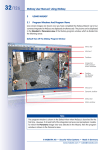

![El WE]](http://vs1.manualzilla.com/store/data/005973526_1-5126190d8f2880fb7d5b7ddc41b9f31a-150x150.png)