1
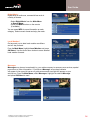
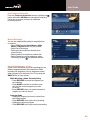
User Guide Your Series Recordings will appear in the My Recordings list with the show title as its label. Multiple recordings of the same show will have the same label and will be listed beginning with the most recent recordings first as default. To change your view use thebuttons on your remote to View By Date, View By Channel, or View By Title. You may also modify the priority assigned to a series using the Series Priority List. Modify Series From the DVR Menu select Series Recordings for a list of scheduled Series or keyword Series. From here, you can change the priority of your series or modify Series recording. To modify: • Use thearrows to highlight the series, press OK/Select to view a summary of recording settings for that series, including the number of episodes scheduled to record in the next 14 days • Highlight the to modify settings. Select the again to view and modify all settings • Highlight the to confirm Modify the Series Priority List If there are scheduling conflicts in your series recordings, your DVR automatically creates a Series Priority List. The first series you set to record has the highest priority and will be the one recorded if there is a conflict. You can easily change the recording priority of the series so that the series of your choice are recorded when a conflict exists. • Select DVR from the Quick Menu or Main Menu • Choose Series Recordings • Highlight a program and use the Page Arrows to modify priority Note: if you want to record two series recordings instead of an individual recording that airs at the same time, you must delete the individual recording from the Scheduled Recordings List. (See View List of Scheduled Recordings section to cancel a recording.) 37