1
Copy Protection Device Installation
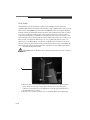
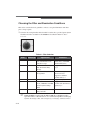
KODAK MI Software is copy protected using a device that plugs into the USB port of
your computer. It will not launch unless this device is attached to your computer. If you
are installing the system for the first time, locate and install the copy protection device
according to the instructions below. If you are upgrading your system, your package may
or may not contain a new copy protection device.
To install the copy protection device:
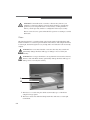
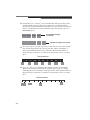
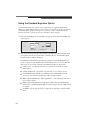
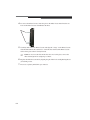
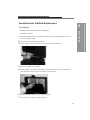
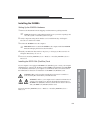
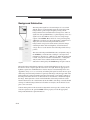
1 Plug the copy protection device into a USB port of your computer. Please make sure
that the connection is secure.
☞
☞
☞
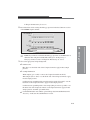
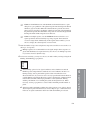
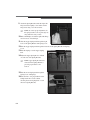
NOTE: Windows XP Users: A Welcome to the Found New Found Hardware
Wizard dialog box appears on screen. You will be asked if you want the
Windows update to search for software. Click No not at this time and advance
through the installation wizard.
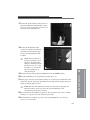
NOTE: If you are upgrading from a previous version of the KODAK MI or 1D
Software and received a new copy protection device, you must attach both the
old and new copy protection devices to your computer. After you launch the
newest version for the first time, your old copy protection device is be
deactivated. Remove and discard the old key.
NOTE: If your computer has multiple USB ports, you can plug the copy
protection device into any of them. The software, when launched, checks all
available USB ports.
8
2 Proceed to Setting Windows Power Settings.
Installing the System
Setting Windows Power Settings
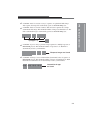
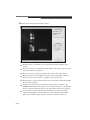
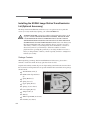
1 KODAK Imaging Systems require that your computer Energy Saver features be
disabled.
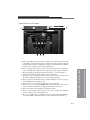
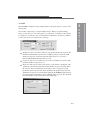
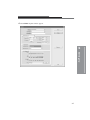
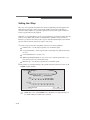
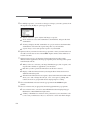
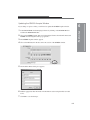
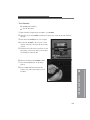
2 Click the Power Options icon from the Start menu and the Control Panel.
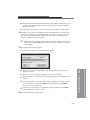
3 Click Power Schemes tab and select Always On from the Power Schemes pop-up
menu.
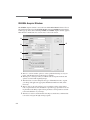
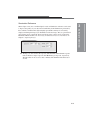
4 The settings for Turn off monitor, Turn off hard disks, System standby and System
hibernates functions become Never.
5 Proceed to Image Station 4000R Camera Files Installation—Windows.
8-11