1
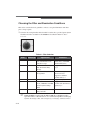
Installing the IS4000R
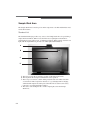
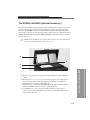
Setting Up the IS4000R Hardware
1 Remove the instrument from the shipping container. Remove packing materials.
☞
NOTE: Retain the box and packing material in case you need to repackage and
move the system or return the system for repair.
2 Verify components using the list in What’s in the IS4000R Package in Chapter 1:
Introduction of this User’s Guide.
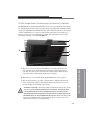
3 Position the IS4000R next to the computer.
☞
IMPORTANT: Do not attach the IS4000R to the computer until after KODAK
Molecular Imaging Software has been installed.
4 Install your Emission filters. Refer to Replacing or Changing an Emission Filter in
Chapter 6: Maintaining the System.
5 Proceed to Installing KODAK Software—Windows or Installing KODAK Software—
Macintosh
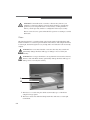
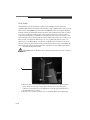
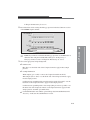
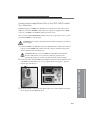
Installing the IEEE 1394 (FireWire) Card
If your computer is not equipped with IEEE 1394 (FireWire) ports, contact your computer
manufacturer for assistance in obtaining an add-on IEEE 1394 (FireWire) card. The IEEE
1394 (FireWire) card enables your computer to communicate with your camera. Follow
the manufacturer’s directions for installation of the IEEE 1394 (FireWire) card.
8
Installing the System
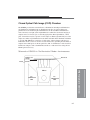
WARNING: The card is stored in an antistatic bag because it is sensitive to
static electricity. Be careful when you handle the card.
WARNING: Refer to your computer user’s manual for information on
opening your computer case. Follow the installation instructions for
the IEEE 1394 (FireWire) card and software drivers that are enclosed
with your IEEE 1394 (FireWire) Add-on card.
Proceed to Installing KODAK Software—Windows or Installing KODAK Software—
Mainctosh.
8-3