1
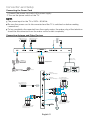
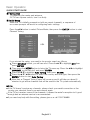
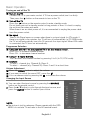
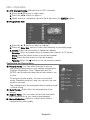
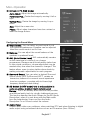
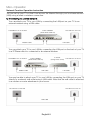
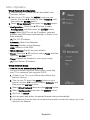
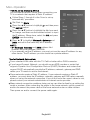
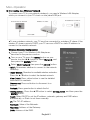
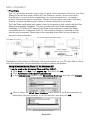
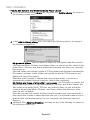
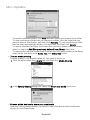
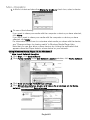
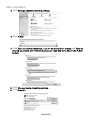
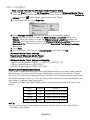
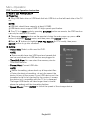
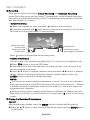
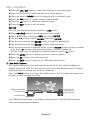
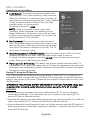
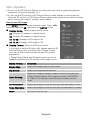
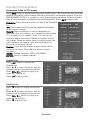
Menu Operation Connecting to a Wireless Network To connect your TV to your network wirelessly, you need a Wireless LAN Adapter, which you connect to your TV’s back or side panel USB jack. The LAN Port on the Wall Wireless IP sharer The USB Port on the TV LAN Cable • To use a wireless network, your TV must be connected to a wireless IP sharer. If the wireless IP sharer supports DHCP, your TV can use a DHCP or static IP address to connect to the wireless network. Wireless Network Configuration 1. Connect your TV to Wireless LAN Adapter as described in the previous section. 2. Turn on your TV, press the MENU button on your remote, use the ◄/► button to select Network, and then press the ENTER button. 3. Select Wi-Fi Network then press the ENTER button. – Wi-Fi: Determines whether to connect to the network wirelessly. – Base Station: Searches for available wireless networks. Press the ▲/▼button to select the desired network: View Detail: Press yellow button to see the detailed information of a network. Disconnect: Press red button to disconnect to a network. Refresh: Press green button to refresh the list. – Configuration:Press the ▲/▼ button to select Configuration, and then press the ENTER button. Conf.: Select DHCP to set the IP address, netmask, gateway and DNS values automatically, or Static to set them manually. IP: The TV’s IP address. Netmask: Value of the Netmask. Gateway: Address of the Gateway. DNS: Address of the DNS. English21