1
PCAN-USB (ISO) – User Manual
2.
Windows reports that new hardware has been detected and
possibly starts an installation wizard. This depends on the
used Windows version. If applicable, confirm the steps for
driver initialization.
3.
Afterwards you can work as user with restricted rights
again, if applicable.
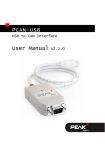
After the installation process is finished successfully the red LED on
the PCAN-USB adapter is illuminated.
2.1.1
Safely Removing the Adapter
If you want to unplug the PCAN-USB adapter from the PC during a
Windows session, please pay attention to the following notes.
Windows 2000/Windows XP
When the PCAN-USB adapter is connected and the driver is active,
you can find the icon for safely removing hardware in the
notification area of the Taskbar (on the lower right of the desktop):
After clicking on the icon select the command Remove PCAN-USB
Device. After the red LED on the PCAN-USB adapter has gone out
you can remove it from the USB port of the PC.
Windows 98 SE/Windows ME
Remove the PCAN-USB adapter from the USB port only, when the
red LED on the adapter doesn't blink, e.g. is on continuously. Else
system crashes may occur.
You can find detailed information about the red status LED in
section 3.1.
7