1
S O F T W A R E — T H E 2 K N O W ! TO O L B A R
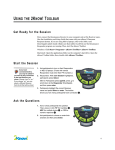
Choose a Different Theme and/or Change the Size of the Toolbar
Choose a Different Theme and/or Change the Size of the
Toolbar
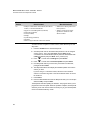
To answer shortanswer questions,
participants need
Responders using version 3.x
firmware (see page 9) or NEO
2 laptops.
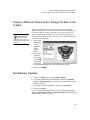
Follow the steps below to choose a different theme, which changes the
appearance of the toolbar. Use the large-size themes on your computer so you
can see the toolbar as you move around the room. Use the small sizes on
interactive whiteboards to make the most of the whiteboard space. If you
want to ask short-answer questions, be sure to choose a theme that includes
“w/Short Answer” in its name.
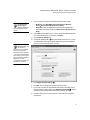
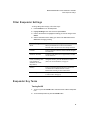
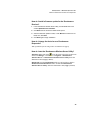
1. Press or click
Options and
choose
Themes to
see the
window
shown.
A
2. Press or click
the theme
type and size
you want A.
B
As you select
each theme,
you can see what it looks like on the right side of the window.
3. Press or click OK B.
Get Softwa re Update s
1. Press or click Options and choose Software Updates.
2. If you want to allow weekly software updates, make sure the Weekly
check for software update box is checked. (It is checked when you first
install the program.)
3. If you want to check for updates now, press or click Check Now.
4. Press or click Close.
If you are using Renaissance Responders (not NEO 2 laptops), you may
need to update the firmware on your Responders after updating the
2Know! Toolbar software. See page 9.
21