1
CHAPTER 6 - Editing & Maneuvering Tools
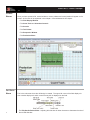
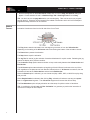
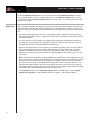
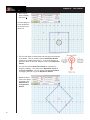
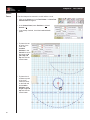
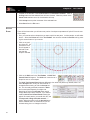
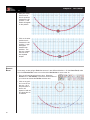
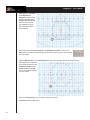
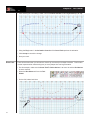
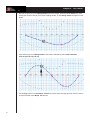
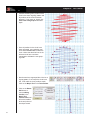
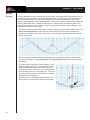
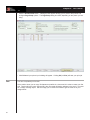
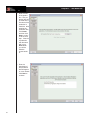
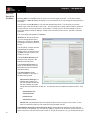
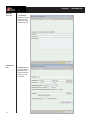
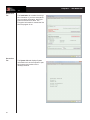
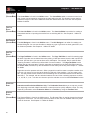
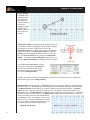
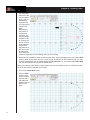
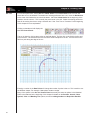
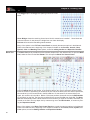
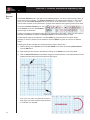
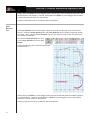
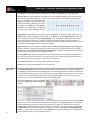
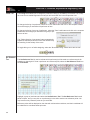
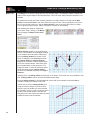
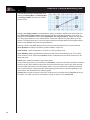
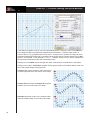
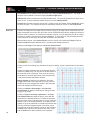
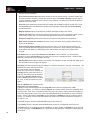
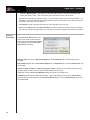
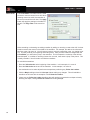
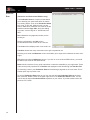
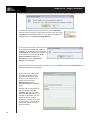
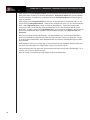
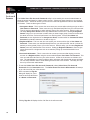
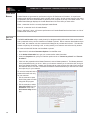
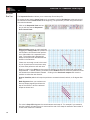
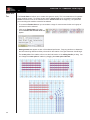
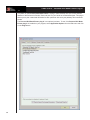
A Reposition Handle will appear in the center of the
selected performers. Dragging the center of the
Reposition Handle is the same as dragging one of the
performer handles. Dragging the Rotator Arm that
extends from the Reposition Handle will rotate the
shape. The point of rotation can be changed by dragging the outer ring of the Reposition Handle to a preferred location.
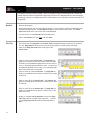
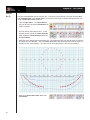
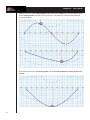
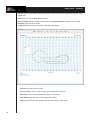
Use the Arrow Keys to shift and rotate forms easily without having to change tools or use the mouse.
Moving forms with the Arrow Keys (without the <shift> or <ctrl> keys) is disabled in drawing tools,
because this feature is primarily used for matching performers when regrouping. You can, however,
use Arrow Keys to move the form when you have any editing tool open. Simply select the form you
wish to move, select your editing tool, then move the form with your Arrow Keys.
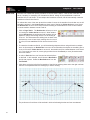
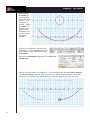
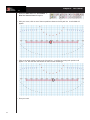
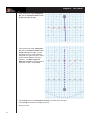
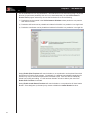
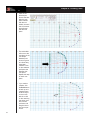
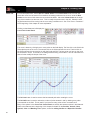
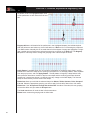
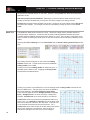
<Shift><Arrow keys> move the center of the Relocation Handle and the selected form one step. This
causes the new positions to shift similarly to the new location.
<Control><Arrow keys> rotate the Relocation Rotation Handle 5 degrees. This causes the new positions to rotate around the Relocation Handle.
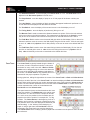
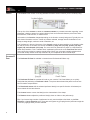
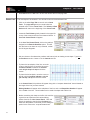
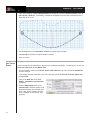
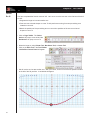
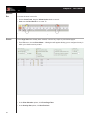
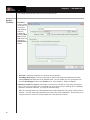
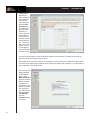
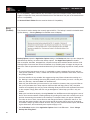
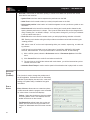
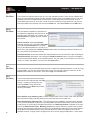
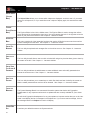
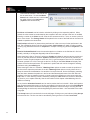
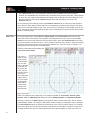
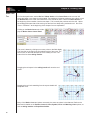
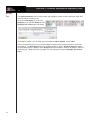
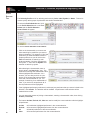
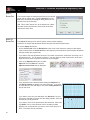
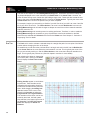
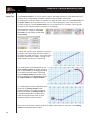
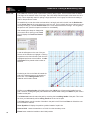
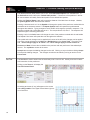
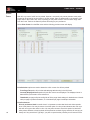
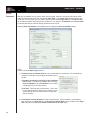
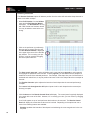
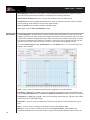
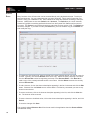
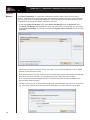
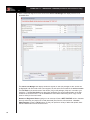
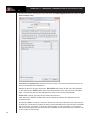
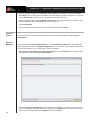
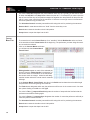
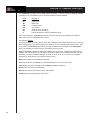
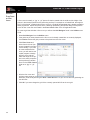
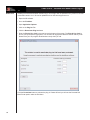
Entering a number in the Stride text box will move the editing handles the correct distance to reflect
the new stride.
Entering a distance in yards (or meters) in the Distance text box will move the editing handles to the
distance entered.
Clicking on one of the red dots on the Direction compass will move the editing handles to reflect the
new direction.
Snap to Horz/Vert padlock will snap the handles to the nearest horizontal, vertical, or 45 degree direction.
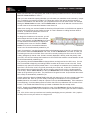
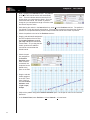
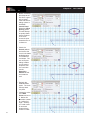
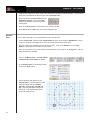
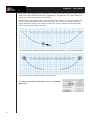
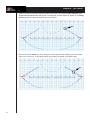
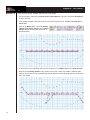
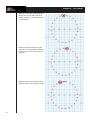
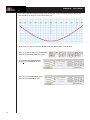
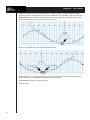
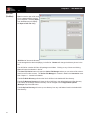
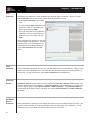
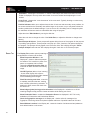
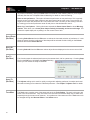
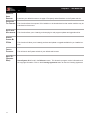
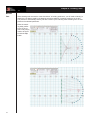
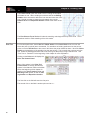
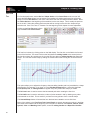
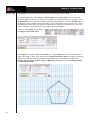
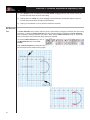
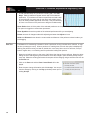
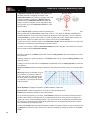
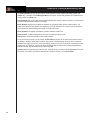
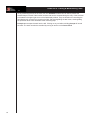
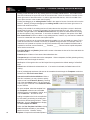
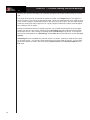
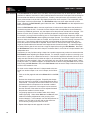
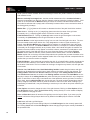
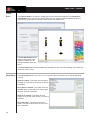
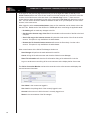
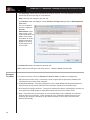
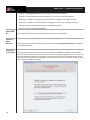
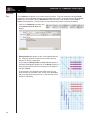
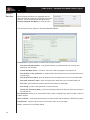
Mirroring options are available if two or
more shapes are selected. When mirroring, the direction of the shapes can
be set to opposing horizontally, opposing vertically, or opposing both vertically
and horizontally.
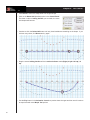
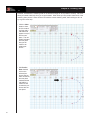
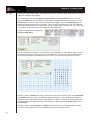
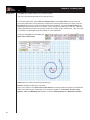
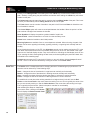
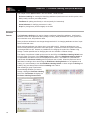
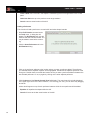
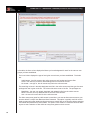
Show Symbols will display the position symbols instead of a plain dot.
Reset to Hold - resets the transition to a "Hold" from the secondary count.
Revert button resets the handles to their initial position.
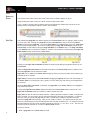
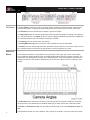
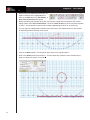
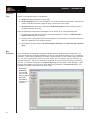
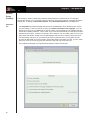
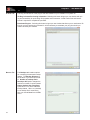
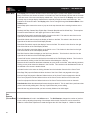
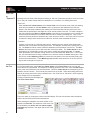
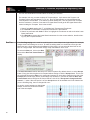
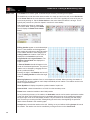
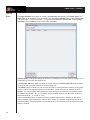
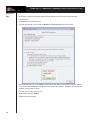
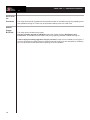
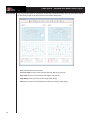
At any time during the entry of the push, the Animation controls can be used to preview the push in
the drill. Other useful function that can be accessed during the entry of the push are located in the
upper right corner of the field display window. They are functions for controlling the field display such
as moving or zooming the field, showing/hiding the text boxes, showing/hiding the performer labels.
Also accessible is the measuring tape.
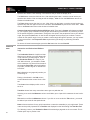
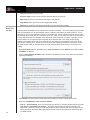
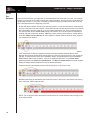
Clicking the Accept button will commit the push transition to the drill. Clicking on any tool without clicking Accept will cancel the push. The push can also be cancelled by moving an anchor on the Count
Track.
103