1
CHAPTER 1 - Basic Concepts
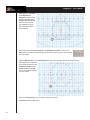
CONSOLE
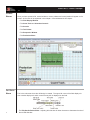
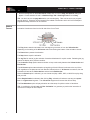
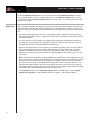
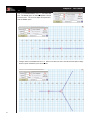
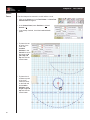
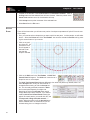
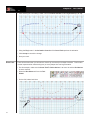
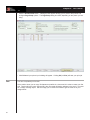
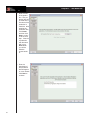
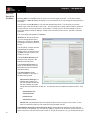
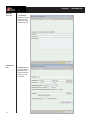
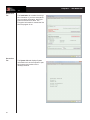
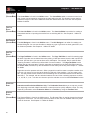
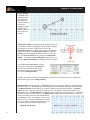
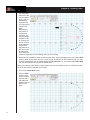
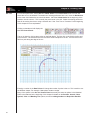
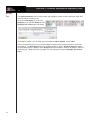
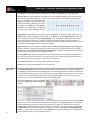
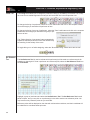
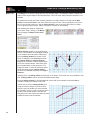
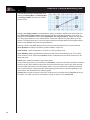
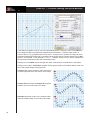
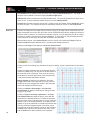
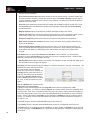
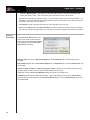
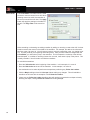
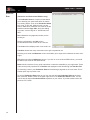
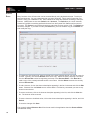
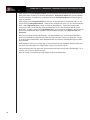
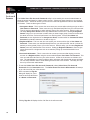
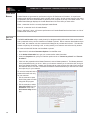
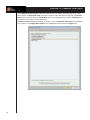
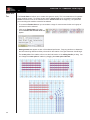
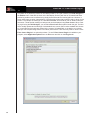
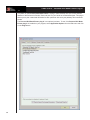
The Console is the location for finding detailed information about a function you are currently using.
The top line of the Console is called the Location Indicator. It provides information regarding “cursor
placement” relating to steps from vertical (division) lines and horizontal reference points from either
back side line, front side line, or middle of field.
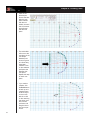
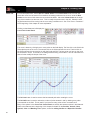
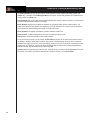
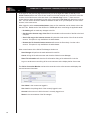
Information in the Console changes depending on the function currently being used. Typically the console shows information such as: number of positions selected, average interval of selected or new
shape, average length, maximum stride of transition, etc.
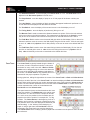
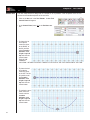
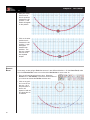
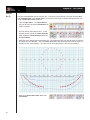
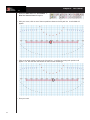
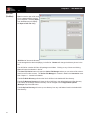
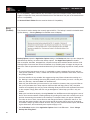
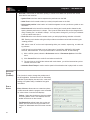
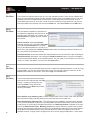
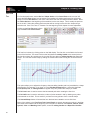
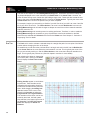
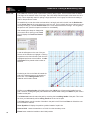
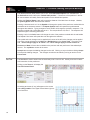
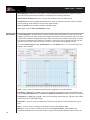
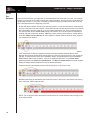
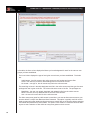
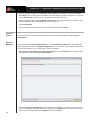
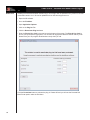
The five buttons in the top right corner of the Console control the step resolution of the location indicator and the cursor on the field. The choices are whole (1) step, half (1/2) step, quarter (1/4) step,
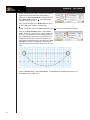
eighth (1/8), and sixteenth (1/16) step. For more control of placement of points on a field select sixteenth step resolution. This is valuable when implementing tools such as the Free Form Tool where
many points are required to create a smooth shape. When your points are basically endpoints then
you would usually choose whole step resolution so your endpoints will fall on whole steps.
PERFORMER ID
PANEL
The Performer ID Panel is available in Interactive and Professional Edtions only.
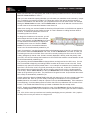
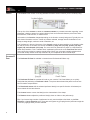
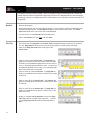
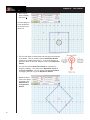
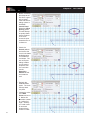
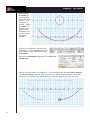
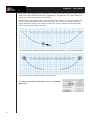
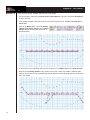
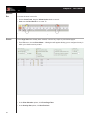
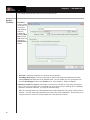
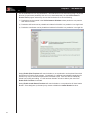
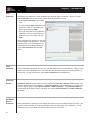
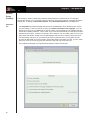
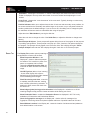
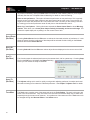
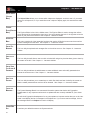
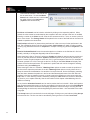
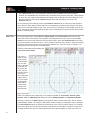
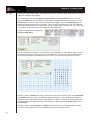
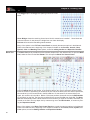
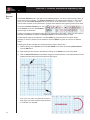
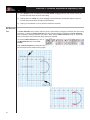
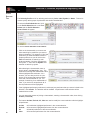
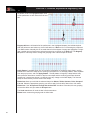
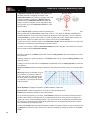
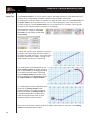
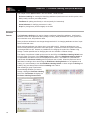
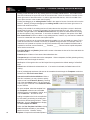
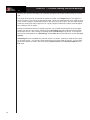
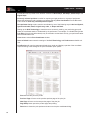
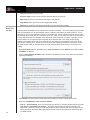
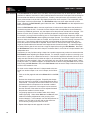
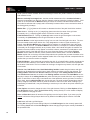
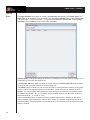
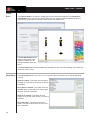
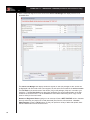
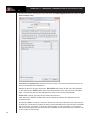
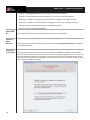
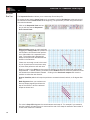
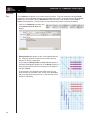
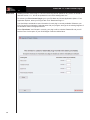
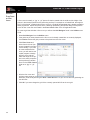
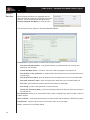
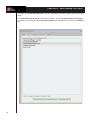
The Performer ID Panel is a tab that is found on your console. This Panel allows you to quickly
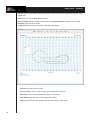
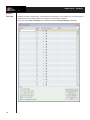
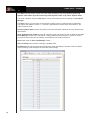
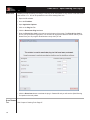
manipulate the positioning of Performer Labels. The picture above breask the panel into three sections for easier comprehension.
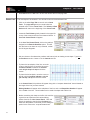
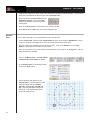
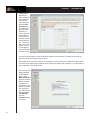
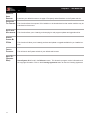
The Directional arrows shift the selected performer label(s) in a specific direction. All selected performer labels will shift this direction.
The Contour buttons contour the label(s) to the characteristic of the shape.
The Distance buttons adjust the performer label(s) closer or further to the performer(s).
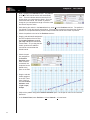
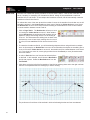
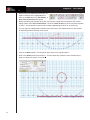
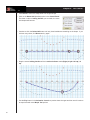
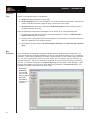
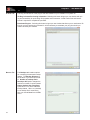
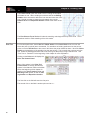
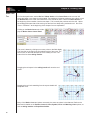
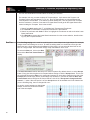
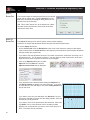
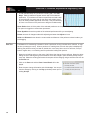
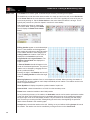
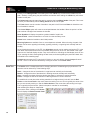
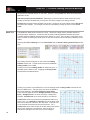
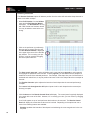
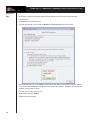
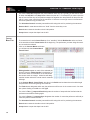
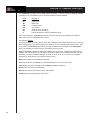
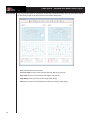
Tip: If you have a large number of performers but only need to adjust a few labels, try the Box
Selection or Lasso Selection tools. These two tools ignore any grouping that the performers might be
in and only highlight what you have selected.
8