1
Part three ImageQuant Tools utility
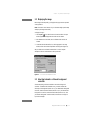
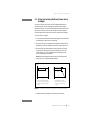
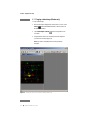
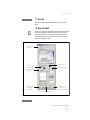
3. Locate and select the image file. The Image window appears and displays
the image you selected.
See your Windows or Macintosh documentation for a more complete
description of how to use the features in the Open window.
4.2 Rotating the image in 90° increments
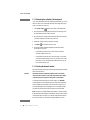
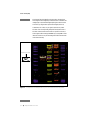
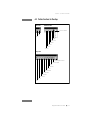
To rotate the image in 90° increments, choose Rotate Image from the Image
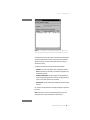
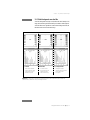
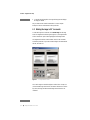
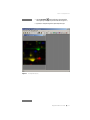
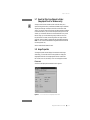
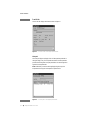
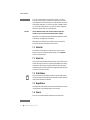
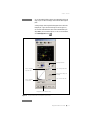
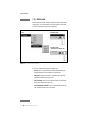
menu. The Image Rotation window appears (figure 4-1). The Image Rotation
window contains two copies of the image displayed in the Image window.
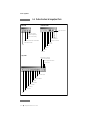
The Image Rotation window contains rotation controls for 90° increments
and arbitrary increments. If you want to rotate the image in increments smaller
than 90°, see section 4.3.
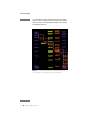
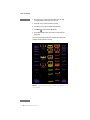
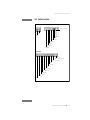
Figure 4-1. The Image Rotation window.
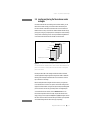
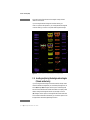
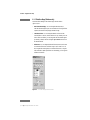
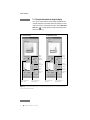
The Control Image area contains the eight 90° rotation choices. The top four
choices rotate the image clockwise in 90° increments. The bottom four choices
flip (mirror) the image, and then rotate the image counterclockwise in 90°
increments.
p4-2
●
ImageQuant Utilities User’s Guide