1
84
MFG/PRO Installation Guide — QAD Desktop
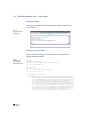
• The system configuration listing. This includes complete
¶ See page 61.
configuration information for the Desktop system environment.
Launch the Installation Script
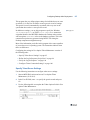
Use the following steps to launch the installation script and deploy the
Web application JAR file to the Tomcat server. Before you proceed, make
sure the .ini and JAR files are accessible from the Tomcat server or you
have copied them to a local directory on the Tomcat server.
1
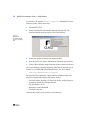
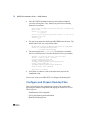
On the Tomcat server, launch the installation script from the Desktop
installation media.
2
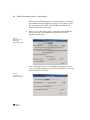
At the prompt, point to the .ini file for the multi-tier system that
was created when you installed and staged the Desktop components
on the database server (step 4 on page 70).
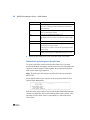
In the following example, the .Desktop-Prod_dt2.ini was
copied to the D:\shared Windows network share.
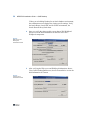
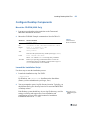
Please enter a directory to write log files
Default is 'C:\mfgsvr'
->D:\shared
3
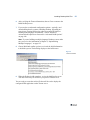
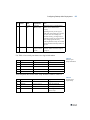
At the configuration file selection prompt, select the configuration
file for your multi-tier system.
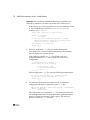
*** Configuration file selection ***
Please choose one of the following:
1: Desktop-Prod_dt2.ini -> Desktop-Prod
2: Create new configuration
3: Cancel
<1-3>? 1
4
¶ See “Set
JAVA_HOME
Variable” on
page 36.
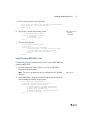
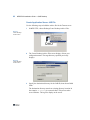
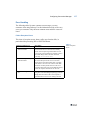
On the main menu, choose the Post MFG/UTIL Desktop Build Jar
Install menu option.
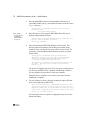
Note You may be prompted to enter or confirm the JAVA_HOME
value.