1
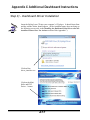
Section 5: Installing the Epilog Dashboard
Print Driver - Windows XP or 2000
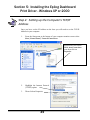
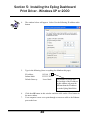
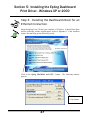
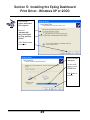
IP ADDRESS
1.
2.
3.
4.
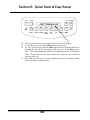
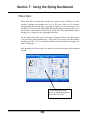
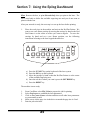
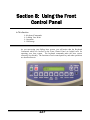
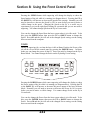
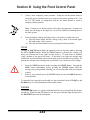
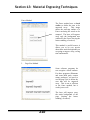
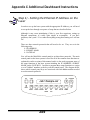
To set the IP Address press the GO and POINTER buttons simultaneously
on the control panel. You will see “FUNCTIONS MENU” displayed on
the control panel LCD screen.
Press the GO button. - “SERIAL #” will appear on the screen. This is a
factory set number and corresponds to the serial number of the laser system.
You should not change this serial number.
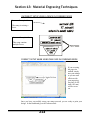
Press the GO button again. – “IP ADDRESS” will appear on the screen.
Press the GO button again. - The factory set IP address will appear on the
screen. It will look something like this: “192.168.003.004”, with a flashing
box over the 1 in 192.
Note – This procedure uses 192.168.003.004 as the sample IP Address.
Machines leaving the Epilog factory have this IP Address preset so you do not
have to change anything unless you want to use a different address.
5.
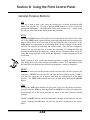
If you want to change the IP Address, please follow these instructions:
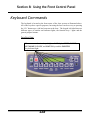
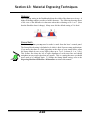
a) If you want to change the 1 in 192 to any other number, simply press
the “hidden” number key for that number. For example, if you want to
change the 1 (in 192) to a 4, press the X/Y Off key. After pressing the
X/Y Off key the 1 will change to a 4. When a number key is pressed,
the flashing box will automatically shift right to the next number in
that three number group.
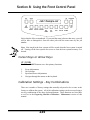
b) At this point, press the appropriate key for the second number (if you
want to keep the 9 a 9, you must press the POINTER key).
c) Finally, press the appropriate key for the third number.
d) After pressing the key for the third number the flashing box will go
back to the first number – it WILL NOT shift to the next set of three
numerals. If you want to move to the next group of three numbers
32