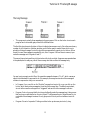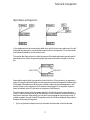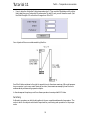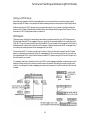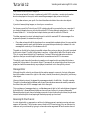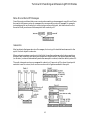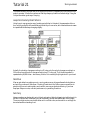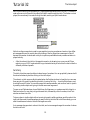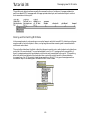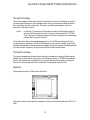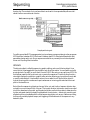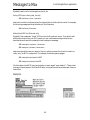
1
MAX
Tutorials and Topics
Table of Contents
Introduction . . . . . . . . . . . . . . . . . . . . . . . . . . . . . . . . . . . . . . . . . . . . . . . . . . . . . . . . . . . . . . . . . . . . . . . . . 6
Tutorial 1: Saying “Hello!” . . . . . . . . . . . . . . . . . . . . . . . . . . . . . . . . . . . . . . . . . . . . . . . . . . . . . . . . . . . . . . 8
Tutorial 2: The bang Message . . . . . . . . . . . . . . . . . . . . . . . . . . . . . . . . . . . . . . . . . . . . . . . . . . . . . . . . . .13
Tutorial 3: About Numbers . . . . . . . . . . . . . . . . . . . . . . . . . . . . . . . . . . . . . . . . . . . . . . . . . . . . . . . . . . . .15
Tutorial 4: Using metro . . . . . . . . . . . . . . . . . . . . . . . . . . . . . . . . . . . . . . . . . . . . . . . . . . . . . . . . . . . . . . .17
Tutorial 5: toggle and comment . . . . . . . . . . . . . . . . . . . . . . . . . . . . . . . . . . . . . . . . . . . . . . . . . . . . . . . .19
Tutorial 6: Test 1—Printing . . . . . . . . . . . . . . . . . . . . . . . . . . . . . . . . . . . . . . . . . . . . . . . . . . . . . . . . . . .22
Tutorial 7: Right-to-left Order . . . . . . . . . . . . . . . . . . . . . . . . . . . . . . . . . . . . . . . . . . . . . . . . . . . . . . . . .23
Tutorial 8: Doing Math in Max . . . . . . . . . . . . . . . . . . . . . . . . . . . . . . . . . . . . . . . . . . . . . . . . . . . . . . . .25
Tutorial 9: Using the slider . . . . . . . . . . . . . . . . . . . . . . . . . . . . . . . . . . . . . . . . . . . . . . . . . . . . . . . . . . . . .28
Tutorial 10: Number Boxes . . . . . . . . . . . . . . . . . . . . . . . . . . . . . . . . . . . . . . . . . . . . . . . . . . . . . . . . . . . .31
Tutorial 11: Test 2—Temperature Conversion . . . . . . . . . . . . . . . . . . . . . . . . . . . . . . . . . . . . . . . . . . . .36
Tutorial 12: Sending and Receiving MIDI Notes . . . . . . . . . . . . . . . . . . . . . . . . . . . . . . . . . . . . . . . . . .40
Tutorial 13: Sending and Receiving MIDI Notes . . . . . . . . . . . . . . . . . . . . . . . . . . . . . . . . . . . . . . . . . .43
Tutorial 14: Sliders and Dials . . . . . . . . . . . . . . . . . . . . . . . . . . . . . . . . . . . . . . . . . . . . . . . . . . . . . . . . . .46
Tutorial 15: Making Decisions with Comparisons . . . . . . . . . . . . . . . . . . . . . . . . . . . . . . . . . . . . . . . .51
Tutorial 16: More MIDI Ins and Outs . . . . . . . . . . . . . . . . . . . . . . . . . . . . . . . . . . . . . . . . . . . . . . . . . .56
Tutorial 17: Gates and Switches . . . . . . . . . . . . . . . . . . . . . . . . . . . . . . . . . . . . . . . . . . . . . . . . . . . . . . . .60
Tutorial 18: Test 3—Comparisons and Decisions . . . . . . . . . . . . . . . . . . . . . . . . . . . . . . . . . . . . . . . . .64
Tutorial 19: Screen Aesthetics . . . . . . . . . . . . . . . . . . . . . . . . . . . . . . . . . . . . . . . . . . . . . . . . . . . . . . . . . .66
Tutorial 20: Using the Computer Keyboard . . . . . . . . . . . . . . . . . . . . . . . . . . . . . . . . . . . . . . . . . . . . . .72
Tutorial 21: Storing Numbers . . . . . . . . . . . . . . . . . . . . . . . . . . . . . . . . . . . . . . . . . . . . . . . . . . . . . . . . . .77
Tutorial 22: Delay Lines . . . . . . . . . . . . . . . . . . . . . . . . . . . . . . . . . . . . . . . . . . . . . . . . . . . . . . . . . . . . . .83
Tutorial 23: Test 4—Imitating a Performance . . . . . . . . . . . . . . . . . . . . . . . . . . . . . . . . . . . . . . . . . . . .87
Tutorial 24: send and receive . . . . . . . . . . . . . . . . . . . . . . . . . . . . . . . . . . . . . . . . . . . . . . . . . . . . . . . . . .90
Tutorial 25: Managing Messages . . . . . . . . . . . . . . . . . . . . . . . . . . . . . . . . . . . . . . . . . . . . . . . . . . . . . . .92
Tutorial 26: The patcher Object . . . . . . . . . . . . . . . . . . . . . . . . . . . . . . . . . . . . . . . . . . . . . . . . . . . . . . . .98
Tutorial 27: Your Object . . . . . . . . . . . . . . . . . . . . . . . . . . . . . . . . . . . . . . . . . . . . . . . . . . . . . . . . . . . . .101
Tutorial 28: Your Argument . . . . . . . . . . . . . . . . . . . . . . . . . . . . . . . . . . . . . . . . . . . . . . . . . . . . . . . . . .106
Tutorial 29: Test 5—Probability Abstraction . . . . . . . . . . . . . . . . . . . . . . . . . . . . . . . . . . . . . . . . . . . .110
Tutorial 30: Number Groups . . . . . . . . . . . . . . . . . . . . . . . . . . . . . . . . . . . . . . . . . . . . . . . . . . . . . . . . .115
Tutorial 31: Using Timers . . . . . . . . . . . . . . . . . . . . . . . . . . . . . . . . . . . . . . . . . . . . . . . . . . . . . . . . . . . .120
Tutorial 32: The table Object . . . . . . . . . . . . . . . . . . . . . . . . . . . . . . . . . . . . . . . . . . . . . . . . . . . . . . . . .125
Tutorial 33: Probability Tables . . . . . . . . . . . . . . . . . . . . . . . . . . . . . . . . . . . . . . . . . . . . . . . . . . . . . . . .133
2
Table of Contents
Tutorial 34: Managing Raw MIDI Data . . . . . . . . . . . . . . . . . . . . . . . . . . . . . . . . . . . . . . . . . . . . . . .138
Tutorial 35: seq and follow . . . . . . . . . . . . . . . . . . . . . . . . . . . . . . . . . . . . . . . . . . . . . . . . . . . . . . . . . . .147
Tutorial 36: Multi-track Sequencing . . . . . . . . . . . . . . . . . . . . . . . . . . . . . . . . . . . . . . . . . . . . . . . . . . .155
Tutorial 37: Data Structures . . . . . . . . . . . . . . . . . . . . . . . . . . . . . . . . . . . . . . . . . . . . . . . . . . . . . . . . . .159
Tutorial 38: expr and if . . . . . . . . . . . . . . . . . . . . . . . . . . . . . . . . . . . . . . . . . . . . . . . . . . . . . . . . . . . . . .170
Tutorial 39: Mouse Control . . . . . . . . . . . . . . . . . . . . . . . . . . . . . . . . . . . . . . . . . . . . . . . . . . . . . . . . . .175
Tutorial 40: Automatic Actions . . . . . . . . . . . . . . . . . . . . . . . . . . . . . . . . . . . . . . . . . . . . . . . . . . . . . . .179
Tutorial 41: Timeline of Max Messages . . . . . . . . . . . . . . . . . . . . . . . . . . . . . . . . . . . . . . . . . . . . . . . . .183
Tutorial 42: Graphics . . . . . . . . . . . . . . . . . . . . . . . . . . . . . . . . . . . . . . . . . . . . . . . . . . . . . . . . . . . . . . . .194
Tutorial 43: Graphics in a Patcher . . . . . . . . . . . . . . . . . . . . . . . . . . . . . . . . . . . . . . . . . . . . . . . . . . . . .200
Tutorial 44: Sequencing with detonate . . . . . . . . . . . . . . . . . . . . . . . . . . . . . . . . . . . . . . . . . . . . . . . . .210
Tutorial 45: Designing the User Interface . . . . . . . . . . . . . . . . . . . . . . . . . . . . . . . . . . . . . . . . . . . . . . .220
Tutorial 46: Basic Scripting . . . . . . . . . . . . . . . . . . . . . . . . . . . . . . . . . . . . . . . . . . . . . . . . . . . . . . . . . . .228
Tutorial 47: Advanced Scripting . . . . . . . . . . . . . . . . . . . . . . . . . . . . . . . . . . . . . . . . . . . . . . . . . . . . . .240
Tutorial 48: Basic JavaScript . . . . . . . . . . . . . . . . . . . . . . . . . . . . . . . . . . . . . . . . . . . . . . . . . . . . . . . . .248
Tutorial 49: Scripting and Custom Methods in JavaScript . . . . . . . . . . . . . . . . . . . . . . . . . . . . . . . . .259
Tutorial 50: Tasks, Arguments and Global Objects in JavaScript . . . . . . . . . . . . . . . . . . . . . . . . . . .272
Tutorial 51: Designing User Interfaces in JavaScript . . . . . . . . . . . . . . . . . . . . . . . . . . . . . . . . . . . . . .281
Tutorial 52: Patcher Storage . . . . . . . . . . . . . . . . . . . . . . . . . . . . . . . . . . . . . . . . . . . . . . . . . . . . . . . . . .294
Tutorial 53: More Patcher Storage . . . . . . . . . . . . . . . . . . . . . . . . . . . . . . . . . . . . . . . . . . . . . . . . . . . .301
Files: How Max handles Search Paths and Files . . . . . . . . . . . . . . . . . . . . . . . . . . . . . . . . . . . . . . . . . .308
Interfaces: Picture-based User Interface Objects . . . . . . . . . . . . . . . . . . . . . . . . . . . . . . . . . . . . . . . . .314
Graphics: Overview of Graphics Windows and Objects . . . . . . . . . . . . . . . . . . . . . . . . . . . . . . . . . . .321
Collectives: Grouping Files into a Single Project . . . . . . . . . . . . . . . . . . . . . . . . . . . . . . . . . . . . . . . . .326
Encapsulation: How Much Should a Patch Do? . . . . . . . . . . . . . . . . . . . . . . . . . . . . . . . . . . . . . . . . .339
Efficiency: Issues of Programming Style . . . . . . . . . . . . . . . . . . . . . . . . . . . . . . . . . . . . . . . . . . . . . . . .341
Loops: Ways to Perform Repeated Operations . . . . . . . . . . . . . . . . . . . . . . . . . . . . . . . . . . . . . . . . . . .344
Data Structures: Ways of Storing Data in Max . . . . . . . . . . . . . . . . . . . . . . . . . . . . . . . . . . . . . . . . .348
Arguments: $ and #, Changeable Arguments to Objects . . . . . . . . . . . . . . . . . . . . . . . . . . . . . . . . . .351
Punctuation: Special Characters in Objects and Messages . . . . . . . . . . . . . . . . . . . . . . . . . . . . . . . .355
Quantile: Using a Table for Probability Distribution . . . . . . . . . . . . . . . . . . . . . . . . . . . . . . . . . . . . . .357
Sequencing: Recording and Playing Back MIDI Performances . . . . . . . . . . . . . . . . . . . . . . . . . . . .359
Timeline: Creating a Graphic Score of Max Messages . . . . . . . . . . . . . . . . . . . . . . . . . . . . . . . . . . . . .362
Detonate: Graphic Editing of a MIDI Sequence . . . . . . . . . . . . . . . . . . . . . . . . . . . . . . . . . . . . . . . . .376
3
Table of Contents
Debugging: Tips for Debugging Patches . . . . . . . . . . . . . . . . . . . . . . . . . . . . . . . . . . . . . . . . . . . . . . .386
Errors: Explanation of Error Messages . . . . . . . . . . . . . . . . . . . . . . . . . . . . . . . . . . . . . . . . . . . . . . . . . .393
Messages to Max: Controlling the Max Application . . . . . . . . . . . . . . . . . . . . . . . . . . . . . . . . . . . . .401
4
Copyright and Trademark Notices
This manual is copyright © 2000-2004 Cycling ’74.
Max is copyright © 1990-2004 Cycling ’74/IRCAM, l’Institut de Recherche et Coördination
Acoustique/Musique.
Credits
Original Max Documentation: Chris Dobrian
Max 4.3 Tutorials and Topics Manual: David Zicarelli, Gregory Taylor, Jeremy Bernstein, Adam
Schabtach, Richard Dudas, and R. Luke DuBois
Max 4.3 Manual page example patches: R. Luke DuBois, Darwin Grosse, Ben Nevile, Joshua Kit
Clayton, and David Zicarelli
Cover Design: Lilli Wessling Hart
Graphic Design: Gregory Taylor
5
Introduction
Tutorials and Topics in Max
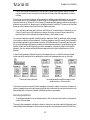
This manual provides a step-by-step course on how to program with Max and a collection of discussions of certain topics unique to programming with Max.This manual is a step-by-step course
designed to teach you all about Max, beginning with the simplest concepts and building upon
those concepts as you learn new ones. The course is primarily for new Max users who don’t have
prior programming experience, but even if you have some knowledge of programming, the Tutorial is a good way to learn Max.
The tutorials are designed to be read in order. Each Tutorial is accompanied by a sample Max program (document) in the Max Tutorial folder. The document is a working illustration of the concepts in the chapter text—it lets you see Max in action and try things yourself. We feel this handson approach is a more efficient way to learn about Max than just reading the manual by itself.
By the time you have completed the tutorials, you will have a good understanding of Max and its
capabilities, and will probably also have many ideas for your own Max applications.
As you read each tutorial, you can open the corresponding Max document in the Max Tutorial
folder. Some of the tutorials take the form of “quizzes” so you can be sure you understand the
material before proceeding. At the end of each Tutorial are suggestions—labeled See Also—of
other sections of the Max documentation you can investigate in order to learn more.
There are a number of chapters which follow the tutorials that contain discussions on issues of
programming—data structures, loops, encapsulation, debugging, graphics, making standalone
applications, etc.—and explain specifically how those issues are handled in Max.
If you are new to Max, we suggest you begin by reading the Setup and Overview sections of the
Getting Started manual, then trying a few of the Tutorials. You can also learn by looking at the help
files in the max-help folder, and by browsing the Max Object Thesaurus in the Max Reference Manual. The sample patches show some of the things others have done with Max.
Manual Conventions
The central building block of Max is the object. Names of objects are always displayed in bold type,
like this.
Messages (the arguments that are passed to and from objects) are displayed in plain type, like this.
In the See Also sections, anything in regular type is a reference to a section of either this manual or
the Reference manual.
MIDI Equipment
The first few tutorials in this manual do not deal with MIDI directly, but simply teach you about
some of the elements of Max. Later tutorials do involve MIDI quite extensively, though, and in the
sample programs we make certain assumptions about what MIDI equipment you are using and
6
Introduction
how it is connected to the computer. In order to benefit the most from the Tutorial, keep in mind
these assumptions:
1. You are using a a 61-key velocity-sensitive keyboard with pitch bend and modulation wheels
and a polyphonic synthesizer or sampler. Your keyboard should ideally be set to send on
MIDI channel 1, and the synthesizer set to receive in Omni On mode.
2. You have connected the MIDI Out of your MIDI keyboard to the MIDI In of your MIDI
interface, and connected the MIDI Out of your interface to the MIDI In of your synthesizer or
sampler.
3. For the purpose of this Tutorial, your MIDI interface should be connected to the modem port
or the primary USB interface of your computer.
Even if your equipment doesn’t exactly match that assumed by the Tutorial, try to emulate the
assumed setup as much as possible. You may want to read the user’s manual of your synthesizer, to
be sure you understand its MIDI capabilities.
The Tutorial patches are designed for a keyboard synth with local control on—one that makes
sounds when you play, without receiving any additional MIDI in—rather than for a keyboard
controller with no built-in synth. If the keyboard and tone generator you are using are separate,
you should open the patch called thru in the Max Tutorial folder, specify your input and output
ports with the pop-up menus, and leave it open as you run the Tutorial patches. This will route the
MIDI output of your keyboard directly through Max to your tone generator, emulating a keyboard synth.
7
Tutorial 1: Saying “Hello!”
Open Tutorial 1
•
If you have not already started up the Max application, do so now by double-clicking on the
Max application icon.
•
Once Max is launched, open the MIDI Setup window by choosing Midi Setup… from the
File Menu and assign the input and output devices you want to use to port abbreviation a with
a channel offset of 0.
Both the Macintosh and Windows XP provide a DLS (Downloadable Soundfont) synthesizer for
MIDI playback. If you don’t want to use any external MIDI gear, you can drive the DLS synth
directly from Max via MIDI. For more information about working with DLS synths, see the section “Using Max with MIDI” chapter in the Getting Started manual.
To open the sample program for each chapter of the Tutorial, choose Open… from the File menu
and find the document in the Max Tutorial folder with the same number as the chapter you are
reading.
•
Open the file called 1. Saying “Hello!”
Objects and Messages
•
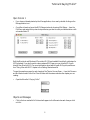
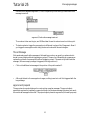
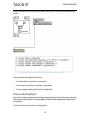
Click in the box marked Hello!. Notice what happens in the Max window each time you click
on Hello!.
8
Saying "Hello!"
Tutorial 1
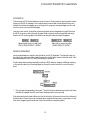
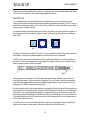
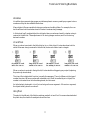
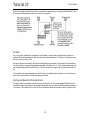
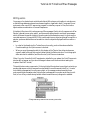
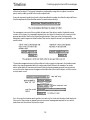
The basic operation of a patcher program is simple. Different types of boxes, called objects, send
messages to each other through patch cords.
This program contains two different objects:
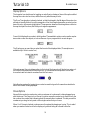
The box containing the word print is a print object. A print object prints whatever message it
receives in the Max window.
The word Hello! is a message contained in a message box, which can contain anything that can be
typed. Often a message will contain numbers.
Different kinds of objects have different numbers of inlets and outlets. The message box always has
one inlet and one outlet.
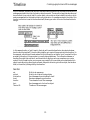
Inlets are always at the top, indicated by blackened areas at the top of an object. Outlets are always
at the bottom of an object.
The print object has no outlet—its output is always just printed in the Max window. Usually, an
object will have both inlets and outlets; it receives messages, performs some task, then sends out
messages. The print object just prints whatever it receives.
The message box is connected to the print object by means of a patch cord. Just like components of
a stereo system, the outlet of one object is connected to the inlet of another object. You can’t connect an inlet to another inlet, or an outlet to another outlet.
The program operates as follows:
1. When you click on the message box object, the message Hello! is sent out the message box’s outlet and through the patch cord.
2. The message reaches the inlet of the print object, which prints the message print: Hello! in the
Max window.
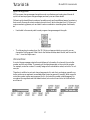
Locking and Unlocking a Patcher Window
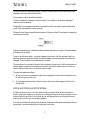
A Patcher window can be in one of two states: locked or unlocked. When a Patcher window is
locked, it is a program ready to run, and you can operate the patcher by clicking on objects (such as
sliders) that do things. When it is unlocked, you can edit the patcher by moving objects around,
creating new ones, and connecting objects together.
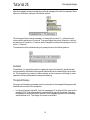
The lock/unlock state of the window is indicated by the presence of the patcher palette at the top of
the window. If you see the palette, then the window is unlocked.
9
Saying "Hello!"
Tutorial 1
There are several other ways you can lock or unlock a patcher.
•
Choose Edit from the View menu, or type Command-E on Macintosh or Control-E on Windows.
•
Command-click on Macintosh or Control-click on Windows on the “white space” in the
Patcher window.
•
On Macintosh, there is a transparent rectangular pill on the right side of the window that can
be used for toggling between locked and unlocked state.
•
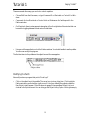
Using one of these methods, unlock the Patcher window. You should be able to see the palette.
You can now modify the program.
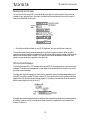
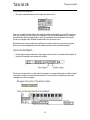
The first two items in the palette are the object box and the message box.
Modifying the Patch
Now we’ll produce a program that prints “Good-bye!”
•
Click on the object box in the palette. The cursor turns into an object icon. Click inside the
Patcher window, near the bottom-right corner. A list of pre-defined Max objects called the
New Object List will appear. (If the list does not appear, it’s because New Object List is not
checked in the Options menu. You can bring up the Object List by Option-clicking the empty
10
Saying "Hello!"
Tutorial 1
object box on Macintosh or Alt-clicking the empty object box in Windows. Or, if you want the
list to always appear, check New Object List in the Options menu.)
•
Scroll down through the right-hand column of the New Object List until you see print, click
on the word to select it, and type the Return or Enter keys on Macintosh or the Enter key on
Windows. Alternatively, you could just type the first few letters of the word “print” until it is
selected in the list.
Note: If you want to type in the name of an object without using the New Object List, type the
Delete (Backspace) key or click anywhere outside the New Object List and it will go away. You
can also hold down the Option key on Macintosh or the Alt key on Windows as you place the
object box in the window if you want to temporarily toggle the New Object List option on or
off.
•
You now have an object box with the word print in it. Type the Enter key on Macintosh or the
Shift and Enter keys on Windows, or click anywhere else in the window (outside that object
box), and a print object is created with an inlet at the top.
•
Next, click on the message box icon in the palette, and click just above your print object, to
place a new message object in the window. Type Good-bye! into your message object.
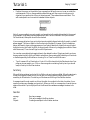
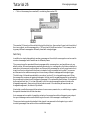
To connect the message object to the print object, drag from the outlet of the message object to any
place inside the print object:
11
Saying "Hello!"
Tutorial 1
•
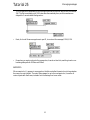
Position the cursor on the outlet of your message box. When the cursor is over an outlet, the
outlet expands. Click on the expanded outlet and drag until the cursor is inside your print
object and you see the inlet of the print object expand. Then release the mouse button. This
will create a patch cord connection between the two objects.
Note: If you are unable to connect a patch cord according to the method described in the preceding paragraph, it’s probably because Segmented Patch Cords is checked in the Options menu.
For the moment, that option should be unchecked.
If your message object and your print object are not perfectly aligned vertically, the patch cord will
appear jagged. This has no effect on the functioning of the patch. However, if you’re a fastidious
person and want to clean up the appearance of your patch, select both objects just as you’d select
multiple icons in the Finder (by Shift-clicking on each of them or by dragging across both of them
with the mouse). Then choose Align from the Object menu.
You can also move objects by dragging them to the desired location. Objects and patch cords can
be removed entirely by clicking on them to select them, then pressing the Delete key on Macintosh
or the Backspace key on Windows or choosing Cut or Clear from the Edit menu.
•
Type Command-E on Macintosh or Control-E on Windows to lock the Patcher window. Your
program is now ready to run. Click on the message box containing Good-bye! and you should
see print: Good-bye! in the Max window.
Summary
When a Patcher window is unlocked, it is in Edit mode, and can be modified. When the window is
locked, the program is ready to run. You can also run the program by holding down the Command key on Macintosh or Control key on Windows and clicking in the Patcher window.
A message is sent through a patch cord from the outlet of one object to the inlet of another. A message box contains any message you type into it. When you click on a message box, it sends its message out the outlet. A print object prints in the Max window whatever message it receives in its
inlet.
See Also
message
print
Objects
Send any message
Print any message in the Max window
Creating a new object in the Patcher window
12
Tutorial 2: The bang Message
The bang Message
•
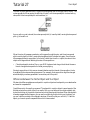
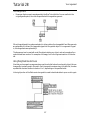
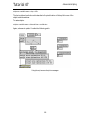
This program is actually three separate printing programs. Click on the button icons in each
program and notice what gets printed in the Max window.
The first thing to observe is that two of the print objects have names: x and y. Since there can be any
number of print objects in a Patcher window, you will often want to make it clear which one is
actually printing a message. You do this by putting a name after the word print in the box. When
there’s no name, the message is preceded by print:, as in Program 1. When there is a name, it precedes the message, as in Programs 2 and 3.
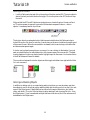
The second important new thing in this window is the button object. It appears as a separate item
in the palette, and is really very much like a message box that contains the message bang.
You see, bang is a magic word in Max. It’s a special message that means, “Do it!”, which causes an
object to do whatever it’s supposed to do. For example, a message box sends out the message it
contains in response to a bang or a mouse click.
•
In Program 1, you can click on the “Gotcha!” message box to print it, or you can click on the
button, which sends a bang message to the inlet of the message box. The effect is equivalent,
since in either case the message box is “triggered” and sends out the message it contains.
•
Program 2 not only proves that the button quite literally sends the message bang; it also proves
that bang has no special effect on the print object. That’s because the print object doesn’t try to
understand the message it receives. Its only purpose in life is to print out what arrives in its
inlet.
•
Program 3 is sort of a puzzler. Clicking on either button produces a printout of y: bang.
13
The bang message
Tutorial 2
When you click on the upper button, which button actually supplies the message to the print
object?
The answer is the lower button.
The upper button sends a bang message to the lower button. The lower button interprets the bang
message as “Do it!”, and performs its expected function, which is to send a bang message. The print
object simply prints out what it receives.
Summary
bang is a special triggering message that causes an object to perform its task. The button object’s
task is to send out the message bang, thus triggering other objects.
See Also
button
Flash on any message, send a bang
14
Tutorial 3: About Numbers
int, float, and list
We have seen that a message can consist of text, and that some words have a special meaning to
certain objects, such as the word bang. Commonly, a message will consist of one or more numbers.
Max distinguishes integer numbers from decimal numbers (with a fractional part). Integer numbers are stored in Max in a data type called int, and decimal numbers are stored in a data type
called float.
Most of the time you won’t really need to worry about this distinction in how numbers are stored,
because Max will take care of it for you, and will even convert an int into a float or vice versa if it
needs to (for instance, if a float is received by an object that expects to receive an int). The main
thing you need to know is that when a float is converted to an int, its fractional part is not rounded
off, but is truncated. (The fractional part is just chopped off.) For example, the number 6.799999
does not become 7, it becomes 6.
A message can also consist of several numbers, separated by spaces, which are all sent together.
This is known as a list. A list can consist of both ints and floats. You’ll encounter lists in later chapters of the Tutorial.
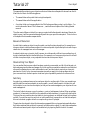
Number box
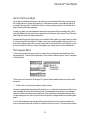
If you want to show a number in a Patcher window, use a number box. There are two number box
icons available in the object palette, one for showing ints and one for showing floats.
A number received in the inlet of a number box is displayed and passed on out the outlet. This is an
effective object to use as a “wiretap” to see what is the most recent number to have passed through
a patch cord.
15
About numbers
Tutorial 3
•
Click on the different message boxes, and notice what is displayed, either in the number box
objects or in the Max window.
Notice a couple of important differences between printing messages with a print object, and displaying them with a number box.
1. The print object will print any message it receives, regardless of the content of the message. The
number box, on the other hand, can display only one number at a time. If it receives a list, it displays (and passes on) only the first number in the list. If it receives an arbitrary text message, it
does nothing except complain that it doesn’t understand that message.
2. A number box can show only an int or a float. If an int number box receives a float, it converts
the number to int, and vice versa.
The number box has other features not described here. This patch does show one of its most common uses, though—to display the number that has most recently passed through a patch cord.
You will learn more in the Number box Tutorial.
Summary
A Max message can consist of a single number, of type int (for integers) or float (for decimals).
Many numbers used in Max (such as MIDI data and millisecond time values) are ints. A message
can also consist of a space-separated list of numbers, which are all sent together in one message.
A number box shows the most recent number it has received, and passes that number on out the
outlet. A number box is either of type int or float, and will convert numbers to that type.
See Also
number box
Display and output a number
16
Tutorial 4: Using metro
Object Names and Arguments
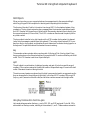
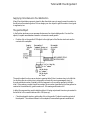
In this chapter, we introduce a new object called metro, which functions as a metronome. You will
notice that we have typed in a number after the word metro in the object box. This is the number
of milliseconds between ticks of the metronome.
The number after the word metro is called an argument. We have already seen arguments used to
give names to print objects. Arguments typically give objects information necessary to do their
job.
Some objects require typed-in arguments in order to function. More commonly, an argument is
optional, to supply some starting value, as in the case of metro where the argument determines the
initial speed of the metronome. When metro is started, it sends out a bang message every n milliseconds (where n is the argument) until the metronome is stopped. If no argument is typed in,
metro has a default value of 5, and sends out a bang every 5 milliseconds.
The metro object has two inlets. A message received in the left inlet can start or stop the metronome. The metronome will start when it receives any non-zero number in its left inlet, and it will
stop when it receives a 0. Alternatively, you can send it a bang message to start, and stop to stop. A
number received in the right inlet will change the number of milliseconds between bang outputs
that was initially set by the argument.
•
Try turning the metro objects on and off, and watch what is printed in the Max window.
17
Using metro
Tutorial 4
•
Try sending different numbers to the right inlet of metro, and notice the change in the speed
with which messages are printed. The speed can be changed while the metronome is running,
but the change does not take effect until the next bang is sent out.
Because it sends out the message bang, metro is a useful object for triggering other objects repeatedly at a specific speed.
Summary
After you type a name into an object box, you can supply additional information by typing in
arguments after the object name. Arguments are usually optional, but some objects have obligatory
arguments. If optional arguments are not typed in, Max usually supplies a default value.
A metro sends out bang messages repeatedly at regular intervals of time, until it is stopped. The
number of milliseconds between bang messages is specified by the argument or by a number
received in the right inlet.
See Also
metro
Output bang, at regular intervals
18
Tutorial 5: toggle and comment
toggle
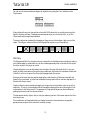
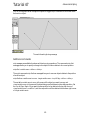
The toggle object is the box with an X in it in the object palette. It functions as an indicator or a
switch between two states: zero and non-zero.
•
Click on the different message boxes containing numbers, and notice what happens to the toggle and the number box.
The toggle object can receive a number or a bang in its inlet. If the number is non-zero, toggle will
show an X and send out the number. If the number is 0, the box will be blank and 0 is sent out the
outlet. The toggle expects to receive an int, so when it receives a float it converts it to int. That is
why the number 0.9 is understood as 0 by toggle.
The toggle alternately sends out the values 1 and 0 each time it is clicked with the mouse or receives
a bang in its inlet. When it receives a bang or a mouse click, it reverses its state and sends out the new
value. This distinction between zero and non-zero is Max’s way of turning things on and off, or
distinguishing between true and false.
•
Thus, you can use a toggle as an on/off switch. In our example, the metro object can be turned
on and off by clicking on the toggle. Try it. This works because metro starts when it receives a
non-zero number (like 1) and stops when it receives a 0.
19
toggle and comment
Tutorial 5
comment
The dotted box in the palette, to the right of the message box, is a comment.
A comment has no effect on the functioning of a program. It’s simply a way of putting text into a
Patcher window. The main reasons to add a comment are:
1. To label objects in the patch, such as “on/off switch”.
2. To give instructions to the user, such as “Click here”.
3. To explain the way a program works, or how a particular item in a program functions. This is
not only helpful to the user of the program, but is also very helpful to you, the programmer.
You’d be amazed how quickly you can forget how your own program works. Get in the habit of
adding many explanatory comments as you build programs.
A comment box (or almost any other object) can be resized by dragging on the grow bar in the
lower-right corner of the box.
•
You can also change the size of the text in a comment (or any other object). Click on the comment box to select it, then choose a different font or size from the Font menu. Try changing the
font characteristics and the size of the comment that says “This is a comment.”
When you specify font characteristics with no objects selected, you set the characteristics for any
new objects you subsequently create in the active window. When you specify font characteristics
with the Max window in the foreground, you set the characteristics for all new Patchers you subsequently create. Max stores these font characteristics in the Max Preferences file, and recalls them
each time you use Max.
Summary
A toggle can be used to generate the numbers 1 and 0, for turning other objects (such as metro) on
and off. It can also be used as an indicator of numbers passing through it, telling whether the most
recent number was zero or non-zero (although any floats passing through will be converted to
int.) A comment doesn’t do anything, but is useful for putting text in a Patcher window.
20
toggle and comment
Tutorial 5
See Also
comment
led
togedge
toggle
ubutton
Put explanatory notes or labels in a patch
Display on/off status, in color
Report a change in zero/non-zero values
Switch between on and off (1 and 0)
Transparent button, sends a bang
21
Tutorial 6: Test 1—Printing
Make a Printing Program
Here is an exercise to make sure that you understand what has been explained so far.
•
Create a patcher program which, when turned on, prints the phrase…
test: 1
…in the Max window every two seconds until it is turned off. Include a way of turning the
program on and off.
The answer has been hidden in the right side of the Patcher window. Scroll to the right or enlarge
the Patcher window to see the answer.
22
Tutorial 7: Right-to-left Order
Message Order
This lesson illustrates that messages in Max are always sent in right-to-left order. And, if a message
triggers another object, that object will send its message(s) before anything else is done. Knowing
these two principles can help you figure out exactly how a patcher program is operating.
For example:
•
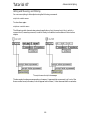
Click on the button marked A. The bang message is first sent to the message box containing the
number 60, that message is sent to the print object, and A: 60 is printed in the Max window.
Then the bang message is sent to the message box containing the number 50, that message is
sent to the print object, and A: 50 is printed in the Max window. Finally, the bang is sent to the
message box containing the number 40, that message is sent to the print object, and A: 40 is
printed in the Max window.
This illustrates the right-to-left order in which bang messages are sent from the outlet of button to
other objects, and also illustrates that the order of messages continues down the line until no more
objects are triggered (in this case, until the print object does its job), then goes back to the next
patch cord coming out of the button, and the next bang is sent.
bangbang
The bangbang object sends a bang out each of its outlets when it receives any message. The number
of outlets is specified by the typed-in argument. The order in which the messages are sent out the
outlets is still right-to-left: the rightmost outlet sends first and the leftmost outlet sends last.
23
Right-to-left order
Tutorial 7
•
Click on the button marked “B”, and you will see that when an object (such as bangbang) has
more than one outlet, messages are sent out the outlets in right-to-left order.
When multiple patch cords are connected to a single outlet, as in examples A and C, messages are
sent to the receiving objects in order of their right-to-left position, but when a single object has
more than one outlet, as in examples B, D, and E, messages are sent out the outlets in right-to-left
order, regardless of the destination.
trigger
The trigger object is very similar to bangbang, but deals with numbers as well as bang messages.
Instead of a single argument telling how many outlets there are, the number of outlets a trigger
object has depends on how many arguments are typed in. Each argument in a trigger specifies
what the output of an outlet will be: i for int, f for float, b for bang, or l for list (not shown in the
example).
•
Click on the message box 90, marked C. The print objects receive the number in right-to-left
order, depending on their position.
•
Click on the message box 90 marked D. Each outlet of the trigger has been assigned to send an
int, so the number 90 will be sent out each outlet, in order from right-to-left.
•
Click on the message box 90 marked E. In this example, each outlet has been assigned to send
something different. The right outlet sends an int, the middle outlet sends a float, and the left
outlet sends a bang.
Note: The names of bangbang and trigger can be shortened to b and t (as in example E). Max will
still understand these object names.
Summary
An object with multiple outlets sends messages out its outlets in order from right-to-left. When
multiple patch cords are connected to a single outlet, the messages are sent in right-to-left order,
depending on the position of the receiving objects. (If the receiving objects are perfectly aligned
vertically, the order is bottom-to-top.) When the bangbang object receives any message, it sends a
bang out each outlet. When trigger receives a number, a list, or a bang, it converts the message into
the type assigned to each outlet before sending it out.
See Also
bangbang
buddy
fswap
swap
trigger
Send a bang to many places, in order
Synchronize arriving numbers, output them together
Reverse the sequential order of two decimal numbers
Reverse the sequential order of two numbers
Send a number to many places, in order
24
Tutorial 8: Doing Math in Max
Arithmetic Operators
Max has an object for each of the basic arithmetic operations, plus a modulo operator (which
gives the remainder when two integers are divided).
We call these objects operators—and the numbers they operate upon are called operands. Each
operator object expects one operand in its right inlet (which it stores) and then the other in its left
inlet (which triggers the calculation and the output). An initial value for the right operand can be
typed in as an argument. In the upper-left example, you see both methods. Be aware, however,
that as soon as a different number is received in the right inlet, it will be stored in place of the initial
value, even though that initial value continues to show as the argument.
Left Inlet Triggers the Object
Note that just connecting to an object’s inlet does not perform any calculation. You have to trigger
the calculation by sending a number (or bang) into the left inlet. The vast majority of objects are
triggered by input received in the left inlet. Input received in the other inlets is usually stored for
later use.
•
In the upper examples, click on the message boxes above the operators.
Notice that the number coming in the right inlet has to be received before the number in the left
inlet is received. That is because the message received in the left inlet triggers the calculation with
the most recently received numbers. If you haven’t supplied a number as a typed-in argument (and
no number has been received in the right inlet), 0 is the default argument for the +, -, and * objects,
and 1 is the default for / and %.
25
Doing math in Max
Tutorial 8
Int or Float Output
You may have noticed that the / object sends out 8 as the result of 25 ÷ 3. That’s because the output
is an int, and is truncated before being sent out.
All the arithmetic operators send out an int as the result, unless they have a typed-in argument
that contains a decimal point, in which case they are converted to float.
The two division programs at the bottom-right corner of the Patcher window demonstrate converting from one type to another. The first program removes the decimal part of any float numbers it receives. It performs the operation 12 ÷ 2 and outputs a result of 6. The second program
divides the numbers 12.75 and 2.5 as floats and gives a full float output, because its typed-in argument contains a decimal point.
If you want an operator always to do float arithmetic operations, give the object an initial argument of a number with a decimal point, and then send the numbers you want it to use in through
the left and right inlets.
bang Message in Left Inlet
The program in the bottom-left corner illustrates a couple of other features of operators.
•
First, send the number 4 to the left inlet of the + object by clicking on the message containing
4. The object performs the calculation 4 + 5 and outputs the result, 9.
•
Next, send the number 10 to the right inlet. The number 5 is replaced by the number 10, but no
output is sent. Only the left inlet triggers output.
•
Now click on the button to send a bang to +. What happens? The bang causes + to “Do It!”—in
this case, to do the calculation with the numbers it has most recently received.
26
Doing math in Max
Tutorial 8
List in Left Inlet
Both operands can be sent to an operator together, as a list received in the left inlet. The operator
will function exactly as if it had received the second number in the right inlet and the first number
in the left inlet. The numbers are stored, the calculation is performed, and the result is sent out.
•
Click on the message box containing 3 20 to see the effect of sending a list to the left inlet.
•
Then send the number 4 to the left inlet, and you will see that the number 20 has been stored
just as if it had been received in the right inlet.
This demonstrates that when you send a list of numbers to an object with more than one inlet, the
numbers are generally distributed to the object’s inlets, one number per inlet. You will see other
examples of this in future chapters.
Summary
Mathematical calculations are performed by arithmetic operator objects: +, -, *, /, and %. The operands are received in the two inlets, but only the left inlet triggers output. A bang or a list in the left
inlet can also trigger output. The operators send out an int, unless they have a float argument, in
which case they send out a float.
Most objects in Max are triggered by input received in the left inlet. A list can be received in the left
inlet, supplying values to more than one inlet at the same time.
Arithmetic operators are essential for any algorithm involving numerical calculation. Their use
will be shown in future programs.
See Also
expr
Tutorial 38
Evaluate a mathematical expression
expr and if
27
Tutorial 9: Using the slider
Onscreen Controller
Clicking on a message box is one way of sending a number through a patch cord. Another object,
the slider, lets you send any of a whole range of numbers by dragging with the mouse.
The slider object looks like this in the palette…
When it is placed in the Patcher window it resembles a slider on a mixing console. Dragging on the
slider sends out numbers as the mouse is moved.
•
Click and drag on the first slider in the Patcher window, and see the output in the number box.
When you create a new slider, its output ranges from 0 to 127. You can change the Slider Range by
selecting the slider (when the Patcher window is unlocked) and choosing Get Info… from the
Object menu. The slider automatically resizes itself to accommodate the specified range.
28
Using the slider
Tutorial 9
The Get Info dialog box (also called the Inspector) has two other values you can set: a Multiplier,
by which all numbers will be multiplied before being sent out, and an Offset, which will be added
to the number, after multiplication.
•
The second slider in the Patcher window has a range of 99 (from 0 to 98), but before a number
is sent out it is multiplied by 50, then has 100 added to it. So, when the slider is in the lowest
position, it will output (0 * 50) + 100, which equals 100. When the slider is in the top position,
it will output (98 * 50) + 100, which is 5000.
Many objects let you set options like this with the Inspector.
Graphic Display of Numerical Values
In addition to responding to the mouse, the slider will move to whatever number it receives in its
inlet. This makes it useful for graphically displaying the numbers passing through it. The Multiplier and the Offset are also applied to numbers received in the inlet, so the slider can actually
change values as they pass through.
•
Click on the message boxes containing numbers, above the middle slider objects.
Notice that both slider objects move to display the value they have received, but the number that
each one sends is different. The slider on the left has an Offset of 0 and a Multiplier of 1, so it doesn’t
change the number it receives, but the other slider multiplies the incoming number by 2 and adds
1 to it.
Notice also that the numbers that are received and sent out can exceed the specified range of the
slider, and that a float gets converted to int.
Other Inputs
A slider can receive other messages in its inlet. When it receives bang, it sends out whatever number
it currently is displaying (with the Multiplier and Offset effects). The word set, followed by a number, sets the value of the slider without sending any output. The word size, followed by a number,
changes the Range of the slider to that number.
29
Using the slider
Tutorial 9
Summary
A slider lets you output a continuous stream of numbers within a specified range by dragging on it
with the mouse. It will also show and send out numbers received in its inlet, making it useful for
graphically displaying the numbers passing through it.
By choosing Get Info… from the Object menu, you can change the Slider Range, and can also
specify a Multiplier, by which all numbers will be multiplied before being sent out, and an Offset,
which will be added to the number, after multiplication.
See Also
hslider
kslider
rslider
slider
uslider
Tutorial 14
Output numbers by moving a slider onscreen
Output numbers from a keyboard onscreen
Display the range between two values
Output numbers by moving a slider
Output numbers by moving a slider onscreen
Sliders and dials
30
Tutorial 10: Number Boxes
Onscreen Controller
In the previous chapter we saw that a slider graphically displays the numbers passing through it,
and can also send out numbers when you drag on it with the mouse. The number box has these
same capabilities.
•
Try dragging on the number box at the top of the Patcher window, and you will see that it can
be used as an onscreen controller much like the slider.
Unlike the slider, the number box can have an unlimited range. You can produce virtually any number with the number box if you keep dragging.
Type In Numbers
You can also type numbers into a number box from the computer’s keyboard.
•
Click on the number box at the top of the screen, without dragging. Notice that the triangle in
the left edge of the number box becomes highlighted, showing that it has been selected.
•
Type the number 64 on the computer’s keyboard. The number will be followed by an ellipsis,
indicating that the number has not yet been sent out the outlet.
•
When you have finished typing in the number, you can send it out the outlet with any one of
three actions: type the Return or Enter keys on Macintosh or the Enter key on Windows, type
31
Number boxes
Tutorial 10
the Enter key on Macintosh or the Shift and Enter keys on Windows, or click anywhere in the
Patcher window outside of the number box.
•
While a number box is selected in a locked Patcher, you can also raise and lower the number in
it by pressing the up and down arrow keys. Holding down one of these arrow keys moves the
number up or down continuously, just as if you were dragging on the number box with the
mouse.
You can see that the number box is useful both for displaying the numbers received in the inlet (as
in the case of the number box below the slider), and for allowing you to send numbers by typing
them in or dragging with the mouse. The second patch shows the number box in both uses—for
sending numbers to the + object, and for displaying the result.
•
Send a number to the right inlet of the + object, either by dragging on the number box or by
clicking on it and typing in a number. Remember, we want to send a number to the right inlet
first, because the left inlet is the one that triggers the addition.
•
Now send a number to the left inlet of the + object, and you will see the result of the addition
in the bottom number box.
32
Number boxes
Tutorial 10
Number box Range
You can set many characteristics of a number box—how it functions and how it looks—by selecting a number box and choosing Get Info… from the Object menu to display the number box
Inspector.
Inspector for a number box
When you create a new number box, it has an unlimited range. You can limit the range by typing a
number into the Minimum and Maximum boxes in the Inspector.
•
Unlock the Patcher window, select the number box located above the slider, then choose Get
Info… from the Object menu.
•
Click on the checkboxes for No Min and No Max to disable them. Type the number 0 into the
Minimum box, and type the number 127 into the Maximum box. (You can move from one box
to the other by typing the Tab key.) Click OK, then re-lock the Patcher window.
•
Now when you drag on the number box, it will not exceed the range of 0 to 127.
The Minimum and Maximum settings of a number box limit the range of numbers that can be sent
out by dragging on it or by typing in a number, and also limit the range of numbers passing
through it. Incoming numbers that exceed the specified Minimum and Maximum will be changed
to stay within the limits.
33
Number boxes
Tutorial 10
Display Options
The Inspector has check boxes for toggling on and off various features. Some of the options affect
the way the number box functions, while others only affect the way it looks.
The Draw Triangle option is already checked, so that the triangle in the left edge of the number box
will make it visually distinct from the message box. Also, the triangle shows when a number box has
been clicked on, by becoming highlighted. The presence or absence of the triangle has no effect on
the way the object functions, but it lets you change the appearance.
Draw in Bold displays the number in bold typeface. These aesthetic options can be used to emphasize certain number box objects, or to show the user of your program which ones to drag on.
The Display pop-up menu lets you select the format of the displayed data. (These options are
available only in the int number box.)
Although we won’t be using these options in the tutorial, the Inspector will also let you assign colors to both the numbers and the box they are in, or to make the box transparent. You can also
choose fonts and font sizes for numbers from the Font menu.
Note: Numbers entered by typing into a number box must be typed in the same format as that in
which the number is being displayed.
Mouse Options
Normally the number box sends out a continuous stream of numbers as it is being dragged upon
with the mouse. The Output only on Mouse-Up option causes the number box to send out only the
last number, the number that is showing when the mouse button is released. This lets you see the
numbers as you drag, but only send out the single number that you choose.
When Can’t Change is checked, numbers cannot be entered by dragging or typing. This is useful
when you want a number box to be for display only, without being an onscreen controller.
34
Number boxes
Tutorial 10
The third patch shows some of these options in use. The patch is for converting decimal numbers
to their hexadecimal or note name equivalents, or vice versa.
•
Drag on the top number box, and you will see the numbers displayed in different formats.
Summary
The number box can be used to display numbers passing through it, and/or as an onscreen controller for sending out numbers. Numbers can be sent out by dragging on the number box with the
mouse, or by clicking on the number box and then typing in a number (or pressing the up or down
arrow keys).
The range of numbers a number box can send out can be specified by choosing Get Info… from
the Object menu. With the Inspector you can also change how the numbers are displayed, and
how the number box responds to the mouse.
See Also
number box
Tutorial 3
Display and output a number
About numbers
35
Tutorial 11: Test 2—TemperatureConversion
Using Arithmetic Operators
To be sure you understand how to use arithmetic operators and the number box, try this exercise:
1. Make a patch that converts a temperature expressed in degrees Fahrenheit into one expressed
in degrees Celsius. Use a number box to enter the Fahrenheit temperature, send the number to
arithmetic operator objects to convert it, and use another number box to display the result as a
Celsius temperature.
Hints
The formula for converting Fahrenheit to Celsius is:
°C = (°F - 32) * 5/9
(The * is the multiplication operator.) You will first want to subtract 32 from the Fahrenheit temperature, then multiply the result by 5, then divide that result by 9.
Using Sliders
Here is a second exercise, a bit more difficult than the first one.
2. Make a patch that converts a temperature expressed in degrees Celsius into one expressed in
degrees Fahrenheit. Limit the temperatures between the freezing point and the boiling point.
In addition to using number box objects to show the temperatures, use slider objects as “thermometers” to show the temperatures graphically.
Since the Offset and Multiplier features of the slider objects can do addition and multiplication,
try using these features to do some of the arithmetic work. Use as few arithmetic operator
objects as possible.
Hints
The formula for converting Celsius to Fahrenheit is:
°F = (°F * 9/5) +32
You will first want to multiply the Celsius temperature by 9, then divide the result by 5, then add 32
to that result.
In degrees Celsius, 0 is the freezing point and 100 is the boiling point. In degrees Fahrenheit, 32 is
the freezing point and 212 is the boiling point.
36
Test 2—Temperature conversion
Tutorial 11
•
Use the Minimum and Maximum features of the number box to limit the input (Celsius temperature) between 0 and 100.
•
Set the Slider Range of the slider which is depicting your Celsius “thermometer” to 101 so that it
will display values from 0 to 100. (You can use the Multiplier feature of this slider to multiply
the Celsius temperature by 9.)
37
Test 2—Temperature conversion
Tutorial 11
•
Use a / object to divide the Celsius temperature by 5. Then use the Offset feature of the slider
that’s depicting your Fahrenheit “thermometer” to add 32, and you will have the result. (Set
the Slider Range to 181 so that it will range from 32 to 212.
Your objects will be connected something like this:
Scroll the Patcher window to the right to see solutions to these two exercises. Although temperature conversion is not a very useful musical function, these exercises exemplify how to solve a
mathematical problem using operator objects.
In the subsequent chapters you will use these operators to manipulate MIDI data.
Summary
Arithmetic operators can be linked together to form a complete mathematical expression. The
order in which the objects are linked is important for performing each operation in the proper
order.
38
Test 2—Temperature conversion
Tutorial 11
In some instances, the Offset and Multiplier features of the slider object can be used to perform an
arithmetic operation.
39
Tutorial 12: Sending and Receiving MIDI Notes
Verify your MIDI Setup
Now that you’ve gotten a feel for how applications are constructed by connecting objects, we’ll
begin using MIDI data in our patches so that the examples have a more direct musical application.
Make sure that your MIDI equipment is connected properly. If you have any doubts, review the
section of the Getting Started manual titled Setup, and review the first page of the Tutorial 1 for a
discussion of MIDI equipment and connections.
MIDI Objects
There are many objects for transmitting and receiving data to and from your MIDI equipment.
Objects that receive MIDI messages from your synth don’t receive that data in through their inlet.
Their MIDI input comes directly from the virtual MIDI ports (see the Ports chapter in the Getting
Started manual) rather than from other Max objects. Objects that transmit MIDI messages have
no outlets, since they transmit their messages out from Max.
The most basic MIDI objects are midiin and midiout, which receive and transmit raw MIDI data
byte-by-byte, without analyzing the MIDI messages at all. More commonly, though, you will use
more specialized MIDI objects, which filter the raw MIDI data coming into Max, and output only
the information you need.
For example, the notein object looks only for MIDI note messages, and when a note arrives, notein
outputs the key number, the velocity, and the channel number. Similarly, the bendin object looks
only for incoming pitch bend messages, and sends out the amount of pitch bend and the channel
number.
40
Sending and receiving MIDI notes
Tutorial 12
The notein and noteout Objects
For the moment we will concern ourselves only with MIDI note data—receiving information
about notes played on the synth, and transmitting messages to play notes on the synth.
•
Play a few notes on your synth. You should see the note data in the number box objects.
If you don’t see anything happen, re-check your connections.
For the purpose of this Tutorial, your MIDI interface should be connected to your computer. If
you have not already done so, you should use the MIDI Setup dialog to assign port a—with a
channel offset of 0— to the input and output devices you want to use for the Tutorial.
The letter argument to notein indicates the port in which it receives MIDI note messages. If no
argument is present, it receives from all ports.
•
Play a few notes and hold the keys down for a moment before releasing them. You can see that
a message is sent for each note both when you press the key and when you release it. A note
message with a velocity of 0 indicates a note-off.
The patch on the left is for playing in parallel octaves. Every note you play on the synth is received
by the notein object. The pitch information is sent to a + object which adds 12 to the pitch value.
This, of course, raises the pitch by 12 semitones (1 octave). We’ve included extra number box
objects so that you can see the pitch values both as numbers and as MIDI note names.
The velocity and channel information is passed on unchanged, and is reunited with the transposed pitch information in the noteout object. The new note, an octave higher than the one you
played, and with the same velocity as you played, is sent back out to the synth by noteout.
Message Order
Although the pitch, velocity, and channel information appear to come out of notein at the same
time, the numbers come out in right-to-left order (channel, then velocity, then pitch) just like any
other object.
Like most objects, noteout is triggered by a message received in its left inlet—the pitch number.
The pitch is combined with whatever velocity and channel values were most recently received in
the other inlets, and a MIDI message is sent out to the synth.
This consistency of message ordering—outlets always send right-to-left, and objects are triggered
by the left inlet—allows different objects such as notein and noteout to communicate easily.
Because the velocity and channel numbers come out of notein before the pitch does, they arrive at
noteout before the pitch does, keeping all the data properly synchronized.
Receiving On One Channel
A notein object with no arguments, or with only a letter argument, receives incoming note messages on all channels. (This is known as omni mode in MIDI terminology.) You can set notein to
receive on only one channel by typing in a channel number argument. When there is a channel
41
Sending and receiving MIDI notes
Tutorial 12
argument, notein has only two outlets—for pitch and velocity—because the channel number is
already known. Both the port argument and the channel argument are optional.
•
If your MIDI keyboard can transmit on different channels, set it to transmit on some channel
other than 1. Now when you play notes the notein on the left still receives them, but the notein
on the right ignores them.
Transmitting Note Messages
You don’t necessarily need to play notes into Max to send notes out. You can transmit notes to the
synth that are produced within Max.
One way to do this is to send a list—consisting of pitch, velocity, and channel—to the left inlet of
noteout. You may remember this use of lists with the arithmetic operator objects in Tutorial 8.
•
Click on the message boxes containing lists. One list sends a note-on, and the other sends a
note-off (a note with a velocity of 0). It is necessary (or at least polite) to follow a note-on with
a note-off, otherwise the note will continue to play. Try this with a sustained sound on your
synth.
The last patch demonstrates that you can type in an argument for the channel on which noteout
will transmit. The channel inlet is still present, however, and you can change the channel by sending in a new number.
The patch also shows that noteout combines pitches with whatever velocity was most recently
received.
•
Try sending different velocities to noteout. The velocity is just stored until a pitch number is
received to trigger a MIDI note message.
Summary
The notein object looks for incoming MIDI note messages, and outputs pitch, velocity, and channel data. You can type in a specific port letter as an argument, which causes notein to output only
the note data received in that one port. You can also type in a specific channel number, causing
notein to output only the note data received on that one channel.
When the noteout object receives a number in its left inlet, it uses that number as a pitch value,
combines the pitch with a velocity and a channel number, and transmits a MIDI note message.
The pitch, velocity, and channel can also be received together as a list in the left inlet.
See Also
notein
noteout
Output incoming MIDI note messages
Transmit MIDI note messages
42
Tutorial 13: Sending and Receiving MIDI Notes
Note-On and Note-Off Messages
One of the main problems that you encounter when sending note messages to a synth from Max is
the need to follow every note-on message with a corresponding note-off message. For example,
just sending a pitch and a velocity to noteout plays a note on the synth, but that note will not be
turned off until you also send the same pitch with a velocity of 0.
makenote
Max has objects that generate note-off messages, for turning off notes that have been sent to the
synth. One such object is makenote.
When makenote receives a number in its left inlet, it uses the number as a pitch value, combines
that pitch with a velocity, and sends the numbers out its two outlets. Then after a specified delay
(or duration), makenote automatically sends the same pitch number, but with a velocity value of 0.
The synth interprets a note-on message with a velocity of 0 as a note-off. So, when the output of
makenote is sent to noteout, both a note-on and a note-off get transmitted to the synth.
43
Sending and receiving MIDI notes
Tutorial 13
•
Drag on the slider marked pitch in Patch 1. Each number that comes out of the slider is combined with a velocity by makenote (in this case, the velocity is 127, specified in the first argument), and the pitch and velocity are sent to noteout.
50 milliseconds after each pitch is received (the duration specified in the second argument)
makenote sends the same pitch out again, with a velocity of 0. The result is that every note has
a duration of 50ms.
The velocity and the duration can be changed by numbers received in the middle and right inlets.
The most recent values received in these inlets are used the next time a pitch is received in the left
inlet.
•
Try changing the velocity and duration by dragging on the slider objects, then play more notes
by dragging on the pitch slider. The notes now have the velocity and duration you specified.
Note: When no channel number has been specified to noteout, either as a typed-in argument or in
the right inlet, it is set to channel 1 by default.
Patch 2 demonstrates that the pitch, velocity, and duration values can all be received in the left
inlet as a list.
•
Click on the message box containing the number 60. You can see that it is combined with a
velocity of 64, then combined with a velocity of 0 after 250 milliseconds.
•
Click on the message box containing the list. The pitch 72 is sent out with a velocity of 96, and
after 1.5 seconds it is sent out again with a velocity of 0.
•
Now click again on the number 60. You can see that the velocity and duration values (96 and
1500) have been stored in makenote, and are applied to the pitch received in the left inlet.
stripnote
The stripnote object is sort of like makenote in reverse. It receives a pitch and a velocity in its inlet,
and passes them on only if the velocity is not 0. In this way, it filters out note-off messages, and
passes only note-on messages.
This is useful if you want to get data only when a key on your keyboard is pressed down, but not
when the key is released. For example, you might want to use a pitch value from the keyboard to
send a number to some object in Max, but you wouldn’t want to receive the number both from the
key being pressed and from the key being released.
flush
The flush object is another object for generating note-off messages. Unlike makenote, however, it
does not generate them automatically after a certain duration. Instead, flush keeps track of the
notes that have passed through it. When it receives a bang in its left inlet it provides note-offs for
any notes that have not yet been turned off.
44
Sending and receiving MIDI notes
Tutorial 13
Both flush and stripnote receive velocity values in the right inlet and pitch values in the left inlet,
and pass the same type of values out the outlets. They are triggered by a pitch value received in the
left inlet, and use the velocity value that was most recently received in the right inlet. Both objects
can also receive the pitch and velocity values together as a list in the left inlet.
•
Play a few notes on your MIDI keyboard. You can see that stripnote passes only the note-on
messages and suppresses the note-offs. The note-ons get passed through flush, and are
received by the print objects. (A flush object will also pass on any note-offs it receives, but in
this case stripnote has filtered them out.)
•
Now click on the button to send a bang to the left inlet of flush. The flush object keeps track of
all the note-ons it has received that have not been followed by note-offs, and when a bang is
received, flush provides note-offs for those held notes.
The advantage of sending pitch and velocity pairs through flush before sending them to noteout is
that flush has no noticeable effect until it receives a bang, then it turns off any notes that are still on.
This is useful for turning off stuck notes.
Summary
A MIDI note-on message transmitted by noteout should be followed by a corresponding note-off
message, so that the note played by the synthesizer gets turned off.
The makenote object combines pitch values with velocity values, to be sent to noteout. After a certain duration, the same pitch is sent with a velocity of 0, to turn off the note. The stripnote object is
the opposite of makenote. It filters out note-off messages (pitch-velocity pairs in which the velocity
is 0), and passes on only note-on messages (messages with a non-zero velocity).
The flush object keeps track of the notes that have passed through it, and when it receives a bang it
sends out a note-off for any notes which are still on.
See Also
flush
makenote
poly
stripnote
sustain
Provide note-offs for held notes
Generate a note-off message following each note-on
Allocate notes to different voices
Filter out note-off messages, pass only note-on messages
Hold note-off messages, output them on command
45
Tutorial 14: Sliders and Dials
Diverse Onscreen Controllers
In this tutorial, we’ll introduce some objects that function similarly to the slider, but differ somewhat in appearance and behavior.
kslider
Patch No. 1 is similar to the patch in the previous chapter. It allows you to play notes with the
mouse. However, this patch uses a keyboard slider, kslider.
•
Try playing notes by clicking and/or dragging on the kslider. It has been set to output numbers
from 36 to 96 (MIDI notes C1 to C6) out its left outlet. The numbers are then sent to the left inlet
of makenote, where they are paired with a velocity (from the right outlet of kslider), and the
notes are sent to noteout.
•
When you drag along the lower half of kslider, it outputs only the numbers associated with the
white keys. When you drag along the upper half, it plays both white and black keys.
•
The velocity that is sent out the right outlet depends on how high the mouse is placed on the
key you are playing.
The Range and Offset of the notes displayed by kslider can be changed by choosing Get Info…
from the Object menu. The Offset is the value that will be output by clicking on the lowest note of
the kslider, and is specified as a MIDI note name. The default is C1 (36). If you want an offset of 0,
46
Sliders and dials
Tutorial 14
set it to C-2. The Range is specified as the number of octaves you want the kslider to have. The
Inspector also lets you select one of two sizes for kslider, Large or Small.
Range and Offset refer only to the numbers displayed by kslider, or sent out its outlet by clicking
and dragging with the mouse. Numbers received in the inlet of kslider are unaffected by the Offset,
and are passed through unchanged.
Playing Parallel Chords
Suppose you wanted kslider to play parallel major triads. How would you go about it?
In addition to sending the numbers directly to the left inlet of makenote, you can also send them to
two different + objects. One + object can add 4 to the number (raising the pitch a major third),
and the other can add 7 (raising the pitch a perfect fifth). These transposed pitches are then sent to
makenote, along with the original pitch.
•
Try it yourself. Unlock the Patcher window and create two new + objects just above makenote.
Then connect the outlet of the number box to the inlets of the + objects, and connect the outlets of the + objects to the left inlet of makenote.
•
Now lock the Patcher window and click on a note of the kslider to hear the results. You can also
try changing the numbers you add with the + objects, to create other types of triads.
47
Sliders and dials
Tutorial 14
dial, hslider, and uslider
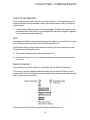
In Patch 1 the velocity values are displayed by a slider object named uslider, and the durations are
supplied by a dial. Patch 2 contains the horizontal slider, hslider.
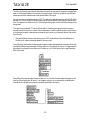
Various sliders and dials in the palette
There are a few important differences between these objects and the slider and number box objects
seen in previous chapters.
1. The slider and the number box send out numbers when you drag them with the mouse. You can
drag on the other sliders and dials, but you can also change them with a single mouse click.
•
Click on the sliders and dials, and notice how they jump to the new position and send out
a number, even without dragging the mouse.
2. The slider and kslider objects resize themselves automatically depending on their range. The
hslider and uslider can be shrunk or enlarged to virtually any size with the grow bar, regardless
of the range of numbers they send out. The dial has only one possible size, regardless of its
range.
3. Although the slider and kslider may have a limited range of numbers that can be output by
dragging, they do not limit the range of numbers that can pass through them. The dial, hslider,
number box, and uslider do limit the numbers received in their inlets. Any incoming number
that is less than 0 (or the specified minimum, in the case of number box), or that exceeds the
specified range, will be automatically restricted within those limits.
The limiting feature can be put to use, as is shown in Patch 2. Let’s analyze what the patch does.
48
Sliders and dials
Tutorial 14
Analyzing Patch 2
•
Play a scale on your MIDI keyboard. Notice that as you play you also hear a scale of short
notes moving in the opposite direction.
When you play notes on the synth, the pitch and velocity are sent through stripnote, which filters
out all the note-off messages, passing only the note-ons. Then 33 is subtracted from the velocity.
•
Play some notes very, very softly so that your key-down velocity is less than 33.
This results in negative numbers coming out of the - (minus) object. The hslider limits the numbers it receives in its inlet, so that none of them is less than 0, and the hslider object’s Offset of 1
ensures that all velocities are at least 1. The reduced velocity finally arrives in the middle inlet of
makenote and is stored there.
Next, the pitch value comes out of stripnote, and has 127 subtracted from it. This means that
pitches, which usually range from 0 up to 127, will range from -127 up to 0. If you have a 61-note
keyboard, your pitches range from 36 up to 96, and subtracting 127 from them causes them to
range from -91 up to -31.
This number is then sent to an abs object, which sends out the absolute (non-negative) value of
whatever number it receives. So now, instead of your pitches ranging from -91 up to -31, they
range from 91 down to 31. As you play higher on the keyboard, the numbers being sent to makenote become lower, and vice versa.
The inverted pitches are paired with the reduced velocity in makenote, and the notes are sent out,
then are turned off after 100 milliseconds (1/10 of a second).
Summary
The hslider and uslider objects are similar to slider, but can be made any size. kslider is a keyboardlike slider, the Range of which is specified as a number of octaves. You can perform both chromatic
glissandi and diatonic glissandi (white-keys only) on kslider.
The dial, hslider, and uslider objects all limit the numbers they receive in their inlet. Numbers that
exceed the range of these sliders are set to the minimum or maximum value of the slider. Unlike
slider, these other sliders respond to a single mouse click, without dragging.
49
Sliders and dials
Tutorial 14
The abs object sends out the absolute value of whatever number it receives in its inlet. The limiting
sliders and abs represent two different ways to avoid negative numbers. (Other objects that can
serve this purpose are maximum and split.)
See Also
abs
dial
hslider
kslider
split
uslider
Output the absolute value of the input
Output numbers by moving a dial onscreen
Output numbers by moving a slider onscreen
Output numbers from a keyboard onscreen
Look for a range of numbers
Output numbers by moving a slider onscreen
50
Tutorial 15: Making Decisions with Comparisons
Relational Operators
One of the most basic things a computer program does is perform some kind of a test, then make
a decision based on the result of that test. The test is usually some kind of comparison, such as seeing if two numbers are equal. The answer to this test can be used to determine what the computer
does next.
Numbers are compared using relational operators which characterize the relationship of one number to another with such terms as is less than, is greater than, is equal to, etc. Max has several relational operator objects, for comparing one number to another:
< means is less than
<= means is less than or equal to
== means is equal to
> means is greater than
>= means is greater than or equal to
!= means is not equal to
Max’s relational operator objects send out the number 1 if the statement is true, and 0 if the statement is false. So, for example, to test the statement 7 is greater than 4, you would send the number 4
to the right inlet of a > object, then trigger the object by sending the number 7 in the left inlet.
Since the statement 7 is greater than 4 is true, the objects sends out the number 1.
The right operand can also be provided as an argument typed into the object box.
•
Drag on the number box at the top of Patch 1. Notice especially the output of each object as you
pass by the number 5.
The relational operators normally expect to receive ints in the inlets. Floats are converted to int
before the comparison is made. Like the arithmetic operators, however, the relational operators
can compare floats if there is a float argument typed in.
51
Making decisions with comparisons
Tutorial 15
select
The select object is a special relational operator. If the left operand is equal to the right operand, a
bang is sent out the left outlet. Otherwise, the left operand is passed out the right outlet. The effect
is that every number received in the left inlet gets passed on out the right outlet except the one
select is looking for. When select receives the number it’s looking for, it sends a bang out the left outlet.
Patch 2 shows that the select object (whose name can be shortened to sel) can actually be given
several arguments, and each argument can be an int, a float or a symbol (i.e., a word). The input is
converted to the proper type (int, float, or symbol) before being compared to each argument.
Notice that the right inlet is not present if there is more than one argument.
•
Click on the different messages. Notice that if the input matches one of the arguments, a bang is
sent out the outlet that corresponds to that argument. If there is no match, the input is passed
out the right outlet.
When the input is an int (such as 4) it is converted to float before being compared with a float argument. A float input (such as 26.9) is truncated before being compared to an int argument.
Combining Comparisons with the select object
The select object sends out a bang, which can be used to trigger other objects, and relational operators send out the numbers 1 and 0, which can be used to toggle something on and off (such as a
metro). So you can see that comparisons can be used in a patch to decide when to trigger another
object.
Patch 3 shows the use of sel to look for a certain pitch being played on your MIDI keyboard.
52
Making decisions with comparisons
Tutorial 15
The pitch is first sent to an % object, which divides it by 12 and sends out the remainder. Since the
note C always has a MIDI key number which is a multiple of 12 (such as 36, 48, 60, etc.), the output of the % 12 object will be 0 whenever the note C is played.
Each time the sel object receives the number 0 from %, it sends a bang to the message boxes, which
send the notes C2, G2, and E3 (48, 55, and 64) to noteout. These pitches are combined with the
velocity of the note C that is being played on the synth, so the chord has the same velocity and
duration as the note being played.
In this example, we test to see if the pitch being played is equal to C. When this is true, the chord is
triggered.
Combining Comparisons with “Or” or “And”
The object || means or. If either the left operator or the right operator is non-zero (true), || sends
out the number 1. If both operators are 0, it sends out 0.
The object && means and. If the left operator and the right operator are both non-zero, && sends
out the number 1. Otherwise, it sends out 0.
|| and && are used to combine two comparisons into a single statement, such as: a is greater than b
AND c is greater than d.
Note that in the example above, the number 5 (a) must be sent last, so that all the other values will
have arrived when && is triggered.
Patch 4 is similar to Patch 3, but it uses || to look for two pitches instead of one. The patch says, if
the pitch played is B OR it is D, then play the notes G1 and F3. The effect, of course, is to accompany
the notes B and D with an incomplete dominant seventh chord.
•
Play a melody in the key of C on your synth. Patches 3 and 4 provide you with an annoyingly
Haydnesque accompaniment.
53
Making decisions with comparisons
Tutorial 15
Using Comparisons to Toggle an Object On and Off
Patches 3 and 4 demonstrate that any number—and thus any key or combination of keys on the
synth—can be used to trigger something in Max. Similarly, the 1 and 0 sent out by relational operator objects can be used to turn an object such as metro on and off. Patch 5 demonstrates this idea.
•
Play the note C6 (high C) on the synth. As soon as you release the key, Patch 5 begins playing
the note repeatedly until the next time you play a note.
The patch is looking for the condition when the pitch is equal to 96 and the velocity is equal to 0.
When both conditions are true, && sends out 1, otherwise && sends out 0. Obviously, the vast
majority of note messages will cause && to send out 0. In order to avoid sending the number 0 to
metro over and over unnecessarily, the output of && is first sent to a change object. The purpose of
change is to filter out repetitions of a number. The number received in the inlet is sent out the left
outlet only if it is different from the preceding number.
When metro is turned on it sends the number 96 to makenote at the rate of 8 notes per second
(once every 125 ms).
Summary
Relational operators—<, <=, ==, !=, >=, and >—compare two numbers, and report the result of
the comparison by outputting 1 or 0. The && and || objects test whether their inputs are 0 or nonzero, making them useful for combining two comparisons into a single test.
The select object (also known as sel) looks for certain numbers (or symbols). If the input matches
what it is looking for, it sends a bang out one of its outlets. Otherwise, it passes the input out its
right outlet.
The results of any of these comparisons can be used by the program to make a decision whether to
trigger other objects.
54
Making decisions with comparisons
Tutorial 15
The change objects passes on a number received in its inlet, only if the number is different from the
preceding one.
See Also
change
select
<
<=
==
!=
>=
>
Filter out repetitions of a number
Select certain inputs, pass the rest on
Is less than, comparison of two numbers
Is less than or equal to, comparison of two numbers
Compare two numbers, output 1 if they are equal
Compare two numbers, output 1 if they are not equal
Is greater than or equal to, comparison of two numbers
Is greater than, comparison of two numbers
55
Tutorial 16: More MIDI Ins and Outs
Introduction
There are many MIDI objects besides notein and noteout. Objects exist for receiving and transmitting any kind of MIDI message. In this chapter, we introduce a few of these objects: bendin and
bendout for pitchbend messages, pgmin and pgmout for program change messages, and ctlin and
ctlout for continuous controller messages.
Like notein and noteout, these other objects can be given optional arguments to specify the port
and MIDI channel on which they will operate. When a channel number is specified as an argument in a MIDI receiving object, the outlet for sending the channel number disappears.
bendin and bendout
bendin receives data from the pitch bend wheel of your MIDI keyboard. The channel is sent out
the right outlet, and the pitch bend data (the amount of pitch bend) is sent out the left outlet. Pitch
bend data ranges from 0 to 127, with 64 meaning no bend at all.
The first patch demonstrates how easily one kind of MIDI data can be given a different meaning.
In this case, the velocity of the notes played on the synth is sent to bendout to control the pitch
bend.
•
Play a single note repeatedly on the synth. The pitch is bent upward when you play hard (when
the velocity is greater than 64), and is bent downward when you play softly.
Notice the way that sel is used to filter out note-off velocities. If this were not done, the pitch would
be bent down to 0 each time a key is released, which might be bothersome in some cases. (On the
other hand, triggering pitch bends with note-offs could be an interesting effect.)
56
More MIDI ins and outs
Tutorial 16
pgmin and pgmout
MIDI program change messages change the sound a synthesizer uses to play notes. Almost all
synths can receive program change messages, and many can send them as well.
Different synths have different numbers of possible sounds, and have different ways of numbering
their sounds. Some synths start numbering sounds from 0, while others start from 1. Others use
unique numbering systems, such as a letter-number combination simulating base-8 arithmetic,
etc.
•
Use the dial in the second patch to send program change messages to the synth.
•
The dial sends out numbers from 1 to 32. If this is not appropriate for your synth, you can
change the Dial Range and Offset. Unlock the Patcher window, select the dial, and choose Get
Info… from the Object menu.
ctlin and ctlout
A control change message contains three vital items of information: the channel, the controller
number, and the control data. The meaning of the data is dependent on the controller number.
For example, controller number 1 is usually assigned to the modulation wheel, controller 7 to volume, etc.
Therefore, in addition to port and channel arguments, ctlin and ctlout can be given a specific controller number as an argument, immediately after the port argument (if present). When a specific
controller number is given as an argument to ctlin, the controller number outlet disappears. For
more about the arguments and their default values, look under ctlin and ctlout in the Max Reference Manual.
57
More MIDI ins and outs
Tutorial 16
Reassigning Control Data
You can use a continuous MIDI controller to send a stream of numbers to Max, then use those
numbers in any way you like. In this patch, the data from the mod wheel of the synth is used to
send pitch values back to the synth.
•
Move the modulation wheel on your MIDI keyboard, and you should hear notes play.
The speedlim object limits the speed with which numbers can pass through it. When speedlim
receives a number, it sends the number out the outlet, then waits a certain number of milliseconds
before it will receive another number. The number of milliseconds between numbers can be a
typed-in argument and/or supplied in the right inlet.
Channel Mode Messages
Controller numbers 122 to 127 are reserved for special MIDI commands known as channel mode
messages. Channel mode messages can be received and transmitted with ctlin and ctlout, just like
any other control message.
The last patch shows an example of ctlout used to transmit a channel mode message meaning All
Notes Off (controller number 123 with a value of 0). Many synths (but not all) recognize this message and turn off all notes currently being played. For turning off notes within Max, it’s more reliable to use an object such as flush or poly.
The patch also demonstrates that ctlout (and the other transmitting objects) can receive values for
all inlets in the form of a list in the left inlet. When there are no arguments, ctlout transmits on
channel 1 out port a.
58
More MIDI ins and outs
Tutorial 16
Summary
Pitch bend messages are received and transmitted with bendin and bendout, program changes
with pgmin and pgmout, and continuous control messages (and channel mode messages) with ctlin
and ctlout.
MIDI data can be altered and reassigned in any way within Max.
A stream of numbers can be “slowed down” by filtering them with speedlim, which ignores some of
the numbers if they arrive too fast. This is a good method of converting a continuous stream of
numbers into regular, discrete steps.
See Also
bendin
bendout
ctlin
ctlout
pgmin
pgmout
speedlim
Output incoming MIDI pitch bend values
Transmit MIDI pitch bend messages
Output incoming MIDI control values
Transmit MIDI control messages
Output incoming MIDI program change values
Transmit MIDI program change messages
Limit the speed with which numbers can pass through
59
Tutorial 17: Gates and Switches
Ggate
In Tutorial 15 we saw examples of how to use comparisons to make a decision whether to send a
message. It is also possible for objects to make decisions about where to send a message.
The patch in the upper-left corner shows a graphical object, Ggate, for routing incoming messages
out one outlet or the other. Messages received in the right inlet are sent out whichever outlet is
pointed at by the arrow. The direction of the arrow can be changed by clicking on Ggate with the
mouse, sending a bang to the left inlet, or sending a zero or non-zero number to the left inlet.
When the number in the left inlet is 0, the arrow points to the left outlet. A non-zero number in
the left inlet causes the arrow to point to the right outlet. In the example above, the toggle has sent
the number 1 to the left inlet of Ggate, causing the arrow to point to the right outlet. Consequently,
any message received in the right inlet is passed out the right outlet.
•
Try the various methods of changing the direction of the arrow, then drag on the number box
to send numbers to the right inlet of Ggate.
Gswitch
The second patch shows a similar object, Gswitch, which can open one of two inlets. Whichever
inlet the arrow points to is the open inlet, and messages received in that inlet are passed out the
outlet. Messages received in the closed inlet are ignored. The leftmost inlet is the control inlet, for
switching the arrow back and forth. It functions like the left inlet of Ggate.
•
Click on the two message boxes to send messages to Gswitch. Only the message received in the
open inlet is sent out the outlet. Change the direction of the arrow and try again.
60
Gates and switches
Tutorial 17
Ggate and Gswitch will pass on any type of message—numbers, lists, and text.
gate
The gate object is like Ggate, with a few important differences:
1. The number of outlets is determined by the argument to gate. A single outlet is opened when
its number is received in the left inlet. All other outlets are closed.
2. When the number 0 is received in the left inlet, all outlets are closed.
3. A gate does not respond to a mouse click the way Ggate does.
•
Send a number to the left inlet of gate to open one of the outlets (or 0 to close all outlets), then
send numbers to the right inlet.
You can see that gate can be used to route messages to any of a number of destinations, just by
specifying which outlet the messages are to be sent out.
switch
The switch object opens one of several inlets to receive messages, and ignores messages received in
the other inlets. The leftmost inlet is the control inlet, as with gate, and the remaining inlets can
receive any message to be sent out the outlet if the inlet is open. The number of inlets—in addition
to the control inlet—is specified by the argument. (There can be as many as 9.)
•
Send a number to the leftmost inlet of switch to open one of the inlets (or 0 to close all inlets).
Then send numbers to the other inlets, and you will see that only the one inlet you specified is
open.
Using switch, you can have messages coming into individual inlets from several different objects,
but switch “listens to” only one of its inlets.
61
Gates and switches
Tutorial 17
Any type of message can be passed through gate or switch.
Left Inlet Is Control Inlet
Unlike most objects—which are triggered by a message received in the left inlet—gate, switch,
Ggate, and Gswitch all use the left inlet as a control inlet, for telling which inlet or outlet is to be
open. Messages received in the other inlet(s) are then sent out the appropriate outlet.
route
One other valuable traffic controller is route, sort of a cross between sel and gate. When route
receives a message in its inlet, it compares the first item in the message to each of its arguments. If it
finds a match, it sends the rest of the message out the corresponding outlet. If there is no match, the
entire message is sent out the rightmost outlet. route is especially useful when it is sent a list (several items separated by spaces).
•
Click on the different message boxes and observe what is printed in the Max window.
The number of outlets route has depends on how many arguments are typed in. Each argument is
an identifier for an outlet, and an additional outlet on the right sends out any messages not
matched by route.
Like select, route looks only for certain inputs, and if there is no match it passes the message on
unchanged. One important difference between select and route is that when select receives a match
for one of its arguments, it sends a bang out the corresponding outlet. When route receives a match,
it sends out the rest of the message. (Unless there is no rest of the message, in which case it sends out
bang.)
Summary
The gate and Ggate objects receive messages in their right inlet, and send the messages out only
one of their outlets, depending on which outlet has been specified as open. The switch and Gswitch
objects receive messages in only one of their inlets, depending on which inlet has been specified as
open.
62
Gates and switches
Tutorial 17
The route object tries to match the first item of each incoming message to one of its arguments. If a
match is found, route sends the rest of the message out the appropriate outlet (if there is no “rest of
message”, route sends a bang to the appropriate outlet). If there is no match, the entire message is
sent out the rightmost outlet.
Routing objects can be used to filter messages coming from many different objects—passing on
only those messages which arrive in a particular inlet—or they can be used to send incoming
messages to one of many destinations.
See Also
gate
Ggate
Gswitch
route
switch
Pass the input out a specific outlet
Pass the input out one of two outlets
Receive the input in one of two inlets
Selectively pass the input out a specific outlet
Receive the input in a specific inlet
63
Tutorial 18: Test 3—Comparisons and Decisions
Comparisons and Decisions
You can write a patch that examines the notes being played on your MIDI keyboard, and makes a
decision about what to do, based on the note information. Here is an exercise to test your understanding of the use of comparisons to make decisions.
•
Make a patch that receives the notes being played on your MIDI keyboard and, if the note is
Middle C (MIDI note 60) or higher, plays the notes an octave lower and an octave higher than
the played pitch.
Hints
A comparison is needed to find out if the pitch being played is greater than or equal to 60.
Based on that comparison, a decision is made to play or not to play the notes an octave lower (12
semitones less) and an octave higher (12 semitones more) than the original pitch.
If the original pitch is less than 60, nothing needs to be done, but if the pitch is greater than or
equal to 60, two new pitches need to be generated. The original pitch must have 12 subtracted
from it to get the lower pitch, and it must have 12 added to it to get the higher pitch.
The new pitches must be combined with a velocity (perhaps the velocity of the original played
note) to send note-on and note-off messages to the synth.
•
Scroll the Patcher window to the right to see two possible solutions to the problem.
Solution 1
Both solutions use the relational operator >= to find out if the played pitch is greater than or equal
to 60. Each solution uses the result of that comparison in slightly different ways.
64
Test 3—Comparisons and decisions
Tutorial 18
In Solution 1, a successful comparison results in a decision to trigger the numbers -12 and 12. The
pitch is stored in the right inlet of a + object before the comparison is made. Then, if the pitch is
greater than or equal to 60, the >= object sends out 1, causing the sel object to trigger the messages
-12 and 12. These two numbers are added to the original pitch, and the sums are sent to noteout,
where they are combined with the velocity of the played note, triggering note messages to the
synth. This process occurs both for note-ons and note-offs, so the transposed pitches are successfully played and turned off.
In Solution 2, a successful comparison opens a gate, letting the pitch through, so that only pitches
greater than or equal to 60 will be passed on.
The placement of the >= object is of utmost importance. Because it is to the right of the gate
object, it receives the pitch first, and either opens or shuts the gate before the pitch arrives at the
gate.
When a pitch is let through, it has 12 subtracted from it in one object, and has 12 added to it in
another object. The results are sent to noteout as pitches, where they are combined with the original played velocity (both for note-ons and note-offs).
Note: The notein and noteout objects in Solution 2 are set to receive and transmit on MIDI channel 2 only so that a note from your MIDI keyboard won’t cause both patches to react.
Summary
In this exercise, the comparison >= 60 was used to trigger messages in one case, and to open a gate
in another case. Either method could be incorporated in a solution to the problem.
To perform a test and make a decision, ask yourself these questions:
1. What do I need to know to make the decision? (What will be tested?)
2. What action will be taken if the test is successful (true)?
3. What action will be taken if the test is unsuccessful (false)?
65
Tutorial 19: Screen Aesthetics
Segmented Patch Cords
So far we have been making patch cord connections with straight patch cords, by dragging from
the outlet of one object to the inlet of another object. In complicated patches, though, it would be
nice if we could bend patch cords around objects, to keep things from getting too messy.
When Segmented Patch Cords is checked in the Options menu, patch cords can be made up of as
many as 10 line segments, allowing them to bend around objects. Segmented patch cords function no differently from straight patch cords, and they can often make a patch neater and more
comprehensible.
The method of connecting objects is a little different when the Segmented Patch Cords option is
in effect. Instead of dragging from outlet to inlet, the method is to click on the outlet, then click at
each of the points where you want the patch cord to bend, then click on the inlet of the receiving
object.
The patch in the left part of the Patcher window shows how segmented patch cords can be used to
give the patch a neater look, making it easier to understand how the patch functions.
66
Screen aesthetics
Tutorial 19
Of course, sometimes segmented patch cords can make a patch less clear to the eye. In the following example, the user cannot be certain where the top-left number box is connected, without actually changing the number to see which of the lower three values changes, too:
Note that you don’t need to turn the Segmented Patch Cords option on in order to make patch
cords that turn corners. Shift-clicking on an outlet will allow you to connect a patch cord in “segmented” mode.
Hide On Lock
•
Unlock the Patcher window. You will see several objects and patch cords that were not visible
before.
When editing a patch, you can select objects and/or patch cords and choose Hide On Lock from
the Object menu. This sets those objects to be invisible when the Patcher window is locked. Show
On Lock makes objects visible which were previously made invisible with Hide On Lock.
Hide On Lock is an invaluable feature for making patches with a good user interface. For example, in the patch in the right part of the Patcher window, there is no reason that the user needs to
see the pgmout object and the patch cords connecting the various objects. All that the user of your
patch needs or wants to see is the dial, the label (comment), and the number being sent out by the
dial.
The Hide On Lock command lets you hide unsightly parts of a patch
Note: If you select a region of the Patcher window and hide several objects at once with Hide On
Lock, the objects will be hidden but the patch cords will still be visible. To hide patch cords, you
must select them before choosing Hide On Lock. You can select patch cords by holding down the
Option key on Macintosh or the Alt key on Windows while dragging a box around a group of
objects. Alternatively, choosing Select All from the Edit menu selects all boxes and patch cords, or
you can just click on patch cords individually, using the shift key to select multiple objects.
67
Screen aesthetics
Tutorial 19
Graphical user interface objects (such as button, toggle, dial, etc.) that have been hidden with Hide
On Lock do not respond to clicking and dragging with the mouse.
Paste Picture
Your completed patch can actually have any visual appearance you choose, because you can
import pictures from other applications such as painting and drawing programs. Cut or Copy the
picture from another application, then in Max, choose Paste Picture from the Edit menu to paste
the picture into a Patcher window.
For example, the decorative border around the dial in this patch is actually just a frame drawn in a
painting program. The dial was then placed on top of the frame to give the illusion of a different
kind of dial.
dial
+
frame
=
decorated dial
Similarly, the two buttons marked OFF and ON are not actual Max objects. They are pictures that
were drawn in another program and pasted in with the Paste Picture command.
The Max icon was placed in the Patcher window by a different method; it is contained inside an
fpic object. If you have designed a picture and saved it as a graphics file, fpic can load that external
file into memory when the patch is opened.
After you place the fpic object in the Patcher window, while it is still selected, choose Get Info…
from the Object menu. The fpic Inspector will appear. Click the Choose... button and a standard
open file dialog appears. After you choose the desired graphics file, you can resize the fpic to display as much or as little of the picture as you want.
When you save the patch, fpic saves a reference to the graphics file so that can will load that picture
automatically the next time the patch is opened. With this method, the graphic is not saved as part
of the patch. If you are using the same graphic in several patches, you can save memory and disk
space by using fpic objects that all reference the same file. You must take care, of course, that the file
is located where Max can find it. See the discussion of the file search path in the Overview section
of the Getting Started manual.
(The Max icon in this particular patch doesn’t do anything. It’s just there to demonstrate the fpic
object, which loads in a small graphics file containing a picture of the Max icon.)
68
Screen aesthetics
Tutorial 19
Clicking on a Picture
•
Lock the Patcher window and click on the picture of a button marked ON. The metro object is
started, just as if you had clicked on the toggle. Click on the picture of an OFF button to stop
the metro.
We know that the OFF and ON buttons are just pictures, so how do they turn the metro off and
on? The pictures seem to respond to a mouse click because transparent buttons—ubutton
objects—have been placed on top of them.
The ubutton object is a rectangular button that becomes invisible when the Patcher window is
locked. When you click down on a ubutton, it sends a bang out its second outlet and inverts the part
of the screen it covers. When the mouse button is released, ubutton sends a bang out its left outlet
and becomes transparent again.
A ubutton can be placed over a picture or a comment (or over nothing, for that matter, if you just
want an invisible button) to make that portion of the screen respond to a mouse click. The pixelinverting feature of ubutton can also be used to highlight a spot on the screen. Look under ubutton
in the Max Reference Manual for details.
The connections between the ubutton objects and the toggle are hidden from sight with the Hide
On Lock command.
Coloring and Resizing Objects
In addition to adding color to your patches by pasting in pictures, you can set certain user interface objects to a color other than gray by selecting them and choosing a color from the Color submenu of the Object menu. Objects that can be colored in this way include button, dial, hslider,
rslider, and uslider. (The color of the led object is set by selecting it and choosing Get Info... from
the Object menu.) If you have selected an object that cannot be colored, the Color submenu will
be disabled in the Object menu.
69
Screen aesthetics
Tutorial 19
You can color the top and bottom edges of an object box by using the Color submenu of the
Object menu.
Many objects allow you to change their colors with RGB values; this is normally done using the
object's Inspector window. These patchers are opened when you choose Get Info... from the
Object menu with a single object selected.
The size of objects can be altered by dragging on the grow bar in the bottom-right corner of the
object. This lets you customize the look of the graphical objects in your Max patches.
0
Different objects, resized to be the same size and shape
Summary
The Segmented Patch Cords option lets you create patch cords that bend around objects, making
your patches easier to understand. You can also create segmented patch cords without this option
turned on by shift-clicking on an outlet.
Objects and patch cords can be hidden from the sight of the user with the Hide On Lock command, so that the user sees only those things you want seen. Objects which have been hidden with
Hide On Lock do not respond to clicking and dragging with the mouse.
Pictures can be imported from graphics applications and placed in a Patcher window with the
Paste Picture command. A picture can be loaded from a graphics file on disk and displayed in a
Patcher with the fpic object.
Graphical objects can be resized by dragging on the grow bar in the bottom-right corner of the
object box. The color of some objects can be changed by selecting them and choosing the Color
command from the Object menu. The appearance of a graphical object can also be altered by
pasting a picture around it to serve as a frame.
The transparent button object, ubutton, lets you make any portion of the screen respond to clicks
from the mouse.
The combination of these features lets you design the screen to have almost any imaginable
appearance and respond to the mouse in a variety of ways.
70
Screen aesthetics
Tutorial 19
See Also
fpic
ubutton
Menus
Display a picture from a graphics file
Transparent button, sends a bang
Explanation of commands
71
Tutorial 20: Using the Computer Keyboard
ASCII Objects
When you type a key on your computer keyboard, a message is sent to the computer telling it
which key you typed. Max has objects for receiving and interpreting this information.
The American Standard Code for Information Interchange (ASCII) is the standard system of key
numbering. The key object receives key down messages from the computer keyboard and sends
the ASCII number of the typed key out its left outlet. (Because key receives its input directly from
the computer keyboard, it has no inlet.) The ASCII number can then be used in a patch just like
any other number.
The keyup object is similar to key, but it sends out the ACSII number of a key when it is released
(when a key up message is received from the keyboard). The numkey object receives ASCII numbers from a key or keyup object, and deciphers them to determine if a number is being typed in on
the keyboard. It reports the value of the number the user is entering.
key
This example contains a single, rather complex patch. At the top of Part A is a key object. Every
time you press a key on the computer keyboard, key sends the ASCII number of that key out its left
outlet. The ACSII number is sent to an object called split.
split
The split object is a combination of relational operator and gate. It looks for a specific range of
numbers. If the number received in the left inlet is within the specified range, it is sent out the left
outlet. Otherwise it is sent out the right outlet.
The minimum and maximum values of a split object’s range can be typed in as arguments and/or
they can be supplied in the middle and right inlets. In this case, ASCII numbers 120 through 122
(keys x, y, and z) are sent out the left outlet, and all other numbers are sent out the right outlet.
Using Key Commands to Control a gate
Let’s see what happens when the keys x, y, and z (120, 121, and 122) are typed. First of all, 120 is
subtracted from the key number, resulting in the numbers 0, 1, and 2. These numbers are used to
72
Using the computer keyboard
Tutorial 20
control a gate. The letter x closes the gate, the letter y opens the left outlet, and the letter z opens
the right outlet.
Pitch information from notein is passed through the open outlet of the gate. So, if the letter y is
typed, pitches are passed to the - 12 object and are transposed down an octave. If the letter z is
typed, the pitches are passed to the + 12 object and are transposed up an octave. If x is typed, the
gate is closed and no pitches are passed through.
The transposed pitches are combined with velocities in the flush object, and are sent to noteout.
•
Type the different key commands x, y, and z, and listen to the change in effect for each command when you play on your MIDI keyboard.
Turning Off Transposed Notes
At first glance, the flush object may seem to be unnecessary in this patch. Why can’t the pitches be
combined with velocities right in noteout? They can, but this would leave open the possibility that
some note-off messages would not be received by the synth. Consider the following scenario.
Suppose you type the letter y to transpose pitches down an octave. Then you play and hold down
the note C3 (60) on your MIDI keyboard. This will cause the note 48 to be sent to noteout. Before
you release the note 60 on your keyboard, you type z to transpose pitches up an octave. Now when
you release the note 60, a note-off for note 72 will be sent to the synth. The note 48 will not get
turned off.
73
Using the computer keyboard
Tutorial 20
To solve this potential problem, the notes are sent first to a flush object. Each time a number is
received in the left inlet of gate, a bang is also sent to flush to turn off any held notes. In this way,
note-offs are always provided for any notes that are being held when the status of gate is changed.
Whenever a gate control number is received, a bang is sent to flush
Of course, if you never play notes and give commands at the same time, this precaution is unnecessary. As a general rule, though, whenever you are processing notes (for example, transposing
them) it’s good to make sure that a note-on message is always followed by a corresponding noteoff message. Changing the transposition, closing a gate, etc. while a note is being played can often
cause this sort of problem.
numkey
Part B of the patch shows how numkey interprets numbers typed on the computer keyboard.
ASCII values from the key object are sent to numkey (except for the keys x, y, and z, which numkey
ignores anyway because they are not numerical digit keys).
As digits are typed, numkey sends the current number out its right outlet. The Delete (Backspace)
key can be typed to erase the last digit entered. When you have typed in the complete number, you
can type the Return or Enter keys on Macintosh or the Enter kay on Windows to send the number
out the left outlet. In general, the right outlet is used for showing what number is being typed, and
the left outlet is used for actually sending it.
•
Try changing the sound on your synth by typing in the program number on the computer
keyboard.
Using a combination of key and numkey to type in numbers is different from typing numbers
directly into a number box, because you have to click on the number box before typing into it. The
key and keyup objects receive all typed keys, so there is no need to select any object before numbers
are typed in via numkey.
74
Using the computer keyboard
Tutorial 20
keyup
Typing a key on the computer’s keyboard, just like playing a note on your MIDI keyboard, sends
two messages to the computer—one when the key is pressed down, and another when the key is
released. The keyup objects sends the ASCII number of any key that is released.
In Part C of the patch, we measure the time that a key is held down by measuring the time between
arrival of a number sent by key and a number sent by keyup.
timer
In Part C, we use sel objects to look for specific ASCII values. Both sel objects look for the number
116, which is the key t. (We chose t as a mnemonic for tempo.) When t is pressed down a bang is sent
to the left inlet of a timer object. When the key t is released a bang is sent to the right inlet of the
timer.
The timer object outputs the number of milliseconds between a bang received in its left inlet and a
bang received in its right inlet.
Note: timer is an exception to the general rule of the left inlet being the one that triggers output. In
this case, a bang in the left inlet starts the timing process, but the right inlet is the one that causes
the elapsed time to be sent out.
Using Duration to Set Tempo
This patch uses the duration that a key is held down to set the speed of a metronome. When the
key t is released, a bang is sent to the right outlet of timer, which reports the time that the key was
held down. (We used the message from key to start the timer.)
The time is sent to the right inlet of metro, and is also divided by 2 and sent to the right inlet of
makenote. In this way, the duration of the notes played will be 1/2 the amount of time between
notes, giving a staccato effect.
75
Using the computer keyboard
Tutorial 20
The release of the t key also starts the metro. Notice that the timer is triggered before the metro, so
that the time values will arrive in metro and makenote before metro is started.
The metro sends the pitch 96 to makenote until the period key (.) is typed to stop the metro.
•
Hold the t key down for various lengths of time and listen to the change in the tempo of the
metro (and the duration of the notes). Type the period key (.) to stop the metro.
Summary
The key object reports the ASCII code of keys typed on the computer’s keyboard. The keyup object
reports the ASCII code of keys when they are released. The numkey object interprets ASCII
received from key or keyup, and reports any numerical values being typed.
ASCII values from key or keyup can be used to send commands to a patch, opening a gate or triggering processes. A relational operator such as sel can be used to look for certain keys being typed.
The split object looks for numbers within a certain range. If an incoming number is within range,
it is sent out the left outlet, otherwise it is sent out the right outlet.
The elapsed time between any two events can be reported with timer. The timer is started by a bang
received in its left inlet, and the elapsed time is sent out when a bang is received in the right inlet.
See Also
key
keyup
numkey
split
timer
Report keys typed on the computer’s keyboard
Report keys released on the computer’s keyboard
Interpret numbers typed on the computer’s keyboard
Look for a range of numbers
Report elapsed time between two events
76
Tutorial 21: Storing Numbers
Variables
In traditional programming languages, variables are places in memory used by a program to store
numbers so they can be recalled at a later time.
Many objects in Max are capable of storing a number and recalling it later. For example, the number box will send out the number stored in it when it receives a bang message.
In this tutorial, we’ll use objects that do nothing but store a number and send it out when a bang is
received in the left inlet. These objects are int for storing integer numbers, and float for storing
decimal numbers.
int and float
When a number is received in the left inlet of an int or a float object, it is stored and sent out the
outlet. Whenever a bang is received in the left inlet, the stored number is sent out again.
When a number is received in the right inlet, it is stored without triggering any output (replacing
the previously stored value).
The int and float objects both function in exactly the same way. The only difference is the type of
number they store. When a number with a decimal point (float) is received by an int object, the
number is converted to an int before being stored, and vice versa.
An initial value to be stored in int or float can be typed in as an argument. If there is no argument,
the objects initially store the number 0.
Using float
The patch in the left part of the Patcher window uses both int and float. Once we understand what
the patch does, the need for these objects should be clear.
77
Storing numbers
Tutorial 21
The combination of notein and stripnote should be familiar to you. It’s the easiest method of getting note-on data from a MIDI keyboard (without getting note-off data).
The velocity is converted to three separate messages by the t (trigger) object: a float, a bang, and
another float. The first float (from the right outlet of t) is sent to the right inlet of the / object,
where it is stored. The bang then causes the float object to send out its stored number.
This triggers a series of calculations, finally resulting in a number being sent to the right inlets of
makenote and metro. Then the last float (from the left outlet of t) is stored in the float object.
What this means is that each time a new velocity is received, the previous velocity is divided by the
new velocity, then the new velocity is stored as the “previous” one. The result is the ratio of the old
velocity to the new velocity.
Note: The velocity could just as well be stored in an int object, but it is converted to float by the /
object in any case. Since the conversion from int to float has to occur somewhere, we made the
conversion with the t object.
Why do we need to divide the two velocities as floats? Consider the possible cases. The range of
possible ratios between two note-on velocities is from 1/127 to 127/1, (i.e., from 0.007874 to 127.0).
Whenever the previous velocity is less than the new one, the ratio will be some fraction between 0
and 1. But if we performed an integer division, the result would always be 0 when the velocity is
increasing.
Float division is needed to get the precise ratio between two velocities
78
Storing numbers
Tutorial 21
The ratio is then multiplied by 250 (again the numbers are calculated as floats, so that ratios less
than 1 are not converted to 0 before the multiplication), and the result is used as the new note
duration for makenote and the new tempo for metro.
However, not all the numbers we get this way are really suitable as musical values. Extreme changes
in velocity result in very small or very large numbers. The range of possible values in this calculation can be as small as 1.9685 (which will be truncated to 1 when it is converted to int) and as great
as 31750. So, we use split to limit the values between 40 milliseconds (25 notes per second) and
2000 milliseconds (one note every 2 seconds). Numbers that exceed these limits will be ignored.
The split object automatically converts the floats back to ints.
•
Play a few notes on your MIDI keyboard, and observe how changes in velocity affect the numbers being sent out of split. When the velocity is increasing, the numbers are less than 250.
When the velocity is decreasing the numbers are greater than 250. Extreme changes in velocity
result in extremely large or small numbers, which are ignored by split.
Using int
What happens next in our patch? The velocity is sent to the middle inlet of makenote, where it is
stored. Then the pitch value is stored in the int object.
Well, so far we’ve seen that a lot of numbers get stored, calculated, and changed by playing on the
synth, but nothing else happens...until we turn on the metro. The bang messages from the metro
trigger the int object, which sends out its number—whatever pitch was most recently played—to
makenote. The speed of the metro is dependent on the change in velocity between successive notes
played on the synth.
•
Turn on the metro and play on your MIDI keyboard. Notice how you can affect the speed,
velocity, and duration of the repeated notes by changing the velocity with which you play.
accum
Another storage object, accum, performs internal additions and multiplications to change its
stored value.
The left inlet of accum functions just like that of the int and float objects: a number received in the
left inlet is stored and sent out the outlet, and a bang sends the stored number out again. However,
the middle and right inlets of accum are used to add to the stored number or multiply the stored
number, respectively. The number is changed without anything being sent out the outlet.
79
Storing numbers
Tutorial 21
An initial value to be stored in accum can be typed in as an argument. If there is no argument, the
object initially stores the number 0. The value stored in accum is normally an int, but if the typedin argument contains a decimal point accum stores a float. Multiplication in accum is always done
with floats, even if the stored number is an int.
Using accum
The accum object is most useful for storing a value that you wish to change often by adding to it or
multiplying it. For example, you may want to continually increment a number by adding some
amount to it over and over. The second patch in the Patcher window shows an example of incrementing.
•
Click on the toggle to start the metro. Notice how the pitch, velocity, and duration values sent
to makenote change continually. The amount of change is directly related to the numbers
being added or multiplied in the accum objects.
Each time the accum objects receive a bang from the metro, they send their stored values to makenote, and they also trigger message boxes which add some number back into the stored value or
multiply the stored value by some amount. (Note: Until now we’ve usually triggered the message
box with a bang, but it can also be triggered with a number.)
The result is that the accum objects change their own stored value each time they receive a bang.
These values would soon exceed reasonable ranges unless we place some kind of restriction on
them. In this patch, numbers sent to makenote loop repeatedly through cycles of different lengths.
Two methods of looping are shown.
The accum that sends durations to makenote (and tempos to metro) starts at 1000, and multiplies
itself by 0.9 every time it sends out a number. Eventually the number is reduced to be less than 40.
When this happens, the message set 1000 is sent to the left inlet of accum, resetting its stored value.
We have already seen a set message used to set the value of a slider without triggering output. It has
the same effect when sent to the left inlet of accum. Every time the value of the accum goes below 40,
it is reset to 1000 and the cycle begins again.
The tempo of the metro is also set back to 1000 at the same time, by sending a bang to the 1000
object. An object box that contains only a number is actually an int object (or a float object if the
number contains a decimal point) with its initial value set to that number.
This shows the basic method of looping: change a value continually until some condition is met
(for example, until it exceeds some limit), then reset the value and begin again.
80
Storing numbers
Tutorial 21
The values stored in the other two accum objects continue to increase without being reset, but the
modulo operator % limits the numbers so that they always cycle within a limited range. Using the
% object is another good way of looping.
Loops Can Create Cyclical Patterns
Using loops in a program is a way of creating periodicities. In this patch, the parameters of duration, velocity, and pitch all have a different periodicity of recurrence, which makes the music seem
to repeat itself while always changing slightly.
Actually, the duration changes according to a 32-note cycle, the velocity changes according to a
118-note cycle, and the pitch changes according to a 37-note cycle. Thus, the entire pattern is
repeated every 69,856 notes—about every 6 hours. Not a melody likely to get stuck in your head.
Overdrive
Max can get rather busy playing music, running metronomes, doing mathematical calculations
and printing numbers on the screen. Checking Overdrive in the Options menu causes Max to
give priority to music-making tasks, and results in more accurate musical timing. If you hear
improper delays on notes, or erratic performance, try enabling Overdrive.
Summary
Integer numbers can be stored in an int object, and sent out later by triggering int with a bang in its
left inlet. Numbers with a decimal point can be similarly stored and recalled with a float object.
The accum object can store and recall either an int or a float value, and can add to or multiply the
stored value without sending it out.
81
Storing numbers
Tutorial 21
Floats are useful for calculations that involve numbers between 0 and 1, or for any calculation that
requires additional precision.
The split object is useful for limiting numbers to a specific range. All numbers it receives that are
within its specified range are sent out its left outlet. Otherwise, they are sent out its right outlet.
Cycles of numbers can be produced by looping. A loop is created by continually changing a number, then resetting it when the number meets a certain condition. The accum object is well suited
for such looping schemes.
See Also
accum
float
int
Loops
Store, add to, and multiply a number
Store a decimal number
Store an integer number
Using loops to perform repeated operations
82
Tutorial 22: Delay Lines
Delaying Numbers and bang messages
Messages normally pass through patch cords as fast as the computer can send them. However, you
can also delay numbers, lists, or bang messages for a certain amount of time before sending them
on their way. This is useful for creating a specific time lag between messages, or delaying notes to
create echo effects.
The pipe object delays the numbers it receives for a certain amount of time before sending them
on. The delay object (also called del) delays a bang for a certain amount of time before sending it
on.
pipe
•
Drag on the number box at the top of Patch 1. The numbers are all delayed for 2000 milliseconds by the pipe object.
Each number is sent out the outlet a certain amount of time after it is received, so pipe can delay
many numbers and send them out later in the same rhythm in which they were received. A number received in the right inlet sets the delay time, in milliseconds, to be applied to all numbers subsequently received in the left inlet. A clear message received in the left inlet erases any numbers
currently being delayed in the pipe.
•
Send some more numbers to the left inlet of the pipe in Patch 1, then quickly click on the word
clear. Any numbers not yet passed through the pipe are forgotten.
delay
•
Click on the button at the top of Patch 2. The bang is delayed for 2000 milliseconds before
being sent out the outlet of the delay object.
83
Delay lines
Tutorial 22
Unlike pipe, which can keep track of many numbers at a time, delay can keep track of only one bang
at a time. If delay receives a new bang while it’s already delaying a bang, the old bang is lost and the
new bang is delayed instead.
•
Send many bang messages to delay in quick succession. Each bang received within 2 seconds of
the previous one erases the previous one, so only the last bang gets sent out the output.
A number received in the right inlet of delay sets the delay time to be applied to any bang subsequently received in the left inlet. A stop message received in the left inlet stops any bang currently
being delayed.
•
Send another bang to delay, then quickly click on the word stop. The bang is not sent out.
Delaying Groups of Numbers
A single pipe object can actually delay several parallel streams of numbers—such as pitch, velocity,
and channel information from notein—with a separate pair of inlets and outlets for each stream.
To make a pipe with more than one outlet, type in one number argument for each stream of numbers you want to delay, plus an argument for the delay time. The last argument is always the delay
time.
Arguments set initial value for each delay line.
Last argument is the delay time.
As with most objects, it’s the left inlet that triggers the pipe. When a number is received in the left
inlet, it is delayed along with whatever number was most recently received in the other delay line
inlets. If no number has been received in the other inlets, pipe uses the initial value named in the
argument, as in the example above. The numbers can also be received together as a list in the left
inlet, with an additional number included at the end of the list to specify the delay time.
Patch 3 shows a pipe that delays three streams of numbers. The channel and velocity values from
notein are received, and then the pitch value triggers the delay of all three numbers. The delay time
can be changed by sending a new number to the right inlet of pipe.
84
Delay lines
Tutorial 22
•
Try playing on your MIDI keyboard using different delay times.
random
Each time the random object receives a bang in its left inlet, it chooses a number at random and
sends the number out the outlet. The range of numbers from which random chooses is determined
by typing in an argument or by sending a number in the right inlet. The random values will always
be between 0 and one less than the argument.
Different uses of random numbers will be seen in the course of the Tutorial.
Using Delayed Triggers
In Patch 4 the metro triggers random to send out a random number between 0 and 60 once every
720 milliseconds. 36 is added to the number to bring it up into the range of a 61-key MIDI keyboard, and it is then transmitted as a pitch to be played on the synth.
The bang from metro is also sent to the del object, where it is delayed a certain time before being
sent to random. A new randomly chosen number is then sent out, so actually two notes are played
every 720ms. The rhythm between the two notes depends on the delay time sent to the right inlet
of del from the hslider.
•
Turn on the metro and experiment with creating different rhythms by changing the delay time
of the del object.
85
Delay lines
Tutorial 22
Summary
A single bang can be delayed for a specific amount of time by the delay object, also called del. If a
second bang is received while the first bang is being delayed, the first bang is forgotten and the second bang is delayed.
Numbers or lists can be delayed by the pipe object. A pipe can delay a series of numbers, and output them later in the same rhythm in which they were received.
A pipe can also delay a list of numbers (or numbers received together, such as pitch-velocity pairs)
when arguments are typed in to indicate how many numbers are to be delayed.
The delay time is specified in milliseconds, by a number received in the right inlet (or typed in as
an argument).
Delays can be used to create echo effects or rhythms.
Each time the random object receives a bang in its left inlet, it generates a random number between
0 and one less than its argument and sends the number out its outlet.
See Also
delay
pipe
random
Delay a bang before passing it on
Delay numbers or lists
Output a random number
86
Tutorial 23: Test 4—Imitating a Performance
Creating Imitation
In previous chapters you have seen how to transpose notes played on your MIDI keyboard, and
how to delay notes. Try making a patch of your own that imitates what you play, starting on a different note.
1. Make a patch that imitates whatever you play, 3 seconds after you play it, transposed up a perfect fifth, and also imitates whatever you play 6 seconds later, transposed up an octave.
Hints
The notes you play on your keyboard will have to be sent to two different places. In one, the pitch
will be transposed up by 7 semitones and all the note data will be delayed by 3000 milliseconds. In
the other, the pitch will be transposed up by 12 semitones and the note data will all be delayed by
6000 milliseconds.
Each imitation should use one pipe object to delay velocity and pitch data together.
•
Page once to the right in the Patcher window to see the solution to the problem, labeled
Patch 1. Note that the order of the + object and the pipe object could be reversed; the transposition could take place after the delay.
Let the User Type In a New Delay Time
If that exercise was too easy for you, try this more difficult one.
2. In Patch 1 each imitation of the melody comes 3 seconds later than the previous one. Make a
version of Patch 1 which lets the user type in a new delay time between imitations.
This presents two potential problems:
•
What happens if the user types in a ridiculous delay time such as -1000 or 3600000?
•
What happens if the user types in a much shorter delay time while holding down a note, and
the note-off gets delayed less than the note-on and is played before the note-on?
These problems represent the sort of extreme or unlikely cases you must take into consideration to
protect against your program malfunctioning or producing unwanted results.
Dealing With Potential Problems
The problem of negative delay times is not serious because the pipe object will set any negative
delay time it receives to 0. The problem of extremely large delay times, on the other hand, can be
more serious.
87
Test 4—Imitating a performance
Tutorial 23
If the delay time is very long and you are playing a lot of notes, the number of notes being stored
could cause pipe to run out of memory. This would cause some notes to be lost, and could conceivably even cause the computer to crash.
The way to deal with this problem is to limit the numbers the user types in as a delay time, and
only send them to pipe if they are reasonable. Try using a split object or hslider to limit the numbers
between 0 and 15000.
The problem of note-offs being played before note-ons could occur if the user types in a much
smaller delay time while holding down a note on the synth. It would result in stuck notes on the
synth.
One solution is to compare each new delay time to the previous one. If the new one is smaller, send
a note-off to pipe for any pitch being held down on the synth. This requires running the notes
through a flush object before sending them to the pipe objects, and also requires comparing the
delay times and sending a bang to the flush objects if a smaller delay time is typed in.
Solution to Exercise 2
•
Scroll the Patcher window all the way to the right to see Patch No. 2, a possible solution to the
exercise.
Note: We have set Patch 2 to receive notes only on MIDI channel 2 so that it will not play while you
are trying out Patch 1. To hear Patch 2, set your keyboard to transmit on MIDI channel 2.
We have used a combination of key and numkey to get the numbers typed on the computer’s keyboard. The typed numbers are sent to split, and any numbers less than 0 or greater than 15000 will
cause an error message to be printed in the Max window.
Invalid numbers cause an error message to be printed.
The typed delay time is first sent to the relational operator < to compare it with the current delay. If
it is less than the current delay, a bang is sent to the flush objects, causing them to send out note-offs
for any notes that may be held down on your MIDI keyboard.
88
Test 4—Imitating a performance
Tutorial 23
The new delay time is then sent to the right inlet of <, to be stored as the current delay time. It is
also sent to the right inlet of the two pipe objects. Note that it is doubled before being sent to the
pipe on the right, so that the right pipe will delay twice as long as the left pipe.
If the new delay time is less than the current one
flush any held notes before changing the delay time.
Summary
Delay and transposition can be combined to create imitation.
Always consider unlikely possibilities. For example, whenever you ask the user to supply a value,
check to make sure it is a valid value before using it. (You can print an error message when an
invalid number is received, or you can just change it to some valid value.) Whenever you are processing note data, make sure that note-ons are always followed by note-offs.
89
Tutorial 24: send and receive
Sending Messages Without Patch Cords
It’s possible to send any type of message without using a patch cord with the send and receive
objects. A message in the inlet of a send object comes out the outlet of any receive object that has
the same argument.
In this patch we have redone the imitating patch from the previous chapter using send and receive
objects (also called s and r).
•
Play on your MIDI keyboard. The note data is sent to the receive objects (and r objects) that
have the same name (argument) as the send object.
The name argument of a send object is like a unique radio frequency, and any receive object with
the same name is “tuned in” to that frequency. Any type of message can be sent with s and r: ints,
floats, lists, symbols, etc.
Communication Between Patcher Windows
The s and r objects have one particular advantage over patch cords, in that they can communicate
even if the objects are not in the same Patcher window. This is a very valuable feature, enabling different patches to communicate with each other. You must take care when naming your send and
receive objects, though, so you won’t send a message to another Patcher window unintentionally.
value
The value object (also called v) stores any message received in its inlet. The message is sent out
when a bang is received. All value objects with the same argument share the same storage location
in the computer’s memory, so the number can be stored and recalled by any one of the objects.
90
send and receive
Tutorial 24
When a new message is stored in one value object, all others that share the same name will also
contain the new message.
A message stored in one location can be recalled in another location.
•
Use one of the number box objects to store a number in the value object named share. The number can be recalled from any of the value share objects by sending a bang to its inlet.
All value objects with the same name share the same value, even if they are located in different
Patcher windows.
Summary
Any message received in the inlet of a send object comes out the outlet of all receive objects with
the same name (argument), even if they are in different Patcher windows. This is valuable for communicating between Patchers.
A message stored in a value object is shared by all value objects with the same name, even if they
are in different Patcher windows. When a value object receives a bang in its inlet, it sends the message out the outlet (even if the message was received in another value object with the same name).
See Also
pv
receive
send
value
Share variables specific to a patch and its subpatches
Receive messages, without patch cords
Send messages, without patch cords
Share a stored message with other objects
91
Tutorial 25: Managing Messages
Using the message box
So far we have used the message box to send a single message, triggering it either with a mouse
click or with a bang, a number, or a list in its inlet. The message box has many additional features
for constructing and changing messages, some of which are displayed in this patch.
comma
If a message box contains a comma, messages are sent out one after another. In this way, messages
can be sent in rapid succession in response to a single trigger.
•
Click on the two message boxes (marked A) in the bottom-left portion of the Patcher window.
One message box contains a list of three numbers, 40 59 80. When makenote receives the list, it
interprets the third number as a duration, the second number as a note-on velocity, and the
first number as a pitch. The other message box contains three separate messages. It sends 40,
then 59, then 80, and each number is interpreted as a pitch by makenote. You can see the messages printed in the Max window, and you can hear the difference in result.
This is one way to play a chord.
The Changeable Argument: $
The dollar sign ($) is a special character in a message box. It is a changeableargument, an argument
that is replaced by an item from the incoming message. For example, if a message box contains The
pitch is $1 and the velocity is $2, and receives the message 60 64 in its inlet, it will send out The pitch is 60
and the velocity is 64. The numbers 60 and 64 are stored in place of $1 and $2 until they are replaced by
other values received in the inlet. The dollar sign can be followed by numbers in the range 1-9.
•
Drag on the number box (marked B) in the top-left corner of the Patcher window. After being
limited by speedlim, each of the numbers triggers the message box. Because the message box
92
Managing messages
Tutorial 25
contains the changeable argument $1, the $1 is replaced by the incoming number before the
message is sent out.
The incoming number is stored in the changeable
argument $1 before the message is sent out.
The number is then sent to pipe, and 1000ms later it is sent to makenote and on to the synth.
•
The last number to trigger the message box is still stored in place of the $1 argument. Now if
you trigger the message box with a bang, the stored number will be sent out again.
The set Message
We have already seen that the message set, followed by a number, can specify or replace what is
stored in many objects without triggering any output. The word set, followed by any message can
replace the contents of a message box without triggering output. The word set by itself clears the
message. (When an empty message is triggered, nothing is sent out.)
•
Click on the different set messages in the portion of the patch marked C.
•
Although the text in the message box changes, nothing is sent out until it is triggered with the
bang message.
append and prepend
The append and prepend objects are for constructing complex messages. The append object
appends its arguments (preceded by a space) at the end of whatever message it receives, and sends
the combined message out its outlet. The prepend object places its arguments (followed by a space)
93
Managing messages
Tutorial 25
before the message it receives, and sends the combined message out its outlet. An example of these
objects is in the bottom-right part of the Patcher window.
When the append object receives a message—for example, the number 12— it places the word
semitones after it and sends out 12 semitones. The prepend object then puts set Transposition = before it
and sends out set Transposition = 12 semitones, which changes the contents of the message box to Transposition = 12 semitones.
The same result could be obtained using only message boxes, in the following manner:
backslash
The backslash (\) is a special character for negating other special characters. A special character
that is preceded by a backslash loses its special characteristics and is treated like any other character. This is necessary if you want to include a character such as a comma or a dollar sign in a message without its being interpreted to have a special meaning.
The append Message
When append, followed by any message, is sent to a message box, the message following append will
be added to the contents of the message box.
•
In the part of the patch marked D, click on the messages set \$1 and append 3000 to construct the
message $1 3000. (Notice that we had to precede the dollar sign with a backslash. Otherwise,
the message box would have tried to interpret $1 as a changeable argument, and the message
would have been set 0). Then drag on the number box marked B.
94
Managing messages
Tutorial 25
The $1 argument is replaced by the incoming number and is sent out as a list with the number
3000. The list is received by pipe, 3000 is stored as the new delay time, and the numbers are
delayed for 3 seconds before being sent on.
•
Next, click on all three message boxes in part D, to construct the message $1 3000, $1 200.
•
Now when you send numbers to the message box, it sends out two lists, resulting in each number being delayed both 3000ms and 200ms.
semicolon
When a semicolon (;) appears in a message box, the first word after the semicolon is interpreted as
the name of a receive object. The rest of the message (or up to the next semicolon) is sent to all
receive objects with that name, instead of out the message box’s own outlet.
95
Managing messages
Tutorial 25
•
Click on the message box marked E, containing the number 700.
The number 700 is sent out the outlet to the right inlet of pipe, the number 0 is sent out the outlet of
the r transp object, and the message delay = 700 is printed in the Max window. This is a way of sending many different messages to different places with a single trigger.
Summary
In addition to simply being able to send any message out its outlet, the message box can be used to
construct messages, and to send them to different places.
The comma is used to separate different messages within a message box, and send them out one
after the other. When a message is preceded by a semicolon in a message box, the first word after the
semicolon is the name of a receive object, and the rest of the message (or up to the next semicolon)
is sent to all receive objects with that name, instead of out the message box’s outlet. The comma
and the semicolon enable a message box to send many different messages with a single trigger.
The dollar sign, followed immediately by a number (such as $1) is a changeable argument. When
the message box receives a triggering message in its inlet, each changeable argument is replaced by
the corresponding item from the triggering message. ($1 is replaced by the first item, $2 is replaced
by the second item, etc.) If no item is present in the incoming message to replace the value of a
changeable argument, the previously stored value is used. If no value has yet been stored in a
changeable argument, its value is 0 by default.
A backslash, used before a special character such as a comma, a semicolon, or a dollar sign, negates
the special characteristics of that character.
A set message can be used to change the contents of a message box without triggering any output.
An append message can be used to add things to the end of the message in a message box.
The prepend and append objects attach their typed-in arguments to the beginning or end of
incoming messages, then send out the combined message.
96
Managing messages
Tutorial 25
See Also
append
message
prepend
receive
send
Arguments
Punctuation
Append arguments at the end of a message
Send any message
Put one message at the beginning of another
Receive messages, without patch cords
Send messages, without patch cords
$ and #, changeable arguments to objects
Special characters in objects and messages
97
Tutorial 26: The patcher Object
Subpatches
A Patcher program can contain other Patcher programs as subpatches. The patcher object lets you
create a patch within a patch.
A new Patcher window opens when you type patcher into an object box. You can edit a patch in the
newly opened subpatch window, then when you save your main patch, the subpatch is saved as part
of the same document. If the subpatch window is open when the document is saved, it will be
automatically reopened the next time you open the document. The subpatch window can be
brought to the foreground at any time by double-clicking on the patcher object. You can even nest
patcher objects; that is, put patcher objects within patcher objects, within patcher objects, etc.
A patcher object can be given an argument specifying the name to be shown at the top of the subpatch window. If there is no argument, the window is named sub patch. The name is enclosed in
brackets to show that it’s part of another patch.
This patch contains two patcher objects, named modwheel and keyboard, and their contents are
shown in the subpatch windows. For aesthetic reasons we have hidden most of the objects in the
subpatches with Hide On Lock, but we will examine them shortly.
•
Play a few notes on your MIDI keyboard and move the modulation wheel. You will see the dial
and kslider display your actions in the two subpatch windows.
All Windows Active
In computer applications, the front window is the active window, where you apply menu commands such as Save and Close, and click and drag on objects. To make a background window
active you have to click on it first to bring it to the foreground.
The All Windows Active option lets you use background windows without bringing them to the
front. To bring any window to the front, click on its title bar or choose its name from the Windows
menu. You can also Command-click on any visible part of the window in Macintosh, or Controlclick on Windows.
•
Check All Windows Active in the Options menu. This will let you click and drag on the dial
and kslider in the background windows without bringing the windows to the foreground.
•
Drag on the dial and the kslider. They can send data to the synth as well as display data received
from your keyboard.
You can close a subpatch window by clicking in its close box, and you can reopen it by doubleclicking on the (locked) patcher object. Now let’s examine the contents of the patcher objects.
98
The patcher object
Tutorial 26
The modwheel Subpatch
•
Bring the modwheel window to the foreground and unlock it.
Now you can see the hidden objects. Modulation wheel data received from your MIDI keyboard
with ctlin is sent to the r modIn object in the subpatch. The control data replaces the $1 argument
and sets the dial without triggering any output (so the data won’t be echoed back to the synth).
When you change the dial, the data is transmitted to the synth with ctlout.
Because they can communicate from one Patcher window to another, send and receive objects
allow you to send messages back and forth between a patch and an embedded subpatch.
inlet and outlet Objects
•
Now bring the keyboard window to the foreground and unlock it to see the hidden objects. At
the top of the subpatch you see two inlet objects.
When you include an inlet or outlet object in a subpatch, a corresponding inlet or outlet is created
in the patcher object in the main Patcher window. This is usually the most efficient way to send
messages to and from a subpatch.
99
The patcher object
Tutorial 26
Assistance
When Assistance is checked in the Options menu, Max gives you information about the inlets
and outlets of objects while you are editing a patch. Every time you place the mouse on an inlet or
an outlet, a brief description of that inlet or outlet is printed in the bottom bar of the Patcher window.
You can give Assistance descriptions to the inlets and outlets of your patcher object. To do so,
select the inlet or outlet object in your subpatch and choose Get Info… from the Object menu.
You can type in a description which will show up as an Assistance message when you are working
in the main Patcher window.
•
Unlock the main Patcher window and pass the mouse over the inlets of the patcher keyboard
object to see the Assistance messages.
Although writing Assistance messages to yourself may seem like a waste of time, it can be very
helpful in reminding you later what type of message a subpatch object expects to receive in its inlet
and what type of message will come out of its outlet.
Summary
The patcher object creates a subpatch within a patch. The subpatch is saved as part of the document
that contains the patcher object. If the subpatch window is open when the patch is saved, it will be
opened automatically when the document is reopened. You can even nest a patcher object within
another patcher object.
Messages can be sent between the main patch and the subpatch with send and receive objects, or
with inlet and outlet objects. When inlet or outlet objects are placed in a subpatch, corresponding
inlets or outlets are automatically created in the patcher object.
When Assistance is checked in the Options menu, Max prints a description of inlets and outlets
in the bottom bar of the Patcher window while you are editing a patch. You can assign Assistance
messages to the inlets and outlets of a patcher object by selecting the inlet or outlet object in the
subpatch and choosing Get Info… from the Object menu.
When All Windows Active is checked in the Options menu, you can click and drag on objects in a
background window without first bringing the window to the front.
See Also
inlet
outlet
patcher
Menus
Receive messages from outside a patcher
Send messages out of a patcher
Create a subpatch within a patch
Explanation of commands
100
Tutorial 27: Your Object
Use Your Patch as an Object
As you get involved with writing your own patches, you will probably find that you are using certain configurations of objects very frequently, or that there are certain computational tasks that
you need to do very often. It would be nice if you could just make an object to do that task, then
plug in the object wherever necessary.
Actually, any patch you have created and saved can be used as an object in another patch, just by
typing the filename of your patch into an object box as if it were an object name. Many Max users
refer to patches used in this way as abstractions.
As we saw with the patcher object, when you use a patch within a patch you usually want to be able
to communicate with the subpatch. Therefore, when you are making a patch that you plan to use
as an object inside another patch, you will usually want to include inlet and outlet objects (or send
and receive objects) so that you can send messages to your object and it can send messages out.
The transposer Object
In this patch you see a transposer object, for transposing incoming pitches and sending out the
transposed pitch. The interval of transposition (the number of semitones up or down) is supplied
in the right inlet.
The transposer is not a built-in Max object. It’s a patch that we created and stored in a file named
transposer.
•
Double-click on the transposer object to see its contents.
In previous patches we have simply sent the pitch to a + or - object to transpose a note. Why do we
need a subpatch like this just to transpose notes? The advantage of the transposer over a simple +
operator is that the transposer ensures that note-offs are transposed by the same interval as their
corresponding note-ons, even if the interval of transposition changes while the note is being held
down.
If a note-off message is transposed by a different interval than its note-on was transposed, the
note-on will never get turned off and the note will be stuck on the synth. The transposer solves this
101
Your object
Tutorial 27
problem by keeping a list of the note-ons and their transpositions in an object called funbuff, then
looking up the transposition when the note-off is played.
funbuff
An array is an indexed list of numbers. Each number in the list has a unique index number or
address. We’ll call the address x, and the value stored at that address y. The funbuff object stores an
array of numbers as x,y pairs.
When a number is received in the right inlet followed by a number in the left inlet, the number in
the right inlet (y) is stored at the address specified in the left inlet (x). Then, when an address number is received by itself in the left inlet (x), funbuff sends the corresponding y value out its left outlet.
The numbers can also be stored in funbuff as a list: an x address and a y value. For more information, look under funbuff in the Max Reference Manual.
Storing and Recalling Transpositions
The gate object in transposer is used to pass only the pitch of note-on messages. Before the pitch
reaches the right inlet of gate, the velocity value goes to the control inlet of gate and either opens it
or closes it. If the velocity is 0 (note-off) the gate will be closed and the pitch will not get through.
102
Your object
Tutorial 27
The note-on pitch goes first to the + object to be transposed, then to the right inlet of funbuff. The
untransposed pitch then goes to the left inlet of funbuff, so the transposed pitch is stored as the y
value, with the untransposed pitch as the address (x).
As soon as the x,y pair is stored, the untransposed pitch (x) is sent by itself, causing the transposed
pitch (y) to be sent out.
When the note-off message comes later, nothing goes through the gate, and the untransposed
pitch is sent by itself to funbuff, causing the transposed pitch to be sent out again. Since the noteoff messages get their transposition from funbuff rather than from the + object, the value in the +
object can change without affecting the note-off transpositions.
•
Close the subpatch window. Play on your MIDI keyboard and drag on the slider at the same
time to change the transposition of what you are playing.
Storing transpositions in this manner is essential whenever the interval of transposition is to be
changed while the notes are being transposed. For example, the transposition might be changed
automatically by numbers generated in some other part of the patch.
Differences Between the Patcher Object and Your Object
What are the differences between a subpatch in a patcher object and a subpatch you created earlier
and saved in a separate file?
One difference is in the way they are saved. The subpatch in a patcher object is saved as part of the
file that contains the patcher object. As a result of this, you can edit a patcher object subpatch just
by double clicking on the patcher object and unlocking the subpatch window. When the subpatch
is saved as a separate file, however, you can see its contents by double-clicking on the object, but
you can’t edit the contents of the subpatch window. (Max will not let you unlock it.) To edit the
object, you have to open the separate file in which it was created.
103
Your object
Tutorial 27
The separate file containing your object must be in a folder where the patch that uses it can find it.
Max looks for files in the following places:
•
The same folder as the patch that is using the subpatch,
•
The same folder as the Max application
•
Any other folder you have specified in the File Preferences dialog, under Look for files in:. For
more information about File Preferences…, see the Menus chapter of the Getting Started
manual.
The other main difference is that if you save your patch while the subpatch window of the patcher
object is open, it will be opened automatically each time you open the main patch. This is not true
of a subpatch that is saved as a separate file.
Beware of Recursion
A patch that is used as an object in another patch can itself contain subpatches. For example, our
transposer object could have been written to contain a subpatch object called splitnote which separated note-on messages from note-off messages.
A subpatch object may not contain itself, however, since this would put Max into an endless loop of
trying to load a patch within itself ad infinitum. For example, our transposer object could not itself
contain a transposer object, or any subpatch that contains a transposer object.
Documenting Your Object
You can see that the transposer object has been copiously commented, and all of its inlets and outlets have been given Assistance messages. Such thorough documentation makes it more likely that
others will understand your patch and be able to use it, and also helps to remind you how your
patch works. Note: If your comments are extensive and you want to include carriage returns in
your comment text, use the Inspector to set two-byte compatibility mode for the comment box.
Summary
Any patch you create and save can be used as an object in another patch. When you are making a
patch that will be used as a subpatch in another patch, you will usually want to include inlet and
outlet objects (or send and receive objects) so that you can send messages to your object and it can
send messages out.
The funbuff object stores an array of numbers: x,y pairs of addresses and values. When an address
number (x) is received in the left inlet, the value stored at that address (y) is sent out the left outlet.
This type of array is useful as a lookup table, for storing values in an indexed list and looking them
up later. One use of arrays is to pair note-on pitches with their transposition so that the transposition can be looked up again when the corresponding note-off is played.
The window of a subpatch object that is saved as a separate file is not opened automatically when
the Patcher window that contains it is opened (unlike the patcher object). A patch that was saved as
a file and used as a subpatch object can be edited only by opening the file in which it is saved.
104
Your object
Tutorial 27
Explanatory notes in the form of comment boxes and Assistance messages are helpful to you and to
others who may use your patch.
See Also
funbuff
Encapsulation
Store x,y pairs of numbers together
How much should a patch do?
105
Tutorial 28: Your Argument
Supplying Initial Values to Your Abstraction
Many Max objects take arguments, typed in after the object name, to supply some information to
the object such as a starting value. You can design your own object to get information from typedin arguments, too.
The gamble Object
In the Patcher window you can see several instances of an object called gamble. It’s not a Max
object; it’s a patch we created and saved in a document named gamble.
•
Double-click on the gamble 64 128 object in the right part of the Patcher window to see the
contents of the subpatch.
The gamble object functions as an electronic gaming table. When it receives a bang in its left inlet
(or anything else, since the button inside gamble converts all incoming messages to bang), it
chooses a random number (limited by the 2nd argument or the number received in the right
inlet). If the random number is less than a certain other number (specified by the 1st argument or
received in the middle inlet), gamble sends out 1. Otherwise gamble sends out 0.
In effect, the arguments to gamble state the odds of a 1 being output each time a bang is received in
the left inlet. In this case the odds are 64 in 128 (even up).
•
Close the subpatch window, and double-click on the gamble 2 5 object to see the contents of
the subpatch. The odds are different in this subpatch, because the arguments are different.
106
Your argument
Tutorial 28
The # argument
•
Now open the document named gamble in the Max Tutorial folder. You can see that in the
original gamble patch, the odds are specified with changeable arguments.
When the gamble patch is used as a subpatch in other patches, the changeable #1 and #2 arguments
are replaced by the 1st and 2nd arguments typed into the gamble object. If no argument is typed
in, the # arguments are replaced by 0.
The # argument can be used with most Max objects inside your object, and can be replaced by a
symbol as well as a number. For examples of its usage, look in the Arguments section of this manual.
Using Weighted Randomness
Now that you have seen how arguments are used to set initial values for a subpatch object, let’s see
how gamble is actually used in this patch. Each time gamble receives a bang in its left inlet, it makes
a probabilistic decision whether to send out 1 or 0, depending on the specified odds.
In the right portion of the Patcher window gamble is used to decide whether to open or shut a gate.
107
Your argument
Tutorial 28
The velocity of each played note sets the odds of the gate being opened, then gamble is triggered to
open or shut the gate based on those odds. If the gate is open, the pitch will get through and will
be transposed down a semitone and transmitted back to the synth.
Let’s say you play a note with a velocity of 93. The odds of the gate being open are 93 in 128, a little
less than 3 in 4, so it is likely that the note you play will be transposed. If you play a note with velocity of 3, however, the odds are only 3 in 128 of the gate being open, so the note will probably not be
transposed.
The result is a probabilistic “Thelonius Monk effect” of adding lower grace notes to more and
more pitches as the velocity increases. Notice that we don’t need to use the transposer object shown
in the previous chapter, because we are transposing only note-on pitches and makenote provides
the note-offs.
•
Play with different extreme velocities on your MIDI keyboard and notice the difference in
likelihood of a grace note being added to what you play.
In the left side of the Patcher window gamble is again used to make weightedrandomdecisions, with
two slightly different implementations. When the metro 1000 object is turned on, it triggers gamble
every second, and gamble turns the metro 60 object on or off (it will be turned on approximately
40% of the time).
Every 60ms the lower gamble will send out either a 1 or a 0, with the odds depending again on the
velocity of the played note. When it is 1, sel triggers random to choose a random ornamentation
interval which is added to the played note and transmitted to the synth.
108
Your argument
Tutorial 28
A little bit of additional calculation is performed to make the range of the ornamentation interval
also depend on the played velocity. When the velocity is at a maximum, the range of the ornamentation will vary from -7 to 7 semitones (up or down as much as a perfect fifth). When the velocity is
at a minimum, the ornamentation will only be 0 (unison).
For example, when the velocity is 127, a random number is chosen between 0 and ((127+8)÷9)1, that is, 14. That number will then have ((127+8)÷9)÷2) subtracted from it, i.e. 7, setting the
range of possible ornamentations from -7 to 7.
•
Turn the metro 1000 object on, and play on your MIDI keyboard with extreme changes of
pitch and velocity. Notice that the ornamentation is wider and more dense when you play
harder. The effects of the ornamenter are most comprehensible when you play very sparsely
on the keyboard.
When to Use Arguments
The reason for supplying values to an object is to modify some characteristic of the subpatch. If
you always want the subpatch to do exactly the same thing, you probably don’t need to change the
values inside it in any way. If, however, you want your object to do something slightly differently
depending on some value it receives, the value will have to be supplied using an inlet or a typed-in
argument.
There’s no hard and fast rule about when to supply values to a subpatch by using arguments, and
when to supply values via inlets. Generally speaking, if you will just want to supply the value once
it can be most easily given as an argument, but if you want to change the value of a single object
often you will need to use an inlet.
One solution is to make both ways possible, as we have done with gamble. The arguments are used
to set initial values inside the subpatch, but the values can be changed by numbers received in the
middle and right outlets.
Summary
You can enable your object to accept information from typed-in arguments by including changeable # arguments in the subpatch. A changeable argument of #1 in the subpatch is replaced by the
first typed-in argument in the object box, #2 is replaced by the second argument, and so on. If no
argument is typed into the object box, the changeable argument is set to 0.
Your patch can make weighted random (probabilistic) decisions by choosing a random number,
then testing to see if the number meets certain conditions.
See Also
Arguments
$ and #, changeable arguments to objects
109
Tutorial 29: Test 5—Probability Abstraction
Create Your Own Abstraction
This is an exercise in the creation and use of your own abstraction—one object that passes on a
certain percentage of the bang messages it receives, then use that object in a patch. First we must
create the object.
1. Create an object called passpct that receives bang messages in its left inlet and passes a certain
percentage of them out its outlet. The percentage should be specified by a typed-in argument
or by a number received in the right inlet.
Hints
A percentage of probability is the number of times an event is likely to occur in 100 tries. For example, a 33% chance means the odds are 33 in 100 that the event will occur.
Use the gamble object from the previous chapter as a model to give you an idea how to proceed.
The passpct object will be similar except:
a) The number of possible random choices will always be 100.
b) Instead of sending out a 1 or a 0, you want your object to send out bang (whenever the condition is met).
Solution to Exercise 1
We have saved our solution to Exercise 1 in a file called PassPct in the Max Tutorial folder.
When a bang or any other message is received in the left inlet, the random 100 object chooses a
number from 0 to 99. If it is less than the number specified as an argument (or received in the right
inlet), sel sends a bang out the outlet.
Next we will use the PassPct object in a patch to make probabilistic decisions.
110
Test 5—Probability object
Tutorial 29
Pass a Percentage of bang messages from a metro
2. Use a metro to send bang messages at a constant speed and use PassPct to pass only a certain
percentage of those bang messages. Use the bang messages passed by PassPct to trigger notes
sent to the synth. Use a 5-octave kslider to choose which pitch will be transmitted.
Make the percentage value of PassPct depend directly on the pitch selected with kslider. As the
pitch increases from 36 to 95, the percentage should increase from 5 to 95.
Hints
The pitch value sent out by kslider should be stored in some type of storage object (an int, a value, a
number box, etc.—an int is the most efficient). The bang messages from PassPct can then trigger the
storage object to send its number to makenote and play a note.
The hard part of this exercise is using the range of pitches sent out by kslider (from 36 to 95) to
provide a different range of percentages (from 5 to 95) to PassPct. This is known as mapping one
range to another. A direct correspondence such as this is a linear map: the relationship between the
two ranges can be graphed as a straight line.
As the pitch changes from 36 to 95, the percentage changes from 5 to 95
Calculating a Linear Map
The problem of linear mapping is: given one range of numbers from xmin to xmax and another
range of numbers from ymin to ymax, and given some number x within the first range, find the
number y that occupies the same position in the second range.
Here’s a formula for finding the y value that corresponds to any given x value.
y = ((x - xmin) * (ymax - ymin) ÷ (xmax - xmin)) + ymin
When we plug our ranges into the formula, we get
y = ((x -36) * 90 ÷ 60) + 5
111
Test 5—Probability object
Tutorial 29
How do we translate this into objects?
The pitch from kslider is sent into the formula, and the percentage is sent to PassPct. Your patch
might look something like this.
Use PassPct to make Random Choices
Let’s add one more element to the exercise.
3. Add another PassPct object that receives bang messages from the same metro, but triggers random octave transpositions of the selected pitch. Make the percentage of this PassPct object
decrease from 95 to 5 as the selected pitch increases.
This part of the exercise presents two new problems: how to create random octave transpositions
of a pitch, and how to express an inverse linear relationship. Try to find a solution to these problems yourself before reading further.
Random Octave Transpositions of the Pitch
To make a random octave transposition of a note, you need to calculate the pitch class of the note
(C, C#, D, etc.), then add 12 to that pitch class some random number of times. You will want to
112
Test 5—Probability object
Tutorial 29
limit the random numbers so that they keep the transpositions within the range of the keyboard.
The solution might look something like this:
Calculating an Inverse Linear Map
You may remember from an earlier patch in which we inverted pitches that we subtracted the maximum possible pitch from whatever pitch was played, then took the absolute value of the result.
(See Patch 2 in Tutorial 14.)
The formula for an inverse linear map, then, looks like this:
y = (-(x - xmax) * (ymax - ymin) ÷ (xmax - xmin)) + ymin
When we plug our ranges into the formula, we get
y = (-(x - 96) * 90 ÷ 60) + 5
We can translate this into Patcher objects as
Scroll to the right in the Patcher window to see Exercise 2 and Exercise 3 combined in a single
patch. (We’ve used our PassPct object).
113
Test 5—Probability object
Tutorial 29
Summary
To create your own object, make a patch that includes inlet and outlet objects (and changeable #
arguments if appropriate), save the patch, then use your object by typing the name of the file into
an object box in some other patch.
The PassPct object is similar to the gamble object from the previous chapter. It passes or suppresses
the bang messages it receives, according to some percentage of probability.
You can transpose a note by an arbitrary number of octaves by first calculating its pitch class (with
a % 12 object), and then adding some multiple of 12 to the pitch class.
You can create a direct or inverse linear relationship between two ranges of numbers using the linear mapping procedure described in this chapter.
114
Tutorial 30: Number Groups
Use of Lists
We have seen that a message can consist of a single number or a list of numbers separated by
spaces. The list is an effective way of sending numbers together, ensuring that they are received at
the same time by an object.
For example, we usually want to keep pitch values and velocity values synchronized so that they
are received in the proper order by noteout. When noteout receives a list in its left inlet, it interprets
the third element (if present) as the channel number, the second element as the velocity, and the
first element as the pitch.
There are objects specifically for combining numbers into a list, and objects for breaking lists up
into individual numbers. So, you can choose the most appropriate way to send groups of numbers
between objects. A list even can include symbols (words) as well as numbers, which may be useful
in some cases. As long as the first element is a number, Max objects will recognize the message as a
list.
iter
When the iter object receives a list of numbers in its inlet, it breaks the list up into its individual elements and sends the numbers out in sequential order rather than all at the same time. It’s as if iter
puts commas between the elements, to make them into separate messages.
In the right part of the Patcher window you can see iter at work. When the metro triggers the list of
numbers, it is sent to iter, which breaks up the list and sends each of the numbers on in order, as
rapidly as possible. The numbers are delayed by the pipe, then are sent on as (virtually simultaneous) pitches to makenote.
unpack
When a list is received by unpack, each element of the list is sent out a different outlet. The number
of outlets unpack has is determined by the number of arguments you type in. (The arguments also
set an initial value for each outlet.) If there are no typed-in arguments, unpack has two outlets,
both with an initial value of 0.
115
Number groups
Tutorial 30
If there are more items in the incoming list than unpack has outlets for, the extra items are ignored.
If a list is received that has fewer items than there are outlets, unpack sends those items out the
appropriate outlets but sends nothing out the remaining outlets.
In the example patch, when a list is received by unpack, the second item in the list is sent out the
right outlet, then the first item in the list is sent out the left outlet (output order is always right to
left).
pack
The pack object combines separate items into a list. It stores the message most recently received in
each of its inlets, then when it receives a message in the left inlet it sends out all the stored items
together as a list. The number of inlets—and the initial value stored in each one—is specified by
the typed-in arguments.
In the left part of the Patcher window, note-on pitch and velocity values from your MIDI keyboard are packed in a list along with the number 750, and the list of pitch-velocity-delay is sent to
the pipe. Every note from the keyboard will be delayed 750ms, even if the delay time of the pipe is
changed by some other part of the patch, because the delay time is sent in the same list as the noteon data.
swap
The swap object reverses the sequential order of numbers it receives. It is triggered by a number in
its left inlet, just like other objects, but it sends that number out its right outlet first, then sends the
number that was received earlier in the right inlet out its left outlet.
116
Number groups
Tutorial 30
In the example patch, swap reverses the order of the first two list items, received from unpack, and
uses the first number in the list, 40, as a velocity and the second number, 59, as a pitch.
It would not be sufficient just to cross the patch cords from unpack, because the number 59 would
arrive at the left inlet of pipe and trigger it before the number 40 got there.
This patch is not equivalent to the one shown above.
When swap receives a bang in its left inlet it sends out the same numbers again. The two numbers to
be swapped can also be received in the left inlet as a list. In fact, the unpack object in this patch is
not strictly necessary, because swap would understand the list and swap the first two items, but we
included unpack to make the number-swapping more evident visually. There is also an object for
swapping floats, called fswap, not demonstrated here.
Lists Can Be Managed with Message Boxes
As was shown in Tutorial 25, a message box can also be used to isolate and rearrange items in a list.
Here are a couple of examples showing possible uses of message boxes for selecting individual
items from a list.
117
Number groups
Tutorial 30
An Automatic Accompanist
Now that we have seen how the list management objects work, let’s see how they are used in the
example patch. Elements of the list 40 59 80 are rearranged and delayed in different ways to send
different messages to makenote at different times.
When the metro is turned on, the entire list is sent to makenote immediately, playing the note 40
(E1) with a velocity of 59 and a duration of 80ms. The pitch and velocity are reversed by swap, and
delayed 500ms before being sent to makenote, playing the note 59 (B2) with a velocity of 40. One
second after the metro was turned on, the numbers are all sent to makenote as a chord—E1, B2,
and G#4—with the velocity of 40 from the previous note. At the same time, the bang that was
delayed by the del object retriggers the note B2 from swap, and it is delayed another 500ms before
being played. After a total of 2 seconds, the entire process is repeated. The result sounds like this:
AutomaticE-majoraccompanimentfigure
Note-on pitches and velocities from your MIDI keyboard are packed into a list along with a delay
time and sent to pipe with a delay of 750ms. This causes a short-note echo of every played note
750ms later.
The played notes also have an effect on the accompaniment. If a played note arrives at pipe in
between the first and second notes of the accompaniment figure, the delay of the second note of
the accompaniment will be 750ms, causing this rhythmic change:
Also, if a delayed played note reaches makenote between the second and third notes of the accompaniment, the velocity of the chord will be altered.
•
Turn on the accompaniment and play a melody along with it.
118
Number groups
Tutorial 30
Summary
A list is any message that begins with a number and contains additional items as arguments. Usually the arguments are all numbers, but they may also be symbols.
Sending numbers together as a list ensures that they will be received together. Many objects, such
as pipe, makenote, and noteout, interpret a list of numbers received in the left inlet as if the numbers had been received separately in different inlets.
The pack object combines the messages it receives in each inlet into a single list. The unpack object
breaks a list up into its individual items, and sends each item out a different outlet, in order from
right to left. The iter object sends each number of a list individually, in order from left to right, out
a single outlet.
The changeable $ argument in a message box can be used to isolate individual elements of a list.
This is especially effective if the list contains symbols in addition to numbers.
The swap object reverses the sequential order of two numbers. When a number is received in the
left inlet, it is sent out the right outlet, then the number that was received earlier in the right inlet is
sent out the left outlet.
See Also
buddy
fswap
iter
pack
swap
thresh
unpack
Synchronize arriving numbers, output them together
Reverse the sequential order of two decimal numbers
Break a list up into a series of numbers
Combine numbers and symbols into a list
Reverse the sequential order of two numbers
Combine numbers into a list, when received close together
Break a list up into individual messages
119
Tutorial 31: Using Timers
Timed Processes
So far we have used two different timing objects: metro for sending a bang at regular intervals, and
timer for reporting the elapsed time between two events. In this chapter we introduce some objects
for producing timed progressions of numbers.
clocker
The clocker object is the same as metro, except that instead of sending out bang at regular intervals it
sends out the time elapsed since it was turned on. With this information you can cause values to
change in some manner correlated with the passing of time.
In the part of the Patcher window marked A, a clocker reports the elapsed time, and that information is mapped to send increasing values to the mod wheel of the synth. Over the course of 6 seconds the time progresses from 0 to 6000, causing the control values to increase from 0 to 127. When
the value reaches 128, the clocker is turned off by sel. The result is a 6-second linear fade-in of the
modulation effect on the synth.
The int object is included to truncate the float output of the * object so that sel will make an accurate comparison.
counter
The counter is not itself a timing object, but it is frequently used in conjunction with metro,
because counter counts the number of bang messages it has received. The metro-counter combination is an effective way to increment or decrement a value repeatedly.
In the part of the Patcher window marked B, the first argument to counter specifies the direction of
the count: 0 for upward. (1 is for downward, and 2 is to go back and forth between up and down.)
120
Using timers
Tutorial 31
The second argument sets the minimum value of the count, and the third argument sets the maximum value.
metro 47
counter 0 0 127
to ctlout
sel 1
Note: The meaning of the arguments to counter changes depending on how many arguments there
are. Look under counter in the Max Reference Manual for details.
The count is sent out the left outlet. When the maximum (127) is reached, counter sends a 1 out its
right-middle outlet. This 1 is detected by sel, which toggles the metro off. This is another way to get
the same effect as we did using clocker. With counter, however, the numbers can be easily placed in
the desired range (0 to 127 in this case) without a multiplication being performed each time. Multiplication takes longer for a computer to perform than incrementing a count.
The metro is set to a speed of 47ms so that the progression from 0 to 127 will be completed in 5.969
seconds—as close as possible to 6 seconds (using this method).
line
The line object also outputs numbers in a linear ramp from some starting value to some ending
value over a specific period of time. The first argument sets the starting value and the second argument sets the grain—the time interval at which numbers will be sent out. When a time period is
received in its middle inlet and an ending value is received in its left inlet, line outputs numbers in
a linear progression from the starting value to the ending value over the specified time period.
The numbers in the inlets can also be received together as a list in the left inlet. If a number is
received by itself in the left inlet, without a time period being received at the same time, line jumps
to (and outputs) the new value immediately. A starting value can be sent to line without triggering
any output by sending it a set message (the word set, followed by a number).
Set starting value to 0, then progress to 127 in 6 seconds,
outputting a number every 47ms
121
Using timers
Tutorial 31
Stack Overflow
Have you ever been in the position of feeling like the list of things you have to do is growing faster
than you can get them done? Well, it’s possible to overload Max in a similar way, so that the list of
things Max has to do eventually overflows the amount of memory space available for its stack of
things to do. This is known as a stack overflow, and it causes Max to shut down its internal scheduler and stop performing timed operations until you fix whatever is causing the overflow.
One way to cause a stack overflow is to feed an object’s output back into its input. For example,
when you want to increment numbers as fast as possible, you might be tempted to feed the output
of an object like counter right back into itself, repeatedly incrementing the count. But such automatic repetitions must be separated by at least a millisecond or two, otherwise Max will generate
repetitions too fast for itself to keep track of, and you will get a Stack Overflow error dialog. When
this happens, you must choose Resume from the Edit menu to restart Max’s scheduler.
•
Patches D and E show two examples of situations that result in stack overflow. Click on the
buttons if you want to make Max very unhappy. (Go ahead, you won’t break anything.)
Remember to choose the Resume command to start Max up again.
tempo
The tempo object is another metronome, but it operates in somewhat more traditional musical
terms than the millisecond specifications necessary with clocker, metro, and line. The first argument to tempo (or a number received in the left-middle inlet) sets a metronomic tempo in terms of
beats per minute—that is, quarter notes per minute—just like a traditional metronome.
The second and third arguments (or numbers supplied in the right-middle and right inlets) specify what fraction of a whole note tempo will use to send out ticks of the metronome. For example,
if the second and third arguments are 1 and 16, the fraction is 1/16 of a whole note and tempo sends
out a number from 0 to 15 for every sixteenth note, based on the specified quarter note tempo. A
fraction of 2/3 would send out half note triplet ticks (a tick every 2/3 of a whole note), and so on.
The numbers sent out by tempo always go from 0 to the number 1 less than the pulse division (the
third argument). The greatest allowable division is 96 (sixty-fourth note triplets). The fact that
tempo sends out a number (a sort of pulse index), lets you assign different things to happen on different pulses in a measure. In this way you can generate metrically-based automated processes.
122
Using timers
Tutorial 31
In Patch F, tempo sends out a number for each sixteenth note at a tempo of 80, and triggers a different pitch and velocity for each pulse of the measure. The pitch ascends in an arpeggiated augmented triad, and the velocities are greater on the strong beats of the 4/4 measure, and smaller on
the weaker pulses.
•
Select a velocity-sensitive sound on your synth and turn on the tempo object.
External Timing
The metro, line, clocker, and tempo objects can be synchronized to some timing source other than
Max’s internal millisecond timer, such as a time-code generator, an external sequencer, or even
some other software sequencer. For details, look under those object names, as well as the setclock
object, in the Objects section of this manual.
Summary
When clocker is turned on it sends out the elapsed time at regular intervals. The time value can be
mapped to other ranges to make them depend on the passing of time.
The counter keeps track of how many bang messages it has received and sends out the count. The
count can be restricted to a specific range, and the bang messages can be supplied repeatedly by a
metro to increment and/or decrement the counter at a specific speed. This is another way of creating a particular progression of numbers over time.
The line object is a third way of generating a linear progression of numbers. line outputs numbers
in a ramp from some starting value to some ending value, arriving at the new value in a specific
amount of time.
Incrementing numbers by means of recursive loops, without some type of delay between repetitions, can result in a stack overflow error, which causes Max to stop its internal scheduler. Choosing
Resume from the Edit menu restarts the scheduler.
The tempo object is a metronome that lets you specify timing in traditional musical terms of beats
per minute and beat divisions. It sends out a different number for every pulse in a measure, so each
pulse number can trigger a different action.
123
Using timers
Tutorial 31
The metro, line, clocker, and tempo objects can be synchronized to an external timing source such
as a sequencer or a time-code generator.
See Also
clocker
counter
line
metro
setclock
tempo
timein
Output the elapsed time, at regular intervals
Count the bang messages received, output the count
Output numbers in a ramp from one value to another
Send a bang, at regular intervals
Control the clock speed of timing objects remotely
Output numbers at a metronomic tempo
Report time from external time code source
124
Tutorial 32: The table Object
An Indexed Array of Numbers
In Tutorial 27 we introduced the funbuff object for storing an indexed array of numbers. Number
values are stored with an index number (address), then when you want to recall a value you just
specify the address where it is stored. The table object stores and recalls numbers similarly, but has
many more features.
Graphic Editing
The most notable feature of the table object is that it allows you view and edit the stored numbers
in a graphic editing window.
•
Check All Windows Active in the Options menu so that you can view table objects and click
in the Patcher window at the same time.
•
Double-click on the table object at the bottom of Patch 1. A Table window will open to show a
graph of some numbers that we have stored there.
This table contains 128 numbers, with addresses from 0 to 127. Addresses always go from 0 to the
number 1 less than the size of the table. This table shows a range of possible values from 0 to 127,
and the values we have stored range from 36 to 96.
•
Turn on the metro at the top of Patch 1. The counter counts up and down between 0 and 127.
The numbers are sent through a uslider just to show their progression graphically, then they
are sent to the left inlet of table.
125
The table object
Tutorial 32
A number by itself in the left inlet of table specifies an address, and the value stored at that address
is sent out the left outlet. The output of the table is displayed graphically by the second uslider. You
can see and hear the numbers in the table as counter steps through them.
Get Info…
•
With the Untitled table editing window still in the foreground, choose Get Info… from the
Object menu to open the table Inspector.
The table Inspector shows you the Size of the table (the number of storage addresses) and the
Range of displayed values. It also has two options for viewing the numbers. Checking Signed
causes the Table window to display negative values as well as positive, and checking Note Name
Legend shows the y axis values as MIDI note names instead of numbers.
Saving the Values in a table
It’s important to understand the different options for saving a table, so you don’t lose numbers
you’ve carefully entered. Normally, the values you store in a table object are lost when you close the
Patcher window. If you check Save Table with Patcher, however, the numbers in the table will be
saved as part of your Patcher document. Then, when you reopen the patch the table will still contain the numbers. We have checked Save Table with Patcher for this table so that our masterpiece
will be preserved.
If you change the values in a table, Max will ask you if you want to save the changes you made to
that table when you close the Patcher window. If you don’t want Max to ask you that every time
you close the Patcher window, check Don’t Save. Don’t Save does not cause you to lose any values
126
The table object
Tutorial 32
you have explicitly saved with Save with Patcher; it just doesn’t remind you to save any subsequent
changes.
Any time the table editing window is in the foreground you can save its contents to a separate file
by choosing Save from the Max menu. Then, whenever you want to use the file in a patch, just create a table object and type in that file name as an argument. The contents of the file will be loaded
into the table object.
An example of a table that’s stored as a separate file can be seen in Patch 3. The file Cmajor.t is
loaded into the table object whenever the Patcher window is opened. You might want to give your
Table files names that include some distinguishing characteristic, such as .t, so that you can tell
Table files and Patcher files apart.
•
Double-click on the table Cmajor.t object to see its contents. With the Cmajor.t table editing
window in the front, choose Get Info… from the Object menu to open the table Inspector.
You can see that the Size of the table is 36 (the number of notes in C-major that are on a 61-note
keyboard). Don’t Save is checked because we don’t anticipate wanting to save changes to this file,
and Save Table with Patcher option is not checked because it’s sufficient to have the table stored in a
separate file and read it in when we open the patch.
•
Close the table Inspector and click on the button in Patch 3 to hear the use of line and table for
reading through a predetermined set of pitches. Notice that line is also used to create a velocity
crescendo from 20 to 125.
127
The table object
Tutorial 32
In order to go from 0 to 35 in exactly 3.5 seconds at a rate of exactly 10 notes per second, we had to
play a small trick on the line object by giving it a time slightly longer than desired (3501ms). Here’s
why. To produce a perfectly timed ramp of all values from one number to another with line, you
need to be aware of two details. The first detail is that line sets out interpolating from its starting
point immediately, without pausing and without necessarily first outputting its starting point
value. So, specifying a 3.5 second line from 0 to 35 in one of the ways shown in the following
example will not give us quite the desired results.
A second detail worth knowing about line is that it actually travels to its destination in less than the
specified time. It will output numbers at the rate specified by its “grain of resolution” (the rate
specified by its second argument or by a number received in its right inlet) as long as the total time
elapsed is less than that specified in its middle inlet. So, in the preceding example, it will actually
arrive at its destination value of 35 in 3400ms. By giving it a slightly longer time, we allow it to take
3500ms, in 36 steps (including the first, immediate output), so the first step starts at 0.
Creating a New table
There are three easy ways to create a new Table file.
1. Choose Table from the New submenu of the File menu to open a new table editing window.
Draw in the values you want, then choose Save from the File menu to save the table values.
2. Create a new table object, which will automatically open a new table editing window for you.
The new table can be saved as a separate file before closing the table editing window, or you
can check Save with Patcher so that it will be saved as part of your patch.
3. Choose Text from the New submenu of the File menu to open a new Text window. Type in the
word table, followed by a list of numbers, then save the file.
Once you have saved a Table file you can use it in a Patcher window by creating a new table object
and typing in the text file name as an argument.
128
The table object
Tutorial 32
Drawing in a Table Window
You can draw numbers into in a table editing window with the Pencil tool, or use the Straight Line
tool which automatically draws a straight line between the points where you click.
You can select a region of values with the Selection tool, cut or copy the values, then select another
region and paste the first region in its place. You can even copy numbers from a Text window—or
from any word processing application—then paste them into the graphic table window in a region
specified with the Selection tool.
•
Double-click on the table object at the bottom of Patch 1 and draw a new melodic curve, then
listen to it by turning on the metro.
Other Ways to Alter a table
The table object can understand a number of messages in its left inlet. For a complete list, look
under table in the Max Reference Manual. Patch 2 shows a few of the different messages, demonstrating ways to alter a table without opening its graphic editing window.
To store values in a table, send the value in the right inlet, then send the address where you want it
stored into the left inlet. You can also send the address and the value to the left inlet together as a
list. In Patch 2, we use an uzi object to send lists to table automatically, filling all its addresses with
the value 64.
129
The table object
Tutorial 32
•
Double-click on the table object in Patch 2, then click on the button to see the value 64 being
stored at all the addresses.
When the uzi object receives a bang or a number, it sends a specific number of bang messages out its
left outlet as fast as possible, all within a single tick of Max’s internal clock. It also counts the bang
messages as it goes and sends the count out its right outlet. It is particularly useful for sending out
a series of messages “at the same time”, such as a series of addresses and values for initializing a
table. Since uzi starts counting from 1, we send the 0 separately, triggered by the same bang.
The word set, followed by an address and one or more values, stores the values starting at the specified address. For example, the message set 23 65 68 79 stores the number 65 at address 23, 68 at
address 24, and 79 at address 25.
•
Send address numbers from the number box to trigger the message containing set $1. Watch the
results in the table editing window.
•
The word size, followed by a number, sets the size of the table (the number of addresses). Trigger the message containing size $1 by sending it a number from the number box. Notice the
change in the table editing window.
You’ll also notice that we’ve included additional connections so that a new size setting will cause
corresponding changes in other objects, so they interact properly with the table.
Using a table for MIDI Values
In Patch 1 we used the values in a table to provide pitches to noteout. In Patch 2 we use a line object
to step through the table at different speeds, outputting different pitch bend curves.
130
The table object
Tutorial 32
Each note-on velocity is multiplied by 40 (yielding potential values from 40 to 5080). This value is
used as the amount of time the line object will take to read through the table. The louder a note is
played, the more slowly line reads through the table, sending out pitch bend values.
Notice how the message box is used to rearrange the incoming numbers and send out two different messages. We are not as picky about the timing of the line object here as we were in Patch 3
because the number of values sent out by line is quite unpredictable due to possible variations in
played velocity.
•
Alter the values in the table in the ways discussed, or by drawing in a curve yourself. Play a
melody on your MIDI keyboard with long notes and a variety of velocities in order to hear the
different pitch bend speeds.
Summary
The table object stores and recalls an indexed array of numbers. You can graphically view and edit
the stored numbers by double-clicking on the table object.
The values in a table are normally discarded when the Patcher window is closed, but you can save
them as part of the patch by selecting the table, choosing Get Info… from the Object menu, and
checking Save with Patcher. You can also save a table as a separate file, and can then use it in a patch
by creating a table object and typing in the file name as an argument.
To open a new Table window, choose Table from the New menu, or create a new table object in a
Patcher window. You can also just type the word table, followed by a list of numbers, into a Text
window and save it as a file.
To store values in a table object without opening its graphic editing window, send the value in the
right inlet then send the address where you want to store it into the left inlet. Alternatively, you can
send the address and value in the left inlet together as a list.
A set message changes certain values in the table, and a size message changes the number of values
the table can hold.
131
The table object
Tutorial 32
The uzi object sends out a specific number of bang messages as fast as possible, in a single tick of
Max’s internal clock. It also counts the bang messages and sends out the count, so it can be used to
send a whole series of messages in a single instant.
See Also
table
uzi
Tables
Store and graphically edit an array of numbers
Send a specific number of bang messages
Using the table graphic editing window
132
Tutorial 33: Probability Tables
Making a Histogram
A histogram is a graph of frequency distribution, showing the relative occurrence of different
events. The histo object keeps track of all the numbers it receives, as well as how many times it has
received each number, in an internal histogram.
Each time histo receives a number from 0 to 127 in its left inlet, it adds that number to its internal
histogram, then sends the number of times it has received that number out the right outlet, and
the number itself out the left outlet. This output can be sent directly to a table to keep a graphic
representation of the histogram. The addresses in the table correspond to the numbers received by
histo, and the values in the table tell the frequency of occurrence of each number.
The frequency distribution of different numbers—a comparison showing which numbers
occurred most frequently—is displayed in the graphic window of the table.
Probability Distribution
The bang message in the left inlet of a table has a special function. Instead of sending out a stored
value, the table sends out an address. The probability of a particular address being sent out is in
direct proportion to its stored value, as compared to the other values in the table. If the value
stored in an address is greater than in other addresses, that address is more likely to be sent out
when a bang is received. For a more detailed description of the effect of bang on a table, look under
Quantile in this manual.
This feature of the table makes it perfect for storing a probability distribution. Each address can be
assigned a different likelihood of being sent out when a bang is received. If the values in the table
have been supplied by histo, as described above, the likelihood of a number being sent out of the
table depends on how many times it was received by histo.
With this combination you can base the probability of a number’s occurrence on the past history
of how many times it has already occurred. The more it has occurred in the past, the more likely it
is to occur in the future.
133
Probability tables
Tutorial 33
Keeping a History of What is Played
In our example patch, we have used histo and table to keep a frequency distribution of the pitches
and velocities of notes played on the synth. These table objects store histograms of the pitches and
velocities played.
The stripnote object is very important here because without it note-off messages would cause each
pitch to be counted twice, and the velocity 0 would be by far the most common velocity.
•
Open the table editing windows containing the histograms of pitches and velocities, and play
on the synth to see how the distributions are stored.
Rhythm Analysis
In the patch we use a simple method of rhythmic analysis to keep a histogram of the rhythms
played. We use a timer to get the time between note-ons, and divide the time by 30 to get the
rhythm—the number of 30ms pulses that elapse between notes.
If the time between any two notes is less than 1 pulse (30ms), we assume the second note is virtually simultaneous with the previous note and should therefore not be included in our analysis. If
the time between notes is greater than 96 pulses (2880ms), we assume that the performer has
stopped playing momentarily, or is holding an extremely long note. In either case, we don’t want to
include it in our histogram. So the split object passes only rhythms that are between 1 and 96
pulses in length, and a histogram of these rhythms is stored in the table.
An Improviser with a Memory
When the metro in the bottom left corner of the Patcher window gets turned on, it sends bang messages to PassPct (the patch we wrote in Tutorial 29), and 95% of the bang messages get passed on to
134
Probability tables
Tutorial 33
the three table objects. A velocity, a pitch, and a rhythm are sent out, with the choice of each being
based on the stored probability distributions (the histograms of what has been played by the performer). The velocity and the pitch are sent immediately to the synth. The rhythm is translated
back into milliseconds by multiplying it by 30, then it is sent to the metro to set a new speed (and to
makenote to set a new duration for the subsequent note).
The resulting “improvisation” bears some resemblance to what you played on your MIDI keyboard, because it uses the same pitches, velocities, and rhythms, but the improviser patch recombines these parameters randomly. Because of the PassPct object, the improviser also rests about
5% of the time.
The User Interface
We had to decide how much control the performer should have over the improvising patch, and
how the control should be implemented. We decided that the improviser would be turned on by
moving the modulation wheel to any position other than 0, or by clicking on a toggle object.
We also wanted the performer to be able to erase the improviser’s memory, either all parameters or
just one parameter, so that its memory can be filled with new information. This requires sending
clear messages to the histo and table objects, to set all their values to 0.
We decided to have all mouse controls located in a separate window, and have automatic on/off
control from the mod wheel as well. We have hidden most of the objects and patch cords in the
[controls] subpatch window, so if you want to see how the main patch communicates with the subpatch you’ll need to unlock the [controls] window.
The data from ctlin is sent to the toggle in the subpatch, then back to the main patch. This lets us
use the toggle both for displaying the on/off state received from the mod wheel and for actually
sending on/off commands with the mouse.
135
Probability tables
Tutorial 33
The on/off state (0 or non-zero) is sent to togedge. togedge sends a bang out one of its outlets only
when the number it receives represents a change from 0 to non-zero or vice versa. The left outlet is
for changes from 0 to non-zero and the right outlet is for changes from non-zero to 0. If we sent the
control data directly to the metro, the metro would get restarted with every non-zero number from
the mod wheel. togedge lets us detect only the essential control data: changes to and from 0.
When togedge receives the on status from the toggle, it turns on the metro. When it receives a 0, it
turns off the metro and sends a bang to all the message boxes in the controls window. Each of the
clear messages is routed to the proper histo and table objects with route. Clearing the rhythm also
resets the time of metro and makenote to 720.
The reason we used three different message boxes to send the clear messages separately is because it
also gives the user the option of clearing the memory of only one parameter by clicking on a specific message box. Turning off the improviser clears all memories at once.
If we really wanted to make this improviser patch into a completed Max program for someone else
to use, we would probably hide everything except the controls (plus a few comments to tell the
user what to do). We left most things visible here so you could examine the patch.
Summary
histo keeps an internal histogram of the numbers it has received. When it receives a number in its
left inlet it adds the number to its internal histogram, sends a report of how many times it has
received that number out the right outlet, and sends the number itself out the left outlet.
The output of histo can be sent directly to a table, so that the frequency of occurrence of each
number, as reported by histo, is stored as a value in the table. You can open the graphic window of
the table to see the histogram.
A clear message in the left inlet of histo or table sets all values to 0. A bang in the left inlet of table
causes it to send out an address rather than a value. The probability of a specific address being sent
out depends on the value it stores, compared to the other values in the table. The greater the stored
value of an address, the more likely that address is to be sent out when a bang is received. This feature of table allows you to use it for probability distributions.
By sending bang to a table that contains a histogram (a frequency distribution of past numbers,
received from histo), you can cause numbers to be sent out of the table, with the likelihood of getting a number based on how frequently it has occurred in the past.
136
Probability tables
Tutorial 33
togedge is used to detect a change in the zero/non-zero status of incoming numbers. When the
numbers change from 0 to non-zero, a bang is sent out its left outlet; when the numbers change
from non-zero to 0, a bang is sent out its right outlet.
Using route to detect specific selectors (the first item in a message), messages can be routed to different destinations.
See Also
histo
table
togedge
Quantile
Tables
Make a histogram of the numbers received
Store and graphically edit an array of numbers
Report a change in zero/non-zero values
Using table for probability distribution
Using the table graphic editing window
137
Tutorial 34: Managing Raw MIDI Data
midiin and midiout
MIDI objects such as notein, noteout, bendin and bendout, transmit and receive specific types of
MIDI data. If you want to transmit or receive all types of MIDI data as individual bytes (including
status bytes), use midiin and midiout.
The midiin object is useful for examining every incoming MIDI byte. As we will see in Tutorial 35,
it is also used for recording MIDI from your gear into the sequencer object, seq. The midiout
object is used for sending any type of MIDI message to the synth, including system exclusive messages. It is also used to send MIDI data that is played back from the seq object.
In the simplest possible situation, Max can turn your computer into a very expensive MIDI thru
box, by simply connecting the outlet of midiin to the inlet of midiout. These two objects—in fact,
all MIDI objects—can be given a letter argument specifying a single port through which to receive
or transmit, so you can use the arguments to route MIDI data from one port to another.
You can also change the input or output port of any MIDI object dynamically by sending the
name of a port in the inlet. Beware of the possibility of stuck notes if you change ports while notes
are being played.
If there is no port specified for midiin or midiout, either by an argument or by a port message in the
inlet, port a is assumed by default. For more information about port assignment, see the Ports section of this manual.
138
Managing raw MIDI data
Tutorial 34
capture
If you just want to examine the MIDI bytes that your equipment is sending out, you can connect
the outlet of midiin to a capture object, as we have done in this Tutorial patch.
The capture object is a good all-purpose debugging tool. It collects the numbers it receives, and
when you double-click on it, it opens a Text window for you to view the numbers. The numbers
stored in capture are not saved when the patch is closed, but you can save the Text window as a separate file or copy the numbers and paste them somewhere else—even into a graphic Table window.
Whenever you want to see what numbers are being sent from an outlet, just connect the outlet to a
capture object, run the patch, then view the contents of capture.
•
Send out various types of MIDI messages from your keyboard: pitch bend, modulation,
notes, program changes, etc. Every byte is received by midiin and stored in capture. Double
click on the capture object to see the MIDI data.
midiparse and midiformat
The midiparse object sorts the raw MIDI data it receives from midiin or from seq, and sends the
vital sorted data out its outlets. The combination of midiin and midiparse is like having all of the
specialized MIDI receiving objects in one place.
139
Managing raw MIDI data
Tutorial 34
The midiformat object performs exactly the reverse function of midiparse. It prepares data into
well-formatted MIDI messages with the appropriate status byte, and sends each byte to midiout
for transmission to the synth.
Parsing and Formatting MIDI Data
In the example patch, we have shown a couple of ways in which diverse MIDI data from midiparse
may be used to control objects in Max, or may be given another meaning and transmitted with
midiformat and midiout.
The controller data from the third outlet of midiparse is sent to route, which selects only data from
controller 1, the mod wheel. The mod wheel data, from 0 to 127, is mapped to the range 64 to 0,
then it is reassigned as pitch bend data by midiformat and transmitted to the synth. The resulting
effect is that the mod wheel of the keyboard also controls the pitch bend. As the modulation
increases from 0 to 127, the pitch is bent downward from 64 to 0. This type of reassignment is a
convenient way of correlating two different kinds of control data.
140
Managing raw MIDI data
Tutorial 34
Another part of the patch shows how you can select data from a group of MIDI channels. The
channel number is used to open or shut a gate for the note data. Only note data on channels 1
through 8 is sent on, and the pitch data triggers a number from the table.
•
Play notes on your MIDI keyboard and you will hear that each note-on pitch is also used as an
address to trigger a value from the table. If you set your keyboard to transmit on a channel
between 9 and 16, the notes will not be passed by the gate.
Copying Captured Values into a table
The incoming pitch bend data is sent out of midiparse to a capture 128 object. The argument to capture sets the quantity of numbers it will store. This is one way to produce values for a table quickly
and easily. It’s a good way to preserve something you have done, such as a nice pitch bend, and save
it in a table for future use.
To copy captured pitch bend values into a table:
1. Click on the clear message to clear the capture objects.
2. Move the pitch bend wheel for at least 3.2 seconds. (The speedlim object limits the incoming
pitch bend values to 40 per second.) After 3.2 seconds, the earliest values received by capture
will be lost as new ones are received.
3. Double-click on the capture 128 object to open its Text window.
4. Select all the numbers in the Capture window.
5. Choose Copy from the Edit menu.
6. Close the Capture window.
7. Double-click on the table object to open its graphic editing window.
8. Choose the Selection tool from the Table window palette.
9. Choose Select All from the Edit menu.
10. Choose Paste from the Edit menu.
141
Managing raw MIDI data
Tutorial 34
11. If you want to, you can save the Table window as a separate file, for future use in patches.
Stepping Through a table
In the left part of the Patcher window we introduce another way to step through the values in a
table. A table object has a pointer—a place in memory where it stores an address. You can set the
pointer to point at any address in the table with the word goto, followed by the address number in
the left inlet. For example, the message goto 0 sets the pointer at address 0 in the table, the first
address.
A next message sends out the value in the address at
the pointer…
…then sets the pointer
to the next address
When the message next is received in the left inlet, table sends out the value stored at the address at
the pointer, then increments the pointer to the next address. When the pointer reaches the last
address in the table, a next message will cause it to wrap around and point to the first address again,
so you can use next to cycle continuously through a table. (You can also cycle backward through a
table with the prev message, not shown in this patch.)
Thus, in our patch values are sent out of the table each time a pitch is played on your keyboard (on
channels 1 through 8), and values can also be sent out automatically by turning on the metro to
send repeated next messages to the table.
System Exclusive Messages
MIDI system exclusive (sysex) messages are used to send information other than that which is
established as standard by the MIDI specification. Sysex commands are implemented by manufacturers as a way of modifying settings on their gear via MIDI.
Max has a sysexin object for receiving system exclusive messages, but to send sysex messages you
need to format them yourself and then send them using midiout.
142
Managing raw MIDI data
Tutorial 34
There is an object to help you format sysex messages, called sxformat. The sxformat object lets you
specify some bytes of a MIDI message as arguments, and other bytes as changeable arguments to
be replaced by numbers received in the inlet(s).
The format of changeable arguments in an sxformat object is different from that of changeable
arguments in a message object. Changeable arguments in sxformat:
•
contain the letter i to indicate that they are integer arguments (as in $i1)
•
are preceded by the word is
•
are bounded on either side by a slash (/)
For example, the changeable argument / is $i2 / will be replaced by the number received in the second inlet (or the second number in a list received in the left inlet).
Calculations can even be performed on incoming numbers using the changeable argument. For
example, the changeable argument / is $i1 + 1 / adds 1 to the number received in the left inlet before
sending it out.
When sxformat receives a number or a list in its left inlet, it uses the number(s) to replace any
changeable arguments, then sends each of the arguments out the outlet in sequential order.
Programmers often express bytes of a sysex message in hexadecimal format, rather than decimal.
If you prefer to type hexadecimal numbers, you can do so in Max by preceding the hexadecimal
number with 0x (zero-x). Here is an example of the same sysex message expressed in hexadecimal:
An Example Sysex Message
The status (beginning) byte of any sysex message is always 240. The second byte is the Manufacturer ID; each major synthesizer manufacturer has a unique number assigned to the brand name.
The next bytes are established by the manufacturer—as many as are needed to express whatever is
being expressed. A sysex message always ends with the “end-of-sysex-message” byte, 247.
143
Managing raw MIDI data
Tutorial 34
When a synthesizer receives the sysex status byte, 240, it looks at the second byte. If the second
byte is the ID of some other manufacturer, the synth ignores all the subsequent bytes until it sees
247. Then it begins to pay attention to incoming MIDI messages again.
In the bottom-right corner of the Patcher window is an example of the use of sxformat. It is
designed to change the effective pitch bend range on a Yamaha DX7 synthesizer (or TX sound
module). The first argument is the sysex status byte, 240, and the second argument is the Manufacturer ID for Yamaha, 67. Yamaha decided that the next byte would tell the synth what kind of
message it’s going to receive; in this case, 16 means “parameter change on channel 1.” The fourth
byte specifies that the sysex message is a performance parameter change. The next byte is the
parameter number—3 is for pitch bend range.
The next byte specifies the setting for the pitch bend range—how many semitones up and down
we can bend the pitch. This is the value we want to be able to change, so we’ve made this byte a
changeable argument in sxformat. The pitch bend range value must be from 0 to 12 semitones, so
we’ve included a % 13 calculation to limit incoming numbers between 0 and 12: / is $i1 % 13 /. That’s
the end of the data portion of the message, so the ending byte, 247, comes next.
When a number is received in the inlet, the entire message is sent out, one number at a time, using
the incoming number as the pitch bend range value.
•
If you have a Yamaha DX7, you can change the pitch bend range by dragging on the number
box. If you don’t, your synth will ignore this message.
Extra Precision Pitch Bend Data
Most MIDI keyboards transmit and receive 128 different pitch bend values, and Max’s MIDI
objects do the same. However, a MIDI pitch bend message actually contains another byte for
additional precision in expressing the pitch bend amount, and some synthesizers take advantage
of this capability. If a synth does not have the extra precision capability, it always transmits a value
of 0 in the extra precision byte, and ignores the extra byte when it is receiving pitch bend messages.
144
Managing raw MIDI data
Tutorial 34
For MIDI keyboards that do have the extra precision capability, Max has objects for interpreting
incoming extra precision pitch bend data received from midiin, and for formatting extra precision
pitch bend messages to be transmitted by midiout.
Because relatively few MIDI instruments have this capability, we don’t discuss the matter in detail
in this Tutorial. For more information, look under xbendin and xbendout in the Max Reference
Manual.
Note-Off Messages with Release Velocity
In MIDI there are two ways to express a note-off. One way is as a note-off message with a release
(key-up) velocity, and the other way is as a note-on message with a key-down velocity of 0. Since
most synths are not sensitive to key-up velocities, noteout uses the latter method for note-offs.
For synths that are sensitive to key-up velocity, however, Max has objects for interpreting and formatting note-off messages with release velocity. To read more about these objects, look under
xnotein and xnoteout in the Max Reference Manual.
Summary
The midiin object outputs each byte of MIDI data it receives. The midiout object transmits any
number it receives in its inlet. You can set these objects to transmit or receive through a specific
port by typing in a letter argument, a device name, or by sending a port message in the inlet.
The midiparse object interprets raw MIDI data from midiin and sends each type of data out a different outlet. The counterpart to midiparse is midiformat, which receives data in its various inlets
and prepares different types of complete MIDI messages, which are sent by midiout.
To aid you in formatting system exclusive messages to be sent by midiout, sxformat lets you type in
arguments which it sends out one at a time as individual bytes. You can include changeable arguments in sxformat which will be replaced by incoming numbers before the message is sent out.
145
Managing raw MIDI data
Tutorial 34
The capture object stores a list of all the numbers it receives. You can view the list in a Text window
by double-clicking on the capture object, and you can copy the contents of that Text window into a
Table window. The capture object is good for viewing any stream of numbers when you are trying
to figure out exactly what numbers are coming out of an outlet.
See Also
midiformat
midiin
midiout
midiparse
sxformat
xbendin
xbendout
xnotein
xnoteout
Ports
Prepare data in the form of a MIDI message
Output incoming raw MIDI data
Transmit raw MIDI data
Interpret raw MIDI data
Prepare MIDI system exclusive messages
Interpret extra-precision MIDI pitch bend messages
Format extra precision MIDI pitch bend messages
Interpret MIDI note messages with release velocity
Format MIDI note messages with release velocity
How MIDI ports are specified
146
Tutorial 35: seq and follow
seq
Max has four objects for recording and playing back MIDI performances: seq, follow, mtr, and detonate. In this chapter of the Tutorial we will discuss how to record a single track of MIDI data with
the basic sequencing object seq, and how to compare a live performance to a previously recorded
performance—in order to follow along with a performer—using follow.
The seq object records and plays back raw MIDI data in conjunction with midiin and midiout. It
understands various text messages to control its operation, such as stop, start, and record.
Patch 1 contains the basic seq configuration shown above, plus a few other useful messages.
•
Click on the record message box in Patch 1. Play notes, pitch bends, and modulation on your
MIDI keyboard. Click on the word start to hear your performance played back. (You don’t
need to click on stop first, because start automatically stops the recorder before playing back.)
There is probably a delay before you what you played, because you didn’t start playing at exactly
the same moment you sent the word record to seq. The delay message can be used to change the
starting time of the sequence.
•
Click on the message containing delay 0 to set the starting time of the sequence to 0. Now when
you click on start again, the sequence starts playing immediately.
The start message can be followed by a number argument specifying the tempo at which you want
the sequence to be played back. The start argument divided by 1024 determines the factor by
which the tempo will be increased or decreased. So, for example, the message start 1024 indicates
the original (recorded) tempo, the message start 1536 plays the sequence back 1.5 times as fast, start
512 plays it back half as fast, and so on.
147
seq and follow
Tutorial 35
In the upper-left corner of Patch 1 we’ve devised a way to calculate the tempo ratio, letting you
specify the tempo in terms of a multiplier, with 1 being the normal tempo.
•
Drag on the number box to choose a tempo multiplier. (You can change the fractional part of
the number by dragging with the mouse positioned to the right of the decimal point.) Then
click on the button to play your sequence at the new tempo.
Changing the playback speed in this manner does not actually change the times recorded in the
sequence, it merely changes the speed at which seq reads through it. Another message, called hook
(not shown here), alters the times in a sequence. Look under seq in the Max Reference Manual for
details.
Saving and Recalling Files
If you like, you can save the sequence you have recorded in a separate file, to be used later. The write
message opens a standard Save As dialog box for you to name the file where you want to store the
sequence. You may want to give the names of your sequence files some unique characteristic so
you can distinguish them from Patcher files and Table files. (We use .sc at the end of the name to
identify the file as a musical score).
If you check Save as Text in the dialog box when you save the file, you can view the sequence in a
Text window by choosing Open As Text… from the File menu. Otherwise, the file is stored as a
standard MIDI file.
To load a saved file into a seq object, send the read message to seq, and a standard Open Document
dialog box will appear so you can choose the file you want to load in. If the read message is followed
by a file name argument, seq loads that file automatically (provided it’s located where Max can find
it). You can set seq to load a file automatically when the patch is opened by typing the name of the
sequence file as an argument to the seq object.
•
Click on the message containing read bourrée.sc to load in a brief melodic excerpt from a Bach
bourrée in E-minor. Send a start message to seq to hear the melody.
Processing a MIDI Sequence
The output of seq is in the form of individual bytes of MIDI messages, and can be transmitted
directly to the synth with midiout. It can also be sent to midiparse, however, and the parsed data
can then be processed by other Max objects before it is sent to the synth.
148
seq and follow
Tutorial 35
In the patcher transpose object we parse the raw MIDI data received from seq, transpose the pitch
of the notes by some amount, then reformat the MIDI messages and send them to midiout.
•
Double-click on the patcher transpose object to see its contents.
The patcher transpose subpatch contains a nested subpatch, the transposer patch that we made in
Tutorial 27. Subpatches can be nested in this manner so that each task of a patch is encapsulated
and is easily modified. (For more on this subject, look under Encapsulation in this manual.)
Notice that we have included an additional handy feature inside the patcher transpose subpatch: a
flush object to turn off held notes. When seq is playing a sequence and gets stopped by a stop message, it may be in the middle of playing a note, and the note-off message will not be sent out. In
Patch 1, we made the stop message also trigger a button which sends a bang to the flush object in the
subpatch to turn off any such stuck notes.
In general, whenever your patch is capable of stopping seq while notes are being recorded or
played back, there is the potential for vital note-off messages to be lost. This is especially true if
your patch sends stop, record, or play messages by some automatically generated means. Bear this
potential danger in mind when constructing your patch, and include an object such as flush, midiflush, poly, or makenote—whichever is appropriate—to provide missing note-offs. Examples are
shown in Tutorial 13.
•
Record a sequence (or use the bourrée excerpt), and play the sequence with a start message.
Try changing the transposition with the hslider while the sequence is playing.
149
seq and follow
Tutorial 35
follow
The follow object is very similar to seq in its ability to record MIDI data. But whereas seq only
records MIDI messages, follow can also record a sequence of single numbers that are not in the
form of complete MIDI messages (such as the pitches from MIDI note-ons).
follow can record MIDI messages, or single numbers (e.g., just note-on pitches)
A sequence can be stored in follow by recording MIDI data, by recording a series of single numbers, by reading in a file with a read message, or by typing in a file name argument. Once it has a
stored sequence, follow can use that sequence as a musical score, and follow along while a performer plays the music. Each time the performer plays a pitch that matches the next note-on in the
stored sequence, follow sends the pitch out its right outlet and sends the index number of that
note’s position in the sequence (1, 2, 3, etc.) out its left outlet.
The particular utility of this score-following feature is that the index numbers can be used to trigger other notes, or any other process such as, say, turning on a metro when the 15th note is
matched.
How follow Follows
When follow receives the message follow with a number argument, it begins to look for incoming
pitches which match the notes in the score, starting at the index specified in the argument. For
example, follow 10 causes the object to look for incoming pitches that match the 10th note in the
score. When the matching pitch is received, follow sends that pitch out its right outlet, and sends
the index out its left outlet.
150
seq and follow
Tutorial 35
The follow object even allows for wrong notes, so if the performer plays a couple of spurious notes,
or skips a note or two, follow will still be able to keep track of the performer’s progress through the
score.
One can also step through the score with repeated next messages. After a follow message has been
received, the message next triggers the pitch at the specified index and increments the pointer to
the next index.
An Attentive Accompanist
When we use the index numbers from the left outlet of follow as addresses of a table, or addresses
of some other array object like funbuff, the index numbers can trigger other values. In this way, we
can create an accompanist who “knows the score” and follows along with the performer. Each time
the performer plays a note of the score, the accompanist has a specific reaction—play a simultaneous note or notes, play some independent melody, rest, whatever—and seems to follow along
with the performer.
We’ve made such an accompanist in Patch 2. The accompanist plays the left hand part of the Bach
E-minor bourrée while you play the right hand part. The follow object has loaded the sequence file
bourrée.sc to use as the score. Each time a note of the score is played, an index number is sent out
that triggers some sort of reaction.
•
Click on the follow 0 message to start the score-follower at the beginning of the score. Play the
right hand part of the bourrée excerpt and Patch 2 will play the left hand part along with you.
•
If you’ve forgotten how the melody goes, read the bourrée.sc sequence into the seq object in
Patch 1 and listen to it.
•
Click on follow 0 again, and play the melody with an occasional wrong note or skipped note. If
you don’t mess up too much, follow manages to account for your mistakes and continues following the score.
•
Try the melody again, with ritards at the end of the phrases. The extra notes that the accompanist plays match your tempo.
Analysis of Patch 2
Sometimes we want the left hand to play a note along with the right hand, other times we want the
left hand to do nothing new (when the right hand is playing the second of a pair of eighth notes
and the left hand is just holding a quarter note), and occasionally we want the left hand to play a
note in between notes played by the right hand. How do we accomplish each reaction?
151
seq and follow
Tutorial 35
The index numbers are first sent to a subpatch called patcher silencer. This subpatch simply filters
out the index numbers which we don’t want to trigger a note of the accompaniment. The sel
objects select those index numbers and pass the rest on.
Contents of the patcher silencer subpatch
Notice that sel objects can be linked together to select more than 10 numbers, since the numbers
that are not matched by the first sel object are passed out the rightmost outlet to the second sel
object.
The remaining index numbers are sent as addresses to funbuff, which sends out an appropriate
accompanying pitch value. To make funbuff respond properly, we simply made a list of addresses
and values and saved the list as a funbuff file named bourrée.fb.
•
If you want to see the contents of funbuff, choose Open As Text… from the File menu and
open the file named bourrée.fb.
We could have also stored the accompaniment pitches in a table—or in a coll object, which will be
explained in Tutorial 37.
So far we have made the accompanist play some notes that are simultaneous with the melody
notes, and we’ve made the accompanist rest on melody notes that are unaccompanied, but how
about when the accompanist has to play notes on its own, in between melody notes? This occurs
twice in the score, once at the end of each phrase.
152
seq and follow
Tutorial 35
To help the accompanist play notes on its own, the patcher addnotes object measures the tempo of
the performance and plays notes with a delay time based on its perception of the performer’s
tempo.
Contents of the patcher addnotes subpatch
For example, the subpatch measures the amount of time between notes 24 and 25 of the melody
(the speed of an eighth note), then delays for that amount of time before triggering the pitch 42.
Likewise, the time between the 41st and 43rd melody notes (the speed of a quarter note) is used as
a delay time before sending out the pitch 38. This is a simple (but fairly effective) method of analyzing the performer’s tempo and playing notes in that tempo.
It’s always a good idea in programming (and elsewhere, for that matter) to prepare for the unexpected. What happens if the performer accidentally misses one of these notes that we need for analyzing the tempo and triggering added accompaniment notes?
If the performer misses the first note of a pair, for example, the second note will trigger a ridiculously large value from the timer and the accompaniment note will get delayed far too long. To
protect against this eventuality, we have used split objects to limit the time values that can be sent
to delay within certain (only moderately ridiculous) extremes. If the value from timer exceeds these
limits, the delay object will use the delay time in its argument. If the performer misses the second
note of a pair but continues on, the added note will never get played, but by then the performer
will have passed that point anyway, and follow will keep up with the performer.
The pitches from patcher addnotes and from funbuff are sent to makenote where they are paired with
the velocity of the right hand melody notes, so the accompanist is sensitive to the performer’s
dynamics, as well. Rather than use an algorithm or a lookup table to provide durations for the
accompaniment notes, we just picked a duration that seems to work both as an eighth note duration and as a stylistically staccato quarter note.
Summary
A single track of raw MIDI data can be recorded and played back (at any speed) with the seq
object. The MIDI data is received from midiin and is transmitted by midiout. You can also parse the
153
seq and follow
Tutorial 35
data from seq using midiparse, and process the numbers with other Max objects before transmitting them.
A recorded sequence can be saved as a separate file by sending a write message to seq. If you check
the Save as Text option in the Save As dialog box, you can open and edit the file later with Open As
Text….A MIDI file can be read into seq by sending a read message, or by typing in the file name as
an argument.
The follow object allows you to record or read in a sequence, then use that sequence as a musical
score to follow along with a live performance. As the pitches received in the inlet are matched with
notes in the score, the index number for each note is sent out, and can be used to trigger other
notes or processes.
See Also
follow
mtr
seq
Sequencing
Compare a live performance to a recorded performance
Multi-track sequencer
Sequencer for recording and playing MIDI
Recording and playing back MIDI performances
154
Tutorial 36: Multi-track Sequencing
mtr
The mtr object is Max’s most versatile sequencer. It can record and play back up to 32 different
tracks of messages: numbers, lists, or symbols. The tracks can be recorded and played back either
separately or all together. With this versatility, you can record and play back not only MIDI bytes,
but numbers from any object such as a slider or a dial, sequences of text messages to be displayed to
the user, pitch-velocity lists, etc.
We’ll show how mtr is used to record and play back MIDI data.
The number of tracks in an mtr object is specified by a typed-in argument. The leftmost inlet is a
controlinlet for receiving commands, and the other inlets are for messages you want to record. The
command messages for mtr are similar to those for seq, but not identical. Notably, mtr understands the message play instead of start, and the play message does not take a tempo argument.
When command messages such as stop, play, record, mute, and unmute are received in the left inlet
they apply to all tracks of mtr. These commands can be followed by a number argument, however,
specifying a unique track to which the message applies. Alternatively, these messages can be
received in an individual track’s inlet, to give a command to just that track.
A 4-Track “Simul-Sync” Recorder
Patch 1 shows a configuration to record four separate tracks of MIDI note data separately, then
play them all back together. number box objects let you specify the track you want to record on and,
if you wish, a track to listen to while you are recording. When you choose a track to record, the
gate opens that outlet to let the record message and the note data go only to that track.
•
Set the open gate outlet to 1 (to record on track 1), and click on the record message. Play some
notes on your MIDI keyboard. When you are finished recording, click the play message to hear
what you have recorded.
155
Multi-track sequencing
Tutorial 36
•
Now open gate outlet 2, and enter the number 1 in the number box at the top of the patch so
that you can listen to track 1 while you record track 2.
When you click the “simul-sync” button, the message play 1 will be sent to the left inlet of mtr, and
the message record will be sent to the inlet of track 2.
•
Click the button and record track 2. When you have finished, click on play to hear both tracks.
You can continue in this manner to record all four tracks. If there is some delay between the time
you click play and the time the sequence starts to play, it’s because you took some time to begin
recording notes after you clicked record. To eliminate this delay, and cause the first event in mtr to
begin at time 0, click the message first 0.
Notice that once again we have included a flush object to guard against stuck notes. Every time a
stop message is sent to mtr, a bang is also sent to flush to turn off any notes currently being held.
156
Multi-track sequencing
Tutorial 36
Recording Messages from Different Sources
Note data is not the only thing that can be recorded with mtr; messages from virtually any combination of objects can be recorded and played back by the same mtr object. In Patch 2 we record
numbers from pgmin, bendin, ctlin, and a dial, each on a different track.
•
Click on the record message in Patch 2 and send pitch bend, modulation, and program change
messages from your MIDI keyboard for several seconds. You can also move the dial with the
mouse. When you have finished, click play and you will see your performance played back,
controlling other objects.
The first 0 message can be used to eliminate the delay between the time you clicked record and the
time you started to transmit MIDI messages from the keyboard. The message delay 0 causes every
track to start at time 0, even if you started sending data to the tracks at different times.
•
To see the difference between first 0 and delay 0, click on record and send about 5 seconds of pitch
bend data, then 5 seconds of mod wheel data, and so on. When you have finished, click stop.
•
Next, click first 0 to eliminate the initial delay before any data was recorded. Click play to see
your performance replayed.
•
Now click delay 0 and play your sequence again. This time all tracks start at time 0, even though
you started recording data on one track before the others.
When you send mtr a mute message while it is playing, it continues to play its stored sequence, but
it suppresses the actual output. Use the unmute message to restore output. Individual tracks can be
muted and unmuted by following the mute or unmute message with a track number argument, or by
sending the messages into a specific track’s inlet.
You can step through the messages stored in mtr by sending repeated next messages to the control
inlet. When mtr receives next, it sends out the next message stored in each track. It also sends a twoitem list out the leftmost outlet once for each track, reporting the track number and the duration
(the time between that message and the following one in the track).
•
Check All Windows Active in the Options menu, and bring the Max window to the front so
you can see what gets printed in it. Then click on the next message. The next value stored in
each track is sent out the track outlets, and a list for each track, consisting of the track number
and the duration between messages, is sent out the left outlet.
The rewind message is used in conjunction with next. It sets the pointer back to the beginning of the
sequence, so that the message next will start at the beginning again.
157
Multi-track sequencing
Tutorial 36
Summary
The mtr object records and plays back up to 32 tracks of any message type—numbers, lists, or
symbols. Tracks can be recorded, played, stopped, muted, and unmuted—either individually or
all tracks at the same time.
The next message can be used to step through the recorded messages instead of playing them back
at their original recorded speed.
See Also
detonate
follow
mtr
seq
Detonate
Sequencing
Graphic score of note events
Compare a live performance to a recorded performance
Multi-track sequencer
Sequencer for recording and playing MIDI
Graphic editing of a MIDI sequence
Recording and playing back MIDI performances
158
Tutorial 37: Data Structures
What Is a Data Structure?
A data structure is any collection of data that is stored in some arrangement that allows individual
items to be found easily. In Tutorial 32, we used the table object, a data structure called an array,
where we used an index address to access the stored values. In this chapter, we’ll use some objects
that allow you to create your own collections of data and retrieve them with whatever addresses
you wish.
coll
The most versatile data structure object in Max is the coll (short for collection). A coll object stores a
collection of many different messages, of any type and length (up to 256 items long), and can give
each message either a number address or a symbol (word) address.
Any time coll receives a list in its inlet it uses the first number in the list as an address, and stores the
remaining items in the list at that address. (You’ll recall that a list is any space-separated set of items
beginning with a number.) For example, when coll receives the message 36 sequencer start 2048, it
stores the message sequencer start 2048 at address 36. After that, whenever coll receives the number 36
alone, it sends the address (36) out the second outlet, and sends the message sequencer start 2048 out
the left outlet.
You can also store messages with a symbol as an address instead of a number. If you just send it a
message beginning with a symbol, coll will try to interpret the symbol as another kind of command, and won’t store the rest of the message. So, to store messages with a symbol as the address,
you must precede the symbol with the word store.
When coll receives a message beginning with the word store, it uses the first item after the word store
as its address, and stores the rest of the message at that address. When coll receives that address
alone in the inlet, it sends it out the right outlet (preceded by the word symbol), and sends the
stored message out the left outlet.
159
Data structures
Tutorial 37
Here’s the same patch, using a symbol as an address for the message stored in coll, instead of a number.
coll precedes the symbol address it sends out its second outlet with the word symbol so that the
address will not be interpreted as a command by other objects. For example, a message box will
not be triggered by a word, because it will try to understand the word as some kind of command.
However, if the word is preceded by symbol, the message box will be triggered and the word will
replace a $1 changeable argument in the box.
Editing the Contents of coll
To view and edit the contents of a coll, double-click on the object and a Text window will open. If
you make any changes to the Text window, you will be asked whether you want to keep those
changes in the coll when you close the Text window.
The contents of a coll are written in a specific format. For details, look up coll in the Max Reference
Manual.
Saving the Contents of coll
Once you have stored messages in coll, you can set it to save its contents as part of the patch. You
unlock the Patcher window, select the coll object, choose Get Info… from the Object menu, and
check Save coll with Patcher in the Inspector window.
Alternatively, you can save the contents of the coll as a separate file (so the contents can be used by
more than one patch). To do this, open the coll object’s Text window and choose Save As… from
the File menu. Another way to save the contents as a separate file is to send a write message to the
coll object, which opens a Save As dialog box.
To load a file into a coll object, type the name of the file in as an argument, or send coll a read message, which will cause the Open Document dialog box to appear.
Storing Chords in coll
•
Double-click on the patcher coll_examples object to open the subpatch window.
160
Data structures
Tutorial 37
•
Play some long notes on your MIDI keyboard. Every key on the keyboard has a unique 3-note
chord assigned to it.
The chords are stored in a coll object, using the key number (the pitch of the played note) as the
address.
•
Double click on the coll object in Patch 1 to see how the chords are stored. If you want to
change some of the chords, edit the numbers in the Text window, then close the window to
update the contents of the coll.
When a pitch value is received in the inlet, coll sends out the 3-item list stored at that address. The
list is broken up into a series of numbers by iter, and the numbers are sent (virtually simultaneously) to noteout, where they are combined with the note-on or note-off velocity being played
on a MIDI keyboard.
The rest of Patch 1 is for storing your own chords in a coll. When pitch data is routed out the right
outlet of the Ggate, the note-on pitches are sent to a thresh object.
The thresh object is like iter in reverse. Numbers which are received within a certain threshold of
time are packed together in order. The threshold is the maximum number of milliseconds
between any given number and the previous one. When no new number is received within a certain period, the numbers are sent out as a list.
So, when you play notes of a chord simultaneously (within 50ms of each other) they are packed as
a list, and after 50ms they are sent out. The unpack object selects the first three numbers and stores
them in pack. Then, when you select an address by entering a number in the number box, the
address and the accompanying chord notes are all sent to coll as a list for storage. The number box
161
Data structures
Tutorial 37
has been set to send only on mouse-up so that you can use it as a slider to enter an address. Otherwise, the chord would be stored in the address of every number you dragged through.
•
Click on the Ggate to point its arrow to the right outlet.
•
Play a 3-note chord that you want to store in coll. Play it as a 4-note chord first, to hear it along
with the address note that will eventually trigger it, then play it as a 3-note chord to store it in
pack.
•
Use the number box to select the address where you want to store your chord.
•
Repeat the above steps until you have stored all the chords you want, then click on Ggate again
to direct the played pitches back to coll. Play the address notes to hear the results.
If you want to save your new chords, you must open the coll object’s Text window again and choose
Save As… from the File menu.
Parsing the Data Structures in a coll
Patch 2 shows how coll can be used to store messages with symbol addresses, and it also shows how
complex messages can be stored in coll and then parsed when they are sent out.
•
Click on the different messages in Patch 2.
•
Double-click on the coll object in Patch 2 to view its contents.
162
Data structures
Tutorial 37
The format we have chosen for our data structure in this coll is: metro command, tempo (duration),
and note velocity. Because each message stores the data in the same order, we can access individual
items in the data structure and use the item in a specific way.
The data structure is parsed as it comes out of the coll. The message is first sent to route. If the first
item of the message is 1 (meaning metro on), we use the remaining items in the message to supply a
duration to makenote, a tempo to metro, and a velocity to makenote. If the first item in the message
is not 1 (in this case, 0 is the only other possibility), nothing needs to be sent, so route ignores the
message. After the essential data is supplied to metro and makenote, the first item is used to turn
the metro on or off.
Other Features of coll
These examples should give you a taste of what coll can be used for. There many other command
messages which coll understands, too numerous to cover in detail in this Tutorial. For example,
you can step through the different messages in coll with goto, next, and prev commands. And you
can select or alter individual items of stored messages with commands such as nth (to get the nth
item within a message), sub (to substitute an item in a message), and merge (to append items at the
end of a message). For details about these commands, look under coll in the Max Reference Manual.
•
Before you go on and look at the other subpatches, you will want to disable the chord-playing
patch in the [coll_examples] window. Point the arrow of Ggate to the right outlet, or disable
MIDI in the window by clicking on the MIDI enable/disable icon in the title bar. Close the
[coll_examples] subpatch window.
menu
The menu object creates a pop-up menu in a Patcher window. It can be used to choose commands
with the mouse, just like any other menu, and it can also be used to display messages when the
number of a menu item is received in the inlet.
163
Data structures
Tutorial 37
When an item in the menu is selected with the mouse (or by a number received in the inlet), the
number of the menu item is sent out the left outlet. The items in the menu are numbered beginning
with 0.
After you create a new menu object, choose Get Info... from the Object menu to open the menu
Inspector. You type the menu items into the large text field in the Inspector window, separating
them by commas. The menu items can be any type of message: numbers, lists, words, sentences,
whatever. If you want to include a comma within a menu command, you must precede it with a
backslash (\).
164
Data structures
Tutorial 37
If EvaluateItemText is checked in the Inspector window, menu will send the text of the item out the
right outlet. If you check the Auto Size option, the width of the menu will automatically adjust
according to the length of the text in menu commands.
•
Double click on the patcher menu_examples object to open the subpatch window.
We’ve hidden many of the objects in this subpatch, to give you a visual idea of how menus may be
used to enhance the user interface of a patcher program.
•
Record and play back a MIDI sequence using the Sequencer menu in the left part of the window.
It’s easier to use a single menu than it is to click on a bunch of message boxes, it’s more aesthetically
pleasing, and it has the advantage of displaying the most recent command.
•
Unlock the [menu_examples] window to see how the menu is connected in the patch.
The right outlet sends the actual text messages to seq.
In the other patch, the menu has a dual purpose of sending values and displaying the values it
receives. If you have a lot of different sounds available on your synth, you may not be able to memorize all the program change numbers. A menu can help you associate the name of a sound (the
text of a menu item) with a program change value (the item number).
When you select a menu item with the mouse, the item number is sent to pgmout as a program
change value. Just as the names of sounds are specific to a given synthesizer, so may be the numbering system used by the synthesizer manufacturer. You’ll need to figure out exactly how MIDI
program change values correspond to the sound numbers on your synth. In this example we left
165
Data structures
Tutorial 37
menu item 0 empty, and used menu items 1 to 32 to store the names of sounds, so selecting a
sound will transmit a program change value from 1 to 32.
•
Look at the menu Inspector for the Synthesizer Sound menu. Notice how we left the first menu
item empty (by starting the text with a comma) so that we could use items 1 to 32.
How did we get more items in the menu than will fit into the dialog box? We typed the items in a
Text window, then copied them and pasted them into the menu Inspector.
•
You may want to replace our list of sounds with one that corresponds to your equipment.
We also wanted to display incoming program change values, so we directed them to the inlet of our
menu. However, we don’t want the program change to be sent out again, so we use the set message
to set the menu to the specified item without causing any output. Likewise, we want the number box
to reflect numbers from the menu, but we don’t want it to send the number back to the menu
because that would cause a stack overflow. Once again, the set message is the solution.
•
Close the [menu_examples] window and double-click on the patcher preset_examples object
to open the subpatch window.
preset
The preset object can store and recall the settings of other user interface objects in the same window such as slider, dial, number box, and toggle objects. When you recall a stored setting, preset
restores all these objects back the way they were at the moment the settings were stored. You can
even connect the outlet of a preset to a table to store and recall various versions of the table object’s
contents.
The preset can operate in one of three ways. If the left outlet of preset is connected to the inlet of
other user interface objects, it stores and recalls the settings of only those objects. Or, if the right
outlet of preset is connected to the inlet of other objects, preset stores and recalls the settings of all
user interface objects in the window except those objects. If neither the left nor right outlet of preset is connected to anything, preset stores the settings of every user interface object in the window
(except table objects, which can only be stored by being connected to the left outlet of a preset).
In the [preset_examples] window, the preset object is actually connected to the table with a patch
cord, but we have hidden the patch cord for aesthetic reasons.
166
Data structures
Tutorial 37
•
Before you use the patch, enable All Windows Active in the Options menu. Then doubleclick on the table object to open its graphic editing window. You can draw in pitch values from
0 to 60 (which will be transposed up into the keyboard range by the Offset of the lower hslider),
and then play those pitches by dragging on the upper hslider.
•
When you have drawn a pitch curve that you like in the Table window, enter a number in the
number box marked Store, and the table values will be stored in that preset location.
•
Repeat the process until you have stored several table presets. Then you can recall different
ones by entering a number with the number box marked Recall.
•
Now unlock the [preset_examples] window to see what’s going on behind the scenes.
The number box objects labeled Store, Recall, and Clear are actually sending messages to the preset.
To store settings in a preset location, you send the message store, followed by the number of the
preset location. To recall a preset, just send the number of that preset alone. To clear a preset, send
the message clear, followed by the preset number. clearall will clear all stored presets.
You can save the contents of preset in a separate file with the write message, and load a file in with
the read message.
•
Double-click on the patcher another_example object to see the sub-subpatch.
167
Data structures
Tutorial 37
The preset object in the [another_example] window already has 16 presets stored in it, as part of
the patch. To store the contents of a preset along with a patch, rather than as a separate file, you
select the preset object, choose Get Info… from the Object menu, and check Save Presets with
Patcher.
This patch shows you another way to store and recall presets: you Shift-click on a preset to store
the current settings, and you can then recall the settings by just clicking on that preset. The number of preset locations in a preset object is not dependent on the object’s physical size. Each preset
object holds 256 preset locations, even if they aren’t shown within its object box.
•
Click on different preset buttons to recall different toggle and number box settings. Try creating
your own repeated note patterns and storing your settings in the preset object.
There are no hidden patch cords in this window. When a preset is not connected to anything, it
stores the setting of every user interface object in the window.
Summary
A data structure is used to store data so that individual items can be easily accessed.
The coll object stores any kind of message, with either a number or a symbol as the address. Data
to be stored can be received as messages in the inlet or typed into a coll object’s text editor window.
When coll receives an address in its inlet, it sends the address out its second outlet, and sends the
message stored at that address out its left outlet.
The contents of a coll object can be stored as part of the patch that contains it, or as a separate file.
A file can be loaded into a coll object with the read message, or by typing the file name in as an
argument.
168
Data structures
Tutorial 37
The message sent out by coll can be parsed by other objects to select particular items from the data
structure. Also, individual data items can be sent out or altered by certain commands in a coll
object’s inlet.
The menu object is a pop-up menu in a Patcher window, and the menu items (commands) can be
any kind of message. The menu may be used for selecting commands with the mouse and/or for
displaying messages. When a menu command is selected, either with the mouse or by a menu item
number received in the inlet, menu displays the command, (optionally) sends the stored message
out the right outlet, and (always) sends the item number out the left outlet.
The preset object lets you store the settings of every other user interface object in the window at a
certain point in time, then recall those settings at some later time. If the left outlet of preset is connected with patch cords, to certain objects, preset stores and recalls the settings of only those
objects. The contents of a table can also be remembered by preset, but the table must be connected
to preset. The preset object can store and recall up to 256 different collections of the settings of all
user interface objects.
See Also
coll
menu
preset
Data Structures
Store and edit a collection of different messages
Pop-up menu, to display and send commands
Store and recall the settings of other objects
Ways of storing data in Max
169
Tutorial 38: expr and if
C Language Expressions
The Max application itself is written in the C programming language, and many of the terms and
object names (such as && and || for and and or) in Max have a basis in C. For programmers who
have some experience with C or Pascal, and who feel comfortable using traditional programming
language syntax, Max provides objects for evaluating mathematical expressions and conditional
statements that are expressed in a C-like way.
Even if you don’t know a programming language, you can understand and use these objects.
Often a complex comparison or mathematical calculation that would require several Patcher
objects can be expressed in a single phrase, in a single object. Also, you can do a few calculations
with these objects that you can’t do with any of the other arithmetic operators.
expr
The arguments to the expr object make up a mathematical expression (formula) in a format that is
similar to C programming language. For example, the C expressions…
x = 67; y = 96; z = (x % 12 + 1) * abs(y - 127);
can be expressed in an expr object as
Without using expr, you would perform the calculation with a patch with many objects that looks
like this:
170
expr and if
Tutorial 38
•
To see an example of an object-based solution to a programming problem, and a comparable
solution using expr, double-click on the patcher expr_example object.
For this example, we want to solve the following problem: as the modulation wheel progresses
from 0 to 127, send pitch bend values from 64 to 127 and back down to 64. The patch on the left
shows a standard Patcher way of doing this. The patch on the right shows the different tasks all
combined into a single mathematical expression in expr.
Notice that the changeable arguments in an expr object include a letter, as in $i1, to tell expr what
data type to use for that argument (i for int, f for float).
•
Move the modulation wheel on your MIDI keyboard from 0 to 127, and you’ll see that both
methods of stating the mathematical expression work equally well. However, it’s a bit more
memory-efficient to use a single object instead of four.
if
Another staple of C programming is the if () ; else ; combination. In Pascal, this is expressed as IF
condition THEN statement ELSE statement. In plain English this means: if a certain condition is
met, do one thing, otherwise do another thing. Sometimes this way of thinking about the world
just seems to make a lot more sense than a bunch of boxes connected together with wires!
Max has an object called if which lets you express programming problems in an if/then/else format. If the comparison in the arguments is true (does not equal 0), then the message after the word
then is sent out the outlet, otherwise, the message after the (optional) word else is sent out.
So, the conditional statement
if the received number is greater than or equal to 64,
send out 127,
otherwise send out the received number
171
expr and if
Tutorial 38
would be expressed as
An object-based way of saying the same thing might be:
The then and else portions of the if object contain a message similar to that you would type into a
message box. You can include changeable arguments, but not mathematical expressions as you can
in the portion of the message after the if.
If the then or else portions of the if object begins with the argument out2, then the object has a second outlet on the right, and the message is sent out the right outlet.
The then portion and else portions can also begin with send, followed by the name of a receive
object. In that case, the output is sent to all receive objects with that name, instead of out the outlet.
•
Double-click on the patcher if_example object to see the usefulness of if.
The problem in this example was, “If the note G1 is played with a velocity between 16 and 95, start
a sequence, otherwise increment a counter somewhere else.” The example shows that a great many
tasks can be combined into a single if/then/else expression. In this instance, one if object does the
work of nine other objects.
172
expr and if
Tutorial 38
C Math Functions
The C math library has many functions for such calculations as logarithms, trigonometric ratios,
x to the power of y, and so on. Max does not have specific objects for these functions, but they can
be included in the arguments of an expr object. This is a real strength of expr, because it lets you
make calculations you would not otherwise be able to make in a Max program.
In the main patch of this example, we use two different math functions, sin() and pow() to calculate
pitch bend curves to be stored in the table. One formula makes a single cycle of a sine wave with a
range from 0 to 127. The other formula draws exponential curves from 64 to 127.
•
Check the All Windows Active option and double-click on the table object to open its
graphic window. Click on the button at the top of the patch to draw a cycle of a sine wave in the
Table window.
The expression in expr converts the input to a float by using the $f1 argument (instead of $i1), in
order to do a floating point calculation. It divides the input by 128, (so as the input progresses
from 0 to 127 it will produce a progression from 0 to almost 1), multiplies the input by 2π (approximately 6.2832), and calculates the sine of that amount. The resulting sine wave values are multiplied by 63.5 and offset by 63.5 to expand them to the proper range, and the final result is
converted back to an int before being sent out.
•
The expression in the other expr is a simple exponential mapping function. Click on Ggate to
point it to the right outlet. Drag on the number box to select an exponent for the curve to be
calculated by expr. An exponent of 1 produces a straight line, an exponent greater than 1 yields
an exponential curve, and an exponent less than 1 yields an inverse exponential curve.
•
Click on the button to draw the curve in the Table window. Try different exponent values and
redraw the curve.
Large numbers of exponential calculations—especially with a large exponent—require fairly
intensive processing for the computer to calculate. For this reason it’s often better to perform such
calculations in advance and store the values in a table to be accessed later, rather than to calculate
the values on the fly while the computer is performing music.
Once the curve is stored in the table, it is read through by a line object each time you play a note on
your keyboard. The values are sent to bendout to be transmitted to the synth as pitch bend. The
speed with which line reads through the table depends on the velocity of the note you play.
•
Play long notes on your keyboard with widely varying velocities, and listen to the different
speeds with which line reads through the curve in the table. Draw different curves in the table
to hear their sonic effect.
173
expr and if
Tutorial 38
Summary
The expr object takes a C-like mathematical expression as its argument, including changeable
arguments. When a number is received in the left inlet, expr replaces the changeable arguments,
evaluates the expression, and sends out the result.
The if object evaluates a conditional statement in the form “if x is true then output y else output z”.
The conditional statement can contain changeable arguments. The output can be sent to receive
objects instead of out the outlet.
Both if and expr are capable of combining the computations of several Patcher objects into a single
object, which is usually more memory-efficient.
The expression in the argument of expr can contain C math functions such as pow() and sin(), and
can also contain relational operators. For details on the operators and functions you can use, look
under expr in the Max Reference Manual.
See Also
expr
if
Evaluate a mathematical expression
Conditional statement in if/then/else form
174
Tutorial 39: Mouse Control
mousefilter
There may be times when you want to see the exact value that is going to be sent out of a slider or
dial before it is actually sent. The mousefilter object helps you do that. It receives numbers in its
inlet, but passes them on only when the mouse button is up. Consider the example below.
While you are dragging on the hslider, the numbers are sent to the number box for display, but
mousefilter does not pass them on because the mouse button is down. When you release the
mouse button, the last number is sent out the outlet of mousefilter.
The patch in the left part of the Patcher window is very similar to this example, except that we have
hidden the mousefilter object and the patch cords. When you drag on the dial, the upper number
box shows the output of dial, but no number is sent to the lower number box (and to pgmout, also
hidden) until the mouse button is released.
•
Drag on the dial to select a new program change number. Nothing is sent to your synth until
you release the mouse button.
The button at the top-left corner of the patch triggers a line object to step through the program
changes automatically over the course of 16 seconds.
•
Click on the button. While the dial is being automatically controlled, you can use the mouse to
suppress certain program change numbers. Whenever you hold the mouse button down,
mousefilter acts as a gate to shut off the flow of numbers to pgmout.
•
Unlock the Patcher window to see how the connections are made. Lock the window again
before trying the rest of the patch.
Using the Mouse Position to Provide Values
The large box in the example Patcher window was imported from a graphics application and
pasted into the window using Paste Picture from the Edit menu. It delineates a pitch-velocity grid
in which you can drag with the mouse to play notes. The gray area shows the pitch space that corresponds to the range of a 61-key keyboard (C1 to C6).
•
Before using the pitch-velocity grid, you must click on the most extreme bottom-left corner of
the box. This tells Max where the 0,0 point is.
175
Mouse control
Tutorial 39
•
After you have done that, click and/or drag inside the box to play notes with the mouse.
Pitch
B2
Velocity
111
Duration
177
<-- Pitch -->
96
127
Velocity
64
0
0
36
127
When you hold down the mouse button inside the box, notes are played continuously. Moving the
mouse from left to right in the box increases the pitch. Moving from bottom to top increases the
velocity. Large changes upward or downward cause the tempo of the notes to increase or decrease.
The mouse is not moving any kind of slider or other type of user interface object, so how does it
send out notes?
•
Unlock the Patcher window and scroll to the right to see what’s going on.
mousestate
The generator of numbers in this patch is the mousestate object. When it receives a bang in its inlet,
mousestate report the current horizontal and vertical location of the mouse out its left-middle and
middle outlets.
A location on the screen is expressed as a horizontal-vertical pair of numbers, normally measured
as the number of pixels away from the upper-left corner of the screen. Horizontal location is measured from left to right, and vertical location is measure from top to bottom.
The cursor is 127 pixels to the right of, and
81 pixels down from, the upper-left corner of the screen
When mousestate receives the message zero, it uses the current mouse location as the new 0, 0 point,
and makes all subsequent measurements in terms of that new point. That’s why you click on the
bottom-left corner of the pitch-velocity box before starting. We’ve situated a tiny ubutton object
176
Mouse control
Tutorial 39
on the corner of the box, so when you click there it triggers a zero message to mousestate and sets
that point as the new 0, 0 point.
mousestate also reports the status of the mouse button. It sends out 1 when the button is pressed
and 0 when it is released. We use this feature in our patch to control the metro object which sends
bang messages to mousestate. Since metro only sends a bang when the mouse button is down, mousestate only sends out location values while the mouse is down.
The two right outlets report the change in location since the previous report. The horizontal location, the vertical location, and the change in vertical location are used in this patch to supply values for pitch, velocity, and tempo. Each range of values has to be limited and processed slightly
differently to place the values in an appropriate range.
For example, the pitch-velocity box is 256 pixels wide, so we limit the horizontal location values
between 0 and 255 with a split object, then divide them by 2 to get a range of pitches from 0 to 127.
The box is 128 pixels high, but remember that vertical location is measured from top to bottom, so
when the mouse is in the box the vertical values will range from 0 to -127. We therefore limit the
vertical values between -127 and -1 and use the abs object to make the values positive. (We don’t
want any 0 velocities because they’ll be supplied by makenote.)
To get the tempo, we use the change in vertical location of the mouse. But we only want to detect
substantial change, so we first filter out slight changes (±7 pixels). Then we limit the values
between -128 and 128 and use expr to map that range onto an exponential curve from 40 to 500.
Thus, a large increase in velocity causes a fast tempo, while a large decrease in velocity causes a
slower tempo. A gradual change in velocity does not change the tempo.
177
Mouse control
Tutorial 39
Summary
When the mouse button is down, mousefilter suppresses all numbers it receives until the button is
released, then it sends out the last number it received. mousefilter can be used as a mouse-dependent gate, especially to allow you to view many numbers but only send on the ones you want.
Every time mousestate receives a bang, it sends out the location of the mouse and the change in
location since the last report. These values can be used to provide continuous musical control,
giving you the ability to use the entire screen as a field in which to produce values in two dimensions by moving the mouse.
When the mouse button is pressed mousestate sends 1 out its left outlet, and when it is released
mousestate sends out 0. These values can be used to turn a process on and off, or to open and shut
a gate.
See Also
mousefilter
mousestate
Pass numbers only when the mouse button is up
Report the status and location of the mouse
178
Tutorial 40: Automatic Actions
Opening a Subpatch Window
Your programs can automatically open and close Patcher windows and detect when a window is
opened or closed, triggering some action.
•
When you open the example patch for this chapter of the Tutorial, the window of the subpatch
object stopwatch is opened immediately and begins to display the time elapsed since the window was opened.
As we explained earlier (in Tutorial 26), a patcher object will open automatically if you leave its
subpatch window open when you save the Patcher that contains it. A subpatch saved as a separate
file, however, (such as stopwatch) will always have its window closed when the main patch is
opened.
To open the [stopwatch] window, which would normally not be open, we used two objects, loadbang and pcontrol.
loadbang and closebang
The loadbang object sends out a bang once when the Patcher that contains it is opened (loaded into
memory). This allows you to trigger certain actions immediately when a patcher is loaded. You can
use loadbang to open gate and switch objects (which are closed when a patch is opened), start timing objects such as metro, or supply initial number values to an object such as number box.
The counterpart to loadbang is closebang (not shown here) which can be used to trigger actions—
such as turning off a metro or resetting the contents of a table—when a patcher is closed.
pcontrol
Subpatch windows can be opened and closed by the pcontrol object. When pcontrol receives an
open or close message in its inlet, it opens or closes the window of any subpatch objects connected
to its outlet.
179
Automatic actions
Tutorial 40
In the left part of the main Patcher window you can see how the [stopwatch] window was opened
automatically. The bang from loadbang triggered an open message to pcontrol, which opened the
window of the stopwatch object.
Using pcontrol, you can produce multi-window patches with each window displaying something
different, and you can make pcontrol show or hide windows when appropriate.
Note: Because opening and closing windows takes some time, it’s not advisable to do it while Max
is playing music, unless you’re in Overdrive mode.
•
You can stop and restart the stopwatch by clicking on the toggle in the[stopwatch] window. To
open and close the [stopwatch] window, send open and close messages to pcontrol.
•
Close the [stopwatch] window, and open the [clicktrack] window by sending an open message
to the other pcontrol object. When the [clicktrack] window is opened, a 4-note click track automatically begins to play, at the metronomic tempo shown in the number box.
The pcontrol object can also enable and disable MIDI objects in the subpatch windows it controls.
The message enable 0 in the inlet of pcontrol disables the MIDI objects in the subpatch, and enable 1
(or any number other than 0) re-enables them. Bear in mind, if you make a patch that automatically disables the MIDI objects in a subpatch, that you run the risk of causing stuck notes on the
synth if you cause a note-off message to be lost.
•
Enable All Windows Active so that you can click in the main Patcher window without bringing it to the foreground. Then click on the toggle in the main Patcher window to disable
MIDI. The sound stops, but the led continues to flash.
led
The led object is an on/off indicator similar to toggle, but not identical. Whereas toggle passes on
any number it receives, led outputs only 0 or 1 indicating the zero/non-zero status of the number it
receives. When led receives a bang, it flashes and outputs 0. You can change the color and flash time
of an led object by selecting it and choosing Get Info… from the Object menu.
active
What makes the clicktrack and stopwatch objects run automatically when their windows are
brought to the foreground? They are controlled by another automatic control object, active.
180
Automatic actions
Tutorial 40
•
To see the hidden objects in the subpatches, you must open the actual file in which the subpatch is saved. Choose Open… from the File menu to open the file named stopwatch.
•
Stop the time display by clicking on the toggle in the stopwatch window, then unlock the window to see its hidden objects.
When a window is made active (i.e., brought to the front), the active object in that window sends
out 1. When the window made inactive (is no longer in front) active sends out 0. We have used
active to turn a clocker object on automatically whenever the window is brought to the foreground.
The active object sends out a number only in response to a change in its foreground/background
status, and is not affected by the setting of All Windows Active. When All Windows Active is
checked, you can click in any window without first bringing it to the foreground, but only the foreground window is technically active. When you move a window to the background, an active
object in that window sends out 0, but when you close the window active does not send a 0,
because it’s not actually being sent to the background.
Even though the stopwatch object doesn’t get any messages from other objects, it needs to have an
inlet so that it can be controlled with pcontrol. You can include a dummy inlet object in a patch for
this purpose.
•
Close the stopwatch patch and open the file named clicktrack. Turn off the toggle in the clicktrack window, and unlock the window to see its hidden objects. You can see that it contains an
active object to turn on tempo whenever the window is made active. The numbers 0 to 3 sent
out by tempo are multiplied and transposed to play the pitches C5, E5, G#5, and C6.
181
Automatic actions
Tutorial 40
The clicktrack object has one inlet for receiving new tempo values, but this same inlet can be used
by pcontrol in the main patch to control the [clicktrack] window.
Summary
The loadbang object sends a bang whenever the patch that contains it is loaded into memory. The
closebang object sends a bang when the patch that contains it is closed. These bang messages can be
used to start processes, open or close a gate, send a message, etc.
When the pcontrol object receives an open or close message, it opens or closes all subpatch objects
connected to its outlet. You can also enable or disable MIDI using the enable 1 and enable 0 messages
to the pcontrol object. Disabling MIDI objects while a note is being played, however, may cause a
note-off message to be lost, leaving a stuck note on the synth.
The active object sends out 1 when the window that contains it is brought to the front and 0 when
some other window is brought to the front.
See Also
active
closebang
loadbang
pcontrol
Send 1 when window is active, 0 when window is inactive
Send a bang automatically when patch is closed
Send a bang automatically when patch is loaded
Open and close subwindows within a patcher
182
Tutorial 41: Timeline of Max Messages
Writing a score
Composers of orchestral music write the activities of all the players out together in a single score,
so that all the predetermined events can be seen together, organized in time. Composers of computer music often use a MIDI sequencing program for a similar purpose. In Max, the timeline
object exists as a combination of score and sequencer.
A timeline in Max is a multi-track sequencer of Max messages. Each track in the sequence is a Max
Patcher (referred to as an action patch), and the events that are placed in each track are messages
which will be sent to specific objects in the action patch at the desired moment. And just as a prerecorded sequence (or imported MIDI file) can be read into a seq object and played from within a
patcher, a prerecorded timeline can be read into a timeline object and played back from within a
patcher.
•
In order for the timeline in this Tutorial to work correctly, you should make sure that the
Overdrive setting in the Options menu is checked.
•
When you open the example patch for this chapter of the Tutorial, two other windows are
opened, as well, although they may be hidden behind the Patcher window. One is the graphic
editor window for a timeline, and the other is a QuickTime movie window.
(Note: If you don’t have the QuickTime extension installed in your system, the QuickTime movie
window will not appear, and you should disregard references to the movie when reading this
chapter of the Max Tutorial.)
This patch has two main components. On the right side of the window is a seq object containing a
prerecorded sequence (which was read in automatically from a file named tutorial41.sc). It can be
controlled by messages sent from the menu object, or by messages received remotely from a
send seqcmd object somewhere else. Notice that any message sent to seq also sends a bang to midiflush, to turn off any notes that may be held at the moment when seq is stopped or restarted.
A bang received by midiflush turns off any held notes
183
Timeline of Max messages
Tutorial 41
On the left side of the window is a timeline object containing a prerecorded timeline (which was
read in automatically from a file named tutorial41.ti). The other objects around it are for sending it
control messages or for handling its output. We’ll come back to this portion of the patch presently.
The Timeline Window
•
To see the contents of the timeline, bring the timeline graphic editor window to the foreground by double-clicking on the timeline object (or by choosing tutorial41.ti from the Windows menu).
This timeline has two tracks. Track 1 contains events to be sent to an action patch; track 2 contains
only markers, which mark specific important points in the timeline. The first track contains a variety of event editors, each of which contains one or more events (messages) to be sent to the track’s
action patch at a specific time. The action patch contains ticmd objects, which receive these messages (as if they had come in through inlets) and use them in the patch. For example, the event editor containing the text seqcontrol start is called a messenger; it sends the message start to a ticmd
object named seqcontrol in the action patch. The ticmd is connected to a seq object, which will
receive the start message from ticmd. So, four seconds after the timeline begins to play, a sequence
will be started by the seqcontrol start event.
This event in the timeline sends its message...
...out the outlet of the named ticmd object
in the track’s action patch
But where is the action patch that will receive these messages and do things with them? The action
patch is a Max document on the hard disk, like any other patch you have created and saved. It can
be anywhere in Max’s file search path. In this case, it’s in the same folder as the tutorial patch (the
Max Tutorial folder). There is also a special folder called tiAction in the Max folder, where you can
keep action patches that the timeline will display in its Track pop-up menu. In any case, the timeline finds the file and loads it into memory to be used by a single track of events. You can view (and
even edit) the action patch from within the timeline.
Actions and ticmd
•
To see the action patch, double-click on the small Max icon at the left end of track 1.
An action patch contains one or more ticmd objects, for receiving messages from the timeline.
Each ticmd object has a name (its first argument), and specifies the type of message(s) it expects to
receive. The name of each ticmd object in the action will appear as a possible event in the timeline
track. For example, just by looking at portions A and B of the action, we can see that the timeline
184
Timeline of Max messages
Tutorial 41
may contain events named pitch, volume, and bend which would send int values to their respective
ticmd objects.
Any volume event in the timeline will be sent out (via the ticmd volume i object) as the value of a
MIDI controller 7 message, to modify the volume of the synth. Similarly, any bend event in the
timeline will be sent out as a MIDI pitchbend message. A pitch event will be played as a 200ms note,
with a randomly chosen velocity somewhere between 64 and 127. (A random number from 0 to
63 is chosen, then 64 is added to that number before it is sent to the velocity inlet of makenote.)
An action patch doesn’t need to handle all the events itself. It can simply send them somewhere
else, by connecting the outlet of ticmd to a send object or a tiout object, as is done in portions C and
D of this action.
The tiout object passes any messages it receives in its inlet out the specified outlet of the timeline
object itself. So, in this case, note or scalespeed events from the timeline get sent out the outlet of the
timeline object in the 41. Timeline patch. (You might find it useful to think of tiout objects in an
action as analogous to outlet objects in a subpatch. They send messages out the outlets of the timeline that contains them.) We also see that seqcontrol messages do not go directly to a seq object in the
action; rather, they go to a send seqcmd object, so in fact they will come out anywhere that there is
an existing receive seqcmd object. This is another way that the timeline can communicate with
patches other than one of its own action patches.
thistimeline
Let’s look at one more feature that’s available in an action: the thistimeline object. Any message
received by a thistimeline object in an action gets transmitted to the timeline that contains that
185
Timeline of Max messages
Tutorial 41
action. In this way, a timeline can actually send control messages to itself! In portion E of this
action, there are two ticmd objects, for handling goto and gotoA events from the timeline.
When a gotoA event is reached in the timeline (and the Ggate is pointing to the proper outlet), it
bangs the search SectionA message box, sending that message to the timeline. The timeline will then
look for a marker called SectionA, and relocate itself to that marker if it finds it. When a goto event is
reached in the timeline (and the gate is open), it sends a number (specifying a point on the timeline, in milliseconds) to the locate $1 message box, which causes the timeline to relocate to that
point. In either case, the timeline will continue to play after it has relocated itself to the new point.
In order to give the user some control over the timeline’s behavior, the mod wheel of the synth
(controller 1) is used in this action to block or let pass the gotoA and goto messages. Notice that a
gotoA message will be passed out the proper outlet of Ggate only if the most recently received mod
wheel value is 0, and a goto message will pass through the gate only if the mod wheel is at some
non-zero position.
Reading the timeline Score
•
Close the tutorial.ac window so that you can see the timeline editor window again.
Now that you have seen what’s going on in the action patch, you can figure out what will happen
when the timeline is played. In the first four seconds, there is a whole table full of pitch events,
which will be sent out one-by-one over the course of those four seconds. (A table of values is
placed as an event in a timeline with the etable event editor.) There is also a graph of volume
events, which will likewise be sent out continuously over the span of time covered by the event editor (known as an efunc).
Four seconds into the timeline, a seqcontrol event will send the message start. We have already seen
that this start message will go from the timeline to the ticmd seqcontrol s object in the action, to a send
seqcmd object in the action, to a receive seqcmd object in the 41. Timeline patch, and from there to
the seq tutorial41.sc object, starting the sequence.
•
Scroll to the right in the window to see the remainder of the timeline.
186
Timeline of Max messages
Tutorial 41
At the 8000 milliseconds (8 seconds) point on the timeline, there appear to be several simultaneous events. You can examine a pop-up menu containing their exact times by holding down the
mouse in the left portion of the track, just under the track name.
From this list of events you can see that the gotoA bang event occurs just before the other events. You
know from examining the action patch that this will cause the timeline to relocate to the SectionA
marker (located at time 4000), provided that the mod wheel of the synth is in the 0 position. The
timeline will continue to loop from 4000 to 8000 until the mod wheel has been moved to a new
position.
When the gotoA bang event is reached, and the mod wheel is in a non-zero position, the message
will not go out the left outlet of the Ggate in the action, so the timeline will be permitted to continue on its normal course. It will then send the note events (from the messenger objects), an
emovie event (a start message that is transmitted directly to the movie object in the action), and an
etable full of bend events (a series of ints sent out one-by-one). At time 10000, it will send a goto
187
Timeline of Max messages
Tutorial 41
8001 event, thus relocating itself to that point in the timeline (provided that the mod wheel has not
been returned to its 0 position).
So, at time 8002 the timeline will start the movie, play a four-note chord, and begin bending the
pitch; then at time 10000 it will relocate itself to time 8001 and continue playing until the mod
wheel is at 0 at time 10000. (Note: because you have the Overdrive option checked—which is necessary for the MIDI data to be sent out with the proper timing—the QuickTime movie may move
jerkily or intermittently, depending on the speed of your CPU.)
You may recall that in the action patch the note messages received from the timeline (the four-item
lists in the above example) get passed out the second outlet of the timeline object.
•
Bring the 41. Timeline Patcher window back to the foreground to see what happens to those
note messages.
The lists that are sent from the timeline as note messages come out the second outlet of the timeline
object, where they are broken up into individual numbers by an unpack object. The first three
numbers in each note message go directly to a noteout object to be used as the pitch, velocity, and
channel information of a MIDI note-on message. The 1st, 3rd, and 4th numbers of the note mes-
188
Timeline of Max messages
Tutorial 41
sage also go to a pipe object, where the 4th number is used as the number of milliseconds to delay
before sending on the other numbers.
Note that since nothing ever gets sent into the second inlet of pipe, the number coming out the second outlet will always be 0. These delayed numbers go to noteout, and provide the note-off message. This is a convenient method of providing note-offs, by specifying a note duration and using
that number to delay a second note message with a velocity of 0. It’s similar to using a makenote
object, but allows you to delay the channel number, as well (which makenote does not do).
Playing the timeline
Now that you understand what the different events in the timeline do, you have a pretty good idea
what will happen when you play it. In the first four seconds, the notes in the pitch table will be
played and the volume will be adjusted by the volume graph. From time 4000 to 8000 the
tutorial41.sc sequence will be played repeatedly until you move the mod wheel of your synth. Then
at time 8002 a chord will be played, pitchbend messages will be sent out from the bend table, and
the QuickTime movie will be played. The time from 8001 to 10000 will repeat until you move the
mod wheel back to 0.
•
Use the Windows menu to bring the QuickTime movie window to the foreground. (You can
drag it to the upper-right corner of the screen so that you can still see the Patcher window.)
Check the All Windows Active command in the Options menu so that you can leave the
movie window in the foreground and still click on objects in the Patcher window.
189
Timeline of Max messages
Tutorial 41
•
To play the timeline, just click on the message box that says play in the Patcher window. When
you get bored with the repeating sequence in SectionA, move the mod wheel and the timeline
will progress on to the Coda section. To stop the timeline, click on the stop message in the
Patcher window. To go back to the beginning, click on the locate 0 message box, or choose Intro
from the Go To pop-up menu in the Patcher window.
Controlling the timeline’s Tempo
Like the clocker, line, metro, pipe, and tempo objects, a timeline object can be synced to a setclock
object, and its tempo will then be controlled by that setclock object rather than by Max’s regular
millisecond clock.
•
Click on the message box that says clock scalespeed. That instructs the timeline object to sync to
the setclock scalespeed mul object. Click on the locate 0 message box, to “rewind” the timeline,
then click play. You will notice some changes in the tempo of the Intro section.
Whenever a setclock object with a mul argument receives a number in its left inlet, it multiplies its
clock values (i.e., divides its tempo) by that number. In this case, the tempo changes come from
the timeline itself. Specifically, scalespeed event editors (float objects) in the Intro section of the
timeline transmit numbers to the ticmd scalespeed f object in the action patch, which sends them
(via a tiout 1 object) out the first outlet of the timeline object.
scalespeed events in the timeline track are received by the ticmd object in the action patch, and are sent
out the first outlet of the timeline object to setclock which changes the timeline object’stempo
The above example is a rather complex situation, which is included here primarily in order to
demonstrate timeline object’s ability to control itself, and to demonstrate the operation of the tiout
and setclock objects. However, the numbers that go into setclock to change its tempo could come
from any source, such as a slider or a MIDI controller (with the proper arithmetic to map the
numbers to an appropriate range of floats).
•
If you want to revert timeline to following Max’s regular millisecond clock, click on the message box that says clock.
There is only one remaining part of the patch that has not yet been explained. When the timeline
receives the message markers 3 (as it does when the patch is loaded), it sends the first word from
190
Timeline of Max messages
Tutorial 41
each of its markers out its third outlet, to be stored in the menu object. This menu can then be used
to cause timeline to go immediately to any of the markers.
•
Try using the menu to jump to a specific section in the timeline. You can do this while the
timeline is playing.
Editing the timeline
The timeline in this tutorial example has already been arranged and saved in a file named
tutorial41.ti. You can make changes to the timeline by bringing the graphic editor window to the
foreground. For example, you can change the volume graph in the Intro section just by clicking and
dragging on the control points in the graph, or by clicking where no control point exists to create a
new one.
•
Double-click on the etable editor of pitches in the Intro section. You will be presented with a
table editing window, and you can change the values in the pitch table.
Notice that the table editing window has a title: intropitches. That’s because this particular etable
has been linked to the table intropitches object in the action patch. When you create an etable (or
efunc) event editor in a timeline track, you can link it to an existing table object (or funbuff object
in the case of efunc) by selecting it, choosing the Get Info...command from the Object menu, and
typing in the name of the object as the Table Label for your editor. From then on, any changes you
make in the etable will affect the table object to which it is linked, and vice versa.
191
Timeline of Max messages
Tutorial 41
To place new events in a timeline track, you hold down the Option key on Macintosh or the Alt
key on Windows and click on the mouse in the event portion of the track at the point where you
want to place the event. You will be presented with a pop-up menu of all the possible events you
can place in that track, based on the ticmd objects in the action that the track is using. If there is
more than one possible editor for a particular event (for example, an event of type int can be placed
using an int, etable, or efunc editor), the editors are presented in a submenu. You choose the event
you want from the pop-up menu, then enter the message you want that event to send to the ticmd
object.
•
Try placing a note event in track 1 at time 4000. Move the mouse in the event portion of the
track until the indicator at the top of the window tells you that your cursor is at time 4000.
Option-click on Macintosh or Alt-click on Windows in the track (in some white space where
there are no other events in the way) and choose a note event from the pop-up menu. You will
get a messenger event editor, into which you can type the note information. As we have seen, a
note event should be a four-item list in the format pitch-velocity-channel-duration, so type in
28 96 1 1000 to play a low E on channel 1 for 1 second.
You can play your timeline without leaving the graphic editing window, by using the tape recorder
style controls at the top of the window.
Summary
A timeline is a multi-track sequencer, each track of which sends messages to ticmd objects in a
specified action patch. You place events (messages) in a track in non-real time by Option-clicking
on Macintosh or Alt-clicking on Windows at the desired location on the timeline. The messages
come out the outlet of the ticmd object in the action patch, and can either be used inside the action
patch or sent elsewhere via a send object or a tiout object.
Once the “score” of Max messages has been composed on the timeline, it can be saved in a file, and
then can be accessed from a patcher by reading the file into a timeline object. You play the timeline
by simply sending a play message in the inlet of the timeline object. You can also move to a specific
time location in the timeline with the locate message, or by searching for a marker event with the
search message.
192
Timeline of Max messages
Tutorial 41
An action patch can send messages out the outlet of the timeline object that contains it, via the
tiout object. An action can also control the timeline that contains it, via the thistimeline object.
The tempo of a timeline can be controlled in real time by syncing it to a setclock object and sending
messages to the setclock (possibly even from the timeline itself).
See Also
setclock
thistimeline
ticmd
timeline
tiout
Timeline
Modify clock rate of timing objects
Send messages from a timeline to itself
Receive messages from a timeline
Time-based score of Max messages
Send messages out of a timeline object
Creating a graphic score of Max messages
193
Tutorial 42: Graphics
The Graphics Window
In Max you can state the vital information about a musical note in terms of integers specifying key
number, velocity, channel, and (with makenote, for example) duration in milliseconds. Max also
allows you to place pictures and geometric shapes of color onscreen, using integers to state the
position, size, priority (foreground-background level), and color of the images. Since both
sounds and images are described with integers, it’s a simple matter to write patches that correlate
the two.
In order to display animated graphics, you need to include at least one graphic object in your
patch. Each graphic object opens a graphics window automatically when the patch is opened.
•
When you open the example patch for this chapter of the Tutorial, a graphics window titled is
opened by the graphic object.
The first argument gives the graphics window a name, which appears in the title bar of the graphics window. (In this case, the graphics window’s title bar is hidden behind the menu bar.) Other
objects will use the window name to refer to the window in which they are going to draw.
The four number arguments following the window name specify the four corners of the drawing
area of the window—top, left, right, and bottom—in terms of pixels from the top left corner of
your screen. We have made the window precisely fill a 9" screen, leaving twenty pixels at the top for
the menu bar.
The graphic object can receive open and wclose messages. The wclose message is particularly helpful
in a case like this, where the close box is hidden behind the menu bar. Obviously, the open message
is necessary to reopen the window once it has been closed, and it can also be used to bring the
window to the foreground. We have also used the key object to include keyboard shortcuts o and w
for open and wclose, since the graphics window completely covers the Patcher window once it has
been brought to the foreground.
Drawing Shapes
•
Use the open message, or the o key on your keyboard, to bring the Animation window to the
foreground. Play some notes on your keyboard and watch what happens in the graphics window. Analyze the correlation between your actions and the graphics onscreen.
•
Choose 42. Graphics from the Windows menu, or use the w key on your keyboard to close the
Animation window. Double-click on the patcher Eight Rectangles object to examine its contents.
194
Graphics
Tutorial 42
The played pitches and velocities are passed through a poly object, which assigns a unique voice
number, 1 through 8, to each note currently being held. The pitch and velocity are passed out the
middle and right outlets, and the voice number is sent out the left outlet. If more than 8 notes are
held down at a time on the keyboard, poly sends out a note-off message for the oldest note to make
room for the newest note. This is known as voice-stealing. The first argument tells poly how many
notes to hold, and the second argument (if non-zero) tells poly to steal voices.
The pitch and velocity of the note are used to determine characteristics of the rectangles to be
drawn in the graphics window. The voice number is used to route messages to one of eight different rect objects.
Shapes and pictures are animated in a graphics window as sprites, objects that draw themselves in a
single place and erase themselves from their old location when they are drawn somewhere else.
Each shape-drawing object such as rect controls a single sprite, so multiple objects are needed if
you want to display more than one shape at a time. We chose eight rect objects as a reasonable
number to take care of most keyboard playing styles.
The rect object requires an argument telling it which graphics window to draw in. It has inlets for
specifying the coordinates of its four corners—left, top, right, and bottom—relative to the top left
corner of the graphics window’s drawing area. It also has inlets for the sprite’s pen mode (for a list
of pen modes, see oval in the Max Reference Manual) and color. We use the incoming MIDI data
to calculate these characteristics of the shapes to be drawn, and we pack the numbers for all six
inlets as a list, combined with the voice number at the beginning of the list, so that we can route an
entire rectangle description to the appropriate rect object.
We use only rect objects for drawing shapes in this patch, but the inlets of the frame, oval, and ring
objects are exactly the same.
Correlating Graphics and MIDI
You can make any correspondence you like between MIDI data and graphics data. The most
straightforward solution of the matter is simply to map one range of values to another. In this
patch we use velocity to calculate the height of the rectangle, pitch to calculate the rectangle’s
placement from left to right, and pitch class (C, C#, D, etc.) to determine its color.
195
Graphics
Tutorial 42
Velocities range from 0 to 127, and the vertical range of pixels in the drawing area is from 0 to 322
(342 - 20 = 322). We made the decision to center all the rectangles vertically in the drawing area,
so we want to calculate the height of the rectangle as a distance up and down from the center. This
means that in fact we want to use the vertical range 0 to 161 (322 ÷ 2 = 161) and 0 to -161, then
offset the rectangle downward by 161 pixels.
To convert the velocities to the proper range—0 to -161 or 0 to 161—we multiply by -1.27 or 1.27,
then add 161. The resulting values are sent to pack to be stored in the locations for the top and bottom coordinates of the rectangle. Note that when the velocity is 0, the height of the rectangle will
be 0; both the top and the bottom coordinates will be 161. This causes the rectangle to disappear
when the note is released, because it’s drawn with a height of 0.
The effect of pitch on the horizontal coordinates of the rectangle is calculated in a similar manner.
The played pitches will range from 36 to 96, and the horizontal range of pixels is from 0 to 512. We
first subtract 36 from the pitch to bring it into the range 0 to 60. Then if we offset each key of the
ascending scale by 8 pixels to the right, and make each rectangle 32 pixels wide, the notes of the
keyboard will precisely span the graphics window.
There are 256 available colors available to the shape-drawing objects, numbered 0 to 255. Using
the modulo operator %, we can determine the pitch class as a number from 0 to 11. We add 1 to
each pitch class value, to put it in the range 1 to 12, then we assign each pitch class a color by multiplying it by 20 to distribute it in the range 20 to 240. Finally, we subtract 1 from it, since the odd
196
Graphics
Tutorial 42
numbered colors show up as black on monochrome monitors. (If we don’t do that, they will all be
drawn in white on a monochrome monitor, and will be invisible.)
Because the pitch and velocity values come out of poly before the voice number, the rectangle
characteristics can all be calculated and stored in pack before the voice number triggers the message and sends it to route to pass it to the correct rect.
•
Close the EightRectangles window and open the graphics window again, then play some notes
to verify that the rectangles behave as described.
Animating Pictures and Shapes
To give the illusion that a sprite is moving, we simply draw it several different places in rapid succession, progressing along a particular trajectory. Any source of a continuous stream of numbers
can therefore be used to control an animation—the pitchbend wheel, the mod wheel, a volume
pedal, a counter, a clocker, a line, etc. In this patch we use a line object to move a picture along a
straight line. The same principle can be applied for moving shapes.
•
Close the graphics window again, and double-click on the patcher Moving Picture object.
A pict object loads an entire graphics file and displays it in a graphics window. Since it loads and
displays the entire file, you will usually want to make sure that your image is tucked as far as possible into the top left corner of your graphics file, so that the file is no bigger than it needs to be and
has no superfluous white space around the edges.
The first argument of a pict object is the name of the graphics window in which you want the picture to be shown. The second argument is the name of a graphics file to show. The file must be
located in Max’s search path; if Max can’t find the file, it just prints an error message in the Max
window and displays nothing.
The third argument is the sprite’s priority. The higher a sprite’s priority, the closer to the foreground
it is considered, and it will be shown in front of sprites that have a lower priority. The default prior-
197
Graphics
Tutorial 42
ity of a pict object is 0, while the default priority of a rect is 3, so by default a rect will cover a pict.
We give our pict a higher priority so that the picture will be drawn in front of the rectangles.
Because the size of a picture is predetermined by the dimensions of the graphics file, you only need
to give pict two coordinates to situate the picture—the coordinates of the left top corner. A nonzero number or a bang in the left inlet draws the picture at the specified spot.
In the example patch, line objects are used to change the left and top coordinates continuously on
a trajectory toward a specified goal. The left coordinate goal of the picture is calculated from the
pitch of the played note, just as in the case of the rectangles. The picture’s distance from the bottom of the window is determined by mapping the range of note-on velocities (1 to 127) to the
range of vertical pixels (going up, 322 to 0). Because the picture is 32 pixels high, the effective vertical pixel range is 290 to 0. Multiplying the velocities by -2.3 causes them to range from 2 to -290,
and adding 292 to that gives us the desired pixel range.
The amount of time that each line object takes to move the picture to the target coordinates is
determined using timer objects that measure the elapsed time since the previous note-on. The
interpolation resolution of 33ms was chosen to animate the picture at a potential rate of 30
“frames” per second. The actual rate at which the image is redrawn will depend on the speed of
your computer.
Summary
Pictures and colored shapes can be drawn in a graphics window, which is created by placing a
graphic object in your patch. The name argument given to the graphic object is also given to any
object that draws in its window. The objects frame, oval, rect, and ring are used to draw geometric
shapes into a graphics window. The pict object loads an entire graphics file into memory and displays the picture at any specified location in a graphics window.
Each image in a graphics window is a sprite, which you can move around by redefining its coordinates, and which is assigned a priority that determines whether it will be drawn in front of or
behind other sprites. You can animate sprites in such a way as to give the illusion of continuous
movement by redrawing them in rapid succession in different locations along a chosen trajectory.
Any continuous stream of numbers may potentially be used to describe such a trajectory.
198
Graphics
Tutorial 42
The parameters and location of the shapes and pictures drawn in the graphics window can be easily correlated to MIDI data to create the desired correspondence between sound and images. This
is usually achieved by multiplying a range of values by some factor to make them appropriate for
use both as MIDI data and as pixel locations.
The poly object assigns a unique voice number to each note currently being held. This voice number can be used to route the note information to different locations, such as different drawing
objects.
See Also
frame
graphic
oval
pics
pict
rect
ring
Tutorial 43
Graphics
Draw framed rectangle in graphics window
Open a graphics window
Draw solid oval in graphics window
Animation in graphics window
Draw picture in graphics window
Draw solid rectangle in graphics window
Draw framed oval in graphics window
Graphics in a patcher
Overview of graphics windows and objects
199
Tutorial 43: Graphics in a Patcher
Animation in a Patcher Window
In order for this Tutorial patch to function correctly you need to make sure QuickTime is installed
in your system. You should also disable Max’s Overdrive option to give more of the computer’s
attention to screen drawing activities.
In Tutorial 19 it was pointed out that you can customize the user interface of your patch by
importing pictures from other programs. In this chapter we demonstrate various ways you can
change the contents of a Patcher window dynamically, and even include animation right in the
Patcher window.
In the patch 43. Graphics in a Patcher you see two new large object boxes in the bottom of the
screen. One is the object imovie for playing a QuickTime movie in a Patcher window, and the other
is lcd for drawing lines, shapes, and text. The patcher objects contain subpatches that control these
objects.
There are a few other objects that are invisible to you in this patch, not because they have been hidden with the Hide On Lock command, but because they have no visible borders. These objects
are bpatcher and menu (in Label mode), which are discussed later in this chapter.
Playing a QuickTime Movie
•
Move the modulation wheel on your synth to a non-zero position.
While the mod wheel is in a non-zero position, the movie in imovie plays in a loop. This particular
movie is only fourteen frames long, so it lasts a little less than half a second. In those fourteen
frames there are only four different frames, so the effective frame rate is only about eight frames per
second, which explains why the motion is rather jerky.
By selecting the object and choosing Get Info… from the Object menu, then choosing a QuickTime movie file from the dialog box, you tell imovie what movie to read in when the patch is
loaded. imovie responds to various control messages, most notably start and stop, which are the
only messages we use in this example.
200
Graphics in a Patcher
Tutorial 43
•
Stop the movie by returning the mod wheel to its zero position. Double-click on the patcher
playmovie object to see how the movie is being controlled.
Contents of the patcher playmovie object
A togedge object is used to detect changes in the zero and non-zero status of the mod wheel. It filters out the numerous non-zero numbers the mod wheel might generate, and reacts only to a
change in its zero/non-zero status. It starts the movie and uses the metro to rewind it to time 0
every 467 milliseconds. 467 milliseconds = 14/30 second (14 frames at 30fps). Setting the imovie
object’s time location with a number while the movie is playing, as is done here, causes the movie
to continue playing from that point.
The control messages are sent to imovie via a send and receive pair. The r toimovie object is hidden in
the main patch.
Drawing with the lcd Object
In Tutorial 42 you learned how to draw colored shapes with sprites in a graphics window. The lcd
object lets you paint shapes, lines, and text in a Patcher window, not with sprites but with commands. The principles of specifying the colors and coordinates of the shapes are very similar in
these two cases.
•
Close the subpatch window [playmovie], and double-click on the patcher concentrics object to
see its contents. Play the low C on your keyboard (key 36) once to set the [concentrics] subpatch into action.
The note toggles a metro, which increments a counter cycling from 0 to 100 about every two seconds. The numbers from the counter are used to calculate the color and coordinates of concentric
circles to be painted with the PaintOval message to lcd.
Let’s examine how to calculate the coordinates for these concentric circles which are precisely centered within the lcd. This particular lcd object has been sized to be 160 pixels wide by 120 pixels
high. A little trigonometry reveals to us that the distance from the center of this lcd to one of its
corners is equivalent to 100 pixels, so the entire lcd can be circumscribed by a circle with a radius
of 100.
201
Graphics in a Patcher
Tutorial 43
Since we know that the dimensions of the lcd are 160x120, we can easily calculate that the center
point is at the coordinates “80, 60” relative to the left top corner of the lcd. We can then calculate
that a perfectly centered circle with a radius of 100 would be bounded by a square with the coordinates -20, -40, 180, 160.
So, to create a progression of diminishing concentric circles, we want the coordinates of the circles’
bounding square to progress from -20, -40, 180, 160 (a circle of radius 100) to 80, 60, 80, 60 (a
circle of radius 0) as the counter progresses from 0 to 100.
The calculated coordinates are packed as a list, the word PaintOval is prepended to that list, and the
entire message is sent to lcd via s tolcd and r tolcd (hidden in the main patch).
The color with which the lcd will paint is specified by the word color followed by a number from 0
to 255. If a color number greater than 255 is received, it is automatically “wrapped around” with a
modulus operation to keep it in the correct range. This modulus feature is taken advantage of in
the [concentrics] patch. The numbers from the left outlet of counter are multiplied by the carry count
from its right outlet (the number of times the counter has reached its maximum). The result is that
as each circle is painted, the lcd object’s pen color is incremented first by 1’s, then by 2’s, then by 3’s,
and so on. Even though these numbers quickly exceed the range of acceptable colors, lcd keeps
them within range automatically. The fact that the color value is always being incremented by a
different amount makes the color pattern of the circles constantly change.
202
Graphics in a Patcher
Tutorial 43
Drawing a Chaotic Image
•
To see another example of drawing in lcd, play notes on your keyboard and/or move the pitchbend wheel.
The MIDI notes and pitchbends draw lines in the lcd. As you draw more and more lines, you will
notice that they are filling in an isosceles triangle in an unpredictable but fairly coherent pattern.
Each line segment is drawn by moving the pen exactly half the distance from its current position
towards a randomly chosen corner of the triangle. This is one of many interesting algorithmic patterns proposed by the mathematician Waclaw Sierpinski.
•
Close the [concentrics] window and double-click on the patcher Sierpinski object to open it.
The note-on messages and speed-limited pitchbend messages are converted to bang messages with
a b object (shorthand for bangbang), and trigger one of three random numbers which designate
the coordinates of the corners of an isosceles triangle.
The current pen coordinates are subtracted from the coordinates of the chosen corner, and that
distance is divided by 2 to determine the length of the line segment. The length is added to the
current pen location to determine the endpoint of the line segment. A line is drawn from the current location to that endpoint, and the endpoint is stored as the new “current location”.
203
Graphics in a Patcher
Tutorial 43
The random number is also used to designate a color for the lcd object’s pen, so each line is one of
three colors, depending on which corner of the triangle it is drawing toward. When the note 96
(the highest C on the keyboard) is received, the contents of the lcd are erased with a clear message
and three new colors are chosen by putting a new random number into the right inlet of the +
object.
Displaying and Hiding Text
It is possible to display changing text messages that don’t seem to be contained in Max objects, by
using a containing object that has no borders.
One method is to display messages in a menu object that is in Label mode. A menu is put into Label
mode by sending it the message mode 3, or by selecting it and choosing Get Info… from the
Object menu and setting its mode to Label. Once this has been done, the menu displays no borders and does not respond to the mouse. Sending the menu an item number displays a new text
message, and if you leave an empty item in the menu you can hide it entirely by sending it the number of that item. There are actually three such menu objects in the lower left corner of the Tutorial
patch.
•
If you have not already done so, close the [Sierpinski] window. Click on the button at the right
edge of the Patcher window.
The button triggers numbers and sends them (via hidden send and receive objects) to the borderless menu objects in the lower left corner.
Window into a Subpatch
The button certainly appears to be in the Patcher window, but it is actually part of a subpatch contained inside a bpatcher object. A bpatcher is like a window into a subpatch. You can load any previously saved patch into a bpatcher object, and its contents are then visible through the bpatcher.
You can resize the bpatcher to control just how much of the subpatch is visible, and user interface
objects inside the bpatcher—such as the button in this example—respond to the mouse just as if
they were in the main patch.
204
Graphics in a Patcher
Tutorial 43
•
Unlock the Patcher window and you will see that it contains two bpatcher objects, one that
contains the button and a long thin one at the top of the window that (apparently) contains
nothing.
Not only can you control how much of the subpatch is visible by resizing the bpatcher, you can also
control what portion of the subpatch shows through it. Holding down the Shift and Command
keys on Macintosh or Shift and Control keys on Windows while dragging on a bpatcher moves the
subpatch around within it, allowing you to offset the subpatch’s position. The amount of the offset
shows up in the Assistance portion of the main Patcher window.
•
Lock the Patcher window and hold down the Shift and Command keys on Macintosh or the
Alt and Control keys on Windows as you drag on the button to move it around within the
bpatcher. Notice the coordinate information shown in the Assistance area.
You can even make the subpatch inside the bpatcher reposition itself, by sending an offset message
to a thispatcher object inside the subpatch. An offset message consists of the word offset followed by
two numbers representing the number of pixels to offset the subpatch horizontally and vertically.
So, by carefully designing the patch you want to use as a bpatcher subpatch, by carefully sizing your
bpatcher object, and by sending the proper offset messages to a thispatcher object in the bpatcher
subpatch, you can cause an entirely different image to show through the visible portion of the
bpatcher.
In the following example, different objects in the subpatch shown on the left can be windowed
inside a carefully sized bpatcher by sending the correct offset messages, as shown on the right.
The contents of this subpatch...
...can be windowed three different ways inside a
single bpatcher in the main patch.
This is the most obvious use of the offset message to a thispatcher object in a bpatcher. However, as
with any image that is positioned by specifying its pixel coordinates, the contents of a bpatcher can
be animated with a continuous stream of different positioning messages.
Animating a bpatcher
•
To see a demonstration of an animated bpatcher, click on the words Roll Credits in the lower left
corner of the window.
The use of offset messages to a thispatcher object in a bpatcher is another method of displaying and
hiding different text messages. In this case, the message box containing the words Roll Credits is con205
Graphics in a Patcher
Tutorial 43
nected by a hidden patch cord to the inlet of the bpatcher, and its output triggers a progression of
different offset messages, causing the appearance of scrolling text.
•
To see the contents of the scrolling text bpatcher, open the file named scrollingtext in the Max
Tutorial folder and unlock it.
When a message is received in the inlet of a bpatcher, it is converted to a bang by the b object, and
triggers a line object which sends out a stream of numbers progressing from 450 to -450 over the
course of ten seconds. The number is used as the horizontal coordinate—with the number -70
appended as the vertical coordinate and with the word offset prepended—in an offset message to
thispatcher.
The other bpatcher, containing the button, is just for fun, to demonstrate an extreme example of
animating the contents of a bpatcher. It also provides an opportunity to introduce some new useful
objects.
•
Play the high C on your keyboard (key 96) once to trigger the animation of a bouncing button.
If the animation is extremely jerky or you don’t hear any sound, check to make sure that the
Overdrive option is disabled and the computer’s output sound is turned on in the Sound control panel.
Although it appears that the button is moving, you know by now that the effect is actually being
achieved by continuously changing the offset of the subpatch inside the bpatcher.
•
To see how this is achieved, first double-click on the patcher bouncing object to see its contents.
Contents of the patcher bouncing object
206
Graphics in a Patcher
Tutorial 43
When a note-on from key 96 is received, it turns on a metro which causes a counter to send out
numbers from 0 to 310 at a rate of 50 numbers per second.
These numbers are used to calculate the horizontal and vertical offset of the bpatcher subpatch,
which gets sent to a thispatcher object in the bpatcher via the s tobpatcher2 object.
The rather complicated equation in the expr object calculates the vertical offset values, using a
cosine wave of decreasing amplitude and increasing frequency. Since a cosine wave can represent
harmonic physical motion, the absolute value of this diminishing cosine wave is used to imitate a
hard bouncing object being affected by gravity.
The value of the cosine wave over the course of time is calculated as the sine of: 2π (6.2832, a complete 360° arc) times an increasing frequency ($f1/77.5+1, progressing from 1Hz to 5Hz) times
“time” ($f1/310., with “time” being considered the progression of input numbers from 0 to 310)
plus a phase offset of π/2 (1.5708, a 90° phase offset to change the sine wave into a cosine wave). The
amplitude of that cosine wave is scaled by a continuously changing amplitude: (310.-$f1)/310.*88.
The entire result is converted to an int and its absolute value is used. The multiplication by -1 at the
beginning of the equation is there because we need to move the contents of the bpatcher with a vertical pixel value between -88 and 0 in order to give the appearance of the button coming to rest at a
0 vertical offset.
207
Graphics in a Patcher
Tutorial 43
Accessing Text Messages
•
Close the [bouncing] window. Open the bouncingbutton file in the Max Tutorial folder and
unlock the window to see the contents of the bouncing button bpatcher.
You can see the r objects that receive messages from inside the patcher bouncing object. The color
messages for the button are received by the r tobpatcher1 object, and the offset messages are received
by the r tobpatcher2 object. What appears to be a comment next to the button is actually a menu in
Label mode. The menu contains text in menu item 0, and nothing in menu item 1. Thus, the text
can be hidden by the number 1 being received from the patcher bouncing object via the r tobpatcher3
object.
You’ve already seen that when you click on the button, text is displayed in the menu objects in the
lower left corner of the Tutorial patch. In the following example you can see how that’s accomplished inside the bpatcher.
The urn object is very similar to random; when it receives a bang it outputs a random number from
0 to the number one less than its argument. Unlike random, however, urn keeps track of the numbers it has sent out, and will not output the same number twice. The urn object is used any time
you want to generate all the elements of a set without repetition. In this case, it outputs numbers
from 0 to 11, which have 1 added to them to select items 1 to 12 of the menu objects. Since all three
menu objects receive the same number, their messages can be correlated and be guaranteed to be
displayed together.
When urn has output all the possible numbers in its range, it does not send any more numbers,
and instead sends a bang out its right outlet. This bang can be used to send a clear message back to
urn, clearing its memory, preparing it to output numbers once again. In this example, urn always
clears its own list and re-bangs itself whenever it has run out of numbers to send; so it always sends
out a number, but it minimizes the repetitions that occur.
208
Graphics in a Patcher
Tutorial 43
Summary
There are several ways to create animation within a Patcher window. You can play a QuickTime
movie in a Patcher window with the imovie object; you can paint colored lines, shapes, and text in
a Patcher window with QuickDraw-like messages to an lcd object; and you can make text messages appear, change, or disappear in the Patcher window by sending a menu item number to a
borderless menu object.
Graphic images can be animated algorithmically using controlled randomness, fractal formulae,
or any formula into which you send a progression of different input values to calculate the coordinates of graphic objects, lines, or shapes.
The bpatcher object allows you to create a window into the contents of a subpatch. User interface
objects that are visible in a bpatcher can respond to the mouse just as if they were in the main
patch. You can display different parts of the subpatch in a single bpatcher box by sending an offset
message to a thispatcher object inside the subpatch. By sending a progressive series of offset values
to a bpatcher, you can scroll text or give the impression of moving objects.
The urn object functions like random—when it receives a bang it outputs a random number within
a specified range—but it keeps track of the numbers it has sent out, and does not send out the
same number twice until its memory has been cleared. Thus, urn is useful for generating a random, non-repeating sequence of any set of messages or events.
See Also
bpatcher
Graphics
imovie
lcd
menu
urn
Tutorial 42
Embed a visible subpatch inside a box
Overview of graphics windows and objects
Play a QuickTime movie in a Patcher window
Draw QuickDraw graphics in a Patcher window
Pop-up menu, to display and send commands
Generate random numbers without duplicates
Graphics
209
Tutorial 44: Sequencing with detonate
Extended Sequencing Capabilities
In this chapter we demonstrate the use of the detonate object for sequencing MIDI note events,
and we show how detonate can be used to implement more advanced sequencing capabilities such
as non-realtime “step” recording, continuously variable playback tempo, and triggering individual notes on command. Because this is a fairly complex patch, it is also instructive as an example
of how to organize a maze of communications between objects by encapsulating the various tasks
into separate subpatches.
The functions of this patch are:
1. to record incoming MIDI notes
2. to play them back while varying the tempo, or
3. to step through the recorded sequence one note at a time by triggering each note from the
computer keyboard or the MIDI keyboard.
You can switch from one function to another by clicking on buttons onscreen (actually message
boxes) or by typing key commands on the computer’s keyboard.
Using the Patch
Before examining the construction of this patch, you may want to use it to get an idea of what it
does.
•
Click on the Record message box—or type r—and play a melody or some arpeggiated chords
on your MIDI keyboard for at least fifteen seconds or so.
•
When you have finished playing, you can hear your performance played back by clicking on
the Play message box or typing p. You can vary the tempo of the playback—from 1/2 to 2 times
the original tempo—by dragging on the horizontal slider in the [tempo] window.
•
Return the tempo to 1, then click on the Step message or type s. You can now play each of the
recorded notes one at a time by playing any key on your MIDI keyboard or by typing the
Enter or Return keys on Macintosh or the Enter key on Windows on your computer keyboard.
•
When you have finished, click Off or type o. You can edit the recorded notes by double-clicking on the detonate object.
Encapsulation of Tasks
To keep this patch neat and comprehensible, it was necessary to think of it in terms of the different
tasks to be performed—as outlined above—and then try to enclose each task in its own subpatch.
210
Sequencing with
detonate
Tutorial 44
So, there is one patcher for capturing key commands from the computer’s keyboard, another for
actually performing the commands, one for getting MIDI input and sending it to detonate, one
for sending the data from detonate to the MIDI output, and one for varying the tempo of the notes
played by detonate.
A subpatch such as p commands needs to communicate to all of the other subpatches, which would
cause a tangled net of patch cords. So we had to decide which are the direct communications to be
made via patch cords with inlets and outlets—commands coming in from the message boxes that
the user clicks on, and going out to the detonate object—and which are the indirect ones to be
made remotely via send and receive objects—such as supplying values to other subpatches or controlling the flow of MIDI messages.
Receiving Commands from the User
Most patches require some kind of controlling command input from the user. In this case we want
to choose one of three mutually exclusive actions—record, play, and step through the recorded
notes—plus a fourth action, off. This is accomplished easily enough with four clickable commands in message boxes.
For quick access to the commands, we can make keyboard equivalents by looking for specific
ASCII values and banging the message boxes when the keys are pressed. Detecting key presses on
the computer’s keyboard has already been demonstrated in Tutorial 20. The key detection is very
simple, and is a very specific task, so it is easily encapsulated in the subpatch p keycommands, the
outlets of which are connected directly to the command message boxes.
211
Sequencing with
detonate
Tutorial 44
•
Double-click on the p keycommands object to see its contents.
In addition to the mnemonic key commands o, r, p, and s for triggering the message boxes, the
Escape key is used as a synonym for off, and the Return and Enter keys on Macintosh or the Enter
kay on Windows can be used to step through the score. If the number 1 has been received from the
r keysteps object, then Return or Enter on Macintosh or Enter on Windows will trigger a next message in another subpatch via the s bangnext object.
The Central Command Post
Analysis of the different functions of the patch revealed that the user interface could really be very
simple: four clickable commands with keyboard equivalents. However, each of those commands
must actually trigger a variety of actions throughout the whole patch. The p commands subpatch is
for ensuring that all of those actions are carried out in the proper order when a command is
received.
•
Close the [keycommands] window and double-click on the p commands object to see its contents.
The output of each of the clickable message boxes comes in the one of the inlets of p commands and
is converted to a bang with a b 1 object, and that bang triggers everything that needs to happen for
each command.
Each new command that comes in could potentially cause detonate to stop recording while a note
is in the process of being recorded, so the first thing each command does is bang a flush object in
the p input subpatch to turn off any incoming MIDI notes.
212
Sequencing with
detonate
Tutorial 44
Although it’s not strictly necessary, each incoming command also stops detonate before giving it a
new command, and stops any delayed bang messages that may exist in the p output subpatch if detonate were playing.
Then finally each of the incoming commands opens or closes the appropriate gate objects in the p
input and p output subpatches, and sends the appropriate command to detonate. So, for example, an
Off command will:
1. flush any held notes in the p input subpatch
2. stop any delayed bang messages in the p output subpatch
3. stop detonate
4. send 0 to the p keycommands subpatch so that the Return and Enter keys will no longer have any
effect
5. close a gate in the p input subpatch to stop incoming MIDI notes
6. flush any held notes in the p output subpatch.
MIDI Input to detonate
•
Close the [commands] window, and double-click on the p input object.
213
Sequencing with
detonate
Tutorial 44
A gate object is used to route the incoming MIDI pitch numbers to the proper place. When detonate is stopped or playing, we want it to ignore incoming MIDI information, so the gate is closed.
When recording, the pitches are sent out the left outlet of the gate, and when stepping through
notes the pitches are sent out the right outlet of gate.
When detonate is recording, we need to send it not only the note information, but also the time
elapsed since the previous message. Therefore, we use the sel 1 object to start a timer when recording is turned on. During recording, the pitch value goes directly to detonate, and also bangs the
timer to report the elapsed time; then it restarts the timer for the next incoming note message. The
time reported by timer is used as the delta time, and is combined with the pitch, velocity, and
channel numbers to record a note event in detonate.
When the Step command is chosen, the number 2 is sent to gate to open its right outlet. Instead of
going to the timer and to detonate, the pitch numbers go to stripnote. The stripnote object filters
out the note-off messages, and only the note-on pitches are used to trigger a next message to detonate (back in the p commands subpatch).
Note Events from detonate
•
Close the [input] window, and double-click on the p commands object again.
When the user clicks on Play, it sends 1 from the s delaygate object to the r delaygate object in p output,
and then it sends a start message to detonate.
214
Sequencing with
detonate
Tutorial 44
•
To see where those messages will go, close the [commands] window, and double-click on the p
output object to open it.
The number 1 from r delaygate opens a gate to let the numbers received in the left inlet go through.
Then the start message sent to detonate causes it to report the first delta time, which comes in the
left inlet of p output and passes through the gate. The number goes to the right inlet of delay and is
used as the delay time before banging a next message to detonate to trigger the event information
for the first note. As detonate sends out event information in response to the next message, it also
sends out the delta time of the next note event, so the process continues until detonate is stopped
or runs out of notes.
The other items of event information that come from detonate are pitch, note-on velocity, duration, and channel. Using makenote to supply note-off messages seems reasonable, but in this case
doing so would unfortunately separate the channel information from the pitch and velocity, making it possible that note-offs could be transmitted on the wrong channel (if, for example, a note
message on channel 2 occurs just before the note-off for a note on channel 1).
Therefore, it’s preferable to create note-off messages by using a pipe object to delay the pitch and
channel information together, which will send those values out with a velocity of 0 after waiting for
215
Sequencing with
detonate
Tutorial 44
the number of milliseconds specified by the duration value. So in this patch the note-on message
goes directly to noteout, and pipe supplies a later note-off message on the same key and channel.
Modifying the Playback Tempo
You have no doubt noticed that the duration values and the delta time values each pass through a
* 1. object. As they go through, they are multiplied by a scaling factor received from the r tempofactor objects. This tempo scaling factor is produced in the p tempo subpatch.
•
To see how the scaling factor is produced, close the [output] window and bring the [tempo]
window to the foreground. Since the [tempo] window contains hidden objects, you’ll need to
unlock it and click on the zoom box in the right corner of the title bar to see its contents (or
you can simply consult the picture of it shown here).
The contents of the p tempo subpatch
We decided to use the hslider object to permit the user to give tempo scaling values from half the
original tempo to twice the original tempo (from 0.5 to 2.0). This presents a small problem,
because the factor we want to use is a multiplier, while hslider is on an additive (linearly increasing)
scale. However, if we recognize that 0.5 = 2-1, 1 = 20, and 2.0 = 21, then we see that we can use the
hslider to provide the exponent ranging from -1 to +1. By selecting the hslider and choosing Get
Info... from the Object menu, we set the Slider Range to 201 values, and the Offset to -100, so that it
sends out values from -100 to +100. In the expr object, we divide that number by 100., and use the
result as the exponent in the pow() function, to get 2x.
As a matter of fact, though, in order to double the tempo, we need to halve the delta times and
durations; conversely, to halve the tempo we need to double the delta times and durations. This
216
Sequencing with
detonate
Tutorial 44
means that we want to show the user numbers ranging from 0.5 up to 2.0, but actually send numbers ranging from 2.0 down to 0.5 to r tempofactor in the p output subpatch. The value we want to
send is the reciprocal of the value we want to show, so we actually send one over the tempo factor.
Although the seq object permits playback at different constant tempi, the use of detonate shown
here is the best way to vary continuously the playback tempo of a MIDI file or other stored
sequence of note events.
Non-Realtime Recording
The rhythm of a sequence recorded in detonate is determined by the event starting times given to
detonate (that is, the delta time received for each note event), rather than by the actual time
detonate receives the events. For this reason, a sequence can be recorded over any period of time,
or even in a single instant. This is demonstrated in the subpatch p ‘Another Example’, which is a completely separate program from the rest of this patch.
•
Double-click on the p ‘Another Example’ object to open it.
Although some of the arithmetic in the expr objects may appear daunting, the basic operation of
this patch is extremely simple. When you click on the button:
1. A record message is sent to detonate.
2. uzi sends out 1000 numbers ascending from 1 to 1000 (effectively from 0 to 999, since the
numbers go immediately to a - 1 object).
3. Each of those numbers is used to calculate the different parameters of a note event.
4. When uzi is done, a start message is sent to detonate, followed immediately by a next message to
send out the first note event.
5. The event parameters are converted to MIDI messages by makenote and noteout (and ctlout
for panning messages), and the delta time is used to determine when the next note should be
triggered.
217
Sequencing with
detonate
Tutorial 44
In a single tick of Max’s clock, a melody approximately 78 seconds long is composed and
recorded. Each of the event parameters is calculated according to a unique formula describing a
particular curve from the beginning to the end of the melody’s duration.
When these individual curves of progression for each of the parameters are combined, they create
a constantly changing yet still quite predictable melody. Panning moves according to 41/4 cycles of
a cosine wave, beginning panned to one side, then moving slowly from side to side and ending in
the center of the stereo field. Velocity is random within a restricted range that begins from 1-32
and increases according to an exponential curve ending in the range 96-127. Pitch moves in 480
cycles of a sinusoidal wave centered around key 66, beginning with an amplitude of 0 semitones
and ending with an amplitude of ±30 semitones, from 36 to 96. Delta time between notes changes
according to 8 exponential curves of acceleration, repeatedly accelerating from 5 notes per second
to 50 notes per second. Duration is always 5 times as long as the delta time of the next note, so that
even the fastest notes last at least 100 milliseconds.
•
Click on the button to compose, record, and play the melody.
Summary
The detonate object is useful for recording and playing sequences of notes, and can read and write
standard MIDI files. It is also useful for less commonplace sequencing tasks such as non-realtime
recording, continuously variable playback speed, and playing back the recorded notes in a new
rhythm.
To record MIDI note messages in detonate, a timer should be used to report the time elapsed
between messages, which detonate will record as the delta time parameter of each note event. On
playback, the delta time should be used to determine how long to wait before playing the next
note. Multiplying the delta times and durations by some number other than 1 changes the tempo
of the playback. When supplying note-offs for notes on different channels, pipe can be a useful
substitute for makenote.
218
Sequencing with
detonate
Tutorial 44
See Also
detonate
Detonate
Sequencing
Graphic score of note events
Graphic editing of a MIDI sequence
Recording and playing back MIDI performances
219
Tutorial 45: Designing the User Interface
Making an Application for Others
When you have written an interesting Max program, you may want to give it to other people to
use. If your program consists of many different files—your own objects, graphics files, etc.—you
will probably want to use the Save As Collective... command in the File menu to save all the necessary files together as a single collective. You can even save your collective as a standalone application for people who don’t have Max or Max/MSP Runtime. For more information about saving
your program as a collective or standalone application, see the chapter on Collectives in the Topics
section of this manual.
If you’re going to give your program to others to use, you will probably also want to spend some
time planning and designing the user interface, to make it as well-organized, attractive, intuitive,
clear, and user-friendly as possible. This chapter presents a complete application written in Max,
and discusses a variety of issues to consider when planning your application and designing its user
interface.
Because this patch is considerably more complex than any of the other examples in this Tutorial,
we won’t go into extensive detail trying to explain how it works. We’ll leave that for you to investigate on your own if you’re curious. Rather, we’ll try to point out some of the visual design decisions
that were made and some ways of implementing certain user interface features. This chapter will
show how to plan the layout of your program, how to modify windows and the menu bar to your
liking, how to add graphics to customize the look of your program, and how to decide the best
way to present information to, and get input from, the user.
The Note Modifier Program
The example application, called Note Modifier, is a four-track router–channelizer–transposer–
inverter–randomizer–delayer of MIDI note messages. The four tracks of modification work in
parallel—separately and simultaneously—and can be turned on and off individually. The actual
modifications performed in each of the four tracks are in series—the output of one goes into the
input of the next—and can be turned on or bypassed individually. In addition the program provides an onscreen imitation keyboard, so that notes can be played with the mouse and fed into the
Note Modifier.
220
Designing the user interface
Tutorial 45
•
To begin modifying MIDI notes, turn on one track by clicking on the Track A button. (You
can also turn the track on or off by choosing Track A from the Modify menu, or by typing
Command-1 on Macintosh or Control-1 on Macintosh.)
•
Use the In and Out pop-up menus to choose the input port from which you wish to receive the
MIDI notes and the output port to which you wish to transmit the modified notes. The popup menus should contain the list of devices from your current MIDI setup.
•
As long as a number box in the Track A window shows 0, that particular modification will be
bypassed and the note will be sent on unchanged. Drag on the number box objects with the
mouse (and/or click on the Inversion toggle) to set the desired modifications. Then begin
playing on your MIDI keyboard. Try different combinations of modifications.
•
If you want more streams of modified notes, turn on additional tracks and set different values
for the parameters of those tracks.
•
By choosing Keyboard from the Modify menu, you can use an onscreen imitation MIDI keyboard which sends its notes to the Note Modifier tracks as well as directly to the output port
you select. This allows you to use the application even when you don’t have a MIDI keyboard
available.
The Note Modifier program is modeled after the PCL software originated by Richard Teitelbaum
and coded in 68000 assembly language by Mark Bernard in 1983 (see Richard Teitelbaum, “The
Digital Piano and the Patch Control Language,” The Proceedings of the ICMC, Paris 1984), and
later re-implemented in Max to Teitelbaum’s specifications by Christopher Dobrian in 1990.
Planning Your Application
In order to design a good program and a good interface, it pays to do some planning before you
begin programming, to make sure that you know a) what things you want the program to do, and
how you plan to do them, b) what information you’ll need to give the user, and how you plan to
display it, and c) what information you need to get from the user and how the user can best provide it. Once we decide what our application will do (four tracks of MIDI routing, channelizing,
etc.) and how that can be accomplished, the next thing to consider is “What do we need to tell the
user?”
221
Designing the user interface
Tutorial 45
The user needs to be told which tracks are currently turned on (an on/off indication for each
track), and what the settings are for each track (a set of parameter names and their values). Four
tracks, with eight modifiable parameters on each track plus an on/off indicator, makes 36 different
items of information we need to show the user, plus labels to identify the items. Some information
is numerical, some is a simple on/off indication, and some (the port names and labels) is text. All
of it will potentially need to be visible at one time, and there should be a way for the user to change
any of the values at any time.
All of the above considerations will affect your decisions of screen layout, which user interface
objects to use, and what combination of typing and mousing—menus, dialogs, pop-up menus,
buttons, toggles, sliders, etc.—is best for getting information from the user. You can be guided in
these decisions by observing other effective applications, and by considering any real-world models that might provide a good example.
Designing Your Own Buttons
As was demonstrated in Tutorial 19, you are not restricted to using Max’s button object or message
box for responding to mouse clicks. You can design your own button in a painting or drawing program, place it in a Patcher window—with the fpic object or by copying it and using the Paste Picture command in the Edit menu—and then cover it with a transparent ubutton. That’s the method
used for the track on/off buttons in this program. We drew a picture of four buttons, used fpic to
display the picture, and placed four ubutton objects on top of it. To be sure that the fpic is behind
the transparent ubutton objects—so that the mouse clicks will go to the ubutton objects and not
the fpic—we simply selected the fpic and chose Send to Back from the Object menu.
If you select a ubutton and choose Get Info... from the Object menu, you will see that it has an
optional setting called ToggleMode. When a ubutton is in ToggleMode, the first bang or mouse click
it receives highlights it and sends bang out its right outlet. The next bang or mouse click unhighlights it and sends bang out the left outlet. This makes it very versatile as an on/off switch and an
on/off indicator. When the display monitor is black and white, ubutton reverses the color of whatever picture is underneath it. When the monitor is color, ubutton reverses only the black or white
portions of the picture.
For this application we chose to use solid dark colors rather than light colors or gradients, so that
they would work well on any monitor. We also chose four different basic colors, one for each of the
four tracks, so that the color scheme plays a functional role as well as a decorative one, helping the
eye separate the windows.
Another issue that involves color versus black and white is the use of anti-aliasing for text and
graphics. Anti-aliased text, which you can produce in most painting programs, looks much better
onscreen than plain text, but on a black and white monitor it can look very jagged and unattractive. Therefore, in most cases it’s wise to choose a font, size, and style that is clearly legible without
anti-aliasing— especially when the text is small. Of course, the majority of people using this version of Max have a color monitor, so you might decide to design the look of your program with
222
Designing the user interface
Tutorial 45
color users in mind and accommodate people with black and white monitors to whatever extent
you see fit.
Anti-aliased text looks better on a greyscale or color monitor than on a black and white monitor.
Combining Max Objects and Graphics
Once you have decided what objects you want to show to the user, and have laid them out the way
you want them, you can copy them from your Max patch, paste them into a drawing or painting
program, and then draw around them to make a picture that seems to include the Max objects. If
your graphics program supports multiple layers—as does Adobe Photoshop, for instance—you
can put the Max objects in a separate layer from the rest of your picture. Once your picture is the
way you want it, delete the Max objects from the picture, copy the rest, and paste it into your Max
patch. It will fit perfectly with the original Max objects that you copied in the first place. The track
windows and the keyboard window of this application were done this way.
This picture was painted around some Max objects, leaving perfectly sized holes for them in Max
Window Size and Placement
You can open and close the window of a subpatch automatically with the pcontrol object, and you
can open, close, move, resize, and alter the appearance of a subpatch window with thispatcher. A
thispatcher object sends messages to the Patcher that contains it. Each of the windows in this application contains a hidden thispatcher object to set the window up with exactly the desired size,
location, and characteristics. When the application is opened, a loadbang object triggers the messages to each thispatcher to set up each window.
Set the characteristics, size, and location of a window with thispatcher
223
Designing the user interface
Tutorial 45
The windows for the four tracks are four instances of the same subpatch, a separate file called
modtrack. Yet, each instance can have a unique picture and a unique window placement because
that information is supplied to the fpic object and the thispatcher object as arguments to the
modtrack object in the main patch.
Arguments to modtrack in the main patch... provide unique attributes for each modtrack subpatch
Some caution is advised when changing windows with thispatcher. For example, it’s possible to
give window size coordinates that are entirely outside the bounds of your screen, making it invisible to you (but still open). Also, once you hide the title bar you can no longer drag the window to a
new location, and once you hide the scroll bars you may be unable to get to the proper place in the
patch to make some necessary changes. A good safeguard against these problems is to connect a
receive object to the inlet of thispatcher so that you can send it messages from another Patcher if
necessary.
A message in one patch...can change the window characteristics of another patch
Customizing the Menu Bar
The standard way for a user to give commands to an application is by choosing a command from
the menu bar. In our application we want menu commands for turning each track on or off, for
opening and closing the keyboard window, and for sending an all notes off message out on all
channels in case there are stuck notes on the synth.
With the menubar object you can add your own menus and commands to the menu bar. The argument to menubar tells it how many menus you want there to be. (There must be four menus. These
are the Help, File, Edit, and Windows menus.) Then you type in a script that explains to menubar
where you want it to put additional menus and commands. (See menubar in the Max Reference
Manual for details on writing the script.) In our case, we want to change the first item in the Help
menu from About Max... to About Note Modifier..., and we want to add a new menu called
Modify that contains the new commands we want.
224
Designing the user interface
Tutorial 45
The script is as follows:
#X about About Note Modifier...;
#X menutitle 5 Modify;
#X item 5 1 Track A/1;
#X item 5 2 Track B/2;
#X item 5 3 Track C/3;
#X item 5 4 Track D/4;
#X item 5 5 -;
#X item 5 6 Keyboard/K;
#X item 5 7 -;
#X item 5 8 Panic/P;
#X end;
The / character is special, indicating that the character the follows it should be the keyboard shortcut associated with that menu item (Command + <key> on Macintosh or Ctrl + <key> on Windows). The - character is also special, indicating that a gray line should be substituted for an
actual menu item at that point in the menu, which is useful for dividing the menu into sections.
Once our menu bar is in place, we have three ways to turn tracks on or off: a button, a menu command, and a key command. This introduces a bit more complexity to our programming task,
however, because each of the three methods needs to: highlight or unhighlight the button, check
or uncheck the menu item, open or close the track window, and enable or disable MIDI in that
track window.
•
To see how this is done, you’ll have to resort to a trick to see the contents of the main patch.
Close the 45. Note Modifier window, then re-open it and hold down the Command and Shift
keys on Macintosh or Control and Shift keys on Windows as it is opening. This will stop all
loadbang objects from sending out their bang messages, and will open the window without
hiding the scroll bars and zoom box. Now you can unlock the Patcher and enlarge the window
to see how the menubar object triggers the ubutton objects, which in turn trigger all the other
necessary actions for turning a track on or off.
Changing Text Labels
When you want a text label to change in a patch, the menu object is a good substitute for a comment. In the menu Inspector window, you can set the menu’s Mode to Label. In this mode, menu
appears as a borderless text label that does not respond to a mouse click, very much like a comment. Unlike with a comment, however, you can type in a series of different text messages as menu
items, and recall them by sending the item number in the inlet. In this way, you can cause a label to
change to fit the number it is describing.
For example, in the track window, when the channel of the MIDI note is to be left unchanged, the
Channelization value is at 0. As soon as a number from 1 to 16 is entered as the Channelization
value, though, the label changes to Out Channel, to show that that is the new output channel.
225
Designing the user interface
Tutorial 45
When the value is changed back to 0, the label changes back to Channelization to show that there is
currently no channelization occurring.
Changing the value in the number box changes the label
Another use of menu for changing text can be found in the About Note Modifier... screen.
•
Choose About Note Modifier... from the Apple or Help menus.
The text “Click anywhere to continue.” blinks on and off. This is really just a menu in Label mode
that is being switched between two menu items. One item contains the text, and the other is
empty. When the window is brought to the front, an active object starts a metro which toggles the
menu back and forth between the two items once each second.
Blinking text by switching between items of a menu in Label mode
Input and Output Ports
Each of the track windows contains pop-up menus for setting the desired input and output ports
for MIDI note messages. These pop-up menus contain all the devices in the current MIDI setup,
as retrieved by the midiinfo object, and they are used to reset the port of notein, noteout and ctlout
objects.
midiinfo reports all devices in the current MIDI setup
226
Designing the user interface
Tutorial 45
When the patch is loaded, loadbang sends a number in the right inlet of one midiinfo object to
report the input devices, and sends a bang to the left inlet of another midiinfo object to report the
output devices. When midiinfo gets one of these inputs, it first sends out a clear message to empty
the menu, and then it sends out a series of append messages to add each of the appropriate device
names to the menu. This configuration of objects is the way to get information about the current
MIDI setup into a patch. The desired port can then be chosen from the pop-up menu.
When the Panic command is chosen from the Modify menu, Command-P on Macintosh or
Control-P on Windows is typed, a bang is sent to the uzi 16 object in each track, which proceeds to
send out an all notes off message (continuous controller 123 with a value of 0) on all 16 channels to
the output port of that track. This is the best way to implement a quick panic command for stopping stuck notes on the synth.
Summary
With some attention to programming and designing the user interface, a Max patch can be made
into a finished application for distribution to others. The menu bar can be customized with new
menus and commands using the menubar object. The windows of all constituent patches and subpatches can be sized, placed, and customized precisely and automatically using the thispatcher
object. New onscreen buttons can be designed in a graphics program, placed in a patcher, and
made clickable using the ubutton object. And Max’s user interface objects can be nested in a picture that was designed in a graphics program, making them look like part of the picture. You
should choose the colors and fonts in the graphics you design not only for attractiveness, but also
for functionality and clarity.
The picture in a patcher can be changed using pict messages to fpic. Text labels can be changed by
sending item numbers to a menu in Label mode. Device names in the current MIDI setup can be
obtained using the midiinfo object and placed in a menu object. The names can then be sent to
MIDI objects to change their port assignment.
See Also
fpic
menubar
pcontrol
thispatcher
Tutorial 19
Tutorial 43
Collectives
Display a picture from a graphics file
Put up a custom menu bar
Open and close subwindows within a patcher
Send messages to a patcher
Screen aesthetics
Graphics in a patcher
Grouping files to create a single application
227
Tutorial 46: Basic Scripting
Introduction
Max 4 offers a new way of working with objects and patchcords within a patcher: scripting. Scripting permits you to perform numerous operations on Max objects by sending simple text messages
to the thispatcher object. Scripting commands are available which create and delete objects and
patchcords, send values to objects and change object properties such as visibility, size or position.
With scripting, Max programmers may change objects, connections and patcher layout even
when the Patcher window is locked.
Scripting might be useful for any number of purposes:
•
Instantiating and deleting elements of a patcher as you need them.
•
Creating, altering and deleting connections between objects.
•
Replacing embedded objects, such as patchers inside a bpatcher object.
•
Controlling the visual arrangement of patches. You can change object sizes and arrangements,
even in response to user input.
Give It A Name
In order for scripting to work, objects must have names. All scripting commands refer to object
names in order to properly assign actions to them. Names can be assigned in one of several ways:
1. Select an object, then choose Name... from the Object menu. The Name Object window will
open:
The Name Object window
By default, Max objects do not have names, so <none> will appear in the Name Object window when you first open it for an object. Type any non-reserved term into the Name Object
Inspector, and you've named the object (reserved terms include bang, int, float and list—and
errors may result if you use these names). Objects must have unique names within a patcher
228
Basic scripting
Tutorial 46
—Max will warn you that a name is already in use if you try to assign duplicate names to
objects. Since this restriction only applies to objects within a Patcher window, identically
named objects inside duplicate subpatchers or bpatcher objects are not a problem.
2. Create a new object with scripting: If you create an object using scripting, your new object is
given a name as part of the act of creating it. If the name you assign to an object is already in
use, the newly created object takes the name away from the object that owns it.
3. Two scripting commands permit you to assign names to objects based on certain criteria
(script class and script nth). Please refer to the reference page for the thispatcher object for more
details about these commands.
To check whether an object is named, you can:
•
Select the object and choose Name… from the Object menu. If the object is named, the Name
Object window will display it. Otherwise you'll see <none>.
•
Select the object and, if possible, choose Get Info… from the Max menu. The name of the
object appears in the title bar of an object’s Inspector window.
Object name in its Inspector window's title bar
•
Moving the cursor over an inlet or outlet of a named object will show the name of the object in
the Assistance field of the Patcher window, if Assistance is checked in the Options menu.
Object name in Assistance
229
Basic scripting
Tutorial 46
Basic Scripting
Scripting commands take the following form:
script <action> <arguments...>
Scripting commands are sent as messages to a thispatcher object contained inside the Patcher window where you want something to happen. For instance, if you wanted to move the number box
named numberbox1 to the Patcher window coordinates (15, 27), the scripting command to do so
is script move numberbox1 15 27. A before-and-after illustration is shown below:
Before sending the script move... message
After sending the script move... message
Making Connections
The scripting commands script connect and script disconnect are used to connect and disconnect Max
objects. They both use the same format:
script connect <outlet-variable-name> <outlet-index> <inlet-variable-name> <inlet-index>
Inlets and outlets are counted beginning at 0, from left to right. To disconnect objects, the word
connect is changed to disconnect:
script disconnect <outlet-variable-name> <outlet-index> <inlet-variable-name> <inlet-index>
230
Basic scripting
Tutorial 46
Here's a before-and-after illustration of these messages.
Before sending the script connect message
In the above example, we have three number box objects, named John, Philip and Sousa. The script
connect messages to the right can be used to connect them to each other:
After sending the script connect message
To disconnect, we simply change the connect to disconnect:
After sending the script disconnect message
231
Basic scripting
Tutorial 46
Sending Messages
You can use scripting to send values or messages to any named object. The command to do this is:
script send <variable-name>
The script send message
This is particularly useful when working with large groups of named objects, where gate or send
objects might be unwieldy. Compare these two patches:
Sending to many objects using gate and send
Sending to many objects using script send
232
Basic scripting
Tutorial 46
Not only does the second patch eliminate the gate and the send objects, but there is no need for
receive objects on the other end. The receiving number box objects simply have to be named. In
this case, each number box has a name starting with numbox and ending with a number. These
names can easily be generated by the sprintf object.
Another important use of the script send message is to send messages to objects that don't have
inlets, such as comment. For instance, in the following example, we repatch objects and update the
text of the comment located to the right of the number:
Changing comment text using scripting and repatching objects using script connect/ script disconnect
You could also use this method to send offset messages to bpatcher objects that lack an inlet.
Creating Objects
The most powerful feature of scripting is the ability to create new objects. The form of the scripting command is:
script new <variable-name> <creation message>
As mentioned above, the <variable-name> field is a new object name, which is assigned to the
object being created.
233
Basic scripting
Tutorial 46
The message part of script new is not straightforward. You want to send a message that is identical to
the format of Max text patch files. In order to understand this, let's take a look at this simple patch
in its text format:
A simple patch
(You can look at the text version of any Max patch by choosing Open As Text… from the File
menu.)
max v2;
#N vpatcher 40 55 299 300;
#P button 65 98 15 0;
#P number 94 75 35 10 0 0 0 22 0 0 0 221 221 221 222 222 222 0 0 0;
#P message 94 124 14 1441802 0;
#P message 94 98 43 1441802 set \$1;
#P newex 94 148 50 1441802 print a;
#P connect 3 0 1 0;
#P connect 4 0 2 0;
#P connect 1 0 2 0;
#P connect 2 0 0 0;
#P pop;
header information
patcher window definition
object definition for the button
object
object definition for the number
box object
object definition for the lower
message box
object definition for the upper
message box
object definition for the print
object
patchcord
patchcord
patchcord
patchcord
create patcher window
In order to create any object in Max using scripting, use the portion of the object definition
(found in the Max text file) after the #P and before the semicolon.
To create the button object shown above, the scripting command is:
script new mybutton button 65 98 15 0
To create the number box shown above, the scripting command is:
script new mynumber number 94 75 35 10 0 0 0 22 0 0 0 221 221 221 222 222 222 0 0 0
234
Basic scripting
Tutorial 46
Without going into great detail about each object, it's impossible to explain what all of the numbers after the name (or class) of the object (button, number, message, etc.) mean. In most cases,
the first two numbers refer to the horizontal and vertical position relative to the top left corner of
the Patcher window. Note that if you have set a new Origin for your Patcher window by choosing
Set Origin from the View menu, the script new message doesn't take it into account when placing
objects at window coordinates.
The wide variation in object creation messages means that the most effective way to create objects
using scripting is often to simply create the object desired using conventional means, and then
copy the message used to recreate it from a saved patch edited as text. Once you have the correct
message for creating the object, try varying some of the numbers to see what changes.
For reference when scanning Max text files, the most common object types are:
object type
newex
message
number
flonum
button
toggle
bpatcher
object
object box
message box
number box
float number box
button
toggle
bpatcher
Armed with this information, we can use object creation scripting to automate the task of creating
of multiple instances of a similar object. For instance, let's use the number box object we saw above.
The object definition string for the specific number box was
#P number 94 75 35 10 0 0 0 22 0 0 0 221 221 221 222 222 222 0 0 0;
We begin by stripping off the #P and the semicolon. We also know that the first and second numbers following the word number refer to the object's horizontal and vertical positions in the Patcher
235
Basic scripting
Tutorial 46
window. The following patch illustrates an approach to mass-producing a flock of number box
objects:
Making 15 number box objects automatically
Here it the result: an orderly series of 15 number box objects, uniquely named from 0mynumbox to
14mynumbox:
236
Basic scripting
Tutorial 46
Why would you want to do this? Let’s expand the patch...
Making number box and receive objects
Now we've added the ability to create receive objects to the patch by copying the line that created
the print objects in the patch we examined above.In the case of the object box definition, the first
and second numbers after newex refer to the horizontal and vertical coordinates, and the third
number refers to the object's width. (The fourth number represents the font and font size information.). After executing the scripting commands, we obtain the result shown below:
The result
Now we'll use scripting to automate connecting the receive objects to the number box objects.
237
Basic scripting
Tutorial 46
Let's finish our patch and connect everything up:
Connecting number box objects to receive objects
This may seem like a lot of trouble to go to just to create and hook up 30 objects, but now each
object is uniquely named (with a patcher-specific scripting name, and, in the case of the receive
objects, a global symbolic name). This means we can continue to manipulate them for the life of
the patch. Using the basic technique shown above, we can create thousands of connected objects
from a prototype.
238
Basic scripting
Tutorial 46
Deleting Objects
To delete objects, use the script delete message:
script delete <variable-name>
This example destroys everything we worked so hard to create above:
Deleting objects
Summary
Scripting is performed by sending messages beginning with the word script to the thispatcher
object. Objects must be given names in order to be scriptable. You can perform a number of tasks
with scripting, including creating objects, connecting them together, sending messages, and,
finally disconnecting and deleting them.
In the next Tutorial, we'll explore some more advanced uses of scripting including replacing
objects, moving them around, and hiding them.
239
Tutorial 47: Advanced Scripting
Replacing replace
Scripting allows you to replace objects in patches. To do this, you first delete an object, then create
a new object in its place and make all of the appropriate connections to and from the new object.
This feature is particularly useful when you need to replace subpatchers and bpatcher objects
within a patch where you need a part of the patch to use an algorithm that can vary—a sort of
“plug-in.” The previous method for replacing bpatcher objects dynamically (using a replace message to a thispatcher object inside of a bpatcher) has been replaced with scripting in Max 4, and
offers the following improvements:
•
Control is assigned to the top-level of the patch, instead of depending on a mechanism internal to a patch contained in the bpatcher.
•
It's simple to repatch bpatcher objects once they are created, even if the new bpatcher contains a
different number of inlets or outlets.
To implement a replace feature, we need to take the following steps:
1. The original bpatcher object must be named. Any objects connected to it via inlets or outlets
should also be named.
2. To replace the object, we first delete it, using the script delete message.
3. Using the script new message, we then create a new bpatcher with the same object name as the
previous one that refers to a new patch file.
4. Finally, we reconnect objects to the inlets and outlets of the new bpatcher as necessary.
Let's begin with two simple patches, bpatch1 and bpatch2 that we'd like to use inside a bpatcher:
240
Advanced scripting
Tutorial 47
Our main patch looks like this, and already contains a bpatcher named mybpatcher containing the
bpatch1 patch:
example 2: ‘replace’ master patch
The Max text file for this patch looks like:
max v2;
#N vpatcher 31 53 416 384;
#P number 8 166 35 10 0 0 0 22 0 0 0 221 221 221 222 222 222 0 0 0;
#P objectname num_bottom;
#P number 78 49 35 10 0 0 0 22 0 0 0 221 221 221 222 222 222 0 0 0;
#P objectname num_topright;
#P number 8 49 35 10 0 0 0 22 0 0 0 221 221 221 222 222 222 0 0 0;
#P objectname num_topleft;
#P bpatcher 8 71 105 90 0 0 bpatch1 1;
#P objectname mybpatcher;
#P connect 1 0 0 0;
#P connect 0 0 3 0;
#P fasten 2 0 0 1 83 67 108 67;
#P pop;
In the text file listing above, items with names are immediately followed by a line starting with #P
objectname. This is a good way to determine exactly which object definition string you want to grab,
when you are looking at complicated Max text files. In this example, we have four named objects,
num_bottom, num_topright, num_topleft and mybpatcher.
The object definition string of bpatcher looks like this:
#P bpatcher <horizontal pos> <vertical pos> <width> <height> <h-offset> <v-offset> <patchname> <border
on/off [1/0]> <argument 1> <argument N...>
241
Advanced scripting
Tutorial 47
When we create a new bpatcher object that contains a different patcher, we'll leave everything the
same except for the name. Our script sequence goes like this:
1. script delete mybpatcher
2. script new mybpatcher bpatcher 8 71 105 90 0 0 bpatch2 1
3. script connect num_topleft 0 mybpatcher 0
4. script connect num_topright 0 mybpatcher 1
5 script connect mybpatcher 0 num_bottom 0
A replaced and repatched bpatcher
Where to Put a Script
As the above example makes clear, even simple scripts can become rather long. Managing your
script text can be as challenging as writing it. If you find yourself routinely working on long
242
Advanced scripting
Tutorial 47
scripts, you might consider writing them inside of a coll object. Using the previous example as a
model:
There are several advantages to this method:
•
A coll object takes up virtually no screen space.
•
You can save scripts to files, or read them in as necessary.
•
You can manage multiple scripts inside of a single object.
Moving and Resizing Objects
Some of the most exciting features of scripting are the commands to dynamically move, resize and
hide elements of Max patches. Using these features, flexible interface designs are straightforward
to implement.
The main scripting command for moving objects is:
243
Advanced scripting
Tutorial 47
script move <variable-name> <top> <left>
The horizontal and vertical coordinates refer to the pixel location of the top left corner of the
object inside the window.
To resize objects:
script size <variable-name> <horizontal size> <vertical size>
Again, values are in pixels. Consider the following patch:
Using the script move and script size messages
244
Advanced scripting
Tutorial 47
Click on the large and small message box objects to trigger script commands to move and resize
the function object:
The result of sending the large message
Additional commands
script messages are available for advanced object moving operations. The command script offset
message permits you to specify a change in an object's location relative to its current position:
script offset <variable-name> <delta-x> <delta-y>
The script command script offsetfrom message allows you to move an object relative to the position
of another object:
script offsetfrom <variable-name-to-move> <target-variable-name> <top-left-flag> <delta-x> <delta-y>
The variable <variable-name-to-move> is the name of the object you want to move, and
<target-variable-name> is the name of the object being used to determine the relative position. Set
the <top-left-flag> flag to 0 if you want the new position to be relative to the top left corner of
<target-variable-name>, or set it to 1, and the new position will be relative to the bottom right corner
of <target-variable-name>.
245
Advanced scripting
Tutorial 47
Hiding and Showing, and Clicking
You can use scripting to hide objects using the following command:
script hide <variable-name>
To show them again:
script show <variable-name>
The following patch demonstrates a simple application of script show and script hide, in which a
comment box (named mycomment) is used to clearly indicate the inactive status of the interface
objects.
The script show and script hide messages
The above patch makes some assumptions, however. It assumes that mycomment is in front of the
three number boxes (otherwise, it would appear behind them). It also assumes that the user takes
246
Advanced scripting
Tutorial 47
a simple “inactive!” sign to heart, and doesn't try to change the number box values anyway. Take a
look at this variation:
A better approach
We've added several messages. The script bringtofront and script sendtoback messages are used in the
same manner as the Max menu commands Bring to Front and Send to Back to adjust the visual
priority of the comment object. The format of those messages is:
script bringtofront <variable-name>
script sendtoback <variable-name>
To really deactivate those number boxes (named somewhere, nowhere and anywhere), we’ve also
added scripting messages that enable and disable object response to mouse clicks:
script respondtoclick <variable-name>
script ignoreclick <variable-name>
Summary
You can use scripting to replace objects in a patcher and re-establish their previous connections.
One important step in doing this is that all objects involved should be named prior to executing
the script messages. When performing scripting operations such as replacing an object, placing all
the script messages inside a message box can become unwieldy, and placing script messages as lines
in a coll object is a good solution.
247
Tutorial 48: Basic JavaScript
What is JavaScript?
JavaScript is an object-oriented scripting language originally developed to facilitate the use of
embedded software in websites. The Max js object allows you to use JavaScript as a language
within the Max environment, writing program code for your own object without the need for
external developer tools (compilers, debuggers, etc.). In this Tutorial, we’ll show a simple example
of how you would use the js object to create an object in JavaScript to respond to simple numerical
input from Max and return a number to the patcher.
The js object gives Max users the powerful ability to write an object using an embedded programming language directly within Max. In a nutshell, it allows us to:
•
Design and program procedural operations that may be difficult or impossible to implement
using Max objects by themselves. These may include operations that require recursion or
respond to messages with an unknown number of arguments, to give two examples.
•
Create objects that respond to customizable messages and rely on their own internal data
structures.
•
Schedule timed events in response to messages.
•
Manage global variables for use among multiple js objects or between js objects and the Max
patcher.
•
Interface to Max’s powerful scripting architecture.
•
Access the file system of your computer to look for files by name and types.
In previous versions of Max, in order to develop a Max object using a programming language
other than Max itself (i.e. subpatchers) you had to develop your own external object in C using the
Max Software Development Kit. Starting in Max 4.5, we also allow you to develop objects in Java
using the mxj object. Both of these solutions require that the code you write be compiled into a format that Max can execute (either directly by loading a shared library or by executing Java code
through the Java Virtual Machine). With the js object (and its graphical cousin, jsui), code is evaluated as a script directly by the computer as you run your patch, allowing for more immediate
feedback on how the mini-program written for your js object will behave. That isn’t to say that js
doesn’t check for mistakes first; it does, and we’ll look at some of the ways in which the js object
can help you catch mistakes in your program.
The Max js object uses version 1.5 of the JavaScript language developed by Netscape. While we
don’t presume specific knowledge of JavaScript in these tutorials, the better you understand the
language, the easier it will be for you to develop code. The definitive reference for the version of
JavaScript we use in Max can be found at the following URL:
248
Basic JavaScript
Tutorial 48
http://devedge.netscape.com/library/manuals/2000/javascript/1.5/guide/.
Note: There are many variations on the JavaScript language, as well as a number of extensions
to the language specifically designed for its use with web browsers. The Max js object supports
only the core JavaScript language (as outlined at the URL above) as well as some extensions
added to the language to support interfacing with Max.
JavaScript in Action
•
Open the tutorial patch 48.Basic Javascript.pat. If you want to hear the MIDI playback from
the patch, make sure you have an output synthesizer configured to listen to MIDI output from
Max (see Tutorial 12: Sending and receiving MIDI notes if you need review on this topic).
•
Click on the toggle at the top of the patch to start the qmetro object. The float object sends a
value into the js object at every tick of the metro. Slowly increment the floating-point number
box attached to the right inlet of the float object. The output of the js object will change in
response. The output number is displayed using the multislider object in the patch and generates MIDI notes. As you increase the value going into the js object above 3.0, the value gener-
249
Basic JavaScript
Tutorial 48
ated by our js object will begin to oscillate between a high and a low value. At higher values
(e.g. above 3.5), the output of will become chaotic.
The js object in this patch simulates a simple chaotic function called the logistic population equation. The basic formula for the function is:
f(x) = rx(1-x)
where r is the current input value, and x is the previous output value.
250
Basic JavaScript
Tutorial 48
•
Double-click the js object in the Tutorial patch. A text editor will appear, containing the source
code for the js object in the patch. This code is saved as a file called ‘popu.js’ located in the
same folder as the Tutorial patch.
The Maxjs object allows you to edit JavaScript code directly within Max through a basic text editor
(the same text editor, in fact, that you use when editing the contents of a coll or text object). The
source code that the js object loads is determined by the first argument to the object, which specifies a text file in the Max search path. If you don’t give js an argument, you can still write a Javascript program from scratch in the editor, but you’ll have to save the file in order to use it.
The Global Code
When you open the js object’s editor you’ll see some JavaScript code. The code begins with a comment block that tells us the name of the file, what it does, and who wrote it. The js object ignores
these lines because they are prefaced with a double slash (‘//’), commonly used in C++ (and other
programming languages) to define a comment. C-style comments (‘/*’ to start, and ‘*/’ to end)
are also allowed in JavaScript.
251
Basic JavaScript
Tutorial 48
The code after the initial comment block defines some global code for the js object. This is code
that will let us define variables and run any part of the program we need to execute before anything happens to the object within the Max environment. In our example, we use the global code
to tell Max how many inlets and outlets we need for our js object and to define and initialize a variable (called x):
// inlets and outlets
inlets = 1;
outlets = 1;
// global variables
var x = 0.66;
The keywords ‘inlets’ and ‘outlets’ tell Max how many of each we’ll need our js object to have.
Unlike most other changes we make to our JavaScript code, if you change the number of inlets and
outlets, you will need to manually recreate the js object in order for it to reflect those changes. You
can do this by closing and reopening the Max patch containing the js object, or by retyping the
object box.
The ‘var’ keyword tells JavaScript that the label following it is to be declared as a variable, which we
then assign to any value either in the declaration itself (as we do here, by saying that x equals 0.66)
or later on in the code. Our new variable, x, is global in scope; we’ll investigate exactly what that
means later on.
In order to make changes in our JavaScript code permanent, we need to save the code in the text
editor. When you save changes (by selecting Save from the File menu with the text editor in the
front), Max will tell you that it has updated the js object, and will report any problems it may have
had with your code.
•
Type the following line underneath the ‘outlets = 1;’ statement in the code:
post(“Hi There!!!”);
•
Save the code in the text editor. The Max window should have printed the following:
js: Compiling Functions and Executing Global Code...
Hi There!!!
The first message tells us that the js object has reloaded our (changed) JavaScript code. The second
line shows the output from the post() statement we put in. The post() statement prints its
arguments into the Max window, letting you do exactly what the print object does from within js.
•
Add the following line right underneath where we initialize x to equal 0.66:
post(x);
252
Basic JavaScript
Tutorial 48
When we save the code, our Max window now tells us:
js: Compiling Functions and Executing Global Code...
Hi There!!! 0.66
If you give post() a text string (enclosed in double-quotes) it will print it. Other letters are interpreted as variable names. In this case, we asked js to tell us the value of the variable x, which we had
initialized on the previous line to 0.66. Note that post() does not put a carriage return at the end
of the line; to do this, we can place a post() statement with no arguments.
•
Add this line somewhere in between the two post() statements we’ve added:
post();
Our Max window now tells us this when we save the code:
js: Compiling Functions and Executing Global Code...
Hi There!!!
0.66
Handling Mistakes
•
Remove the closing parenthesis (‘)’) from any of the post() statements we’ve added so far.
Save the JavaScript code. The Max window should print an error:
js: Compiling Functions and Executing Global Code...
• error: js: Javascript: SyntaxError: syntax error, line 15
source line: post(;
This tells us that we’ve made a type of mistake called a syntax error. This means that we wrote
something illegal from the point of view of JavaScript syntax; in this case, we broke the rule that
says that parentheses must be balanced. Mismatched parentheses, brackets, and braces are common causes of syntax errors. Helpfully, js attempts to isolate which line the error occurred on (the
line cited to you may be slightly different, depending on where you placed your post() statements).
•
Go to the offending line in your JavaScript code and close the parentheses correctly. When you
save the code, all should be well again.
Misspellings are another common cause of mistakes in JavaScript.
253
Basic JavaScript
Tutorial 48
•
Rewrite one of your post() statements so that the word ‘post’ is spelled wrong (feel free to be
creative here). Save your script. Something like this will appear:
js: Compiling Functions and Executing Global Code...
Hi There!!!
• error: js: Javascript: ReferenceError: pst is not defined, line 15
A reference error means that we told JavaScript to execute a command that it simply didn’t understand. While post() is in its vocabulary of legitimate commands, pst() is not.
Note: JavaScript stopped executing our global code at the point where the error occurred. In the
case just cited, the words ‘Hi There!!!’ were printed in the Max window, but the value of x (0.66)
was not. This gives us an important clue as to where the error lies (i.e. somewhere between the
two). Using post() statements liberally in the development phase of your js code is just as
important as using print objects for debugging in Max. You can always take them out later.
•
Correct your spelling and save your code. Let’s move on to the rest of the script.
Defining Functions
Max objects interface with one another through the use of methods, which are routines of code
that are executed in response to messages received at the inlets of the object. In JavaScript, these
methods are defined as functions within our code, each of which responds to a different type of
incoming Max message. In our example js object, we have two functions defined. These functions
(msg_float() and bang()) contain the code that js executes when our object receives in its
inlet a floating-point number and a bang, respectively.
•
Take a look at the bang() function first. The code looks like this:
function bang()
{
post(“the current population is”);
post(x);
post();
}
This function tells js what to do if we send it a bang from our Max patch. It will print out the current
value of x in the Max window with an explanatory preface. The post() statement at the end of
the function tells Max to put a carriage return in the Max window so that the next message printed
there will begin on a new line. Note that our function is enclosed in curly braces. Removing one of
these braces will result in a syntax error.
•
In the Tutorial patch, click on the button object connected to the js object. Our bang method
should be working correctly.
254
Basic JavaScript
Tutorial 48
•
Look at the msg_float() function. Here is the code:
function msg_float(r)
{
x = r*x*(1.-x);
outlet(0, x);
}
Our msg_float() function executes the most important part of our JavaScript code, which is
to run a single iteration of our cool formula. Note that, unlike our bang() function, our
msg_float() function has an argument (stated within the parentheses as r). This argument
tells the js object to assign the floating-point value coming into our object’s inlet to the variable r.
We can then use this value in the rest of the function.
Note: generally speaking, the name of the function in JavaScript will correspond directly to the
name of the message that you want to call it. For example, we respond to a bang message with the
bang() function in our js object. A function called beep() would respond to a Max message
that began with the word beep. Since float and int are reserved words in JavaScript, however, we use
msg_float() and msg_int(), respectively, to define the functions which respond to floats
and ints.
The main body of our float method sets x to the result of the multiplication of r (the value coming
in the inlet), the old value of x, and the old value of x subtracted from 1.0. This statement:
x = r*x*(1.-x);
is an example of a powerful feature of using an embedded programming language within Max. To
accomplish this with the expr object, for example, we would have to take the output of the object
and feed it back around to an inlet in such a way as to prevent a feedback loop in Max, probably
through the use of a number box.
255
Basic JavaScript
Tutorial 48
•
Double-click the subpatcher p done_with_expr to see how you would do this using normal
Max objects. Note that because the expr object has no knowledge of it’s previous output value,
we have to store it manually and enter it again using a second inlet to the object.
The second line of code in our float method takes our new value of x and sends it out the js object’s
outlet to Max. The outlet() function takes as its arguments the number of the outlet to use and
the information to send out. The outlet numbering starts at 0 for the leftmost (and, in our case,
only) outlet.
•
Try running the patch again, knowing how the code works. See if you can work out at what
point the equation becomes chaotic, and why.
Variable Scope
The key to the success of our JavaScript code resides in the use of x as a global variable. JavaScript,
like many scripting languages, will dynamically allocate variables as you use them, allowing you to
use new variable names as you go without having to predefine them all ahead of time. These
dynamic variables, however, are local to the functions within which they are used. For example, if
we had a variable i in our msg_float() function, our bang() function would not be able to
use it. Similarly, we could use i as a variable in both functions independently of one another.
Because we explicitly defined x as a variable in our global code, both msg_float() (which evaluates x, sets it to a new value, and sends it out to our patch) and bang() (which prints the current
value of x in the Max window) are talking about the same thing when they refer to x.
•
Comment out the line:
var x = 0.66;
by placing two slashes (‘//’) at the beginning of it. Save your script, and either recreate the js object
or reopen the Tutorial patch. Try to run the patch.
With x undefined, our js object reports reference errors when you send it a float or a bang. This is
because it is trying to access a variable that has never been initialized. We could remove these
256
Basic JavaScript
Tutorial 48
errors by setting x to some value within each of our functions, but we would then be using x
locally. Not only would this prevent us from sharing the value of x between our two functions, it
would also reinitialize x every time we sent a float into js, preventing our object from maintaining x
over multiple iterations of the function.
•
Uncomment the variable declaration for x. All should be well again when you save your script.
Summary
The js object is a powerful tool that lets you write code using a standard programming language
within Max. You define inlets, outlets, and global variables in the global code section of the script
(which resides outside of any specific function). Methods that respond to particular messages
(floats, bang messages, etc.) are written as functions below the global code, and are executed in
response to the relevant messages from the Max environment. You can use the post() function
to print information in the Max window (much as you’d use the print object in a patch), and you
can use the outlet() function to send messages out of your js object back to the Max patcher
containing it. You can write JavaScript code directly into the text editor for the js object; when you
save a modified script, the js object will scan your code for programming mistakes such as syntax
and reference errors, allowing you to program and debug your code from within Max.
In the next two Tutorials, we’ll examine more features of JavaScript as relevant to its use in Max.
257
Basic JavaScript
Tutorial 48
Code Listing
//
//
//
//
//
//
//
//
//
popu.js
simulates the logistic population equation:
f(x) = rx(1-x)
input is r. output is current x.
rld, 5.04
// inlets and outlets
inlets = 1;
outlets = 1;
// global variables
var x = 0.66;
// float -- run the equation once
function msg_float(r)
{
x = r*x*(1.-x);
outlet(0, x);
}
// bang -- post the current population to the max window
function bang()
{
post(“the current population is”);
post(x);
post();
}
See Also
js
expr
print
Max JavaScript object
Evaluate a mathematical expression
Print any message in the Max window
258
Tutorial 49: Scripting and Custom Methods in JavaScript
Patcher Scripting in JavaScript
With the Max js object, it’s possible to use JavaScript code to perform patcher scripting, where you
can create Max objects in a patcher dynamically, setting their properties, sending them messages,
and making connections between them. JavaScript allows you to use procedural code to generate
patcher elements in ways that may be more difficult to do through messages to the thispatcher
object. This Tutorial covers how to create and delete objects and connections in a Max patch
through custom methods written in JavaScript, as well as to show how to use methods to handle
custom messages coming from the patcher.
Much of the basic information regarding scripting is covered in Tutorial 46: Basic scripting. You
may wish to review the information presented there before proceeding with this Tutorial.
As with the previous JavaScript Tutorial, you may wish to review how to connect your MIDI synthesizer equipment in order to hear MIDI generated by the Tutorial patch. Tutorial 12: Sending
and receiving MIDI notes explains how to configure and test these connections.
•
When you initially open the tutorial patch 49.Javascript Scripting.pat, you will see a largely
empty patcher with a js object in the lower part of the patcher window. The js object has
loaded a JavaScript source file called ‘autosurface.js’, which is located in the same folder as the
Tutorial patch.
259
Advanced scripting
Tutorial 49
The js object is configured to send numbers to a MIDI output device (using the makenote and
noteout objects). It also has a right outlet sending values to the right inlet of the pack object driving
messages to a multislider object. In addition, our js object has a number of objects connected to its
inlet. A metro object is connected to our js object, as are two message boxes that will send the messages sliders n and reverse n, where n in each case is the value present in the number box connected to
them.
From the patch layout, we can infer that the JavaScript code in our js object should have at least
three methods, for bang, sliders, and reverse. It actually has one more, which will become apparent
when we use the patch.
Patch Auto-Generation
•
Select the number box attached to the message box containing the sliders $1 message. Type in or
scroll to the number 5, and watch what happens. Change the value in the number box. Try setting it to a large number (like 50). Set it to 0, and see what happens.
In response to our sliders $1 message, our js object dynamically creates Max objects and connections through scripting. It creates pairs of ctlin and uslider objects to match the number of sliders
you request through the message to the js object. Furthermore, it creates a funnel object with the
260
Advanced scripting
Tutorial 49
appropriate number of inlets for the uslider objects and makes the appropriate connections
between them. The funnel object is then connected to our js object, allowing the values generated
by the sliders to be used by our JavaScript code as well.
•
As you create sliders, note that the ctlin objects are automatically numbered to listen to incrementing MIDI controller numbers. As a result, a MIDI control surface that sends MIDI continuous control values on multiple controller numbers will send values to multiple uslider
objects. Also, note than when you decrement the number of sliders, the excess objects will disappear (actually, everything disappears and is recreated again). If you set the number of sliders to 0, all the script-created objects (including the funnel) will be deleted from the patch.
•
Set the number of sliders to something modest, such as 5. Change the values in the uslider
objects, either by clicking on them or by using a MIDI controller input. Turn on the metro
object by clicking the toggle attached to it. The values in the uslider objects should come out of
the js object in turn, creating a sequence of MIDI notes.The multislider object to the right of
the patch will give you a running display of the current note out of our sequencer, set at its
appropriate position in the sequence.
261
Advanced scripting
Tutorial 49
•
Click the toggle attached to the message box containing the message reverse $1. Note that the
order in which the uslider values are sequenced is now backwards. Our multislider display
runs backwards as well.
In brief, our js object dynamically creates a scalable MIDI control surface (with ctlin and uslider
objects), and uses those objects’ values to create a simple MIDI step sequencer. The number of
sliders created by our JavaScript code determines the length of the sequence.
•
Turn off both toggle objects, stopping the sequence and putting the sequencer transport back
into ‘forward’ mode. Let’s look at the code for our js object.
The Global Block: Arrays and Maxobjs
•
Double-click the js object in the Tutorial patch. The code for ‘autosurface.js’ should appear.
At the top of the code should be the familiar comment block, explaining what the script does.
Below that we should see our global code statements:
// inlets and outlets
inlets = 1;
outlets = 2;
// global variables and arrays
var numsliders = 0;
var seqcounter = 0;
var thereverse = 0;
var thevalues = new Array(128);
// Maxobj variables for scripting
var controlin = new Array(128);
var thesliders = new Array(128);
var thefunnel;
As we saw in the previous tutorial, our ‘inlets’ and ‘outlets’ at the top of the code tell js how many
inlets and outlets we want in our object.
The following block of code defines some variables that our JavaScript code will need to use globally. These variables include:
numsliders
Stores how many ‘sliders’ (ctlin and uslider pairs) we have in our patch. This is set
by the sliders message to our js object.
seqcounter
Stores the current point in our sequence. This is driven by the metro object in our
patch, and therefore is changed by a bang method in our code.
thereverse
Sets whether or not our sequencer is running backwards. This is set by the reverse
message to our js object.
thevalues
An array (see below) of values reflecting the state of the uslider objects in our
patch. The funnel object in our patch sets these values by sending lists to our
object.
262
Advanced scripting
Tutorial 49
The new Array() constructor creates arrays in JavaScript. The array variable thevalues, above,
has 128 elements, which are accessed by bracket notation following the array name, e.g.:
k = thevalues[5];
will set the variable k to the value of the sixth element (starting from 0) of the array thevalues.
thevalues[n] = 55;
will set the element n of the our array thevalues to 55.
Note that JavaScript treats Arrays as objects, so that:
k = thevalues.length;
will set the variable k to the number of elements in the array thevalues. For more information on
this, consult any good JavaScript reference.
After our variable declarations, we have variables that we will use to reference dynamically created
objects in our Max patch. These variable names are used internally in our JavaScript code so that
we can create, connect, delete, and modify objects all through properties to these objects. Objects
in js that refer to Max objects in a patcher are referred to as Maxobjs. We have the following Maxobj
variables in our script:
controlin
An array of Maxobjs that refer to the ctlin objects in our patch.
thesliders
An array of Maxobjs that refer to the uslider objects in our patch.
thefunnel
A Maxobj which references the funnel object in our patch.
Note that there is no difference in JavaScript variable declaration with relation to the type of value
that the variable stores; integers, floats, strings, and objects are all considered equivalent when
declaring a variable. Similarly, arrays are defined simply to refer to quantity of information, rather
than what type of information will be stored in them. Similarly, JavaScript will correctly type variables following a calculation, e.g.:
x = 4/2;
will set the variable x to 2 (an integer), whereas:
x = 3/2;
will set the variable x to 1.5 (a floating-point value). Variables can switch types dynamically
throughout their existence. This use of untyped variables only exists within the JavaScript environment, however, which is why we still need independent methods (msg_int() and
msg_float()) to deal with differently typed numbers coming in from Max.
263
Advanced scripting
Tutorial 49
We will use various properties of the Maxobj object class to perform our scripting, all of which is
accomplished by a single function: our sliders() method.
Arguments, Agreements…
Our js object responds to the sliders message via a method contained in the sliders() function
(remember that the function name typically matches the message you want to trigger that function).
•
Examine the code for the sliders() function. The comments at the top of each section
explain what’s happening at each step in the process:
// sliders -- generates and binds the sliders in the max patch
function sliders(val)
{
if(arguments.length) // bail if no arguments
{
// parse arguments
a = arguments[0];
// safety check for number of sliders
if(a<0) a = 0; // too few sliders, set to 0
if(a>128) a = 128; // too many sliders, set to 128
// out with the old...
if(numsliders) this.patcher.remove(thefunnel); // if we've
done this before, get rid of the funnel
for(i=0;i<numsliders;i++) // get rid of the ctlin and
uslider objects using the old number of sliders
{
this.patcher.remove(controlin[i]);
this.patcher.remove(thesliders[i]);
}
// ...in with the new
numsliders = a; // update our global number of sliders to the
new value
if(numsliders) thefunnel = this.patcher.newdefault(300, 300,
"funnel", a); // make the funnel
for(k=0;k<a;k++) // create the new ctlin and uslider
objects, connect them to one another and to the funnel
{
controlin[k] = this.patcher.newdefault(300+(k*50), 50,
“ctlin”, k+1);
thesliders[k] = this.patcher.newdefault(300+(k*50), 100,
“uslider”);
this.patcher.connect(controlin[k], 0, thesliders[k], 0);
this.patcher.connect(thesliders[k], 0, thefunnel, k);
}
264
Advanced scripting
Tutorial 49
// connect new objects to this js object's inlet
ourself = this.box; // assign a Maxobj to our js object
if (numsliders) this.patcher.connect(thefunnel, 0, ourself,
0); // connect the funnel to us
}
else // complain about arguments
{
post(“sliders message needs arguments”);
post();
}
}
In pseudo-code, our sliders() function performs the following steps:
Check to see if the arguments for the sliders method are valid.
If true…
Make sure the number of sliders requested are in a reasonable range (0-128)
Delete any objects previously created by our js object.
Make the new objects and connect them to one another.
Find our js object (see below) and connect our new funnel to it.
If false…
Post an error message in the Max window and exit the function.
Our JavaScript code takes advantage of two important features of procedural programming,
namely conditional statements (if…else…) and iteration (for() loops). If you’ve used another
programming language such as C or Java, you should find these constructions familiar. A JavaScript reference will help you with the specifics.
One of the first things we do in our sliders() function is check to see what the arguments were
to the sliders message sent in from the patcher. We do this by checking the arguments property of
the function itself, e.g.:
if(arguments.length) {
// some code here
}
will execute the code between the braces only if there are a non-zero number of arguments to the
message that called the function. Otherwise, that part of the code will be ignored. Similarly, you
can access the arguments by number as an array:
a = arguments[0];
will assign the variable a to the value stored in the first argument of the message. In our case, this
refers to the number of sliders we want to create.
265
Advanced scripting
Tutorial 49
Object Creation and Maintenance
From the perspective of using js for object creation in Max, the Maxobj class allows us to use our
object variables to create, connect, and destroy objects. This is done by first accessing the Patcher
object, which is a JavaScript representation of our Max patch. The statement:
this.patcher.remove(thefunnel)
tells js to find a Maxobj called thefunnel in the Patcher called this (which is always the patcher containing the js object) and delete it. The ‘this’ in the statement is actually optional, but it’s worth noting that you can use JavaScript to control objects in patches other than the one in which the js
object resides.
To create an object, we assign a variable to a new Maxobj created by the Patcher:
thefunnel = this.patcher.newdefault(300, 300, “funnel”, a);
In this case, the Maxobj thefunnel is created to be a default object at coordinates 300 by 300 on the
patcher window. The object’s type is set to funnel, with the object’s arguments set to whatever is
contained in the variable a.
Note: the newdefault() method to the Patcher object creates a new object just as if you had
created it manually from the palette or patcher contextual menu. This simplifies scripting substantially over using messages to the thispatcher object. If you wish to specify all the object parameters (object width, flags, etc.) you can use the newobject() method instead.
Connections are made by taking two Maxobjs and linking them using the connect() method
to a Patcher object, e.g.:
this.patcher.connect(thesliders[5], 0, thefunnel, 5)
will connect the leftmost (0) outlet of the sixth Maxobj in the array thesliders to the sixth inlet of
the Maxobject thefunnel. Remember that numbering starts at 0 for both arrays and inlet/outlet
numbers.
We use iteration and arrays to create multiple objects at once, for example:
for(k=0;k<8;k++)
{
controlin[k] = this.patcher.newdefault(300+(k*50), 50, “ctlin”,
k+1);
thesliders[k] = this.patcher.newdefault(300+(k*50), 100,
“uslider”);
this.patcher.connect(controlin[k], 0, thesliders[k], 0);
this.patcher.connect(thesliders[k], 0, thefunnel, k);
}
266
Advanced scripting
Tutorial 49
will automatically generate 8 ctlin and uslider objects spaced 50 pixels apart on the patcher window
(starting at horizontal coordinate 300), connect them to one another, and then connect them to
the funnel object referenced by thefunnel. Note that the variable k in our JavaScript code is never
declared, since we only use it as a local variable (in the sliders() function) and re-initialize it
every time that function is called. In our actual JavaScript code in the Tutorial patch, the number 8
is replaced by the local variable a, which represents the number of sliders we want to create.
Finding Ourself in All of This
One important thing we accomplish in our sliders() method is the connection of the JavaScript-created funnel object to our js object’s inlet. However, our js object was created by hand, not
by our JavaScript code (this would be impossible, if you think about it). How do we bind a Maxobj
to an object that was created independently of a JavaScript program?
ourself = this.box; // assign a Maxobj to our js object
The ‘box’ property of our patcher returns a Maxobj referring to our js object itself! We then take
the variable ourself and assign it to our js object. This allows us to make connections to the object
containing our JavaScript code.
We then connect our funnel object to our js object using our newly assigned Maxobj ourself:
this.patcher.connect(thefunnel, 0, ourself, 0);
Other Methods
The js object in this Tutorial doesn’t just create and connect a MIDI control surface; it also reacts to
messages from the control surface as well as other messages from the Max patcher.
•
Open up the source code for the js object in the Tutorial patch again, and look for the function
called list():
// list -- read from the created funnel object
function list(val)
{
if(arguments.length==2)
{
thevalues[arguments[0]] = arguments[1];
}
}
As with our sliders() function, our list() function first checks out how many values we’ve
sent in from Max, e.g.:
if(arguments.length==2) {}
The funnel object puts out a list corresponding to the number of the inlet receiving the value followed by the value received. For example, the number 55 arriving at the second inlet (which is
267
Advanced scripting
Tutorial 49
really inlet number 1) will trigger the list 1 55 from the funnel object. We check to make sure we
have two arguments in our message before we proceed in our list() method, as we use both the
values in the list in the function. We use the first argument (which slider we moved) to determine
which element of the array thevalues we set to the second argument (the value).
•
Look at the bang() and reverse() functions in the JavaScript code.
// bang -- steps through sequencer
function bang()
{
if(seqcounter>=numsliders) // reset sequencer
{
seqcounter = 0;
}
if(thereverse) // read from the array backwards
{
outlet(1, numsliders-seqcounter-1); // send out our location
in the sequence
outlet(0, thevalues[numsliders-seqcounter-1]); // send out
the current note
}
else // read from the array forwards
{
outlet(1, seqcounter); // sound out our location in the
sequence
outlet(0, thevalues[seqcounter]); // send out the current
note
}
seqcounter++; // increment the sequence
}
// reverse -- changes sequence direction
function reverse(val)
{
if(arguments.length)
{
thereverse = arguments[0]; // flip it
}
}
Our bang() method (which in our patch is triggered by a metro object) steps through a sequence
of values in a manner analogous to the counter object. The maximum count is set by the number
of sliders we have in our patch (defined by numsliders). The direction of the counting is always
upwards, snapping back to 0 when we exceed the number of sliders. The reverse() function
sets a variable (thereverse) based on the arguments for a reverse message sent in from Max. This
changes the way in which the bang method reads from the array (thevalues) storing the numbers
from our control surface of uslider objects. Our two outlet() functions send our current index
value out our js object’s right (1) outlet, followed by the value at that index in the sequence out our
js object’s left (0) outlet. Note that we follow the important Max convention of outputting values
from outlets in a right-to-left order. Otherwise, our pack object would be triggered by its left inlet
before it receives the value it needs in its right inlet.
268
Advanced scripting
Tutorial 49
The outlet() function outputs the value at the current index in the sequence out our js object’s
left (0) outlet.
•
Now that you know how the JavaScript code is working, play with the patch some more.
Think about how you would recreate the sequencer using the normal Max table and counter
objects.
Summary
The js object offers you a powerful way to create Max patches dynamically in JavaScript. Object
creation is accomplished through the assignment of variables to Maxobj objects created by a
Patcher object, which represents the patch in JavaScript. The newdefault() and newobject() methods allow you to create objects, which can be destroyed by a remove() method.
The connect() method lets you make patcher connections between Maxobjs in your script. A
Maxobj can be assigned to the js object itself through the ‘box’ property to the patcher. When
designing JavaScript functions to act as methods for Max messages, the arguments passed with
the messages are available through the arguments array from within the function.
The next Tutorial will look at how to schedule timed events in JavaScript, how to parse arguments
to the js object itself, and how to share a variable with the Max environment.
Code Listing
//
//
//
//
//
//
//
//
autosurface.js
automatically generate a MIDI control surface with
visual feedback (sliders), hook it up to a funnel
object, and use it to drive a simple sequencer.
rld, 5.04
// inlets and outlets
inlets = 1;
outlets = 2;
// global variables and arrays
var numsliders = 0;
var seqcounter = 0;
var thereverse = 0;
var thevalues = new Array(128);
// Maxobj variables for scripting
var controlin = new Array(128);
var thesliders = new Array(128);
var thefunnel;
269
Advanced scripting
Tutorial 49
// methods start here
// sliders -- generates and binds the sliders in the max patch
function sliders(val)
{
if(arguments.length) // bail if no arguments
{
// parse arguments
a = arguments[0];
// safety check for number of sliders
if(a<0) a = 0; // too few sliders, set to 0
if(a>128) a = 128; // too many sliders, set to 128
// out with the old...
if(numsliders) this.patcher.remove(thefunnel); // if we've
done this before, get rid of the funnel
for(i=0;i<numsliders;i++) // get rid of the ctlin and
uslider objects using the old number of sliders
{
this.patcher.remove(controlin[i]);
this.patcher.remove(thesliders[i]);
}
// ...in with the new
numsliders = a; // update our global number of sliders to the
new value
if(numsliders) thefunnel = this.patcher.newdefault(300, 300,
"funnel", a); // make the funnel
for(k=0;k<a;k++) // create the new ctlin and uslider
objects, connect them to one another and to the funnel
{
controlin[k] = this.patcher.newdefault(300+(k*50), 50,
“ctlin”, k+1);
thesliders[k] = this.patcher.newdefault(300+(k*50), 100,
“uslider”);
this.patcher.connect(controlin[k], 0, thesliders[k], 0);
this.patcher.connect(thesliders[k], 0, thefunnel, k);
}
// connect new objects to this js object's inlet
ourself = this.box; // assign a Maxobj to our js object
if (numsliders) this.patcher.connect(thefunnel, 0, ourself,
0); // connect the funnel to us
}
else // complain about arguments
{
post(“sliders message needs arguments”);
post();
}
}
270
Advanced scripting
Tutorial 49
// list -- read from the created funnel object
function list(val)
{
if(arguments.length==2)
{
thevalues[arguments[0]] = arguments[1];
}
// bang -- steps through sequencer
function bang()
{
if(seqcounter>=numsliders) // reset sequencer
{
seqcounter = 0;
}
if(thereverse) // read from the array backwards
{
outlet(1, numsliders-seqcounter-1); // send out our location
in the sequence
outlet(0, thevalues[numsliders-seqcounter-1]); // send out
the current note
}
else // read from the array forwards
{
outlet(1, seqcounter); // sound out our location in the
sequence
outlet(0, thevalues[seqcounter]); // send out the current
note
}
seqcounter++; // increment the sequence
}
// reverse -- changes sequence direction
function reverse(val)
{
if(arguments.length)
{
thereverse = arguments[0]; // flip it
}
}
See also
js
Data Structures
thispatcher
counter
table
Max JavaScript object
Ways of storing data in Max
Send messages to a patcher
Count the bang messages received, output the count
Store and graphically edit an array of numbers
271
Tutorial 50: Tasks, Arguments and Global Objects in JavaScript
Scheduling in JavaScript
The js object allows you create JavaScript functions that use the Max scheduler. These functions
can be triggered by Max messages to the js object. The timing interval at which the function is
called, how many times it repeats (including whether it repeats indefinitely), and whether it begins
executing immediately or at some point in the future can all be determined by your code.
In this Tutorial, we’ll look at how scheduling works in JavaScript. Along the way, we’ll look at two
other important features of the JavaScript implementation in Max: js object arguments (which
allow you to pass arguments directly to your JavaScript from the object box) and Global objects
(which allow you to share data between internal js data structures and Max).
As with the previous JavaScript Tutorials, you may wish to review how to connect your MIDI synthesizer equipment in order to hear MIDI generated by the Tutorial patch. Tutorial 12: Sending
and receiving MIDI notes explains how to configure and test these connections.
•
Open the tutorial patch 50.Javascript Globals.pat. You’ll see four js objects, all of which use the
same JavaScript source file (called ‘globaltask.js’), which is saved on disk in the same folder as
the Tutorial patch.
272
Tasks,Argumentsand
Global Objects in JavaScript
Tutorial 50
•
Click the button object at the top of the patch labeled ‘send a bounce.’ The four js objects
should begin to generate numbers that are then sent downstream to your MIDI synthesizer
output (via the makenote and noteout objects). Additional button objects are connected to the
left outlets of the js objects to provide visual feedback on when a number is being sent. In
addition, a patcher object called view receives the bang messages from the button object and
creates a scrolling visual feedback of the generated rhythm with a multislider object. Note that
the specific timing of the four objects, as well as what pitches they generate, are different; these
are determined by the arguments to the js objects (more on this later).
The JavaScript code used in the js objects is a simple mock-up of an exponentially decaying timing function (analogous to a rubber ball being dropped onto a hard floor). Notes are sent at an
exponentially increasing rate, until the speed at which they are sending exceeds a threshold value
(five milliseconds, in the case of our script). Upon exceeding that threshold, the function stops
and a bang is sent out of the right outlet of our js objects to notify that the timing function has
ceased. The use of a ‘done’ bang is a common convention among Max objects to signify the completion of a task (c.f. line, uzi, coll, etc.).
•
Click on the toggle labeled ‘repeat’ and click the top button again. Notice that the cycle of
bouncing notes repeats, as the bang from the js objects cause them to retrigger themselves. The
difference in the timing acceleration of the four js objects will cause them to phase over multiple iterations of the cycle (note how this is displayed in the multislider). If you click the toggle
again, the current cycle of bounces will complete in each object and then stop. Double-click
any of the js objects in the patch; let’s examine their code.
273
Tasks,Argumentsand
Global Objects in JavaScript
Tutorial 50
Right on Schedule
Examine the global code for our script:
// inlets and outlets
inlets = 1;
outlets = 2;
// define
var tsk =
var count
var decay
global variables and set defaults
new Task(mytask, this); // our main task
= 0;
= 1.0;
// defaults for arguments
var dcoeff = -0.0002; // decay coefficient
var note = 60; // note to trigger upon bounce
// process arguments (decay coefficient, note to trigger)
if(jsarguments.length>1) // argument 0 is the name of the js file
{
dcoeff = jsarguments[1];
}
if(jsarguments.length>2)
{
note = jsarguments[2];
}
// Global (Max namespace) variables
glob = new Global(“bounce”);
glob.starttime = 500;
The global code section of our JavaScript file, which defines the familiar inlets, outlets (we have
two this time), and variables, has a number of things that we haven’t encountered before. The first
is a variable assigned to a special object called Task:
var tsk = new Task(mytask, this); // our main task
This creates a new Task object in JavaScript referred to by the name tsk. When we call methods for
tsk, they will relate to the scheduling of a function called mytask(). The controlling object for
the Task will be our js object (which we refer to as ‘this’). If we would like to execute our task once,
we would write:
tsk.execute(); // run our task function once
If we would like to make our task repeat every 250 milliseconds for 20 repetitions, we would write:
tsk.interval = 250;
tsk.repeat(20);
If no arguments are given to the repeat() method, the Task will be scheduled indefinitely, until
we cancel it as follows:
274
Tasks,Argumentsand
Global Objects in JavaScript
Tutorial 50
tsk.cancel(); // cancel our task
The execute(), repeat(), and cancel() methods give us all of the flexibility we need to
schedule repeating events in JavaScript. In addition to the ‘interval’ property of the Task object, we
can also find out whether a task is running or not (“running”) and how many times it has been
called (“iterations”), for example.
One important thing to keep in mind is that all methods in the js object (whether triggered by
Max messages or scheduled internally through tasks) are executed at low priority in the Max
scheduler. This means that, while they will always execute and send data to Max in the correct
order, they cannot be relied on for critically accurate timing if the scheduler is overloaded with
other actions.
Once we’ve defined our Task tsk, we trigger it through the bang() method to our js object:
function bang()
{
tsk.cancel(); // cancel the bounce, if it's going already
count = 0; // reset the number of bounces
decay = 1.0; // reset the initial decay
tsk.interval = glob.starttime; // set the initial task interval
tsk.repeat(); // start the bouncing
}
When any of our js objects receive a bang, they cancel any previously scheduled tsk tasks, reset
some variables that are relevant to the task function, set an initial timing interval for the task, and
then start it going again.
•
Start a ‘bounce’ in the Tutorial patch by clicking the button at the top. Click the message box
labeled stop. The notes should cease.
Our stop() function will cancel our previously scheduled task simply by calling the cancel()
method to tsk:
function stop()
{
tsk.cancel(); // cancel our task
}
The Task at Hand
Our Task object, once set in motion by our bang() method, calls the function defined in its initial declaration.
275
Tasks,Argumentsand
Global Objects in JavaScript
Tutorial 50
•
Peruse the code for the mytask() function:
// mytask -- the scheduled task - output number and reschedule next
task
function mytask()
{
if(arguments.callee.task.interval>5) // keep bouncing
{
outlet(0, note); // send a note value
decay = decay*Math.exp(++count*dcoeff); // increment the
decay variable
arguments.callee.task.interval=arguments.callee.task.interval*decay; // update the task interval
}
else // bounce interval is too small, so consider it 'floored'
{
arguments.callee.task.cancel(); // cancel the task
outlet(1, bang); // send a bang out the right outlet to signify that we're done bouncing
}
}
Unlike the other functions we’ve used in our JavaScript tutorials, we don’t intend our mytask()
function to be triggered by a Max message from outside the js object. By default, any declared
function in a js object will respond to an appropriately named message from the Max environment. Since we don’t want mytask() triggerable by a mytask message from our patcher, we place
the following line of code after the function ends:
mytask.local = 1;
This statement makes mytask() local to the js environment, and inaccessible from outside.
Our task function accomplishes two things: it sends out an integer to Max (triggering a MIDI
note), and increments its own timing interval so that the next run of mytask() will happen a little bit sooner. Outside of the task function, we can change our timing interval by setting the interval property to the task (e.g. tsk.interval = 250). Properties and methods of a Task object can be
modified within the task function by referring to the Task as the callee, e.g.:
arguments.callee.task.interval=250; // adjust timing of task to
250
arguments.callee.task.cancel(); // have the task cancel itself
We use this reflexive capability to change our Task object’s timing interval from within the task
function. When the timing interval decreases to a suitably low value (5 milliseconds in our case),
we also use this feature to have our task function cancel the Task that called it in the first place.
276
Tasks,Argumentsand
Global Objects in JavaScript
Tutorial 50
Using a Math Object
•
Look at the code for mytask() again, paying attention to the line that changes the decay
value with every bounce:
decay = decay*Math.exp(++count*dcoeff); // increment decay variable
In addition to the objects that allow for interaction between JavaScript and Max (Maxobj, Task),
JavaScript has a number of core objects that can be useful when writing programs for js. The Math
object has a large library of built-in properties and methods that allow you to perform commonly
needed mathematical functions. In our code, we use the exp() method to the Math object,
which returns the value of E (the base of the natural logarithm: roughly 2.71828) to the power of
its argument (in this case, our decay coefficient multiplied by the next ball count). This is crucial
to the modeling of the exponentially increasing rate of the bounce event.
Note: The Math object in JavaScript is roughly analogous in features to the math library in C or
the expr object in Max (which is itself based on the C math library). A number of other predefined
core objects (e.g. Date, String) provide similar extensions to the language that more-or-less match
their C equivalents (e.g. time, string).
Arguments to the js Object
Two of our script’s variables (dcoeff and note) are determined by the arguments given to the js
object.
These arguments are parsed in our global code block by checking the jsarguments property of our
js object:
if(jsarguments.length>1) // argument 0 is the name of the js file
{
dcoeff = jsarguments[1];
}
if(jsarguments.length>2)
{
note = jsarguments[2];
}
Note that argument 0 is the name of the JavaScript file (e.g. ‘globaltask.js’), so, realistically, we will
usually start looking at the arguments starting at 1. The above code checks to make sure that the
arguments exist before we attempt to assign their values to variables.
The Global Object
•
Close the js object’s editor and return to the Tutorial patch for a moment. In the lower-left
hand corner, look at the number box connected to the message box containing the text ; bounce
starttime $1. Type 2000 into the number box and enter the value. Send a bounce by clicking on
277
Tasks,Argumentsand
Global Objects in JavaScript
Tutorial 50
the button at the top. Notice that the timing between bounces in all the objects is wider than
before. Try changing the number box to a small value. The timing interval should start out
quicker.
We would expect our message box to have sent the message starttime 2000 to a receive object somewhere in our Max patch called bounce. In fact, it sets the starttime property of a Global object
(assigned to respond to the name bounce) to 2000 within our js objects. We accomplish this be
declaring a Global object in our global code:
// Global (Max namespace) variables
glob = new Global(“bounce”);
glob.starttime = 500;
In our code, we’ve created a variable (glob) and assigned it to a new Global object. The argument
to the global object (“bounce”) is the name in the Max namespace that will be tied to the object.
Any message sent to bounce within Max will attempt to set properties of the Global object using
that name. Note that internally, we refer to the Global object by a variable name of our choosing
(glob), not by the symbol with which Max and our js object communicate.
We’ve added a property (“starttime”) to our object simply by assigning it in our global block.
Now, any message beginning with starttime sent to bounce in our Max patch will set that property
to its arguments.
Furthermore, this object is truly global, in the sense that not only can Max set it from outside of a
js object, multiple js objects share the specific instance of this object and its properties. You could
use this feature to have multiple js objects share information, as well as have Max broadcast information to multiple js objects.
Summary
JavaScript allows you to schedule events dynamically using the Task object. You create a Task and
bind it to a function that gets called by the Task. You can activate and cancel the task and set the
Task’s timing interval and how often it repeats. Furthermore, by using the “callee” property of the
function called by the Task, you can set these things from within the scheduled event itself. All
methods in js objects (whether called internally or by Max messages) are executed at low priority
in the scheduler.
JavaScript has a number of core objects that provide functionality for common programming
routines that you may find necessary. The Math object, for example, gives you access to a variety of
mathematical functions that you would find in the C math library or in the Max expr object.
Arguments to the js object are handled by the “jsarguments” property to the object. The object
starts numbering its arguments at 0, but the first argument to js is the name of the source file it had
loaded.
Global objects in JavaScript allow communication between js objects, and allow for object properties to be set directly from the Max environment.
278
Tasks,Argumentsand
Global Objects in JavaScript
Tutorial 50
Code Listing
//
//
//
//
//
//
//
//
globaltask.js
generate a stream of numbers timed to an exponentially
decaying time curve. arguments set the curve and the
value to output.
rld, 5.04
// inlets and outlets
inlets = 1;
outlets = 2;
// define
var tsk =
var count
var decay
global variables and set defaults
new Task(mytask, this); // our main task
= 0;
= 1.0;
// defaults for arguments
var dcoeff = -0.0002; // decay coefficient
var note = 60; // note to trigger upon bounce
// process arguments (decay coefficient, note to trigger)
if(jsarguments.length>1) // argument 0 is the name of the js file
{
dcoeff = jsarguments[1];
}
if(jsarguments.length>2)
{
note = jsarguments[2];
}
// Global (Max namespace) variables
glob = new Global(“bounce”);
glob.starttime = 500;
// bang -- start the task
function bang()
{
tsk.cancel(); // cancel the bounce, if it's going already
count = 0; // reset the number of bounces
decay = 1.0; // reset the initial decay
tsk.interval = glob.starttime; // set the initial task interval
tsk.repeat(); // start the bouncing
}
279
Tasks,Argumentsand
Global Objects in JavaScript
Tutorial 50
// stop -- allow the user to stop the bouncing
function stop()
{
tsk.cancel(); // cancel our task
}
// mytask -- the scheduled task - output number and reschedule next
task
function mytask()
{
if(arguments.callee.task.interval>5) // keep bouncing
{
outlet(0, note); // send a note value
decay = decay*Math.exp(++count*dcoeff); // increment the
decay variable
arguments.callee.task.interval=arguments.callee.task.interval*decay; // update the task interval
}
else // bounce interval is too small, so consider it 'floored'
{
arguments.callee.task.cancel(); // cancel the task
outlet(1, bang); // send a bang out the right outlet to signify that we're done bouncing
}
}
mytask.local = 1; // prevent triggering the task directly from Max
See also
js
expr
send
var
Max JavaScript object
Evaluate a mathematical expression
Send messages without patch cords
Share a stored number with other objects
280
Tutorial 51: Designing User Interfaces in JavaScript
The jsui object allows you use JavaScript to design graphical user interface objects for use in the
Max environment. The JavaScript implementation for the jsui object is similar to that used in the js
object, with an added API that supports two- and three-dimensional vector graphics drawn with
OpenGL commands. It also includes methods for handling mouse interaction in the jsui object
window.
In addition to the advantages provided by JavaScript, jsui provides a number of built-in features
that make UI development flexible:
•
jsui objects draw their geometries relative to the size of the jsui object box; resizing a jsui object
will correctly resize all of the drawn elements inside of it.
•
jsui objects work with a vector graphics language (OpenGL) that supports a wide variety of
simple shape and drawing primitives. In addition, a number of higher-level graphics functions are available. The jsui object can also perform anti-aliasing on the image to give you as
smooth an object as possible, though this comes with a decrease in performance.
•
The jsui object allows you to draw a scene that exceeds the boundaries of the object box. By
adjusting the camera orientation in the OpenGL space, you can create and manage different
‘views’ of the same UI object.
In addition to using the jsui object for user-interface design, one could use the object simply as an
OpenGL graphics engine built into the Max patcher for algorithmic drawing operations.
This Tutorial assumes that you’ve already looked at the JavaScript Tutorials in this manual. The jsui
object bases most of its graphics language on OpenGL functions, the specifics of which are
beyond the scope of this Tutorial. The OpenGL ‘Redbook’ is the standard reference for these functions. An online version is available at:
http://www.opengl.org/documentation/red_book_1.0/
The OpenGL API supported by jsui is contained in an object called jsui sketch. This object understands most OpenGL commands and symbolic constants. Converting between OpenGL code
(e.g. as given in C in the ‘Redbook’ code examples) and sketch methods and properties for jsui JavaScript code is quite straightforward if you observe the following guidelines:
•
All OpenGL commands are lowercase in the jsui sketch object, e.g. glColor() becomes
sketch.glcolor().
•
OpenGL symbolic constants, in addition to being lowercase, lose their ‘GL_’ prefix, so that
GL_CLIP_PLANE1 becomes clip_plane1(), for example.
A number of higher-level drawing and shape commands are available which may speed up user
interface development. The jsui sketch reference found in the Javascript in Max manual (and the
help patch for the jsui object) contain lists of these commands.
281
Designing User Interfaces
in JavaScript
Tutorial 51
jsui in Action
•
Open the tutorial patch 51.JavascriptUI.pat. You will see a jsui object containing a grid of light
red circles against a green background. Clicking on a circle inside the object will change the
circle’s color to a darker red. Clicking on the same circle again will change the color back to
light red.
•
Click on some circles so that they are highlighted (in dark red). At the right of the patch,
manipulate some of the uslider objects above the router object. Note the correspondence
between which circles are clicked and which uslider objects below the router echo the values
from above. Click on the message box labeled clear attached to the jsui object. The circles
should all go to light red and the router object will no longer pass messages from the uslider
objects above. Click on the message box containing the list 0 0 1, 1 1 1, etc. The jsui object
should update to show a diagonal row. The router object will now pass messages from the first
uslider above to the first uslider below, and so on.
Our jsui object uses JavaScript code to emulate some of the functionality of the Max matrixctrl
object. The columns represent the input to the router object; the rows specify the output. Our jsui
communicates with the router object by sending lists (in the format input output state) that tell the
router object to pass messages received at an inlet to all the appropriate outlets given the jsui
object’s current configuration.
Like the js object, the jsui object gets its program from a file written in JavaScript saved somewhere
in the search patch. Because it is a graphical object, there is no object box to type in the name of
the file. Instead, we set the JavaScript source file using the jsui object.’s Inspector
282
Designing User Interfaces
in JavaScript
Tutorial 51
•
Unlock the Tutorial patch and highlight the jsui object. Under the Object menu, select Get
Info…. An Inspector should appear with the name of our jsui source file (‘mymatrix.js’) in the
text field labeled ‘JavaScript File.’ You can also set the size of the object in the Inspector, as well
as turn on or off a border around the object. Disabling the object border, combined with setting the background color of your Max patch to match that of your jsui object, can help you
design a seamless user interface.
The Drawing Code
•
The jsui object is graphical, so double-clicking the object will not open the text editor as it
does with the js object. Instead, click the message box labeled open. The text editor containing
283
Designing User Interfaces
in JavaScript
Tutorial 51
our JavaScript file (‘mymatrix.js’) will appear. Our JavaScript file is saved on disk in the same
folder as the Tutorial patch.
As with a js script, our code for the jsui object starts with a global block that allows us to define
inlets and outlets for the object and global variables for our code. It is also where we type commands that we want to occur when the object is initialized:
// inlets and outlets
inlets = 1;
outlets = 1;
// global variables
var ncols=4; // default columns
var nrows=4; // default rows
var vbrgb = [0.8,1.,0.8,0.5];
var vmrgb = [0.9,0.5,0.5,0.75];
var vfrgb = [1.,0.,0.2,1.];
// initialize state array
var state = new Array(8);
for(i=0;i<8;i++)
{
state[i] = new Array(8);
for(j=0;j<64;j++)
{
state[i][j] = 0;
}
}
// set up jsui defaults to 2d
sketch.default2d();
// initialize graphics
draw();
refresh();
Our JavaScript code defines two global variables (ncols and nrows) which can be accessed by all
functions, as well as a number of global Array objects that define colors for the drawing and a state
array that we will use to hold information about which circles are ‘on’ and which are ‘off’ in our
user interface.
Note: Multi-dimensional arrays in JavaScript are allocated by an Array object in which each
element of the Array is itself an Array object (and so on, if more than two dimensions are
needed). This may seem somewhat unusual if you’ve worked in other programming languages
where multi-dimensional arrays can be declared directly (e.g. C). The for() loops in our global block accomplish this allocation and initialize all the elements of the state array to 0. Once a
multi-dimensional array is created, it can be referenced using common bracket notation, e.g.
state[4][2].
Following our variable and array declarations, we find three commands that refer to the graphical
behavior of the jsui object. The first, sketch.default2d(), tells our jsui object to initialize a
number of default behaviors with the assumption that we will be giving it graphics commands for
a two-dimensional scene. It sets a default view upon the OpenGL rendering context and performs
a number of utility routines to make it easy for us to simply start placing graphical elements in the
window. The draw() command (which could be named anything) refers to our main graphics
284
Designing User Interfaces
in JavaScript
Tutorial 51
function which we write to contain all the commands needed to draw the user interface of the jsui
object. The refresh() command copies the OpenGL backbuffer (where the drawing is done
initially to prevent flicker) to the actual screen display. Commenting out the refresh() command will prevent our jsui object from ever showing us anything.
•
Below the global block, examine the draw() function. This is the function that provides jsui
with all the commands it needs to draw our screen interface:
// draw -- main graphics function
function draw()
{
with (sketch)
{
// set how the polygons are rendered
glclearcolor(vbrgb[0],vbrgb[1],vbrgb[2],vbrgb[3]); // set
the clear color
glclear(); // erase the background
colstep=2./ncols; // how much to move over per column
rowstep=2./nrows; // how much to move over per row
for(i=0;i<ncols;i++) // iterate through the columns
{
for(j=0;j<nrows;j++) // iterate through the rows
{
moveto((i*colstep + colstep/2)-1.0, 1.0 - (j*rowstep +
rowstep/2), 0.); // move the drawing point
if(state[i][j]) // set 'on' color
{
glcolor(vfrgb[0],vfrgb[1],vfrgb[2],vfrgb[3]);
}
else // set 'off' color (midway between vbrgb and vfrgb)
{
glcolor(vmrgb[0],vmrgb[1],vmrgb[2],vmrgb[3]);
}
circle(0.7/Math.max(nrows,ncols)); // draw the circle
}
}
}
}
The graphics commands (everything beginning with ‘gl’, as well as the circle() command) are
all methods and properties of the sketch object, which encapsulates most of the OpenGL API,
much as the Math object encapsulates most common math functions.
Note: The JavaScript with() statement allows us to use properties and methods belonging to
an object (in this case the sketch object that provides us with our OpenGL functionality) without having to reference ‘sketch’ in every command. Without the with(), we would have to
write sketch.glcolor() instead of glcolor(), sketch.circle() instead of circle(), etc. This useful trick could also be implemented in functions that rely heavily on other
objects (e.g. Task or Patcher).
Our draw() function sets some default drawing behaviors and clears the window with the color
defined by the vbrgb array. It then iterates through our state array based on how many columns
(ncols) and rows (nrows) we’ve defined for our object. If a particular state element is 0 (off), it
draws a circle in the color defined by vmrgb. If an element is 1 (on), the circle is drawn in the vfrgb
color. The position of the circles is determined by the number of rows and columns, and is based
285
Designing User Interfaces
in JavaScript
Tutorial 51
on boundaries of our OpenGL world, which are set to be between –1.0 and 1.0 on both axes (i.e.
the middle of our jsui window in OpenGL coordinates is 0, 0).
Note: The size of the world is not limited to coordinates in the range of –1.0 to 1.0; our default
viewport merely sets us at the center of the scene whose y range is –1.0 to 1.0 and whose x range
is scaled based on the aspect ration of the object. Because our object box happens to be square,
our ranges are the same on both axes. Changing the viewport (by manipulating the position of
our virtual “camera”, for example) will change what coordinates are visible in the jsui object’s
box.
Setting Parameters
•
In the Tutorial patch, change the number box objects that set the rows and columns. Note that
the object will dynamically add up to eight rows and columns of circles based on those values.
Look at the rows() and cols() functions in the JavaScript code. Note that they call a
bang() function after setting their variables.
// rows -- change number of rows in jsui
function rows(val)
{
if(arguments.length)
{
nrows=arguments[0];
bang(); // draw and refresh display
}
}
// cols -- change number of columns is jsui
function cols(val)
{
if(arguments.length)
{
ncols=arguments[0];
bang(); // draw and refresh display
}
}
286
Designing User Interfaces
in JavaScript
Tutorial 51
The bang() function, which we call after nearly every change made to the object from Max
(including mouse events), simply calls draw() and refresh() as we did in our global block,
causing the jsui object to update its window to reflect any graphical changes.
// bang -- draw and refresh display
function bang()
{
draw();
refresh();
}
By only doing the drawing when necessary, we are able to reduce the amount of processor time the
object uses.
•
In the Tutorial patcher, change the swatch objects that set the frgb and brgb messages to our jsui
object. Look at the corresponding functions (frgb() and brgb()) in the JavaScript code.
Note that the array for the ‘off’ circle’s color (vmrgb) is midway between the colors set by frgb
and brgb messages:
// frgb -- change foreground (clicked) circle color
function frgb(r,g,b)
{
vfrgb[0] = r/255.;
vfrgb[1] = g/255.;
vfrgb[2] = b/255.;
vmrgb[0] = 0.5*(vfrgb[0]+vbrgb[0]);
vmrgb[1] = 0.5*(vfrgb[1]+vbrgb[1]);
vmrgb[2] = 0.5*(vfrgb[2]+vbrgb[2]);
bang(); // draw and refresh display
}
// brgb -- change background color
function brgb(r,g,b)
{
vbrgb[0] = r/255.;
vbrgb[1] = g/255.;
vbrgb[2] = b/255.;
vmrgb[0] = 0.5*(vfrgb[0]+vbrgb[0]);
vmrgb[1] = 0.5*(vfrgb[1]+vbrgb[1]);
vmrgb[2] = 0.5*(vfrgb[2]+vbrgb[2]);
bang(); // draw and refresh display
}
Note: Color in OpenGL is represented as four floating-point values in the range 0.0-1.0, corresponding to the red, green, blue, and alpha (transparency) amounts, respectively. This is in
contrast to many video systems that commonly refer to color in the integer 0-255 (with no
alpha value). Most of the work in our frgb() and brgb() functions is to convert from the
latter (used by the swatch object) into the former (understood by the jsui object).
Mouse Interaction
•
Unlock the Tutorial patcher and resize the jsui object (the circles should resize dynamically).
Lock the patcher and notice that the mouse clicks still change the states of the correct circles.
Lock the patch again and look at the onclick() function in the JavaScript code.
287
Designing User Interfaces
in JavaScript
Tutorial 51
The onclick(), ondblclick(), and ondrag() functions, when defined, tell our jsui object
what to do when a user clicks, double-clicks, or drags the mouse across the object. The function is
called with arguments for where in the object’s window the action occurred, as well as a number of
flags (such as whether the mouse was depressed, the state of the shift key, etc.). In our
onclick() function, we only use first two arguments, corresponding to the x and the y of the
mouse click.
// onclick -- deal with mouse click event
function onclick(x,y)
{
worldx = sketch.screentoworld(x,y)[0];
worldy = sketch.screentoworld(x,y)[1];
colwidth = 2./ncols; // width of a column, in world coordinates
rowheight = 2./nrows; // width of a row, in world coordinates
x_click = Math.floor((worldx+1.)/colwidth); // which column we
clicked
y_click = Math.floor((1.-worldy)/rowheight); // which row we
clicked
state[x_click][y_click] = !state[x_click][y_click]; // flip the
state of the clicked point
outlet(0, x_click, y_click, state[x_click][y_click]); // output
the coordinates and state of the clicked point
bang(); // draw and refresh display
}
Our OpenGL graphics world is defined in terms of floating-point coordinates (in our case,
between –1.0 and 1.0). The jsui mouse functions return coordinates based on which pixel (counting away from the upper left-hand corner of the object box) the mouse event occurred. We need to
convert between these two systems (of world coordinates and screen coordinates, respectively) in
order to properly evaluate the mouse events for our grid of circles. The sketch methods worldtoscreen() and screentoworld() perform these conversions for us:
worldx = sketch.screentoworld(x,y)[0];
worldy = sketch.screentoworld(x,y)[1];
Once we know the width and height where we clicked, we can subdivide it based on how many circles we have on each axis:
colwidth = 2./ncols; // width of a column, in world coordinates
rowheight = 2./nrows; // width of a row, in world coordinates
We can then plug in the coordinates of the mouse click to figure out which circle we clicked nearest
to:
x_click = Math.floor((worldx+1.)/colwidth); // which column we
clicked
y_click = Math.floor((1.-worldy)/rowheight); // which row we clicked
We then reverse the element of the state array corresponding to the circle we clicked:
state[x_click][y_click] = !state[x_click][y_click];
288
Designing User Interfaces
in JavaScript
Tutorial 51
After we’ve set the state array correctly, we send out a list corresponding to the change out our jsui
object’s outlet into Max. We then bang our own jsui object, updating the graphics to reflect the
change:
outlet(0, x_click, y_click, state[x_click][y_click]);
bang();
Note that we have set our onclick() function to be local, so that it can’t be triggered from an
onclick message sent from our Max patch.
•
Familiarize yourself with the JavaScript code and how it relates to the behavior of the jsui
object in the patcher. Click on the toggle object to activate the metro object at the right of the
patch. This will simulate some input from the uslider objects. Place post() statements in the
JavaScript code to help navigate the values as they are passed from mouse click to list output.
Summary
The jsui object is a powerful tool to allow you to design and implement customizable user interfaces using JavaScript as a programming language. The key points in the program involve the
main drawing function (which defines a sequence of commands to describe the jsui object’s
graphical display) and the mouse interaction functions onclick(), ondblclick(), and
ondrag(). Important things to note are the differences in color representation (floating point vs.
integer) and spatial coordinates (floating-point world coordinates vs. Cartesian pixel coordinates)
between the OpenGL API used in the jsui sketch object and the Max environment, respectively.
Code Listing
// mymatrix.js
//
// simulates a simple grid of clickable widgets (a la matrixctrl)
//
// rld, 5.04
//
// inlets and outlets
inlets = 1;
outlets = 1;
// global variables
var ncols=4; // default columns
var nrows=4; // default rows
var vbrgb = [0.8,1.,0.8,0.5];
var vmrgb = [0.9,0.5,0.5,0.75];
var vfrgb = [1.,0.,0.2,1.];
// initialize state array
var state = new Array(8);
for(i=0;i<8;i++)
{
state[i] = new Array(8);
for(j=0;j<64;j++)
{
state[i][j] = 0;
}
}
289
Designing User Interfaces
in JavaScript
Tutorial 51
// set up jsui defaults to 2d
sketch.default2d();
// initialize graphics
draw();
refresh();
// draw -- main graphics function
function draw()
{
with (sketch)
{
// set how the polygons are rendered
glclearcolor(vbrgb[0],vbrgb[1],vbrgb[2],vbrgb[3]); // set
the clear color
glclear(); // erase the background
colstep=2./ncols; // how much to move over per column
rowstep=2./nrows; // how much to move over per row
for(i=0;i<ncols;i++) // iterate through the columns
{
for(j=0;j<nrows;j++) // iterate through the rows
{
moveto((i*colstep + colstep/2)-1.0, 1.0 (j*rowstep + rowstep/2), 0.); // move the drawing point
if(state[i][j]) // set 'on' color
{
glcolor(vfrgb[0],vfrgb[1],vfrgb[2],vfrgb[3]);
}
else // set 'off' color (midway between vbrgb
and vfrgb)
{
glcolor(vmrgb[0],vmrgb[1],vmrgb[2],vmrgb[3]);
}
circle(0.7/Math.max(nrows,ncols)); // draw
the circle
}
}
}
}
// bang -- draw and refresh display
function bang()
{
draw();
refresh();
}
// rows -- change number of rows in jsui
function rows(val)
{
if(arguments.length)
{
nrows=arguments[0];
bang(); // draw and refresh display
}
}
// cols -- change number of columns is jsui
function cols(val)
{
if(arguments.length)
{
ncols=arguments[0];
bang(); // draw and refresh display
}
}
290
Designing User Interfaces
in JavaScript
Tutorial 51
// list -- update our state to respond to a change from Max
function list(v)
{
if(arguments.length==3) // bail if incorrect number of arguments
{
state[arguments[0]][arguments[1]]=arguments[2]; // update
our internal state based on the list
outlet(0, arguments[0], arguments[1], arguments[2]); //
echo the list out the outlet
}
bang(); // draw and refresh display
}
// clear -- wipe the state clean
function clear()
{
for(i=0;i<ncols;i++)
{
for(j=0;j<nrows;j++)
{
state[i][j]=0; // wipe the state
}
}
outlet(0, “clear”); // clear the router or matrix~ downstream
bang(); // draw and refresh display
}
// frgb -- change foreground (clicked) sphere color
function frgb(r,g,b)
{
vfrgb[0] = r/255.;
vfrgb[1] = g/255.;
vfrgb[2] = b/255.;
vmrgb[0] = 0.5*(vfrgb[0]+vbrgb[0]);
vmrgb[1] = 0.5*(vfrgb[1]+vbrgb[1]);
vmrgb[2] = 0.5*(vfrgb[2]+vbrgb[2]);
bang(); // draw and refresh display
}
// brgb -- change background color
function brgb(r,g,b)
{
vbrgb[0] = r/255.;
vbrgb[1] = g/255.;
vbrgb[2] = b/255.;
vmrgb[0] = 0.5*(vfrgb[0]+vbrgb[0]);
vmrgb[1] = 0.5*(vfrgb[1]+vbrgb[1]);
vmrgb[2] = 0.5*(vfrgb[2]+vbrgb[2]);
bang(); // draw and refresh display
}
// onresize -- deal with a resized jsui box
function onresize(w,h)
{
bang(); // draw and refresh display
}
onresize.local = 1; // make function private to prevent triggering
from Max
291
Designing User Interfaces
in JavaScript
Tutorial 51
// onclick -- deal with mouse click event
function onclick(x,y)
{
worldx = sketch.screentoworld(x,y)[0];
worldy = sketch.screentoworld(x,y)[1];
colwidth = 2./ncols; // width of a column, in world coordinates
rowheight = 2./nrows; // width of a row, in world coordinates
x_click = Math.floor((worldx+1.)/colwidth); // which column we
clicked
y_click = Math.floor((1.-worldy)/rowheight); // which row we
clicked
state[x_click][y_click] = !state[x_click][y_click]; // flip the
state of the clicked point
outlet(0, x_click, y_click, state[x_click][y_click]); // output
the coordinates and state of the clicked point
bang(); // draw and refresh display
}
onclick.local = 1; // make function private to prevent triggering from
Max
// ondblclick -- pass buck to onclick()
function ondblclick(x,y)
{
onclick(x,y);
}
ondblclick.local = 1; // make function private to prevent triggering
from Max
See also
jsui
js
lcd
matrixctrl
router
JavaScript UI object
Max JavaScript object
Draw graphics in a Patcher window
Matrix switch control
Max message router
292
Tutorial 52: Patcher Storage
What is pattr?
Max has a wide variety of objects for storing and managing data. Objects such as table, funbuff,
coll, umenu, and ubumenu all store information that you can set manually or via a mechanism
within a patch itself. The preset object, which also stores data, is useful for capturing and recalling
the ‘states’ of user-interface objects within a patcher, giving you the ability to rapidly restore settings to multiple parts of your patch in one step. See Tutorial 37: Data Structures for a review of
these objects.
However, sometimes a project in Max will require a more sophisticated state management system.
The pattr family of objects (pattr, pattrhub, autopattr, and pattrstorage) provides the functionality
of the preset object and adds a more extensive set of state management features.
•
We can maintain sets of data from objects throughout a Max patch hierarchy. For example,
with pattr you can control the state of objects inside of patcher and bpatcher objects all from
the top level of the patch.
•
We can store any type of data used by any type of object (including data simply stored inside a
pattr itself, without any other objects involved).
•
We can use pattr objects to remotely set and query the state of objects controlled by the pattr
system from anywhere within the patch.
•
The pattr objects store groups of settings as XML files, allowing us to easily read and edit saved
data outside of Max.
•
The pattr objects can recall the state of objects in a specific order, avoiding difficulties with, for
example, the recalling of a toggle object that starts a process before all the variables are in place
for the process to function correctly.
•
Not only can we store the states of many objects under a single address, we can also interpolate
between these states, allowing for a seamless crossfade between multiple settings.
•
The pattr objects feature a high-level interface for viewing and managing the current state of
controlled objects and the states that have been saved.
In this tutorial, we’ll look at some of the basic features of pattr and pattrhub, showing how the
objects can be used to communicate remotely with objects anywhere in a Max patch.
Object Binding
•
Open the tutorial patch 52.pattr Basics.pat and turn on the metro object with the toggle object
box labeled ‘start’. You should hear some notes out of your default MIDI synthesizer. The number box attached to the metro object controls the speed of the generated pattern. Click on the
294
Patcher storage
Tutorial 52
colored message boxes to the right of the patch and note that they change the value of that number box even though there are no patch cords or send, forward, or receive objects in the patch.
Clicking in a colored message box changes the metro object’s time value
The pattr object to the right of the metro object is controlling the value in the number box above it.
In the language of patcher storage, we say that our pattr object is bound to the number box. When
we send messages to that pattr object, it will at all times refer to the data stored in the number box,
allowing us to ask the pattr object what the number is currently set to, as well as tell the pattr object
to set the number to a specific value remotely.
295
Patcher storage
Tutorial 52
Our pattr object has a name—speed—which is set by the object’s argument and allows other
pattr-family objects to communicate with it. The pattrhub object at the bottom of the patch can
receive messages and forward them to any pattr objects in the patch. By sending the message speed
125 to the pattrhub, we are telling the object to find the pattr with the name ‘speed.’ If it finds the relevant pattr object, it will instruct the object to send the message 125 to whatever object it is bound
to (in this case, our number box).
•
Unlock the patch and click on the number box attached to the metro object. Select Name…
from the Object menu.
Our pattr object is bound to our number box because the bindto attribute of our pattr object is set
to the name of our number box (‘temponum’). For more on naming Max objects, and the application of this technique to patcher scripting, see Tutorial 46: Basic scripting. Note that the pattrhub
object controls our number box via the name of the pattr object to which it is bound (‘speed’), not
the name of the number box itself (‘temponum’).
•
Rename the number box to something else and close the Name Object inspector. Try changing
settings for the patch by clicking on the message boxes again.
Note that if we rename our referred object, our pattr object can no longer bind to it. In order to
rebind it, we need to tell pattr to bind to our number box again.
Open the Name Object inspector for the number box and name it back to ‘temponum’. Close
the inspector and recreate the pattr object binding to ‘temponum’ (either delete the object and
undo the deletion, or create a new pattr object). Verify that it is receiving updates from the pattrhub object by clicking on the message boxes again.
Instead of recreating the pattr object, we could have sent our newly ‘unbound’ pattr object a bindto
message with the name of the number box, setting the ‘bindto’ attribute to a valid object.
296
Patcher storage
Tutorial 52
More Ways Than One
Naming a Max object and explicitly binding a pattr to it with its bindto attribute is only one way to
get a pattr to refer to an object in our patch. It has the advantage of requiring no connecting patchcords between the two objects, allowing them to communicate from spatially disparate parts of
the patcher.
•
Open the subpatch notes by double-clicking the patcher object containing it. This subpatch
contains eight pattr object-bound number box objects that define the four pitches in our pattern generator, as well as the number of beats between each trigger of the pitch. This is the part
of the patch that allows us to construct a polyrhythmic pattern off of a single counter object
(driven by the metro object in the main patcher). Click on the message boxes back in the main
patcher with this window open and notice that the number box objects in the subpatch update
correctly when you click on the different patterns.
Clicking on the message box updates the subpatch values, too!
In addition to binding objects to pattr through explicit naming and the bindto attribute, pattr
objects can control other Max objects through patchcord connections.
297
Patcher storage
Tutorial 52
The notes subpatch shows two possible ways to do this
1. Using the pattr object itself to store the data
2. Automatically binding a pattr object to an object using the pattr object’s middle outlet.
Internal Storage
If a pattr object is unbound, it will store any messages sent in its left inlet and recall them from its
left outlet. Messages sent to an unbound pattr object from a pattrhub object will echo out of the left
outlet as well.
•
Unlock the notes subpatch and attach an hslider object to the left outlet of one of the pattr
objects named ‘val_a’, ‘val_b’, ‘val_c’, or ‘val_d’. Recall the pattr objects’ states by clicking on
the message boxes in the main patch. Scroll the number box attached to the pattr object. The
hslider object should move as well.
The pattr objects controlling our pitches are not bound to any single object, and are maintaining
the values of the number box objects attached to them not by referring to the objects directly, but by
receiving their values as messages. As a result, the number box objects attached to these pattr objects
can be deleted and replaced with other objects (or more than one object). Because the pattr object
outputs its values when changed (either directly or remotely) we can easily attach multiple objects
to the pattr object to set and display values stored in the object.
Note: The use of the prepend object with ‘set’ argument in pattr connections is to prevent the triggering of MIDI events when we recall the pattr object’s state. Unlike most Max objects, pattr
objects can be connected to other objects that are directly connected to them in turn without
causing a stack overflow.
298
Patcher storage
Tutorial 52
Automatic Binding
•
In the same subpatch, try to connect an hslider object to the middle inlet of one of the pattr
objects labeled ‘mod_a’, ‘mod_b’, ‘mod_c’, or ‘mod_d’. The Max window should print an
error message and the program should prevent you from making the connection.
The middle outlet of pattr allows for the automatic binding of the pattr to a single object in the
same patcher. The number box objects controlling the % objects are communicating with their
respective pattr objects just as if we had named them and bound the pattr objects to them manually.
•
Look at the names for the number box objects by selecting Name… from the Object menu.
The ‘bindto’ (middle) outlet of pattr objects automatically gives the referring object a name if it
doesn’t have one already. The name is based on the class of object attached, and multiple objects of
the same class in a patch will be given incrementing notation to uniquely identify them (e.g. ‘number’, ‘number[1]’, ‘number[2]’, etc.).
•
Back in the main patch, open the durs subpatch of the main patch by double-clicking the
patcher object containing it. Observe that the two pattr objects in there (‘min’ and ‘max’) have
been bound to two number box objects through their middle outlets.
One Hub to Rule Them All
•
Close the subpatchers and go back to the main Tutorial patch. Look at the message boxes
again and notice the notation used in them to refer to pattr objects inside subpatchers.
Because most of our pattr objects are inside subpatchers, the pattrhub object refers to them using a
double colon-separated notation that takes the form
subpatcher::pattr_name
We can communicate to pattr objects in nested subpatchers by the same convention, e.g. a pattr
named ‘yikes’ in a patcher called stuff in a bpatcher called things would be accessed through pattrhub with the name:
things::stuff::yikes
•
Using the ubumenu object in the main Tutorial patch, select one of the pattr objects in the
patch.
In addition to setting the state of pattr objects through pattrhub, we can also query the state of pattr
objects, which will then tell pattrhub their internal state or the value of the object to which they’re
bound. We do this by sending pattrhub the message get followed by the name of the pattr object we
want to query, with no space in the message, e.g. getspeed will poll the state of the pattr named
‘speed’.
The number box to the right of the ubumenu reflects the current value of the selected pattr, output
by the second outlet of pattrhub as a message beginning with the name of the queried pattr.
299
Patcher storage
Tutorial 52
•
Change the value of the selected pattr by changing the number box next to the ubumenu. Check
to see that the value changed by looking at the number box controlled by that pattr. Select some
other pattr objects and change their values, familiarizing yourself with how the system allows
you to query and set the states of objects anywhere in the patch.
Summary
The pattr objects provide a powerful way to manage data from multiple objects in a Max patch.
The pattr object can maintain its own internal information (sent and returned through its leftmost
inlet and outlet), or it can bind to a Max user interface object either by naming that object and
using the pattr object’s bindto attribute, or by using the middle outlet of the pattr object to automatically name and bind to an object. Each pattr object can only bind to one object at a time. The
pattrhub object allows you to control the state of all pattr objects within a patch, including those
within subpatchers, which can be accessed through a hierarchical notation system of successive
patcher names separated by double colons (::) followed by the name of the appropriate pattr
object. By sending a get message (followed by the name of a pattr with no intervening space) you
can query the state of any pattr object within a patch from a pattrhub.
In the next tutorial we’ll look at two other objects in the pattr family, which allow you to automatically bind multiple Max objects to the pattr system and store and recall sets of data from pattr
objects.
See Also
pattr
pattrhub
Patcher
preset
thispatcher
patcher-specific named data wrapper
make your pattr objects work for you!
Create a subpatch within a patch
Store and recall the settings of other objects
Send messages to a patcher
300
Tutorial 53: More Patcher Storage
Introduction
In the last tutorial, we learned how to use the Max pattr object to help you manage data, either by
binding to an object and referencing its data or by storing the data itself. The pattrhub object
allows you to remotely query and set the data stored in pattr objects throughout a patcher hierarchy. In this tutorial, we’ll look at two powerful extensions to the pattr family: autopattr, which simplifies the binding of large groups of objects to the pattr system, and pattrstorage, which provides
an extensive system for storing and recalling ‘states’ of data stored in multiple pattr objects.
Automatic Binding
•
Open the tutorial patch 53.autopattr.Bindings.pat and start the patch by clicking the toggle box
attached to the metro object in the upper-left corner of the patch. The patch creates an algorithmic drawing based on the parameters stored in the rslider object and number box objects
attached to the patcher named ‘drawing’. The message box that sends a bang to the receive
object named ‘reset’ allows you to clear the lcd display and reset the counter objects in the
drawing subpatch. The object called autopattr in the lower-right corner has a number of mes-
301
More patcher storage
Tutorial 53
sage box objects connected to it that contain different example settings for the drawing controls.
The autopattr object has much of the same functionality as pattrhub, allowing you to send and
query values from objects exposed to the pattr system within a patch.
302
More patcher storage
Tutorial 53
•
Unlock the patch and select one of the drawing interface controls other than the toggle object
(i.e. the rslider or number box objects at the top). Under the Object menu, select Name….
Note that our four ‘control’ objects in the patch have names (‘range’, ‘angle’, ‘offset’, and ‘desynch’).
If you create a group of user-interface objects and give them names, an autopattr object will automatically expose those objects into the pattr system, exactly as if they had pattr objects all bound
to them individually. In this sense, autopattr also functions as a set of pattr objects, allowing you to
include multiple objects for patcher storage with one object.
The default behavior of the autopattr object is to expose only named user interface objects in a
patcher when the object is created. The autoname attribute to autopattr, when set to 1, will automatically name all user interface objects in the patcher and expose them to the pattr system. Like the
Max preset object, the autopattr object will exclude any objects connected to its second inlet or, if
objects are connected to its left inlet, allow you to only specify a few objects explicitly for naming
and binding into the pattr system.
Because the autopattr object combines many of the features of the pattr and pattrhub objects, it
allows you to rapidly include large numbers of Max objects with a single object, while allowing
you to query and set their data through the same object.
Storing States
•
Click on the message box labeled ‘clientwindow’ attached to the pattrstorage object. The window that appears gives you a tabulated list of all the pattr objects exposed in the patch, as well
303
More patcher storage
Tutorial 53
as some information about them. Change the settings in some of the control objects for the
drawing machine and watch the window update to reflect the new settings.
The pattrstorage object provides a number of features for high-level parameter management. The
client window shows the names of all the objects exposed to pattr in the patch (including those
controlled by pattr objects or autopattr objects). It shows their current values in the last column.
The middle two columns show the recall priority and interpolation mode for the objects, which
can be changed to fine-tune the order in which the objects are recalled to a saved state, and how
objects respond to an in-between state (see below).
•
Click on the message box labeled ‘storagewindow’ attached to the pattrstorage. A window with
a list of the control objects should appear. Create a setting you like with the four objects that
control the drawing machine. Once you have a setting you’re happy with, click the button
object attached to the int object above the pattrstorage. This will send the message store 1 to
pattrstorage.
Sending a store message, followed by an integer value, tells pattrstorage to capture the current state
of all exposed objects and save them as a preset (or state) in a numbered slot inside the object. The
slot will then receive a column in the storage window, showing us the number of the slot as a column header, with all the appropriate values tabulated below it. State 0 is a special slot that allows
you to save a state temporarily without having it save in a file (see below).
304
More patcher storage
Tutorial 53
•
Now that you’ve saved a preset, change one of the pattr-exposed objects. Watch how the storage window responds.
When you make a change to an object that deviates from the most recently saved or recalled preset
slot, the value for the appropriate object becomes italicized in the storage window.
•
Create some more preset states by making changes to the control objects, then storing their
settings in pattrstorage by incrementing the number box attached to the int object and clicking
the button. Note that if you re-use a slot number (e.g. you save a state under slot 2, then save
again) the old settings are overwritten.
Note that once you have more than one state saved in the pattrstorage, the most recent state is
shown in boldface, while older states are set in a normal typeface.
•
Click on the number box labeled ‘recall a preset’. Set it to one of the values you’ve stored. The
user interface objects should recall to their saved values, and the slot column representing that
state in the storage window should go to boldface.
Sending an integer to pattrstorage will recall the slot corresponding to that integer. Attempting to
recall a slot that has never been saved is harmless, and pattrstorage will ignore you.
Interpolation
•
Click on the floating-point number box labeled ‘interpolate between presets’. Type in a value
between two adjacent slot you’ve saved (e.g. if you’ve saved a state under 1 and a state under 2,
type 1.5). The pattr-exposed objects will go to an interpolated value between those two states.
Drag with the mouse in the number box so that you effect a smooth transition from one state to
another. The controlled objects will smoothly interpolate as well.
Floating point values sent to pattrstorage will interpolate values between saved states. Non-adjacent states can be interpolated as well, using the message fade a b n, where a and b are the slot
numbers and n is a value from 0.0 (100% a) to 1.0 (100% b). Note that interpolated values will
italicize both of the participating slot in the storage window.
305
More patcher storage
Tutorial 53
Saving and Loading Files
•
After you’ve saved a couple of states into preset slots, click on the message box labeled ‘write’
attached to the pattrstorage object. A file save dialog will appear, asking you to save a file with
the suffix .xml. Save the file somewhere and open it in any application that can read text files
(Max, for example). Look over the file.
The pattrstorage object reads and writes collections of preset states as XML (extended markup
language) files, a format which uses nested tags as identifiers for different types of data in a file.
An example XML file from our Tutorial patch could look something like this:
<?xml version="1.0" encoding="iso-8859-1" standalone="yes"?>
<pattrstorage name = "u518000001">
<slot number = "1">
<pattr name = "angle" value = “60.” />
<pattr name = “desynch” value = “7” />
<pattr name = “offset” value = “0.” />
<pattr name = “range” value = “50 100" />
</slot>
<slot number = “2”>
<pattr name = “angle” value = “33.5” />
<pattr name = “desynch” value = “39” />
<pattr name = “offset” value = “8.8” />
<pattr name = “range” value = “50 147" />
</slot>
</pattrstorage>
The first relevant tag that encompasses all our data defines the information as belonging the a pattrstorage object. The <pattrstorage> tag also tells us the name of the pattrstorage argument, which
is randomly generated unless we set it explicitly with an argument to the object.
Between the <pattrstorage> tags, we have <slot> tags defining the saved states. Note that slot 0 is
not saved in the file. Within each <slot>, we have <pattr> tags that list the exposed objects by
name and list their preset value for that state.
•
Make a change to the numerical data in one of the slots and save the XML file. Be careful to
preserve the quotation marks around the values. Read it back into the patch by clicking the
‘read’ message box and selecting the file. The storage window will update to the new preset
value, which you can then recall.
Because XML is a straightforward, human-readable format, it’s quite simple to edit preset files
saved using pattrstorage. We could even use a piece of software (e.g. Max) to automatically generate preset files for our patches once they’ve been set up to use pattrstorage!
Summary
The autopattr object functions as a hybrid of the pattr and pattrhub objects, allowing you to automatically expose multiple user interface objects to the pattr system in one easy step. The object
allows you to automatically name objects for inclusion (through the autoname attribute), as well as
explicitly include or exclude objects through the first two outlets, respectively. The pattrstorage
object allows you to view the current settings of pattr-exposed objects, as well as save states of set306
More patcher storage
Tutorial 53
tings into numerical slots (through the save message) and recall them (by sending an integer to the
object). Furthermore, you can interpolate between preset slots, as well as save and recall your
saved states in an easy-to-read XML format.
See Also
autopattr
pattr
pattrhub
pattrstorage
patcher
preset
lcd
freeing pattr users from the burdens of thought
patcher-specific named data wrapper
make your pattrobjects work for you!
view/modify pattr data, store and recall presets
Create a subpatch within a patch
Store and recall the settings of other objects
Draw graphics in a Patcher window
307
Files: How Max handles Search Paths and Files
When Max Looks for a File...
Max may look for a file at several different times. Here are some examples:
•
When you open a patcher that contains an external object that has not been used yet, Max will
search for the file that corresponds to that object.
•
When you open a patcher that contains a subpatcher that is a file (i.e., it doesn't begin with the
word “patcher” or “p”), Max will search for the patcher.
•
When you send the message read with a file name argument to an object such as table or coll,
Max will search for the named file.
Here is how Max searches for files.
The first place Max looks for a file is the default location. If you have selected a patcher file from an
Open File dialog, the default location will be the folder containing that file. If you have not loaded
a file yet, the default location will be the folder containing the Max application. The default location changes dynamically, as you open files in Max. The default location is only a single folder—if
you open a patcher file from folder A, subfolders of A are not searched.
The next place Max looks for a file is what we call the search path. The search path is partially configured using the File Preferences window. The search path includes files inside the folder containing the Max application you are currently using, as well as the entire contents of the Cycling ’74
folder, located at /Library/Application Support/Cycling ’74 on Macintosh and C:\Program
Files\Common Files\Cycling ’74 on Windows. The folders inside the Max application folder are
searched before those in the Cycling ’74 folder.
The standard Max installation contains patcher and data files inside folders within the Max application folder, and external objects inside the Cycling ’74 folder. See below for more details about
sub-folders of the Cycling ’74 folder.
More Details About Searching:
•
When a folder is listed for searching in the File Preferences window, all subfolders of that folder
are added to the search path as well.
•
Max searches for files in a depth-first order—if there is an entry called patches in the search
path followed by one called examples, Max will search all the subfolders of patches before it
looks at examples.
What’s in the Cycling ’74 folder
You can add folders to the Cycling ’74 folder and they will automatically be included in the search
path the next time you launch Max. But some folders have specific names that cannot be changed
without affecting the operation of the software.
308
How Max handles Search Paths and Files
Files
The max-startup folder contains external objects that are loaded at startup. You can add anything
to this folder, including patchers, that you want loaded at startup. Note that the contents of any
folders inside the max-startup folder will not be loaded at startup. Generally, the max-startup
folder contains user interface external objects that need to be shown in the patcher window’s palette.
The init folder also executes all of its items at startup, but it is generally not used for external
objects. Instead, it contains text files that configure how Max works. You can add additional items
to the init folder, but you shouldn’t modify the existing files unless you know what you are doing.
The init folder is handled before the max-startup folder, and it is also used with the runtime version. The max-startup folder is not loaded by the runtime version.
The ad folder, included with MSP, contains audio driver objects. See the MSP documentation for
more information.
The mididrivers folder contains one or more MIDI driver objects.
The externals folder contains all of the external objects not in any of the other folder. It can be
renamed if desired. Installers for collections of external objects, such as Cycling ‘74’s Jitter, may
install additional folders inside the Cycling ’74 folder, or place folders inside the externals folder.
File Path Syntax
A file path is a way to specify the location of a file. You’re probably familiar with these specifiers in
URLs used in web browsers. Here’s an example:
http://www.cycling74.com/products/dlmaxmsp.html
This specifies that the file dlmaxmsp.html is inside the products folder which is inside the root level
of the Cycling ’74 web site.
In a similar way, you may want to tell Max about a file or folder location on your hard drive. Max
has several options for specifying file locations. First, you can choose to use the cross-platform
slash (/), the Macintosh-native colon (:), or the Windows-native backslash (\) to separate folder
names. However, the backslash is used in Max as an escape character and may lead to unexpected
behavior, so we encourage you to use the slash.
Here are some acceptable examples of file locations:
C:/MaxFolder/extras/mystuff/mypatcher.pat (cross-platform, using slashes)
Disk:MaxFolder:extras:mystuff:mypatcher.pat (Macintosh-specific using colons)
C:\MaxFolder\extras\mystuff\mypatcher.pat (Windows-specific, using backslashes)
Versions prior to 4.3 on the Macintosh used colons for separating path elements.
Max objects that accept paths as input will recognize slashes, colons, and backslashes, but they will
generally output file paths using the cross-platform pathstyle. The conformpath object can be used
to convert among different path location conventions.
309
How Max handles Search Paths and Files
Files
In addition to the choice of separator characters, you can choose to specify a file or folder’s location with:
•
an absolute path, starting with a hard disk name as shown above
•
a path relative to the Max application, starting with a ./(cross platform), : (Macintosh), or .\
(Windows), for example: ./patches is the patches folder inside the Max application folder
•
a path relative to the Cycling ’74 folder, starting with c74:, for example, c74:externals/buddy.mxe
•
a path starting with the boot volume, starting with ^ (Macintosh, for use with the colon syntax), / (cross-platform), or \ (Windows). For example /Documents/mystuff/mypatcher.exe
•
a file anywhere in the search path or default folder, which contains no path separator characters at all
File Types and Filename Extensions
On Windows, Max uses filename extensions—a period, followed by a series of letters—as the basis
of the way the application knows what file format is associated with a given application. If a file
does not have an extension, Max can look at its contents and to try to determine what kind of file
format it might be. We refer to this as “sniffing” the file.
On Macintosh, Max classifies files first by checking their Mac OS-specific file type information. In
the absence of such information, Max looks at the file’s extension. If neither of these are definitive,
it will “sniff” the file to try to determine its format.
Cross-platform Filename Extensions
The following filename extensions are recognized on both Macintosh and Windows:
Extension
.pat
.help
.txt
.mxb
.mxt
.mxf
Description
Max patch file (in either Max binary or text format file)
Max help file (in either Max binary or text format file)
Generic text file (Max patcher in text form or other Max text file)
Max binary patcher format
Max text format patcher file
Cross-platform Max collective format
310
How Max handles Search Paths and Files
Files
Windows-only Filename Extensions
The following filename extension is recognized on Windows only:
Extension
.mxe
Description
Windows-only external object
Macintosh-only Filename Extensions
The following filename extensions are recognized on Macintosh:
Extension
.mxd
.mxc
Description
Macintosh-only external object
Old format (pre-version 4.3) Macintosh-only collective
Mapping Filename Extensions to File Types
A file type (or file format) is a description of how information in a file is arranged. For example, different audio file formats, such as WAV, are specified so that different applications can read and
write sound data. The file format tells the application where to expect the sound data, the sampling rate, and other information. Just about every application you use will store information in
one or more file types or formats.
File extensions are associated with file types by using the fileformat message to max. The standard
set of associations, which you can modify if you want, is found in a file called max-fileformats.txt
in the init folder inside the Cycling ’74 folder. A second file for audio file types, audio-fileformats.txt, is also present if MSP is installed.
These files consists of a series of messages that take the following form
max fileformat <extension> <filetype>;
For example, the entry max fileformat .txt TEXT; tells Max that files ending with .txt are text files. These
four-character filetype codes were originally used as Mac OS type information, but they are used
internally by Max on all platforms to specify file formats.
Here is a list of the standard associations between filename extensions and file types.
Extension
.pat
.help
.txt
.mxb
.mxt
.mxf
.mxd
.mxc
File Type
maxb, TEXT
maxb, TEXT
TEXT
maxb
TEXT
mx@c
iLaF
maxc
Description
Max patch file (in either Max binary or text format file)
Max help file (in either Max binary or text format file)
Generic text file (Max patcher in text form or other Max text file)
Cross-platform Max binary patcher format
Cross-platform Max text format patcher file
Cross-platform Max collective format
Macintosh-only external object
Old format (pre-version 4.3) Macintosh-only collective
311
How Max handles Search Paths and Files
Files
Note: Case is important: MAXB is an entirely different format than maxb. An extension can be associated with more than one file type. In that case, Max will have to look at the file’s contents to see if
it can determine the type. For example, files ending in .pat could be either text or Max binary format. Historically, on Macintosh, OS-specific file type information determined the nature of the
file, but when this is absent, the extension alone is ambiguous.
However, most file extensions are not ambiguous, and map one-to-one to file formats.
Mapping file types and file extensions are important in several situations when working with Max:
•
Files with designated extensions that do not have type information in them will show up in the
Open File dialog where they might not otherwise appear. For example, if you have an object
that opens sound files of type AIFF. Without a file extension mapping, files without AIFF type
information stored in them would not appear in the Open File dialog. If you map the extension .aiff to this type, a file with a name like sound.aiff would be one that you could select.
•
Files can be found without requiring the extension as part of the name. For example, assuming that .pat file extensions have been mapped to Max binary file formats (maxb). You can
type foo into an object box to load a patcher file, and if there is a file in the search path called
foo.pat, it will be loaded. Note, however, that if there were a file called foo anywhere in the
search path with the proper Macintosh type information or, on all platforms, was actually the
right type of file (after Max examined its contents), it would be found before foo.pat. This is
because Max goes through its entire search path looking for an exact match before it tries to
match based on filename extensions.
To associate a file name extension with a file type, within a patcher you can simply type the message to Max into a message box, preceded with a semicolon (e.g., ; max fileformat .txt TEXT.). This may
be useful if you don’t want a file name extension and file type to be automatically associated every
time you launch Max.
External Object Name Mappings
There are other files in the init folder used to specify mappings between object names and file
names. On some operating systems, it is not possible to use certain characters in filenames. However Max, has traditionally had object names with some of these characters in them. In order to
avoid problems with these objects, a mapping between an object name and a filename can be
established using the objectfile message to the max object. For example:
max objectfile !- rminus;
specifies that when you type !- into an object box, Max will look for an external object file called
rminus. In addition, when you ask for help on the !- object, Max will look for a help file called rminus.help, not one called !-.help.
Max-specific mappings are found in a file called max-objectmappings.txt. MSP-specific mappings are in a file called audio-objectmappings.txt.
As with the fileformat message to max, the objectfile message can be sent within a message box. But
placing it in a file in the init folder ensures that mappings are available each time you use Max.
312
How Max handles Search Paths and Files
Files
Developers of third-party external objects can add their own files to the init folder with object
name mapping messages in them.
313
Interfaces: Picture-based User Interface Objects
Getting the Picture
The pictctrl, pictslider, and matrixctrl objects are user-interface object for creating buttons, sliders,
switches, knobs, and other controls. These objects can open PICT files and, if QuickTime is
installed, other picture file formats that are listed in the QuickTime appendix found in the Max
Reference Manual. Since the these objects use images from picture files for their appearance, you
can create these files using any graphics program (such as Photoshop™ or Canvas™) with whatever appearance you desire
Each picture-based control expects the picture file to be in a particular layout. The layouts vary
somewhat depending on the control, but they have some common characteristics:
•
Each picture file contains a rectangular array of one or more images. Each image represents
one state of the control. The state of a control includes its current value, whether the user is
clicking it with the mouse, and so on. At any given time, the user sees only one image from the
array contained in the picture file.
•
All images in the array are the same size. This size may correspond to the size of the object as it
appears in the Max patcher, or the object may alter the image’s size.
•
Some parts of the array are optional. For example, the controls can optionally display a different image when the user clicks them. You do not need to create blank images in the array for
optional images that your control doesn’t use. Just leave the row or column out of the array
altogether.
•
The manner in which the control chooses what portions of the picture file to display is determined by the object’s attributes that you set with its Inspector and by the overall dimensions of
the picture in the file.
Picture File Construction
The easiest way to understand how picture files must be constructed, and how the corresponding
object attributes must be set, is to look at some examples.
We’ll look at several examples using pictctrl. The pictctrl objects use only one picture file, so it’s the
simplest to work with.
A simple button control has only two states: either the user is clicking on it, or not. Thus, a pictctrl
being used as a button needs a picture file with two distinct images—one for the clicked state, and
one for the idle state.
314
Using picture-based user-interface objects
Interfaces
Our pictctrl-based button will look like this when it is idle:
and look like this when it is clicked:
Yes, it’s just a boring grey rectangle with a square inside it, which turns yellow and red when you
click it.
The picture file for this pictctrl would look like this:
The image for the idle state is on the left, and the image for the clicked state is on the right. The
appropriate image is shown based on the state of the control, and the other image is hidden. We’ve
included this file, called boring button.pct, within the picts folder inside the patches folder. By
default this folder is in the Max search path.
To use this picture in a Max patcher, you would add a new pictctrl object to your patcher and then
choose Get Info... from the Object menu to open the object’s Inspector. Click the Open... button
near the bottom of the pictctrl Inspector to choose this picture file. That’s all you have to do, since
the default mode of pictctrl is button mode.
Making Toggles
Next we’ll look at a picture file for a pictctrl that uses the toggle mode. The pictctrl object’s toggle
mode emulates “push-on push-off” buttons found on some hardware: you push and release them
once to turn something on, and push and release them again to turn the same thing off again.
They “toggle” between two states, off and on. In a more general sense, they toggle between two values, zero and one. The standard checkbox you’re used to using in dialog boxes works this way too.
315
Using picture-based user-interface objects
Interfaces
Since the control can have two values, and the mouse button can either be idle or clicked, the
pictctrl object’s toggle mode has four states. We might draw a chart to represent these four states:
Mouse Button
Control
Value
Idle
Clicked
0
Idle
0
Clicked
0
1
Idle
1
Clicked
1
Each of the four quadrants in the chart represents one state of the control—a combination of its
current value and the position of the mouse button.
This chart is arranged the same as the layout required for picture files for the toggle mode of the
pictctrl object. The picture is divided into four equal-sized quadrants, each of which contains the
image displayed for the corresponding state of the control.
Here’s an example picture which implements a toggle-mode pictctrl that resembles the pushbuttons with embedded lights found on some hardware synthesizers:
The images in the left column will be used to draw the control when it is idle, and the images on
the right will be used when the user is clicking the control with the mouse. The top row of images
will be used when the control’s value is zero, and the lower row will be used when the control’s
value is one. So, for example, the upper-right image will be displayed when the control’s value is
zero and the user is clicking it.
This picture is in the file LED button.pct in the picts folder. To use it in a control, add a new pictctrl
to your Max patcher and set its mode to Toggle by clicking the radio button near the top of its
Inspector. Notice that the control doesn’t display the correct portion of the picture until after
you’ve set its mode. This is because pictctrl uses different regions of the picture file based on which
mode it’s using, and how you have the various properties set, using the checkboxes in the Inspector.
Inactive States
Controls created with pictctrl can have a separate set of images for their inactive state. You can use
these images to indicate that the control won’t respond to mouse clicks, similar to how the Macintosh “greys out” inactive controls.
316
Using picture-based user-interface objects
Interfaces
In pictures for pictctrl, the inactive images appear below the regular images. In the following picture (found in the file LED button w/ inactive.pct, we’ve added inactive images to our light-up button:
The images are blurred to indicate that the control is inactive. Notice that there are two inactive
images, one for the control when its value is zero and one for when the value is one. To use this picture with the pictctrl object’s toggle mode, you would check Has Inactive Images in the Inspector.
Image Masks
All Max objects have a rectangular “bounding box” which defines their location and size. You can
create controls that have a non-rectangular appearance by using a feature called masks. Masks are
special images within picture files that define which portions of the images are visible, and which
portions are transparent or invisible. Black pixels in the image define visible areas, and white pixels
define transparent areas. The following illustration shows how rectangular images and masks
combine to create a non-rectangular image:
To demonstrate a Max control that uses masks, we’ll create a toggle button that looks like an octagonal STOP sign when its value is zero, and a circular GO sign when its value is one. To add a little
317
Using picture-based user-interface objects
Interfaces
visual interest, we’ll make its shape—but not its color—change when it is clicked with the mouse.
Its picture file looks like this:
This picture is in the file stop-go.pct. To try it out, create a new pictctrl, open its Inspector, choose
the stop-go.pct file as its picture file, and set its mode to Toggle. After locking the patcher, click the
control a few times. Notice that it switches from the red octagon to the red circle first—switching
from the value=0, not-clicked image to the value=0, clicked image. When you release the button,
it displays the green circle, the value=1, not-clicked image.
Everything looks fine as long as the control is placed only upon a blank, white window. But suppose we want to put the control on top of a colored panel object, or a picture of a faux brushedaluminum surface. We see the white areas of our images:
The solution to this aesthetic problem is to use masks to define which parts of our image should be
drawn, and which parts should be transparent, allowing whatever is underneath the control to be
visible. For our stop/go control, we need masks that have the same outline as the colored areas.
318
Using picture-based user-interface objects
Interfaces
This will make the white areas transparent. The picture file with masks added, called stop-go
mask.pct, looks like this:
The masks are placed below the images, in the same relative positions. (In many cases you can create masks for your images simply by duplicating the images and using a “paint bucket” tool to fill
the duplicates with black.) Try this picture by choosing stop-go mask.pct as your control’s picture
file. Check the Has Image Mask checkbox in the Inspector. Now the white areas of the control
won’t be drawn:
Picture files for the pictslider and matrixctrl objects are constructed in much the same manner.
Refer to pictslider and matrixctrl manual pages in the Max Reference Manual for the layouts needed
for arranging their images. Remember that not all of the images in the layout charts are necessary,
so that you can start by working with simple picture files and later add images to create more elaborate controls.
Note: The picture’s dimensions must be exactly the size of the array of images, and no more, since
the picture-based controls use the overall dimensions of the graphics file to calculate the size of the
images. Some graphics applications are known to add a one-pixel wide strip of blank pixels to the
lower and right edges of all graphics files it creates, which causes the control images to appear to
move slightly when they change state, since the control has been given inaccurate information
about the size of the images. If you see this problem, try using another graphics application to create the artwork.
319
Using picture-based user-interface objects
Interfaces
See Also
matrixctrl
pictctrl
pictslider
Matrix switch control
Picture-based control
Picture-based slider control
320
Graphics: Overview of Graphics Windows and Objects
Introduction
Max has several objects for color graphics and animation. These objects use the same principles as
objects that are used for music processing, so a single patcher can combine user interface, music,
and graphics functions. This allows you to experiment with various ways of combining and synchronizing sound and image.
There are three ways you can present graphics in Max: in a Patcher window, in a QuickTime movie
window, or in a special graphics window. Most graphics objects draw within special graphics windows, associated with a graphic object. Each graphic object is given a name, and each object that
draws something must have the name of a graphics window as an argument.
When Max is in Overdrive mode, objects that draw graphics are de-prioritized, so that a process
that both plays music and displays graphics can run at any speed and the music will not be affected
by the speed of the display. For example, if an animation would ordinarily fall behind the music,
the animation automatically skips frames to keep up. (User interface objects such as slider objects
do this too, by the way.)
All the objects that draw graphics are external objects, and additional graphics objects can be written by C programmers. Each object that draws in a graphics window is a sprite associated with a
particular window. Sprites allow objects to pass in front of or behind each other according to a prioritynumber. Higher-numbered sprites are drawn in front of lower numbered sprites. The priority
number of these graphics objects can be changed with the priority message.
Graphics In a Graphics Window
You need a graphic object in your patch to open a graphics window. Once you have a patch containing a graphic object, you need one or more drawing objects. There are three basic objects
included with Max for drawing in a graphics window: members of the oval family (oval, rect, ring,
and frame) which draw shapes and pict, which displays PICT files. The first argument of any drawing object is the name of the graphic object whose window will be used for drawing. The graphic
object need not exist at the time the drawing object is created, but the drawing object will do nothing until there is a valid (and visible) graphics window with the same name specified as drawing
object’s argument.
Here is a simple patch that draws a black oval within the rectangular pixel area 50,50,100,100 in
the graphics window titled Display when the user clicks on the button. The oval has six inlets, for
left, top, right, and bottom screen location, drawing mode, and color (index into the graphics
321
Overview of graphics
windows and objects
Graphics
window’s palette). A list of four numbers sent to an oval object causes it to draw within the pixel
coordinates specified in the list: left, top, right, and bottom.
A graphics window titled Display appears when the graphic object is created. Below you can see
the result of clicking on the button in this patch.
If the oval is redrawn with different coordinates, the old oval is erased automatically, because the
oval acts as a sprite which has changed location (and possibly size).
Ways to Move Objects
Two useful objects which let you move a sprite-based object such as an oval across the screen are
line and mousestate. line can move the sprite smoothly in a trajectory, while mousestate can be
used to make a sprite follow the mouse.
322
Overview of graphics
windows and objects
Graphics
Here is a program that uses line to move an oval from one side of the window to the other. Notice
that only the left and right coordinates are being changed by the output of the line object.
The next example uses mousestate to follow the mouse. When mousestate receives the poll message
with the name of a graphic object as an argument, it will begin polling the mouse when the associated graphics window becomes the active window (or, if All Windows Active is enabled in the
Options menu, it polls all the time). The local coordinates of the mouse in the graphics window
are sent out the second (horizontal) and third (vertical) outlets of mousestate.This patch draws an
oval, centered at the mouse location, which changes color each time the mouse is moved.
Any picture that is saved as a PICT file can be displayed in a graphics window with the pict object.
The PICT is displayed in the graphics window at full size, and the location of its upper left corner
is determined by the numbers received in the second and third inlets of the pict object. (So in
most cases you’ll want the area of your PICT to be only large enough to contain the image you
want to display, with no extraneous white space around it.) Its placement in the window and its
sprite priority can be controlled similarly to the geometric shapes described above.
QuickTime Movies
If you have QuickTime installed on your computer, you can play QuickTime movies in Max using
the objects movie and imovie. The two objects function very similarly. The movie object displays
the movie in a window of its own, and imovie is a user interface object which displays the movie in
a box inside a Patcher window.
The standard QuickTime controls are available in the form of a separate user interface object
called playbar, the outlet of which is to be connected to the inlet of a movie or imovie object. You
323
Overview of graphics
windows and objects
Graphics
can also control movie and imovie directly with messages such as start and stop, you can change its
speed with the rate message, you can jump to any frame in the movie immediately simply by specifying its location in the movie, and you can shuttle back and forth with the prev and next messages.
Using the pitchbend wheel to shuttle back
and forth through the movie
Using hslider to control the speed of the movie
Graphics in a Patcher Window
There are a number of ways to design the graphic appearance of a Patcher window. You can copy a
picture in PICT format from another application and place it in your Patcher by choosing the
Paste Picture command from the Edit menu in Max. You can also use the fpic object to load a separate PICT file into your patch. Using pictures—in combination with the transparent button
object ubutton—and the various graphical user interface objects provided, you can give your user
interface any appearance you wish. You can even change the appearance of a patcher automatically
while it’s running by sending an offset message to a bpatcher object, thus displaying a different portion of its embedded patch.
The imovie and lcd objects allow you to build animation and drawing capabilities right into your
Patcher window. The lcd object understands messages similar to basic QuickDraw commands,
such as moveto, lineto, paintoval, paintrect, frameoval, framerect, etc., so you can write a patch that paints
automatically directly into its own Patcher window. The messages move and moveto are used to
place the cursor, the messages color and penmode govern the way pixels will be painted, and the
other commands draw lines, shapes, or letters in the lcd object.
Drawing with the pitchbend wheel in the lcd
324
Overview of graphics
windows and objects
Graphics
The lcd object also responds to mouse movements in the manner of a color painting program.
When the user clicks or drags within it, lcd draws using the selected color (based on the most
recently received color message), and also reports the coordinates of the mouse—with respect to
the upper left corner of the lcd—out its outlet. Thus, the drawing motions can be used to generate
music, as well, as demonstrated in the following example.
Drawing in lcd to play notes with the mouse
The imovie object lets you embed a QuickTime movie directly into your Patcher. It displays the
movie in the same way as the movie object (see QuickTime Movies above), and reports the mouse
location whenever the mouse is clicked within it.
See Also
graphic
imovie
lcd
mousestate
movie
oval
pict
Tutorial 42
Tutorial 43
Open a graphics window
Play a QuickTime movie in a Patcher window
Draw QuickDraw graphics in a Patcher window
Report the status and location of the mouse
Play a QuickTime movie in a window
Draw solid oval in graphics window
Draw picture in graphics window
Graphics
Graphics in a patcher
325
Collectives: Grouping Files into a Single Project
What is a Collective?
Opening a Max patcher may need to open a number of other Max files—even though it seems as if
you are opening only one file:
•
The patcher might require certain external objects.
•
The patcher may contain subpatches (other Max documents used as objects within a patcher).
•
The patcher may load other files used by Max objects. This category would include MIDI files,
coll files, env script files, funbuff files, mtr files, preset files, seq files, table files, timeline files,
action patches, PICS files, PICT files, QuickTime movies, and so on.
A program you write in Max may actually be divided up among a potentially large number of different files, and the absence of any one of those files may prevent your program from functioning
properly. To avoid this problem, Max allows you to gather most of the files necessary for a program
that you write into a single group, called a collective. Once you have done this, you can be assured
that all the necessary subpatches and data are available to your patch. You can also give your collective to someone else to use, without worrying whether you’ve included all the necessary files. If
the person you give your collective to doesn’t own Max, you can give (but not sell!) them the
MaxMSP Runtime application along with your collective. This will allow them to run (but not
edit) your program.
Finally, you can combine a collective with a copy of MaxMSP Runtime to create a standaloneapplication, which requires neither Max nor MaxMSP Runtime in order to run.
Making Your Own Program
A program written in Max most commonly consists of one main patch—a Max document—
which contains other subpatches as objects inside it. Alternatively, you might choose to design the
program so that the user keeps two or more different patches open at once for doing different
tasks. In either case, at least one patcher window has to be opened by the user, and this is referred
to as a top-level patch. A collective can have more than one top-level patch, and each one will be
opened when the collective is opened. Other patches used as objects within a top-level patch are
called subpatches.
To make your own program into a collective, you’ll need to determine which patch (or patches)
will be the top level patch for the program. When you build a collective using that patch, Max
includes in the collective any external objects or subpatches that the top-level patch requires to
operate.
You may also need to include some other data files explicitly (data files used by objects such as coll,
seq, etc.) to complete the collective. You will then have a complete working program that originally
consisted of many diverse files, saved in a single file.
326
Grouping files to create
a single application
Collectives
Once you have saved a collective, you can open it as you would any other Max document by
choosing the Open... command from the File menu or by double-clicking on the collective in the
Finder on Macintosh or the Windows Browser on Windows.
You cannot load it into another patch as a subpatch by typing its name into an object box (nor can
you load it into a bpatcher). If you make changes to any patch that is being used as a subpatch in a
collective, those changes will not be updated in the collective—the subpatch in the collective
remains just as it was at the moment you saved the collective.)
Steps for Building a Collective
1. With your top-level patch in the foreground, choose Build Collective / Application… from
the File menu.
You will be presented with a script window, in which you create a list of things Max must do to
create the collective. Max has already made the first entry in its script—open thispatcher—
instructing itself to load in your top-level patch. Any external objects required by your patch,
any subpatches used as objects in your top-level patch (or used in a bpatcher), and any nested
subpatches (sub-subpatches used in subpatches of the top-level patch) will all be included
automatically in the collective. In addition, certain objects, such as js, fpic, and hi, copy files
they use into the collective for you. For the js object, the script text file is copied, but not files
the script uses.
If you want your program to have more than one top-level patch, you can add other patches to
the script by clicking on the Toplevel Patcher... button and choosing another patcher from the
file dialog box. Max writes a new line into the script, indicating that it will also open that newly
327
Grouping files to create
a single application
Collectives
selected file. In the following example, a patch named Arpeggiator is being saved as the toplevel patch in a collective, and a second top-level patch named Controls has just been added.
When the collective is opened by a user, top-level patchers will be opened in the order in
which they are listed in this window. If you want to change the order in which they will be
opened, you can edit the script.
2. Besides the externals and subpatches which are included automatically, there may be other
files used by your top-level patch(es). Add any other necessary files to your collective by clicking on the Include File... button (or the Patcher... button if the file is a Max patch) and choosing
the appropriate file from the ensuing dialog box.
328
Grouping files to create
a single application
Collectives
There are three reasons why you may need to include files explicitly in this way. First of all, it’s
frequently the case that some object in a patch loads in data from a separate file. Consider the
following example.
When this patch is loaded it looks for the table file volume.t, and the seq file Scene1.sc. These
files will not be included automatically because they are neither patchers nor external objects,
so you must list them in the script yourself. Some objects handle inclusion of their files for
you, as mentioned above.
Currently, QuickTime movies used by the movie and imovie objects (as well as Jitter objects)
cannot be included in collectives.
Second, it is possible that the program may load some additional patch(es) dynamically (with
a load message to the pcontrol object, for example). Because such a patch does not appear as an
object box in the top-level patcher, it is not included automatically, and you must include it
yourself. In the following example, the file panic is not a subpatch of the top-level patch, but it
could be needed, nevertheless, and should be explicitly included in the collective. We added
panic using the Patcher… button, so that any external objects used in the patch would be
included in the collective. Likewise, the timeline file MultiTrack.ti should be included. The
action patches used by the timeline object will be included automatically.
If you have an entire folder of data files you want to include, you can include all the files by
clicking the IncludeFolder... button and selecting the folder from the ensuing dialog box. Note
that this will only include files in the folder itself; folders inside the folder you select will not be
included.
3. Once you have created a collective, you cannot easily make changes to it. So, before you actually click on the Build button to construct your collective, you may want to save your script as a
separate Text file, by clicking on the Save Script... button. That way, if you later make changes
to some of the patches or files in your collective, and therefore need to rebuild or modify the
collective, you can simply open the original script by clicking on the Open Script... button, and
you’ll have a head start toward rebuilding your collective.
329
Grouping files to create
a single application
Collectives
4. Once you have added all the top-level patches you want (they appear with an open instruction
in the script) and have included all necessary files and/or folders (they appear as include and
folder instructions in the script), your collective is complete. Click on the Build button and give
your collective a unique name.
Adding Non-Max Files to a Collective
When you create a collective, you can include files of any type (which may have been created with
applications other than Max) by clicking the Include File... button in the Collective Script dialog.
This allows you to add, for example, graphics files to your collective for use with the fpic object.
Testing a Collective
A collective can function as a complete program: one or more (top-level) Max patches combined
with all the other files they need to function correctly. Before you give your collective to someone
else to use, however, you should test it to be sure that it’s really complete, and that you haven’t forgotten to include any essential files. The best way to do that is to open the collective by choosing
Open... from the File menu or by double-clicking on the collective in the Finder on Macintosh or
the Windows Browser on Windows.
Collective Formats
On Macintosh, a pop-up menu when saving the collective allows you to choose the Max collective
format or the Old Format Collective. The only reason to use the Old Format Collective is if you are
building a plug-in to use with Pluggo, or wish to produce something that can be used by older versions of Max. But note that for compatibility with older versions, your collective cannot contain
any external objects that are specific to Max/MSP 4.5. These can be stripped out manually using a
Macintosh resource editor such as Resourcerer—simply delete all mAxL resources.
The “new” Max collective format is cross-platform; however, included external objects are not
cross-platform, so if your collective uses any non-standard external you will have to supply these
as separate files for each platform. If you are going be giving Macintosh-created collectives to
Windows XP users, you are strongly encouraged to use the .mxf file extension. Otherwise, it won’t
be possible for Windows XP users to open the files.
Building a Standalone Application
When you click on the Build button in the Build Collective / Application dialog, you are presented
with a standard Save As dialog allowing you to name your collective and save it to disk. In the
lower part of this dialog you are presented with a Format menu. By default this menu is set to save
a Max Collective file, but if you want to save your patch as a standalone application, all you need to
do is select Application (Macintosh) or APPL Files (*.exe) (Windows) from this menu. It’s as
easy as that—Max will automatically combine your collective with the MaxMSP Runtime application and save the result as a single file which appears and functions a standalone application,
requiring neither Max nor MaxMSP Runtime. If you have multiple versions of MaxMSP Runtime
in your Max folder, Max will use the application that has the word “Runtime” in its name, and the
most recent creation date.
330
Grouping files to create
a single application
Collectives
Windows Standalone Format
A standalone application on Windows is actually a folder containing MaxMSP Runtime executable plus a .mxf collective file containing your patches and files. In addition, the standalone folder
contains a support folder with files necessary to run your application. The following list shows the
arrangement of files and folders.
YourApplication [ folder ]
YourApplication.exe [modified MaxRT.exe – launch this to launch your app ]
YourApplication.mxf [ new format collective containing your patches ]
msvcr70.dll
[ Microsoft C Runtime Library used by MaxRT.exe and externals ]
support [ folder]
ad [ folder containing MSP audio driver objects ]
mididrivers [ folder containing Max midi driver objects ]
MaxAPI.dll [ Max API for external objects ]
MaxAudio.dll [ MSP library ]
MaxQuicktime.dll [ Max QT interface ]
YourApplication.rsr [ Mac style Resources for your application ]
asintppc.dll [ Support DLL needed for Max ]
asiport.rsr [ Support resources needed for Max ]
asifont.map [ Support file needed for Max ]
Macintosh Standalone Format
On Macintosh, the standalone is an application package, which is also a folder that looks like a file
in the Finder. Double-clicking on the icon launches the application. You can peek into the package
by control-clicking on it and choosing Show Package Contents from the contextual menu. As
with the Windows standalone, inside the Contents/MacOS folder you will find a .mxf collective, a
runtime application, and a support folder.
YourApplication.app [ note: the .app is not shown in the Finder ]
Contents [ folder ]
Info.plist [ copied from your .plist if included in a collective ]
MacOS
YourApplication [ actually Max/MSP Runtime ]
YourApplication.mxf
[ the new format collective containing your patches ]
support
[ audio and MIDI support files ]
Resources
[ custom icon file goes here ]
Jitter, Javascript, and Standalones
For the js and jsui or Jitter objects to work in a standalone, their respective libraries can either be
included in the application script or they can also be placed in the same folder as the application
inside the application package.
331
Grouping files to create
a single application
Collectives
The js and jsui objects require the Javascript library located at
/Library/CFMSupport/JSRef.shlb
on Macintosh systems, or
C:\Program Files\Cycling '74\MaxMSP 4.5\support\js32.dll
on Windows systems.
Jitter objects require the Jitter library, located on Macintosh systems at
/Applications/MaxMSP 4.5/jitlib
or
C:\Program Files\Cycling '74\MaxMSP 4.5\support\jitlib.dll
on Windows systems
Customizing Standalones
Do not rename the .mxf file inside your standalone, otherwise it will not load when the runtime
executable is launched.
You may, nonetheless, want to customize some of the features of your standalone application, such
as the Overdrive setting, the application icon, or whether or not users will be allowed to close the
top level patcher(s). There are two mechanisms for doing this: first, there are additional collective
script messages that apply only to standalone applications, and second, the standalone object can
be added to your main top-level patcher to configure certain options.
appsplash
appicon
The word appsplash, followed by a full pathname of a PICT (Macintosh) or BMP
(Windows), specifies the image to be used as a splash screen in place of the Max
about box.
The word appicon, followed by a full pathname of a platform-specific icon file
(Windows icon resource or Mac OS X icns resource), specifies the icon to use for
the application.
The standalone Object Inspector
To control other settings, add the standalone object to your main top-level patch, and editing its
parameters with its Inspector. Since the standalone object and its settings are stored with your
patch, you do not need to specify the settings each time you save a new version of your standalone
application.
332
Grouping files to create
a single application
Collectives
Here is an overview of the various settings available in the standalone object’s inspector:
The Application Creator Code is a Macintosh only setting. It specifies a four character ID that the
Finder uses to distinguish your application from others (including Max and MaxMSP Runtime).
The default creator, ????, is assigned for generic files and applications. You can change this to any
combination of four characters you like, but if you choose one already in use by another application, your application will run when you double-click on a document for the application whose
creator you used. For instance, if you used max2 for a creator, double-clicking on a Max document would launch your application instead of Max.
If you want to guarantee your character combination is unique, you will want to register it with
Apple at the following URL:
http://developer.apple.com/dev/cftype/
The File Options section lets you customize some aspects of how your standalone application
deals with files and the file system.
Use Own Property List (plist) Resource is also a Macintosh-only option, and is somewhat out of
date. For a better solution, see the Custom Icons and the Property List for Mac OS X section
below. Windows users should see the Custom Icons and Splash Screens for Windows section
below. If Use Own Property List is checked, any plst resource included in the collective is copied
into the application being built. Remember that you will need to include the resource file in the
script for making the collective. Please refer to Apple’s Developer documentation for more infor333
Grouping files to create
a single application
Collectives
mation on how to create your “plist” and icon resource. Information can be found at the following
URL:
http://developer.apple.com/technotes/tn/tn2013.html
If some of the supporting files used by Max/MSP objects in your patch will not be included in the
collective itself, check the Search for Files Not in the Application's Collective option. (It is checked by
default.) Unchecking this option can be useful for ensuring that you have included all necessary
files in the collective that you are making into a standalone application. If you create your application with this option turned off, your application will not look outside the collective for any files it
cannot find, such as missing sequences or coll files that your application attempts to load. So, you
can make your application with Search for Files Not in the Application's Collective unchecked, and
then run it to see if it works properly. If your application is unable to find a file that it needs, you
will get an error message to that effect, and you will know that you have to rebuild your standalone
application.
In some cases, however, you may want your application to look for a file outside of the collective.
For example, you may want it to look for a MIDI file that can be supplied by the user of your application. In that case, you will naturally want the Search for Files Not in the Application's Collective
option to be on. Please also note that this feature restricts itself to looking in folders nested only
three levels deep.
When your application searches for files outside the collective, you can control where it looks with
the Utilize Search Path in Preferences File option. If this option is on (which it is by default), your
application will use the search path settings stored in the Max 4 Preferences file instead of using
the default search path.
You can instruct your application to use its own Preferences file instead of the default Max 4 Preferences by supplying a preferences file name in this field. If the Utilize Search Path in Preferences File
is checked and you type in a name other than the default Max 4 Preferences, your application will
make its own unique preferences file (in ~/Library/Preferences, where ~ represents your home
directory) the first time it is run. From then on, your application will use that preferences file to
recall the settings for options such as Overdrive and All Windows Active.
The Options section of the inspector lets you change the various user-related options for your
standalone application.
If the Status Window Visible at Startup option is unchecked, the Status window (the same as the
Max window in the regular Max application) will not be visible when the application is opened.
Unchecking this option can help give your application a particular (perhaps less obviously Maxlike) look. By default this option is enabled.
Normally, one can stop all loadbang objects from sending out their bang messages by holding
down the Shift and Command keys on Macintosh or Shift and Control keys on Windows while
the patch (or collective, or standalone) is loading. You can disable that loadbang-defeating capability in a standalone application by checking the Prevent loadbang Defeating with Cmd-Shift
option. (This option is turned off by default.)
334
Grouping files to create
a single application
Collectives
The Overdrive Enabled and All Windows Active Enabled options allow you to preset these menu
options to configure your application’s initial behavior. They are both off by default.
If you check the User Can’t Close Toplevel Patcher Windows option, top-level patchers will have no
close box in their title bar, and the Close command in the File menu will be disabled whenever a
top-level patcher is the foreground window in your application. Since closing the top-level patcher
in most cases renders the application useless, this option is checked by default.
The final two options allow you to include all the files necessary to see the MIDI Setup and DSP
Status windows, as well as all of the audio and MIDI driver objects. This option does not include
any non-Max files that might be necessary for MIDI and audio—for example, checking Audio
Support does not include the MSP ReWire driver. This driver does not belong in the standalone
folder; if you want to use it, you’ll have to instruct users of your application to copy it to the correct
location, or build you own installer that does this.
Custom Icons and the Property List for Mac OS X
In order to use a custom icon for your standalone application, follow these steps:
1. Create a property list file for your application. This is a text file containing an XML specification of information related to your application, such as its icons and version number. You can
use the Property List compiler in Code Warrior (or some other tool, such as Apple’s Property
List editor) to create the file (you need to create Info.plist, not a resource). For an example,
open an application package in the Applications folder, for example, Safari, by control-clicking on Safari’s icon and choosing Show Package Contents from the pop-up menu. Open the
Contents folder and you will see the Info.plist file.
2. Change the icons referenced in the file to the name of an icon file you will create. Specifically,
for the application icon, you need to change this line:
key "CFBundleIconFile" value string "" (property list compiler source)
or
<key>CFBundleTypeIconFile</key> <string>file.icns</string> (XML)
The text should read:
key "CFBundleIconFile" value string "YourApplication.icns" (where YourApplication.icns is the name of the icon file
you will add to the bundle)
or
<key>CFBundleTypeIconFile</key> <string>YourApplication.icns</string>
335
Grouping files to create
a single application
Collectives
3. You may want to change other information in this file, such as the name of your application
and its version number:
key "CFBundleName" value string “Your Application”
or
<key> CFBundleName </key> <string>Your Application </string>
4. To make an icon file, you can use Apple’s IconComposer (included in the Developer applications folder when you install the developer tools), or a third-party icon development tool such
as the IconBuilder plug-in for Adobe Photoshop from Icon Factory.
5. To include your property list and icon files in the standalone, you’ll add them to the collective
script, but the technique for adding each file is slightly different. For the property list file, first
ensure that the filename ends in .plist, then click the Include File button and choose the .plist
file. For the icon file, click the Include File button and choose the file, then replace the word
include with appicon. Here is an example:
include Disk:/MyAppFiles/Info.plist
appicon Disk:/MyAppFiles/Icon/MyApplication.icns
6. When building your application, the application builder will copy the Info.plist file to the correct location in your package (the Contents folder), then it will copy an icon file specified with
the appicon keyword to the Resources folder.
7. You will likely need to restart your computer before the standalone’s icon will show up.
Custom Icons and Splash Screens for Windows
In order to create a custom icon for your standalone application, follow these steps:
1. Create your ICON using the Windows .ico format.
2. Using the Collective Editor add a line to your Collective Script with the following syntax:
appicon filename
Hint: you can use the “Include File” button to choose the .ICO file and then change the
“include” command to “appicon”.
In order to create a custom splash screen for your standalone application, follow these steps:
1. Create your splash screen using the Windows “.bmp” format.
2. Using the Collective Editor add a line to your Collective Script with the following syntax:
appsplash filename
336
Grouping files to create
a single application
Collectives
Hint: you can use the “Include File” button to choose the .ICO file and then change the
“include” command to “appsplash”.
The Search Path in Standalone Applications
It may be important for developers of standalones to know the order in which Max searches for
files; it is slightly different than the search order in the editing version of Max/MSP. This information is relatively advanced and will probably not be of much interest to users who are not developing standalone applications.
On Mac OS X the Utilize Search Path option, when checked, does the following for the search path
of a standalone:
1. Adds all of the folders inside of the folder containing the standalone application (i.e., the Contents folder and all of its subfolders). The folder containing the application’s package is not
included. In other words, if you put your application in the Mac OS X Applications folder, the
Applications folder is not included in the search path.
2. Adds the Cycling ’74 folder (/Library/Application Support/Cycling ’74) if it exists.
On Windows XP the Utilize Search Path option, when checked, does the following for the search
path of a standalone:
1. Adds all of the folders inside of the application folder (i.e. the folder containing YourApplication.exe).
2. Adds the Cycling '74 folder (c:\Program Files\Common Files\Cycling '74\) if it exists.
When Utilize Search Path is not checked, the only folder(s) added to the search path are the support folder inside the standalone application’s folder, and any of its subfolders.
The order in which folders will be searched is as follows:
1. The collective file (and any other open collective files)
2. The support folder
3. The folder containing the application and its subfolders (optional, if Utilize Search Path is
checked)
4. The Cycling ’74 folder (optional, if Utilize Search Path is checked)
The Search for Files Not in the Application’s Collective option is different from the UtilizeSearchPath
option. It prevents Max from looking for any files that are not in open collectives, including the
support folder, which means that you cannot uncheck Search for Missing Files and have either
audio or MIDI support. This means that Search for Missing Files is now of limited usefulness for
standalones.
337
Grouping files to create
a single application
Collectives
The former role of Search for Missing Files was for testing the collective to make sure you were
including all of the files you need. With the advent of the support folder and its ability to contain
audio and MIDI files, this testing role now falls mainly to the Utilize Search Path option. Utilize
Search Path specifically allows you to check whether any files in the Cycling ’74 folder are needed
by your standalone application: if, after turning off Utilize Search Path, you see errors indicating
“no such object” or “can’t find files” in the Max window, you know you aren’t properly including all
of the supporting files you need.
A tip that may help sort out path problems: Put ; max paths in a message box in your patch so you
can click on it when the standalone is running. The paths message prints out the file paths currently
in use.
See Also
Encapsulation
standalone
How much should a patch do?
Configure Parameters for a Standalone Application
338
Encapsulation: How Much Should a Patch Do?
Complex Patches
Once you start writing relatively complicated programs, try to build them out of different parts,
rather than one enormous, tangled patch in a single Patcher window. The way to do this is to
divide your program up into different Patcher files. The different files can be subpatches of one
main patch, so that they are all loaded when the main patch is opened.
Subpatches can communicate with each other via inlets and outlets, or via send and receive
objects, and they can share data by using coll, table, or value objects which have the same name as
an argument. There is no reason that a large and complicated program cannot be composed of
many smaller parts, and the advantages of this approach are considerable.
Modularity
There are several important reasons why it is a good idea to use a modular approach to programming. One reason is that it makes it easier to verify that your program actually works, especially in
extreme or unusual cases. This becomes harder and harder to do as a program grows in size and
complexity. By building small modules and ensuring that each one works as its supposed to in and
of itself, you reduce the number of possible problem spots when the modules are combined in a
larger context.
A second reason is that many tasks in a program are used again in different contexts. Once you
have built a small module that performs a certain task, you can use that module wherever the need
for that task arises, rather than rewriting it each time.
Another reason is that many tasks in a program are similar to other tasks. By writing a small, general-purpose module (usually one that takes arguments so that its exact function can be modified
by the argument), you can use that one module with different inputs or arguments, to do many
similar things.
Finally, by encapsulating different portions of the program, you make it easier for yourself (or others) to see how the program works long after you develop it.
Encapsulation
The different modules of a program are best designed to encapsulate a single task. Name the module for what it does, and reuse the module should you ever wish to perform the task again in
another program.
By keeping certain values in one place, you only have to change them once if you decide they need
to be modified. If the same values are distributed throughout your program, you have to find
every instance of that value, and change each one individually.
One way to keep values in a single place, yet still make them available to many different objects is
to store the values in a single file that can be accessed by any patch. For example, many different
patches can read in values from the same table file by using table objects with the same filename as
339
How much should a patch do?
Encapsulation
an argument. Changing the contents of that one file then changes the values used by all the patches
that share that file.
Messages between Patches
When designing small modules (patches) which will be combined in a larger program, it is
important to consider not only what the patch does internally, but also the context in which it will
be used. The context will determine what kind of messages you want each patch to produce and
accept. For example, you might wish to use a bang to trigger a process, numbers to toggle something on and off or to provide values for calculation, or symbols (such as start and stop) to control a
more complex task such as a sequencer.
The simpler the messages that a patch receives and sends, and the simpler the function of each
patch, the greater the number of contexts in which that patch is likely to be effective.
Documenting Subpatches
Here are three tips for documenting your own patches that will be used as subpatches:
1. Give your subpatches informative names, so you’ll remember what each one does.
2. Put Assistance text in each inlet and outlet object, to remind you of the inlet or outlet’s purpose
when using the patch.
3. If your subpatch is complicated, include comment boxes inside it to explain its operation.
See Also
Debugging
Efficiency
Techniques for debugging patches
Issues of programming style
340
Efficiency: Issues of Programming Style
Program Size and Speed
When you are writing very big, complicated patches, or are linking many subpatches together
inside one main patch, matters of program size and computational efficiency come into play.
When you open a patcher file, each object in the patch is loaded into the internal memory of the
computer. A very large patch containing many objects and subpatches can take up a considerable
amount of memory and can take a long time to load. Therefore, you may wish to consider how to
build patches that avoid superfluous messages and objects.
There are usually several ways to accomplish the same programming task in Max, and usually one
way will be more efficient than another in terms of program size and speed.
There are three efficiency issues to consider:
1. The loaded size of a Max program is a function of the number of objects (and subpatches),
and the complexity of each one.
2. The load time of a complex program is also a function of the same two factors.
3. The “real-time” computational efficiency of a program is affected by the fact that some objects
are more efficient than others in operation and communication.
Principles of Efficiency
Since there are so many different kinds of messages that can be sent in Max, an object often has to
“look up” the meaning of the message it sends or receives. Computational speed is achieved primarily by avoiding this message lookup. Look at the description of the inlets and outlets of two
connected objects in the Objects section to see if they share the same message type. In this case,
Max will not have to do any “interpretation” of a message.
341
Issues of programming style
Efficiency
gate, switch, Ggate, and Gswitch have no message lookup when a value is sent in a right inlet. However, these objects always do a message lookup on output. Therefore, it’s better, for integers, to use
something like select or == if you’re looking for a specific number.
Message lookup is a factor in computation speed, and redrawing graphic objects takes time
If you’re not running in Overdrive mode, graphic objects slow you down because it takes time to
redraw the screen. If you are in Overdrive, they don’t slow you down, unless there’s a message
lookup involved. There is no message lookup with number box objects, for example, because they
handle only numbers.
A message lookup is always performed on the output of message boxes. Therefore, it’s better to
type a number into an object box—which creates an int object—if you want to produce a constant
value in an efficiency-conscious program. Of course you have to send bang to such an object
(whereas a message box can be triggered by a variety of messages in its inlet), but if this can be
arranged, it’s a bit more efficient than using a message box. In the vast majority of cases, the difference in speed is negligible, but if enough instances like this are added up, they can have a noticeable effect.
If you send the same message repeatedly through the same outlet of a message box or other object
whose outlets can send a variety of messages, a message lookup is generally performed only the
first time the message is sent (due to a feature called outlet caching).
342
Issues of programming style
Efficiency
If you want to filter MIDI messages according to channel, it’s better to use a channel argument in
the MIDI receiving objects than it is to try and use the channel number output to route information later.
Method A is the most compact and efficient, both in memory and speed
Memory Usage
If you have written a rather large program (and especially if you have a computer with limited
RAM) you will want to try and keep down the amount of memory your patch uses when it is
loaded. Doing so will also make your patch load faster.
Try to avoid doing similar tasks with many copies of a single subpatch, since copies of all the
objects contained within the subpatch are created for each instance of the subpatch you use. It is
better to design your subpatch to work with a variety of incoming values than to use the #1-#9
argument feature to differentiate 50 copies of a subpatch.
There is a memory overhead of at least 100 bytes for every visible box on the screen, though boxes
in closed windows take up less space.
See Also
Encapsulation
How much should a patch do?
343
Loops: Ways to Perform Repeated Operations
Repeated Actions
Many aspects of music-making involve repeated actions. For example, we might count 25 measures of rests, hit a gong 4 times in succession, repeat the whole section a total of 3 times, etc. In
programming, repeated actions are called loops, because conceptually we think of the computer
completing an action, then looping back to the place in its stored program where it started and
performing the action again. A loop generally involves some sort of a check before or after each
repetition, to see whether the action should be performed again (without the check, the process
would continue endlessly).
In Max, a bang message can be used to signal that an event has occurred. In the example below, a
bang is sent each time the sustain pedal (controller number 64) is pressed down, or each time the
note Middle C (key number 60) is released.
Since bang is the generic indicator that something has happened, there is an object designed to
count bang messages, called counter. It counts the bang messages it receives in its inlet, and sends the
count out its outlet. You can set minimum and maximum output values for counter, and set it to
count up, down, or up and down. In the following example, counter counts from 1 up to 5, then
starts again at 1. The right outlet reports how many times the maximum (5) has been reached.
It can be useful just to send out a succession of numbers from a counter. For example, the numbers
could be used as addresses to get values from a table. Other times, in order to make the loop useful, there needs to be a unique event when a certain condition is met. Actually, counter has its own
built-in conditions and reactions, such as “when the maximum is reached, send the number of
times it has been reached out the right outlet, send the number 1 out the right-middle outlet, and
go back to the minimum,” but sometimes we may want another condition to cause a certain result.
344
Ways to perform repeated operations
Loops
In the example below, a bang is sent to random every time the letter r is typed on the computer’s keyboard. When random produces the number 0, a sequence is played.
In this case, we aren’t counting the number of times something happens (we might have to type
the letter r any number of times before a 0 is chosen at random), we’re just repeating until a certain
condition is met.
When the condition we are testing for is met, something should happen as a result—a gate
opened, a process started, a note played, etc.—and, if the repetitions are being supplied by a timed
process (such as a metro sending a bang every 100 milliseconds), the repetitions should be
stopped.
Timed Repetition
Since time is such an important factor in music, you’ll want to have repeated actions occur at a
specific speed. The metro, clocker, and tempo objects are used for producing output at regular
intervals—bang in the case of metro, numbers in the case of clocker and tempo. (Of course, metro
can also produce a succession of numbers when its output is sent to a counter.)
345
Ways to perform repeated operations
Loops
Stack Overflow
Automatic timed repetitions must be separated by at least a millisecond or two, otherwise Max
will generate a Stack Overflow, which stops Max’s internal scheduler until you shut off the repetitions. Below are a couple of examples of what not to do, because you will cause a stack overflow.
These programs contain bugs!
The patches in this example attempt to increment a count as fast as possible. Each solution has two
flaws, however. The first problem is that there is no stopping condition; the numbers will increase
indefinitely. The second problem is that each patch feeds an object’s output back into its triggering
inlet with no time delay. Max keeps trying to do more and more things, without being given any
more time in which to do them, and quickly complains that its “to do” stack is overflowing.
Instantaneous Loops
When you want to use a loop that completes all its repetitions as fast as possible—that is, you want
to send out a series of events “at the same time”—you must use an object that is designed to send
out multiple messages. The message box can contain multiple messages separated by commas,
and sends them all out in immediate succession. In the same spirit, the uzi object is designed to
send out a succession of bang messages as fast as possible. This series of bang messages can be sent
to a counter object to convert them to a series of numbers. uzi itself counts the bang messages as it
goes and sends the count out its right outlet, so it can be used to send a sequence of numbers as
fast as possible. The following example shows two ways to send sixteen different MIDI messages as
fast as possible.
Multiple messages sent in immediate succession
346
Ways to perform repeated operations
Loops
See Also
clocker
counter
metro
tempo
uzi
Report the elapsed time, at regular intervals
Count the bang messages received, output the count
Output bang, at regular intervals
Output numbers at a metronomic tempo
Send a specific number of bang messages
347
Data Structures: Ways of Storing Data in Max
Storing Data
Max has objects specifically designed for storing and recalling information, ranging from simple
objects that store a single number to more powerful objects for storing any combination of messages.
The simple int and float objects store a number and then output it in response to a bang. They are
comparable to a variable in traditional programming languages. The value object allows a single
value to be changed or recalled from different Patcher windows (functioning like a global variable). The accum object stores a single number which can be added to or multiplied.
A data structure stores a group of information together in a consistent format, so that a particular
item can be retrieved using the address (location) of the item.
Arrays
The table object is an array of numbers, where each number stored in the table has a unique index
number—its address. When an address is received in the left inlet, the value stored at that address
is sent out the left outlet. Storing numbers in an easily accessible way is the main utility of such an
array, but the table object has many powerful features for modifying and using the numbers it
stores.
The values in a table are displayed graphically in the table editing window, showing the addresses
on the x axis of a graph, and the values on the y axis. You can change the values displayed in the
table window by drawing in the graph with drawing tools, or by cutting and pasting regions of the
graph.
Other messages sent to a table can store new values, change its size, report the sum of all its values,
step forward or backward through different addresses, report the address of a specific value, and
provide statistical information about its values.
The funbuff object stores addresses and values, but unlike a table, the addresses can be any number, and gaps can exist between addresses. If funbuff receives in its inlet an address that does not
actually exist (a number that falls in a gap between existing addresses), it finds the next smallest
address, and outputs the value at that address.
The bag object stores a collection of numbers without any addresses. Numbers can be added to
and deleted from the bag, and a bang in its inlet sends out all of the currently stored numbers.
Complex Data Structures
The preset object is also a kind of array, but each address in its array contains the settings of other
user interface objects in a Patcher window. When an address number is received in preset’s inlet (or
when you click on one of the preset object’s buttons), the settings of those objects are changed to
the values stored in the preset. In this way, every user interface object in the same window as the
preset object has its settings stored and recalled. Alternatively, you can connect the outlet of a pre348
Ways of storing data in Max
Data Structures
set to some of the window’s user interface objects, making them the only ones affected by that preset.
The coll object (short for collection) stores numbers, symbols, and lists. A single address in coll can
be either a number or a symbol. You can also modify stored data in a coll with messages such as sub,
which changes a single item in a stored location, or merge, which appends additional data to a location. You can also access an individual item in a list stored in a coll with the nth message.
A coll object is useful for recording and playing back a “score” that has lists of times, pitches, and
durations. Or you could use a coll to store a collection of text messages to be shown to the user
when certain numbers or symbols are received.
A method of using coll to play a list of notes
Storing text messages in coll
You can edit the contents of a coll in a standard Max text editor window by double-clicking on its
object box when the Patcher window is locked. The standard Max text editor window will open.
The text format used is discussed in the description of the coll object.
The message box can be considered a kind of data structure, since it can hold up to 256 different
items as arguments. The contents of a message can be modified using set and append messages, and
message boxes can include changeable arguments which are replaced by the arguments of messages it receives in its inlet. Individual items in a message box can be accessed by sending its contents to another message box with changeable arguments, as shown in the example below.
349
Ways of storing data in Max
Data Structures
The user interface object menu is essentially an array of symbols. When the number of a menu
item is received in the inlet, the item text is displayed and can also sent out the right outlet if
desired. Item text is changed with a setitem message. When you choose a menu item with the
mouse, you are specifying a symbol, causing the symbol’s address to be sent out the left outlet.
Items can be accessed by index number or with the mouse
See Also
coll
funbuff
menu
message
table
Tables
Store and edit a collection of different messages
Store x,y pairs of numbers together
Pop-up menu, to display and send commands
Send any message
Store and graphically edit an array of numbers
Graphic editing window for creating table files
350
Arguments: $ and #, Changeable Arguments to Objects
$ in a message box
The dollar sign ($) is a special character which can be used in a message box to indicate a changeable argument. When the message box contains a $ and a number in the range 1-9 (such as $2) as
one of its arguments, that argument will be replaced by the corresponding argument in the
incoming message before the message box sends out its own message.
In the left example above, the $1 argument in the message box is replaced by the number received
in the inlet (in this case 9) before the message is sent out. The message printed in the Max window
will read Received: Preset No. 9.
The right example shows that both symbols and numbers can replace changeable arguments. It
also shows that changeable arguments can be arranged in any order in the message box, making it
a powerful tool for rearranging messages. In the example, the message assoc third 3 is sent to the coll
object.
When a message box is triggered without receiving values for all of its changeable arguments (for
instance, when it is triggered by a bang), it uses the most recently received values. The initial value
of all changeable arguments is 0.
In the left example above, a message of 60 will initially send 60 0 to the makenote object. After the 61
65 message has been received, however, the number 65 will be stored in the $2 argument, so a message of 60 will send 60 65 to makenote.
A message box will not be triggered by a word received in its inlet (except for bang), unless the
word is preceded by the word symbol. In such a case, the $1 argument will be replaced by the word,
and not by symbol. In the right example, the $1 argument is replaced by either set or append, and the
message set 34 or append 34 is sent to the next message box.
351
$ and #, changeable arguments to objects
Arguments
To include a special character such as a dollar sign in a message without it having a special meaning, precede the character with a backslash (\).
$ in an object box
A changeable $ argument can also be used in some object boxes, such as the expr and if objects. In
these objects, the $ must be followed immediately by the letter i, f, or s, indicating whether the
argument is to be replaced by an int, a float, or a symbol.
If the message received in the inlet does not match the type of the changeable argument (for example, if an int is received to replace a $f argument), the object will try to convert the input to the
proper type. The object cannot convert symbols to numbers, however, so an error message will be
printed if a symbol is received to replace a $i or $f argument. Other objects in which a $ argument
is appropriate include sxformat and vexpr.
# in object and message boxes
When you are editing a patcher which will be used as a subpatch within another Patcher, message
boxes and most object boxes in the subpatch can be given a changeable argument by typing in a
pound sign and a number (for example, #1) as an argument. Then, when the subpatch is used
inside another Patcher, an argument typed into the object box in the Patcher replaces the # argument inside the subpatch.
In this way, patcher objects and your own objects can require typed in arguments to supply them
with information, just as many Max objects do. A symbol such as #1 is a changeable argument, and
is replaced by whatever number or symbol you type in as the corresponding argument when you
use the patch as an object inside another patch. A changeable argument cannot be used to supply
the name of an object itself, but can be used as an argument anywhere inside your object.
352
$ and #, changeable arguments to objects
Arguments
In the following example, arguments typed into the limitNotes object boxes supply values to the
objects inside limitNotes. When the hslider is moved, one limitNotes object plays a note every 300
milliseconds on MIDI channel 5, and the other plays a note every 200ms on MIDI channel 7.
These are Max objects
limitNotes is a patch saved as a document
A pound sign and a number can even be part of a symbol argument, providing variations on a
name, provided that the changeable argument is the first part of the symbol. In the example below,
the #1 part of the changeable argument inside scale is replaced by the argument in the patch that
uses scale. The scale objects will each use a different pre-saved table file, producing different
results.
The same technique can be used to give unique names to send and receive objects in a subpatch,
making the exchange of messages between them private (local to that one instance of the subpatch).
If these objects
exist in a patch
named private,
and the patch is used for two
subpatches like this,
the objects appear with this
name in one patch,
353
and with a unique name in
the other.
$ and #, changeable arguments to objects
Arguments
When opening a patcher file automatically with the load message to a pcontrol object, changeable #
arguments inside the patch being loaded can be replaced by values that are provided as additional
arguments in the load message, as in the example below.
If these objects exist in a
patch
and this message is sent to a
pcontrol object,
the patch will open with objects
looking like this.
#0 has a special meaning. It can be put at the beginning of a symbol argument, transforming that
argument into an identifier unique to each patcher (and its subpatchers) when the patcher is
loaded. This allows you to open several copies of a patcher containing objects such as send and
receive without having the copies interfere with each other.
See Also
expr
message
pcontrol
Punctuation
Evaluate a mathematical expression
Send any message
Open and close subwindows within a patcher
Special characters in objects and messages
354
Punctuation: Special Characters in Objects and Messages
Punctuation in Object Boxes
Many non-alphabetic characters have a special meaning in Max when included in objects and
messages.
Many characters are object names in their own right, signifying arithmetic, relational, and bitwise
operators for numerical calculations. These object names are +, -, *, /, % (arithmetic operators), <,
<=, ==, !=, >=, >, &&, || (relational operators), and &, |, <<, >> (bitwise operators). See the
descriptions for these objects at the end of the Objects section for more information.
The dollar sign ($) and the pound sign (#) are used in object boxes to indicate changeable arguments. A changeable argument is replaced by a value supplied either in the inlet (in the case of $)
or as typed-in arguments to a patch that contains the object (in the case of #). The Arguments
chapter has detailed information about $ and # in object boxes.
The semicolon (;) indicates the end of a message, and is not allowed in object boxes. Semicolons
are also a way of forcing a carriage return in a comment object (except in two-byte compatible
mode).
The semicolon indicates the end of a line in text files containing the contents of coll, mtr, and seq
objects and in text files which contain a script for the lib object.
A comma (,) is generally another character to avoid using in object boxes, but may be used in an
expr or if object, to separate items within a function in a mathematical expression, as in the example below. Note that a comma in an object box should always be preceded by a backslash (\), so
that Max does not try to interpret it as a special character.
Use a backslash when you want to use a special character, but don’t want Max to interpret it as
such. In the example above, the comma is needed to separate arguments to the pow function.
Punctuation in a Message Box
The dollar sign ($) can be used in a message box to indicate a changeable argument. When the
message box contains a $ and a number (such as $2) as one of its arguments, that argument will be
replaced by the corresponding argument in the incoming message before the message box sends
out its own message.
The pound sign, followed by a number (such as #2), in a message box has the same meaning as in
an argument of an object box. When the patch containing a # argument is used as a subpatch
355
Special characters in objects and messages
Punctuation
inside another Patcher, the # argument is replaced by the corresponding argument typed into the
subpatch object box in the main Patcher. See the Arguments chapter for examples.
A comma (,) in a message box is used to send a series of separate messages. The comma indicates
the end of one message and the beginning of the next message.
In the above example, the message box on the left sends out a single message, 60 64 1 as a list. The
message box on the right sends out three separate messages—first 144, then 60, then 64.
A semicolon (;) in a message box is used to send messages to remote receive objects. When a semicolon is present in a message box, the first item after the semicolon is a symbol indicating the name
of a receive object, and the rest of the message (or up to the next semicolon) is sent to all receive
objects with that name, rather than out the message box’s outlet.
As in an object box, the backslash (\) in a message negates the special characteristics of the character it immediately precedes.
The number-letter combination 0x (zero-x) allows numbers to be typed into object and message
boxes in hexadecimal form (useful for people who think of MIDI bytes in hex). For example, the
message 0x9F 0x3C 0x40 is equivalent to the message 159 60 64.
See Also
Arguments
$ and #, changeable arguments to objects
356
Quantile: Using a Table for Probability Distribution
The quantile message
One of the messages understood by the table object is the word quantile, followed by a number. If
you have read the description of this message, under table, you may have wondered what utility
this complicated calculation might have. This section provides some examples. Here is the
description of what quantile does.
quantile
In left inlet: The word quantile, followed by a number, multiplies the number by
the sum of all the values in the table. This result is then divided by 215 (32,768).
Then, table sends out the address at which the sum of all values up to that address
is greater than or equal to the result.
As the argument of the quantile message progresses from 0 to 32,768, each address in the table
occupies a portion (quantile) of the 0 to 32,768 range, proportional to the “weight” given by the
value stored at that address. Repeated quantile messages using random numbers cause each address
to be sent out with a frequency roughly proportional to the value at that address.
The fquantile message
The fquantile message does the same thing as the quantile message, but it accepts a float argument
between 0 and 1. Rather than require you to calculate the proportion of 32,768 that represents a
fraction of the table length, fquantile allows you to specify it as a decimal number. For example,
fquantile 0.5 is the same as quantile 16384, and fquantile 1.0 is equivalent to quantile 32768.
Examples
Suppose we have a table of 128 numbers, all set to 10.
Here are the results of some quantile messages on this table. Note that the total sum is 128 * 10 or
1280.
357
Using a table for probability distribution
Quantile
quantile 0
Always causes an output of 0.
quantile 16384
Returns the index up to which the sum of the values is half of the total sum. In this
case, this would be 63, since 64 * 10 = 640 which is half of 1280.
bang
A bang is equivalent to a quantile message with a random number between 0 and
32768 as its argument, or an fquantile message with an argument randomly chosen
between 0 and 1. Repeated bangs to a table will return table indices which contain
higher values more often than indices which contain lower values. In the quantile
example above, all indices are equally likely to be returned by bang, because all the
values in the table are the same. However, if one of the values were 1000, the index
at which the value was 1000 would occur far more frequently than any other table
index. Exactly how frequently? This is determined by first taking the sum of all
values in the table, which, for a table with 127 indices set to 10 and one at 1000
would be 2270. For the one index set to 1000, we divide 1000 by the sum 2270
and get a probability of 44 percent. For any of the other 127 indices set to 10, the
probability is .44 percent that any one will be chosen. So, the index set to 1000
will occur about 100 times more frequently than an index set to 10.
See Also
histo
table
Tutorial 33
Make a histogram of the numbers received
Store and edit an array of numbers
Probability tables
358
Sequencing: Recording and Playing Back MIDI Performances
seq
Max has four objects for recording and playing back MIDI performances: seq, follow, mtr, and detonate. The “performance” can come from outside Max—from a MIDI controller, or another
MIDI application using the IAC Bus—or can be generated algorithmically within Max.
The basic sequencer in Max is seq, which records raw MIDI data received in its inlet from midiin or
midiformat, and can play the data back at any speed. The recording and playback process is controlled with messages such as record, start, and stop.
Sequences recorded by seq can be written into a separate file to be used again later. Under OSX,
“Max text file” and “Max binary file” are the two options for Save As... Under Windows, the
options are “maxb Files (*.mxb, *.pat, *.help)” and “TEXT Files (*.txt, *.pat, *.help, *.mxt)” When seq
receives a write message, it calls up the standard Save As dialog box. If the file is saved as text (by
choosing Max Format Text File from the Format pop-up menu in the Save As dialog box), it can be
edited by hand by choosing Open As Text… from the File menu. MIDI files can also be loaded
into seq with a read message.
follow
The follow object functions exactly like seq, but has the added ability to compare a live performance to the performance it has recorded earlier. follow can record not only raw MIDI data, but
also individual numbers such as note-on pitch values. You can step through the set of recorded
notes (or numbers) using the next message. Most interestingly, follow contains a score following
algorithm, activated by the follow message. follow will compare incoming numbers to those stored
in its recorded sequence. If an incoming number matches the next number in the recorded
sequence (or a nearby number, just in case the live performer makes a mistake), follow reports the
index of the matched note. The index can then be used to read other numbers from a table or coll
(providing an accompaniment to the live performer), or can be used to trigger any other process.
mtr
The mtr object is a multi-track sequencer that can record up to 32 individual tracks of numbers,
lists of numbers, or symbols. With such versatility, it is easy to record not only MIDI events, but a
wide variety of other messages. Tracks can be recorded, played, or stepped through using the next
message, either individually or collectively, and some tracks can be muted while other tracks con-
359
Recording and playing back
MIDI performances
Sequencing
tinue to play. The contents of mtr can be written to and read in from separate files, either as individual tracks or as an entire set of tracks:
Sample patch using mtr
For editing complete MIDI messages as text, seq is perhaps more appropriate since it arranges raw
MIDI data into a standard MIDI file format. However, raw MIDI data can be filtered with midiparse before being sent to mtr. Also, a sequence recorded in seq can easily be cut out and pasted
into an mtr file, using Max’s text editor.
detonate
The detonate object is a flexible sequencing, graphic editing, and score-following object. It can
record a list of notes tagged with time, duration, and other information. You can save the note list
as a single-track (format 0) or multi-track (format 1) MIDI file, and you can read in any MIDI file
that has been saved to disk by detonate, seq, or some other sequencer. Double-clicking on a detonate object displays its contents in a graphic editor window, allowing you to use the mouse to add
or modify notes inside it. It is also able to act as a “score-reader,” much like the follow object; it
looks at incoming pitch numbers and reports whenever an incoming pitch matches the current
pitch in the stored score.
But unlike other sequencing objects such as seq, follow, mtr, and timeline, however, detonate does
not really run on an internal clock of its own. Timing and duration information must be recorded
into it from elsewhere in the patch, and the patch must also use that information to determine the
rhythm and speed at which notes will be played back from detonate—allowing for recording and
playback options not available with the other sequencing objects, such as non-realtime recording,
continuously variable playback tempo, and triggering individual events of the sequence in any
desired rhythm.
360
Recording and playing back
MIDI performances
Sequencing
timeline
The timeline object is designed for graphically editing a multi-track sequence of Max messages to
be sent to specific objects at specific times. The timeline object does not record MIDI data in real
time; it is for placing predetermined events in non-real time. However, once you have entered
messages in the timeline—which the timeline could send to a patch containing MIDI output
objects—the timeline object allows you great flexibility of playback of those stored messages. See
the Timeline chapter for details.
See Also
follow
mtr
seq
timeline
Timeline
Tutorial 35
Compare a live performance to a recorded performance
Multi-track sequencer
Sequencer for recording and playing MIDI
Time-based score of Max messages
Creating a graphic score of Max messages
Sequencing
361
Timeline: Creating a Graphic Score of Max Messages
Introduction
A timeline is a graphic editor for creating a score (like a musical score) of Max messages. When
you tell the timeline to play that score, it sends its specified messages to the specified patches at the
specified times.
There are three basic steps in creating a timeline.
1. Create (or modify) at least one patch to communicate with the timeline. This patch must contain at least one ticmd object. Just as you would use an inlet object in a patch to receive messages from a parent patch, you use ticmd to receive messages from the timeline. Such a patch,
which communicates with a timeline via the ticmd object, is called an action.
2. Create a timeline, and create at least one track within that timeline. A track corresponds to,
and communicates with, a specific action (patch) you have created.
3. Place events in the timeline’s track(s), specifying messages to be sent to the ticmd objects in the
track’s action.
Creating an Action
Any patch that receives messages from an inlet can easily be converted to receive messages from a
timeline track. For example, the patch shown below receives a symbol, an int, and a float in its
inlets, and prints them in the Max window.
But in order for this patch to receive messages from a timeline, the inlets must be replaced with
ticmd objects, as shown below.
362
Creating a graphic score of Max messages
Timeline
The ticmd object requires two or more arguments. The first argument is a command name by
which the timeline can refer to the ticmd object. The remaining arguments indicate the type of
message ticmd is expecting, and determine the number of outlets it will have. Each argument after
the command name creates an outlet, and specifies the type of information to be sent out of that
outlet: i for int, f for float, l for list, s for symbol, b for bang, and a for any message. (You will notice
that there is an additional outlet on each end of the ticmd objects; these outlets will be explained
later.)
Any patch that contains at least one ticmd object is ready to be used as an action. You may save it
anywhere, but if you save it in the Timeline Action Folder (as specified by the File Preferences...
command in the Edit menu) it will automatically appear on timeline’s pop-up Track menu. When
you first install Max, the Timeline Action Folder is a folder named tiAction inside the Max application folder.
Creating a Timeline
To create a new timeline, choose Timeline from the New menu. It is also possible to create a new
timeline by typing timeline into a new object box. Either way, a graphic timeline editor window
will be opened for you.
When you first open a timeline editor window, it contains no tracks. To create a new track in the
window (and thus load a specific action), click the Track button and select an action file by name
from the pop-up menu. The pop-up menu will show all the patches contained in Timeline Action
Folder. If you don’t see the name of the action patch you want, choose Other… from the pop-up
Track menu and you will be able to load the action with a standard open file dialog. Once you have
created a track, you can view and edit the action by double-clicking on the little Max icon in the
leftmost portion of the track.
Creating Timeline Events
An event is an object you place in a timeline track; the event sends one or more messages to a particular ticmd object in that track’s action. You place an event onto the timeline by Option-clicking
on Macintosh or Alt-clicking on Windows in the right side of the track. This reveals a pop-up
menu of names corresponding to the names of ticmd objects within the action. You can also place
363
Creating a graphic score of Max messages
Timeline
an event in a timeline track simply by clicking in the event portion of the track and holding the
mouse down until the pop-up menu of possible events appears, then choosing the event.
When you choose a command name from this menu, you are actually specifying which ticmd
object you want to send a message to. Based on the b, i, f, l, s, or a arguments in that ticmd object in
the action, the timeline knows what kind of message is appropriate for that event, and places an
object (known as an editor) for that message in the track.
When you place an event that sends a bang, a symbol, or a list, Max will give you an editor known
as the messenger. The messenger looks just like the message object, except that it has a label showing the command name of the ticmd object to which its message will be sent.
364
Creating a graphic score of Max messages
Timeline
To place a single number as an event, you will use the int and float editors, which look just like the
number box object.
Once you have placed an event in the track, you can edit the event’s contents (change the message
it will send to the ticmd object) or drag it to a new location in the track (change the time at which
its message will be sent). You can also cut or copy events from one track and paste them into
another track, provided they are appropriate events to be placed in that other track.
If the action contains different ticmd objects (as is the case with our example PrintThreeThings
action), then a track can contain different kinds of event editors. In the following example, when
the timeline is played it will send an int 60 to be printed at time 0, a float 3.14 to be printed at time
1000 milliseconds (1 second), and the symbol start to be printed at time 2000 (2 seconds).
You can choose the format in which you want time to be displayed by clicking on the Display button and choosing Time Units from the pop-up menu. You can choose to display time in milliseconds rather than the minutes, seconds, and frames (for film or video) shown in this example.
365
Creating a graphic score of Max messages
Timeline
Once you have completed the three steps of creating a timeline—creating an action, creating a
timeline, and creating timeline events—you can play the timeline using the tape recorder-like
controls in the upper left corner of the timeline window.
The edetonate Editor
An event editor called edetonate, which works just like the graphic editor window of a detonate
object, can be used in a timeline for sending list messages to ticmd. Once you have placed it in a
timeline track, you can double-click on it to open its graphic note event editing window. For
details of this graphic editor window, see the Detonate Topic.
Because of the edetonate object’s orientation as a sequencer of note events, it is especially well
suited to sending list messages that will be used as note events in the action patch. When the timeline is played, edetonate sends out the note-on events that you have drawn into it, and also sends
out corresponding note-off messages after the amount of time specified by each note’s duration
value.
You can suppress the note-off messages by selecting the edetonate editor, choosing Get Info...
from the Object menu, and unchecking the Send Note-Offs option. In the same dialog box, you
can type a name for the editor in the Explode Label box. All edetonate editors that share the same
name also share the same data. They can also share their data with a single detonate object that has
the name typed in as an argument.
A single detonate object with a typed-in argument
shares data with any edetonate editors with the same name in the timeline
Note that the horizontal length of an edetonate on the timeline determines its real duration. The
time and duration values in the edetonate editor window are actually relative times, which will be
scaled when the timeline is played, to fit in the time occupied by edetonate in the timeline. Selecting an edetonate editor and choosing the Fix Width command from the Object menu makes the
length of the edetonate equal to the length of the sequence it contains. If you make any subsequent
changes to the contents of the edetonate (or its associated detonate object in a patcher), you will
have to adjust it once again with the Fix Width command in order for it to play without its time
being scaled.
The etable Editor
There are actually three different possible event editors for sending messages to ticmd objects that
expect a single integer: int (like the number box) etable, and efunc.
366
Creating a graphic score of Max messages
Timeline
When you create an etable editor, it appears as a shaded box in the event area of the track. The
command name of the corresponding ticmd object is displayed in its upper left corner. Double
clicking on this box will display the familiar table editor.
Any changes you make in the table editor will appear in the etable. When you play the timeline,
the etable will send its stored values to the corresponding ticmd object in order from left to right.
The values from the etable being played by the timeline are sent out the ticmd object’s middle outlet.
By clicking and dragging the lower right corner of the etable, you can resize it. Resizing the etable
horizontally will change its duration on the timeline, causing its values to be sent out at a different
rate. (Resizing the etable vertically has no effect on the data sent to ticmd.)
When the timeline is being played, and reaches the left edge of the etable, a bang is sent out the corresponding ticmd object’s left outlet.
The contents of an etable will ordinarily be saved with the timeline that contains it. You can also
link an etable to an existing table object. By clicking on an etable and choosing Get Info... from
the Object menu, you can enter a label for the etable. Once labeled, it will share the data of a
loaded table object bearing the same name. This table object may be in an open patch, or in an
action within the timeline. Once an etable his been labeled, you can still edit it graphically by double-clicking on it (which will also alter contents of the table to which it is linked).
367
Creating a graphic score of Max messages
Timeline
The efunc Editor
When you create an efunc editor, a shaded box similar to the etable editor appears. By clicking in
the efunc editor box, you specify a point to be stored as an x,y pair of numbers. When you click in
efunc, the actual values of x and y for the point where you click are shown at the top of the timeline
window. Each time you click at a different point, you create a new x,y pair of numbers, and efunc
connects all the points with lines segments from left to right.
You can move any existing point simply by dragging it. The coordinates of the point are displayed
as you drag it.
When timeline plays back the data in an efunc editor, it sends the y (vertical) value of each x,y pair
out of the middle outlet of the appropriate ticmd object, at a time corresponding to the value of x.
By default, efunc does not interpolate between points; that is, it does not supply intermediate
points along the connecting line segments. In order to make timeline interpolate the values
between points (fill in the “ramps” between points), select the efunc, choose Get Info... from the
Object menu, and enter a nonzero value for Interpolation Time Grain. This number will determine the resolution of the interpolation. A value of 1 will provide the highest resolution interpolation, causing efunc to report its current value to the ticmd object every millisecond. A value of 100
will cause efunc to report every tenth of a second, and so on.
Choosing Get Info... from the Object menu also allows you to set the range of the x,y graph by
specifying maximum x and y values for efunc coordinates. You can also enter a label which will
link the efunc editor to a funbuff object of the same name. Once an efunc editor is linked to a funbuff object, you can still edit the funbuff through the efunc editor, and changes will be reflected in
all funbuff objects sharing its label.
Horizontal resizing of the efunc editor has the same effect as resizing the etable editor—changing
the total duration in which the numbers are sent out when the timeline is played—but does not
change the time grain of the interpolated output.
368
Creating a graphic score of Max messages
Timeline
The emovie editor
As explained earlier, when you create a new timeline track—and thus assign it a particular
action—the command name of each ticmd object in that action becomes available as an event
which can be placed in the event portion of that timeline track. Additionally, whenever one of the
actions used in your timeline contains a movie object, into which a QuickTime movie has been
read (either with a typed-in argument specifying a movie file, or via a read message), the movie
window will be opened and a new type of event editor will become available in that action track.
The new event editor is called emovie. It allows you to place a start event in the track, which will be
sent directly to the movie object (without having to go through ticmd).
When you place an emovie event in the track, a “thumbnail” miniature frame of the movie is
shown in the track to remind you what movie will be started at that time.
369
Creating a graphic score of Max messages
Timeline
Of course, it is also possible to send messages to a movie object in an action just the same way you
would send any other messages: via a ticmd object. For example you could send a message to load
a movie (the word read followed by the name of a movie file), set the volume, and start the movie,
all from within a timeline, via ticmd.
Features of the timeline Window
In the upper left corner of the timeline window there are tape recorder-like controls for playing the
timeline. Next to the controls there is a clock icon and a digital readout of the “current time” as recognized by the timeline (the current point of the timeline’s progress). The current time is also
indicated by the little arrow indicator on the timeline itself. Next to the current time, the current
370
Creating a graphic score of Max messages
Timeline
cursor position is displayed. This is useful as a reference for placing events accurately in a track
with the mouse.
You create a new track by choosing an action from the pop-up menu labeled Track. In the left part
of the track you are shown the track number and the track name. The track name is initially set to
be the same as the name of the track’s action, but you can change the track name to something else
(just by clicking on the name and editing it) without affecting the action assigned to that track.
To select an entire track, click on the track number. To select multiple tracks, select one track, then
shift-click on the track number of the other tracks. Once you have selected one or more tracks,
you can edit them with the commands in the Edit menu: cut, copy, and paste them, clear out all
their events, etc. To relocate a track, select it, choose Cut from the Edit menu, then select the track
after which you want to place the cut track, and choose Paste from the Edit menu. Whenever you
create a new track, it will become track number 1 if no track is currently selected; if any tracks are
currently selected, though, the new track will be placed after the highest-numbered selected track.
You can also adjust the visual height of a track—to allow you more vertical space for placing
events—just by dragging up or down on the bottom edge of the track.
371
Creating a graphic score of Max messages
Timeline
By double-clicking on the little Max icon next to the track name, you can view and even edit the
action patch for that track. If you have more than one track using the same action, any changes
you make (and save) in that action patch will immediately affect all of those tracks.
You can save the entire contents of an individual track in a separate file—its track name, action
name, and all its events—then reload that track into a timeline at a later time. If you click once on
the little Max icon in a track and hold the mouse button down, you will be presented with a popup menu which gives you two choices—Open Track File... and Save Track As...—for saving and
reloading an individual track.
The Display pop-up menu lets you alter the look of your timeline window to suit your needs. You
can display the Time Units in one of several different formats: Milliseconds, Midi Clock, or
SMPTE format of Minutes:Seconds:Frames (24fps, 25fps, or 30fps). You can collapse tracks
down to a single line of vertical space, thus allowing you to see many tracks at once, or you can
expand them back out to their full height to see all of their contents. You can choose to Show Mute
Buttons in the left part of the tracks; these buttons are useful for suppressing the events on individual tracks. And, with the Autoscroll While Playing option, you can choose whether the timeline
display should follow the progress of time or remain stationary when the timeline is being played.
All settings you specify in the Display menu are saved as part of the timeline file.
The timeline’s clock can be synced to any setclock object in any currently loaded patch. Doubleclicking on the little clock icon at the top of the timeline window displays a pop-up menu containing the names of all currently loaded setclock objects.
Choosing one of those names from the pop-up menu syncs the timeline to that setclock object.
Choosing Internal from the pop-up menu returns the timeline to following Max’s internal millisecond clock.
Holding down the Command key on Macintosh or Control key on Windows and clicking on an
event sends that event’s message to the ticmd object(s) in the action patch, allowing you test the
effects of the message as you edit the timeline. You can play through a segment of the timeline in a
repeated loop (also useful for testing a timeline as you edit it) by selecting a segment of time in the
time selection area just under the ruler at the top of the timeline window, then clicking on the
Loop button.
There is an additional event editor called a marker, which functions similarly to a comment object
in a patch. The marker allows you to type in comments and notes about events in the timeline, or
(more importantly) to mark a specific point on the timeline. When a timeline object in a patch
372
Creating a graphic score of Max messages
Timeline
receives the message search, followed by the first word of one of the markers in the timeline, the current time pointer of the timeline moves to the location of that marker. (See Tutorial 41 for an example of searching for a marker.) You can even create a Marker Track in a timeline window: a track
that does nothing but contain marker events.
When a timeline object receives the message markers, followed by the number of one of its outlets, it
sends the first word of each marker contained in its tracks out the specified outlet, to be stored in a
menu object. This menu can then be used to move the timeline’s current time pointer to the location of a particular marker (by prepending the word search to the text output of the menu).
Using timeline in a patch
So far we have only discussed the use of the timeline editor window. Once you have created a score
consisting of action tracks and messages to be sent to those actions, you will no doubt want to save
your score for later use. Choose Save from the Edit menu, and save your timeline. Max recognizes
timeline files as being different from patches, and when you reopen the file it will be displayed
once again in the timeline editor window, and you can play or further edit your score. Once you
have saved your timeline as a file, you can also load it automatically into a patch.
When you create a timeline object in a patch, without typing in an argument, a new timeline editor
window is automatically opened for you. However, if you type in a timeline filename (that is
located in Max’s file search path) as an argument to timeline, that timeline file will be automatically
loaded in, and you can then play that timeline score by sending a play message to the timeline
object.
With the read message, you can load a different timeline file into the same timeline object (replacing any timeline score that was there previously) and play it.
Note that for this to work effectively, the timeline file(s) must be in Max’s file search path (as specified by the File Preferences... command in the Edit menu, or in the same folder as the patch that is
trying to load them) and the action patches used by those timelines must also be locatable (in the
Timeline Action Folder specified in the File Preferences dialog, or in the same folder as the patch
that contains the timeline). The timeline object understands a great many other messages for controlling it or altering its parameters. See the timeline page in the Objects section for details.
Playing a timeline from within a patch can seem a little mysterious since, once the messages are
sent from the timeline, all the action takes place in the action patches, which in most cases are out
of sight. However, you can create interaction between a timeline and the patch that contains it.
Messages (which are sent to ticmd objects in actions) from the timeline event tracks can be redirected out outlets of the timeline object. In fact, actions can themselves send messages out outlets
373
Creating a graphic score of Max messages
Timeline
of the timeline object. This type of interaction is achieved by using the tiout object in an action
patch, and by creating outlets in the timeline object itself.
A second argument typed into a timeline object specifies the number of outlets the object will have
(the first argument is a timeline filename to be read in automatically).
For messages to come out of those outlets, at least one of the actions used in the timeline must
contain a tiout object. Any message that goes into a tiout object in the action will come out of the
appropriate outlet of the timeline object using that action. Here is an action that is specially
designed to send integers out the left outlet of the timeline object that uses it, and symbols out the
second outlet.
The actual messages to be sent out the outlets of timeline need not originate in the timeline event
editor; they may be generated within the action patch itself. Below is an example of an action
which understands a “countseconds” event. When the timeline messenger event countseconds start
occurs, the action begins to send integers out the left outlet of the timeline object, until the countseconds stop event occurs.
So, in this case, the timeline sends symbols (start and stop) to ticmd, and the action itself sends ints
(the count of the number of elapsed seconds since a start message was received) to tiout, which
sends them out the outlet of the timeline object.
374
Creating a graphic score of Max messages
Timeline
As you have seen, a timeline can be controlled either with the buttons in the timeline window or by
messages received in the inlet of a timeline object in a patch. There is a third way that a timeline can
be controlled: it can control itself. An action patch can contain an object called thistimeline, which
sends messages back to the timeline that is using that action. A message received in the inlet of thistimeline in an action is sent to the timeline itself, allowing an action to control the timeline that is
using it.
In this example action, a “goto” event in the track will cause the timeline to relocate to whatever
time location it gives itself. (Here it is telling itself to go to a point five seconds into the timeline.) In
the example, a conditional clause has been built into the action so that the “goto” event will only be
enacted by the action if the space bar is currently being held down. The interaction between a
timeline, the patch that contains it, and the actions it employs can be as complex as you care to
make it. You will need to plan your program very carefully to be sure that you understand which
object is actually acting at any given moment: the patch containing a timeline object, the timeline
itself, or the action(s) being used by the timeline.
See Also
mtr
setclock
thistimeline
ticmd
timeline
tiout
Tutorial 41
Multi-track sequencer
Modify clock rate of timing objects
Send messages from a timeline to itself
Receive messages from a timeline
Time-based score of Max messages
Send messages out of a timeline object
Timeline of Max messages
375
Detonate: Graphic Editing of a MIDI Sequence
Uses of detonate
The detonate object is a flexible sequencing, graphic editing, and score-following object. It can
record a list of notes tagged with time, duration, and other information. You can save the note list
as a single-track (format 0) or multi-track (format 1) MIDI file, and you can read in any MIDI file
that has been saved to disk by detonate, seq, or some other sequencer such as Cubase. Doubleclicking on a detonate object displays its contents in a graphic editor window, allowing you to use
the mouse to add or modify notes inside it. It is also able to act as a “score-reader,” much like the
follow object; it looks at incoming pitch numbers and reports whenever an incoming pitch
matches the current pitch in the stored score.
Unlike other sequencing objects such as seq, follow, mtr, and timeline, however, detonate does not
really run on an internal clock of its own. Timing and duration information must be recorded into
it from elsewhere in the patch, and the patch must also use that information to determine the
rhythm and speed at which notes will be played back from detonate. Although this means you’ll be
required to do some additional Max programming to make it do exactly what you want, it also
means that you can program recording and playback options not available with the other
sequencing objects, such as non-realtime recording, continuously variable playback tempo, and
triggering individual events of the sequence in any desired rhythm.
Recording Into detonate
You can use detonate as a sequencer of MIDI notes, to store pitch, velocity, and MIDI channel
information. This basic MIDI information must be combined with timing information telling
when the note should occur, and how long it should last. The “when” is established by recording a
delta time in the left inlet for every note event. The delta time is the number of milliseconds
between the beginning of that note and the beginning of the previous note. The “how long” is
determined by the number most recently received in the 4th (duration) inlet.
Recording delta time and note duration as part of the note event
The duration can also be established by a later note-off message (a note with velocity of 0) on the
same pitch. When a note-off event is received after a corresponding note-on, the delta time
between the two events is used (actually, the sum of any delta times between the two, if there were
376
Graphic editing of a MIDI sequence
Detonate
other intervening events) to set the duration of the note-on message, and the note-off message
does not actually get recorded as a separate event.
Letting detonate determine duration based on the delta time between note-on and note-off
A track number may be supplied in the 6th inlet, which is useful for separating recorded note
events into different streams to be saved as a multi-track MIDI file. Notes recorded on different
tracks show up as different colors in the graphic editor window, and the track number can be used
as a criterion for selectively muting notes in detonate or selectively modifying them on playback.
The 7th and 8th inlets are for any additional information you may want to record as part of a note
event. For example, each note could be assigned its own vibrato depth and pan position when
recording, and those data would be sent out when the notes are played back.
Additional data may be associated with each note event
The detonate Editor Window
Double-clicking on the detonate object in a locked Patcher opens a graphic editor window for
viewing and modifying its contents. The recorded notes are shown in the editor window in a
piano-roll-like view. Time is shown on the x axis, pitch is on the y axis, the duration of notes is
377
Graphic editing of a MIDI sequence
Detonate
proportional to their length, and the velocity of each note appears as a number on it. Each track of
a multi-track file is shown in a different color.
To select a specific note for editing, choose the selection tool from the palette in the upper left corner of the window, then click on—or drag around—the note you want to edit. You can select multiple notes by dragging around them or by Shift-clicking on them one at a time.
You can change the starting time, pitch, or duration of the selected notes simply by dragging on
one of them with the selection tool (or the tweak tool for finer resolution dragging). The cursor
will change, depending on where you click on the note:
•
If you click on the left side of the note you can drag horizontally to change the starting time of
the selected note(s).
•
If you click on the right side of the note you can drag horizontally to change the duration(s).
•
If you click in the middle of a note you can drag vertically to transpose the pitch(es).
378
Graphic editing of a MIDI sequence
Detonate
You can also change the value of any of the parameters of the selected notes by dragging on the
number box objects at the top of the window.
If you want to add new notes to the score, you can simply draw them in with the pencil tool. Where
you draw determines the start time, pitch, and duration of the note; all other parameters are determined by the values shown at the top of the window at the time you draw the note.
Changing the View in the Editor Window
You can zoom in and out on the view of the score by clicking on the resizing arrows at the bottom
left corner of the window.
To zoom in on a particular spot in the score, choose the zoom tool and click on the spot you want
to enlarge. Option-click on Macintosh or Alt-click on Windows on the spot to zoom back out.
Although the depiction of the note parameters is normally as described in this chapter, you can
change the depiction by reassigning the way each parameter is shown. When you click on the icon
to the left of a parameter name, the icon becomes a pop-up menu, letting you choose how you
would like that parameter to be depicted. So, for example, rather than showing velocity as a number on the note, you could choose to show MIDI channel instead.
Icon becomes a pop-up menu for changing the display of a given parameter
379
Graphic editing of a MIDI sequence
Detonate
As a matter of fact, by choosing Edit Parameter... from the pop-up menu, you can change many
other aspects of how the parameter is displayed.
You can change the name of the parameter, its minimum and maximum possible values, and the
default value that will be used for that parameter in notes where it is left unspecified. Graph Interval affects the view only if the parameter is displayed on the y axis; it controls how often numbers
will be shown along the y axis (every 12 semitones in the above example). Default Scaling is a factor that determines the default zoom of the axis on which the parameter is being displayed. 1 is
maximum zoom, and larger numbers are successively smaller scales. The values on the y axis can
be displayed as MIDI notes instead of decimal numbers only for parameter 1 (pitch); this option is
disabled for all other parameters. The start time (the leftmost parameter) is an exceptional case
because it can only be displayed on the x axis; so, for that parameter Graph Interval and Default
Scaling refer only to the x axis.
The fact that the name and characteristics of all the parameters can be so easily changed suggests
that detonate can actually be used as a collector of arbitrary lists of numbers. It is designed for
holding lists that represent note events, but the numbers can in fact mean anything (as is true of
almost all numbers in Max), so you can use it to store and recall virtually any collection of lists of
integers that you might want to represent and edit graphically.
380
Graphic editing of a MIDI sequence
Detonate
Editing Shortcuts
Certain keys on the computer’s keyboard are shortcuts for switching editing tools. If you are currently using the pencil tool, holding down the Option key on Macintosh or the Alt key on Windows switches you temporarily to the selection tool, and vice-versa. Holding down the Command
key on Macintosh or Control key on Windows temporarily switches to the tweak tool, and the
Control key on Macintosh or a Right-click on Windows temporarily invokes the zoom tool.
Shift-clicking on a note adds it to, or removes it from, the current selection.
Techniques for Using detonate
To use detonate as a sequencer for timed playback of note events, you will need to a) produce values for recording the duration and delta time parameters of each event and b) use some sort of
timing object to control the speed with which detonate sends out the note data, presumably using
the delta time value to determine the time between notes.
The following example shows the simplest method for recording delta times and durations
directly from incoming MIDI note messages, in real time.
At the same time as we send the record message to detonate, we start the timer. Each note message
that comes in causes timer to report the elapsed time—which gets recorded along with the pitch,
velocity, and channel—and then restarts the timer. The duration value for each note event is calculated by detonate itself. It measures the time elapsed between a note-on and its corresponding
note-off, uses the time difference as the duration value, then throws away the note-off message.
It is noteworthy that detonate doesn’t have any sense of “real time.” It dutifully records the received
delta time, but it doesn’t really care how much time actually passes between received messages. It
simply stores note events in the order received. For that reason, it’s very easy to record notes into
381
Graphic editing of a MIDI sequence
Detonate
detonate in non-real time, as with the “Step Record” feature in many MIDI sequencing applications.
Using detonate as a non-real time “step” recorder
And, of course, just as the rhythm and note durations can be manufactured “artificially,” all the
other note parameters can likewise be generated algorithmically within Max, rather than being
played in via MIDI. The following example composes and records a 1000-note melody instantly at
the click of a button, using mathematical expressions to calculate different curves for pitch, velocity, panning, and rhythm. (You can examine and hear the results in the example patch for Tutorial
44.)
When detonate receives a start message, it does nothing except send out the delta time of its first
note event. After that, each next message received causes detonate to send out the rest of the data
382
Graphic editing of a MIDI sequence
Detonate
for the current note, and the delta time for the next note. So, the delta time can simply be used as a
delay time before sending the next next message, as shown in the following example.
The delta time of the next note is used as the delay time before triggering the next note
When the very last note in the score gets triggered by a next message, there is no following note, so
detonate cannot possibly send out the next delta time. In place of a delta time, it sends out -1,
which is a signal that the last note has been played. Your patch can look for that signal, and use it to
trigger some process. In the following example, the end-of-score signal is used to restart detonate
when the last note has ended, in order to play the score in a loop.
A delta time of -1 signals that the last note has been played
Using detonate in a Timeline
A timeline event editor called edetonate can send list messages from a timeline. For any timeline
event that sends a list message to ticmd, an edetonate may be placed in the timeline to represent that
event.You can then double-click on it to open its own editor window, draw in the note events, and
383
Graphic editing of a MIDI sequence
Detonate
when the timeline is played the notes will be sent out over the period of time represented by the
length of the edetonate in the timeline.
This means that the time units shown in the editor window of edetonate are actually relative time
units, because the real time in which they occur depends on the length of the event in the timeline.
In the preceding example, for instance, each of the notes was drawn into edetonate as a 1-second
note, but because the event stretches out over precisely one second in the timeline, the list messages
will actually be sent to ticmd Notes every 1/6 of a second when the timeline is played.
However, if you want the notes in edetonate to be played at exactly the same rate as they were
drawn in the graphic editor window, select the edetonate and choose Fix Width from the Object
menu. The length of the edetonate will be changed so that its notes play at the same rate as they
were drawn in edetonate’s editor window.
By selecting an edetonate editor and choosing Get Info...from the Object menu, you can assign it
a name. It will then share its contents with any other edetonate editors that have the same name, or
with a single detonate object that has the name as a typed-in argument in a patcher.
384
Graphic editing of a MIDI sequence
Detonate
You can also choose to have edetonate suppress note-off messages, by deselecting the Send NoteOffs option. When Send Note-Offs is checked, edetonate uses the duration information of the
note events to decide when to send a corresponding note-off message to ticmd.
See Also
detonate
follow
Sequencing
Timeline
Tutorial 44
Graphic score of note events
Compare a live performance to a recorded performance
Recording and playing back MIDI performances
Creating a graphic score of Max messages
Sequencing with detonate
385
Debugging: Tips for Debugging Patches
Catching Your Own Bugs
You might occasionally make mistakes when writing a program in Max, and you will then have to
figure out why your patch is not working as you intended. In some instances a bug might come
from an error in the conceptual design of your program; that is, you might simply be mistaken
about what you want the computer to do. Other bugs might be errors of syntax specific to Max
such as a misunderstanding of how an object works, a mistake in predicting what messages an
object will receive and send, or a mistaken analysis of the order in which messages are being sent.
Max does its best to prevent you from making such syntactical errors and provides various means
of analyzing and debugging your programs. In this chapter we offer some advice (and a few tools)
for preventing or eradicating bugs in your Max patches.
Planning Your Program
One of the best aspects of Max is the fact that you can improvise a program, patching objects
together and trying things out, without a clear idea of what you want the results to be. While this is
a perfectly valid method of working and can result in some interesting new ideas, it also often
leads to the infamous Max spaghetti patch.
Patch cord spaghetti is often indicative of a lack of planning
This patch works just about as well as a neatly organized patch, but it’s certainly more difficult to
analyze what’s going on or find bugs in such a patch. If you want to ensure that your patch works
correctly, it’s best to plan it out conceptually before you begin to implement it in Max.
Even with careful planning, you may think you know exactly what you want your program to do,
begin to write a patch in Max, and then discover that the problem was more complex than you at
first thought. For example, you might discover that your plan is appropriate for some cases but not
for others. The following example is a (problematic) patch for modifying the velocity of incoming
MIDI notes, and sending them back out on a different port. Superficially, it may seem like a rea-
386
Tips for debugging patches
Debugging
sonable patch, but it will malfunction in many instances. Analyze its problems and see if you can
think of good solutions.
This patch contains bugs
When the change is 0, of course, there is no problem. However, there are three ways this patch can
malfunction. The first problem is not serious, because the noteout object automatically limits
velocity values in its middle inlet to keep them in the valid range from 0 to 127. The second problem is easily solved by limiting the values coming out of the + object to be always greater than 0,
with a maximum 1 object, for example. In fact, you can limit both the minimum and maximum
values by passing through a number box, and setting its minimum and maximum values (by
selecting it and choosing the Get Info... command from the Object menu). This has the added
advantage of showing you what velocities you’re actually sending out.
This fixes bug No. 2
This fixes bugs Nos. 1 and 2
The third problem arises because we neglected to consider a velocity of 0 as a special case, which
needs to be treated completely differently from all other velocity values. We actually want to leave
velocity values of 0 unchanged. The following example shows a couple of possible ways to do that,
by sending only the non-zero velocities to the + object.
Two possible correct versions of the program
The bugs we saw here did not have anything to do with misunderstanding how Max works; they
had to do with mistakenly formulating the task at hand. Max can’t really protect you from making
387
Tips for debugging patches
Debugging
that sort of error. It just dutifully performs what you ask it to do. The best way to protect against
such bugs is just to plan your program carefully, try to account for as many eventualities as possible, then constantly test the correctness of your plan as you implement it in Max.
Test As You Go
It is infinitely easier to debug a small patch than it is to debug a big, complicated one. It is also
much easier to debug a large, complicated patch when you know for sure that certain parts of it
work correctly.
At every single stage in the development of a patch, test everything as you go along. Try sending
extreme and unusual messages to your patch, as well as normal, expected ones, to make sure that
your patch doesn’t malfunction in situations you haven’t considered. Once you are sure that a portion of your program works properly, you may want to encapsulate that portion by saving it in a
separate file, and using it as a subpatch in a larger patch.
Viewing Messages
There are several good ways to see exactly what messages are passing through the patch cords of
your program, so that you can be sure it’s doing what you want. The best way to view messages is
to include extra objects in your patch temporarily, which “intercept” the messages as they are sent.
For viewing numbers, the number box can be used as a kind of “wiretap” in any patch cord. Numbers will pass through the number box unchanged, but they will also be displayed as they go
through.
The number box has several drawbacks as a debugging tool. It can only show a single int or float
value, not a list of different values. Numbers may pass through it too fast for your eye to follow
them. If the same number passes through several times in a row, you won’t see any change in the
display. And finally, there is no way to see previous numbers once a new number is displayed.
The capture object solves all of these problems by handling both numbers and lists of numbers,
and by storing an arbitrary number of values at a time. Hook up a capture object off to the side at
the point where you want to look at some numbers, then double-click on its object box to open a
388
Tips for debugging patches
Debugging
text editing window which displays the numbers that have recently been received. The default
number of values capture holds is 512, but this size can be adjusted with a typed-in argument.
Another potential advantage of capture is that you can copy numbers from its editing window and
paste them into another file or into a table. Even though capture continues to receive numbers,
they do not automatically appear in the editing window, so you have to re-open its editing window
each time you want to view any newly received numbers.
To see any kind of message—symbols, numbers, lists, whatever—you can use the Text object. It
works similarly to capture, although its memory capacity is somewhat more limited. To see any
message directly in the Max window, use print. The print object does not try to understand the
messages it receives, it just posts them verbatim in the Max window. The Max window scrolls as
each new message is printed, and you can scroll up to see previous messages. The disadvantage of
print is that the time needed to print the messages and scroll the Max window is often greater than
the time between messages, so print may get behind, affecting the timing of your patch.
If all you need to do is verify that some message, any message, has been sent, use a button, which
will flash each time it receives any kind of message.
Message Order
Sending messages in incorrect order is a frequent cause of bugs. It’s important to remember the
basic rules of message order, which will help you write your patches correctly.
Ignoring this right-to-left ordering can lead to bugs like the one in the following example. Here the
intent is to reduce the velocity of all notes from Middle C on up. In the patch on the left, however,
389
Tips for debugging patches
Debugging
because the velocity value is sent out of notein before the pitch value, and the / object is triggered
by the message received in its left inlet, the pitch value gets to the if object too late.
In the patch on the right, the velocity value is stored in the right inlet of the if object until the pitch
value arrives, so the patch works properly.
The positioning of objects on the screen affects the way the patch functions
In the patch on the left, the >> 4 object and the & 15 object are perfectly aligned vertically, and
therefore the >> 4 object receives its input first. As a result, the pack object gets triggered before the
number arrives in its right inlet. In the example on the right, the patch has been debugged simply
by moving the & 15 object a few pixels to the right.
If you’re not aware of the right-to-left (and bottom-to-top) order in which Max messages are sent,
you may be troubled by the fact that moving an object one pixel can potentially change the way a
patch works. However, if you remember these ordering principles, you can tell at a glance the exact
order in which messages will be sent.
390
Tips for debugging patches
Debugging
Tracing Messages
When you’re working with a complex patch, it may be difficult to analyze the order of messages at
a glance (going into and out of subpatches, memorizing what has happened so far, etc.). Fortunately, Max has a message tracing feature which displays the order of messages to you by blinking
the patch cord through which a message is about to be sent.
By choosing Enable command from the Trace menu, you enable Max’s message tracing feature.
(Note: You cannot enable message tracing if Overdrive is enabled in the Options menu, and you
cannot enable Overdrive if message tracing is on.) You then set the patch into action (cause a message to be sent) by sending it a MIDI event, entering a keystroke on the computer’s keyboard, or
clicking on a user interface object with the mouse. Max will blink the patch cord through which
the message is about to be sent, and will report information in the Max window about the sending
and receiving objects and the message that is being sent.
From that point on, each time you choose Step from the Trace menu, Max moves on to the next
message to be sent, flashes the patch cord through which it will travel, and reports about it in the
Max window. In this way you can step through the workings of your patch at your own pace.
In Trace mode, the patch cord flashes and the message is printed in the Max window
Alternatively, you can choose Auto Step from the Trace menu, and Max will step through the different messages at a constant moderately fast rate, reporting as it goes. If you choose Continue
from the Trace menu, Max will go on tracing, but at full speed.
Before tracing messages, you can select one or more particular patch cords (when the Patcher window is unlocked) and choose Set Breakpoint from the Trace menu. That will cause message tracing to pause each time a message gets sent through one of those patch cords. In that way, you can
move through the messages at full speed with the Continue command, and Max will pause when
391
Tips for debugging patches
Debugging
it reaches the patch cord you have designated as a breakpoint, allowing you to examine the state of
the patch at that moment.
Error Messages
If you make a programming error, Max will often print an error message telling you about the
mistake in the Max window. Many errors are reported while you are editing in the Patcher window
(such as trying to put an object into your patch that doesn’t exist), but other errors do not become
evident until you actually run your program (such as sending a certain message to an inlet that
doesn’t understand that message). A list of error messages, likely causes of each message, and possible solutions can be found in this Tutorials and Topics Manual under Errors.
Comment
There is probably no known case of a programmer complaining because a program contains too
many comments. Explanatory notes in a comment object can help others understand your patch,
and can help you remember what you have done, when you go back and look at it later. It is surprising how fast you can forget why you wrote a program the way you did. You may even want to
use a Text window to make notes to yourself or to jot down ideas for future reference.
Using colors for patch cords and objects can also be a form of commenting your patch. You could,
for example, use a distinctive color to mark all the objects and connections where MIDI information flows through a patch, distinguishing it from objects and connections that handle the user
interface. An easy way to set the color of a patch cord or object is to control-click on it to get a contextual menu, then choose a color from the Color submenu.
See Also
Efficiency
Encapsulation
Errors
Issues of programming style
How much should a patch do?
Explanation of error messages
392
Errors: Explanation of Error Messages
Error Reports in the Max Window
Max prints an error report in the Max window when you make a programming mistake. Below is
a list of error messages you may encounter, along with likely causes of each message.
“$” variable out of range
Occurs when you refer to an argument number out of the range $1-$9 in a message sent to a message box.
<filename>: error opening file (and variations)
An error occurred opening a file that was properly located. Most likely the file or media has a
problem.
<objectname>: <filename>: can’t open
Occurs when a patch is loading or when an object is created that reads its data from a separate file.
The file that was to be read in automatically was not found in Max’s search path or was not a type
of file that the object is capable of opening. The erroneous filename has usually been specified as
an argument to an object such as coll, seq or table. Make sure that the file is in Max’s search path.
<objectname>: bad argument
Occurs when creating a new object with typed-in arguments. There is something wrong with
what you typed after the name of an object. Usually the object is expecting a symbol, and you
typed in a number, or vice versa. Check the object’s argument specification list in the Objects section.
<objectname>: bad arguments for message <message>
Occurs when an object receives a message that it understands, but one of the arguments in the
message is not what the receiving object expected. Usually the object was expecting a symbol
argument and got a number, or vice versa. Check the object’s input list in the Objects section.
<objectname>: doesn’t understand <message selector>
Occurs when an object receives a message that it doesn’t expect. It is possible to make patch cord
connections that will result in improper messages being sent to an inlet. For example, Max will let
you connect the outlet of a message box to almost any inlet, because there’s no way of knowing
what message will come out of the outlet. In such a case, the error does not become evident until
you test the program and the message is actually sent.
<objectname>: message too long <message>
A message was sent that contained more than 256 elements.
<objectname>: missing arguments for message <message>
Occurs when an object receives a message that it understands, but one or more of the expected
arguments in the message is missing. Check the object’s input description in the Objects section.
<objectname>: No such object
Occurs when creating a new object or loading a document. When you are editing a patcher, and
393
Explanation of error messages
Errors
you type the name of a nonexistent object into an object box (or the name of an object or subpatch
that is not in Max’s search path), Max produces this error message.
When you open a document that contains an object that Max cannot find (either because it is not
located in Max’s search path or because it just doesn’t exist), Max displays the object as if it existed,
except that the object name is surrounded by a dotted outline in the object box, and an error message is printed in the Max window. This preserves the connections to the object box in case you
can retype the object to create it properly.
mouseup
A similar box is created when a user interface object referenced inside a file cannot be located.
<objectname>: fragment file not found
This error occurs when a collective references an external object that has been improperly stored
in the collective. It should not happen with the current version of Max.
<objectname>: <filename>: file not found
This error occurs when a file name is either passed to an object as the argument to a read message
or stored within an object saved within a patcher. The file cannot be located, either within Max’s
search path or with its full pathname.
<symbol>: bad arg types
Occurs when a patch is running and a symbol is received in the inlet of a bitwise operator such as
&, |, <<, or >>. Make sure that only number messages are sent to bitwise operators.
<symbol>: no such object
Occurs when a message is sent to a send object, or to a message box that contains a semicolon followed by the name of a receiver, and there is no receive object with the name specified in the send
object or message box.
<number>: not a symbol
Occurs when the element that follows a semicolon in a message box (specifying a receiver for the
message) is not a symbol.
<filename>: bad magic number
<filename>: corrupt binary format file
The file you tried to open is corrupted or is not a properly formatted Max document. Restore the
file from a backup copy if available.
<filename>: error creating file
There was an error writing a file; the disk may be write-protected or full
<filename>: out of memory writing file
There is insufficient memory to write the file you’re trying to save. If possible, close other files and
windows that don’t relate to the file you’re saving.
ad: Floating point exceptions were caught <number of exceptions>
(Windows only) This message is sent to the max window when audio is stopped if floating point
394
Explanation of error messages
Errors
exceptions were caught while processing audio. The tells you how many exceptions were caught to
give you an indication of the severity of the problem. This can be triggered by underflow of floating point operations causing denormal numbers to be generated. You may want to try modifying
your patcher to cause the exceptions to stop as it may impact the performance.
admme: unable to open wave input device.
admme: unable to open wave output device.
admme: unable to start output.
admme: unable to start input.
ad_mme: stopping due to error.
ad_mme: No MME input or output devices found.
(Windows only) Please check that you have the latest driver update for your audio device. Please
exit all other audio applications, reboot if necessary, and try again. Also, please check your settings
in the DSP Status window to insure appropriate choices are selected for Input Device, Output
Device, Sampling Rate, IO Vector Size, and Signal Vector Size. If the problem persists, contact
Cycling '74 support.
ad_directsound: can't create directsound object.
ad_directsound: can't create directsoundcapture object.
ad_directsound: Failed to set cooperative level to priority.
ad_directsound: Failed to create primary buffer.
ad_directsound: Failed to set format of primary buffer.
ad_directsound: failed to create output DirectSoundBuffer.
ad_ds: No directsound input or output devices found.
ad_directsound: unable to Play output buffer.
ad_directsound: unable to Start input buffer.
ad_directsound: stopping due to error.
(Windows only) Please check that you have the latest driver update for your audio device. Please
exit all other audio applications, reboot if necessary, and try again. Also, please check your settings
in the DSP Status window to insure appropriate choices are selected for Input Device, Output
Device, Sampling Rate, IO Vector Size, and Signal Vector Size. If the problem persists, contact
Cycling '74 support.
ASIOCreateBuffers error
(Windows only) A problem was encountered initializing the ASIO device. Please check that you
have the latest driver update from your audio device manufacturer. Please also try different settings for the device buffer sizes and latency in the control panel for your audio device provided by
your device manufacturer. Check that another audio application is not using the audio device.
Also check that the audio device is not the default audio device for Windows System Sounds.
bad message
Same as <objectname>: doesn’t understand <message selector>.
bad receiver
Same as <objectname>: doesn’t understand <message selector>.
bag | float | int | pack | table: missing or incorrect arguments to send
Occurs when the patch is running and a bag, float, int, pack, or table object receives a send message
without an argument, or with an argument that is not a symbol or is not the name of an existing
receive object.
395
Explanation of error messages
Errors
can’t connect <objectname> to <objectname>
Advisory message produced when you try to connect an outlet to an inlet that doesn’t understand
the message sent by the outlet. You will also notice that the inlet was not highlighted when you
dragged the mouse over it.
can’t fragload <objectname>: missing <libraryname>, err <number>
An external object that depends upon a particular shared library was not loaded because the
shared library is not available. You’ll see this error if you try to use an object for MSP with the nonMSP version of Max (the missing library will be called MaxAudioLib in this case) or if you try to
use some external objects created for an earlier version of Max/MSP (e.g., attempting to load an
OS 9 external in an OS X version of Max/MSP).Otherwise, to solve this problem, you may need to
relocate the shared library or update your system.
check failed: t_newptr in overdrive
This message occurs when an object attempts to allocate too much memory at interrupt level.
Unless it represents a bug in the object, it may mean that you’ll have to modify your patch to use a
defer object where memory is being allocated. One example would be attempting to store large
lists of data in a coll object. See the defer object page in the Max Reference manual for more
details.
check failed: <message>
Occurs when there is a bug in the Max application or in an external object. Please report the contents and context of any such message to Cycling ‘74.
could not load QuickTime function:
(Windows only) A necessary QuickTime function was not found. Make sure you have installed
QuickTime for Windows and chosen a complete install of all optional components.
Error loading external file <filename>
Occurs when Max is installing an external object in the startup folder. The external object file is
damaged. Try restoring a copy from the original disk.
funbuff: bad file type
funbuff: file not found
Occurs when a patch is loaded or when a funbuff object is created that reads in from a separate file.
There was an error in reading a file into a funbuff, either because the file was not in the proper format (it must start with the word funbuff, followed by a space-separated list of numbers) or because
a Max or text file with that name could not be found. Ensure that the file is in located in Max’s
search path, and that it is in the proper format.
grab: can only connect to leftmost inlet
Occurs when you try to connect the right outlet of a grab object to the wrong inlet of another
object. The right outlet of grab should be connected only to the leftmost inlet of other objects.
graphic: <name> already exists
Occurs when you create a graphic object with a name that has already been taken by another
object, such as a table or send/receive pair.
396
Explanation of error messages
Errors
inlet: wrong message or type
Occurs when a patch is running and an object receives a message that it doesn’t expect in some
inlet other than the left inlet.
midi_mme: unable to open midi input device
midi_mme: unable to open output device
(Windows only) Max was unable to open the midi input or output device. Please exit from all
other midi applications and try again.
MSP/ASIO: Unexpected error loading driver
MSP/ASIO: error loading ASIO driver for
MSP ASIO: Error loading driver
(Windows only) A problem was encountered loading the ASIO driver. Please check that you have
the latest driver update from your audio device manufacturer. Check that another audio application is not using the audio device. Also check that the audio device is not the default audio device
for Windows System Sounds.
MSP ASIO: : initialization error
MSP/ASIO: : can't deal with bufsize
MSP/ASIO: : data format <format> not supported
MSP/ASIO: : driver start error
(Windows only) A problem was encountered initializing the ASIO device. Please check that you
have the latest driver update from your audio device manufacturer. Please also try different settings for the device buffer sizes and latency in the control panel for your audio device provided by
your device manufacturer. Check that another audio application is not using the audio device.
Also check that the audio device is not the default audio device for Windows System Sounds.
no inspector for <objectname>
The inspector patch for an object that expects to have an inspector cannot be found when you
choose Get Info… from the Object menu with the object selected. Inspector files are normally in
a folder called inspectors within the patches folder, and their names are of the form <objectname>-insp.pat. But they can be located anywhere in the search path as long as the name is properly constructed.
no resource <filename>
This error occurs when you are testing a standalone application and the Search for Missing Files
option has been turned off. The named object or file has not been included in the collective from
which the standalone was created, and since the runtime Max is not going to look for the file, it
declares it missing after it was not found inside the standalone as a resource.
not enough memory to open <filename>
<filename>: can’t load, out of memory
The file is too large to be opened. Note that to open a patcher file you need more memory than
would be required to actually use the file.
object box has comma or semicolon:
Indicates that you typed a comma or a semicolon character into an object box. If this error occurs
when reading in a patch, it’s like that the file is damaged.
397
Explanation of error messages
Errors
offscreen buffer couldn’t be allocated
Insufficient memory available when working with objects in a graphic window
patcher: unknown script keyword <keyword>
A keyword argument to the script message to sent to the thispatcher object is not recognized.
patcher connect: inlet <number> out of range
Occurs when editing the name or arguments of an object that has already been created in a
patcher, and patch cords that used to be connected to the object can no longer be connected.
Changing the contents of the object box may change an object’s number of inlets or outlets, or
Max may be unable to create the object at all if you type in the wrong thing.
QT images not supported in 8 bit color mode
(Windows only) You are trying to load a QuickTime image but your display resolution is set to 8bit color depth. Change your Display Settings to increase your Color Depth, preferably to 24 or 32
bits.
read failed
Occurs when a file is read into an object. Max encountered an error reading a file and could not
load in the data. Check to make sure that the file is in the proper format for the object reading it in.
rescopy: failed to add XXXX N, error N
Occurs when installing an external object. This message (especially if you see a lot of them) may
indicate a problem with the Max Temp file used to store resources for external objects. If you only
see one or two of these errors, it may be a resource missing in the object or a conflict between two
or more objects attempting to use the same ID number. If XXXX is STR#, this problem only
affects the strings shown when getting assistance on an object and should not be considered a
major problem.
rescopy: failed to get <resource type> <ID number>
Occurs when installing an external object. The external object file is corrupted. Restore a new
copy of the external object from your original disk.
script: <keyword>: variable <variablename> empty
Occurs when a script message to the thispatcher object references a variable that is no longer
assigned to an object.
script: <keyword>: no variable <variablename>
Occurs when a script message to the thispatcher object references a variable that has not yet been
defined or given a value.
script: instance <number> of <objectname> not found
Occurs when using the nth script message to the thispatcher object and the specified index is
greater than the number of objects of the specified class in the patcher.
script: name <variablename> already in use
Occurs when a script message to the thispatcher object attempts to assign an object to a variable
name that is already been used. This error will not occur if you choose Name… window from the
Object menu to assign a name to an object.
398
Explanation of error messages
Errors
send: <symbol>: already exists
receive: <symbol>: already exists
Occurs when you type in a name as an argument to a send or send receive which is already being
used for a table or other object.
sxformat: illegal type in message
Occurs when the patch is running and some message other than an int is received in the inlet of
sxformat.
text: <filename>: file is protected
You’ve tried to open a Max binary patcher file protected against editing as text
textbox: bad args
Occurs when opening a Max document. The document has been damaged.
Unable to load MaxQuickTime.dll. Error code.
(Windows only) A required component of Max was missing. Try reinstalling to see if it fixes the
problem. If not please contact Cycling '74 support and provide the message and that was reported.
warning: extra arguments for message
Occurs when an object is given more typed-in arguments than it expects, or when too many arguments are present in an incoming message. Usually this is just a warning of something that’s not
quite right but is basically harmless.
warning: <objectname>: no port <symbol>, using <default port>
Occurs when a port argument is typed into the object box of a MIDI object, and the port name is
not currently valid. The valid port names are listed in the MIDI Setup dialog box. The default port
is the first name in the device list in the MIDI Setup dialog.
Error Dialogs
When an error occurs that requires your immediate attention, the error is reported in a dialog box.
The following errors can appear in dialogs.
Choose Resume from the Edit menu to restart the Max scheduler…
It is possible to get Max working so hard it doesn’t have time to respond to your commands (say, if
you have a number of metro objects sending out bang messages as fast as they can, or if you have
created a loop that overloads Max, causing a Stack Overflow error). Holding down the Command
key on Windows or the Control key on Windows and typing a period will stop Max’s scheduler,
giving you time to turn off some of the overloading processes. When Max’s timer is stopped, the
above message is shown in a dialog box. Choose Resume from the Edit menu to restart Max’s
timer.
No help available for <objectname>.
A help file in the max-help folder can’t be located for the named object. Restore the help file from
your original Max disks.
Stack Overflow
Occurs when an object’s output is being fed back into its inlet in some type of loop. After stopping
399
Explanation of error messages
Errors
the process that is causing the stack overflow, choose Resume from the Edit menu to restart Max’s
scheduler.
See Also
Debugging
Techniques for debugging patches
400
Messages to Max: Controlling the Max Application
The ; max message
Using a message box, you can control the Max application. All such messages begin with; max (as if
there were a receive object named max). Here is a list of messages the Max application understands.
Messages Understood by Max
#SM
boxcolor
checkpreempt
see the section MIDI Configuration Messages at the end of this chapter.
Sets one of the 15 default object colors in the Color submenu. boxcolor is followed
by five arguments. The first is the index (between 1 and 15), followed by three values in the range 0-255 that specify the color for this index, and a final value that
specifies whether this change overwrites the user preferences (1) or not (0).
The word checkpreempt, followed by a symbol, sends the current Overdrive mode
to the receive object named by the symbol.
clean
Causes Max not to display a Save Changes dialog when you close a window or
quit, even if there are windows that have been modified. This is useful in conjunction with the quit message below.
debug
The word debug, followed by a zero or one, toggles the sending of Max’s internal
debugging output to the Max window. Debug information may be of limited use
for anyone who isn’t debugging Max itself.
enablerefresh
(Macintosh only) The word enablerefresh, followed by a zero or one, toggles an
alternative to the standard way in which the screen contents are updated, resulting
in better “visual performance. This feature is enabled by default. The rate at which
refresh is done can be set by using the setrefreshrate message.
externs
List all of the external objects currently loaded in the Max window.
fileformat
The word fileformat, followed by two symbols that specify a file extension and a
four-character file type, tells Max to associate a filename extension with a particular filetype. The message max fileformat .tx TEXT associates the extension .tx with
TEXT (text) files. This allows a user to send a message read george and locate a file
with the name "george.tx" It also ensures that files with the extension .tx will
appear in a standard open file dialog where text files can be chosen.
getboxcolor
The word getboxcolor, followed by an number between 1 and 15 and a symbol,
sends the RGB values for the default object colors at the specified index as a list to
the receive object named by the symbol.
401
Controlling the Max application
Messages to Max
geteventinterval The word geteventinterval, followed by a symbol used as the name of a receive
object, will report the event interval to the named receive object. (See also the seteventinterval message to Max.)
getpollthrottle
The word getpollthrottle followed by a symbol used as the name of a receive object,
reports the current poll throttle value to the named receive object. (See also the
setpollthrottle message to Max.)
getqueuethrottle The word getqueuethrottle followed by a symbol used as the name of a receive
object, causes Max to report the current queue throttle value to the named receive
object. (See also the setqueuethrottle message to Max.)
getruntime
The word getruntime followed by a symbol used as the name of a receive
object,sends a 1 to the named receive object if the current version of Max is a runtime version, and a 0 if not.
getsleep
The word getsleep followed by a symbol used as the name of a receive object,
causes Max to report the sleep time to the named receive object. (See also the setsleep message to Max.)
getslop
The word getslop followed by a symbol used as the name of a receive object, reports
the scheduler slop value to the named receive object. (See also the setslop message
to Max.)
getsystem
The word getsystem, followed by a symbol used as the name of a receive object, will
report the name of the system (macintosh or windows) to the named receive object.
hideglobal
Hides the floating inspector window
hidemenubar
interval
maxinwmenu
Hides the menu bar. Although the pull-down menus are not available when the
menu bar is hidden, Shortcut keys continue to work.
The word interval, followed by a number from 1 to 20, sets the timing interval of
Max’s internal scheduler in milliseconds. The default value is 1. This message only
affects the scheduler when Overdrive is on and scheduler in audio interrupt
(available with MSP) is off. (When using scheduler in audio interrupt mode the
signal vector size determines the scheduler interval.) Larger scheduler intervals
can improve CPU efficiency on slower computer models at the expense of timing
accuracy.
When using the runtime version of Max, maxinwmenu followed by the number 1
will place an item called Status in the Windows menu, allowing users to see the
Max window (labeled Status in the runtime version). When maxinwmenu is followed by 0 the menu item is not present. The default is for the Status item to be
present in the Windows menu.
402
Controlling the Max application
Messages to Max
midi
The word midi, followed by a variable-length message, allows messages to be sent
to configure the system MIDI object. The following is a list of the available
options:
autosetup
Duplicates the action of clicking on the Auto Setup button in the MIDI Setup
window
portabbrev <innum / outnum> <portname> <abbrev>
innum specifies an input port, outnum specifies an output port, portname is the
name of the port as a single symbol (i.e. It is necessary to use double quotes). An
abbrev value is 0 for no abbrev (- in menu), 1 for 'a' and 26 for 'z'
portenable <portname> <0/1>
Enables (1) or disables (0) the port specified by portname. All ports are enabled
by default.
portoffset <innum / outnum> <portname> <offset>
Similar to portabbrev, but offset is the channel offset added to identify input or output ports when a MIDI object can send to or receive from multiple ports by channel number. Must be a multiple of 16 (e.g. max midi portoffset innum PortA 16 sets the
channel offset for PortA device to 16).
midilist
Prints the names of all current MIDI devices in the Max window. (See also MIDI
Messages to Max, above.)
objectfile
The word objectfile followed by two symbols that specify an object name and a file
name, creates a mapping between the external object and its filename. For example, the *~ object is in a file called times~ so at startup Max executes the command max objectfile *~ times~.
paths
List the current search paths in the Max window. There is a button in the File Preferences window that does this.
preempt
The word preempt, followed by a 1 (on) or 0 (off), toggles Overdrive mode.
pupdate
The word pupdate, followed bytwo integer values that specify horizontal and vertical position, moves the mouse-cursor to that global location.
quit
refresh
Quits the Max application; equivalent to choosing Quit from the File menu. If
there are unsaved changes to open files, and you haven’t sent Max the clean message, Max will ask whether to save changes.
Causes all Max windows to be updated.
403
Controlling the Max application
Messages to Max
runtime
The word runtime, followed by a zero or one and a message, executes the message if
the current version of Max is a runtime version (1) or non-runtime (0).
sendinterval
The word sendinterval, followed by a symbol, sends the current scheduler interval
to the receive object named by the symbol.
sendapppath
The word sendapppath, followed by a symbol, sends a symbol with the path of the
Max application to the receive object named by the symbol.
seteventinterval
The word seteventinterval, followed by an integer value, sets the time between invocations of the event-level timer (The default value is 2 milliseconds). The eventlevel timer handles low-priority tasks like drawing user-interface updates and
playing movies.
setrefreshrate
(Macintosh only) The word setrefreshrate, followed by a number, sets the rate, in
frames per second, at which the visual display is updated. On Macintosh systems,
the rate at which the screen is refreshed is unrelated to the rate at which you
change its contents. Better “visual performance” can be acheived—at the cost of a
slight performance decrease in Jitter, and little or no performance decrease for
audio processing—by specifying a higher frame rate. When enabled using the
enablerefresh 1 message, the default rate is 28.57 FPS. Refresh enable is off by
default.
setsleep
The word setsleep, followed by a number, sets the time between calls to get the next
system event, in 60ths of a second. The default value is 2.
setpollthrottle
The word setpollthrottle, followed by an integer, sets the maximum number of
events the scheduler executes each time it is called (The default value is 20). Setting this value lower may decrease accuracy of timing at the expense of efficiency.
setqueuethrottle The word setqueuethrottle, followed by an integer value, sets the maximum number
of events handled at low-priority each time the low-priority queue handler is
called (The default value is 2). Changing this value may affect the responsiveness
of the user interface.
setslop
showglobal
showmenubar
size
system
The word setslop, followed by a floating-point value, sets the scheduler slop
value—the amount of time a scheduled event can be earlier than the current time
before the time of the event is adjusted to match the current time. The default
value is 25 milliseconds.
Shows the floating inspector window.
Shows the menu bar after it has been hidden with hidemenubar.
Prints the number of symbols in the symbol table in the Max window.
The word system, followed by the name of an Operating System (windows or macintosh) and a message, will execute the message if Max is running on the named OS.
404
Controlling the Max application
Messages to Max
MIDI Configuration Messages
The following messages are used to configure MIDI on your system and to access the built-in DLS
(Downloadable Soundfont) synthesizer for MIDI playback: By default, a single augraph (on Mac
OS X) or midi_dm (on Windows) port is created. However, you can create additional MIDI synthesizer ports and assign new DLS sound bank files to each one. Addressing the DLS synthesizers
currently requires the use of the message box technique where you send messages to named
objects by typing a semicolon followed by the message text into a message box, then click the message box.
Here is a list of messages that you can use to access the DLS synthesizer:
Creating a DLS Port:
;#SM createoutport <portname> <drivername>
where drivername is midi_dm on Windows and augraph on the Macintosh. portname is the name you
assign to the port. For example:
; #SM createoutport myOtherSynth midi_dm
; #SM createoutport myOtherSynth augraph
Deleting a DLS Port:
;#SM deleteoutport <portname> <drivername>
where drivername is midi_dm on Windows and augraph on the Macintosh. portname is the name of
your choice. For example:
; #SM deleteoutport myOtherSynth midi_dm
; #SM createoutport myOtherSynth augraph
Loading a DLS Bank (type 1 or 2)
;#SM driver loadbank <filename> <portname>
where filename is the name of an existing DLS bank file, and portname is the name of the port that
will use this bank. If portname is omitted, all DLS ports will use the bank. On Mac OS X, the
folder /Library/Audio/Sounds/Banks is added to the search path when looking for a DLS bank
file.
Loading the DLS Default GM Bank:
;#SM driver loadbank 0 <portname>
Turning Reverb On and Off
;#SM driver reverb 1/0 <portname>
405
Controlling the Max application
Messages to Max
By default reverb is off in both augraph and midi_dm.
Setting MIDI Output Latency (midi_dm only)
;#SM driver latency <time> <portname>
where time is a value in milliseconds and portname is the port that is set to this value. For example,
the following message would set the latency to 10 milliseconds:
;#SM driver latency 10 portname
Adding Virtual MIDI Ports (Macintosh only)
By default, Max creates two “virtual” MIDI ports for both input and output. If you wish to add
additional virtual ports to your MIDI system, you can use the same message box technique
described above to send the createoutport and createinport messages.
;#SM createoutport <portname> <drivername>
;#SM createinport <portname> <drivername>
where portname is the name you assign to the port, and drivername is the driver to be used (currently, only CoreMIDI is supported). For example, the following two messages:
;#SM createoutport myvirtualport CoreMIDI
;#SM createinport myvirtualport CoreMIDI
Would create a virtual MIDI input and output port, each named “myvirtualport”. These virtual
ports are not saved as part of the Max/MSP setup, so they will have to be recreated each time you
restart Max.
Examples
Control the behavior of Max from within a patch
406
Controlling the Max application
Messages to Max
See Also
pcontrol
thispatcher
Open and close subwindows within a patcher
Send messages to a patcher
407
Index
Symbols
54
- 26
!= 54
$
in a message box 96, 291
in an object box 292
% 26
&& 56
* 26
+ 26
/ 26
== 54
> 54
>= 54
\ 98, 292
|| 56
Numerics
0x, hexadecimal indicator 296
A
About numbers 14
absolute path 255
abstraction 105
accompaniment patch 123, 156
accum 83
action, timeline 189, 302
active 185
active window 102
address
of a funbuff 106
Align 11
All Notes Off message 61
all notes off message 232
All Windows Active 102
and 56
animation 199
in a Patcher window 205
anti-aliased text 227
append 97
received in a message object 98, 292
application written in Max 225
argument 16
changeable argument 96, 291, 295
arithmetic operators 25
array 288
funbuff 106
of symbols 290
table 130
ASCII 76
Assistance 104
Auto Step 337
Automatic actions 184
automatic actions 184
autoscroll while playing a timeline 313
B
b 23
background window 102
backslash 98, 292, 295
bang 12, 284
received in a table 138, 298
bang means “Do It!” 12
bangbang 23
beats per minute 127
bendin 59
bendout 59
bent patch cords 70
blinking text 231
boot path 255
both numbers are not zero 56
bouncing, graphic effect 212
boxcolor 327
bpatcher 209
breakpoint 338
bug
debugging 332, 335
error message 339
button 12
as a debugging tool 335
button appearance 227
C
C function 178
C programming language 175
C74 path 255
capture 144
debugging with 334
change 57
changeable argument 96, 291, 295
characters, special 230, 295
408
Index
checkpreempt 327
chord
playing parallel chords 50
storing 165
transmitting 96, 120
chord-playing patch 165
clean 327
clicktrack patch 186
clocker 125
closebang 184
coll 164, 289
editing the contents of 165
collective 225, 271
color of a sprite 202
color of an object 73
combining comparisons 56
comma
in a mathematical function 295
in a message box 96, 296
command
from the Mac keyboard 76
Command key bindings 230
comment 19
clicking on 73
commenting 338
comparison 54
using to make decisions 55, 63, 67
computational efficiency 281
conditional if/then/else statement 176
constant value 282
Continue 337
control change
ctlin 60
ctlout 60
controller numbers 60
conversion of message type 281
correctness checking 332, 335
counter 125, 284
ctlin 60
ctlout 60
cyclical pattern, creating 85
debugging 332, 335
decimal number 14
decrementing 84, 284
default scaling 321
default value 17
del 87
delay 87
Delay lines 87
delaying
a bang 87
numbers 87
delta time 317
Designing the user interface 225
detonate 215, 317
in a timeline 306, 324
device list from OMS 231
dial 51
dialog
error 345
documenting patches 108, 280
Doing math in Max 25
dollar sign 96, 291, 295
E
echo 87
edetonate 306, 324
editing a sequence graphically 318
editor for events in a timeline 304
efficiency 281
efunc 309
emovie 310
Enable Trace 337
encapsulation 216, 279
error dialog 345
stack overflow 127, 286
error message 338, 339
etable 308
event in a timeline 302
exponent 221
exponential curve 178, 182
expr 175
expr and if 175
external clock
synchronizing Max to 128
externs 327
extra precision pitch bend data 149
D
data structure 164, 288
coll 289
Data structures 164
409
Index
F
fade-in, creating 125
file type 256
filename extensions 255
filtering MIDI messages 144, 283
filtering out a specific number 59
float 14, 81
floating point division 82
flush 47
follow 155
font characteristics 19
formatting MIDI messages 145
fpic 72, 227
frequency distribution, histogram 138
funbuff 106, 288, 309
G
gate 64, 219
Gates and switches 63
Get Info…
table 131
getruntime 328
getsleep 328
getslop 328
getsystem 328
Ggate 63
global variable 94
grace note patch 112
graph interval 321
graphic 199
Graphics 199
graphics 199
graphics file 72, 202
Graphics in a Patcher 205
graphics window 199
grow bar 19, 74
Gswitch 63
H
hexadecimal number
displaying 35
entering 296
hide objects in a bpatcher 210
Hide On Lock 71
hideglobal 328
hidemenubar 328
Histo 138
hslider 51
I
if 176
imitation 91
imovie 205
improvising patch 139
in 292
incrementing 84, 125, 147, 284
inlet
Assistance description 104
inlet object 103
int 14, 81
interface design 225
interpolate between points 309
interval 328
interval of timing resolution 328
inverting pitch values 52
invisible objects and patch cords 71
iter 120
K
key 76
key commands 216
keyboard commands 76
entering numbers 78
keyboard onscreen 226
keyboard slider 49
keyup 79
kslider 49
L
label mode for umenu 230
labeling with text 230
lcd 206
led 185
limiting numbers to a specific range 51, 76
limiting the speed of a stream of numbers 61
line 126
linear map of ranges, inverse 119
linear mapping of ranges 116
list
combining numbers into 121, 166
convert to a series of numbers 120
convert to separate numbers 120
410
Index
in left inlet 27
loadbang 184
disable defeating 278
suppressing 230
loading a patch 281
locking and unlocking a Patcher window 8
loop 284
looping 84
looping in a timeline 313
port, specifying 143
MIDI channel
filtering by 146, 283
specifying 43
MIDI device list 226, 231
MIDI Enable/Disable 185
MIDI file 153, 300, 317
MIDI note name
displaying 35
MIDI objects 41
midiformat 145
midiin 143
midiout 143
midiparse 144
modular programming 279
modulo 25
monitor, monochrome 202
Monk, Thelonius effect 112
More MIDI ins and outs 59
Mouse control 180
mouse control 49
mouse status and location 181
mousefilter 180
MouseState 181
mtr 160
multiplier, of a slider or dial 30
multi-track MIDI file 300, 317
Multi-track sequencing 160
multi-tracking 160
mute a timeline track 313
M
main patch 279
makenote 45
Making decisions with comparisons 54
Managing messages 96
Managing note data 45
Managing raw MIDI data 143
mapping a range of numbers 116
marker in a timeline track 313
Max Preferences 277
Max, messages to 327
MaxMSP Runtime application 271
memory usage 283
menu bar
changing 229
hiding and showing 328
menu object 168, 290
Label mode 209
menubar 229
message
append arguments at the end of 97
prepend one before another 97
reversing order of two numbers 121
tracing 337
viewing 332, 335
message box 96
message lookup 281
message object 8, 96
as a data structure 289
changeable argument 291
punctuation in 295
message type 281
messenger 189, 305
metro 16
MIDI
connecting MIDI equipment 5
N
New Object List 10
notein 42
note-off message
filtering out 47
supplying 45
noteout 42
Now 111
number 14
typing on the Mac keyboard 32, 78
Number box 14, 32
as a debugging tool 334
Number boxes 32
Number groups 120
numkey 78
411
Index
O
object box
punctuation in 295
objects
aligning 11
creating 9
nonexistent 340
size of, adjusting 19, 74
using a patch as an object 105
octave
parallel octave patch 42
random octave transpositions 118
offset, of a slider or dial 30
omni mode 43
one or both numbers are not zero 56
onscreen control 49
Open 7
Open Track File... 313
or 56
ornamentation patch 113
outlet
Assistance description 104
outlet caching 282
outlet object 103
Overdrive 85, 282
P
pack 121
palette of graphic editing tools 134
panic command 232
PassPct patch 115
Paste Picture 72
patch cord
receive messages without 94
segmented or straight 70
send messages without 94
wiretap in 334
patcher object 102
argument to 292
paths 329
pcontrol 184, 294
periodicity 85
pgmin 60
pgmout 60
picture
clicking on 73
in a patch 72
pipe 87
pitch bend
14-bit, xbendin 149
14-bit, xbendout 149
bendin 59
bendout 59
controlled with velocity 59
pitch-velocity grid 180
pointer 147
poly 200
port
changing dynamically 143
specifying in Max 143
port, setting for MIDI objects 232
pound sign 295
pow() function 221
preempt 329
prepend 97
preset 171, 288
print 8
as a debugging tool 335
priority of a sprite 203
probability 111, 138, 297
Probability tables 138
program change
pgmin 60
pgmout 60
punctuation
in a message object 295
in an object 295
Q
quantile 297
QuickTime movie 188, 205, 310
quit 329
R
r 94
random 89
random note patch 89
random number
weighted randomness 297
without repetitions 213
range
of a slider 29
412
Index
receive 94
recorder patch 160
recording in non-real time 222, 322
rect 200
recursion 108, 127
refresh 329
relational operators 54
relative path 255
repeat actions 284
repeated note patch 83, 173
Resume 345
rhythm
analyzing 139
creating with delay 89, 123
Right-to-left order 22
ritard, following a performer 158
route 65
routing
messages to different destinations 55, 63,
76
runtime 329
send to back 252
sending messages 237
showing objects 251
using the coll object 247
scroll bars, hiding 229
scrolling text 211
search path 314
Segmented Patch Cords 70
select 55
semicolon 295
in a message 99, 296
semicolon for remote messages 327
send 94
send and receive 94
sendapppath 330
Sending and receiving MIDI notes 41
sendinterval 329
seq 152
seq and follow 152
sequencer of Max messages 188
sequencing 152
detonate 215
graphic editing 317
multi-track 160
saving a sequence 153
single track 152
set
received in a message object 97, 292
received in a slider 30
Set Breakpoint 337
setboxcolor 327
settings of objects, storing 171
shapes in a graphics window 200
sharp sign 111
Show On Lock 71
showglobal 330
showmenubar 330
Sierpinski, Waclaw 208
sine wave, drawing 178
size 330
of a loaded patch 281
of objects, grow bar 19
slider 29
multiplier 30
offset 30
setting the range of 29
S
s 94
Save Track As... 313
Saying “Hello!” 7
scheduler 328, 345
score of Max messages 188
score of timed messages 302
score-reading object 155
Screen aesthetics 70
script for menubar 230
scripting
basic overview 233
bring to front 252
command syntax 235
connecting objects 236
creating objects 238
deleting objects 244
disconnecting objects 236
hiding objects 251
moving objects 249
offset messages 250
replacing objects 245
resizing objects 249
response to mouse clicks 252
413
Index
Sliders and dials 49
special character 295
speed of computation 281
speedlim 61
split 76
sprite 200
priority 203
stack overflow 127, 286, 346
standalone application 225, 271
Step 337
step recording 215, 323
stopwatch patch 184
storing
settings of objects 171
Storing numbers 81
stripnote 47
stuck notes, avoiding 45
subpatch 102, 105
argument to 110, 292
in a collective 271
opening the window of 184
view contents of 209
swap 121
switch 64
sxformat 148
symbol
received in a message object 291
synchronizing 128
synthesizer
switching sounds 60, 170
system 330
system exclusive 147
end byte 148
status byte 148
system exclusive programming 148
T
t 23
table 130, 288
Don’t Save 132
entering values as text 133, 146
linked to an etable editor 196, 308
quantile message 297
Save with Patcher 131
saving in a file 132
stepping through values 147
storing numbers in 134
viewing 130
Table window
creating 133
editing 134
tempo 127
Test 1—Printing 21
Test 3—Comparisons and decisions 67
Test 4—Imitating a performance 91
Test 5—Probability object 115
testing a patch 332, 335
text, blinking 231
The patcher object 102
The table object 130
thispatcher 228
thisTimeline 190
thistimeline 316
thresh 166
tiAction folder 303
tiCmd 189, 302
time elapsed between events 79, 219
timed progression of numbers 125
timed repetition 17, 285
timeline 188, 302
editing events 196
Timeline Action Folder 303
timeline editor window 303
Timeline of Max messages 188
timer 79
tiOut 190, 315
title bar, hiding 229
TogEdge 141
toggle 18
toggle and comment 18
toggle mode for ubutton 227
top-level patch 271
top-level Patcher 278
Trace
Enable/Disable 337
Trace menu 337
track in a timeline 189, 302
transposed note, turning off 77, 105, 154
transposing 42, 105
trigger 23
triggering 25
truncation 14
414
Index
type of message 281
|| 53
Numerics
0x, hexadecimal indicator 356
A
About numbers 15
absolute path 310
abstraction 101
accompaniment patch 118, 151
accum 79
action, timeline 184, 362
active 180
active window 98
address
of a funbuff 102
Align 12
All Notes Off message 58
all notes off message 227
All Windows Active 98
and 53
animation 194
in a Patcher window 200
anti-aliased text 222
append 93
received in a message object 94, 351
application written in Max 220
argument 17
changeable argument 92, 351, 355
arithmetic operators 25
array 348
funbuff 102
of symbols 350
table 125
arrays, multi-dimensional 284
ASCII 72
Assistance 100
Auto Step 391
Automatic actions 179
automatic actions 179
autoscroll while playing a timeline 372
B
b 24
background window 98
backslash 94, 352, 355
bang 13, 344
received in a table 133, 358
bang means “Do It!” 13
U
ubutton 73, 227
umenu 230
unpack 120
urn 213
user interface 225
Using metro 16
Using the Macintosh keyboard 76
Using the slider 29
Using timers 125
uslider 51
Uzi 286
V
v 94
value 94
variable 81
variable, global 94
varispeed playback of sequences 215, 300,
317
W
weighted randomness 111
window size and placement 228
Y
Your argument 110
Your object 105
Symbols
51
- 25
!= 51
$
in a message box 92, 351
in an object box 352
% 25
&& 53
* 25
+ 25
/ 25
== 51
> 51
>= 51
\ 94, 352
415
Index
bangbang 23
beats per minute 122
bendin 56
bendout 56
bent patch cords 66
blinking text 226
boot path 310
both numbers are not zero 53
bouncing, graphic effect 207
boxcolor 401
bpatcher 204
breakpoint 392
bug
debugging 386, 389
error message 393
button 13
as a debugging tool 389
button appearance 222
C
C function 173
C programming language 170
C74 path 310
capture 139
debugging with 388
change 54
changeable argument 92, 351, 355
characters, special 225, 355
checkpreempt 401
chord
playing parallel chords 47
storing 160
transmitting 92, 115
chord-playing patch 160
clean 401
clicktrack patch 181
clocker 120
closebang 179
coll 159, 349
editing the contents of 160
collective 220, 326
color of a sprite 196
color of an object 69
combining comparisons 53
comma
in a mathematical function 355
in a message box 92, 356
command
from the Mac keyboard 72
Command key bindings 225
comment 20
clicking on 69
commenting 392
comparison 51
using to make decisions 52, 60, 64
computational efficiency 341
conditional if/then/else statement 171
constant value 342
Continue 391
control change
ctlin 57
ctlout 57
controller numbers 57
conversion of message type 341
correctness checking 386, 389
counter 120, 344
ctlin 57
ctlout 57
cyclical pattern, creating 81
D
data structure 159, 348
coll 349
Data structures 159
debug 401
debugging 386, 389
decimal number 15
decrementing 80, 344
default scaling 380
default value 18
del 83
delay 83
Delay lines 83
delaying
a bang 83
numbers 83
delta time 376
Designing the user interface 220
detonate 210, 376
in a timeline 366, 383
device list from OMS 226
dial 48
dialog
error 399
416
Index
DLS synthesizer 405
documenting patches 104, 340
Doing math in Max 25
dollar sign 92, 351, 355
E
echo 83
edetonate 366, 383
editing a sequence graphically 377
editor for events in a timeline 364
efficiency 341
efunc 368
emovie 369
Enable Trace 391
enablerefresh 401
encapsulation 210, 339
error dialog 399
stack overflow 122, 346
error message 392, 393
etable 367
event in a timeline 362
exponent 216
exponential curve 173, 177
expr 170
expr and if 170
external clock
synchronizing Max to 123
externs 401
extra precision pitch bend data 144
F
fade-in, creating 120
file type 311
filename extensions 310
filtering MIDI messages 139, 343
filtering out a specific number 56
float 15, 77
floating point division 78
flush 44
follow 150
font characteristics 20
formatting MIDI messages 140
fpic 68, 222
frequency distribution, histogram 133
funbuff 102, 348, 368
G
gate 61, 214
Gates and switches 60
Get Info…
table 126
getruntime 402
getsleep 402
getslop 402
getsystem 402
Ggate 60
global variable 90
grace note patch 108
graph interval 380
graphic 194
Graphics 194
graphics 194
graphics file 68, 197
Graphics in a Patcher 200
graphics window 194
grow bar 20, 70
Gswitch 60
H
hexadecimal number
displaying 34
entering 356
hide objects in a bpatcher 205
Hide On Lock 67
hideglobal 402
hidemenubar 402
Histo 133
hslider 48
I
if 171
imitation 87
imovie 200
improvising patch 134
in 352
incrementing 80, 120, 142, 344
inlet
Assistance description 100
inlet object 99
int 15, 77
interface design 220
interpolate between points 368
interval 402
interval of timing resolution 402
inverting pitch values 49
invisible objects and patch cords 67
iter 115
417
Index
J
js methods and scheduling 275
K
key 72
key commands 211
keyboard commands 72
entering numbers 74
keyboard onscreen 221
keyboard slider 46
keyup 75
kslider 46
L
label mode for umenu 225
labeling with text 225
lcd 201
led 180
limiting numbers to a specific range 48, 72
limiting the speed of a stream of numbers
58
line 121
linear map of ranges, inverse 113
linear mapping of ranges 111
list
combining numbers into 116, 161
convert to a series of numbers 115
convert to separate numbers 115
in left inlet 27
loadbang 179
disable defeating 334
suppressing 225
loading a patch 341
locking and unlocking a Patcher window 9
loop 344
looping 80
looping in a timeline 372
M
main patch 339
makenote 43
Making decisions with comparisons 51
Managing messages 92
Managing note data 43
Managing raw MIDI data 138
mapping a range of numbers 111
marker in a timeline track 372
Max Preferences 334
Max, messages to 401
MaxMSP Runtime application 326
memory usage 343
menu bar
changing 224
hiding and showing 402
menu object 163, 350
Label mode 204
menubar 224
message
append arguments at the end of 93
prepend one before another 93
reversing order of two numbers 116
tracing 391
viewing 386, 389
message box 92
message lookup 341
message object 9, 92
as a data structure 349
changeable argument 351
punctuation in 355
message type 341
messenger 184, 364
metro 17
MIDI
connecting MIDI equipment 6
port, specifying 138
MIDI channel
filtering by 141, 343
specifying 41
MIDI device list 221, 226
MIDI Enable/Disable 180
MIDI file 148, 360, 376
MIDI note name
displaying 34
MIDI objects 40
midiformat 140
midiin 138
midiout 138
midiparse 139
modular programming 339
modulo 25
monitor, monochrome 197
Monk, Thelonius effect 108
More MIDI ins and outs 56
Mouse control 175
mouse control 46
418
Index
mouse status and location 176
mousefilter 175
MouseState 176
mtr 155
multiplier, of a slider or dial 29
multi-track MIDI file 360, 376
Multi-track sequencing 155
multi-tracking 155
mute a timeline track 372
N
New Object List 11
notein 41
note-off message
filtering out 44
supplying 43
noteout 41
Now 107
number 15
typing on the Mac keyboard 31, 74
Number box 15, 31
as a debugging tool 388
Number boxes 31
Number groups 115
numkey 74
O
object box
punctuation in 355
objects
aligning 12
creating 10
nonexistent 394
size of, adjusting 20, 70
using a patch as an object 101
octave
parallel octave patch 41
random octave transpositions 112
offset, of a slider or dial 29
omni mode 41
one or both numbers are not zero 53
onscreen control 46
Open 8
Open Track File... 372
or 53
ornamentation patch 108
outlet
Assistance description 100
outlet caching 342
outlet object 99
Overdrive 81, 342
P
pack 116
palette of graphic editing tools 129
panic command 227
PassPct patch 110
Paste Picture 68
patch cord
receive messages without 90
segmented or straight 66
send messages without 90
wiretap in 388
patcher object 98
argument to 352
paths 403
pcontrol 179, 354
periodicity 81
pgmin 57
pgmout 57
picture
clicking on 69
in a patch 68
pipe 83
pitch bend
14-bit, xbendin 144
14-bit, xbendout 144
bendin 56
bendout 56
controlled with velocity 56
pitch-velocity grid 175
pointer 142
poly 195
port
changing dynamically 138
specifying in Max 138
port, setting for MIDI objects 227
pound sign 355
pow() function 216
preempt 403
prepend 93
preset 166, 348
print 9
as a debugging tool 389
priority of a sprite 197
419
Index
probability 107, 133, 357
Probability tables 133
program change
pgmin 57
pgmout 57
punctuation
in a message object 355
in an object 355
Q
quantile 357
QuickTime movie 183, 200, 369
quit 403
R
r 90
random 85
random note patch 85
random number
weighted randomness 357
without repetitions 208
range
of a slider 28
receive 90
recorder patch 155
recording in non-real time 217, 381
rect 195
recursion 104, 122
refresh 403
relational operators 51
relative path 310
repeat actions 344
repeated note patch 79, 168
Resume 399
rhythm
analyzing 134
creating with delay 85, 118
Right-to-left order 23
ritard, following a performer 153
route 62
routing
messages to different destinations 52,
60, 72
runtime 404
S
s 90
Save Track As... 372
Saying “Hello!” 8
scheduler 399, 402
score of Max messages 183
score of timed messages 362
score-reading object 150
Screen aesthetics 66
script for menubar 225
scripting
basic overview 228
bring to front 247
command syntax 230
connecting objects 230
creating objects 233
deleting objects 239
disconnecting objects 230
hiding objects 246
moving objects 244
offset messages 245
replacing objects 240
resizing objects 244
response to mouse clicks 247
send to back 247
sending messages 232
showing objects 246
using the coll object 242
scroll bars, hiding 224
scrolling text 206
search path 373
Segmented Patch Cords 66
select 52
semicolon 355
in a message 95, 356
semicolon for remote messages 401
send 90
send and receive 90
sendapppath 404
Sending and receiving MIDI notes 40
sendinterval 404
seq 147
seq and follow 147
sequencer of Max messages 183
sequencing 147
detonate 210
graphic editing 376
multi-track 155
saving a sequence 148
single track 147
420
Index
set
opening the window of 179
view contents of 204
swap 116
switch 61
sxformat 143
symbol
received in a message object 351
synchronizing 123
synthesizer
switching sounds 57, 165
system 404
system exclusive 142
end byte 143
status byte 143
system exclusive programming 143
T
t 24
table 125, 348
Don’t Save 127
entering values as text 128, 141
linked to an etable editor 191, 367
quantile message 357
Save with Patcher 126
saving in a file 127
stepping through values 142
storing numbers in 129
viewing 125
Table window
creating 128
editing 129
tempo 122
Test 1—Printing 22
Test 3—Comparisons and decisions 64
Test 4—Imitating a performance 87
Test 5—Probability object 110
testing a patch 386, 389
text, blinking 226
The patcher object 98
The table object 125
thispatcher 223
thisTimeline 185
thistimeline 375
thresh 161
tiAction folder 363
tiCmd 184, 362
time elapsed between events 75, 214
received in a message object 93, 351
received in a slider 29
Set Breakpoint 391
setboxcolor 401
seteventinterval 404
setpollthrottle 404
setqueuethrottle 404
setrefreshrate 404
setsleep 404
setslop 404
settings of objects, storing 166
shapes in a graphics window 195
sharp sign 107
Show On Lock 67
showglobal 404
showmenubar 404
Sierpinski, Waclaw 203
sine wave, drawing 173
size 404
of a loaded patch 341
of objects, grow bar 20
slider 28
multiplier 29
offset 29
setting the range of 28
Sliders and dials 46
special character 355
speed of computation 341
speedlim 58
split 72
sprite 195
priority 197
stack overflow 122, 346, 399
standalone application 220, 326
Step 391
step recording 210, 382
stopwatch patch 179
storing
settings of objects 166
Storing numbers 77
stripnote 44
stuck notes, avoiding 43
subpatch 98, 101
argument to 106, 352
in a collective 326
421
Index
timed progression of numbers 120
timed repetition 18, 345
timeline 183, 362
editing events 191
Timeline Action Folder 363
timeline editor window 363
Timeline of Max messages 183
timer 75
tiOut 185, 374
title bar, hiding 224
TogEdge 136
toggle 19
toggle and comment 19
toggle mode for ubutton 222
top-level patch 326
top-level Patcher 335
Trace
Enable/Disable 391
Trace menu 391
track in a timeline 184, 362
transposed note, turning off 73, 101, 149
transposing 41, 101
trigger 24
triggering 25
truncation 15
type of message 341
U
ubutton 69, 222
umenu 225
unpack 115
urn 208
user interface 220
Using metro 17
Using the Macintosh keyboard 72
Using the slider 28
Using timers 120
uslider 48
Uzi 346
V
v 90
value 90
variable 77
variable, global 90
varispeed playback of sequences 210, 360,
376
W
weighted randomness 107
window size and placement 223
Y
Your argument 106
Your object 101
422