1
4.2.1.3.1.2 INDENTATION
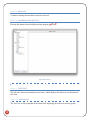
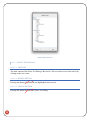
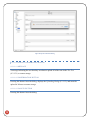
The root of the tree has no indentation while subsequent levels of the tree have increased
indentation relative to their parent.
4.2.1.3.1.3 BODY PART
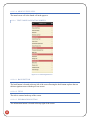
A body part is represented by its name using all capital letters with a document icon when empty
and a folder icon when not empty.
4.2.1.3.1.4 TEST GROUP
A test group is represented with the test name and a folder icon.
4.2.1.3.1.5 TEST
A test is represented using the test name and a document icon.
4.2.1.3.1.6 SELECTING ATEST
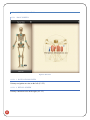
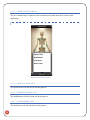
When the user selects a test, the information related to the test is loaded into the Test Screen. If
the test is a mobilization test the information is displayed using the Mobilization Test View
(4.2.1.6), if the test is a Special Test the information is displayed using the Special Test View
(4.2.1.4).
4.2.1.3.1.7 ADD TEST BUTTON
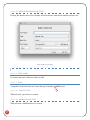
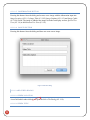
Pressing this button will open the Add New Test Dialog (4.2.1.7).
4.2.1.3.1.8 DELETE TEST BUTTON
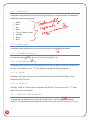
Pressing this button will delete the currently selected test or test group.
4.2.1.3.1.8.1 DELETING ATEST GROUP
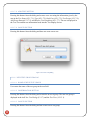
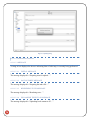
Deleting a test group will delete all of the child tests and test groups of the selected test group.
The test group and all of its children will be removed from the Test Tree.
4.2.1.3.1.8.2 DELETING A TEST
Deleting a test will remove the test from the Test Tree.
4.2.1.3.2 CONTENT PANE
20