1
Download PC Software – Stats Viewer
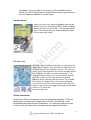
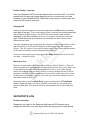
Resorts are installed through the PC-based software, Stats Viewer (see
image below). You can get the latest version of this software online at
www.satsportsgps.com.
You can download Stats Viewer from the Free Software Downloads sections
found at the bottom of each page or from the PC Software page on the
Satsports website.
Installing maps
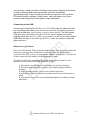
Connecting the Satsports Multi-sports GPS to your PC’s USB using the USB
cable provided not only charges the battery but also acts as the data
connection to retrieve the ski data after skiing. The Multi-sports GPS acts as a
“removable” hard drive and will usually appear as the first available drive letter
(like F:\). When you connect you will see a button marked USB Mass Storage
on the GPS screen – press this button to make the data connection.
1. Switch on your Satsports Multi-sports GPS
2. When the splash screen appears, press the ‘Settings’ button
3. Then press the last tab/button that comes on the screen ‘Information’
4. Now open your Stats Viewer and connect the GPS via USB to your
PC/Laptop
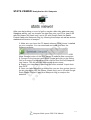
5. On your GPS you will see an image of a PC and USB cable. Press
the tab below that says ‘USB Mass Storage’. If you do not press this
tab, your GPS will not be able to communicate with your Satsports
Stats Viewer software, which you should have already downloaded to
your PC/laptop.
6. On the Stats Viewer, go to System, Check for Updates, and update
your Stats Viewer PC software as well as your GPS software, if
required.
7. In Stats Viewer, click on the skiing tab
8. Then click on the Install resorts button and a list of available resorts
Satsports Multi-sports GPS S320 Manual
7