1
Hint: While this means you need to avoid inadvertently leaving just a few stray pixels in a layer, it also means
that you are perfectly free to design Picture in Picture effects from all manner of different shapes – circles or
ellipses, squares, soft-edged vignettes, and so on.
An additional consideration: input layer conversions work on the basis of opacity in the layer at this time.
Distortions (such as warping, rotation, smearing, etc.) in the image layer are not recognized by VSE.
Caution: Care must be taken if a video input is referenced more than once in the file. Distortion can occur in
the result if ‘same source’ layers overlap. Unless the foremost ‘same source’ layer (from the viewer’s
perspective) – or an intervening layer – is fully opaque (i.e., has no transparency at all) where the overlap
occurs, problems will ensue.
KEYING
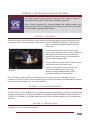
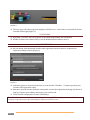
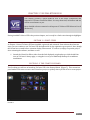
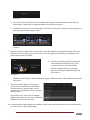
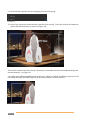
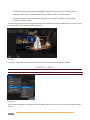
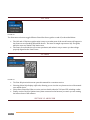
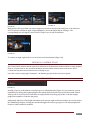
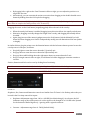
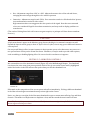
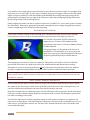
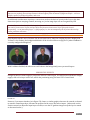
If the Keyable switch is set in TriCaster VSE for an input source, when the resulting LiveSet is displayed in
TriCaster’s Live Desktop, the background behind it in the LiveSet will be seen (Figure 51) when LiveMatte is
correctly configured and applied.
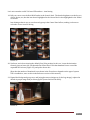
FIGURE 50
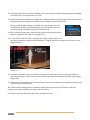
FIGURE 51
With LiveMatte disabled, the video source will obscure the background, just as you would expect.
PERSPECTIVE EFFECTS
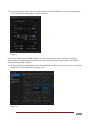
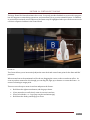
It might be that you wish to apply a perspective effect to a video input. You will find it works best to simply
supply a full-screen layer in this case, and do the positioning using TriCaster VSE’s Control Stack.
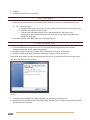
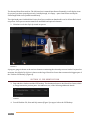
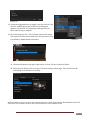
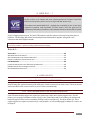
FIGURE 52
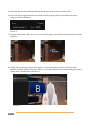
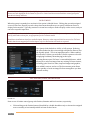
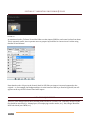
However, if you want a shadow (as in Figure 52), frame, or similar graphic element to be rotated or skewed
to match a rotated input layer, this must be prepared in the source file before import. (Afterward, use the
Position controls to adjust the input layer to match, or use the UV gradient image to map the layer to match
as discussed earlier.)
Page | 35