1
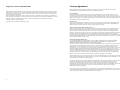
If your search results turn out more than one page
in the Search Result window, you will have the
option to scroll page by page.
Click at one of the search results and select from the
menu: Next Page, Previous Page, First Page and Last
Page.
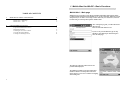
Using the Navigation Feature
To calculate a route between two locations and start
real-time tracking, click Begin Navigation. This will
open the search window to enter starting point and
destination as well as navigation timer.
Select a result from the Search Results box and click
Show Place In Map to return to the Map Page and
display the result. The search object will appear
flagged.
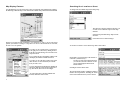
To stop a current real-time tracking and navigation
in process, click Stop Navigation.
Enter the starting point in the Start From field.
Enter the destination into the To field.
Select a time period for how long you wish GPS
real-time tracking and navigation to conduct from
the drop down menu. You can choose for real-time
tracking lengths between 3 minutes and 24 hours.
NOTE: Real-time tracking will update GPS
positions in 8-10 second intervals. Depending on
GPRS or 3G connection, speed and online
connection costs may vary according to GPRS or
3G rates.
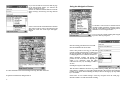
Click Begin Navigation in the menu bar.
To remove all found search results and flags in the map, click Hide Found Out.
To quit the search function, click Quit Search.
10
This will send a command to the device to go online and keep sending data every time a new
GPS position is available (ca. 10 seconds). During this time, the dot in the map marking the
position of your device will start flashing red and you will see it moving step by step, followed
by a red trail line.
Click Cancel to leave without changes. Click Stop Navigation from the main page to
disconnect GPRS or 3G and end real-time tracking.
11