1
4.4 Pngest
The Pngest feature is available when you are ingesting content over a Doremi remote server or LMS.
Note: The Pgnest feature is available only when ingesting content over a Remote Doremi Server or a
LMS, not from a USB or Sata.
When you are ingesting a Composition, you can play it while it is being ingested rather than waiting
until the ingest is complete and then playing it. Give the CPL approximately 5-7 minutes to load. You
cannot rewind or fast forward during playback, if you want to rewind you have to start from the
beginning. You will be able to view the CPL at the rate that it is being ingested (i.e., like a streaming
video, hence, there is no need to refresh during playback).
4.4.1 How to Pngest a CPL
•
If the content you are ingesting is encrypted, you must first ingest a KDM.
•
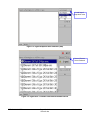
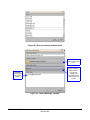
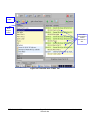
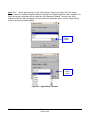
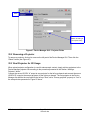
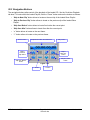
Click on the CPL you want to Pngest and click the Pngest button (see Figure 16).
•
You will be prompted to a window asking you if you really want to Pngest, click “yes” (see
Figure 16).
•
You may be prompted to enter a password (remember if you don't know the password, contact
your Administrator and not Doremi Labs, see the Section “Passwords” above for more
information).
•
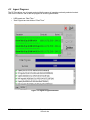
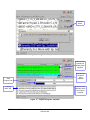
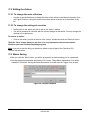
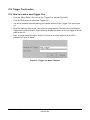
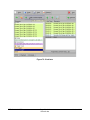
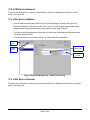
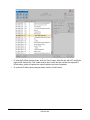
You can monitor the progress of the Pgnest by clicking on the “Monitor” tab (see Figure 17).
•
Wait approximately 5-7 minutes until the Pngest is complete.
•
Go to “CineLister” from the server “Menu” and click on the “Refresh” button.
•
The CPL will appear in the “Editor” tab.
•
To begin playing the CPL, go to the “Playback” tab from the CineLister GUI and click play.
Note: The CineLister application, including the “Playback” feature is explained in full detail later in the
manual. For a complete overview of CineLister and its functions, including the “Editor, Playback, and
Schedule” tabs, see Section “Show Management Using CineLister” below.
DPT.OM.001128.DRM
Page 17 of 101
Doremi Labs
Version 1.2