1
Table of Contents
1 Introduction
Introduction .............................................................................................................................2
Description ...............................................................................................................................2
Typographic Conventions......................................................................................................3
2 Installation
Introduction .............................................................................................................................6
How to Install MultiModemManager ..................................................................................6
3 Configuration
Introduction .............................................................................................................................8
Viewing Local Modems..........................................................................................................8
Viewing Modems at Remote IP Sites....................................................................................9
Running MultiModemManager as a Supervisor ............................................................9
Viewing an Agent and Its Modems ..................................................................................9
Procedures for Setting Up Remote IP Sites ....................................................................10
4 Organizing and Configuring Your Modems
Organizing Your Modems....................................................................................................14
Rack Groups.......................................................................................................................14
Modem Groups..................................................................................................................14
Organization Procedures..................................................................................................14
Configuring Your Modems ..................................................................................................15
Configuration Planning ....................................................................................................16
Configuration Procedures ................................................................................................18
5 Security
Introduction ...........................................................................................................................24
Callback Security ...................................................................................................................24
Security Planning ..................................................................................................................26
Do You Need MultiModemManager Security? ............................................................26
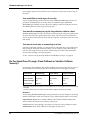
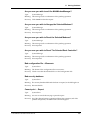
Do You Need Pass-Through, Fixed Callback or Variable Callback Security?...........26
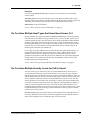
Do You Have Multiple Host Types that Users Need Access To? ...............................27
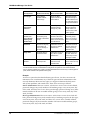
Do You Have Multiple Security Levels for Call-In Users? ..........................................28
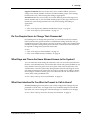
Do You Require Users to Change Their Passwords?....................................................29
What Days and Times Are Users Allowed Access to the System? .............................30
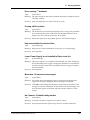
What User Interface Do You Want to Present to Call-In Users? .................................30
Which Modems Should Be Dial-In, Dial-Out, or Both?................................................31
Security Procedures ..........................................................................................................32
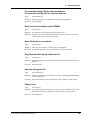
6 Monitoring and Controlling Your System
Monitoring Your System ......................................................................................................38
Fault and Status Events Window ....................................................................................38
Call Traffic Window..........................................................................................................38
CommPlete Communications Server
v