1
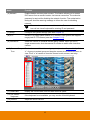
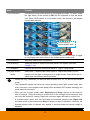
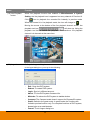
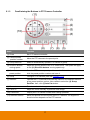
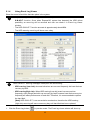
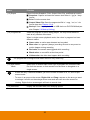
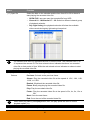
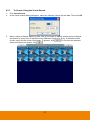
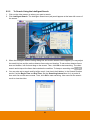
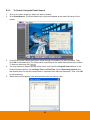
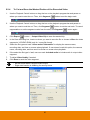
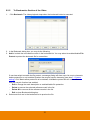
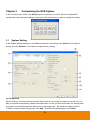
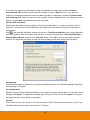
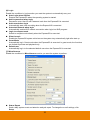
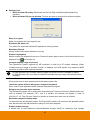
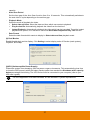
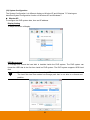
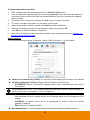
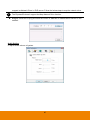
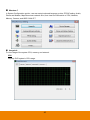
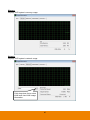
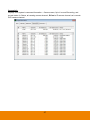
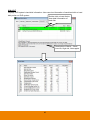
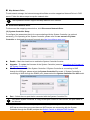
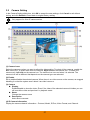
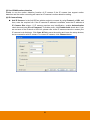
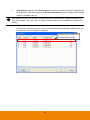
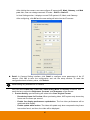
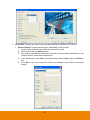
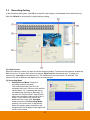
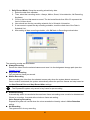
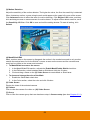
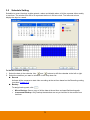
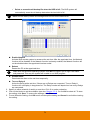
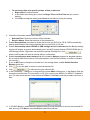
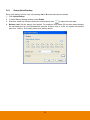
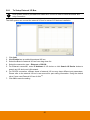
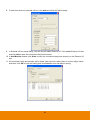
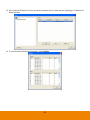
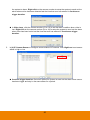
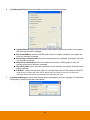
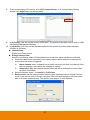
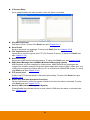
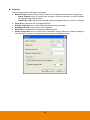
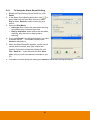
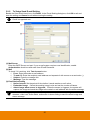
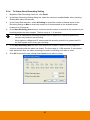
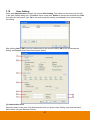
Daily Record Mode: Setup the recording schedule by date. 1. Select the date from calendar. 2. Then, select the recording mode – Always, Motion, Smart, Voice detection, No Recording, Keyframe. 3. Click on the hour that wants to record. The horizontal blocks from 00 to 23 represent the time in 24-hour clock. 4. User should see the day recording schedule list in Schedule List section. 5. If user wants to repeat the day recording schedule, mark the check box of the Date in Schedule List. 6. After setting all date recording schedule, click OK back to Recording mode window. The recording modes are listed below: Always Recording Record the video from the selected camera and save it to the designated storage path (see also Chapter 3.1 #1). KeyFrame Recording Only record one frame per second. Motion Recording Start recording the video from the selected camera only when the system detects movement. Once a motion is detected, the system automatically saves the previous frames and stop based on the Start Record Prior and Stop Record After settings. i The ExpressGO system only record in key frame for pre-recording. Smart Recording - Automatically switch to recorded at the maximum frame rate setting once a motion is detected and if there is no motion, it records at the minimum frame rate setting. Voice Detecting Recording ExpressGO system will record when the voice exceeds the intensity value in Voice Detection setting. No Recording The system won’t do any recording. 68