1
PBPS User Manual
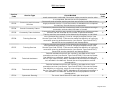
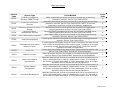
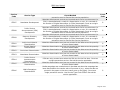
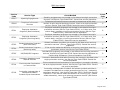
Service, County, DBHR Report, or Outcomes
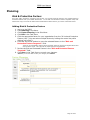
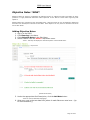
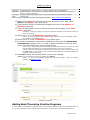
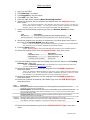
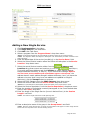
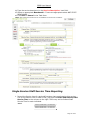
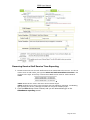
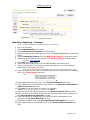
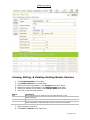
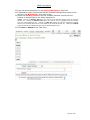
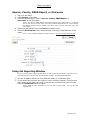
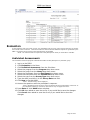
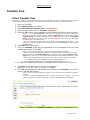
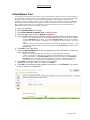
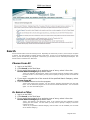
1. Log-in to the PBPS.
2. Click Reports in the Menu.
3. Click the desired type of report (Service, County, DBHR Report, or
Outcomes) in the Sub-Menu.
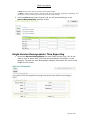
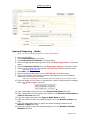
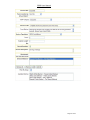
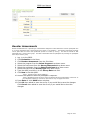
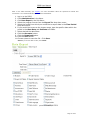
*Note: The Service, DBHR Report and Outcome Reports have similar forms. The specific
data in each form is not the same, but all the questions/specifications are. After selecting
the category from the Choose Category drop down menu, the form will refresh and reveal
more options.
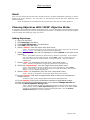
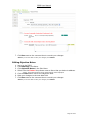
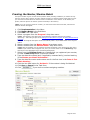
4. Select the desired topic from the Topic drop down menu.
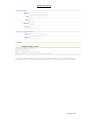
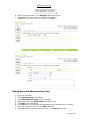
5. Click the Show Report button when finished entering the specifications of the
report.
*Note: A new window will appear housing the report. See Using the Reporting Window.
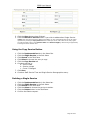
Using the Reporting Window
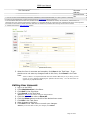
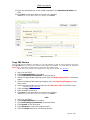
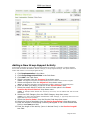
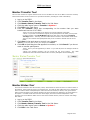
If you are viewing a large report (multiple pages) it may be quickest and easiest to view after it has
been exported into a PDF or similar format and then viewed in the appropriate application.
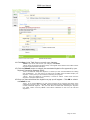
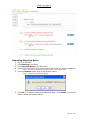
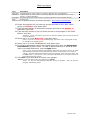
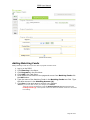
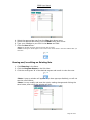
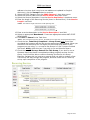
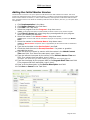
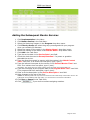
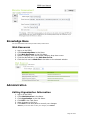
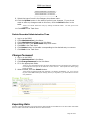
1. Use the navigation buttons to view different pages of a multiage report.
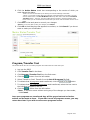
2. If you would like to export the report to view in another program, click the drop
down menu in the upper left corner of the screen and select the export format.
Click the Download button to export.
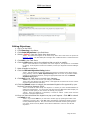
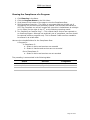
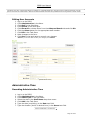
*Note: Once the file is exported, you can view and print the report.
exported files.
You can only print
Page 69 of 97