1
Webz Getting Started Manual
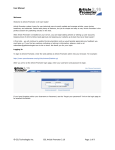
6. Enter your company contact details. Some of the fields may already be populated from the
signup process. Ensure all information is correct and complete the remaining fields.
1. The * indicates a required field.
2. Enter your company slogan if you want it to display on your website, below your logo.
3. To display these contact details on your website, tick the Display to Public check box.
7. Press Next.
8. Populate the fields with your postal address. To display these details on your website, tick
the Display to Public check box.
9. Press Next
Version v4.4
Page 3 of 12
Copyright © 2011 Webz Development Limited