1
Cambridge Research Systems Ltd.
l
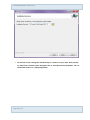
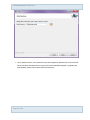
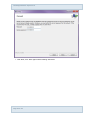
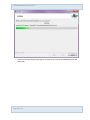
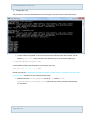
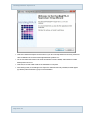
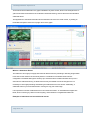
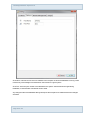
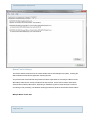
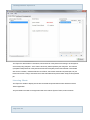
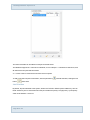
Click Next, then click Install. Wait for the installation to complete.
l
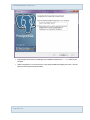
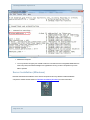
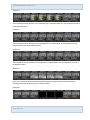
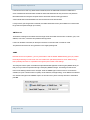
After clicking Finish, the HardingFPA-X Submit and HardingFPA Viewer will have been fully
installed, and will appear (by default) under the HFPA-X group on the Start Menu.
Supervisor Installation (Windows)
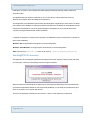
Note: If the HardingFPA-X Supervisor is installed on a the same computer as the database,
then the password login is disabled, and any user running it will be able to login and therefore
licence clients and change the priorities of jobs in the system and abort jobs already running.
l
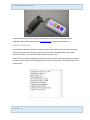
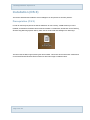
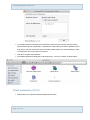
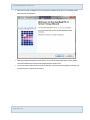
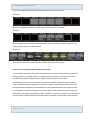
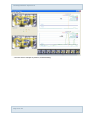
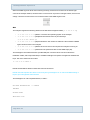
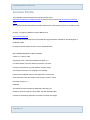
Double-click on the HardingFPA-X Supervisor Setup.exe installer package shown above.
l
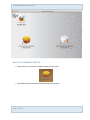
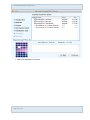
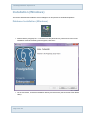
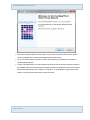
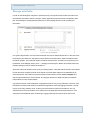
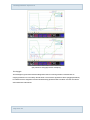
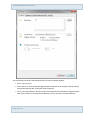
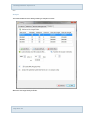
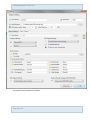
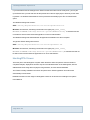
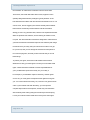
The installer screen below will then be displayed.
Page 32 of 103