1
Bosch Video Management System
Displaying camera images | en
59
Notice!
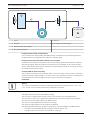
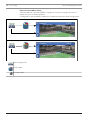
An incoming auto pop-up alarm can interrupt the transfer.
See also
–
6.24
Image window, page 124
Locking the control of a PTZ camera
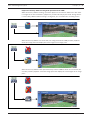
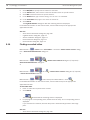
Main window > You can lock the control of a PTZ camera for other users. A user with a higher priority can take
over the control and lock the camera control. A timeout can be configured for this explicit PTZ
locking. If you only take over the control without manually locking it before, the control is
locked for the user with lower priority for 5 seconds.
To lock a PTZ control:
1.
2.
Select one of the following items:
–
Image pane with PTZ camera
–
PTZ camera in the Logical Tree
–
PTZ camera in the Favorites Tree
–
PTZ camera in the Map window
Right-click the Image pane or the PTZ camera and click Lock.
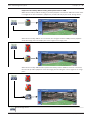
The users with lower priorities cannot use the PTZ control any longer. On their displays a
corresponding message box is displayed.
To stop the locking of the PTZ control, right-click the Image pane or the PTZ camera and
click Unlock.
The locking ends automatically after a configured time period or when you log off.
See also
6.25
–
Image window, page 124
–
Map window, page 122
–
Logical Tree window, page 114
–
Favorites Tree window, page 115
Updating the reference image
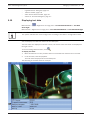
Main window > You can update the reference image.
To update the reference image:
1.
Right-click an Image pane and click Reference Image....
The Reference Image dialog box is displayed.
2.
Click Update.
The image of the time when you click Update is displayed.
See also
–
Reference Image dialog box, page 107
Bosch Sicherheitssysteme GmbH
User Manual
2015.05 | V1 | Operator Client