1
78
en | Managing recorded videos
Bosch Video Management System
6.
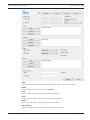
Click Add/Edit to specify search criteria for text data.
7.
In the Alarms field, select search criteria to limit the search to specific alarms.
8.
Click Add to limit the search to specific devices.
9.
In the Details field, type a search string. You can use * as a wildcard.
10. In the User Name field, type a user name to search for.
11. Click Search.
The Logbook Results: dialog box with the matching entries is displayed.
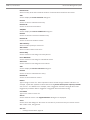
For detailed information on the various fields, see the Online Help for the appropriate
application window.
See also
9.14
–
Select Search Parameters dialog box, page 108
–
Logbook Results: dialog box, page 112
–
Search Conditions dialog box, page 111
–
Device Selection dialog box, page 112
–
Event Selection dialog box, page 112
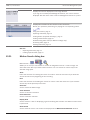
Finding recorded video
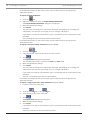
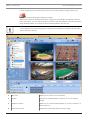
Main window > > Tools menu > Find Video... command > Please select a Server dialog
box > Select Search Parameters dialog box
or
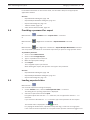
Main window > > > > Please select a Server dialog box (if required) >
Select Search Parameters dialog box
or
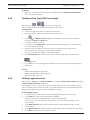
Main window > > > Click > Please select a Server dialog box (if required)
> Search for Text Data dialog box
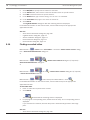
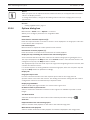
Main window > > > Select time period with Hairline > Click For detailed information on the various fields, see the Online Help for the appropriate
application window.
To find video data:
1.
Enter or select the required search criteria.
2.
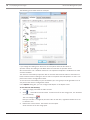
Click Search.
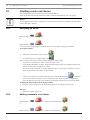
The 3.
window with the matching entries is displayed.
For playing the corresponding video, double-click the entry. The corresponding video is
displayed.
If you searched for text data, the text data pane is automatically opened in the Image
pane.
See also
–
2015.05 | V1 | Operator Client
Select Search Parameters dialog box, page 108
User Manual
Bosch Sicherheitssysteme GmbH