1
Quicker User’s Manual
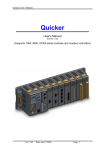
Quicker
User's Manual
[Version 1.09]
(Supports 7000, 8000, 87000 series modules and modbus controllers)
Ver: 1.09
Date: Apr-25 2005
Page: 1
Quicker User’s Manual
Warranty
All products manufactured by ICPDAS Inc. are warranted against defective
materials for a period of one year from the date of delivery to the original purchaser.
Warning
ICPDAS Inc. assumes no liability for damages consequent to the use of this
product. ICPDAS Inc. reserves the right to change this manual at any time without
notice. The information furnished by ICPDAS Inc. is believed to be accurate and
reliable. However, no responsibility is assumed by ICPDAS Inc. for its use, or for any
infringements of patents or other rights of third parties resulting from its use.
Copyright
Copyright 1998-2005 by ICPDAS Inc., LTD. All rights reserved worldwide.
Trademark
The names used for identification only maybe registered trademarks of their
respective companies.
License
The user can use, modify and backup this software on a single machine. The
user may not reproduce, transfer or distribute this software, or any copy, in whole or
in part.
Ver: 1.09
Date: Apr-25 2005
Page: 2
Quicker User’s Manual
Table of Contents
1
INTRODUCTION TO QUICKER.............................................................................................................. 4
1.1
INSTALL QUICKER ................................................................................................................................... 5
1.2
FUNCTION OVERVIEW ............................................................................................................................. 6
1.2.1
Search Modules .............................................................................................................................. 6
1.2.2
Monitoring Devices....................................................................................................................... 11
1.2.3
Adding a New Device.................................................................................................................... 12
1.2.3.1
1.2.3.2
1.2.3.3
1.2.3.4
1.2.3.5
1.2.4
1.2.5
Adding a New Group .................................................................................................................... 21
Adding a New Tag ........................................................................................................................ 22
1.2.5.1
1.2.5.2
1.2.5.3
1.2.5.4
1.2.6
1.2.7
1.2.8
1.2.9
1.2.10
1.2.11
1.2.12
1.2.13
1.2.14
2
Adding a New I-8K/I-87K Embedded Module ......................................................................................... 12
Adding a New I-7K/I-8K/I-87K I/O Module ............................................................................................ 14
Adding a New Modbus TCP Controller.................................................................................................... 16
Adding a New Modbus RTU Controller ................................................................................................... 18
Adding a New Internal Device.................................................................................................................. 20
Adding a New Tag For I-7K/I-8K/I-87K I/O Module............................................................................... 22
Adding a New Tag For Controller ............................................................................................................ 23
Adding a New Tag For Internal Device .................................................................................................... 25
Scaling Settings......................................................................................................................................... 27
Read/Write the Tags...................................................................................................................... 28
Editing A Device/Group/Tag properties ....................................................................................... 30
Deleting A Device/Group/Tag ...................................................................................................... 31
Generating Tags ........................................................................................................................... 32
Services Setup ............................................................................................................................... 32
Rule Script Editor ......................................................................................................................... 33
File Save ....................................................................................................................................... 34
About............................................................................................................................................. 34
Minimize Quicker.......................................................................................................................... 34
WINCON-8000 SETTING ......................................................................................................................... 34
2.1
2.2
WINDOWS CE SETTINGS........................................................................................................................ 35
WINCON UTILITY .................................................................................................................................. 37
3
QUICK START .......................................................................................................................................... 44
4
THE APPLICATION OF QUICKER ...................................................................................................... 45
4.1
QUICKER WITH OPC CLIENT .................................................................................................................. 45
4.2
QUICKER WITH MODBUS RTU/TCP CLIENT ......................................................................................... 52
4.2.1
Supported Modbus Commands ..................................................................................................... 52
4.3
QUICKER WITH NAPOPC...................................................................................................................... 53
4.4
QUICKER WITH USER APPLICATION ....................................................................................................... 53
4.4.1
Quicker API for eVC++ Developer.............................................................................................. 53
4.4.1.1
4.4.1.2
4.4.1.3
4.4.1.4
System Function........................................................................................................................................ 54
QuickerIO Function .................................................................................................................................. 57
Modbus Function ...................................................................................................................................... 66
UserShare Function................................................................................................................................... 69
4.4.2
Quicker API for VB.NET/VC#.NET Developer............................................................................. 78
4.5
QUICKER WITH RULE SCRIPT ................................................................................................................. 78
4.5.1
Rule Script Syntax......................................................................................................................... 78
APPENDIX A – ERROR LIST AND DESCRIPTION ................................................................................... 79
APPENDIX B – MODULE LIST ...................................................................................................................... 79
Ver: 1.09
Date: Apr-25 2005
Page: 3
Quicker User’s Manual
1 Introduction to Quicker
What is Quicker? Quicker is an integrated omnibus software package which
combines OPC, Modbus TCP, Modbus RTU services, and Scankernel together. The
particular design, “Rule Script”, lets user can quickly establish a DCS control system
with logic control, multi-communication services.
For UI design, Quicker uses an explorer-style user interface to display a
hierarchical tree of modules and groups with their associated tags. A group can be
defined as a subdirectory containing one or more tags. A module may have many
subgroups of tags. All tags belong to their module when they are scanned to perform
I/O. (The “OPC” stands for “OLE for Process Control” and the “DA” stands for “Data
Access”.)
For software use, Quicker creates a set-up procedure requiring at most three
steps for different kinds of users. This kind of procedure simplifies the designing
process for the programmer, and ensures the stability and efficiency of control
system.
Quicker can not only automatically map the physical I/O to a specific Modbus
address, but also allows users to define their own variables into it. Therefore users
can develop their own application program with eVC++, VB.NET, and VC#.NET
programming language via the Modbus RTU and Modbus TCP protocol to share
their specific data with Modbus client. Moreover, users can operate the Quicker and
NAPOPC in coordination to create a fantastic solution integrating SCADA software
with on-line data.
MBRTU Client
NAPOPC
MBRTU
User
APs
OPC
Rule Script
MBTCP Client
MBTCP
User
APs
Scan Kernel
ICPDAS
I-7K/I-8K/I-87K
Modules
ICPDAS
PAC
ICPDAS
M-7K
Fig 1-1
Ver: 1.09
Date: Apr-25 2005
Page: 4
Quicker User’s Manual
The main program of Quicker is "Quicker.exe". It automatically calls the
"I7000CE.DLL","UARTCE.DLL",
“MBTool.DLL”,
“WinConSDK.DLL”
and
“Quicker.DLL” functions on demand.
1.1
Install Quicker
You have to execute ”QuickerBoot.exe” in the compact flash of WinCon-8000
when you use Quicker for the first time, after that, ”QuickerBoot.exe” will register
Quicker automatically. Moreover, if you want to execute the "Quicker.exe"
automatically while WinCon-8000 boots up, please refer to the “Auto-execute”
function at “2.1 WinCon Utility”.
Fig 1.1-1
After that, you just execute the main program "Quicker.exe" which would call
"I7000CE.DLL","UARTCE.DLL", “MBTool.DLL”, “WinConSDK.DLL” and
“Quicker.DLL” by itself to use Quicker.
If the files under “\Compact Flash\Quicker\” loss or crash, please copy the files
under ” \COMPACT FLASH\Quicker\” in the CD to “\Compact Flash\Quicker\” by
yourself.
Ver: 1.09
Date: Apr-25 2005
Page: 5
Quicker User’s Manual
1.2 Function Overview
1.2.1 Search Modules
The "Search Modules…" function lets you configure Quicker automatically. It
searches the RS-485 network and embedded modules to find modules and then
generates tags automatically. This version of Quicker not only generates AI/AO,
DI/DO, Latched DI and Counter tags but also maps each tag to an unique modbus
address. Please refer to the “MODULES.HTM” at the “\Compact Flash\Quicker\”
Step 1: Click on the "Add/ Search Modules…" menu item or the
modules.
icon to search for
Fig 1.2.1-1
Step 2: The "Search Modules" window pops up.
Fig 1.2.1-2
Ver: 1.09
Date: Apr-25 2005
Page: 6
Quicker User’s Manual
Step 3: If you want to search the I-8K I/O modules plugged in the WinCon8000, you
have to check the “Local Search” field. “COM 1” is for searching I-87K I/O modules
plugged in the WinCon8000.
Fig 1.2.1-3
Step 4: If you want to search the I-7K/I-87K remote I/O modules via RS-232, you
have to choice “COM 2” and uncheck the “Local Search”.
Fig 1.2.1-4
Ver: 1.09
Date: Apr-25 2005
Page: 7
Quicker User’s Manual
Step 5: If you want to search the I-7K/I-87K remote I/O modules via RS-485, you
have to choice “COM 3” and uncheck the “Local Search”.
Fig 1.2.1-5
COM Port:
Specifies which "COM Port" number to search. The default value is 1
and the valid range is from 1 to 255. Please verify the "COM Port" number
that the RS-485 network is connected to.
Modules
Local I-87K
Remote I-7K/I-87K via RS-232
Remote I-7K/I-87K via RS-485
COM 1
Yes
-
COM 2
Yes
-
COM 3
Yes
Clear Modules:
Modules can be added many times. If this field is checked, it removes
all modules from the list window before searching. Checking this box prevents
adding a duplicate module. The default setting is "not checked".
Local Search:
If this field is checked, it searches the I-8K modules plugged in the
WinCon8000 first.
Baud Rate Searching:
Specifies which "Baud Rate" will be looking for. The default setting is
"9600".
Naturally, if multiple baud rates are checked, the search will be longer.
Quicker has to close and then reopen the COM ports to communicate with
Ver: 1.09
Date: Apr-25 2005
Page: 8
Quicker User’s Manual
modules when searching for multiple baud rates. This also reduces
communication performance. Thus, using the same baud rate and COM port
number for every module is highly recommended.
Select All:
Sets all the "Baud Rate" fields to be checked. Please refer to the above
"Baud Rate Searching" section.
Clear All:
Sets all the "Baud Rate" fields to be unchecked (nothing to search).
Please refer to the above "Baud Rate Searching" section.
Address/Start:
Specifies the starting address. The default value is 1 and the valid
range is from 1 to 255. It won't search for an address below these settings.
Address/End:
Specifies the ending address. The default value is 255 and the valid
range is from 1 to 255. It won't search for an address greater than these
settings.
Checksum/Disabled:
If this field is checked, modules are searched with no checksum. If both
the "Disabled" and "Enabled" fields were unchecked, the search would be
undefined.
Checksum/Enabled:
If this field is checked, it searches modules with checksum. If both the
"Disabled" and "Enabled" fields were unchecked, again, the search would be
undefined.
Timeout:
Specifies the timeout value of communication to each module. The
default value is 200 (equal to 0.2 Seconds), measured in millisecond(s) [0.001
Second(s)]. After a module has been found, this timeout value will also be
recorded for further use.
Users can reduce this value to shorten the search time. Be careful. A
shorter search time may cause communication failure.
Status:
It shows the searching status (includes: progress in %, Address in
"A:??", Baud-Rate in "B:????", Checksum in "S:?" and Error-Code in "EC:??").
The timeout error code is 15. In most cases, it indicates no module has
responded to the current command.
Search:
After setting the above options, click this button to search. The window
will be closed automatically when completed.
Stop:
Ver: 1.09
Date: Apr-25 2005
Page: 9
Quicker User’s Manual
During the search, users can click the button to stop. The window will
stay on the screen after the search is cancelled.
Exit:
Users can click the button to close the window.
Step 6: After the search, the discovered modules will be listed on the Device-Window
(left side). Users can also see the tags on the Tag-Window (right side)
generated by the "Search Modules…" function automatically.
Device-Window
Tag-Window
Fig 1.2.1-6
The "Search Modules…" function generates "Digital Input", "Digital Output"
"Bit Input" or "Bit Output" tags.
The "Digital Input" and "Digital Output" tags use one communication to read
the status of all channels, while the "Bit Input" and "Bit Output" tags use one
communication to read only one-channel status. The "Digital Input" and "Digital
Output" tags have better performance than the "Bit Input" and "Bit Output" tags.
Using the "Digital Input" and "Digital Output" tags to access modules is highly
recommended.
Ver: 1.09
Date: Apr-25 2005
Page: 10
Quicker User’s Manual
Groups
Tags
Fig 1.2.1-7
1.2.2 Monitoring Devices
Use the "Monitor" function to see values of tags by checking the "View/
Monitor" menu item. Uncheck the item to stop monitoring.
Step 1: Click the "View/ Monitor" menu item to enable monitor.
Fig 1.2.2-1
Step 2: Select the "AIs" group in the Device-Window (left side) to monitor its own
Analog -Input tags.
Ver: 1.09
Date: Apr-25 2005
Page: 11
Quicker User’s Manual
Fig 1.2.2-2
Step 3: Select the "8064" module on the Device-Window to monitor its own DigitalOutput tags.
Fig 1.2.2-3
1.2.3
Adding a New Device
It is possible to add new or multiple devices. This version of Quicker provides
four devices, “I-8K/I87K Embedded Module”, “I-7K/I-8K/I-87K I/O Module”,
“Controller” and “Internal Device”, to be added. The “I-8K/I87K Embedded
Module” and “I-7K/I-8K/I-87K I/O Module” options are for ICPDAS modules.
The option, “Controller”, supports ICPDAS Modbus/RTU Modbus/TCP
controllers. The “Internal Device” could be the intermediary container between
several user application programs or the intermediary device designing “Rule
Script”.
1.2.3.1 Adding a New I-8K/I-87K Embedded Module
Step 1: Click on the "Add/ New Device…" menu item or the
module.
Ver: 1.09
Date: Apr-25 2005
icon to add a new
Page: 12
Quicker User’s Manual
Fig 1.2.3.1-1
Step 2: The "Device Properties" window pops up.
Step 3: Click the "I-8K/I-87K Embedded Modules" radio button.
Fig 1.2.3.1-2
Device Name:
Names with spaces or punctuation such as “|!.,” cannot be used within
a module name. The clients use the "Device Name" and "Tags" to access its
value. The "Device Name" can not be the same as any other module.
Module ID:
User can click on the ComboBox to select a Module ID.
Timeout:
Specifies timeout (Response time) value for this module. The default
value is 200 ms. A smaller timeout value may cause communication failure
and a greater timeout value may reduce the performance of the client
program.
Ver: 1.09
Date: Apr-25 2005
Page: 13
Quicker User’s Manual
Slot:
The WinCon8000 has 3 or 7 slots to plug in. This “slot” field indicates
the slot number that the I/O module used. The valid range is from 1 to 7.
1.2.3.2
Adding a New I-7K/I-8K/I-87K I/O Module
Step 1: Click on the "Add/ New Device…" menu item or the
module.
icon to add a new
Fig 1.2.3.2-1
Step 2: The "Device Properties" window pops up.
Step 3: Click the "I-7K/I-8K/I-87K I/O Modules" radio button.
Fig 1.2.3.2-2
Ver: 1.09
Date: Apr-25 2005
Page: 14
Quicker User’s Manual
Device Name:
Names with spaces or punctuation such as “|!.,” cannot be used within
a module name. The clients use the "Device Name" and "Tags" to access its
value. The "Device Name" can not be the same as any other module.
Module ID:
User can click on the ComboBox to select a Module ID.
Address:
Specifies a Module Address for this module. The default value is 1 and
the valid range is between 1 to 255.
This field is disabled for the 8000 sub-devices. It will use the 8000
main-device’s address.
Timeout:
Specifies timeout (Response time) value for this module. The default
value is 200 ms. A smaller timeout value may cause communication failure
and a greater timeout value may reduce the performance of the client
program.
This field is disabled for the 8000 sub-devices and it will use the 8000
main-device’s timeout value.
Checksum:
This checksum field must match the hardware setting. A mismatch will
always cause a communication failure with this module.
This field is disabled for the 8000 sub-devices and it will use the 8000
main-device’s checksum.
COM Port:
Specifies the COM port to be used. Please verfiy which COM port
number that the RS-485 network is using. Wrong settings will always cause
communication failure.
This field is disabled for the 8000 sub-devices. It will use the 8000
main-device’s COM port setting.
Baud Rate:
Specifies the baud rate to be used. Verify the module's current baud
rate. A wrong setting will always cause communication error for this module.
This field is disabled for the 8000 sub-devices. It will use the 8000
main-device’s baud rate.
Simulate I/O:
The “Simulate I/O” checkbox switches from reading I/O from the
module to running a simulator. Since the simulator does not open the COM
port, it is an easy way to work with the server, to configure tags or to connect
clients without requiring any hardware.
This field is disabled and not used for the 8000 main-device.
Ver: 1.09
Date: Apr-25 2005
Page: 15
Quicker User’s Manual
Slot:
The 8000 main-device has 4 or 8 slots for the 8000 sub-device to plug
in. This “slot” field indicates the slot number that the 8000 sub-device is using.
The valid range is from 0 to 7.
This field is disabled for 8000 main-device and 7000 series modules.
OK:
Click on the "OK" button to add the new module setting.
Cancel:
Click on the "Cancel" button to avoid any changes.
Step 4: Click on the "OK" button to add this new module.
1.2.3.3
Adding a New Modbus TCP Controller
Step 1: Click on the "Add/ New Device…" menu item or the
module.
icon to add a new
Fig 1.2.3.3-1
Step 2: The "Device Properties" window pops up.
Step 3: Click on the "Controller" radio button.
Step 4: Click on the "Modbus TCP" radio button.
Ver: 1.09
Date: Apr-25 2005
Page: 16
Quicker User’s Manual
Fig 1.2.3.3-2
Device Name:
Names with spaces or punctuation such as “|!.,” cannot be used within
a module name. The clients use the "Device Name" and "Tags" to access its
value. The "Device Name" can not be the same as any other module.
Address:
Specifies a Address for this controller. The default value is 1 and the
valid range is between 1 to 255.
Timeout:
Specifies timeout (Response time) value for this controller. The default
value is 1000 ms. A smaller timeout value may cause communication failure.
Port Address:
You have to set up the value with “502” for communicating with I7188EG or I-8437/I-8837.
TCP/IP Address:
The uniqe IP address of your Modbus TCP controller.
Word Swap:
The “Word Swap” checkbox switches the interpretation of 4 Byte
values. Sometimes we need to make the checkbox “TRUE” in order to
achieve the purpose of Lo-Hi/Hi-Lo communication.
Ver: 1.09
Date: Apr-25 2005
Page: 17
Quicker User’s Manual
Simulate I/O:
The “Simulate I/O” checkbox switches from reading I/O from the
module to running a simulator. Since the simulator does not open the COM
port, it is an easy way to work with the server, to configure tags or to connect
clients without requiring any hardware.
OK:
Click on the "OK" button to add the new controller setting.
Cancel:
Click on the "Cancel" button to avoid any changes.
Step 5: Click on the "OK" button to add this new device.
1.2.3.4 Adding a New Modbus RTU Controller
Step 1: Click on the "Add/ New Device…" menu item or the
module.
icon to add a new
Fig 1.2.3.4-1
Step 2: The "Device Properties" window pops up.
Step 3: Click on the "Controller" radio button.
Step 4: Click on the "Modbus RTU" radio button.
Ver: 1.09
Date: Apr-25 2005
Page: 18
Quicker User’s Manual
Fig 1.2.3.4-2
Device Name:
Names with spaces or punctuation such as “|!.,” cannot be used within
a module name. The clients use the "Device Name" and "Tags" to access its
value. The "Device Name" can not be the same as any other module.
Address:
Specifies a Address for this controller. The default value is 1 and the
valid range is between 1 to 255.
Timeout:
Specifies timeout (Response time) value for this controller. The default
value is 200 ms. A smaller timeout value may cause communication failure
and a larger timeout value may reduce the performance of the client program.
Msg Delay:
Specifies message delay value for this controller. The default value is 0
ms. A smaller msg delay value may have a higher system loading, but it will
have a faster data exchange speed.
Word Swap:
The “Word Swap” checkbox switches the interpretation of 4 Byte
values. Sometimes we need to make the checkbox “TRUE” in order to
achieve the purpose of Lo-Hi/Hi-Lo communication.
Ver: 1.09
Date: Apr-25 2005
Page: 19
Quicker User’s Manual
COM Port:
Specifies the COM port to be used. Please verfiy which COM port
number that the RS-485 network is using. Wrong settings will always cause
communication failure.
Baud Rate:
Specifies the baud rate to be used. Verify the module's current baud
rate. A wrong setting will always cause communication error for this controller.
Simulate I/O:
The “Simulate I/O” checkbox switches from reading I/O from the
module to running a simulator. Since the simulator does not open the COM
port, it is an easy way to work with the server, to configure tags or to connect
clients without requiring any hardware.
OK:
Click on the "OK" button to add the new controller setting.
Cancel:
Click on the "Cancel" button to avoid any changes.
Step 5: Click on the "OK" button to add this new device.
1.2.3.5 Adding a New Internal Device
Step 1: Click on the "Add/ New Device…" menu item or the
module.
icon to add a new
Fig 1.2.3.5-1
Step 2: The "Device Properties" window pops up.
Step 3: Click on the "Controller" radio button.
Step 4: Click on the "Internal Device" radio button.
Ver: 1.09
Date: Apr-25 2005
Page: 20
Quicker User’s Manual
Fig 1.2.3.5-2
Device Name:
Names with spaces or punctuation such as “|!.,” cannot be used within a
module name. The clients use the "Device Name" and "Tags" to access its value.
The "Device Name" can not be the same as any other module.
1.2.4 Adding a New Group
Step 1: Click on the "Add/ New Group" menu item or the
icon to add a new group.
Step 2: The "Group" window pops up.
Fig 1.2.4-1
Name:
A "Group Name" may have any name, but avoid names with spaces or
punctuation such as “|!.,”. The "Group Name" must not be used twice. A group
can be defined as a subdirectory containing one or more tags. A device may
have many subgroups of tags. All tags belong to their module when they are
scanned to perform I/O.
Ver: 1.09
Date: Apr-25 2005
Page: 21
Quicker User’s Manual
1.2.5 Adding a New Tag
1.2.5.1 Adding a New Tag For I-7K/I-8K/I-87K I/O Module
Step 1: Click on the "Add/ New Tag" menu item or the
icon to add a new tag.
Step 2: The "Tag Properties" window pops up.
Step 3: Choice the “Settings” page. Because the tag belongs to the module-type
device, the “I-7K/I-8K/I-87K I/O Modules” radio button is active.
Fig 1.2.5.1-1
Name:
Any "Tag Name" may be used, but avoid names with spaces or
punctuation such as “|!.,”. The clients will use the "Device Name" and "Tags"
to access its value. Hence the "Tag Name" cannot be a duplicate of another
tag in the same group.
Modbus address:
Specifies an unique modbus address for this tag in order to
communicate with modbus client. The default address is already an unique
one.
After that, you also need to choose the address type. There are four
address types you can choose.They are ”Input Coil”, “Output Coil”, “Input
Register”, and “Output Register” which depends on your tag property. It is
important to give an appropriate modbus address type and address value.
Ver: 1.09
Date: Apr-25 2005
Page: 22
Quicker User’s Manual
Address Type
Output Coil
Input Coil
Input Register
Output Register
Range
000001 - 065536
100001 - 165536
300001 - 365536
400001 - 465536
Description:
Specifies the description text for this tag. This can be blank.
Type:
Specifies the command to be used for this tag. Different modules
support different commands. For commands, please refer to the
"Modules.htm" file.
Channel:
Specifies the channel number to be used for this tag. The "Digital Input"
and "Digital Output" tags do not use this channel setting, because all channels
are read with one communication.
Simulation signal:
The valid signal is SINE, RAMP and RANDOM. This field is validated
when the module uses simulation I/O. Please refer to the "Adding A New
Device" section.
OK:
Click on the "OK" button to add the new tag setting.
Cancel:
Click on the "Cancel" button to avoid any changes.
Scaling:
Enable:
Check this check-box to enable the "Settings…" button.
Settings:
Click on this button to set the scaling feature.
For more information, please refer to the section "1.6.3 Scaling Settings".
1.2.5.2 Adding a New Tag For Controller
Step 1: Click on the "Add/ New Tag" menu item or the
icon to add a new tag.
Step 2: The "Tag Properties" window pops up.
Step 3: Choice the “Settings” page. Because the tag belongs to the controller-type
device, the “Controller” radio button is active.
Ver: 1.09
Date: Apr-25 2005
Page: 23
Quicker User’s Manual
Fig 1.2.5.2-1
Name:
Any "Tag Name" may be used, but avoid names with spaces or
punctuation such as “|!.,”. The clients will use the "Device Name" and "Tags"
to access its value. Hence the "Tag Name" cannot be a duplicate of another
tag in the same group.
Modbus address:
Specifies an unique modbus address for this tag in order to
communicate with modbus client. The default address is already an unique
one.
After that, you also need to choose the address type. There are four
address types you can choose.They are ”Input Coil”, “Output Coil”, “Input
Register”, and “Output Register” which depends on your tag property. It is
important to give an appropriate modbus address type and address value.
Address Type
Output Coil
Input Coil
Input Register
Output Register
Range
000001 - 065536
100001 - 165536
300001 - 365536
400001 - 465536
Description:
Specifies the description text for this tag. This can be blank.
Ver: 1.09
Date: Apr-25 2005
Page: 24
Quicker User’s Manual
Data:
Specifies the data type of this tag which’s location type is “Input
Register” or “Output Register”. NAPOPC Server support five kinds of data
type which are “Short”, “Long”, “Float”, “Word”, and “DWord”.
Data Type
Short
Long
Float
Word
DWord
Definition
16-bit signed integer
32-bit signed integer
Floating-point variable
16-bit unsigned integer
32-bit unsigned integer
Range
-32768~32767
-2147483648~2147483647
-1.7E-308~1.7E+308
0~65535
0~4294967295
Location:
Specifies the tag address. It must be the same with the the variable
address in the controller. Besides, you have to choice the location type. After
you choice the location number, there are four location types you can
choice.They are ”Input Coil”, “Output Coil”, “Input Register”, and “Output
Register”. When you monitor controller device(see 1.2 Monitoring Device), the
“Channel/Location” field will show a value according to the location and
location type as belows.
Location Type
Output Coil
Input Coil
Input Register
Output Register
Range
000001 - 065536
100001 - 165536
300001 - 365536
400001 - 465536
Simulation signal:
The valid signal is SINE, RAMP and RANDOM. This field is validated
when the module uses simulation I/O. Please refer to the "Adding A New
Device" section.
OK:
Click on the "OK" button to add the new tag setting.
Cancel:
Click on the "Cancel" button to avoid any changes.
Scaling:
Enable:
Check this check-box to enable the "Settings…" button.
Settings:
Click on this button to set the scaling feature.
For more information, please refer to the section "1.6.3 Scaling Settings".
1.2.5.3 Adding a New Tag For Internal Device
Step 1: Click on the "Add/ New Tag" menu item or the
icon to add a new tag.
Step 2: The "Tag Properties" window pops up.
Ver: 1.09
Date: Apr-25 2005
Page: 25
Quicker User’s Manual
Step 3: Choice the “Settings” page. Because the tag belongs to the controller-type
device, the “Controller” radio button is active.
Fig 1.2.5.3-1
Name:
Any "Tag Name" may be used, but avoid names with spaces or
punctuation such as “|!.,”. The clients will use the "Device Name" and "Tags"
to access its value. Hence the "Tag Name" cannot be a duplicate of another
tag in the same group.
Modbus address:
Specifies an unique modbus address for this tag in order to
communicate with modbus client. The default address is already an unique
one.
After that, you also need to choose the address type. There are four
address types you can choose.They are ”Input Coil”, “Output Coil”, “Input
Register”, and “Output Register” which depends on your tag property. It is
important to give an appropriate modbus address type and address value.
Address Type
Output Coil
Input Coil
Input Register
Output Register
Ver: 1.09
Range
000001 - 065536
100001 - 165536
300001 - 365536
400001 - 465536
Date: Apr-25 2005
Page: 26
Quicker User’s Manual
Description:
Specifies the description text for this tag. This can be blank.
1.2.5.4 Scaling Settings
In general, the “Scaling” feature is only useful for the floating-point data type.
Fig 1.2.5.4-1
Raw Data:
Min: The original Minimum value. ([MinRaw])
Max: The original Maximum value. ([MaxRaw])
Scales to:
Units: The unit of the scaled value. (Just for reference only.)
Min: The scaled Minimum value. ([MinScale])
Max: The scaled Maximum value. ([MaxScale])
Conversion:
Linear:
Scaled Value = ( (Original Value – [MinRaw]) / ([MaxRaw] – [MinRaw]) )
* ([MaxScale] – [MinScale]) + [MinScale]
Square Root:
Scaled Value = ((sqrt(Original Value) – [MinRaw]) * ([MaxScale] – [MinScale]))
/ sqrt([MaxRaw] – [MinRaw]) + [MinScale]
Deadband(%):
In general, please keep "0" in this field. Deadband will only apply to items in
the group that have a dwEUType of Analog available. If the dwEUType is Analog,
then the EU Low and EU High values for the item can be used to calculate the range
Ver: 1.09
Date: Apr-25 2005
Page: 27
Quicker User’s Manual
for the item. This range will be multiplied with the Deadband to generate an
exception limit. An exception is determined as follows:
Exception if (absolute value of (last cached value - current value) >
pPercentDeadband * (EU High –EU Low) )
OK:
Click the "OK" button to save these settings.
Cancel:
Click the "Cancel" button to avoid any changes.
1.2.6
Read/Write the Tags
First, you have to use the "Monitor" function to see values of tags by checking
the "View/ Monitor" menu item. Select a tag and right click the mouse button. Then
select the "Properties.." option. Choose the “Read & Write” page to read/write the tag.
Step 1: Click the "View/ Monitor" menu item to enable monitor.
Step 2: Select a tag and right click the mouse button. Then select the "Properties.."
option.
Step 3: Choose the “Read & Write” page. You can see the “Tag name” and “Access
right” at the first. If the access right is “Read only!”, the write function is
disable.
Fig 1.2.6-1
Ver: 1.09
Date: Apr-25 2005
Page: 28
Quicker User’s Manual
Read Value/Value:
You can press the “Read!” button to read the tag value as you saw on
the “Tag-Window”.
Read Value/Quality:
Three kinds of qualities, “Good”, “Bad”, and “Uncertain”, would be
shown. If the communication status is good, the quality shows “Good”. If the
communication status has something wrong, the shows “Bad”. And the other
situation is “Uncertain”.
Read Value/Timestamp:
It shows the time, when you read the tag.
Tag name:
It is the same with the “Name” at the “Settings” page. You can modify it
at the “Settings” page.
Access right:
There are two kinds of aceess rights, “Read Only!” and “Read&Write!”.
The access right depends on what kind of tag property it is. Please refer to the
“1.6 Adding A New Tag”
Write Value/Timestamp:
It shows the time that the tag is written.
Write Value/Quality:
Three kinds of qualities, “Good”, “Bad”, and “Uncertain”, would be
shown. If the communication status is good, the quality shows “Good”. If the
communication status has something wrong, the shows “Bad”. And the other
situation is “Uncertain”.
Write Value/Value:
You can press the “Write!” button to write the value you key-in to the
tag. If the tag data type is “Boolean” the write value “0” means “OFF” and the
write value “not 0” means “ON”.
Ver: 1.09
Date: Apr-25 2005
Page: 29
Quicker User’s Manual
1.2.7
Editing A Device/Group/Tag properties
To edit an existing Device(/Group/Tag), just select the Device(/Group/Tag) and
then select the "Properties…" option.
Device
Group
Tag
Fig 1.2.7-1
Ver: 1.09
Date: Apr-25 2005
Page: 30
Quicker User’s Manual
1.2.8
Deleting A Device/Group/Tag
To delete an existing Device/Group/Tag, just select the Device(/Group/Tag)
and right click the mouse button. Then select the "Delete…" option.
Device
Group
Tag
Fig 1.2.8-1
Ver: 1.09
Date: Apr-25 2005
Page: 31
Quicker User’s Manual
1.2.9
Generating Tags
This function lets you easily test the Quicker in the simulation mode. It is only
valid if the selected device of module type has no sub “Module”, "Group" and "Tag".
Step 1: Select a device of module type you want to generate tags.
Step 2: Click on the "Add/ Generate Tags" menu item.
Fig 1.2.9-1
Tags are generated depending on the Module-ID. Possible tags are “Analog
Input”, “Analog Output”, “Digital Input”, “Digital Output”, “Latched DI” and “Counter”.
1.2.10
Services Setup
This function lets you define which services you want to active for exchanging
data with the other programs. Quicker provides “OPC”, “Modbus RTU”, “Modbus
TCP”, and “ScanKernel” four services to be choosed. In them, the “OPC” is the
default. “Modbus RTU” and “Modbus TCP” services would active immediately by
checking. The “ScanKernel” service should check at all situation except just using
“OPC” service or be the intermediary progame between user application programs.
Step 1: Click on the "Services/Setup" menu item.
Fig 1.2.10-1
Step 2: Choose the services you want.
Ver: 1.09
Date: Apr-25 2005
Page: 32
Quicker User’s Manual
1.2.11
Rule Script Editor
This function lets you design your rule base for making your WinCon-8000 to
be a DCS via Quicker. The description of rule base of Quicker is like “IF…THEN…”.
The left upper corner in the “Rule Script Editor” has four conditions behind “IF” in
which the variables are showed as modbus address and combined with “AND/OR”
each other. The right upper corner in the “Rule Script Editor” has four outputs behind
“THEN” in which the variables are showed as modbus address and combined with
“AND” each other. The relation between timer value and other variables is “AND”.
If the variable behind “IF” is “0xxxxx” or ”1xxxxx”, the “Status” would be “0” or
“1”. The value “0” means “OFF” and the value “1” means “ON”. If the variable is
“3xxxxx” or ”4xxxxx”, the “Status” would depend on the data type of variable.
Fig 1.2.11-1
Add:
Press this button to the “Rule list” after editing each rule.
Delete:
Check the rules in the “Rule list”, and then press this button to delete.
Edit:
Click the rule in the “Rule list” to edit, and after that press this button to update.
Save:
Save the “Rule list” to be “Rule.txt” after finishing editing.
Cancel:
Leave this editor.
Active Rule Script:
It would be active immediately after checking this option. If you wish to act the
“Rule script” after rebooting Quicker, you should save file with ”File/Save”.
Ver: 1.09
Date: Apr-25 2005
Page: 33
Quicker User’s Manual
1.2.12
File Save
This function lets you save the configurations of Quicker. For taking the
correct configuration file of Quicker “*.tdb” after rebooting the WinCon-8000, you not
only use “File/Save” to save in the Quicker but also need the “Save Registry tab”
function in the “WinCon Utility”. Please refer to the “2.1 WinCon Utility”
1.2.13
About
Click on the "Help/ About Quicker…" menu item to see the "About Quicker"
window. It shows the version number.
Step 1: Click on the "Help/ About Quicker…" menu item.
Step 2: The "About Quicker" window pops up.
Fig 1.2.13-1
1.2.14
Minimize Quicker
If you want to minimize Quicker, please click the question mark on the topright corner.
Fig 1.2.14-1
After clicking the question mark, Quicker will minimize itself at the status bar.
Double click it will be restored.
Fig 1.2.14-2
2 WinCon-8000 Setting
In this section, we will explore how to set the Windows CE System and the
“WinCon Utility” for the Wincon-8000 embedded controller. You can change
configurations, such as the system time or network setting of the Wincon-8000
Ver: 1.09
Date: Apr-25 2005
Page: 34
Quicker User’s Manual
through the Windows CE control panel. WinCon Utility allows you to view Wincon8000’s information or save the current system configuration into Windows CE OS
image.
2.1 Windows CE Settings
Setting Up the System Time
You can setup a new date or time in the Windows CE system by using the
following steps:
1. Choose Start Æ Settings Æ Control panel to open the Control panel
dialog.
2.
3.
Fig. 2.1-1
Double click the Date/Time icon on the Control panel dialog.
Fig. 2.1-2
When the Date/Time Properties dialog displays, set the date or current Time
and click the Apply button to set your system date and time.
# Note: If you have changed any value of the date and time. You must save
the registry by means of WinCon Utility tools. For more information about
WinCon Utility tools, please refer to the WinCon Utility section.
Setup the network
Generally, most users don't need to setup the network because DHCP is the
default setting. However, if your network system does not contain a DHCP server,
Ver: 1.09
Date: Apr-25 2005
Page: 35
Quicker User’s Manual
you need to configure the network setting by using the manual method. The following
steps demonstrate the procedure for how to configure the network system.
4.
5.
6.
7.
Choose Start Æ Settings Æ Network and Dial_up Connections on the
Windows CE desktop to open this dialog.
Double click the LAN90001 icon to open the “LAN9000 Network Compatible
Adapter Settings” dialog.
Fig. 2.1-3
When the “LAN9000 Network Compatible Adapter Settings” dialog displays
(see figure), click (enable) the “Specify an IP address” radio button in the IP
Address tab and type in the IP Address, Subnet Mask, and Default Gateway
into the respective fields.
Choose the “Name Servers” tab and also type in the Primary DNS,
Secondary DNS, Primary WINS, and Secondary WINS into the respective
fields, as shown in the figure below.
Fig. 2.1-4
8.
Click OK.
# Note: If you have changed any value of network configuration, you must
save the registry by means of WinCon Utility tools. For more information
about the WinCon Utility tool, please refer to the WinCon Utility section.
Setting up the Device Name
You can configure Wincon-8000 to have the device name of your choice. To
change the device name please refer to the following steps:
9. Choose Start Æ Settings Æ Control panel to open the Control panel
dialog.
Ver: 1.09
Date: Apr-25 2005
Page: 36
Quicker User’s Manual
10. Double click the System icon on the Control panel dialog to open the
System Properties.
11. When the System Properties dialog is displayed (see figure), select the
Device Name tab in the dialog window.
Fig. 2.1-5
12. Type your preferred Device Name in the Device Name box, and click OK.
# Note: If you have changed any information of the Device Name, you must
save the registry by means of WinCon Utility tools. For more information
about the WinCon Utility tool, please refer to the WinCon Utility section.
Here, we only provide some demonstrations for configuring your settings. The
configuration steps and operation methods are the same as with the windows
system. However, you need to keep in mind “if you have changed any setting on
WinCon-8000 embedded controller, you would need to use the WinCon utility
to save the current setting into non-volatile internal memory”. Otherwise, when
you restart the system, the setting will not change.
2.2 WinCon Utility
The WinCon Utility provides many tools to save/view the system information
registry and to setup the HTTP/FTP path and update non-volatile internal memory
within the Wincon-8000 embedded controller. This handy utility (WinCon Utility 1.exe
located in the Compact Flash/icpdas/Tools directory) should be located in the
computer's Program group. Therefore, you can launch it on the computer through
Start Æ Programs Æ WinCon Utility menu. The WinCon Utility provides many
functions within the following five tabs:
z
Save Registry Tab
z
System Config Tab
z
Auto-execute Tab
z
Version Update Tab
z
Com Tab
z
About WinCon Utility 1 Tab
Ver: 1.09
Date: Apr-25 2005
Page: 37
Quicker User’s Manual
Save Registry Tab
This tab provides functions to save/view the registry of the systems information
and to setup the HTTP/FTP directory path. It is very important to save the registry
when you change any system information. Then you need to click the “Save
and Reboot” button to renew the system configuration. If you do not save the
current configuration into the registry, you will lose your information settings
when you reboot the Wincon-8000.
# Note: The OS image in flash memory will crash if we push the reset
or power-off buttons for WinCon-8000 whilst it was writing the
registry settings to flash memory. It will take 10-15 seconds to save
the registry settings. Add these notes to your user manual because it
is very important!
Fig. 2.2-1
The Save Registry tab includes the following folders:
z
z
z
Save and Reboot button: It will take several seconds to save your settings
into registry and non-volatile internal memory. You must then reboot the
system for the new configuration.
Recover to Factory Setting button: It will take several seconds to clear
your registry settings back to Factory Setting and Wright to non-volatile
internal memory. You must then reboot the system for the new
configuration.
View Registry button: Any settings are changed in the WinCon embedded
controller can be pre-viewed by using this function. It is just like the ?regedit
Ver: 1.09
Date: Apr-25 2005
Page: 38
Quicker User’s Manual
function in the windows system that you are very familiar with (shown in
below figure).
Fig. 2.2-2
z
z
z
Change the VGA resolution box: You can setting the VGA Resolution to
320x240,640x480,800x600 or 1024x768, and 2,4,8,16 bits color (Bpp),the
monitor reflash Frequncy for normal TFT LCD setting is 60 Hz.
Change FTP default directory to box: Enter a FTP default directory path
and click change button to setup the defined path to the ftp server.
Change HTTP default directory to box: Enter a HTTP default directory
path and click on the change button to setup the defined path for the web
server.
System Config Tab
The System Config tab allows you to view the information in the Wincon-8000
embedded controller system.
Fig. 2.2-3
Ver: 1.09
Date: Apr-25 2005
Page: 39
Quicker User’s Manual
This tab includes the following folders:
z
z
z
z
z
z
z
Slot 1~7 box: The Slot1~7 fields display the module names plugged in the
Wincon-8000.
Serial Number box: This field displays the serial number of the Wincon8000.
EEPROM Size box: This field displays the EEPROM size of the Wincon8000.
Flash Memory Size box: This field displays the Flash memory size of the
Wincon-8000.
OS Version box: This field displays the current operating system.
OS Image Size box: This field displays the size of the current operating
system.
WinCon SDK Version box: This field displays the current WinconSDK_DLL
version.
Auto-execute Tab
The Auto-execute tab, provides ten execute files, which can be run after the
WinCE system has been launched on the WinCon-8000 system. You can set ten
execute files through the Browse button on the tab for WinCon Utility, as shown in
the below figure. Note that they are executed in order of program 1, program 2,..
Fig. 2.2-4
The tab includes the following folders:
z Program 1~10 boxes: These files allow one to configure the auto-execute
files for Wincon-8000 for when it is started up. You can choose the execute
Ver: 1.09
Date: Apr-25 2005
Page: 40
Quicker User’s Manual
z
file and file directory path by means of the Browse button.
Save Setting button: If you have changed the settings for the Program 1 ~
10 field contents, you must then click the Save Setting button before closing
the WinCon Utility window.
Version Update Tab
The Version Update tab provides the function to be able to update newer
versions of the operating system. Users can download the OS image file from the
web site: http://www.icpdas.com. You can choose the new OS image file name and
directory path with the Browse button. Click the “Write to flash now” button to update
the current OS version. It will take ten or more minutes to update your OS to Flash
memory, and then reboot your system.
Fig. 2.2-5
ComPort Tab
Fig. 2-12 Wincon-8000 show set the touch screen Com Port No, now we can
support ELO,3COM Dynapro,EGALAX….,Please plug in the right Com Port No.
Ver: 1.09
Date: Apr-25 2005
Page: 41
Quicker User’s Manual
Fig. 2.2-6
Setting the I-81XX Serial Port
1. To click New Card Wizard button and show the New Card Wizard Window:
Fig. 2.2-7
2. To click Slot Scan button and show all Cards in system:
Ver: 1.09
Date: Apr-25 2005
Page: 42
Quicker User’s Manual
Fig. 2.2-8
3. To click Save New Module button and save the setting:
Fig. 2.2-9
Ver: 1.09
Date: Apr-25 2005
Page: 43
Quicker User’s Manual
4. To click Yes button and reset to finish adding Com Port.
Fig. 2.2-10
About WinCon Utility 1 Tab
This tab provides an easy function to hyperlink to the ICPDAS World Wide Web site
http://www.icpdas.com. This is the best place to go for the latest developments, and
support information, application stories, and product news.
3 Quick Start
Please follow these steps:
1. Wiring Modules or Controllers.
Wiring modules in the RS-485 network.(Refer to GetStart.pdf)
Wiring controllers to WinCon8000
2. Configuring Modules or Controllers.
Using the DCON Utility to set modules. (Refer to GetStart.pdf)
Using ISaGRAF to configure the I-7188EG/XG or I-8xx7.
3. Running Quicker
Launch Quicker by means of executing the "Quicker.exe" or "QuickerBoot.exe"
4. Searching Modules.
Refer to the "1.2.1 Searching Modules.." section to search modules.
Ver: 1.09
Date: Apr-25 2005
Page: 44
Quicker User’s Manual
5. Adding a new controller
Refer to the “1.2.3 Adding A New Device” section to add a new modbus RTU or
modbus TCP controller.
6. Saving Configuration.
Refer to the “1.2.12 File Save” section to save the configuration.
7. Closing Quicker.
Close Quicker by clicking the "File/Exit" menu item.
Additional references:
Modules.htm
A list of modules that Quicker supports.
A list of module-supported commands.
Descriptions of each command type.
GetStart.PDF
This manual can be downloaded from our web site.
It describes the following topics:
1. Connecting modules
2. The DCON Utility user's manual.
3. Introduction to NAP7000P
4. Introduction to NAP7000X
5. Dual Watchdog
6. FAQ for 7000
4 The Application of Quicker
User can develop an incredible application combining with OPC client, Modbus
RTU/TCP client, and NAPOPC. If using “Rule Script” inside the Quicker, user can
not only save lots of time developing system, but also create a more stable and safer
system.
The five sections below describe the timing and method to apply in different kind
of situation.
4.1 Quicker with OPC client
Quicker is designed as OPC based architecture, therefore it supports OPC client
naturally. Many WinCE based OPC clients in the world can apply with Quicker.
Please refers to its user manual for detail information. The following sections show
you how “InduSoft Web Studio Version 6.0” connects to Quicker.
InduSoft Web Studio is a powerful, integrated collection of automation tools that
includes all the building blocks needed to develop human machine interfaces (HMIs),
supervisory control and data acquisition (SCADA) systems, and embedded
instrumentation and control applications. Web Studio runs in native Windows NT,
2000, XP and CE.Net 4.1 environments and conforms to industry standards such as
Microsoft DNA, OPC, DDE, ODBC, XML, SOAP and ActiveX. For more information
please visit: http://www.indusoft.com/
Ver: 1.09
Date: Apr-25 2005
Page: 45
Quicker User’s Manual
Step 1: Before using the InduSoft OPC Client module, you need to configure the
Quicker on the WinCon8000 first.
Ver: 1.09
Date: Apr-25 2005
Page: 46
Quicker User’s Manual
Step 2: Run InduSoft Web Studio version 6.0
Step 3: Create a new project.
Ver: 1.09
Date: Apr-25 2005
Page: 47
Quicker User’s Manual
Step 4: In the Studio Workspace window, click the OPC tab, right-click the OPC
folder, and click “Insert”:
Step 5: OPC Attributes window pops up.
Ver: 1.09
Date: Apr-25 2005
Page: 48
Quicker User’s Manual
Step 6: Click on the Server Identifier: Write “Quicker”.
The configuration table for OPC has the following entries:
•
Description: this field is used for documentation only. The OPC Client module
ignores it.
•
Server Identifier: this field should contain the name of the server you want to
connect. If the server is installed in the computer, its name can be selected
through the list box.
•
Disable: this field should contain a tag or a constant. If its value is different of
zero, the communication with the OPC server is disabled.
•
Update Rate: this field indicates how often the server will update this group in
milliseconds. If it is zero indicates the server should use the fastest practical
rate.
•
Percent Deadband: this field indicates the percent change in an item value
that will cause a notification by the server. It's only valid for analog items.
•
Tag Name: these fields should contain the tags linked to the server items.
•
Item: these fields should contain the name of the server's items
Step 7: In the first cell of the Tag Name column type the tag name created in
database.
Step 8: In the first cell of the item, you have to write it the same as the Quicker
configuration. Please refer to the demo at “CD:\Compact Flash\Quicker
\Demo\InduSoft\Full”
Ver: 1.09
Date: Apr-25 2005
Page: 49
Quicker User’s Manual
Step 9: Repeat the step between 7 to 8 to add more tags.
Step 10: Creating a Text String for the Input/Output Dynamic. Click the Text icon on
the Object Editing toolbar. Position the crosshairs in the MAIN.SCR. Press
the”#” key three times to display “###” in the gray square.
Step 14: Click the Text Input/Output property icon on the Object Editing toolbar. Text
I/O appears in the drop-down menu of the Object Properties window. In the
Tag/Expression field type the tag name you want to link.
Step 15: After you finish the configuration. Execute the InduSoft Remote Agent by
clicking “Compact Flash\Indusoft\CEServer.exe”
Ver: 1.09
Date: Apr-25 2005
Page: 50
Quicker User’s Manual
Step 16: Click “Project Æ Execution Environment” then select “Network IP” to press
the IP of WinCon8000.
Step 17: Click “Connect” then select “Application Æ Send to Target”
Step 18: Execute your application by clicking “Start”. After that, you will see your
runtime HMI.
Ver: 1.09
Date: Apr-25 2005
Page: 51
Quicker User’s Manual
4.2 Quicker with Modbus RTU/TCP Client
If the Modbus RTU/TCP clients of third party want to connect to Quicker, just
remember to check the services “Modbus RTU” and “Modbus TCP”. Please refer to
the user manual of the third party made for setting. And for Quicker, please refer to
the section ”1.2.10 Services Setup”.
4.2.1 Supported Modbus Commands
The Modbus protocol establishes the format for the master’s query by placing
into the device (or broadcast) address, a function code defining the requested action,
any data to be sent, and an error checking field. The slave’s response message is
Ver: 1.09
Date: Apr-25 2005
Page: 52
Quicker User’s Manual
also constructed using the Modbus protocol. It contains fields confirming the action
taken, any data to be returned, and an error-checking field. If an error occurred in
receipt of the message, or if the slave is unable to perform the requested action, the
slave will construct an error message and send it as its response.
Code
Description
01(0x01)
Read Coil
Code Description I/O Unit Min Max
I/O
Unit
Status In
Min
Max
Bit
1
2000(0x7D0)
02(0x02)
Read Discrete Inputs
Status In
Bit
1
2000(0x7D0)
03(0x03)
Read Holding Registers
Registers In
Word
1
125(0x7D)
04(0x04)
Read Input Registers
Registers In
Word
1
125(0x7D)
05(0x05)
Write Single Coil
Coil Out
Bit
1
1
06(0x06)
Write Single Register
Register Out
Word
1
1
15(0x0F)
Write Multiple Coils
Coils Out Bit
Bit
1
800
16(0x10)
Write Multiple registers
Registers Out Word
Word
1
100
4.3 Quicker with NAPOPC
You can construct a complete control system from top to bottom via Quicker
combining with NAPOPC and SCADA software. Please refer to the ”1.2.10 Services
Setup” to set up Quicker services depending on which communication way that
NAPOPC used. As for NAPOPC, please refer to the ”1.4.2 Adding A New Modbus
TCP Controller”and”1.4.3 Adding A New Modbus RTU Controller” in the NAPOPC
user manual.
4.4 Quicker with User Application
Users can develop their own application program with eVC++, VB.NET, or
VC#.NET and share data with Quicker via Quicker API. User can use the Modbus
RTU/TCP services, or just use the share memory inside Quicker to exchange data
between different programs. We do not focus on the programming skill of
eVC++/VB.NET/VC#.NET. We just focus on the Quicker API below.
4.4.1 Quicker API for eVC++ Developer
Step 1:
Create a new eVC++ project with choosing “Win32[WCE ARMV4] CPU” option
Step 2:
#include "WinConAgent.h"
Step 3:
Refer to the following functions to design your own program
Step 4:
Build your project with release mode.
Note: Quicker.dll and eVC++ application program must be copied to the same folder
in the WinCON-8000
System Function
unsigned char StartQuicker(unsigned char iMode)
unsigned char StopQuicker(void)
unsigned char GetVersion()
Ver: 1.09
Date: Apr-25 2005
Page: 53
Quicker User’s Manual
QuickerIO Function
unsigned char GetDIO(unsigned short iMBAddr, unsigned char *iRecv, unsigned char iAttribute);
unsigned char GetAIO_Short(unsigned short iMBAddr, short *iRecv, unsigned char iAttribute);
unsigned char GetAIO_Long(unsigned short iMBAddr, flong *iRecv, unsigned char iAttribute);
unsigned char GetAIO_Float(unsigned short iMBAddr, float *iRecv, unsigned char iAttribute);
unsigned char GetAIO_Word(unsigned short iMBAddr, unsigned short *iRecv, unsigned char iAttribute);
unsigned char GetAIO_DWord(unsigned short iMBAddr, unsigned long *iRecv, unsigned char iAttribute);
unsigned char SetDO(unsigned short iMBAddr, unsigned char iSend);
unsigned char SetAO_Short(unsigned short iMBAddr, short *iSend);
unsigned char SetAO_Long(unsigned short iMBAddr, long *iSend);
unsigned char SetAO_Float(unsigned short iMBAddr, float *iSend);
unsigned char SetAO_Word(unsigned short iMBAddr, unsigned short *iSend);
unsigned char SetAO_DWord(unsigned short iMBAddr, unsigned long *iSend);
Modbus Function
unsigned char MBSetToCoil(unsigned short iMBAddress, unsigned char iStatus, unsigned char iAttr)
unsigned char MBGetFromCoil(unsigned short iMBAddress, unsigned char *iStatus, unsigned char iAttr)
unsigned char MBSetToReg(unsigned short iMBAddress, short iStatus, unsigned char iAttr)
unsigned char MBGetFromReg(unsigned short iMBAddress, short *iStatus, unsigned char iAttr)
UserShare Function
unsigned char UserSetCoil(unsigned short iUserAddress, unsigned char iStatus);
unsigned char UserGetCoil(unsigned short iUserAddress, unsigned char *iStatus);
unsigned char UserSetReg_Str(unsigned short iUserAddress, char *iStatus);
unsigned char UserGetReg_Str(unsigned short iUserAddress, char *iStatus);
unsigned char UserSetReg_Float(unsigned short iUserAddress, float *iStatus);
unsigned char UserGetReg_Float(unsigned short iUserAddress, float *iStatus);
unsigned char UserSetReg_Short(unsigned short iUserAddress, short *iStatus);
unsigned char UserGetReg_Short(unsigned short iUserAddress, short *iStatus);
unsigned char UserSetReg_Long(unsigned short iUserAddress, long *iStatus);
unsigned char UserGetReg_Long(unsigned short iUserAddress, long *iStatus);
4.4.1.1 System Function
This group provides two functions for users to start and stop the "Quicker.exe" before
using "QuickerIO Function" and "Modbus Function".
StartQuicker
This function launches the Quicker with different mode.
Syntax
[eVC++]
unsigned char StartQuicker(unsigned char iMode)
[VB.NET/VC#.NET]
byte Quicker.System.StartQuicker(byte iMode)
Parameters
iMode
[in] The decimal number of kernel mode. It is always 1 now. It will provide another
mode in the future.
Ver: 1.09
Date: Apr-25 2005
Page: 54
Quicker User’s Manual
Return Values
0 indicates success. If the Quicker has been run, the function will return mode number.
(Please refer to the Appendix 2.1)
Remarks
You have to call this function to launch the Quicker before using the QuickerIO and
Modbus functions.
Requirements
Runs on
Versions
Defined in
Include
WinCon 8000
4.1.0.01 and later Quicker.lib
WinConAgent.h
Example
[eVC++]
//Start up the Quicker with mode 1
if (StartQuicker(1) == 0){
AfxMessageBox(_T("Start Quicker successfully!"));
}
else{
AfxMessageBox(_T("Quicker has been started!"));
}
Link to
[VB.NET]
Quicker.System.StartQuicker(1)
[VC#.NET]
Quicker.System.StartQuicker(1)
StopQuicker
This function stops the Quicker.
Syntax
[eVC++]
unsigned char StopQuicker(void)
[VB.NET/VC#.NET]
byte Quicker.System.StopQuicker()
Parameters
Return Values
0 indicates success. WCA_Stop means Quicker has been stopped.
WCA_NOT_MASTER means not the main AP which calls Quicker (Please refer to the
Appendix 2.1)
Remarks
Quicker only can be stopped by the AP which launched it.
Requirements
Runs on
Versions
Defined in
Include
Link to
WinCon 8000
4.1.0.01 and later Quicker.lib
WinConAgent.h
Ver: 1.09
Date: Apr-25 2005
Page: 55
Quicker User’s Manual
Example
[eVC++]
//Stop the Quicker
if(StopQuicker() == 0){
AfxMessageBox(_T("Stop Quicker successfully!"));
}
else if(StopQuicker() == WCA_Stop){
AfxMessageBox(_T("Quicker has been stopped!"));
}
else{
AfxMessageBox(_T("Can not terminate the Quicker!"));
}
[VB.NET]
Quicker.System.StopQuicker()
[VC#.NET]
Quicker.System.StopQuicker()
GetVersion
This function gets the Quicker version.
Syntax
[eVC++]
unsigned char GetVersion(void)
[VB.NET/VC#.NET]
byte Quicker.System.GetVersion()
Parameters
Return Values
The return value means the version value. Ex. 101 means v1.01.
Remarks
Requirements
Runs on
Versions
Defined in
WinCon 8000
4.1.0.01 and later Quicker.lib
Example
[eVC++]
//Get the Quicker version
unsigned char iQversion;
iQversion = GetVersion();
Include
WinConAgent.h
[VB.NET]
Dim iQversion As Byte
iQversion = Quicker.System.GetVerison()
[VC#.NET]
byte iQversion = 0;
iQversion = Quicker.System.GetVersion();
Ver: 1.09
Date: Apr-25 2005
Page: 56
Link to
Quicker User’s Manual
4.4.1.2 QuickerIO Function
GetDIO
This function can get a single digital I/O status from a specific modbus address.
Syntax
[eVC++]
unsigned char GetDIO(unsigned short iMBAddr, unsigned char *iRecv,
unsigned char iAttribute
[VB.NET/VC#.NET]
byte GetDIO(ushort iMBAddr, out byte iRecv, byte iAttribute)
Parameters
iMBAddr
[in] The modbus address of specific tag in the Quicker.
iRecv
[out] The digital status of specific tag. 1 means ON. 0 means OFF.
iAttribute
[in] Assign which kind of digital status you want get. 1 means digital input. 0 means
digital output.
Return Values
0 indicates success. WCA_ATT_ERROR means the iAttibute is neither 0 nor 1.
Remarks
Requirements
Runs on
Versions
Defined in
Include
WinCon 8000
4.1.0.01 and later Quicker.lib
WinConAgent.h
Example
[eVC++]
//Get the digital I/O status
//Get the digital input status from modbus address 1
unsigned char iRecvIn;
GetDIO(1,&iRecvIn,1);
//Get the digital output status from modbus address 2
unsigned char iRecvOut;
GetDIO(2,&iRecvOut,0);
[VB.NET]
Dim m_GetDIOVal As Byte
Quicker.QuickerIO.GetDIO(7, m_GetDIOVal, 0)
[VC#.NET]
byte m_GetDIOVal;
Quicker.QuickerIO.GetDIO(7,out m_GetDIOVal, 0);
Ver: 1.09
Date: Apr-25 2005
Page: 57
Link to
Quicker User’s Manual
GetAIO_Short
This function can get a single analog I/O value from a specific modbus address.
Syntax
[eVC++]
unsigned char GetAIO_Short(unsigned short iMBAddr, short *iRecv,
unsigned char iAttribute)
[VB.NET/VC#.NET]
byte GetAIO_Short(ushort iMBAddr, out short fRecv, byte iAttribute)
Parameters
iMBAddr
[in] The modbus address of specific tag in the Quicker.
iRecv
[out] The analog value of specific tag.
iAttribute
[in] Assign which kind of analog value you want get.
Return Values
0 indicates success. WCA_ATT_ERROR means the iAttibute is neither 0 nor 1.
Remarks
Requirements
Runs on
Versions
Defined in
Include
WinCon 8000
4.1.0.01 and later
Quicker.lib
WinConAgent.h
Example
[eVC++]
//Get the analog I/O value
//Get the analog input value from modbus address 1
short sRecvIn;
GetAIO_Short(1,&sRecvIn,1);
//Get the analog output value from modbus address 2
short sRecvOut;
GetAIO_Short(2,&sRecvOut,0);
[VB.NET]
Dim m_GetAIOVal As short
Quicker.QuickerIO.GetAIO_Short(7, m_GetAIOVal, 0)
[VC#.NET]
short m_GetAIOVal;
Quicker.QuickerIO.GetAIO_Short(7,out m_GetAIOVal, 0);
GetAIO_Long
This function can get a single analog I/O value from a specific modbus address.
Syntax
[eVC++]
unsigned char GetAIO_Long(unsigned short iMBAddr, long *iRecv,
unsigned char iAttribute)
Ver: 1.09
Date: Apr-25 2005
Page: 58
Link to
Quicker User’s Manual
[VB.NET/VC#.NET]
byte GetAIO_Long(ushort iMBAddr, out long fRecv, byte iAttribute)
Parameters
iMBAddr
[in] The modbus address of specific tag in the Quicker.
iRecv
[out] The analog value of specific tag.
iAttribute
[in] Assign which kind of analog value you want get.
Return Values
0 indicates success. WCA_ATT_ERROR means the iAttibute is neither 0 nor 1.
Remarks
Requirements
Runs on
Versions
Defined in
Include
WinCon 8000
4.1.0.01 and later
Quicker.lib
WinConAgent.h
Example
[eVC++]
//Get the analog I/O value
//Get the analog input value from modbus address 1
long lRecvIn;
GetAIO_Long(1,&fRecvIn,1);
//Get the analog output value from modbus address 2
long lRecvOut;
GetAIO_Long(2,&fRecvOut,0);
[VB.NET]
Dim m_GetAIOVal As long
Quicker.QuickerIO.GetAIO_Long(7, m_GetAIOVal, 0)
[VC#.NET]
long m_GetAIOVal;
Quicker.QuickerIO.GetAIO_Long(7,out m_GetAIOVal, 0);
GetAIO_Float
This function can get a single analog I/O value from a specific modbus address.
Syntax
[eVC++]
unsigned char GetAIO_Float(unsigned short iMBAddr, float *iRecv,
unsigned char iAttribute)
[VB.NET/VC#.NET]
byte GetAIO_Float(ushort iMBAddr, out float fRecv, byte iAttribute)
Parameters
iMBAddr
[in] The modbus address of specific tag in the Quicker.
Ver: 1.09
Date: Apr-25 2005
Page: 59
Link to
Quicker User’s Manual
iRecv
[out] The analog value of specific tag.
iAttribute
[in] Assign which kind of analog value you want get.
Return Values
0 indicates success. WCA_ATT_ERROR means the iAttibute is neither 0 nor 1.
Remarks
Requirements
Runs on
Versions
Defined in
Include
WinCon 8000
4.1.0.01 and later
Quicker.lib
WinConAgent.h
Example
[eVC++]
//Get the analog I/O value
//Get the analog input value from modbus address 1
float fRecvIn;
GetAIO_Float(1,&fRecvIn,1);
//Get the analog output value from modbus address 2
float fRecvOut;
GetAIO_Float(2,&fRecvOut,0);
Link to
[VB.NET]
Dim m_GetAIOVal As Single
Quicker.QuickerIO.GetAIO_Float(7, m_GetAIOVal, 0)
[VC#.NET]
float m_GetAIOVal;
Quicker.QuickerIO.GetAIO_Float(7,out m_GetAIOVal, 0);
GetAIO_Word
This function can get a single analog I/O value from a specific modbus address.
Syntax
[eVC++]
unsigned char GetAIO_Word(unsigned short iMBAddr, unsigned short *iRecv,
unsigned char iAttribute)
[VB.NET/VC#.NET]
byte GetAIO_Word(ushort iMBAddr, out ushort fRecv, byte iAttribute)
Parameters
iMBAddr
[in] The modbus address of specific tag in the Quicker.
iRecv
[out] The analog value of specific tag.
iAttribute
[in] Assign which kind of analog value you want get.
Return Values
0 indicates success. WCA_ATT_ERROR means the iAttibute is neither 0 nor 1.
Remarks
Ver: 1.09
Date: Apr-25 2005
Page: 60
Quicker User’s Manual
Requirements
Runs on
WinCon 8000
Versions
4.1.0.01 and later
Defined in
Quicker.lib
Include
WinConAgent.h
Link to
Example
[eVC++]
//Get the analog I/O value
//Get the analog input value from modbus address 1
unsigned short usRecvIn;
GetAIO_Word(1,&fRecvIn,1);
//Get the analog output value from modbus address 2
unsigned short usRecvOut;
GetAIO_Word(2,&usRecvOut,0);
[VB.NET]
Dim m_GetAIOVal As UInt16
Quicker.QuickerIO.GetAIO_Word(7, m_GetAIOVal, 0)
[VC#.NET]
ushort m_GetAIOVal;
Quicker.QuickerIO.GetAIO_Word(7,out m_GetAIOVal, 0);
GetAIO_DWord
This function can get a single analog I/O value from a specific modbus address.
Syntax
[eVC++]
unsigned char GetAIO_DWord(unsigned short iMBAddr, unsigned long *iRecv,
unsigned char iAttribute)
[VB.NET/VC#.NET]
byte GetAIO_DWord(ushort iMBAddr, out ulong fRecv, byte iAttribute)
Parameters
iMBAddr
[in] The modbus address of specific tag in the Quicker.
iRecv
[out] The analog value of specific tag.
iAttribute
[in] Assign which kind of analog value you want get.
Return Values
0 indicates success. WCA_ATT_ERROR means the iAttibute is neither 0 nor 1.
Remarks
Requirements
Runs on
WinCon 8000
Versions
4.1.0.01 and later
Ver: 1.09
Defined in
Quicker.lib
Date: Apr-25 2005
Include
WinConAgent.h
Page: 61
Link to
Quicker User’s Manual
Example
[eVC++]
//Get the analog I/O value
//Get the analog input value from modbus address 1
unsigned long ulRecvIn;
GetAIO_DWord(1,&ulRecvIn,1);
//Get the analog output value from modbus address 2
unsigned long ulRecvOut;
GetAIO_DWord(2,&ulRecvOut,0);
[VB.NET]
Dim m_GetAIOVal As UInt64
Quicker.QuickerIO.GetAIO_DWord(7, m_GetAIOVal, 0)
[VC#.NET]
ulong m_GetAIOVal;
Quicker.QuickerIO.GetAIO_DWord(7,out m_GetAIOVal, 0);
SetDO
This function can set a single digital output status to a specific modbus address
Syntax
[eVC++]
unsigned char SetDO(unsigned short iMBAddr, unsigned char iSend)
[VB.NET/VC#.NET]
byte SetDO(ushort iMBAddr, byte iSend)
Parameters
iMBAddr
[in] The modbus address of specific tag in the Quicker.
iSend
[in] The digital status of specific tag. 1 means ON. 0 means OFF.
Return Values
0 indicates success.
Remarks
Requirements
Runs on
Versions
Defined in
WinCon 8000
4.1.0.01 and later Quicker.lib
Example
[eVC++]
//Set the digital output ON to modbus address 1
SetDO(1,1);
Include
WinConAgent.h
[VB.NET]
Dim m_SetDOVal As Byte
Quicker.QuickerIO.SetDO(1, m_SetDOVal)
[VC#.NET]
byte m_SetDOVal;
Ver: 1.09
Date: Apr-25 2005
Page: 62
Link to
Quicker User’s Manual
Quicker.QuickerIO.SetDO(1, m_SetDOVal);
SetAO_Short
This function can set a single analog output value to a specific modbus address
Syntax
[eVC++]
unsigned char SetAO_Short(unsigned short iMBAddr, short *iSend)
[VB.NET/VC#.NET]
byte SetAO_Short(ushort iMBAddr, out short iSend)
Parameters
iMBAddr
[in] The modbus address of specific tag in the Quicker.
iSend
[out] The analog value of specific tag.
Return Values
0 indicates success.
Remarks
Requirements
Runs on
Versions
Defined in
Include
WinCon 8000
4.1.0.01 and later Quicker.lib
WinConAgent.h
Example
[eVC++]
//Set the analog output value as 42 to modbus address 1
SetAO_Short(1,42);
[VB.NET]
Quicker.QuickerIO.SetAO_Short(1, 42)
[VC#.NET]
Quicker.QuickerIO.SetAO_Short(1, 42);
SetAO_Long
This function can set a single analog output value to a specific modbus address
Syntax
[eVC++]
unsigned char SetAO_Long(unsigned short iMBAddr, long *iSend)
[VB.NET/VC#.NET]
byte SetAO_Long(ushort iMBAddr, out long iSend)
Parameters
iMBAddr
[in] The modbus address of specific tag in the Quicker.
iSend
[out] The analog value of specific tag.
Ver: 1.09
Date: Apr-25 2005
Page: 63
Link to
Quicker User’s Manual
Return Values
0 indicates success.
Remarks
Requirements
Runs on
Versions
Defined in
Include
WinCon 8000
4.1.0.01 and later Quicker.lib
WinConAgent.h
Example
[eVC++]
//Set the analog output value as 2323 to modbus address 1
SetAO_Long(1,2323);
Link to
[VB.NET]
Quicker.QuickerIO.SetAO_Long(1, 2323)
[VC#.NET]
Quicker.QuickerIO.SetAO_Long(1, 2323);
SetAO_Float
This function can set a single analog output value to a specific modbus address
Syntax
[eVC++]
unsigned char SetAO_Float(unsigned short iMBAddr, float *iSend)
[VB.NET/VC#.NET]
byte SetAO_Float(ushort iMBAddr, out float iSend)
Parameters
iMBAddr
[in] The modbus address of specific tag in the Quicker.
iSend
[out] The analog value of specific tag.
Return Values
0 indicates success.
Remarks
Requirements
Runs on
Versions
Defined in
Include
WinCon 8000
4.1.0.01 and later Quicker.lib
WinConAgent.h
Example
[eVC++]
//Set the analog output value as 5.5 to modbus address 1
SetAO_Float(1,5.5);
[VB.NET]
Quicker.QuickerIO.SetAO_Float(1, 5.5)
Ver: 1.09
Date: Apr-25 2005
Page: 64
Link to
Quicker User’s Manual
[VC#.NET]
Quicker.QuickerIO.SetAO_Float(1, 5.5);
SetAO_Word
This function can set a single analog output value to a specific modbus address
Syntax
[eVC++]
unsigned char SetAO_Word(unsigned short iMBAddr, unsigned short *iSend)
[VB.NET/VC#.NET]
byte SetAO_Word(ushort iMBAddr, out ushort iSend)
Parameters
iMBAddr
[in] The modbus address of specific tag in the Quicker.
iSend
[out] The analog value of specific tag.
Return Values
0 indicates success.
Remarks
Requirements
Runs on
Versions
Defined in
Include
WinCon 8000
4.1.0.01 and later Quicker.lib
WinConAgent.h
Example
[eVC++]
//Set the analog output value as 222 to modbus address 1
SetAO_Word(1,222);
[VB.NET]
Quicker.QuickerIO.SetAO_Word(1, 222)
[VC#.NET]
Quicker.QuickerIO.SetAO_Word(1, 222);
SetAO_DWord
This function can set a single analog output value to a specific modbus address
Syntax
[eVC++]
unsigned char SetAO_DWord(unsigned short iMBAddr, unsigned long *iSend)
[VB.NET/VC#.NET]
byte SetAO_DWord(ushort iMBAddr, out ulong iSend)
Parameters
iMBAddr
[in] The modbus address of specific tag in the Quicker.
Ver: 1.09
Date: Apr-25 2005
Page: 65
Link to
Quicker User’s Manual
iSend
[out] The analog value of specific tag.
Return Values
0 indicates success.
Remarks
Requirements
Runs on
Versions
Defined in
Include
WinCon 8000
4.1.0.01 and later Quicker.lib
WinConAgent.h
Example
[eVC++]
//Set the analog output value as 2323 to modbus address 1
SetAO_DWord(1,2323);
[VB.NET]
Quicker.QuickerIO.SetAO_DWord(1, 2323)
Link to
[VC#.NET]
Quicker.QuickerIO.SetAO_DWord(1, 2323);
4.4.1.3 Modbus Function
These functions allow users to add their own variables into Quicker for sharing the
values to modbus client.
MBSetCoil
The function can set a coil value into Quicker.
Syntax
[eVC++]
unsigned char MBSetCoil(unsigned short iMBAddress, unsigned char iStatus,
unsigned char iAttr)
[VB.NET/VC#.NET]
byte MBSetCoil(ushort iMBAddress, byte iStatus, byte iAttr)
Parameters
iMBAddress
[in] The modbus address which you want to set into. The range of modbus address is
from 499 to 2048.
iStatus
[in] The coil status of specific modbus address. 1 means ON. 0 means OFF.
iAttr
[in] Assign which kind of coil you want set. 1 means input coil which will be requested
by modbus function number 2. 0 means output coil which will be requested by modbus
function number 1/5/15.
Return Values
0 indicates success. WCA_MBADDR_OVER means the iMBAddress over the range.
The legal range is from number 499 to number 2048. WCA_MBATTR_ERROR means the
iAttr is neither 1 nor 0.
Remarks
Ver: 1.09
Date: Apr-25 2005
Page: 66
Quicker User’s Manual
Requirements
Runs on
Versions
WinCon 8000
4.1.0.01 and later
Example
//Set input coil status ON at address 1
[eVC++]
MBSetCoil(1,1,1);
Defined in
Quicker.lib
Include
WinConAgent.h
Link to
[VB.NET]
Quicker.Modbus.MBSetCoil(1, 1, 1)
[VC#.NET]
Quicker.Modbus.MBSetCoil(1, 1, 1);
MBGetCoil
The function can get a coil value from a specific modbus address.
Syntax
[eVC++]
unsigned char MBGetCoil(unsigned short iMBAddress, unsigned char *iStatus,
unsigned char iAttr)
[VB.NET/VC#.NET]
byte MBGetCoil(ushort iMBAddress, out byte iStatus, byte iAttr)
Parameters
iMBAddress
[in] The modbus address which you want to get from. The range of modbus address is
from 499 to 2048.
iStatus
[out] The coil status of specific modbus address. 1 means ON. 0 means OFF.
iAttr
[in] Assign which kind of coil you want get. 1 means input coil which will be requested
by modbus function number 2. 0 means output coil which will be requested by modbus
function number 1/5/15.
Return Values
0 indicates success. WCA_MBADDR_OVER means the iMBAddress over the range.
The legal range is from number 499 to number 2048. WCA_MBATTR_ERROR means the
iAttr is neither 1 nor 0.
Remarks
Requirements
Runs on
Versions
Defined in
WinCon 8000
4.1.0.01 and later Quicker.lib
Example
[eVC++]
//Get input coil status from address 1
unsigned char iStatus;
MBGetCoil(1,&iSatus,1);
Ver: 1.09
Date: Apr-25 2005
Include
WinConAgent.h
Page: 67
Link to
Quicker User’s Manual
[VB.NET]
Dim m_MBGetCoilVal As Byte
Quicker.Modbus.MBGetCoil(1, m_MBGetCoilVal, 1)
[VC#.NET]
byte m_MBGetCoilVal;
Quicker.Modbus.MBGetCoil(1,out m_MBGetCoilVal, 1);
MBSetReg
The function can set a register value into Quicker.
Syntax
[eVC++]
unsigned char MBSetReg(unsigned short iMBAddress, short iStatus,
unsigned char iAttr)
[VB.NET/VC#.NET]
byte MBSetReg(ushort iMBAddress, short iStatus, byte iAttr)
Parameters
iMBAddress
[in] The modbus address which you want to set into. The range of modbus address is
from 255 to 2048.
iStatus
[in] The register value of specific modbus address.
iAttr
[in] Assign which kind of register you want set. 1 means input register which will be
requested by modbus function number 4. 0 means output register which will be
requested by modbus function number 3/6/16.
Return Values
0 indicates success. WCA_MBADDR_OVER means the iMBAddress over the range.
The legal range is from number 255 to number 2048. WCA_MBATTR_ERROR means the
iAttr is neither 1 nor 0.
Remarks
Requirements
Runs on
Versions
Defined in
WinCon 8000
4.1.0.01 and later Quicker.lib
Example
[eVC++]
//Set input register value 123 at address 1
MBSetReg(1,123,1);
Include
WinConAgent.h
[VB.NET]
Quicker.Modbus.MBSetReg(1, 123, 1)
[VC#.NET]
Quicker.Modbus.MBSetReg(1, 123, 1) ;
Ver: 1.09
Date: Apr-25 2005
Page: 68
Link to
Quicker User’s Manual
MBGetReg
The function can get a register value from a specific modbus address.
Syntax
[eVC++]
unsigned char MBGetReg(unsigned short iMBAddress, short *iStatus,
unsigned char iAttr)
[VB.NET/VC#.NET]
byte MBGetReg(ushort iMBAddress, out short iStatus, byte iAttr)
Parameters
iMBAddress
[in] The modbus address which you want to get from. The range of modbus address is
from 255 to 2048.
iStatus
[out] The register value of specific modbus address.
iAttr
[in] Assign which kind of register you want get. 1 means input register which will be
requested by modbus function number 4. 0 means output register which will be
requested by modbus function number 3/6/16.
Return Values
0 indicates success. WCA_MBADDR_OVER means the iMBAddress over the range.
The legal range is from number 255 to number 2048. WCA_MBATTR_ERROR means the
iAttr is neither 1 nor 0.
Remarks
Requirements
Runs on
Versions
Defined in
WinCon 8000
4.1.0.01 and later Quicker.lib
Example
[eVC++]
//Get input register value from address 1
short iSataus;
MBGetReg(1,&iSatus,1);
Include
WinConAgent.h
Link to
[VB.NET]
Dim m_MBGetRegVal As short
Quicker.Modbus.MBGetReg(1, m_MBGetRegVal, 1)
[VC#.NET]
short m_MBGetRegVal;
Quicker.Modbus.MBGeReg(1,out m_MBGetRegVal, 1);
4.4.1.4 UserShare Function
These functions allow users to add their own variables into share memory block for
sharing the values with different application program.
Ver: 1.09
Date: Apr-25 2005
Page: 69
Quicker User’s Manual
UerSetCoil
The function can set an unsigned char variable into share memory block.
Syntax
[eVC++]
unsigned char UserSetCoil(unsigned short iUserAddress, unsigned char iStatus)
[VB.NET/VC#.NET]
byte UserSetCoil(ushort iUserAddress, byte iStatus)
Parameters
iUserAddress
[in] The address which you want to set into. The range of address is from 1 to 19999.
iStatus
[in] unsigned char variable.
Return Values
0 indicates success. WCA_USERADDR_OVER means the iUserAddress over the
range. The legal range is from number 1 to number 19999.
Remarks
Requirements
Runs on
Versions
Defined in
WinCon 8000
4.1.0.01 and later Quicker.lib
Example
[eVC++]
//Set coil value into address 1
UserSetCoil(1,1);
Include
WinConAgent.h
Link to
[VB.NET]
Quicker.UserShare.UserSetCoil(1, 1)
[VC#.NET]
Quicker.UserShare.UserSetCoil(1, 1);
UserGetCoil
The function can get an unsigned char variable from share memory block.
Syntax
[eVC++]
unsigned char UserGetCoil(unsigned short iUserAddress, unsigned char *iStatus)
[VB.NET/VC#.NET]
byte UserGetCoil(ushort iUserAddress, out byte iStatus)
Parameters
iUserAddress
[in] The address which you want to get from. The range of address is from 1 to 19999.
Ver: 1.09
Date: Apr-25 2005
Page: 70
Quicker User’s Manual
iStatus
[out] The pointer to an unsigned char variable.
Return Values
0 indicates success. WCA_USERADDR_OVER means the iUserAddress over the
range. The legal range is from number 1 to number 19999.
Remarks
Requirements
Runs on
Versions
Defined in
WinCon 8000
4.1.0.01 and later Quicker.lib
Example
[eVC++]
//Get coil value from address 1
unsigned char iStatus;
UserGetCoil(1,&iSatus);
Include
WinConAgent.h
Link to
[VB.NET]
Dim m_UserGetCoilVal As Byte
Quicker.UserShare.UserGetCoil(1, m_UserGetCoilVal)
[VC#.NET]
byte m_UserGetCoilVal;
Quicker.UserShare.UserGetCoil(1,out m_UserGetCoilVal);
UserSetReg_Str
The function can set a string variable into share memory block.
Syntax
[eVC++]
unsigned char UserSetReg_Str(unsigned short iUserAddress, char *iStatus)
[VB.NET/VC#.NET]
byte UserSetReg_Str(ushort iUserAddress, char[] cSetStr)
Parameters
iUserAddress
[in] The address which you want to set into. The range of address is from 1 to 1024.
iStatus
[out] char variable.
Return Values
0 indicates success. WCA_USERADDR_OVER means the iUserAddress over the
range. The legal range is from number 1 to number 1024.
Remarks
Requirements
Runs on
WinCon 8000
Versions
Defined in
4.1.0.01 and later Quicker.lib
Ver: 1.09
Date: Apr-25 2005
Include
WinConAgent.h
Page: 71
Link to
Quicker User’s Manual
Example
[eVC++]
//Set string KKK into address 1
char *SetString;
CString m_USAValStr;
m_USAValStr = _T("KKK");
SetString = (LPSTR)(LPCTSTR)m_USAValStr;
UserSetReg_Str(1,SetString);
[VB.NET]
Dim Rtn As Byte
Dim UserSetRegStrVal As String
Rtn = Quicker.UserShare.UserSetReg_Str(1, UserSetRegStrVal.ToCharArray())
[VC#.NET]
byte Rtn;
string UserSetRegStrVal;
Rtn = Quicker.UserShare.UserSetReg_Str(1, UserSetRegStrVal.ToCharArray());
UserGetReg_Str
The function can get a string variable from share memory block.
Syntax
[eVC++]
unsigned char UserGetReg_Str(unsigned short iUserAddress, char *iStatus)
[VB.NET/VC#.NET]
byte UserGetReg_Str(ushort iUserAddress, byte[] cGetStr)
Parameters
iUserAddress
[in] The address which you want to get from. The range of address is from 1 to 1024.
iStatus
[out] The pointer to a long variable.
Return Values
0 indicates success. WCA_USERADDR_OVER means the iUserAddress over the
range. The legal range is from number 1 to number 1024.
Remarks
Requirements
Runs on
Versions
Defined in
WinCon 8000
4.1.0.01 and later Quicker.lib
Example
[eVC++]
//Get string from modbus address 1
char iStatus[256];
UserGetReg_Str(1,iStatus);
Ver: 1.09
Date: Apr-25 2005
Include
WinConAgent.h
Page: 72
Link to
Quicker User’s Manual
[VB.NET]
Dim UserGetStr(256) As Byte
Dim Rtn As Byte
Rtn = Quicker.UserShare.UserGetReg_Str(1, UserGetStr)
[VC#.NET]
byte Rtn;
byte[] UserGetStr = new byte[256];
Rtn = Quicker.UserShare.UserGetReg_Str(1, UserGetStr);
UserSetReg_Float
The function can set a float variable into share memory block.
Syntax
[eVC++]
unsigned char UserSetReg_Float(unsigned short iUserAddress, float *iStatus)
[VB.NET/VC#.NET]
byte UserSetReg_Float(ushort iUserAddress, out float iStatus)
Parameters
iUserAddress
[in] The address which you want to set into. The range of address is from 1 to 19999.
iStatus
[out] float variable.
Return Values
0 indicates success. WCA_USERADDR_OVER means the iUserAddress over the
range. The legal range is from number 1 to number 19999.
Remarks
Requirements
Runs on
Versions
Defined in
WinCon 8000
4.1.0.01 and later Quicker.lib
Example
[eVC++]
//Set register value 2.5 into address 1
UserSetReg_Float(1,2.5);
Include
WinConAgent.h
[VB.NET]
Dim Rtn As Byte
Dim UserSetRegFloatVal As Single
Rtn = Quicker.UserShare.UserSetReg_Float(1, UserSetRegFloatVal)
[VC#.NET]
byte Rtn;
float RegFloat;
Rtn = Quicker.UserShare.UserSetReg_Float(1,out RegFloat);
Ver: 1.09
Date: Apr-25 2005
Page: 73
Link to
Quicker User’s Manual
UserGetReg_Float
The function can get a float variable from share memory block.
Syntax
[eVC++]
unsigned char UserGetReg_Float(unsigned short iUserAddress, float *iStatus)
[VB.NET/VC#.NET]
byte UserGetReg_Float(ushort iUserAddress, out float iStatus)
Parameters
iUserAddress
[in] The address which you want to get from. The range of address is from 1 to 19999.
iStatus
[out] The pointer to a float variable.
Return Values
0 indicates success. WCA_USERADDR_OVER means the iUserAddress over the
range. The legal range is from number 1 to number 19999.
Remarks
Requirements
Runs on
Versions
Defined in
WinCon 8000
4.1.0.01 and later Quicker.lib
Example
[eVC++]
//Get register value from address 1
float iStatus;
UserGetReg_Float(1,&iSatus);
Include
WinConAgent.h
Link to
[VB.NET]
Dim Rtn As Byte
Dim m_UserGetRegFloatVal As Single
Rtn = Quicker.UserShare.UserGetReg_Float(1, m_UserGetRegFloatVal)
[VC#.NET]
byte Rtn;
float m_UserGetRegFloatVal;
Rtn = Quicker.UserShare.UserGetReg_Float(1,out m_UserGetRegFloatVal);
UserSetReg_Short
The function can set a short variable into share memory block.
Syntax
[eVC++]
unsigned char UserSetReg_Short(unsigned short iUserAddress, short *iStatus)
[VB.NET/VC#.NET]
byte UserSetReg_short(ushort iUserAddress, out int iStatus)
Ver: 1.09
Date: Apr-25 2005
Page: 74
Quicker User’s Manual
Parameters
iUserAddress
[in] The address which you want to set into. The range of address is from 1 to 19999.
iStatus
[out] short variable.
Return Values
0 indicates success. WCA_USERADDR_OVER means the iUserAddress over the
range. The legal range is from number 1 to number 19999.
Remarks
Requirements
Runs on
Versions
Defined in
WinCon 8000
4.1.0.01 and later Quicker.lib
Example
[eVC++]
//Set register value 222 into address 1
UserSetReg_Short(1,222);
Include
WinConAgent.h
Link to
[VB.NET]
Dim Rtn As Byte
Dim UserSetRegShortVal As Integer
Rtn = Quicker.UserShare.UserSetReg_Short(1, UserSetRegShortVal)
[VC#.NET]
byte Rtn;
int RegShort;
Rtn = Quicker.UserShare.UserSetReg_Short(1,out RegShort);
UserGetReg_Short
The function can get a short variable from share memory block.
Syntax
[eVC++]
unsigned char UserGetReg_Short(unsigned short iUserAddress, short *iStatus)
[VB.NET/VC#.NET]
byte UserGetReg_Float(ushort iUserAddress, out short iStatus)
Parameters
iUserAddress
[in] The address which you want to get from. The range of address is from 1 to 19999.
iStatus
[out] The pointer to a short variable.
Return Values
0 indicates success. WCA_USERADDR_OVER means the iUserAddress over the
range. The legal range is from number 1 to number 19999.
Remarks
Ver: 1.09
Date: Apr-25 2005
Page: 75
Quicker User’s Manual
Requirements
Runs on
Versions
Defined in
WinCon 8000
4.1.0.01 and later Quicker.lib
Example
[eVC++]
//Get register value from address 1
short iStatus;
UserGetReg_Short(1,&iSatus);
Include
WinConAgent.h
Link to
[VB.NET]
Dim Rtn As Byte
Dim m_UserGetRegShortVal As Integer
Rtn = Quicker.UserShare.UserGetReg_Short(1, m_UserGetRegShortVal)
[VC#.NET]
byte Rtn;
short m_UserGetRegShortVal;
Rtn = Quicker.UserShare.UserGetReg_Short(1,out m_UserGetRegShortVal);
UserSetReg_Long
The function can set a long variable into share memory block.
Syntax
[eVC++]
unsigned char UserSetReg_Long(unsigned short iUserAddress, long *iStatus)
[VB.NET/VC#.NET]
byte UserSetReg_Long(ushort iUserAddress, out long iStatus)
Parameters
iUserAddress
[in] The address which you want to set into. The range of address is from 1 to 19999.
iStatus
[out] long variable.
Return Values
0 indicates success. WCA_USERADDR_OVER means the iUserAddress over the
range. The legal range is from number 1 to number 19999.
Remarks
Requirements
Runs on
Versions
Defined in
WinCon 8000
4.1.0.01 and later Quicker.lib
Example
[eVC++]
//Set register value 112233 into address 1
UserSetReg_Long(1,112233);
Ver: 1.09
Date: Apr-25 2005
Include
WinConAgent.h
Page: 76
Link to
Quicker User’s Manual
[VB.NET]
Dim Rtn As Byte
Dim UserSetRegLongVal As Integer
Rtn = Quicker.UserShare.UserSetReg_Long(1, UserSetRegLongVal)
[VC#.NET]
byte Rtn;
int RegLong;
Rtn = Quicker.UserShare.UserSetReg_Long(1,out RegLong);
UserGetReg_Long
The function can get a long variable from share memory block.
Syntax
[eVC++]
unsigned char UserGetReg_Long(unsigned short iUserAddress, long *iStatus)
[VB.NET/VC#.NET]
byte UserGetReg_Long(ushort iUserAddress, out long iStatus)
Parameters
iUserAddress
[in] The address which you want to get from. The range of address is from 1 to 19999.
iStatus
[out] The pointer to a long variable.
Return Values
0 indicates success. WCA_USERADDR_OVER means the iUserAddress over the
range. The legal range is from number 1 to number 19999.
Remarks
Requirements
Runs on
Versions
Defined in
WinCon 8000
4.1.0.01 and later Quicker.lib
Example
[eVC++]
//Get register value from address 1
long iStatus;
UserGetReg_Long(1,&iSatus);
Include
WinConAgent.h
Link to
[VB.NET]
Dim Rtn As Byte
Dim m_UserGetRegLongVal As Integer
Rtn = Quicker.UserShare.UserGetReg_Long(1, m_UserGetRegLongVal)
[VC#.NET]
byte Rtn;
int m_UserGetRegLongVal;
Rtn = Quicker.UserShare.UserGetReg_Long(1,out m_UserGetRegLongVal);
Ver: 1.09
Date: Apr-25 2005
Page: 77
Quicker User’s Manual
4.4.2 Quicker API for VB.NET/VC#.NET Developer
Step 1:
Create a smart device project
Step 2:
[Add Reference] ->QuickerNet.dll
Step 3:
Refer to the function prototype of QuickerNet.dll by Object Browser
Step 4:
Call the functions in the QuickerNet.dll (Please refer to the
Quicker_VB.NET_Demo /Quicker_VC#.NET_Demo)
Step 5:
Build your project and copy it and relative library into WinCON-8000
Note: Quicker.dll, QuickerNet.dll, and VB.NET/VC#.NET application program must
be copied to the same folder in the WinCON-8000
4.5 Quicker with Rule Script
Quicker provides “Rule Script Editor” to users for editing the rules. This function
is based on the instinctive design style to develop rule list. The program designers
can easily implement their logic via “IF…THEN…” syntax into rule list to achieve the
purpose of chain reaction control. The “Rule Script” is suitable within the non-critical
situation. Using this function can not only avoid typing error but also save developing
time.
4.5.1 Rule Script Syntax
Rule script syntax is very instinctive as well. In the “IF” area, the relation
between timer and other variables is “AND”. The triggered frequency of the rule is
decided by the timer of each rule. If the rule has timer and the “THEN” area has
“0xxxxx” variable, the “0xxxxx” variable will frequently “ON/OFF” switch like blinking
function.
Ex:
IF THEN (‘000001’ = 0.0) [Timer = ‘300’]
Which means the variable “000001” will do “ON/OFF” switch every 300ms. For more
advanced application, user can use the variable in the “Internal device” to chain each
rule.
Ver: 1.09
Date: Apr-25 2005
Page: 78
Quicker User’s Manual
Appendix A – Error list and description
Code
0
102
103
104
105
106
107
108
109
110
111
Code Description I/O Unit Min Max
Description
WCA_OK
OK
WCA_Stop
ScanKernel has been stopped
WCA_SLOTNO_OVER
Slot number must be 1 - 8
WCA_ATT_ERROR
Attribute number error. It should be 1 or 0
WCA_COMNO_OVER
COM port No. must be 2 or 3
WCA_SLAVENO_OVER
Slave number must be 1 - 256
WCA_NOT_MASTER
Not the main AP which calls ScanKernel
WCA_MBADDR_OVER
Modbus DIO address must be 449 – 2048, AIO address must be
225 - 2048
WCA_MBATTR_ERROR
Modbus attribute must be 1 or 0
WCA_USERADDR_OVER
User defined address must be 1 - 8192
WCA_USERRATTR_ERROR User defined register value must be -32768 to 32767
Define
Appendix B – Module List
Type
Analog Input/Output Modules
7K
7011/ 7011D/ 7011P/ 7011PD
7012/ 7012D/ 7012F/ 7012FD
7013/ 7013D
7014D
7016/ 7016D/ 7016P/ 7016PD
7017/ 7017F/ 7017C/ 7017R
7018/ 7018P/7018BL
7033/ 7033D
8017H
8K
87013, 87017, 87018
87K
Ver: 1.09
Digital I/O, Relay and Counter
Modules
7041/ 7041D
7042/ 7042D
7043/ 7043D
7044/ 7044D
7050/ 7050D/ 7050A /7050AD
7052/ 7052D
7053/ 7053D
7060/ 7060D
7063/ 7063A/ 7063B
7063D/ 7063AD/ 7063BD
7065/ 7065D/ 7065A/ 7065B
7065AD/ 7065BD
7066/ 7066D
7067/ 7067D
7080/ 7080D
8037/ 8040/ 8041/ 8042/ 8050/
8051/ 8052/ 8053/ 8054/ 8055/
8056/ 8057/ 8058/ 8060/ 8063/
8064/ 8065/ 8066/ 8068/ 8069/
8077
87051/ 87052/ 87053
87054/ 87055/ 87057
87058/ 87063/ 87064
87065/ 87066/ 87068/ 87069
Date: Apr-25 2005
Analog Output Modules
7021/ 7021P
7022/ 7024
8024
87022,87024,87026
Page: 79