1
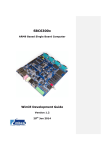
SBC6300X WinCE 6.0 User Manual
Rev. 1.0.1
Release: 2010-10-27
www.armkits.com
SBC6300X WinCE6.0 User Manual
Revision history
Rev
Date
Description
1.0.0
2009-10-24
Initial version
1.0.1
2010-10-27
SBC6300X
WinCE6.0 User Manual
Timll Technic Inc.
Rev. 1.0.1
2 of 29
www.armkits.com
SBC6300X WinCE6.0 User Manual
Table of Contents
SBC6300X WINCE 6.0 USER MANUAL ...................................................................................................... 1
CHAPTER I. INTRODUCTION OF THE MANUAL ................................................................................................. 4
1.1 Terms and definitions.......................................................................................................................... 4
1.2 Disclaimer ............................................................................................................................................ 4
CHAPTER II. INTRODUCTION OF WINCE 6.0 SYSTEM .................................................................................... 5
2.1 Image files related to SBC6300X WinCE 6.0 system.................................................................... 5
2.2 Working principles of SBC6300X WinCE 6.0 system.................................................................... 5
CHAPTER III. BURNING OF WINCE SYSTEM ................................................................................................... 7
3.1 Introduction of burning SBC6300X WinCE 6.0 system image files............................................. 7
3.2 Burn SBC6300X WinCE 6.0 system image through SAM-BA ..................................................... 7
CHAPTER IV. BOOT WINCE 6.0 SYSTEM ...................................................................................................... 17
4.1 Boot WinCE system.......................................................................................................................... 17
CHAPTER V. CUSTOMIZATION OF WINCE SYSTEM BASED ON SBC6300X WINCE 6.0 BSP .................... 18
5.1 Installation of SBC6300X WinCE 6.0 BSP.................................................................................... 18
5.2 The compilation of WinCE system based on SBC6300X WinCE 6.0 BSP .............................. 18
5.3 The compilation of WinCE system based on SBC6300X WinCE 6.0 BSP .............................. 18
5.4 Modules of SBC6300X WinCE 6.0 BSP driver............................................................................. 27
SBC6300X
WinCE6.0 User Manual
Timll Technic Inc.
Rev. 1.0.1
3 of 29
www.armkits.com
SBC6300X WinCE6.0 User Manual
Chapter I. Introduction of the Manual
This Manual mainly expounds the burning of WinCE 6.0 system image files of SBC6300X main
board and the system customization based on SBC6300X WinCE 6.0 BSP.
1.1 Terms and definitions
Development Workstation Development Workstation means X86 PC installed with Windows
XP operating system, Microsoft Visual Studio 2005 and Windows Embedded CE 6.0 development
environment. This PC must have a serial port and a USB port.
NAND flash
NAND flash the 8-bit 128MB SAMSUNG K9F1G08UB NAND flash module on
SBC6300X main board.
SDRAM
SDRAM means the extended 64MB SDRAM on SBC6300X main board, which
consists of 2 pieces of 16-bit 32MB HY57V581620FTP-HKOR.
SRAM SRAM means the 16KB SRAM inside AT91SAM9263 chip that SBC6300X main board
uses.
DNW
The serial port tool running on development workstation.
1.2 Disclaimer
Timll Technic Inc. doesn’t provide any expressly or implied warranty for all source code,
software, data and documents of the program that are included in this CD, including but not limited
to the guarantee for any specific purpose. All risks are borne by the users of the CD. If any defect
is found the program, any expenses arising of servicing, modifying or correcting the defects will
also be borne by the users.
SBC6300X
WinCE6.0 User Manual
Timll Technic Inc.
Rev. 1.0.1
4 of 29
www.armkits.com
SBC6300X WinCE6.0 User Manual
Chapter II. Introduction of WinCE 6.0 system
2.1 Image files related to SBC6300X WinCE 6.0 system
If WinCE system is customized using SBC6300X WinCE 6.0 BSP that we provide and the
compilation is successfully finished, the system will generate 6 image files, i.e.: FIRSTBOOT.nb0,
EBOOT.nb0, NK.nb0, FIRSTBOOT.bin, EBOOT.bin, NK.bin, of which 4 files are usually used in
burning processes, i.e.: FIRSTBOOT.nb0, EBOOT.nb0, NK.nb0, NK.bin. The files generated in .nb0
format will finally be burnt to NAND flash, and they can directly run in SDRAM; while the files in .bin
format must first be converted into .nb0 files by EBOOT running on SBC6300X main board nb0, then
they are burnt to NAND flash.
2.2 Working principles of SBC6300X WinCE 6.0 system
At present, our SBC6300X WinCE 6.0 BSP supports two booting modes, i.e.: NAND flash. Figure
2.1 is their rough booting flow chart:
Figure 2.1
SBC6300X
WinCE6.0 User Manual
Timll Technic Inc.
Rev. 1.0.1
5 of 29
www.armkits.com
SBC6300X WinCE6.0 User Manual
2.2.1 Principles on the booting of SBC6300X WinCE 6.0 system from NAND
flash
After power on the system is fixed inside CPU of AT91SAM9263, ROMBOOT will automatically
copy FIRSTBOOT image, the first-level user booting code from SPI NANDflash 0x00000000 address
to SRAM inside CPU of AT91SAM9263 and execute it. FIRSTBOOT’s role is to initialize SDRAM
memory, SPI NANDflash in AT91SAM9263 CPU and SBC6300X main board, and copy EBOOT, the
second-level user booting code from SPI NANDflash 0x00020000 address of SBC6300X main
board to SDRAM of SBC6300X main board and execute it; FIRSTBOOT also copy Logo from
NANDflash 0x00080000 address of SBC6300X main board to SDRAM. In default state, EBOOT will
automatically copy WinCE system image NK from NAND flash 0x00200000 address to SDRAM of
SBC6300X main board, and hand over system control to operating system. In addition, EBOOT
undertakes the management operations of underlying hardware and settings of the data shared with
operating system.
2.3 The address of SBC6300X WinCE 6.0 image files in NAND flash
If you choose to boot from NAND flash, FIRSTBOOT is located at the beginning of 0x00000000
address of Nand flash, the capacity of FIRSTBOOT is 4KB; EBOOT is located at the beginning of
0x00020000 address of Nand flash, the capacity of EBOOT is 200KB; the Logo is saved at
0x00080000 of Nand flash; WinCE system images are located in NAND flash in an area of 40MB
starting from 0x00200000 address. The area in NAND flash after 0x2860000 address will provide
clients for use as NAND flash hard disk under WinCE system. Therefore, client can customize WinCE
system of no more than 40MB. If you need store WinCE system of bigger than 40MB or need reduce
the NAND flash partition reserved for WinCE system images, please feel free to contact our
technicians.
Figure 2.3
SBC6300X
WinCE6.0 User Manual
Timll Technic Inc.
Rev. 1.0.1
6 of 29
www.armkits.com
SBC6300X WinCE6.0 User Manual
Chapter III. Burning of WinCE system
3.1 Introduction of burning SBC6300X WinCE 6.0 system image files
Now our SBC6300X WinCE 6.0 BSP supports two burning modes, first, burn FIRSTBOOT,
EBOOT and WinCE system image NK using the SAM-BA software that ATMEL provides; second,
connect VS2005 WinCE 6.0 development environment installed on client development workstation or
other TFTP servers (e.g.: CEDownload.exe) to SBC6300X main board, burn WinCE system image
files NK via net cable using the EBOOT on SBC6300X (the EBOOT that SBC6300X WinCE 6.0 BSP
of current version generates doesn’t support for the burning of user booting codes FIRSTBOOT and
EBOOT, it can only burn WinCE system image file NK.bin) .
Important: if you use EBOOT, the user booting code on SBC6300X main board to WinCE system
image file NK, the actual process will be, EBOOT, the user booting code on SBC6300X main board
will first download WinCE system image file NK.bin that VS2005 WinCE 6.0 generates from TFTP
server running on development workstation to SDRAM onSBC6300X main board via net cable, then
the file will be converted into NK.nb0 before being burnt to NAND flash. The TFTP server mentioned
here can be the server provided in VS2005 WinCE 6.0 development environment or other TFTP
servers. Please note that the port parameter of the TFTP server that you use is 980 instead of 69, the
standard TFTP port. The software CEDownload.exe, which we will describe in Section 3.4 below is a
TFTP server software, which has changed the default TFTP port from 69 into 980.
3.2 Burn SBC6300X WinCE 6.0 system image through SAM-BA
3.2.1Install SAM-BA software
Install the application \03 WinCE 6.0 Kit\04 Tools \Install AT91-ISP v1.12.exe in SBC6300X CD
on your development workstation as the default path and configurations of AT91-ISP v1.12.exe
program. After the installation is finished, you will see the icon of SAM-BA v2.8 (see Figure 3.1)
appearing on the desktop :
Figure 3.1
3.2.2 Burn SBC6300X system image through SAM-BA software
1.
Put the Jump J24 in open status. As shown in Figure 3.16, select NandFlash header in
SAM-BA v2.8.
SBC6300X
WinCE6.0 User Manual
Timll Technic Inc.
Rev. 1.0.1
7 of 29
www.armkits.com
SBC6300X WinCE6.0 User Manual
2.
Figure 3.16
As shown in Figure 3.16 in the Scripts pulldown menu of SAM-BA v2.8, select Enable
NandFlash, and click Execute button in the column Scripts to enable NAND flash on
SBC6300X main board. After the Enable operation is successful, the interface as shown in
Figure 3.17 will appear:
SBC6300X
WinCE6.0 User Manual
Timll Technic Inc.
Rev. 1.0.1
8 of 29
www.armkits.com
SBC6300X WinCE6.0 User Manual
3.
Figure 3.17
As shown in Figure 3.18 in the Scripts pulldown menu of SAM-BA v2.8, select Erase All,
click Execute button in SAM-BA v2.8, SAM-BA v2.8 will automatically erase entire NAND
flash. After the Erase operation is successful, the interface as shown in Figure 3.19 will
appear:
SBC6300X
WinCE6.0 User Manual
Timll Technic Inc.
Rev. 1.0.1
9 of 29
www.armkits.com
SBC6300X WinCE6.0 User Manual
Figure 3.18
4.
Figure 3.19
Select Send Boot File button in the Scripts pulldown menu of SAM-BA v2.8, click Execute
SBC6300X
WinCE6.0 User Manual
Timll Technic Inc.
Rev. 1.0.1
10 of 29
www.armkits.com
SBC6300X WinCE6.0 User Manual
button in SAM-BA v2.8, an open file dialog box as shown in Figure 3.20 will pop up in
SAM-BA v2.8:
5.
Figure 3.20
As shown in Figure 3.21, select FIRSTBOOT_NAND.nb0 file under the path \03 WinCE 6.0
Kit\00 Image\ in SBC6300X CD in the open file dialog box of SAM-BA v2.8, then click Open
button in open file dialog box of SAM-BA v2.8, SAM-BA v2.8 will automatically start burning
FIRSTBOOT_NAND.nb0 file to the beginning of 0x00000000 address of NAND flash on
SBC6300X main board. After the burning is successful, the interface as shown in Figure
3.22 will appear.
SBC6300X
WinCE6.0 User Manual
Timll Technic Inc.
Rev. 1.0.1
11 of 29
www.armkits.com
SBC6300X WinCE6.0 User Manual
Figure 3.21
6.
Figure 3.22
As shown in Figure 3.23, enter address 0x20000 in the Address: field in Download/Upload
SBC6300X
WinCE6.0 User Manual
Timll Technic Inc.
Rev. 1.0.1
12 of 29
www.armkits.com
SBC6300X WinCE6.0 User Manual
File of SAM-BA v2.8. Select SBC6300X CD \03 WinCE 6.0 Kit\00 Image
\EBOOT_NAND.nb0 file in the text box Send File Name:, then click Send File button in
Download/Upload File of SAM-BA v2.8, SAM-BA v2.8 will start burning EBOOT_NAND.nb0
file to the beginning of 0x20000 address of NAND flash on SBC6300X main board, After the
burning is successful, the interface as shown in Figure 3.24 will appear.
Figure 3.23
SBC6300X
WinCE6.0 User Manual
Timll Technic Inc.
Rev. 1.0.1
13 of 29
www.armkits.com
SBC6300X WinCE6.0 User Manual
7.
Figure 24
As shown in Figure 3.25, enter address 0x80000 in the Address: field in Download/Upload
File of SAM-BA v2.8. Select SBC6300X CD \03 WinCE 6.0 Kit\00 Image \Logo.bin file in the
text box Send File Name:, then click Send File button in Download/Upload File of SAM-BA
v2.8, SAM-BA v2.8 will start burning Logo.bin file to the beginning of 0x80000 address of
NAND flash on SBC6300X main board.
SBC6300X
WinCE6.0 User Manual
Timll Technic Inc.
Rev. 1.0.1
14 of 29
www.armkits.com
SBC6300X WinCE6.0 User Manual
8.
Figure 25
As shown in Figure 3.26, enter the address 0x00200000 in the Address: field in
Download/Upload File of SAM-BA v2.8, select SBC6300X CD \03 WinCE 6.0 Kit\00 Image
\NK.nb0 file in the text box Send File Name:, then click Send File button in
Download/Upload File of SAM-BA v2.8, SAM-BA v2.8 will start burning NK.nb0 file to the
beginning of 0x00200000 address of NAND flash on SBC6300X main board. After the
burning is successful, the interface as shown in Figure 3.27 will appear.: (it takes 3-10
minutes to burn NK.nb0 file.) .
SBC6300X
WinCE6.0 User Manual
Timll Technic Inc.
Rev. 1.0.1
15 of 29
www.armkits.com
SBC6300X WinCE6.0 User Manual
Figure 3.26
Figure 3.27
SBC6300X
WinCE6.0 User Manual
Timll Technic Inc.
Rev. 1.0.1
16 of 29
www.armkits.com
SBC6300X WinCE6.0 User Manual
Chapter IV. Boot WinCE 6.0 system
4.1 Boot WinCE system
1.
2.
select to boot from NAND flash then burn WinCE 6.0 system image files.
Make the power SWITCH be ON state, WinCE system will be booted. Enter WinCE 6.0
system, TFTLCD will first display calibration touch screen as shown in Figure 4.1.
Figure 4.1
SBC6300X
WinCE6.0 User Manual
Timll Technic Inc.
Rev. 1.0.1
17 of 29
www.armkits.com
SBC6300X WinCE6.0 User Manual
Chapter V. Customization of WinCE system based on
SBC6300X WinCE 6.0 BSP
Notes:
To develop Windows Embedded CE 6.0 operating system using SBC6300X BSP, you
need setup Windows Embedded CE 6.0development workstation.
This Manual specifies that Windows Embedded CE 6.0 development workstation
software is to be installed in Driver F, that is to say, the installation path for Windows
Embedded CE 6.0 is [F:\WINCE600].
5.1 Installation of SBC6300X WinCE 6.0 BSP
Unzip SBC6300X CD \03 WinCE 6.0 Kit\01 BSP \SBC6300X.rar to F:\WINCE600\PLATFORM of
development workstation. Unzip SBC6300X CD \03 WinCE 6.0 Kit\01 BSP \ATMEL.rar to F:
\WINCE600\PLATFORM\COMMON\SRC\SOC of development workstation, then the installation of
SBC6300X WinCE 6.0BSP is finished.
5.2 The compilation of WinCE system based on SBC6300X WinCE
6.0 BSP
Here we will not describe how to customize a WinCE project based a BSP in VS2005 WinCE 6.0
development environment, user can directly copy SBC6300X CD \03 WinCE 6.0 Kit\02 Project
\SBC6300X.rar file to the directory F:\WINCE600\OSDesigns\ of development workstation, and unzip
this file under the same directory. User can directly open the project file SBC6300X.sln [under
F:\WINCE600\OSDesigns\SBC6300X folder], then you can select [Build-> Build Solution] in VS2005
to start compiling the customized WinCE system.
5.3 The compilation of WinCE system based on SBC6300X WinCE
6.0 BSP
1.
This section will describe the steps on how to customize WinCE 6.0 in SBC6300X BSP:
Open Visual Studio 2005, click File->New->Project, see Figure 6.1 below:
SBC6300X
WinCE6.0 User Manual
Timll Technic Inc.
Rev. 1.0.1
18 of 29
www.armkits.com
SBC6300X WinCE6.0 User Manual
2.
Figure 6.1
Select Platform Builder for CE 6.0 from Other project types in New Project wizard, enter
SBC6300X in name:, see Figure 6.2:
3.
Figure 6.2
Click OK button as shown in Figure 6.2, the system will next step of Windows Embedded CE 6.0
OS Design Wizard, see Figure 6.3:
SBC6300X
WinCE6.0 User Manual
Timll Technic Inc.
Rev. 1.0.1
19 of 29
www.armkits.com
SBC6300X WinCE6.0 User Manual
Figure 6.3
4.
5.
Click Next button in Windows Embedded CE 6.0 OS Design Wizard as shown in Figure 6.3,
select SBC6300X:ARMV4I in Board Support Packages (BSPs) as shown in Figure 6.4:
Figure 6.4
Click Next button as shown in Figure 6.4, select PDA Device in newly opened Design
Templates->Available design templates, see Figure 6.5:
SBC6300X
WinCE6.0 User Manual
Timll Technic Inc.
Rev. 1.0.1
20 of 29
www.armkits.com
SBC6300X WinCE6.0 User Manual
6.
Figure 6.5
Click Next as shown in Figure 6.5, select Mobile Handled in newly opened Design Template
Variants->Variants, see Figure 6.6:
7.
Figure 6.6
Click Next button as shown in Figure 6.6 to open Applications & Media window, add Internet
Browser->Internet Explorer 6.0 and WordPad in existing default options, see Figure 6.7:
SBC6300X
WinCE6.0 User Manual
Timll Technic Inc.
Rev. 1.0.1
21 of 29
www.armkits.com
SBC6300X WinCE6.0 User Manual
8.
9.
Figure 6.7
Click Next button as shown in Figure 6.7 to open Networking & Communications, remove
Personal Area Network(PAN)->Bluetooth and Personal Area Network(PAN)->IraDA from in
existing default options, see Figure 6.8:
Figure 6.8
Click Next button as shown in Figure 6.8, Click finish in newly opened OS Design Project Wizard
Complete, see Figure 6.9:
SBC6300X
WinCE6.0 User Manual
Timll Technic Inc.
Rev. 1.0.1
22 of 29
www.armkits.com
SBC6300X WinCE6.0 User Manual
Figure 6.9
10. Click Acknowledge in the interface as shown in Figure 6.10 to finish the initial customization of
WinCE 6.0 OS.
Figure 6.10
11. Tick the following options under View->other windows->Catalog Items View->SBC6300X->Core
OS->CEBASE->Core OS Services->USB HOST Support in Catalog Items View of VS2005.
USB Function Driver
USB Host Support
USB Human Input Device (HID) Class Driver->USB HID Keyborad and Mouse
USB Storage Class Driver
SBC6300X
WinCE6.0 User Manual
Timll Technic Inc.
Rev. 1.0.1
23 of 29
www.armkits.com
SBC6300X WinCE6.0 User Manual
See Figure 6.11.
Figure 6.11
12. Add the following options following the steps of add USB relevant modules as described above:
Core OS->CEBASE -> Communication Services and Networking->Networking-General->
Domain Discovery
Core OS->CEBASE -> Communication Services and Networking->Networking-General->
Extended DNS Querying and Update(DNSAPI)
Here we remove the remove the existing default option below:
Core OS->CEBASE -> Communication Services and Networking ->Networking-General->
TCP/IPv6 Support
Continue to add the following options:
Core OS->CEBASE->File Systems and Data Store->Storage Manager->Storage Manager
Control Panel Applet
Core OS->CEBASE->International->Locale Specific Support-> Chinese (Simplified)
->Fonts->SimSun&NsimSun(Choose 1)->SimSun&NsimSun
Core OS->CEBASE->International->Locale Specific Support-> Chinese (Simplified)
->GB1803030 Data ConverterCore OS->CEBASE->International->Locale Specific Support-> Chinese (Simplified) ->
Monotype Imaging AC3 Font Compression
Device Drivers->SDIO->SDIO Host->SDIO Standard Host Controller
Device Drivers->SDIO->SDIO Memory->SD Memory
SBC6300X
WinCE6.0 User Manual
Timll Technic Inc.
Rev. 1.0.1
24 of 29
www.armkits.com
SBC6300X WinCE6.0 User Manual
Device Drivers->USB Function->USB Function Clients->Mass Storage
Device Drivers->USB Function->USB Function Clients->serial
13. Set compilation type as SBC6300X ARMV4I Release, see Figure 6.12:
Figure 6.12
14. Click Project->properties in VS2005 , see Figure 6.13:
Figure 6.13
15. Tick Enable eboot space in memory(IMAGE=1) in Build Options, as shown in Figure 6.14, click
OK to finish the settings of compilation.
SBC6300X
WinCE6.0 User Manual
Timll Technic Inc.
Rev. 1.0.1
25 of 29
www.armkits.com
SBC6300X WinCE6.0 User Manual
Figure 6.14
16. As shown in Figure 6.15, tick the driver of the module you need SBC6300X main board, in
View->Other window->Catalog Items View->SBC6300X->Third Party->SBC6300X:ARMV4I in
VS2005. (For details of each driver module please refer to Section 6.5) .
SBC6300X
WinCE6.0 User Manual
Timll Technic Inc.
Rev. 1.0.1
26 of 29
www.armkits.com
SBC6300X WinCE6.0 User Manual
Figure 6.15
17. As shown in Figure 6.16, click Build->Advanced Build Commands->Sysgen of VS2005 to start
compiling:
Figure 6.16
18. As the compilation may take a long time (depends on the hardware configurations of
development workstation), please wait. After the system compilation is successful, VS2005 will
export the following information as shown in Figure 6.17:
Figure 6.17
19. The moment 6 WinCE 6.0 image files, i.e.: FIRSTBOOT.nb0, EBOOT.nb0, NK.nb0,
FIRSTBOOT.bin, EBOOT.bin, NK.bin, will be generated under
F:\WINCE600\OSDesigns\SBC6300X\SBC6300X\RelDir\SBC6300X_ARMV4I_Releas\folder.
5.4 Modules of SBC6300X WinCE 6.0 BSP driver
After SBC6300X WinCE 6.0 BSP is installed and the project based on the BSP is initially
customized following the instructions of Section 6.4, click View->Other window->Catalog Items
View->SBC6300X->Third Party->SBC6300X:ARMV4I in VS2005, you will see the modules of each
driver module of SBC6300X WinCE 6.0 BSP, you can choose them on your demand. The table below
will describe the functions of each module in details.
Module
Functions
SBC6300X
WinCE6.0 User Manual
Remarks
Timll Technic Inc.
Rev. 1.0.1
27 of 29
www.armkits.com
SBC6300X WinCE6.0 User Manual
ADC driver
ADC driver.
AC97 driver
AC97 driver.
SC16C554 serial chip
driver
SC16C554
driver..
Buzzer driver
Buzzer driver.
Display driver
Display driver.
Emacb driver
Emacb driver.
GPIO driver
GPIO driver.
I2C driver
I2C driver.
I2C EEPROM driver
I2C EEPROM driver.
IO driver
IO driver.
IO key driver
IO key driver.
DM9000 driver
DM9000 driver
6X6 matrix keyboard
driver
6X6
matrix
driver
PWM driver
PWM driver.
SD card SDIO driver
SD card SDIO driver.
AT91SAM9263 serial
driver
AT91SAM9263
driver
TFTLCD driver
TFTLCD driver
Touch screen driver
Touch screen driver.
USB device driver
USB device driver.
SBC6300X
WinCE6.0 User Manual
serial
chip
keyboard
serial
Timll Technic Inc.
Rev. 1.0.1
28 of 29
www.armkits.com
SBC6300X WinCE6.0 User Manual
USB host driver
USB host driver.
Bootloader
Bootloader
Hive registry
Hive registry.
NAND flash driver
NAND flash driver.
SD card 4 cables SPI
driver
SD card 4 cables SPI
driver.Note: SD card SDIO
driver and SD card 4
cables SPI driver can only
be selected one.
SBC6300X
WinCE6.0 User Manual
Timll Technic Inc.
Rev. 1.0.1
29 of 29