1
5. THE DJ CONSOLE 4-MX CONTROL PANEL
5.1. Accessing the control panel on PC
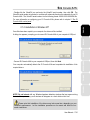
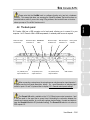
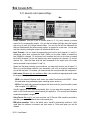
. To launch the DJ Console 4-Mx control panel, simply left-click the icon.
In Windows, this icon consolidates all Hercules DJ products you may have installed on your
system. You can select your DJ Console 4-Mx’s control panel by right-clicking the icon and
choosing Select Device.
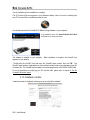
By right-clicking the icon, you can also select to open the control panel (an alternative to leftclicking the taskbar icon as described above), get hardware information about your DJ Console 4Mx, check for updates for your DJ Console 4-Mx, or exit the control panel. Please note that in
order to check for updates, you must have an active Internet connection.
FRANÇAIS
the clock display:
ENGLISH
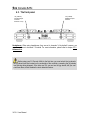
An icon representing your DJ Console 4-Mx appears in the right-hand side of your taskbar, next to
- Follow the on-screen instructions to install the update for your DJ Console 4-Mx.
5.2. Accessing the control panel on Mac
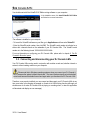
- Access the control panel by double-clicking the
icon on your desktop.
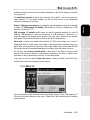
5.3. Using the DJ Console 4-Mx control panel
The control panel allows you to manage your DJ Console 4-Mx’s various settings. The following
sections will explain the various features of the control panel, as well as the differences that exist
between the PC and Mac versions.
User Manual – 15/30
NEDERLANDS
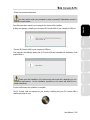
If no new version is available, a message will appear indicating that you already have the latest
version installed. If a new version is available, it will be downloaded and the setup will launch
automatically.
ITALIANO
- If prompted by your system, allow your computer to access the Guillemot FTP server.
ESPAÑOL
- Right-click the DJ Console 4-Mx icon in the taskbar and select Check for updates.
DEUTSCH
To check for updates for your DJ Console 4-Mx: