1
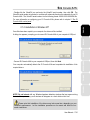
- Double-click the VirtualDJ icon and enter the VirtualDJ serial number, then click OK. The
VirtualDJ serial number is indicated on a sticker with a barcode found on the underside of your DJ
Console 4-Mx. The VirtualDJ serial number is in the following format: XXXX-XXXX-XXXXX/4-Mx.
For more information on configuring your DJ Console 4-Mx, please refer to chapter 5. The DJ
Console 4-Mx control panel.
ENGLISH
3.1.2. Installation in Windows XP
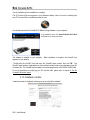
Once files have been copied to your computer, the drivers will be installed.
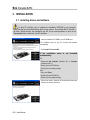
- Connect DJ Console 4-Mx to your computer's USB port, then click Next.
ESPAÑOL
ITALIANO
Your computer automatically detects the DJ Console 4-Mx and completes the installation of the
required drivers.
NEDERLANDS
DEUTSCH
FRANÇAIS
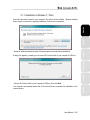
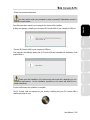
A dialog box appears, prompting you to connect DJ Console 4-Mx to your computer's USB port.
NOTE: Do not interact with any Windows hardware detection windows that may appear during
the installation process; any such windows will disappear in a short while on their own.
Please note that installation of the drivers may take some time, depending on your
computer’s performance. Let the installation procedure run its course and follow the onscreen instructions.
User Manual – 7/30