1
SHIELDeye SmartCam USER MANUAL
Camera WiFi Setup
So, you have successfully installed the Camera and have been able to view what you want over the network,
but now you want to avoid the cable running down the hallway. You could set up your IP Camera wirelessly!
Before start your wireless setup, please check that your wireless router works, and remember to connect
your router, desktop and the IP Camera according to page 7. There are two ways to create your wireless
connection.
Note: Wireless viewing only works if your wireless network locates the IP Camera. If the wireless signal is
weak, the video may be disruptive. To ensure a strong signal and reception, we suggest you connect using
the Ethernet network cable.
Connecting Through PC & Web Interface
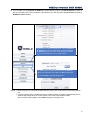
To set up this wireless connection, you need to enter the Web Interface. To get into the Web Interface, you
need to know the IP address of your IP Camera. Follow these steps to get the IP address.
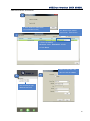
1. Find SearchTool.exe in the Installation CD.
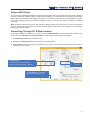
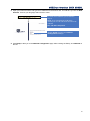
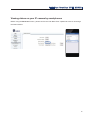
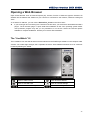
2. Double click SearchTool.exe and you will see the image below.
3. Click Search and you can see the IP address of your device in the device list, and write down the IP
address for further setup.
2. Address IP
Find the Address IP and write it
down. (It is after the Device Name)
Http Port 80
1. Click Search to get the IP
address of the IP Camera.
13