1
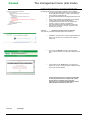
Kerweb The management menu (site mode) <location path="Default Web Site/Kerweb2"> <system.webServer> <handlers accessPolicy="Read, Execute, Script" /> <security> <authentication> <anonymousAuthentication enabled="true" /> </authentication> <requestFiltering> <requestLimits maxAllowedContentLength="3000000000" /> </requestFiltering> </security> <httpLogging dontLog="false" /> </system.webServer> </location> Big files may be blocked directly by IIS, because it has a built-in http request size limitation. The maximum request size may change between the different IIS versions, but with IIS7 and higher it can be modified : First, the request filtering service has to be activated in the IIS services (Server manager -> Roles -> Role Services) Then, open the configuration file : „C:\Windows\System32\inetsrv\config\applicationHost.conf ig‟ Search for the Kerweb site configuration section (default <location path="Default Web Site/Kerweb2">) A <requestFiltering> section has to be inserted in the <security> section, as shown in the example The maxAllowedContentLength attribute contains the maximum http request size, in bytes. Adjust this value according to your needs. 7.20.1.8.4 Restrictions priority and error messages The previously described restrictions follow a strict hierarchy: The IIS error has top priority, it will be triggered before the others if the file does not fit. It will lead to an „Page not found‟ error. Then comes the Kerweb maximum http request size error. A specific kerweb error page will be displayed in this case. The last filters are the Kerwin filters. If the data server rejects a file, an error popup will appear, explaining clearly why the file has been rejected. For the files/requests size, it is highly recommended to have the most permissive setting on IIS, and the most restrictive on Kerwin. If IIS is the most restrictive, its error will trigger immediately, without letting Kerweb and Kerwin run their tests. 7.20.1.8.3 NT00360-EN-01 IIS settings 57