1
Chapter 10 Camera and Multimedia 159
Note If you have previously opened Windows Media Player and searched for media on
your computer, you are not prompted to search your computer in step 2.
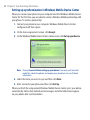
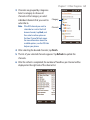
3. On the Device Setup dialog box, enter a name for your phone and click
Finish.
Note If you installed a storage card that has a capacity of more than 4GB and
your entire library can fit into the storage card, Windows Media Player will
automatically sync your music files. Your phone also needs to be set to Disk
Drive mode for Windows Media Player to automatically sync.
4. On the left panel of Windows Media Player, right-click the name of your
phone and click Set Up Sync.
Note To set up media synchronization on a storage card, right-click Storage Card in
the left panel of Windows Media Player, and then click Set Up Sync.
5. Select the playlist(s) that you want to sync between your computer and
phone, and then click Add.
Note On the Device Setup dialog box, make sure that the Sync this device
automatically check box is selected.
6. Click Finish.
The files begin synchronizing to your phone. The next time you connect your
phone to your computer while Windows Media Player is running, synchronization
will start automatically.
To manually sync content to your phone
1. If you have not set up media synchronization between your phone and
computer, follow steps 1 to 3 in “To automatically sync content to your
phone”.
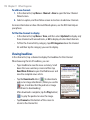
2. Click the Sync tab on the Windows Media Player of your computer. Select a
Playlist or a Library on the left panel of the Windows Media Player.
3. From the Content List, drag the media files that you want to sync to your
phone and drop them to the Sync List.