1
User Manual
www.htc.com
Please Read Before Proceeding
THE BATTERY IS NOT FULLY CHARGED WHEN YOU TAKE IT OUT OF THE DEVICE.
DO NOT REMOVE THE BATTERY PACK WHEN THE DEVICE IS CHARGING.
YOUR WARRANTY IS INVALIDATED IF YOU DISASSEMBLE OR ATTEMPT TO
DISASSEMBLE THE DEVICE.
PRIVACY RESTRICTIONS
Some countries require full disclosure of recorded telephone conversations, and
stipulate that you must inform the person with whom you are speaking that the
conversation is being recorded. Always obey the relevant laws and regulations of
your country when using the recording feature of your phone.
INTELLECTUAL PROPERTY RIGHT INFORMATION
Copyright © 2009 HTC Corporation. All Rights Reserved.
HTC, the HTC logo, HTC Innovation, ExtUSB, TouchFLO, HTC Touch, and HTC Care are
trademarks and/or service marks of HTC Corporation.
Microsoft, Windows, Windows Mobile, Windows XP, Windows Vista, ActiveSync,
Windows Mobile Device Center, Internet Explorer, MSN, Hotmail, Windows Live,
Outlook, Excel, PowerPoint, Word, OneNote and Windows Media are either
registered trademarks or trademarks of Microsoft Corporation in the United States
and/or other countries.
Bluetooth and the Bluetooth logo are trademarks owned by Bluetooth SIG, Inc.
Wi-Fi is a registered trademark of the Wireless Fidelity Alliance, Inc.
Java, J2ME and all other Java-based marks are trademarks or registered trademarks
of Sun Microsystems, Inc. in the United States and other countries.
Copyright © 2009, Sun Microsystems, Inc. All Rights Reserved.
Copyright © 2009, Adobe Systems Incorporated. All Rights Reserved.
microSD is a trademark of SD Card Association.
Opera® Mobile from Opera Software ASA. Copyright 1995-2009 Opera Software
ASA. All Rights Reserved.
Google and YouTube are trademarks of Google, Inc. in the United States and other
countries.
Copyright © 2009, Esmertec AG. All Rights Reserved.
Copyright © 2003-2009, ArcSoft, Inc. and its licensors. All Rights Reserved. ArcSoft
and the ArcSoft logo are registered trademarks of ArcSoft, Inc. in the United States
and/or other countries.
Copyright © 2004-2009, Ilium Software, Inc. All Rights Reserved.
Licensed by QUALCOMM Incorporated under one or more of the following patents:
4,901,307
5,506,865
5,267,261
5,600,754
5,490,165
5,109,390
5,544,196
5,414,796
5,056,109
5,511,073
5,267,262
5,657,420
5,504,773
5,228,054
5,568,483
5,416,797
5,101,501
5,535,239
5,337,338
5,778,338
5,710,784
5,659,569
All other company, product and service names mentioned herein are trademarks,
registered trademarks or service marks of their respective owners.
HTC shall not be liable for technical or editorial errors or omissions contained
herein, nor for incidental or consequential damages resulting from furnishing this
material. The information is provided “as is” without warranty of any kind and is
subject to change without notice. HTC also reserves the right to revise the content
of this document at any time without prior notice.
No part of this document may be reproduced or transmitted in any form or by any
means, electronic or mechanical, including photocopying, recording or storing in a
retrieval system, or translated into any language in any form without prior written
permission of HTC.
Disclaimers
THE WEATHER INFORMATION, DATA AND DOCUMENTATION ARE PROVIDED “AS
IS” AND WITHOUT WARRANTY OR TECHNICAL SUPPORT OF ANY KIND FROM
HTC. TO THE MAXIMUM EXTENT PERMITTED BY APPLICABLE LAW, HTC AND ITS
AFFILIATES expressly disclaim any and all representations and warranties, express
or implied, arising by law or otherwise, regarding the Weather Information, Data,
Documentation, or any other Products and services, including without limitation
any express or implied warranty of merchantability, express or implied warranty of
fitness for a particular purpose, non-infringement, quality, accuracy, completeness,
effectiveness, reliability, usefulness, that the Weather Information, Data and/or
Documentation will be error-free, or implied warranties arising from course of
dealing or course of performance.
Without limiting the foregoing, it is further understood that HTC and its Providers
are not responsible for Your use or misuse of the Weather Information, Data and/or
Documentation or the results from such use. HTC and its Providers make no express
or implied warranties, guarantees or affirmations that weather information will
occur or has occurred as the reports, forecasts, data, or information state, represent
or depict and it shall have no responsibility or liability whatsoever to any person or
entity, parties and non-parties alike, for any inconsistency, inaccuracy, or omission
for weather or events predicted or depicted, reported, occurring or occurred.
WITHOUT LIMITING THE GENERALITY OF THE FOREGOING, YOU ACKNOWLEDGE
THAT THE WEATHER INFORMATION, DATA AND/OR DOCUMENTATION MAY INCLUDE
INACCURACIES AND YOU WILL USE COMMON SENSE AND FOLLOW STANDARD
SAFETY PRECAUTIONS IN CONNECTION WITH THE USE OF THE WEATHER
INFORMATION, DATA OR DOCUMENTATION.
Limitation of Damages
TO THE MAXIMUM EXTENT PERMITTED BY APPLICABLE LAW, IN NO EVENT SHALL
HTC OR ITS PROVIDERS BE LIABLE TO USER OR ANY THIRD PARTY FOR ANY
INDIRECT, SPECIAL, CONSEQUENTIAL, INCIDENTAL OR PUNITIVE DAMAGES OF ANY
KIND, IN CONTRACT OR TORT, INCLUDING, BUT NOT LIMITED TO, INJURY, LOSS OF
REVENUE, LOSS OF GOODWILL, LOSS OF BUSINESS OPPORTUNITY, LOSS OF DATA,
AND/OR LOSS OF PROFITS ARISING OUT OF, OR RELATED TO, IN ANY MANNER,
OR THE DELIVERY, PERFORMANCE OR NONPERFORMANCE OF OBLIGATIONS, OR
USE OF THE WEATHER INFORMATION, DATA OR DOCUMENTATION HEREUNDER
REGARDLESS OF THE FORESEEABILITY THEREOF.
Important Health Information and Safety Precautions
When using this product, the safety precautions below must be taken to avoid
possible legal liabilities and damages.
Retain and follow all product safety and operating instructions. Observe all
warnings in the operating instructions on the product.
To reduce the risk of bodily injury, electric shock, fire, and damage to the
equipment, observe the following precautions.
ELECTRICAL SAFETY
This product is intended for use when supplied with power from the designated
battery or power supply unit. Other usage may be dangerous and will invalidate
any approval given to this product.
SAFETY PRECAUTIONS FOR PROPER GROUNDING INSTALLATION
CAUTION: Connecting to an improperly grounded equipment can result in an
electric shock to your device.
This product is equipped with a USB Cable for connecting with desktop or
notebook computer. Be sure your computer is properly grounded (earthed) before
connecting this product to the computer. The power supply cord of a desktop or
notebook computer has an equipment-grounding conductor and a grounding
plug. The plug must be plugged into an appropriate outlet which is properly
installed and grounded in accordance with all local codes and ordinances.
SAFETY PRECAUTIONS FOR POWER SUPPLY UNIT
• Use the correct external power source
A product should be operated only from the type of power source indicated
on the electrical ratings label. If you are not sure of the type of power source
required, consult your authorized service provider or local power company.
For a product that operates from battery power or other sources, refer to the
operating instructions that are included with the product.
This product should be operated only with the following designated power
supply unit(s):
AC Adapter
• Phiphong, Model PSAI05R-050Q
• Handle battery packs carefully
This product contains a Li-ion battery. There is a risk of fire and burns if the
battery pack is handled improperly. Do not attempt to open or service the
battery pack. Do not disassemble, crush, puncture, short external contacts or
circuits, dispose of in fire or water, or expose a battery pack to temperatures
higher than 60˚C (140˚F).
ARNING: Danger of explosion if battery is incorrectly replaced. To reduce risk
W
of fire or burns, do not disassemble, crush, puncture, short external contacts,
expose to temperature above 60° C (140° F), or dispose of in fire or water.
Replace only with specified batteries. Recycle or dispose of used batteries
according to the local regulations or reference guide supplied with your
product.
Note: T his product should be operated only with the following designated
Battery Pack(s).
• HTC, Model TOPA160
• Take extra precautions
• Keep the battery or device dry and away from water or any liquid as it may
cause a short circuit.
• Keep metal objects away so they don’t come in contact with the battery or
its connectors as it may lead to short circuit during operation.
• The phone should only be connected to products that bear the USB-IF
logo or have completed the USB-IF compliance program.
• Do not use a battery that appears damaged, deformed, or discolored, or
the one that has any rust on its casing, overheats, or emits a foul odor.
• Always keep the battery out of the reach of babies and small children, to
avoid swallowing of the battery. Consult the doctor immediately if the
battery is swallowed.
• If the battery leaks:
• Do not allow the leaking fluid to come in contact with skin or clothing.
If already in contact, flush the affected area immediately with clean
water and seek medical advice.
• Do not allow the leaking fluid to come in contact with eyes. If already
in contact, DO NOT rub; rinse with clean water immediately and seek
medical advice.
• Take extra precautions to keep a leaking battery away from fire as
there is a danger of ignition or explosion.
SAFETY PRECAUTIONS FOR DIRECT SUNLIGHT
Keep this product away from excessive moisture and extreme temperatures. Do not
leave the product or its battery inside a vehicle or in places where the temperature
may exceed 60°C (140°F), such as on a car dashboard, window sill, or behind a glass
that is exposed to direct sunlight or strong ultraviolet light for extended periods
of time. This may damage the product, overheat the battery, or pose a risk to the
vehicle.
PREVENTION OF HEARING LOSS
CAUTION: Permanent hearing loss may occur if earphones or
headphones are used at high volume for prolonged periods
of time.
NOTE: For France, Earphone (listed below) for this device have been tested to comply
with the Sound Pressure Level requirement laid down in the applicable NF EN 503321:2000 and/or NF EN 50332-2:2003 standards as required by French Article L. 5232-1.
• Earphone, manufactured by HTC, Model HS G235.
SAFETY IN AIRCRAFT
Due to the possible interference caused by this product to an aircraft’s navigation
system and its communications network, using this device’s phone function on
board an airplane is against the law in most countries. If you want to use this
device when on board an aircraft, remember to turn off your phone by switching to
Airplane Mode.
ENVIRONMENT RESTRICTIONS
Do not use this product in gas stations, fuel depots, chemical plants or where
blasting operations are in progress, or in potentially explosive atmospheres such
as fuelling areas, fuel storehouses, below deck on boats, chemical plants, fuel or
chemical transfer or storage facilities, and areas where the air contains chemicals or
particles, such as grain, dust, or metal powders. Please be aware that sparks in such
areas could cause an explosion or fire resulting in bodily injury or even death.
EXPLOSIVE ATMOSPHERES
When in any area with a potentially explosive atmosphere or where flammable
materials exist, the product should be turned off and the user should obey all signs
and instructions. Sparks in such areas could cause an explosion or fire resulting in
bodily injury or even death. Users are advised not to use the equipment at refueling
points such as service or gas stations, and are reminded of the need to observe
restrictions on the use of radio equipment in fuel depots, chemical plants, or where
blasting operations are in progress. Areas with a potentially explosive atmosphere
are often, but not always, clearly marked. These include fueling areas, below deck
on boats, fuel or chemical transfer or storage facilities, and areas where the air
contains chemicals or particles, such as grain, dust, or metal powders.
ROAD SAFETY
Vehicle drivers in motion are not permitted to use telephony services with
handheld devices, except in the case of emergency. In some countries, using handsfree devices as an alternative is allowed.
SAFETY PRECAUTIONS FOR RF EXPOSURE
• Avoid using your phone near metal structures (for example, the steel frame of
a building).
• Avoid using your phone near strong electromagnetic sources, such as
microwave ovens, sound speakers, TV and radio.
• Use only original manufacturer-approved accessories, or accessories that do
not contain any metal.
• Use of non-original manufacturer-approved accessories may violate your
local RF exposure guidelines and should be avoided.
INTERFERENCE WITH MEDICAL EQUIPMENT FUNCTIONS
This product may cause medical equipment to malfunction. The use of this device is
forbidden in most hospitals and medical clinics.
If you use any other personal medical device, consult the manufacturer of your
device to determine if they are adequately shielded from external RF energy. Your
physician may be able to assist you in obtaining this information.
Turn your phone OFF in health care facilities when any regulations posted in
these areas instruct you to do so. Hospitals or health care facilities may be using
equipment that could be sensitive to external RF energy.
10 HEARING AIDS
Some digital wireless phones may interfere with some hearing aids. In the event
of such interference, you may want to consult your service provider, or call the
customer service line to discuss alternatives.
NONIONIZING RADIATION
Your device has an internal antenna. This product should be operated in its normaluse position to ensure the radiative performance and safety of the interference.
As with other mobile radio transmitting equipment, users are advised that for
satisfactory operation of the equipment and for the safety of personnel, it is
recommended that no part of the human body be allowed to come too close to the
antenna during operation of the equipment.
Use only the supplied integral antenna. Use of unauthorized or modified antennas
may impair call quality and damage the phone, causing loss of performance and
SAR levels exceeding the recommended limits as well as result in non-compliance
with local regulatory requirements in your country.
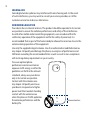
To assure optimal phone
performance and ensure human
exposure to RF energy is within the
guidelines set forth in the relevant
standards, always use your device
only in its normal-use position.
Contact with the antenna area
may impair call quality and cause
your device to operate at a higher
power level than needed. Avoiding
contact with the antenna area
when the phone is IN USE optimizes
the antenna performance and the
battery life.
Antenna location
11
General Precautions
• Avoid applying excessive pressure to the device
Do not apply excessive pressure on the screen and the device to prevent
damaging them and remove the device from your pants’ pocket before sitting
down. It is also recommended that you store the device in a protective case
and only use the device stylus or your finger when interacting with the touch
screen. Cracked display screens due to improper handling are not covered by
the warranty.
• Device getting warm after prolonged use
When using your device for prolonged periods of time, such as when you’re
talking on the phone, charging the battery or browsing the web, the device
may become warm. In most cases, this condition is normal and therefore
should not be interpreted as a problem with the device.
• Heed service markings
Except as explained elsewhere in the Operating or Service documentation,
do not service any product yourself. Service needed on components inside
the device should be done by an authorized service technician or provider.
• Damage requiring service
Unplug the product from the electrical outlet and refer servicing to an
authorized service technician or provider under the following conditions:
• Liquid has been spilled or an object has fallen onto the product.
• The product has been exposed to rain or water.
• The product has been dropped or damaged.
• There are noticeable signs of overheating.
• The product does not operate normally when you follow the operating
instructions.
• Avoid hot areas
The product should be placed away from heat sources such as radiators, heat
registers, stoves, or other products (including amplifiers) that produce heat.
12 • Avoid wet areas
Never use the product in a wet location.
• Avoid using your device after a dramatic change in temperature
When you move your device between environments with very different
temperature and/or humidity ranges, condensation may form on or within
the device. To avoid damaging the device, allow sufficient time for the
moisture to evaporate before using the device.
NOTICE: W
hen taking the device from low-temperature conditions into a warmer
environment or from high-temperature conditions into a cooler environment,
allow the device to acclimate to room temperature before turning on power.
• Avoid pushing objects into product
Never push objects of any kind into cabinet slots or other openings in the
product. Slots and openings are provided for ventilation. These openings
must not be blocked or covered.
• Mounting accessories
Do not use the product on an unstable table, cart, stand, tripod, or bracket.
Any mounting of the product should follow the manufacturer’s instructions,
and should use a mounting accessory recommended by the manufacturer.
• Avoid unstable mounting
Do not place the product with an unstable base.
• Use product with approved equipment
This product should be used only with personal computers and options
identified as suitable for use with your equipment.
• Adjust the volume
Turn down the volume before using headphones or other audio devices.
• Cleaning
Unplug the product from the wall outlet before cleaning. Do not use liquid
cleaners or aerosol cleaners. Use a damp cloth for cleaning, but NEVER use
water to clean the LCD screen.
13
Contents
Chapter 1 Getting Started
22
1.1 Inside the Box................................................................................................... 22
1.2 Getting to Know Your Phone........................................................................... 22
Top and bottom panels.............................................................................................................22
Front panel.....................................................................................................................................23
Back panel......................................................................................................................................24
Left panel........................................................................................................................................25
Right panel.....................................................................................................................................25
1.3 Installing the SIM Card, Battery, and Storage Card....................................... 26
SIM card..........................................................................................................................................27
Battery.............................................................................................................................................28
Storage card..................................................................................................................................29
1.4 Charging the Battery........................................................................................ 30
1.5 Starting Up........................................................................................................ 31
Turning the power on and off.................................................................................................31
Switching to Sleep mode.........................................................................................................31
1.6 Home Screen..................................................................................................... 32
1.7 Status Icons....................................................................................................... 33
1.8 Notifications..................................................................................................... 35
1.9 Start Screen....................................................................................................... 36
1.10Quick Menu....................................................................................................... 37
1.11Lock Screen....................................................................................................... 38
Locking your phone...................................................................................................................38
Unlocking your phone...............................................................................................................39
Checking notifications when the phone is locked..........................................................39
Receiving a call when the phone is locked........................................................................40
1.12Adjusting the Volume...................................................................................... 40
1.13Using Finger Gestures...................................................................................... 42
Finger scrolling.............................................................................................................................42
Finger panning.............................................................................................................................42
14 1.14Using the Zoom Bar.......................................................................................... 43
1.15Connecting Your Phone to a Computer.......................................................... 44
Chapter 2 Contacts and Phone Calls
45
Chapter 3 Using the Home Screen
59
2.1 Contacts............................................................................................................. 45
Opening the Contacts screen.................................................................................................45
Adding new contacts to your phone...................................................................................45
Adding a contact to your SIM card........................................................................................46
Assigning contacts with categories......................................................................................46
Browsing and filtering the contacts list...............................................................................46
Creating an email or messaging group...............................................................................47
Sharing contact information...................................................................................................48
Working with multiple contacts.............................................................................................48
2.2 Making Calls...................................................................................................... 49
Making a call from the Phone dialer screen.......................................................................49
Making calls from received messages and calendar reminders.................................51
Making an emergency call.......................................................................................................51
Making an international call....................................................................................................51
Calling voicemail..........................................................................................................................51
2.3 Answering and Ending Calls............................................................................ 52
Accepting or rejecting an incoming call.............................................................................52
During a call...................................................................................................................................53
2.4 Making Conference Calls................................................................................. 54
2.5 Call History........................................................................................................ 56
2.6 Speed Dial......................................................................................................... 57
Creating a Speed Dial entry.....................................................................................................57
Making a call using Speed Dial...............................................................................................57
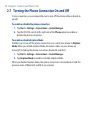
2.7 Turning the Phone Connection On and Off.................................................... 58
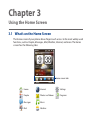
3.1 What’s on the Home Screen............................................................................. 59
Switching between the tabs of the Home screen...........................................................60
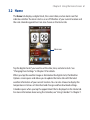
3.2 Home................................................................................................................. 61
15
3.3 People................................................................................................................ 62
Adding contacts to your phone.............................................................................................62
Adding favorite contacts to the People tab.......................................................................62
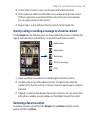
Quickly calling or sending a message to a favorite contact........................................63
Removing a favorite contact...................................................................................................63
3.4 Messages........................................................................................................... 64
3.5 Mail.................................................................................................................... 65
Adding your Internet email account....................................................................................65
Adding your Outlook work account.....................................................................................66
Checking and reading email...................................................................................................67
3.6 Internet.............................................................................................................. 68
3.7 Photos and Videos............................................................................................ 69
Setting a favorite album...........................................................................................................70
3.8 Music.................................................................................................................. 71
Playing music................................................................................................................................71
The Library.....................................................................................................................................72
Playlists............................................................................................................................................73
3.9 Weather............................................................................................................. 75
Adding a city.................................................................................................................................75
Weather settings..........................................................................................................................76
3.10Settings............................................................................................................. 77
3.11Programs........................................................................................................... 78
Chapter 4 Entering Text
79
4.1 Using the Onscreen Keyboard......................................................................... 79
QWERTY..........................................................................................................................................80
PinYin (available by country)...................................................................................................80
Stroke (available by country)...................................................................................................81
Handwriting (available by country)......................................................................................81
Entering text..................................................................................................................................82
Onscreen navigation pad.........................................................................................................83
4.2 Using Predictive Mode..................................................................................... 83
4.3 Entering Numbers and Symbols...................................................................... 84
4.4 Text Input Settings........................................................................................... 85
16 Chapter 5 Synchronizing Information
86
Chapter 6 Exchanging Messages
97
5.1 Ways of Synchronizing Your Phone................................................................. 86
5.2 Before Synchronizing With Your Computer.................................................... 87
5.3 Setting Up Windows Mobile Device Center on Windows Vista..................... 87
Setting up synchronization in Windows Mobile Device Center.................................88
Using Windows Mobile Device Center.................................................................................89
5.4 Setting Up ActiveSync on Windows XP........................................................... 90
Setting up synchronization in ActiveSync..........................................................................90
5.5 Synchronizing With Your Computer................................................................ 91
Starting and stopping synchronization..............................................................................91
Selecting information to sync.................................................................................................92
Troubleshooting sync connection problem......................................................................92
5.6 Synchronizing via Bluetooth........................................................................... 93
5.7 Synchronizing Music and Video...................................................................... 94
5.8 Synchronizing With Microsoft My Phone....................................................... 95
Setting up your My Phone account......................................................................................95
Changing sync settings.............................................................................................................95
Stopping sync partnership with your My Phone Web account..................................96
Managing your My Phone Web account from your computer...................................96
6.1 Text Messages................................................................................................... 97
Creating and sending a new text message........................................................................97
Managing text messages in your Inbox..............................................................................98
Directly making calls from text messages..........................................................................99
6.2 Multimedia Messages.................................................................................... 100
Changing the MMS settings................................................................................................. 100
Creating and sending MMS messages.............................................................................. 101
Viewing and replying to MMS messages......................................................................... 103
Blocking a phone number from sending you MMS messages................................ 103
6.3 Email................................................................................................................ 104
Synchronizing Outlook email with your computer...................................................... 104
Setting up your Internet email account........................................................................... 104
17
Creating and replying to email messages....................................................................... 105
When viewing email................................................................................................................ 106
Downloading file attachments............................................................................................ 107
Directly making calls from email messages.................................................................... 107
Synchronizing email messages........................................................................................... 108
Customizing email settings.................................................................................................. 108
6.4 Adding Your Signature in Sent Messages..................................................... 110
6.5 Filtering Your Inbox........................................................................................ 110
Chapter 7 Working With Calendar and Company Email
111
7.1 Using Calendar................................................................................................ 111
Creating appointments.......................................................................................................... 111
Viewing appointments........................................................................................................... 112
Setting the reminder time for new appointments....................................................... 113
Sending meeting requests.................................................................................................... 113
Making a call from a meeting request or reminder..................................................... 114
7.2 Synchronizing With the Exchange Server..................................................... 114
Setting up an Exchange Server connection................................................................... 114
Starting synchronization....................................................................................................... 114
7.3 Working With Company Email Messages...................................................... 115
Automatic synchronization through Direct Push......................................................... 115
Scheduled synchronization.................................................................................................. 116
Instant download through Fetch Mail.............................................................................. 116
Searching for email messages on the Exchange Server............................................. 117
Flagging your messages........................................................................................................ 117
Out-of-office auto-reply......................................................................................................... 118
Replying to meeting requests............................................................................................. 118
7.4 Finding Contacts in the Company Directory................................................ 119
When browsing contacts, composing email, or creating a meeting request..... 119
When viewing a received Outlook email message...................................................... 120
18 Chapter 8 Internet
121
8.1 Ways of Connecting to the Internet.............................................................. 121
Wi-Fi............................................................................................................................................... 121
GPRS.............................................................................................................................................. 123
Dial-up.......................................................................................................................................... 124
Starting a data connection................................................................................................... 124
8.2 Using Opera Mobile........................................................................................ 125
The browser screen.................................................................................................................. 125
Entering a website address and adding it to your bookmarks................................ 126
Mobile view................................................................................................................................ 127
Zooming and panning........................................................................................................... 127
Opera Mobile menu................................................................................................................ 127
8.3 Using Internet Explorer Mobile..................................................................... 128
The browser screen.................................................................................................................. 128
Entering a website address and adding it to your Web favorites........................... 129
Zooming and panning........................................................................................................... 130
8.4 Using YouTube................................................................................................ 131
The YouTube main screen...................................................................................................... 131
Searching videos...................................................................................................................... 132
Using the Program Guide...................................................................................................... 132
Watching videos....................................................................................................................... 133
8.5 Using Streaming Media.................................................................................. 134
8.6 Using Windows Live........................................................................................ 135
The Windows Live screen...................................................................................................... 136
Using Windows Live Messenger.......................................................................................... 136
8.7 Using Your Phone as a Modem...................................................................... 137
Before you proceed................................................................................................................. 137
Setting up your phone as a USB modem......................................................................... 138
Using your phone as a Bluetooth modem...................................................................... 138
Ending the Internet connection.......................................................................................... 139
19
Chapter 9 Bluetooth
140
Chapter 10 Camera and Multimedia
149
9.1 Bluetooth Modes............................................................................................ 140
Turning Bluetooth on and making your phone visible.............................................. 140
9.2 Bluetooth Partnerships.................................................................................. 141
Creating a Bluetooth partnership....................................................................................... 141
Accepting a Bluetooth partnership................................................................................... 142
9.3 Connecting a Bluetooth Hands-free or Stereo Headset.............................. 143
9.4 Sending and Receiving Information Using Bluetooth................................. 144
Sending information from your phone to a computer............................................... 144
Sending a file to another Bluetooth-enabled device.................................................. 146
Receiving information from another Bluetooth-enabled device........................... 146
Changing the folder for saving received files................................................................. 146
9.5 Printing via Bluetooth.................................................................................... 147
Printing a photo........................................................................................................................ 147
9.6 Connecting to Car Kit Phones........................................................................ 148
10.1Taking Photos and Videos.............................................................................. 149
Changing the capture mode................................................................................................ 149
Zooming...................................................................................................................................... 150
Capturing photos and videos.............................................................................................. 151
Onscreen controls.................................................................................................................... 152
Basic settings.............................................................................................................................. 152
Advanced settings................................................................................................................... 153
10.2Viewing Photos and Videos Using Album..................................................... 155
Viewing photos......................................................................................................................... 156
Playing videos............................................................................................................................ 157
Closing Album........................................................................................................................... 157
10.3Using Windows Media Player Mobile............................................................ 157
Playing media............................................................................................................................ 157
Synchronizing video and audio files................................................................................. 158
Creating playlists...................................................................................................................... 161
Troubleshooting....................................................................................................................... 161
20 10.4Using Audio Booster....................................................................................... 162
10.5Using FM Radio............................................................................................... 163
Saving presets............................................................................................................................ 164
Minimizing or turning off FM Radio................................................................................... 164
Chapter 11 Other Programs
165
Chapter 12 Managing Your Phone
174
11.1Facebook......................................................................................................... 165
11.2Microsoft Office Mobile................................................................................. 166
11.3JBlend.............................................................................................................. 167
Installing and launching MIDlets/MIDlet suites............................................................ 167
11.4Using RSS Hub................................................................................................. 168
Subscribing to and browsing news channels................................................................ 168
Viewing headlines.................................................................................................................... 170
Sharing the headline link....................................................................................................... 171
11.5SIM Manager................................................................................................... 171
11.6Windows Marketplace.................................................................................... 172
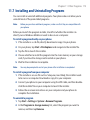
11.7Installing and Uninstalling Programs........................................................... 173
12.1Copying and Managing Files......................................................................... 174
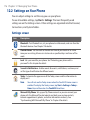
12.2Settings on Your Phone.................................................................................. 176
Settings screen.......................................................................................................................... 176
Personal folder........................................................................................................................... 177
Connections folder.................................................................................................................. 177
System folder............................................................................................................................. 178
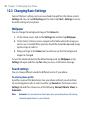
12.3Changing Basic Settings................................................................................ 180
Wallpaper.................................................................................................................................... 180
Sound settings........................................................................................................................... 180
Power saving and display settings..................................................................................... 182
Device name............................................................................................................................... 183
Phone services........................................................................................................................... 184
12.4Using Comm Manager.................................................................................... 185
12.5Using Connection Setup................................................................................ 186
21
12.6Using Task Manager....................................................................................... 187
12.7Protecting Your Phone................................................................................... 188
Protecting your SIM card with a PIN.................................................................................. 188
Protecting your phone with a password.......................................................................... 188
Encrypting files on your storage card............................................................................... 189
12.8Resetting Your Phone..................................................................................... 190
Performing a soft reset........................................................................................................... 190
Performing a hard reset......................................................................................................... 190
Using Clear Storage................................................................................................................. 191
Appendix
192
Index
200
A.1 Specifications.................................................................................................. 192
A.2 Regulatory Notices......................................................................................... 194
Chapter 1 Getting Started
1.1 Inside the Box
The product package includes:
•
HTC Touch2
•
AC adapter
•
USB sync cable
•
3.5mm stereo headset
•
Battery
•
Quick Start Guide
1.2 Getting to Know Your Phone
Top and bottom panels
3.5mm Audio Jack
Connect a 3.5mm wired headset
for hands-free conversation or for
listening to music.
Microphone
Sync Connector
• Connect the power adapter to recharge
the battery.
• Connect the supplied USB cable to sync
your phone with your computer.
Chapter 1 Getting Started 23
Front panel
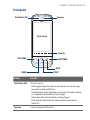
Earpiece
Notification LED
Touch Screen
Zoom Bar
TALK/SEND
END/POWER
BACK
START
HOME
Button
Function
Notification LED
This LED shows a:
• Flashing green light when there is a missed call, new text message,
new email, or other notification.
• Solid green light when the phone is connected to the power adapter
or a computer and the battery is fully charged.
• Solid amber light when the battery is being charged.
• Flashing amber light when the remaining battery level reaches
below 10%.
Earpiece
Listen to a phone call from here.
24 Chapter 1 Getting Started
Button
Function
TALK/SEND
• Press to answer a call or dial out.
• During a call, press and hold to turn the speakerphone on and off.
• While viewing a message, press to call the sender.
HOME
Press to return to the Home tab of the Home screen.
START
Press to open the Start screen. Press twice to close.
BACK
Press to return to the previous screen.
END/POWER
• While in a call, press to end the call.
• Press to turn the display on or off.
• Press and hold to display the Quick List and choose whether to
turn the power off, lock your phone, set your phone to vibrate, or
disconnect the data connection..
Zoom bar
Use for zooming in and out.
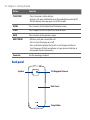
Back panel
Speaker
3.2 Megapixel Camera
Back Cover
Strap Holder
Chapter 1 Getting Started 25
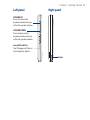
Left panel
Right panel
VOLUME UP
Press to increase the
earpiece volume during a
call or the speaker volume.
VOLUME DOWN
Press to decrease the
earpiece volume during a
call or the speaker volume.
microSD Card Slot
(See “Storage card” later in
this chapter for details.)
Stylus
26 Chapter 1 Getting Started
1.3 Installing the SIM Card, Battery, and Storage Card
You need to remove the back cover before you can install the SIM card, battery and
storage card on your phone. Also, make sure to always turn off the power before
installing or replacing the SIM card and battery.
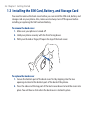
To remove the back cover
1. Make sure your phone is turned off.
2. Hold your phone securely with the front facing down.
3. With your thumb or finger, lift open the top of the back cover.
To replace the back cover
1. Secure the bottom part of the back cover first by aligning into the two
openings located at the bottom part of the back of the phone.
2. Press the sides and the top part of the back cover down to lock the cover into
place. You will hear a click when the back cover is locked in place.
Chapter 1 Getting Started 27
SIM card
The SIM card contains your phone number, service details, and phonebook/
message memory. Your phone supports both 1.8V and 3V SIM cards.
Note
Some legacy SIM cards may not function with your phone. You should consult with
your mobile operator for a replacement SIM card. There may be fees for this service.
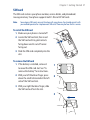
To install the SIM card
1. Make sure your phone is turned off.
2. Locate the SIM card slot, then insert
the SIM card with its gold contacts
facing down and its cut-off corner
facing out.
3. Slide the SIM card completely into the
slot.
To remove the SIM card
1. If the battery is installed, remove it
to reveal the SIM card slot. See “To
remove the battery” for instructions.
2. With your left thumb or finger, press
down the small tab located at the left
side of the SIM card slot.
1
2
3. With your right thumb or finger, slide
the SIM card out from the slot.
3
28 Chapter 1 Getting Started
Battery
Your phone comes with a rechargeable Lithium-ion battery and is designed to use
only manufacturer-specified original batteries and accessories. Battery performance
depends on many factors, including network configuration, signal strength, and
usage patterns.
Warning!
To reduce risk of fire or burns:
•Do not attempt to open, disassemble, or service the battery pack.
•Do not crush, puncture, short external contacts, or dispose of in fire or
water.
• Do not expose to temperatures above 60oC (140oF).
• Replace only with the battery pack designated for this product.
•Recycle or dispose of used battery as stipulated by local regulations.
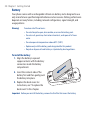
To install the battery
1. Align the battery’s exposed
copper contacts with the battery
connectors inside the battery
compartment.
2. Insert the contacts side of the
battery first and then gently push
the battery into place.
3. Replace the back cover. For
instructions, see “To replace the
back cover” in this chapter.
Important Before you reinstall the battery, remove the thin film that covers the battery.
Chapter 1 Getting Started 29
To remove the battery
1. Make sure your phone is turned off.
2. Remove the back cover. See “To remove the back cover” for instructions.
3. Lift up the battery from the small opening on the right side of the battery
compartment.
Storage card
To have additional storage for your photos, videos, music, and files, you can
purchase a microSD™ card and install it into the your phone.
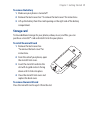
To install the microSD card
1. Remove the back cover. See
“To remove the back cover” for
instructions.
2. From the side of your phone, open
the microSD slot cover.
3. Insert the microSD card into the
slot with its gold contacts facing
down until it clicks into place.
4. Close the microSD slot cover and
replace the back cover.
To remove the microSD card
Press the microSD card to eject it from the slot.
30 Chapter 1 Getting Started
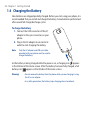
1.4 Charging the Battery
New batteries are shipped partially charged. Before you start using your phone, it is
recommended that you install and charge the battery. Some batteries perform best
after several full charge/discharge cycles.
To charge the battery
1. Connect the USB connector of the AC
adapter to the sync connector on your
phone.
2. Plug in the AC adapter to an electrical
outlet to start charging the battery.
Note
Only the AC adapter and USB sync cable
provided with your phone must be used to
charge the battery.
As the battery is being charged while the power is on, a charging icon appears
in the title bar of the Home screen. After the battery has been fully charged, a full
battery icon
appears in the title bar of the Home screen.
Warning!
•Do not remove the battery from the phone while you are charging it using
the AC or car adapter.
•As a safety precaution, the battery stops charging when it overheats.
Chapter 1 Getting Started 31
1.5 Starting Up
After installing your SIM card and battery and charging the battery, you can now
power on and start using your phone.
Turning the power on and off
To turn on the power
Press the END/POWER button.
When you turn on your phone for the first time, Windows Mobile starts up and
prepares your phone for first time use.
To turn off the power
1. If the display is off, press the END/POWER button to turn the display back on.
2. Unlock your phone if the Lock screen is displayed. See “Lock Screen“ for
details.
3. Press and hold END/POWER for a few seconds.
4. On the Quick List screen, tap Power Off.
Switching to Sleep mode
Briefly press the END/POWER button to turn off the display temporarily and switch
your phone to Sleep mode. Sleep mode suspends your phone to a low power state
while the display is off in order to save battery power.
Your phone automatically goes into Sleep mode when you leave the phone idle
after a certain period of time. You are still able to receive messages and calls while
your phone is in Sleep mode. Your phone wakes up automatically when you have
an incoming call. To wake up your phone manually, press the END/POWER button.
Tip
You can set the display timeout period. For instructions, see “To change backlight and
automatic Sleep mode settings” in Chapter 12.
32 Chapter 1 Getting Started
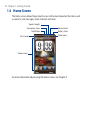
1.6 Home Screen
The Home screen allows finger-touch access to the most important functions such
as contacts, text messages, email, Internet, and more.
Signal strength
Connection status
Notification
Start screen
Volume status
Battery status
Quick menu
Home screen
For more information about using the Home screen, see Chapter 3.
Chapter 1 Getting Started 33
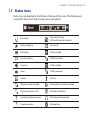
1.7 Status Icons
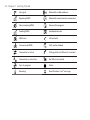
Status icons are displayed in the title bar at the top of the screen. The following are
some of the status icons that you may see on your phone.
Missed call
New text message;
SMS notification of voicemail
Battery charging
New email
Full battery
EDGE available
Very low battery
EDGE connected
Sound on
GPRS available
Silent
GPRS connected
Vibrate
Wi-Fi on
Maximum signal strength
Connected to a wireless network
Phone connection is off
Multiple notifications
Searching for phone service
Wired headset connected
No phone service
Bluetooth on
34 Chapter 1 Getting Started
No signal
Bluetooth visible mode on
Receiving MMS
Bluetooth stereo headset connected
New incoming MMS
Voice call in progress
Sending MMS
Speakerphone on
MMS sent
Call on hold
Cannot send MMS
Calls are forwarded
Connection is active
Dialing while no SIM card is inserted
Connection is not active
No SIM card inserted
Sync in progress
Alarm
Roaming
New Windows Live™ message
Chapter 1 Getting Started 35
1.8 Notifications
When you tap any of the status icons in the title bar, the Notifications screen opens
and displays the remaining battery status, call duration of an ongoing phone call,
as well as network connection status, such as Wi-Fi (if your phone is connected
to a Wi-Fi network), data connection usage (if your data connection is on), and
other types of connections. This screen also shows all your pending notifications
including missed calls, new SMS/MMS messages, and more. Tap a status icon or
item on the Notifications screen to open the related screen.
To close the Notifications screen, tap Close or press the BACK button on your
phone.
36 Chapter 1 Getting Started
1.9 Start Screen
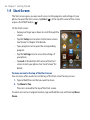
The Start screen gives you one-touch access to the programs and settings of your
phone. To open the Start screen, tap Start ( ) at the top left corner of the screen,
or press the START button ( ).
On the Start screen:
•
Swipe your finger up or down to scroll through the
screen.
•
Tap the Today icon to return to the Home screen.
See “Home” in Chapter 3 for details.
•
Tap a program icon to open the corresponding
program.
•
Tap the Settings icon to access the settings of
your phone.
•
Tap Lock at the bottom-left corner of the Start
screen to lock your phone. See “Lock Screen” for
details.
To move an icon to the top of the Start screen
You can move often used icons to the top of the Start screen for easy access.
1. Tap and hold the icon that you want to move.
2. Tap Move to Top.
The icon is moved to the top of the Start screen.
To return an icon to its original location, tap and hold the icon and then tap Move
Down.
Chapter 1 Getting Started 37
1.10Quick Menu
The Quick menu, which can be opened from the top right corner of the screen,
shows the currently running programs. You can quickly switch between running
programs, stop programs, and see how much program memory is being used.
On the Quick menu:
•
To switch to a running program, tap the program name.
•
To stop a running program, tap
•
Tap
•
Tap
to customize Task Manager settings. (See “Using Task Manager” in
Chapter 12.)
•
shows the total percentage of program memory in use. Tap to view
more information about memory and storage card usage.
.
to stop all currently running programs.
38 Chapter 1 Getting Started
1.11Lock Screen
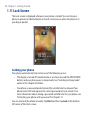
The Lock screen is displayed whenever your phone is locked. You can lock your
phone to prevent accidental button or touch screen presses when the phone is in
your bag or pocket.
Locking your phone
Your phone automatically locks when one of the following occurs:
•
The display is turned off (automatically or you have pressed the END/POWER
button) and your phone goes to sleep mode. See “Switching to Sleep mode”
earlier in this chapter for details.
•
Your phone is password protected, and the set idle time has elapsed. Your
phone locks itself and requires the correct password entry to unlock it. For
more information about setting a password and idle time for your phone, see
“Protecting your phone with a password” in Chapter 12.
You can also lock the phone manually. Tap Start and then tap Lock at the bottomleft corner of the Start screen.
Chapter 1 Getting Started 39
Unlocking your phone
When you see the Lock screen, slide the Lock button (
your phone.
Note
) left or right to unlock
If you have set a password for your phone, you will be prompted for the password
when you unlock the phone. See “Protecting your phone with a password” in Chapter
12 for information on setting a password.
Checking notifications when the phone is locked
When your phone is locked, you are still notified of missed calls, new messages, and
upcoming appointments. The Lock screen shows the next upcoming appointment
and the Lock button shows the number of notifications.
To view the notifications
1. On the Lock screen, tap the Lock button (
). Notification buttons
representing each type of received information, such as missed calls, new
email, and new text messages, are then displayed below the Lock button.
2. Slide a notification button right or left to view the respective information. For
instance, slide the Missed Call button (
) to access the Call History and
view the missed calls.
Note
If you have set a password for your phone, you will be prompted for the password
before you can view the information. See “Protecting your phone with a password” in
Chapter 12 for information on setting a password.
40 Chapter 1 Getting Started
Receiving a call when the phone is locked
You can receive and answer calls even when your phone is locked. For more
information about answering calls, see “Answering and Ending Calls“ in Chapter 2.
After you end the call, your phone remains locked and the Lock screen is displayed.
You need to unlock your phone to use it.
1.12Adjusting the Volume
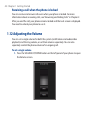
You can set a single volume for both the system (notifications and audio/video
playback) and the ring volume, or set their volumes separately. You can also
separately control the phone volume of an ongoing call.
To set a single volume
1. Press the VOLUME UP/DOWN button on the left panel of your phone to open
the Volume screen.
Chapter 1 Getting Started 41
2. To increase or decrease the volume level, drag your finger up or down the
volume bars, or press the VOLUME UP/DOWN button. You can also:
•
Tap Silent to mute the volume.
•
Tap Vibrate to switch the phone to Vibrate mode.
3. The Volume screen automatically closes. You can also tap an empty area of
the Volume screen to close it.
To adjust the system and ring volumes separately
1. On the Home screen, slide to the Settings tab, and then tap Sounds.
2. Turn off the Single Volume option.
3. Press the VOLUME UP/DOWN button.
4. To switch between the Ring Volume and System Volume screens, tap Ring or
System at the top of the screen.
5. To adjust the volume level, follow steps 2 to 3 in “To set a single volume”.
To adjust the phone call volume
Press the VOLUME UP/DOWN button on the left panel of your phone to adjust the
volume during an ongoing call.
42 Chapter 1 Getting Started
1.13Using Finger Gestures
You can use finger gestures to scroll and pan on the touch screen.
Finger scrolling
Finger scrolling can be used to scroll up and down Web pages, documents, and lists
such as the contacts list, file list, message list, calendar appointments list, and more.
To scroll up and down
• To scroll down, swipe your finger upward on the touch screen.
To scroll up, swipe your finger downward on the touch screen.
•
To auto-scroll, flick your finger upward or downward on the touch screen. Tap
the screen to stop scrolling.
To scroll left and right
• To scroll towards the right, swipe your finger to the left.
To scroll towards the left, swipe your finger to the right.
•
To auto-scroll, flick your finger left or right. Tap the screen to stop scrolling.
Finger panning
You can use finger panning to move to and view other parts of a zoomed photo,
Web page, document, or an email. To pan, tap and hold on the touch screen and
then drag your finger in any direction.
Chapter 1 Getting Started 43
1.14Using the Zoom Bar
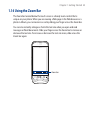
The Zoom bar located below the touch screen is a handy zoom control that is
unique on your phone. When you are viewing a Web page in the Web browser or a
photo in Album, you can zoom in or out by sliding your finger across the Zoom bar.
You can also instantly enlarge or shrink the text size when you open and read
messages or Word documents. Slide your finger across the Zoom bar to increase or
decrease the text size. To increase or decrease the text size more, slide across the
Zoom bar again.
Zoom bar
44 Chapter 1 Getting Started
1.15Connecting Your Phone to a Computer
Whenever you connect your phone to the computer with the USB cable, the
Connect to PC screen displays and prompts you to choose the type of USB
connection:
ActiveSync
Select this mode when you need to do the following:
•
Sync Outlook email messages, contacts, calendar appointments, files, and
other data between your phone and your computer.
•
Have read and write access to the whole phone.
For more information about using ActiveSync, see Chapter 5.
Disk Drive
This mode is available for selection only when you installed a microSD card on your
phone. Select this mode when you want to use your storage card as a USB thumb
drive, and copy files between your phone’s storage card and your computer faster.
When Disk Drive mode is enabled while your phone is connected to the computer:
•
You will not be able to use your phone to access files from the storage card or
run applications that are installed on the storage card.
•
Your computer will only connect to the phone’s storage card. When you
access your phone from the computer, you will only see the contents of the
phone’s storage card.
Internet Sharing
When you do not have Internet access on your computer, you can select this mode
to use your phone as a modem for your computer. For more information about
using Internet Sharing, see “Using Your Phone as a Modem” in Chapter 8.
Chapter 2
Contacts and Phone Calls
2.1 Contacts
Contacts is your address book for people and businesses you communicate with.
You can add Outlook contacts to your phone and SIM contacts to your SIM card.
Note
Windows Live contacts can automatically be added to your stored contacts after
you set up Windows Live™ on your phone. See “Using Windows Live” in Chapter 8 for
details.
Opening the Contacts screen
Tap Start > Contacts, or from the Home screen, slide to the People tab and then
tap All People.
Adding new contacts to your phone
1. On the Contacts screen, tap New, select Outlook Contact, and enter the
contact information.
2. In the File as field, choose how you want the contact name to appear in the
contact list.
3. To add a photo of the contact, tap Select a picture, and then select the
photo. You can also tap Camera to take a photo of the contact.
4. To assign a ringtone to the contact, tap the Ring tone field, scroll through the
list of tones, and then select a desired tone.
5. When finished, tap OK.
Tip
To edit contact information, tap the contact name and then tap Menu > Edit.
46 Chapter 2 Contacts and Phone Calls
Adding a contact to your SIM card
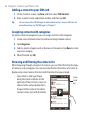
1. On the Contacts screen, tap New, and then select SIM Contact.
2. Enter a contact name and phone number, and then tap OK.
Tip
You can also use the SIM Manager to add and edit contacts on your SIM card. For
more information, see “SIM Manager” in Chapter 11.
Assigning contacts with categories
For easier contact management, you can assign contacts with categories.
1. Create a new Outlook contact or edit an existing Outlook contact.
2. Tap Categories.
3. Select a preset category such as Business or Personal, or tap New to create
your own category.
4. When finished, tap OK.
Browsing and filtering the contacts list
When browsing through a long list of contacts, you can filter the list by the type
of contacts or by categories. You can also enter the first few letters of a name to
display only contact names that start with the letter that you entered.
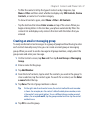
•
Tap a letter or slide your finger
along the Quick Scroll bar on the
right side of the Contacts screen to
select a letter and jump directly to
the part of the contacts list where
contact names start with that letter.
Quick
Scroll
bar
Chapter 2 Contacts and Phone Calls 47
•
To filter the contacts list by the type of contacts or by categories, tap
Menu > Filter and then select whether to display only SIM Contacts, Device
Contacts, or contacts of a certain category.
To show all contacts again, select Menu > Filter > All Contacts.
•
Tap the text box that shows Enter a name on top of the screen. When you
begin entering letters in this text box, your phone automatically filters the
contacts list and displays only contacts that start with the letters that you
entered.
Creating an email or messaging group
To easily send email or text messages to a group of people without having to enter
each contact manually every time, you can create an email group or messaging
group. When you want to send a message to all group members, simply select the
group name and enter your message.
1. On the Contacts screen, tap New and then tap E-mail Group or Messaging
Group.
2. Enter a name for the group.
3. Tap Add Member.
4. From the list of contacts, tap to select the contacts you want in the group. To
clear a selection, tap the contact again. To search for a contact, use the Enter
a name field at the top.
5. Tap Done. The list of group members is shown.
Tip
On the right side of each contact name, the contact method for each member
is shown. For example, m is the contact’s default mobile phone number, and e
is the contact’s main email address. To use a different phone number or email
address, for example E-mail2, tap the group member and then tap the contact
method to use.
6. Tap OK to save the group.
48 Chapter 2 Contacts and Phone Calls
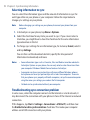
Sharing contact information
You can quickly send contact information to another phone through Bluetooth or
text messaging.
To send contact information via Bluetooth
1. Tap and hold a contact on the Contacts screen.
2. Tap Send via Bluetooth, and then select the phone where to send the
contact.
Note
Before sending, make sure Bluetooth is turned on and set to visible mode on
your phone and the target phone. You can also send contact information to your
computer. See Chapter 9 for details.
To send contact information via text messaging
1. Tap and hold a contact on the Contacts screen.
2. Tap Send Contact > SMS / MMS.
3. Select the types of information you want to send, and then tap Done.
4. In the new text message, enter the mobile phone number of the recipient,
and then tap Send.
Working with multiple contacts
You can select multiple contacts to delete them, send them via Bluetooth, or copy
them to or from your SIM card.
To select multiple contacts, on the Contacts screen, tap Menu > Select Contacts
> Several, and then tap the contacts you want to select. Tap a selected contact to
clear selection.
Chapter 2 Contacts and Phone Calls 49
2.2 Making Calls
To make a call, you can either dial a number or select a contact you want to call.
While viewing a message that you received, you can also directly call the sender of
the message.
Note
Most SIM cards are preset with a PIN (personal identification number) that is provided
by your mobile operator. When prompted, enter the preset PIN, then tap Enter. If
you enter the wrong PIN three times, the SIM card is blocked. If this happens, you can
unblock it with the PUK (PIN Unblocking Key) obtained from your mobile operator.
Making a call from the Phone dialer screen
The Phone dialer’s Smart Dial feature makes it quick and easy for you to place a
call. Simply enter the phone number or first few letters of the person you want
to call. Smart Dial automatically searches and filters your contacts list (stored on
your phone and SIM card) and the phone numbers from the Call History. From the
filtered list, select the number or contact you want to call.
1. To open the Phone dialer screen, press the TALK/SEND button on your phone.
2. Begin entering the first few numbers or letters by tapping the keys on the
Phone keypad. As you enter numbers or letters, the Phone dialer screen
displays matches found.
If you tap a wrong number or character, tap
to erase each subsequent
digit or character. To erase the entire entry, tap and hold
.
50 Chapter 2 Contacts and Phone Calls
3. Tap to close the keypad and to see if there are more matching numbers or
contacts found. To browse through the filtered list, flick through the list or
slide your finger up or down the list slowly.
4. To call a number or contact, do one of the following:
• Tap the desired phone number or contact from the list.
• To call a different phone number associated with the contact, tap the
contact card icon
on the right side of the contact name. On the contact
summary screen, tap the number you want to call.
Tips
• During a call, use the VOLUME UP/DOWN button on the side of your phone to
adjust the phone volume.
• To save a phone number to your contacts, tap the Save to Contacts button (
).
Chapter 2 Contacts and Phone Calls 51
Making calls from received messages and calendar reminders
While you are viewing a text or email message, you can directly call the sender of
the message if the sender is a stored contact on your phone. You can also call a
phone number that is contained in the body of the message. For more information
about calling from received text messages, see “Messages” in Chapter 3 and
“Directly making calls from text messages” in Chapter 6. For more information
about calling from received email, see “Mail” in Chapter 3 and “Directly making calls
from email messages” in Chapter 6.
You can also directly make calls from meeting request email and calendar
reminders. See “Making a call from a meeting request or reminder “ in Chapter 7 for
details.
Making an emergency call
On the Phone dialer screen, enter the international emergency number for your
locale, and then press the TALK/SEND button on your phone.
Tip
Additional emergency numbers may be included in your SIM card. Contact your
mobile operator for details.
Making an international call
1. Tap and hold the number 0 key on the Phone dialer screen until the plus (+)
sign appears. The plus (+) sign replaces the international prefix of the country
that you are calling.
2. Enter the full phone number you want to dial, and press the TALK/SEND
button on your phone. The full phone number includes the country code,
area code (without the leading zero, if any), and phone number.
Calling voicemail
Number 1 is generally reserved for your voicemail. Tap and hold this button on the
Phone dialer keypad to call voicemail and retrieve your voicemail messages.
52 Chapter 2 Contacts and Phone Calls
2.3 Answering and Ending Calls
When you receive a phone call, the Incoming Voice Call screen will appear, allowing
you to either answer or ignore the call.
Accepting or rejecting an incoming call
To answer a call
Press the TALK/SEND button, or fully slide the center button of the Answer/Ignore
bar to the left.
To reject a call
Press the END/POWER button, or fully slide the center button of the Answer/Ignore
bar to the right.
To mute the ring without rejecting the call
Tap Mute Ring or press the VOLUME DOWN button.
To reject a call and send a text message
You can automatically send a text message to the caller and reject the incoming
voice call. Tap Send Text when you have an incoming call, use the preset message
or enter another message, and then tap Send.
To change the preset message for rejecting calls in your phone settings, open the
Phone dialer screen, tap Menu > Options > Advanced tab, and then enter your
new preset message in the provided text box.
Chapter 2 Contacts and Phone Calls 53
During a call
When a call is in progress, a shade covers the Phone’s onscreen buttons to prevent
accidental taps. Only the Keypad and End Call buttons are active.
To access the onscreen buttons, slide your finger down, starting from the top of the
shade. Use these onscreen buttons to put a call on hold, dial or accept another call
for a three-way call, and more.
To use the speakerphone
To turn the speakerphone on or off during a call, tap the onscreen Speaker button
(
) or press and hold the TALK/SEND button on your phone.
The speakerphone icon (
) appears in the title bar when the speakerphone is on.
Warning!To decrease potential damage to your hearing, do not hold the phone against your
ear when the speakerphone is on.
To mute the microphone during a call
Tap the Mute button (
) to turn the microphone on or off. When the
microphone is turned off, the mute icon (
) appears on the screen.
54 Chapter 2 Contacts and Phone Calls
To take two calls and switch between the calls
1. Press the TALK/SEND button to accept a second call, or tap the Add Call
button (
) to dial a second call. The first call is put on hold when you
accept or dial the second call.
2. To switch between the two calls, tap the Swap button (
area onscreen that shows “On Hold”.
) or tap the dim
To end calls
To end the current call, tap End Call or press the END/POWER button. If you have
two ongoing calls, tap Menu > End all calls to end both calls.
2.4 Making Conference Calls
Making a conference call on your phone is quick and easy. You can dial or accept
multiple calls one at a time and join them into a conference call.
Note
Make sure your SIM card is enabled with conference calling service. Contact your
mobile operator for details.
1. Make a call to the first participant or accept an incoming call.
2. When connected, accept a second call, or slide down the shade and then tap
the Add Call button (
) to call the second participant. The first participant
is put on hold when you accept or dial the second call.
3. When connected to the second participant, tap the Conference button
(
) to start a conference call.
4. To add another participant to the conference call, tap Invite participants
and then dial another call. The conference call is put on hold when you dial
another call.
5. When connected, tap the Join button (
conference call.
) to add the participant to the
6. Repeat steps 4 and 5 if you want to dial and add more participants to the
conference call.
Chapter 2 Contacts and Phone Calls 55
When you tap a participant while the conference call is in progress, you will see
these buttons:
To talk in private with the selected participant, tap the Private button ( ). This
separates the participant from the conference call and puts the others on hold.
When you want to swap between the private call and the conference call, tap the
dim area that shows “On Hold”.
You can end the private call by tapping
the screen.
or the End Call button at the bottom of
To end the conference call, add the private call back to the conference call first by
tapping the Join button ( ), and then tap End Call.
56 Chapter 2 Contacts and Phone Calls
2.5 Call History
The missed call icon ( ) appears in the title bar when you missed a call. Use
the Call History to check who the caller was, or view all your dialed numbers and
received calls. To open the Call History, tap Call History or Missed Call on the
Home tab of the Home screen.
If you have a long list of calls in the Call History, tap one of the buttons at the
bottom of the screen to filter the list according to the type of call.
All Calls
Received
Missed
Dialed
Chapter 2 Contacts and Phone Calls 57
2.6 Speed Dial
Use Speed Dial to call frequently-used numbers with a single tap. For example,
if you assign a contact to the location 2 in Speed Dial, you can tap and hold the
number 2 key on the Phone dialer keypad to dial the contact’s number.
Creating a Speed Dial entry
Number 0 and 1 keys are reserved and cannot be assigned as speed dial keys. The
number 1 key is reserved for voicemail. You can set any number between 2 and 99
as a speed dial key.
1. Press TALK/SEND to open the Phone dialer screen.
2. Tap Menu > Speed Dial. The Speed Dial list will be displayed.
3. Tap Menu > New.
4. Tap a contact, then select the phone number of the contact that you want
assigned to the speed dial key.
5. In Location, select an available key to use as the speed dial key.
6. Tap OK.
Notes
• When you assign a new phone number in an occupied speed dial key, the new
phone number will replace the existing one.
• To delete a Speed Dial entry, tap and hold the entry in the Speed Dial list and then
tap Delete.
Making a call using Speed Dial
Do the following to call the contact that is assigned to a speed dial key:
•
On the Phone dialer screen, tap and hold the assigned key, if it is a singledigit speed dial number.
•
To dial a two-digit speed dial number, tap the first number key first, and then
tap and hold the second number key.
58 Chapter 2 Contacts and Phone Calls
2.7 Turning the Phone Connection On and Off
In many countries, you are required by law to turn off the phone while on board an
aircraft.
To enable or disable the phone connection
1. Tap Start > Settings > Connections > Comm Manager.
2. Tap the OFF/ON switch at the right side of the Phone option to enable or
disable the phone connection.
To enable or disable Airplane Mode
Another way to turn off the phone connection is to switch your phone to Airplane
Mode. When you enable Airplane Mode, all wireless radios on your phone are
turned off, including the phone connection, Bluetooth, and Wi-Fi.
1. Tap Start > Settings > Connections > Comm Manager.
2. Tap Airplane Mode to enable or disable Airplane Mode.
When you disable Airplane Mode, the phone connection is turned back on and the
previous states of Bluetooth and Wi-Fi are restored.
Chapter 3 Using the Home Screen
3.1 What’s on the Home Screen
The Home screen of your phone allows finger-touch access to the most widely-used
functions, such as People, Messages, Mail, Weather, Internet, and more. The Home
screen has the following tabs:
Home screen tabs
Home
Internet
Settings
People
Photos and Videos
Programs
Messages
Music
Mail
Weather
60 Chapter 3 Using the Home Screen
Switching between the tabs of the Home screen
To switch between the tabs, you can do one of the following:
•
Tap the desired tab on the Home screen.
•
Press and hold your finger on the active tab, and then slide your finger right
or left over the tabs. Release when you have selected the desired tab.
Tip
While on any other tab or screen, press the HOME button to return to the Home tab.
Chapter 3 Using the Home Screen 61
3.2 Home
The Home tab displays a digital clock, the current date, and an alarm icon that
indicates whether the alarm clock is on or off. Weather of your current location and
the next calendar appointment are also shown on the Home tab.
Alarm icon
Tap the digital clock if you need to set the date, time, and alarm clock. See
“Changing Basic Settings” in Chapter 12 for details.
When you tap the weather image or data below the digital clock, the Weather
Options screen opens and allows you to update the Home tab with the latest
weather information of your current location. You can also choose to display the
temperature in Celsius or Fahrenheit and change weather download settings.
Calendar opens when you tap the appointment that is displayed on the Home tab.
For more information about using the Calendar, see “Using Calendar” in Chapter 7.
62 Chapter 3 Using the Home Screen
3.3 People
On the People tab, you can add favorite contacts and quickly make calls or send
text and email messages to these contacts.
Adding contacts to your phone
You need to have contacts already stored on your phone before you can add them
as favorite contacts to the People tab. To add contacts, you can:
•
Create new contacts on your phone. See “Adding new contacts to your
phone” in Chapter 2 for details.
•
Sync Outlook contacts from your computer to your phone. See Chapter 5
for details.
•
Sync contacts from your existing Microsoft My Phone account, if you have
one. See “Synchronizing With Microsoft My Phone” for details.
Adding favorite contacts to the People tab
You can add up to 12 favorite contacts to the People tab. (SIM contacts cannot be
added as favorite contacts.)
1. Tap an empty slot on the People tab.
Chapter 3 Using the Home Screen 63
2. On the Select a Contact screen, tap the name of the desired contact.
3. Select a phone number or email address to associate to the favorite contact.
(If there is no picture associated with the contact, the next screen prompts
you to assign a picture to the contact.)
4. Repeat steps 1 to 4 to add more favorite contacts to the People tab.
Quickly calling or sending a message to a favorite contact
On the People tab, the following icons are shown below the pictures to indicate the
type of communication method that is associated to each favorite contact:
Mobile phone
Home phone
Work phone
SMS text messaging
Email
1. Swipe your finger up or down to scroll through the favorite contacts.
2. Tap below the picture of the desired contact. Your phone then dials the
number of the favorite contact, or creates a new message for you to compose
and send.
3. Tapping a contact picture displays the contact summary. You can choose from
other phone numbers or email addresses (if available) to reach the contact.
Removing a favorite contact
To remove a favorite contact from the People tab, tap Remove, tap the contact
picture, and then tap Done.
64 Chapter 3 Using the Home Screen
3.4 Messages
The Messages tab is where you can quickly read text messages as they arrive and
create a new text message.
This tab also displays received multimedia messages. An attachment icon is shown
to indicate that a received message is a multimedia message. You only see the
subject of the multimedia message.
Text message
Multimedia message
On the Messages tab, you can:
• Swipe your finger up or down the screen to flip through received text and
multimedia messages.
• Tap a displayed message to view the entire message thread from the sender.
• Press TALK/SEND to automatically fill in the sender’s phone number on the
Phone dialer screen so you can call the sender.
• Tap All Messages to access your inbox and other message folders.
• Tap the New Message icon (
) on the upper right side of the screen to
create a new text message.
• Tap Menu to access more options for handling messages.
For more information about working with text and multimedia messages, see
Chapter 6.
Chapter 3 Using the Home Screen 65
3.5 Mail
The Mail tab is where you send and receive email messages.
Adding your Internet email account
On the Mail tab, easily add POP3 or IMAP email accounts from popular Web-based
email providers such as Yahoo! Mail Plus and AOL or other email providers.
1. On the Home screen, slide to the Mail tab.
2. If this is your first time to set up an email account, tap New Account at the
bottom of the screen. Otherwise, tap Menu > Add Account.
3. On the subsequent screen, select an email provider. If your email provider is
not listed, tap Other.
4. Enter your email address and password, and then tap Next.
5. Enter your name and the account display name, and then tap Next.
If the type of email account you want to set up is not in the phone database,
the subsequent screens will prompt you to enter more details, such as the
incoming and outgoing email server settings. Obtain these settings from your
email provider.
6. Choose how often you want your phone to automatically send and receive
email.
7. Tap Done.
66 Chapter 3 Using the Home Screen
Adding your Outlook work account
If you connect to an Exchange Server for your work email, calendar, contacts, and
tasks, you can set up your Outlook work account on your phone. Although your
phone supports multiple email accounts, you can only have one Outlook account
on your phone at a time.
You need to set up and use an Outlook account that syncs with a server running
Microsoft Exchange Server 2003 Service Pack 2 (SP2) or Microsoft Exchange
Server 2007.
1. On the Home screen, slide to the Mail tab.
2. If this is your first time to set up an email account, tap New Account at the
bottom of the screen. Otherwise, tap Menu > Add Account.
3. On the subsequent screen, tap Outlook.
4. Enter your work email address and password, and then tap Next.
Mail Setup will download Exchange Server settings to your phone.
Note If Exchange Server settings cannot be downloaded to your phone, you need to
obtain the Exchange Server settings, such as the domain and Exchange Server
address, from your network administrator and enter them in the provided text
boxes. (The server address must be the Outlook Web Access address.)
Also consult your network administrator if the option, This server requires an
encrypted (SSL) connection, needs to be enabled or disabled.
5. Select Email and other information types to sync with the Exchange Server.
6. Tap Done. Your phone then syncs with the Exchange Server and downloads
your email messages.
Chapter 3 Using the Home Screen 67
Checking and reading email
When you have newly received or unread email messages, the icon on the Mail tab
and the respective icons of your email accounts will show the number of new email
messages.
The mail icons displayed on the right side of the screen are your email accounts.
Tap an icon to select an email account. If you have set up more than four email
accounts, tap the down arrow below the mail icons to access the other accounts.
After selecting an email account, you can:
•
Browse through received email messages in the selected account by swiping
your finger up or down on the screen.
•
Tap the displayed email message to open and read the message.
•
•
If the sender is a stored contact, press TALK/SEND to automatically fill in the
sender’s phone number on the Phone dialer screen so you can call the sender.
Tap the New Email icon (
) to create a new email message.
•
Tap Inbox to access the inbox and other message folders of your account.
•
Tap Menu to choose whether to add another email account, send and receive
email messages, and more.
For more information about working with email messages, see Chapter 6 and 7.
68 Chapter 3 Using the Home Screen
3.6 Internet
On the Internet tab, tap Launch Browser or the globe image to open Opera
Mobile so you can browse the Web and search for information.
Swipe upward on the screen to scroll down and access the Web favorites.
For more information about using Opera Mobile, see Chapter 8.
Chapter 3 Using the Home Screen 69
3.7 Photos and Videos
The Photos and Videos tab lets you easily browse through your photos and video
clips and view them in full screen. From this tab, you can also open Camera and
capture photos and video clips.
On the Photos and Videos tab, you can:
•
Flip through photos and videos by swiping your finger up or down the
screen.
•
Tap the displayed photo or video to view or play it in full screen.
•
Tap the Camera button (
) or Video Camera button (
) on the right
side of the screen to capture a photo or video using the Camera.
•
Tap Slideshow to view the photos as a slideshow. If a video is selected,
tap Play.
•
Tap Album to view photos and videos using the Album program.
(See “Viewing Photos and Videos Using Album” in Chapter 10 for details.)
70 Chapter 3 Using the Home Screen
Setting a favorite album
The Photos and Videos tab displays photos and video files from the current
favorite album. By default, the Camera Shots album which stores the photos and
videos that you captured using the Camera is set as the favorite album. You can
change to another favorite album, if preferred.
1. On the Photos and Videos tab, tap Album at the bottom of the screen to
open Album.
2. Tap Albums and then select one of the listed favorite albums.
3. Tap Menu > Set Album as Favorite and then tap OK on the confirmation
screen.
Tips
• For more information about viewing in full screen, see “Viewing photos” and
“Playing videos” in Chapter 10. The file formats that can be viewed on the Photos
and Videos tab are the same as in Album.
• To transfer media files from a computer and view them on the Photos and Videos
tab, copy or sync them to a folder under \My Device (the phone’s memory) or
\Storage Card (if a microSD card is installed).
Chapter 3 Using the Home Screen 71
3.8 Music
The Music tab allows you to visually browse through albums and music tracks and
play music.
Note
Your phone searches for all supported music files from the following locations:
Phone: \My Music (including all subfolders)
\My Documents (including all subfolders)
Storage Card: \Storage Card (including all subfolders)
For information about supported music file formats, see “Specifications” in the
Appendix.
Playing music
To flip through albums and tracks and find the music you want to start listening to,
swipe your finger up or down the screen, or tap the up and down arrow buttons at
the right side of the screen. Tap the Play icon to start playing music.
72 Chapter 3 Using the Home Screen
To move forward or backward in the current music track
Tap and hold on the thin bar below the album art to display the progress bar:
Drag your finger right or left on the progress bar to move forward or backward in
the current track.
To set repeat and shuffle modes
Tap Menu > Repeat and choose whether to repeat the current track, repeat all
tracks in the current album or playlist, or not to repeat. To turn shuffle mode on or
off, tap Menu > Shuffle.
The icons on the upper-right side of the Music tab show whether repeat and
shuffle modes are enabled.
Repeat One
Repeat All
Shuffle On
The Library
The Library organizes music into categories, such as All Songs, Artists, Album,
Genre, and more. When you add more albums or music tracks to your phone, go to
the Library to locate and select the new albums or music tracks and play them on
the Music tab.
To select music from the Library
1. On the Music tab, tap Library.
2. The All Songs category is displayed, listing all the music tracks found on your
phone and storage card. Tap the first track or any track in the list.
The Music tab then begins to play, starting from the track that you selected.
Chapter 3 Using the Home Screen 73
To choose from other categories
When you are in the All Songs list of the Library, tap the Back arrow ( ) on the
upper right side of the screen to view other categories. When you tap a category
and select a music track from it, you will be able to flip through and play tracks only
from this category.
Playlists
There are two types of playlists that can be added to the Library and played on the
Music tab:
•
Custom playlists that are created on your phone.
•
Windows Media Player playlists (
) that are synchronized with Windows
Media Player on your computer. (These playlists cannot be edited and
deleted from your phone.)
Note If a Windows Media Player playlist contains a combination of music, video and
image files, only music files in the playlist are synchronized to your phone and
other media types are filtered out.
74 Chapter 3 Using the Home Screen
To create a playlist
1. On the Music tab, tap Library.
2. Tap the Back arrow ( ) on the upper right side of the Library screen to
display the list of categories.
3. Tap Playlists.
4. On the Playlists screen, tap Menu > New.
5. Enter a playlist name and then tap OK.
6. On the Playlists screen, tap the playlist you have just created, and then tap
Menu > Edit.
7. Tap Menu > Add.
8. Select the check boxes of the music tracks that you want to add to your
playlist, or tap Menu > Select All to choose all the music tracks.
9. Tap OK three times to return to the Playlists screen.
To play back a playlist
1. On the Playlists screen, tap to select a playlist.
2. Tap the first track or any track in the playlist. The Music tab then plays the
tracks from the playlist, starting from the track that you selected.
Note
Playlists are not automatically updated when music files have been deleted from the
phone’s memory or storage card.
Chapter 3 Using the Home Screen 75
3.9 Weather
Your phone automatically connects to the Internet to download weather
information and displays the current weather as well as the weather information for
the next four days of the week on the Weather tab.
On the Weather tab, you can:
•
Swipe your finger up or down the screen to view the weather in other cities.
•
Tap Update Now to download the latest weather information.
•
Tap Menu and choose to add or delete a city or change weather settings.
Adding a city
The Weather tab can display weather information of up to ten cities, including your
local city. Follow the steps below to add a city to this tab.
1. On the Weather tab, tap Menu > Add Location.
2. Scroll down the list of cities, or filter the list first by entering the first few
letters of a country or city name and then tap the Search icon (
).
3. Tap the desired city and then tap Select.
76 Chapter 3 Using the Home Screen
Weather settings
You can change the displayed temperature to Celsius or Fahrenheit on the Weather
tab. You can also enable or disable auto download options.
1. On the Weather tab, tap Menu > Settings.
2. You can choose from the following options:
•
Download weather data automatically. When this option is selected,
weather information is automatically downloaded whenever you select
the Weather tab, if the data has not been updated within the last three
hours. Weather data is also downloaded every time an ActiveSync
connection is established.
Clear this option if you prefer to manually download weather information.
•
Download while roaming. Select this option only if you want to allow
automatic download of weather data when roaming. This may incur
additional data charges.
•
Temperature Scale. Choose whether to display temperature in Celsius or
Fahrenheit.
Chapter 3 Using the Home Screen 77
3.10Settings
From the Settings tab, you can directly change some of the basic settings. This tab
also gives you access to all the other settings of your phone.
Sync Data
Sounds
Wallpaper
Communications
Mail Setup
Location
About
All Settings
Open ActiveSync and sync Outlook information. See Chapter 5 and 7
for details.
Choose a phone profile and adjust other sound settings. See “Changing
Basic Settings” in Chapter 12 for details.
Change the Home tab wallpaper.
Manage the communication features of your phone.
See “Using Comm Manager” in Chapter 12 for details.
Set up your Internet or Exchange Server email account on your phone.
See “Mail” earlier in this chapter.
Turn location service on or off. See “Settings on Your Phone” in Chapter
12 for details.
Display information about TouchFLO.
Access all phone settings.
78 Chapter 3 Using the Home Screen
3.11Programs
You can add your favorite programs to the Programs tab for one-touch access. Tap
an empty slot to add a program shortcut.
On the Programs tab, swipe your finger up or down to scroll through the screen
and then tap the icon of the program you want to use. To access all programs of
your phone, tap All Programs.
To remove a program from the Programs tab, tap Remove, tap that program,
and then tap Done. To replace a slot with another program, you must delete the
occupying program shortcut first and then add the new program.
Chapter 4
Entering Text
4.1 Using the Onscreen Keyboard
When you start a program or select a field that allows you to enter text or numbers,
a keyboard icon will be displayed at the bottom center of the screen to indicate that
the onscreen keyboard is available for use. Tap the keyboard icon to display or hide
the onscreen keyboard.
Tap the Input Selector arrow that appears next to the keyboard icon to open a
menu from which you can select to use the QWERTY keyboard or use one of the
available Chinese input methods.
Keyboard icon
Input Selector arrow
80 Chapter 4 Entering Text
QWERTY
QWERTY is a full onscreen QWERTY keyboard layout
similar to a desktop computer keyboard.
PinYin (available by country)
PinYin lets you use the Roman Alphabet to enter
Chinese characters.
Chapter 4 Entering Text 81
Stroke (available by country)
Stroke lets you write Chinese characters based on
the stroke order of the character.
Handwriting (available by country)
Handwriting lets you use your finger (by sliding it on
the screen) to write Chinese characters. Slide your
finger to write and then lift your finger to enter the
character and show candidate characters based on
the strokes you have made.
82 Chapter 4 Entering Text
Entering text
English
1. Start a program that accepts text input, such as Word Mobile.
2. Tap the Input Selector arrow, and then select QWERTY.
3. Tap
to switch between using Normal text entry and XT9 predictive mode.
To learn how to enter text in XT9 mode, see “Using Predictive Mode” in this
chapter.
4. Tap keys on the keyboard as you would on a computer keyboard.
5. Tap the CAPS shift key (
) to enter an uppercase letter. Tap this key twice
to turn Caps Lock on when you need to enter consecutive uppercase letters.
6. Tap and hold a key to enter a punctuation mark, symbol, or number that is
shown on the upper half of the key. For example, to enter number 1, tap and
hold .
If there are accented characters also associated with the key (such as vowel
keys), tapping and holding the key displays a selection bar. Slide your finger
right or left across the selection bar to choose the accented character that
you want to insert to your text.
7. Tap
to choose from more symbols or use a number keypad for faster
numeric entry. See “Entering Numbers and Symbols” for details.
8. Tap
to switch to the selected Chinese input method.
Chinese
1. Start a program that accepts text input, such as Word Mobile.
2. Tap the Input Selector arrow, tap Input method, and then select the Chinese
input method to use.
3. Enter characters using the selected Chinese input method.
Chapter 4 Entering Text 83
4. Tap
to choose symbols or use a number keypad. See “Entering Numbers
and Symbols” for details.
5. Tap
to switch to the alphabetic keyboard.
Onscreen navigation pad
Tap and hold
to display the onscreen navigation
pad so you can use it for onscreen directional control.
On the navigation pad, tap the up, down, left, or right
key to move the text cursor in the direction that you
want while you are entering or editing text. If you
are browsing a list, you can tap up or down key to
navigate the list and select an item from the list.
To close the navigation pad, tap
.
4.2 Using Predictive Mode
XT9 is a predictive text input mode which displays a word suggestions list as you
enter the first few characters so you just select the word that you want.
To enter text using XT9 mode when using QWERTY
1. Make sure that the input mode is set to XT9 (
).
2. Start entering the first few letters of a word. As you enter each letter,
suggested words will be displayed.
In the word suggestions list, the leftmost word shows the exact letters that
you entered, while the other words are suggested words. If you don’t see the
word that you want, tap the down arrow icon (
) to see more suggested
words.
84 Chapter 4 Entering Text
3. When you see the word that you want, tap the word to insert it into your text.
When you see a word that you want highlighted in the suggestions list, you
can also tap the Enter key or the Space bar to insert the word into your text.
To add a new word to the dictionary
While entering text using QWERTY, new words can be automatically added to the
dictionary. When you tap a suggested word or enter a word followed by a space,
the word will automatically be added to the dictionary if it does not exist in the
dictionary.
4.3 Entering Numbers and Symbols
Tap
on the onscreen keyboard to switch to the numeric and symbol keyboard
layout so you can easily enter numbers and common symbols such as parentheses,
braces, currency signs, punctuation marks, special characters, and more.
Tap a number or symbol to insert it into your text. There are several pages of
symbols that you can choose from.
Tap
to toggle between using half width or full width.
To return to the alphabetic keyboard layout or the Chinese input method being
used, tap
or .
Tap this key to go to the next or
previous page of symbols.
Chapter 4 Entering Text 85
4.4 Text Input Settings
Text input settings can be accessed either from the keyboard layout selection menu
or from the phone settings:
•
From any of the keyboard layouts, tap the Input Selector arrow at the
bottom of the screen and then tap Text Input Settings. Or,
•
Tap Start > Settings > Personal > Input > Input method tab, and then tap
Options.
On the Text Input Settings screen, tap the Off/On switches to enable or disable the
various input settings. You can also view a basic tutorial on how to use the onscreen
keyboard.
Chapter 5
Synchronizing Information
5.1 Ways of Synchronizing Your Phone
You can take information wherever you go by synchronizing it to your phone. There
are different ways you can sync your phone:
•
Sync information from your computer to your phone.
The following types of information can be synchronized:
Microsoft® Office Outlook® information — Office Outlook email, contacts,
calendar, tasks, and notes
Notes created using Microsoft® Office OneNote® 2007
Media — Pictures, music, and video
Favorites — Website addresses you save as Favorites in Internet Explorer
on your phone or in the Mobile Favorites folder of Internet Explorer on your
computer.
Files — Documents and other files
•
Sync your phone with your Outlook work account on the Exchange
Server. For more information about setting up your phone to sync with the
Exchange Server, see Chapter 7.
•
Sync your phone with Microsoft My Phone.
If you have a Microsoft My Phone account, you can sync and restore the
contacts, calendar appointments, photos, and other information that you
stored on your account to your current Windows phone.
Chapter 5 Synchronizing Information 87
5.2 Before Synchronizing With Your Computer
Before you can sync with your computer, you need to install and set up first the
synchronization software on your computer. For more information, see “Setting Up
Windows Mobile Device Center on Windows Vista” and “Setting Up ActiveSync on
Windows XP” in this chapter.
After installing the synchronization software on your computer, connect the
phone to your computer using the USB sync cable. When the Connect to PC screen
appears on your phone, tap ActiveSync, and then tap Done.
You can also sync information with your computer using Bluetooth. See
“Synchronizing via Bluetooth” later in this chapter.
Notes
• ActiveSync or Windows Mobile Device Center only syncs data on your computer
and phone. If you have installed a storage card and you want to back up files from
the storage card, use Windows Explorer on your computer to copy files from the
storage card to your computer.
• If you are sending your phone for repair or performing a hard reset, data from your
phone will be lost. It is recommended that you sync your phone to your computer
to back up your files. To back up files from the storage card to your computer, use
Windows Explorer to copy files from the storage card to the computer.
5.3 Setting Up Windows Mobile Device Center on
Windows Vista
Microsoft Windows Mobile® Device Center is the replacement for Microsoft®
ActiveSync® on Windows Vista®. Some versions of Windows Vista come with
Windows Mobile Device Center already installed. If Windows Mobile Device Center
is not available on your Windows Vista, go to the following website for information
on downloading and installing Windows Mobile Device Center to your computer:
http://www.windowsmobile.com/getstarted.
88 Chapter 5 Synchronizing Information
Setting up synchronization in Windows Mobile Device Center
When you connect your phone to your computer and start Windows Mobile Device
Center for the first time, you are asked to create a Windows Mobile partnership with
your phone. To create a partnership:
1. Connect your phone to your computer. Windows Mobile Device Center
configures itself, then opens.
2. On the license agreement screen, click Accept.
3. On the Windows Mobile Device Center’s Home screen, click Set up your device.
Note Choose Connect without setting up your device if you only want to transfer
media files, check for updates, and explore your phone but not sync Outlook
information.
4. Select the items you want to sync and then click Next.
5. Enter a name for your phone and then click Set Up.
When you finish the setup wizard, Windows Mobile Device Center syncs your phone
automatically. Notice that Outlook email messages and other information appear
on your phone after synchronization.
Chapter 5 Synchronizing Information 89
Using Windows Mobile Device Center
To open Windows Mobile Device Center, click Start > All Programs >
Windows Mobile Device Center on your Windows Vista computer.
On Windows Mobile Device Center, you can do the following:
• Click Mobile Device Settings to change sync settings.
• When you click Pictures, Music and Video > XX new pictures/video clips
are available for import, a wizard guides you to tag and transfer photos
from your phone to the Photo Gallery on your computer.
• Click Pictures, Music and Video > Add media to your device from
Windows Media Player to sync music and video files using Windows Media®
Player. For more information, see “Using Windows Media Player Mobile” in
Chapter 10.
• Click File Management > Browse the contents of your device to view
documents and files on your phone.
Note
See Windows Mobile Device Center Help for more information.
90 Chapter 5 Synchronizing Information
5.4 Setting Up ActiveSync on Windows XP
On a Windows® XP computer, you need to use Microsoft ActiveSync® 4.5 or later. If
you do not have this software on your computer, go to the following website for
information on downloading and installing Microsoft ActiveSync to your computer:
http://www.windowsmobile.com/getstarted.
Setting up synchronization in ActiveSync
1. Connect your phone to your computer. The Synchronization Setup Wizard
automatically starts and guides you to create a sync partnership. Click Next to
proceed.
2. To sync your phone with your computer, clear the Synchronize directly with
a server running Microsoft Exchange check box, then click Next.
3. Select the information types that you want to sync, then click Next.
4. Select or clear the Allow wireless data connections check box according to
your preference.
5. Click Finish.
When you finish the wizard, ActiveSync syncs your phone automatically. Notice
that Outlook email messages and other information appear on your phone after
synchronization.
Chapter 5 Synchronizing Information 91
5.5 Synchronizing With Your Computer
Connect and sync your phone with your computer using the USB cable or
Bluetooth connection.
Starting and stopping synchronization
You can manually sync either from your phone or computer.
From your phone
• On the Home screen, slide to the Settings tab and then tap Sync Data; or
• Tap Start > ActiveSync, and then tap Sync.
To end synchronization before it completes, tap Stop.
Tip
To delete a partnership with one computer completely, disconnect your phone
from that computer first. In ActiveSync on your phone, tap Menu > Options, tap the
computer name, then tap Delete.
From Windows Mobile Device Center
1. Click Start > All Programs > Windows Mobile Device Center.
2. Click
at the lower left of the Windows Mobile Device Center.
To end synchronization before it completes, click
.
From ActiveSync on your computer
When you connect your phone to your computer, ActiveSync automatically opens
on your computer and syncs.
• To manually start synchronization, click
.
• To end synchronization before it completes, click
.
92 Chapter 5 Synchronizing Information
Selecting information to sync
You can select the information types and the amount of information to sync for
each type either on your phone or your computer. Follow the steps below to
change sync settings on your phone.
Note
Before changing sync settings on your phone, disconnect your phone from your
computer.
1. In ActiveSync on your phone, tap Menu > Options.
2. Select the check box for any items you want to sync. If you cannot select a
check box, you might have to clear the check box for the same information
type elsewhere in the list.
3. To change sync settings for an information type, for instance, E-mail, select it
and tap Settings.
You can then set the download size limit, specify the time period of
information to download, and more.
Notes
• Some information types such as Favorites, Files and Media cannot be selected in
ActiveSync Options on your phone. You can only select or clear these items from
your computer’s Windows Mobile Device Center or ActiveSync.
• A computer can have sync partnerships with many different Windows phones,
but a phone can have sync partnerships with at most two computers. To ensure
that your phone syncs properly with both computers, set up the second computer
using the same sync settings you used on the first computer.
• Outlook can be synchronized with only one computer.
Troubleshooting sync connection problem
In some cases, when the computer connects to the Internet or a local network, it
may disconnect the connection with your phone in favor of the Internet or network
connection.
If this happens, tap Start > Settings > Connections > USB to PC, and then clear
the Enable faster data synchronization check box. This makes your computer
utilize a serial USB connection with your phone.
Chapter 5 Synchronizing Information 93
5.6 Synchronizing via Bluetooth
You can connect and sync your phone with the computer using Bluetooth.
Note
To connect and sync your phone with a computer via Bluetooth, your computer must
have a built-in Bluetooth or installed with a Bluetooth adapter or dongle.
To sync with a computer via Bluetooth
1. Set up Windows Mobile Device Center or ActiveSync on your computer to
sync through Bluetooth. See the program’s Help for instructions.
2. Make sure that Bluetooth on both your phone and the computer are turned
on and set to visible mode. See “Bluetooth Modes” in Chapter 9 for details.
If this is the first time you have connected to this computer via Bluetooth,
you must first set up a Bluetooth partnership between your phone and the
computer. For more information about creating a Bluetooth partnership, see
“Bluetooth Partnerships” in Chapter 9.
3. On your phone, tap Start > ActiveSync.
4. Tap Menu > Connect via Bluetooth.
Note
To conserve battery power, turn off Bluetooth when not in use.
94 Chapter 5 Synchronizing Information
5.7 Synchronizing Music and Video
If you want to carry your music or other digital media along with you while you
travel, set up Windows Media Player on your computer to sync music and video
with your phone.
Other than selecting the Media information type to be synchronized, all
media sync settings must be set in Windows Media Player. Before media can be
synchronized, you must do the following:
• Install Windows Media Player Version 11 on your computer. (Windows Media®
Player 11 works only in Windows XP or later versions).
• Connect your phone to the computer with a USB cable. If your phone is
currently connected using Bluetooth, you must end that connection before
media can be synchronized.
• Set up a sync partnership between your phone and your computer’s Windows
Media Player.
See “Using Windows Media Player Mobile” in Chapter 10 for details.
Chapter 5 Synchronizing Information 95
5.8 Synchronizing With Microsoft My Phone
Microsoft® My Phone syncs information between your phone and a passwordprotected website hosted by Microsoft. You can back up and restore your contacts,
calendar appointments, photos, and other information.
Note
You can sync contacts, calendar, and tasks with My Phone only if your phone does not
have a sync partnership with an Exchange Server.
Setting up your My Phone account
Whether you are setting up a new account or synchronizing to an existing account,
the first step is to set up My Phone on your phone.
1. Tap Start > Microsoft My Phone.
2. Follow the instructions in the wizard to set
up your My Phone account. During setup:
•
Sign in using your Hotmail or Windows
Live address and password.
•
Set the sync method to Automatic or
Manual, depending on your preference.
•
Install updated My Phone software if you
are asked to do so.
Changing sync settings
To change sync settings such as the sync schedule and items to synchronize, you
need to access the settings from the menu.
To change which items to sync
1. Tap Start > Microsoft My Phone.
2. Tap Menu > Sync Options.
3. Select the items you want to include or exclude during synchronization.
4. Tap Done.
96 Chapter 5 Synchronizing Information
To adjust sync schedule and roaming settings
1. Tap Start > Microsoft My Phone.
2. Tap Menu > Sync Schedule.
3. Select from the available schedule options.
4. To enable automatic sync while roaming (when you are out of range of your
home network), select the Use these settings when roaming check box.
5. Tap Done.
Stopping sync partnership with your My Phone Web account
You can stop synchronizing with your My Phone Web account on your phone. This
does not delete the data that were synchronized to your phone and the data stored
on your My Phone Web account.
1. Tap Start > Microsoft My Phone.
2. Tap Menu > Account.
3. Select Stop Using Service, and then tap Yes.
Managing your My Phone Web account from your computer
You can use a Web browser on your computer to access your My Phone Web
account and:
• Add, edit, or delete contacts, calendar appointments, and other types of
information. Changes will be synchronized with your phone.
• View photos and videos that are stored on your My Phone account, delete
them, save them to your computer, and more.
• Share photos directly on Facebook, Flickr™, MySpace™ and Windows Live.
• Locate your phone if you lose it, or protect your sensitive data (charges apply
for some services).
To access your My Phone Web account from your computer, go to
http://myphone.microsoft.com, and sign in using your Hotmail or Windows Live
address and password.
Chapter 6 Exchanging Messages
6.1 Text Messages
Send short text messages (SMS) to other mobile phones. If your message exceeds
the limit on the number of characters for a single text message, your text message
is delivered as one but will be billed as more than one message.
Creating and sending a new text message
1. On the Home screen, slide to the Messages tab.
2. Tap the New Message icon (
) on the upper right side of the screen.
3. To add recipients, enter their mobile phone numbers in the To field, separating
the numbers with a semicolon (;). You can also tap To or tap Menu > Add
Recipient to add mobile phone numbers from your stored contacts�.
4. Enter your message.
Tips
• To choose from preset messages, tap Menu > My Text and tap a desired message.
• To check the spelling, tap Menu > Spell Check.
5. When finished, tap Send.
Tip
If you want to know when a text message is received, before sending the message
that you are composing, tap Menu > Message Options, and then select the Request
message delivery notification check box. To always receive a delivery notification,
tap Menu > Tools > Options in the text message list, tap SMS / MMS, and then select
the Request delivery notifications check box.
98 Chapter 6 Exchanging Messages
Managing text messages in your Inbox
Text messages that are sent to and received from a contact or number are grouped
as a single thread in your Inbox. Threaded SMS shows your messages to and from a
contact in a single conversation thread.
To access your Inbox
Tap Start > Text, or from the Home screen, slide to the Messages tab and then tap
All Messages.
To view the exchange of messages and send a reply
Text and multimedia messages received from and sent to a contact or number
are grouped in the same thread. For information about opening and replying
to multimedia messages in the same thread, see “Viewing and replying to MMS
messages“ later in this chapter.
1. In the SMS / MMS Inbox, tap a message thread to open it and view the
exchange of messages with the sender.
2. You can tap links in the messages to directly access contact information,
access a website, send email, or call the displayed number.
3. At the bottom of the screen, type your reply message and then tap Send.
To copy a text message in the thread to the SIM card
1. In the SMS / MMS Inbox, tap a message thread to open it.
2. Tap to select a message in the thread.
3. Tap Menu > Copy to SIM.
Notes
• You cannot copy a sent message from the thread to the SIM card.
• Copying text messages from your phone to the SIM card results in duplicate
messages in the Inbox when your SIM card is in use.
Chapter 6 Exchanging Messages 99
To delete one or more text messages in the thread
1. In the SMS / MMS Inbox, tap a message thread to open it.
2. Tap to select a message in the thread. To select several messages, tap Menu >
Select Messages > Several, and then tap each message you want to delete.
3. Tap Menu > Delete.
To delete all messages in a thread
In the SMS / MMS Inbox, tap and hold a message thread, and then tap Delete.
Directly making calls from text messages
While you are viewing a text message on the Home screen’s Messages tab or in
your Inbox, you can directly call the sender of the message.
1. While viewing the text message, press the TALK/SEND button.
2. The Phone dialer screen then opens, with the sender’s phone number
automatically filled in and ready to be dialed. To place the call, press
TALK/SEND again.
Tapping a phone number that is contained in a text message also allows you to call
that number.
100 Chapter 6 Exchanging Messages
6.2 Multimedia Messages
Sending multimedia messages (MMS) to your friends and family is fun and easy.
You can include pictures, videos, and audio clips in a multimedia message.
Notes
• Multimedia messaging is a charged service and has to be provisioned on your
mobile phone account. Contact your mobile operator to have multimedia
messaging provisioned as part of your calling plan.
• Make sure the size of multimedia messages that you send is within the limits
allowed by your mobile operator.
Changing the MMS settings
Check your phone to see if it is preconfigured with your mobile operator’s MMS
settings. Add the MMS settings of your mobile operator if there are no preset MMS
settings found on your phone.
Note
If your phone already has preset MMS settings, it is recommended that you do not
change these settings. If you change the preset settings, your phone may not be able
to send and receive MMS messages.
To configure MMS message settings
1. Tap Start > Text, or from the Home screen, slide to the Messages tab and
then tap All Messages.
2. Tap Menu > MMS Options. The Settings screen then appears.
3. In the Preferences tab, choose from the available options according to your
needs.
4. Tap the Servers tab and check if your phone is preset with MMS server
settings. If there are no preset settings, tap New and enter the MMS settings
which you obtained from your mobile operator.
5. Tap Done.
Note
If you add several MMS message service providers to the Settings screen, you can
choose one as your default provider. Select the provider's name in the list, and then
tap Set As Default.
Chapter 6 Exchanging Messages 101
Creating and sending MMS messages
You can compose MMS messages in a combination of slides, where each slide can
consist of a photo, video or audio clip, and text.
To compose an MMS message
1. Tap Start > Text, or from the Home screen, slide to the Messages tab and
then tap All Messages.
2. Tap Menu > New > MMS.
3. When the Choose a MMS screen opens, tap a preset template, or tap Custom
to open a blank MMS message.
Note If you prefer to start composing from a blank MMS message every time, select
the Always choose custom check box.
4. In To, enter the recipient’s phone number or email address directly, or tap
To, Cc, or Bcc to choose a phone number or an email address stored in your
contacts.
Note You may need to scroll up to see the Cc and Bcc fields.
5. Enter a subject for your message.
6. Tap the Insert icon (
)to insert a photo or video clip. When selecting a
photo or video clip, you can:
• Tap the photo or video clip to insert it into the MMS message.
• Tap
to take a photo and insert it into the MMS message.
• Tap
• Tap
to record MMS video and insert it into the MMS message.
to quit selection and return to the MMS message.
7. Enter text and insert audio clips by tapping the respective areas. See “To add text
to an MMS message” and “To add an audio clip to an MMS message” for details.
8. To add more slides, tap or tap Menu > Slides > Insert Slide. Repeat steps
5 and 6 to add photos/videos, text, and audio to your slides.
9. Tap Send to send the MMS message.
Tip
You can also send an MMS message from Camera, Album or Pictures & Videos.
102 Chapter 6 Exchanging Messages
To add text to an MMS message
When you tap Insert text here on your MMS
message, an empty screen appears where you can
enter your text. You can also choose from common
words or phrases from the My Text list, insert
emoticons, a Favorites link, and more.
Tip
To edit or delete a phrase on the My Text list, tap
and hold a string, and then tap Edit or Delete
from the shortcut menu. To add a new phrase,
tap New.
To add an audio clip to an MMS message
You can add one audio clip per slide in your MMS message.
1. Tap Insert audio on your MMS message.
By default, the My Documents is shown. Tap My Music or another folder that
contains audio files. When navigating folders, tap the down arrow ( ) to
return to the upper folder.
2. Select an audio file. When selected, you can:
• Tap
to play the audio clip,
to pause, or
to stop playback.
• Tap Select to insert it to the MMS message.
• Tap
Note
to quit selection and return to your MMS message.
To record a new audio clip and add it to your MMS message, tap
. The Record popup window then opens. Tap Record to start recording, and Stop to end the recording.
Tap Play to listen to the recorded audio clip, then tap Add. The new audio clip is then
inserted to the MMS message.
Chapter 6 Exchanging Messages 103
Viewing and replying to MMS messages
1. In the SMS / MMS Inbox, select the mobile phone number or name of the
contact who sent you the MMS message.
2. In the threaded message, tap the MMS icon (
), and then use the playback
controls , , and
to view the MMS message.
3. Tap Contents to see a list of files included in the message. On the Message
Contents screen, you can do the following:
• To save a file, select it, and tap Menu > Save.
• To save the contents of a text file to the My Text list, tap Menu > Save into
My Text.
• To associate a photo to one of your contacts, tap Menu > Assign to
Contact.
4. After viewing the MMS message, tap Menu > Reply > via MMS to reply with
an MMS message or tap Menu > Reply > via Text Message to reply with a
text message.
Blocking a phone number from sending you MMS messages
If you do not want to receive MMS messages from a particular sender, you can add
the sender’s phone number to the MMS blacklist.
1. When you receive a new MMS message, open and view the message.
2. To avoid receiving multimedia messages from this sender next time, tap
Menu > Show > Contact Details.
3. Tap Menu > Save to Blacklist.
4. Tap Done.
Tip
To unblock a phone number and allow the sender to send you MMS messages,
remove the number from the blacklist. Go to the SMS / MMS Inbox, tap Menu > MMS
Options > Blacklist tab, tap and hold the phone number in the blacklist, and then
tap Delete.
104 Chapter 6 Exchanging Messages
6.3 Email
You can set up the following types of email accounts on your phone:
• Outlook email that you sync with your computer or the Exchange Server.
• Email account that you have from an Internet Service Provider (ISP) or other
email provider.
• Web-based email accounts such as Yahoo!® Mail Plus, AOL®, and others.
• Custom domain email accounts. The email domain name is hosted by a
different email provider. For more information, search for “custom domain
email” in the Help on your phone.
• Work account that you access using a VPN connection.
Synchronizing Outlook email with your computer
If you have installed the synchronization software on your computer and created a
partnership with your phone, then your phone is ready to send and receive Outlook
email.
If you have not yet installed the synchronization software nor created a partnership,
do so by following the procedures in Chapter 5.
Tip
To set up your company email account so that you can access Outlook email
messages wirelessly, you must set up your phone to sync via an over-the-air
connection with your company’s Exchange Server. For more information about
synchronizing with your company email server, see Chapter 7.
Setting up your Internet email account
On the Mail tab of your Home screen, easily set up POP3 or IMAP email accounts
from popular Web-based email providers such as Yahoo! Mail Plus and AOL or other
email providers. See “Mail” in Chapter 3 for instructions.
Chapter 6 Exchanging Messages 105
Creating and replying to email messages
After setting up email accounts on your phone, you can start sending and receiving
email messages.
To create and send an email
1. On the Home screen, slide to the Mail tab.
2. At the right side of the screen, tap an email
account you want to use.
3. Tap the New E-mail icon (
).
4. To add recipients, enter their email addresses,
separating them with a semicolon ( ; ). You can
also tap To if you want to add email addresses
stored in Contacts.
5. Enter a subject and compose your message.
Tips
• To choose from preset messages, tap Menu > My Text and tap a desired message.
• To check the spelling, tap Menu > Spell Check.
6. To add an attachment to your message, tap Menu > Insert and tap the item
you want to attach: Picture, Voice Note, or File. Select the file or picture you
want to attach, or record a voice note.
7. When finished composing the message, tap Send.
Tips
• For more information about entering text and symbols, see Chapter 4.
• If you are working offline, email messages are moved to the Outbox folder and will
be sent the next time you connect.
To reply to or forward an email
1. On the Home screen, slide to the Mail tab, select the email account, and then
tap Inbox.
2. Open the message and tap Menu > Reply, Menu > Reply All, or
Menu > Forward.
3. Enter your reply message, and then tap Send.
106 Chapter 6 Exchanging Messages
When viewing email
By default, long email messages that you receive contains only the first few
kilobytes of the message. When you open an email, it displays only the headers and
part of the message. You must download the whole email to view the complete
content.
To download a complete email message, open the email, and then do one of the
following:
• Scroll down to the end of the message, and then tap Get entire message
and any attachments (POP3 email account) or tap Get the rest of this
message (IMAP4 and Outlook email accounts).
• Tap Menu > Download Message.
Note
Download may take some time, depending on the speed of your Internet connection,
size of the whole email, and whether file attachments are automatically downloaded.
From the email message you are viewing, tap the sender’s photo when you want
to access the sender’s contact information. If the sender or another recipient of this
email is not in your stored contacts, you can tap the person’s name and then tap
Save to Contacts to save the person’s email address to your phone contacts. You
can also send an email to the sender or recipient.
Chapter 6 Exchanging Messages 107
Downloading file attachments
Depending on your type of email account, your phone may or may not
automatically download file attachments with the email messages.
•
POP3 email account:
File attachments are automatically downloaded with the email message.
•
IMAP4 and Outlook email accounts:
File attachments appear below the subject of an email message. Tapping an
attachment opens the attachment if it has been fully downloaded or marks it
for download the next time you send and receive email.
You can set automatic download of file attachments. See “Customizing email
settings” in this chapter for details.
Directly making calls from email messages
You can directly place a call to the sender of an
email message if the sender’s phone number is
stored in your contacts. From the Home screen’s
Mail tab, Inbox, or an open message, press the
TALK/SEND button. The Phone dialer screen
then opens, with the sender’s phone number
automatically filled in and ready to be dialed.
Press TALK/SEND again to dial the number.
You can also tap links in the message body
to call the displayed number, send email, and
access a website.
108 Chapter 6 Exchanging Messages
Synchronizing email messages
Synchronizing email messages ensures that new email messages are downloaded
to the phone Inbox folder, email messages in the Outbox folder are sent, and email
messages deleted from the server are removed from your phone. The manner in
which you sync email messages depends on the type of email account you have.
To automatically sync an Outlook email account
1. Connect your phone to your computer through USB or Bluetooth.
Otherwise, connect through Wi-Fi or a data connection if you are
synchronizing Outlook email with the Exchange Server. For more information,
see Chapter 7.
2. Synchronization automatically begins, and your phone sends and receives
Outlook email.
To manually sync your Outlook or Internet email account
1. Tap Start > E-mail, or from the Home screen, slide to the Mail tab.
2. Select the email account you want to sync.
3. Tap Menu > Send/Receive.
Customizing email settings
You can make changes to your email account settings or customize download and
email size settings.
To change basic email settings
1. On the Home screen, slide to the Mail tab and then tap Menu > Account
Settings.
2. Tap the email account that you want to modify and make the necessary
changes. You can change your email address, password, email provider
settings, and more, if you mistyped or chose any wrong options when you
were setting up your account.
Chapter 6 Exchanging Messages 109
To customize advanced settings for an Internet email account
1. Tap Start > E-mail.
2. Tap Menu > Options and then tap the email account that you want to
modify.
3. On the subsequent screen, you can:
•
Tap Edit Account Setup to modify settings such as your email address,
password, and more, if you mistyped or chose any wrong options when
you were setting up your email account.
•
Tap Send/Receive Schedule to change the time interval for sending and
downloading email to your phone.
•
Tap Download Size Settings to set the message format to either HTML or
plain text, select a download size for email messages, and choose whether
or not to include file attachments when downloading email (for IMAP4
accounts only).
To customize settings for Outlook E-mail
1. Disconnect your phone from your computer.
2. Tap Start > ActiveSync.
3. Tap Menu > Options, select E-mail, and then tap Settings.
4. On the E-mail Sync Options screen, you can set the message format to HTML
or plain text, select the download size limit, and choose whether to include
file attachments when downloading email to your phone.
5. Close ActiveSync and reconnect your phone to your computer.
To store attachments on the storage card
1. Tap Start > E-mail.
2. Tap Menu > Options > Storage tab.
3. Select the When available, use this storage card to store attachments
check box, and then tap OK.
110 Chapter 6 Exchanging Messages
6.4 Adding Your Signature in Sent Messages
You can set your phone to automatically add your name and other information as
your signature in sent text and email messages:
1. Tap Start > E-mail, and then tap Menu > Options.
2. Tap Signatures and then tap the account to which you want to add your
signature.
3. Select the Use signature with this account check box, and then enter your
signature in the provided text box.
4. To also add your signature to replied and forwarded messages, select the
Use when replying and forwarding check box.
Note
You need to specify your signature for each type of messaging account.
6.5 Filtering Your Inbox
When the SMS/MMS or email Inbox on your phone is full of messages, you can filter
the Inbox to display only the messages that contain a particular sender or subject
that you are searching for.
1. Tap Start > Text to access your SMS/MMS Inbox.
To access your email Inbox, tap Start > E-mail
and then tap an email account.
2. Enter the sender name or subject you want to
look for. As you type characters, the message list
narrows down to the sequence of characters you
have entered.
When filtering your email Inbox, for example,
entering “S”, then “A” narrows down the list to
only the email messages that contain sender
names and email subjects that start with “SA.”
Chapter 7 Working With Calendar and Company Email
7.1 Using Calendar
Use Calendar to create appointments, including meetings and other events. You
can also sync Calendar appointments between your phone and computer.
To open the Calendar screen
On the Home tab of the Home screen, tap Calendar or a displayed appointment.
You can also tap Start > Calendar.
Creating appointments
1. Open the Calendar screen and then tap Menu > New Appointment.
2. Enter a name for the appointment.
3. Do one of the following:
• If it is a special occasion such as a birthday or a whole-day event, set the
All Day option to Yes.
• If there is a time frame for the appointment, set the start and end dates
and times.
4. Specify the type of category for your appointment, so that it can be grouped
with other related appointments. Tap Categories, then select a preset
category (Business, Holiday, Personal, or Seasonal), or tap New to create your
own category.
5. When finished, tap OK to return to the Calendar screen.
112 Chapter 7 Working With Calendar and Company Email
Notes
• All-day events do not occupy blocks of time in Calendar; instead, they appear in
banners at the top of the calendar.
• To remove an appointment, tap Menu > Delete Appointment.
• To have the time entered automatically in Day view, tap and drag to select a time
slot for the new appointment, and tap Menu > New Appointment.
Viewing appointments
By default, Calendar displays appointments in Agenda view. You can also look at
your appointments in Day, Week, Month, and Year views.
The highlighted hours
here indicate the time of
your appointments.
Arrows shown
in appointments
indicate that they
conflict with other
appointments.
Tap to switch views.
Agenda view
• To see detailed appointment information in any view, tap the appointment.
• To view appointments by category, tap Menu > Filter, and then select the
desired category.
• To change the default view that Calendar uses to display appointments,
tap Menu > Tools > Options > General tab. Tap the Start in box, and then
choose the calendar view.
Chapter 7 Working With Calendar and Company Email 113
Setting the reminder time for new appointments
By default, Calendar has been set to display a reminder alert when you have new
upcoming appointments. You can change the reminder time.
1. Open the Calendar screen.
2. Tap Menu > Tools > Options > Appointments tab.
3. Make sure the Set reminders for new items check box is selected.
4. Set the time when you want the reminder to alert you.
5. Tap OK to return to the Calendar screen.
Sending meeting requests
You can use Calendar to schedule meetings by sending meeting requests via email.
1. Open the Calendar screen.
2. Choose the email account to use for sending meeting requests. Tap
Menu > Tools > Options > Appointments tab, tap the Send meeting
requests via box, and then choose to send via your Outlook E-mail,
POP3/IMAP4 or Windows Live™ account.
3. Schedule a new appointment, or open an existing one and tap Menu > Edit.
4. Tap Attendees, and then tap Add Required Attendee or Add Optional
Attendee and add the contacts whom you want to invite.
Note If you’re sending the meeting request using your Outlook work account, you can
specify if an attendee is required or optional only if the Outlook E-mail account
on your phone syncs with Microsoft Exchange Server 2007 or later version.
Otherwise, all attendees are designated as required.
4. When you have finished adding attendees, tap Done.
5. Tap OK to send.
When attendees accept your meeting request, the meeting is automatically
added to their schedules. When their response is sent back to you, your calendar is
updated as well.
114 Chapter 7 Working With Calendar and Company Email
Making a call from a meeting request or reminder
When you receive a calendar reminder or
meeting request email that contains a phone
number, you can tap the number to place
the call.
7.2 Synchronizing With the Exchange Server
To keep up-to-date with your work email and meeting schedules and still have
access to the Company Directory while you’re out of the office, you can connect
your phone to the Internet through Wi-Fi or a data connection and sync with your
company’s Exchange Server.
Setting up an Exchange Server connection
To access your Outlook work email and meeting schedules from your phone, you
need to set up an Exchange Server connection on your phone. You can set this up
from the Home screen’s Mail tab. See “Mail” in Chapter 3 for instructions.
Starting synchronization
Before you start synchronizing with the Exchange Server, make sure your phone
has been set up with a Wi-Fi or data connection to the Internet so that you can sync
over the air. For more information about connections, see Chapter 8.
After you finish setting up an Exchange Server connection, your phone
automatically starts synchronization.
Chapter 7 Working With Calendar and Company Email 115
To manually start synchronization, tap Start > ActiveSync and then tap Sync.
Another way is to tap Sync Data from the Home screen’s Settings tab.
Note
If you connect your phone to your office computer via a USB or Bluetooth connection,
you can use this connection to the computer to “pass through” to the network and
download Outlook email messages and other information to your phone.
7.3 Working With Company Email Messages
Your phone gives you instant access to your company email messages and lets you
manage your messages easier. Direct Push, Fetch Mail, Remote email search, and
email flags are just some of the tools you can use to manage your email messages.
Note
Some messaging features depend on the Microsoft Exchange Server version used in
your company. Check with your network administrator for the availability of these
features.
Automatic synchronization through Direct Push
Direct Push technology (push email feature) enables you to receive new email
messages on your phone as soon as they arrive in your Inbox on the Exchange Server.
Items such as contacts, calendar and tasks are also immediately updated onto your
phone when these items have been changed or new entries have been added on
the Exchange Server. To make Direct Push work, you need to have a Wi-Fi or data
connection on your phone.
You need to perform a full synchronization between your phone and the Exchange
Server before Direct Push can be enabled.
Requirement
The Direct Push feature works for your phone only if your company is
using Microsoft Exchange Server 2003 Service Pack 2 (SP2) with Exchange
ActiveSync or later.
116 Chapter 7 Working With Calendar and Company Email
To turn on Direct Push in Comm Manager
1. On the Home screen, slide to the Settings tab and tap Communications.
Tip
You can also tap Start > Comm Manager.
2. On the Comm Manager screen, tap the OFF/ON switch at the right side of the
Microsoft Direct Push item.
Note
When Direct Push is off, you need to manually retrieve your email messages.
Scheduled synchronization
If you do not want to use Direct Push, you can set a regular schedule for
synchronizing Outlook email and information.
1. In ActiveSync on your phone, tap Menu > Schedule.
2. Select from the available options to set the synchronization schedule.
Tip
You can select a shorter interval in the Peak times box and a longer interval in
the Off-peak times box, so that your email messages are synchronized more
frequently when you are working. To set the days and hours that make up your
peak and off-peak times, tap the peak times link at the bottom of the screen.
Instant download through Fetch Mail
The Fetch Mail feature downloads an entire email immediately without the need
for you to perform a full Send/Receive action. This limits the download to just the
email message that you want and helps save data cost.
Requirement
Fetch Mail works for your phone only if your company is using Microsoft
Exchange Server 2007 or later.
1. Tap Start > E-mail > Outlook E-mail and open an email message. (You can
also open an email message from the Home screen’s Mail tab.)
2. By default, only the first few words of the message are shown. To download
the whole email, scroll to the end of the message, and then tap Get the rest
of this message.
3. Wait for the remainder of the message body to download.
Chapter 7 Working With Calendar and Company Email 117
Notes
• For information about changing email sync options such as setting the download
size for email, see "Customizing email settings" in Chapter 6.
• When you receive an email that contains a link to a document such as a PDF or
Microsoft Office document located on SharePoint or an internal file server, you can
tap the link to view the document on your phone. You can view the document only
if you have a Microsoft Outlook account that syncs with Microsoft Exchange Server
2007 or later. Exchange Server must also be set up to allow access to SharePoint
document libraries or internal file servers.
Searching for email messages on the Exchange Server
You can access email messages that are not available on your phone by searching
your Microsoft Exchange Server mailbox. The search results are downloaded and
displayed in a Search Results folder.
Requirement
Your company must be using Microsoft Exchange Server 2007 or later.
1. Tap Start > E-mail > Outlook E-mail.
2. Tap Menu > Tools > Search Server.
3. In the Look for text box, enter the search keyword.
4. Choose the date range of messages to search from.
5. In the Look in list, specify whether to search in the Inbox, Sent Items, or
All Folders, and then tap Search.
Tip
To clear the search results and return to the message list, tap Menu > Clear Results.
Flagging your messages
Flags serve as a reminder for you to follow-up on important issues or requests
contained in email messages. Flagging messages, which is a useful feature on
desktop Outlook E-mail, can also be done in Outlook E-mail on your phone. You can
flag received email messages on your phone.
Requirement
Flags are enabled only if email messages are synchronized with Microsoft
Exchange Server 2007 or later. Flags are disabled or hidden if email
messages are synchronized with earlier versions of Microsoft Exchange
Server.
118 Chapter 7 Working With Calendar and Company Email
To flag or unflag a message
1. Tap Start > E-mail > Outlook E-mail.
2. Open a message.
3. Tap Menu > Follow Up and select one of the following options:
• Set Flag Mark the message with a red flag to remind yourself to follow it up.
• Complete Flag Mark the message with a check mark to indicate that the
issue or request in the email is already completed.
• Clear Flag Remove the flag to unmark the message.
Note
Email message reminders are displayed on your phone if the messages are flagged
with reminders and synchronized from the Exchange Server.
Out-of-office auto-reply
Outlook E-mail allows you to retrieve and change your out-of-office status. Just like
desktop Outlook, Outlook E-mail on your phone automatically sends an auto-reply
message when you’re not available.
To send out-of-office auto-reply messages
1. Tap Start > E-mail > Outlook E-mail.
2. Tap Menu > Tools > Out of Office.
3. In the I am currently list, select Out of the Office.
4. Enter your auto-reply message, and then tap Done.
Replying to meeting requests
When you receive a meeting request on your Outlook E-mail work account, you
can reply by accepting or declining the request. The meeting request also clearly
indicates whether or not there are conflicting or adjacent meetings.
Requirement
You must have an Outlook E-mail work account that syncs with Microsoft
Exchange Server 2007 or later.
Chapter 7 Working With Calendar and Company Email 119
1. When you receive a meeting request email, a notification is displayed on your
phone. Open the email.
2. Tap Accept to reply and accept the meeting request, or tap Menu > Decline
if you cannot attend the meeting.
Tips
• Before responding, you can check your availability during the time of the
requested meeting by tapping View your calendar.
• If the time of the meeting conflicts with your other appointments, a
“Scheduling Conflict” status appears on top of the email.
3. Choose whether or not to edit your response email before sending, then tap OK.
If you accept the meeting request, it is automatically added as an
appointment in Calendar on your phone.
7.4 Finding Contacts in the Company Directory
You can access information of your work contacts, such as their email addresses,
from your company’s Company Directory on your phone. By having over-the-air
access to the Company Directory, you can easily send email messages and meeting
requests to anyone in your company.
Requirement
Access to the Company Directory is available only if the Outlook E-mail
work account on your phone syncs with Microsoft Exchange Server 2003
SP2 or higher, and you have completed your first synchronization with the
Exchange Server.
When browsing contacts, composing email, or creating a
meeting request
1. Sync with the Exchange Server.
2. Do any of the following:
• While browsing through your contacts on the Contacts or Phone dialer
screen, tap Menu > Company Directory.
120 Chapter 7 Working With Calendar and Company Email
• In a new email message, tap the To box (or tap Menu > Add Recipient),
and then tap Company Directory on the top of the list.
• When creating a meeting request and selecting required and optional
attendees in Calendar, tap Company Directory.
3. Enter a partial or full contact name and tap Search. In the search results list,
tap a contact to open the person’s contact card.
4. You can then save the contact from the Company Directory to your phone or
send an email to this contact.
Note
You can search for the following information as long as that information is included
in the Company Directory: First name, Last name, Email name, Display name, Email
address, or Office location. When viewing a received Outlook email message
1. Open a received Outlook email message.
2. Tap the name of the sender or another recipient of the email message.
3. On the subsequent screen, tap Company Address Book to look up and view
details about the sender or recipient.
You can also save the sender or recipient’s email address and other details by
tapping Save to Contacts.
Chapter 8
Internet
8.1 Ways of Connecting to the Internet
Your phone’s networking capabilities allow you to access the Internet or your
corporate network through Wi-Fi, GPRS (or EDGE when available), or dial-up. You
can also add and set up a VPN or proxy connection.
Wi-Fi
Wi-Fi provides wireless Internet access over distances of up to 100 meters (300 feet).
To use Wi-Fi on your phone, you need access to a wireless access point or “hotspot”.
Note
The availability and range of your phone’s Wi-Fi signal depends on the number,
infrastructure, and other objects through which the signal passes.
To turn Wi-Fi on and connect to a Wi-Fi network
1. On the Home screen, slide to the Settings tab and then tap
Communications.
2. Tap Wi-Fi. Detected wireless networks are displayed on the screen.
3. Tap the desired Wi-Fi network.
• If you selected an open (unsecured) network, you are automatically
connected to the network.
• If you selected a secured network, enter the security key and then tap
Done. You are then connected to the network.
122 Chapter 8 Internet
Indicates that
your phone is
connected to this
Wi-Fi network
Indicates a secured
Wi-Fi network.
Signal strength
Network name (SSID)
4. Tap Back to return to the Communications screen.
Next time you use your phone to detect Wi-Fi networks, you will not be prompted
to enter the network key of the previously accessed Wi-Fi network (unless you
perform a hard reset which will erase custom settings on your phone).
Notes
• Wi-Fi networks are self-discoverable, which means no additional steps are required
for your phone to connect to a Wi-Fi network. It may be necessary to provide a
username and password for certain closed wireless networks.
• To turn off Wi-Fi, on the Communications screen, tap the OFF/ON switch at the
right side of the Wi-Fi item.
To add a wireless network
1. Tap Start > Settings > Connections > Wi-Fi and then tap the Wireless
Networks button.
The Configure Wireless Networks screen then opens.
2. Tap Add New and enter the details for connecting to the wireless network.
Chapter 8 Internet 123
To set your phone to turn off Wi-Fi automatically
Wi-Fi quickly consumes battery power. Manually turn off Wi-Fi on the
Communications screen when not in use. You can also set your phone to
automatically turn off Wi-Fi after a specified timeout period.
1. Tap Start > Settings > Connections > Wi-Fi and then tap the Wireless
Networks button.
2. On the Configure Wireless Networks screen, tap Menu > Advanced.
3. Select the timeout period for automatically turning off Wi-Fi when your
phone is not connected to any wireless network.
GPRS
Use GPRS (or EDGE, if available) to connect to the Internet and to send and receive
email on your phone. You will need a data plan to use your mobile operator’s GPRS
network. Check with your mobile operator to find out about GPRS rates.
If you completed the Connection Setup process for auto-configuring the data
connection the first time you turned on your phone, your phone is ready to use
GPRS services. Do not change the connection settings as this may cause services to
stop working. If you need to add another GPRS connection on your phone, contact
your mobile operator.
Note
If you did not complete the auto-configuration process before, follow the instructions
in “Using Connection Setup” in Chapter 12 to configure the data connection for your
phone.
124 Chapter 8 Internet
Dial-up
To set up a dial-up connection to your Internet Service Provider (ISP) on your phone,
you need the same settings that you normally use when you dial up from your
computer. This includes the ISP server phone number, your user name and password.
1. Tap Start > Settings > Connections and then tap Connections.
2. Tap Add a new modem connection.
3. In the Select a modem list, select Cellular Line, and then tap Next.
4. Enter the ISP server phone number, and then tap Next.
5. Enter your user name, password, and any other information required by your
ISP, and then tap Finish.
Starting a data connection
After setting up a data connection such as GPRS or ISP dial-up on your phone,
you can now connect your phone to the Internet. The connection is automatically
started when you begin using a function that accesses the Internet such as email or
the Web browser.
To manually start a data connection
If you have several types of data connections on your phone, you can manually
start a connection.
1. Tap Start > Settings > Connections and then tap Connections.
2. Tap Manage existing connections.
3. Tap and hold the name of the desired connection, and then tap Connect.
To disconnect an active data connection
1. On the Home screen, slide to the Settings tab, and then tap Communications.
2. Tap the OFF/ON switch at the right side of the Data Connection item.
Chapter 8 Internet 125
8.2 Using Opera Mobile
Opera Mobile™ is a full-featured Internet browser, optimized for use on your phone.
To open Opera Mobile
On the Home screen, slide to the Internet tab and then tap Launch Browser.
You can also tap Start > Opera Browser.
The browser screen
Opera Mobile displays in two modes: full-screen and normal viewing modes.
Full-screen mode hides the address bar and the browser controls. To change from
full-screen to normal viewing mode, tap the Restore icon (
) at the bottom right
corner of the browser screen.
126 Chapter 8 Internet
In normal viewing mode, you can use the following browser controls:
1
1
2
3
4
5
2
3
4
5
Return to the previous Web page viewed.
Open the Bookmarks screen where you can add, edit, delete, or share bookmarks.
Add a new browsing tab or switch to another browsing tab.
Go to the home page.
Open the browser menu and choose display settings, save Web pages, and more.
See “Opera Mobile menu” for details.
Entering a website address and adding it to your bookmarks
1. If Opera Mobile is in full-screen mode, tap the Restore icon (
).
2. Tap on the address bar, enter the address of the website, and then tap the Go
icon ( ).
3. After browsing the website, tap the Restore icon (
) again to display the
browser controls, and then tap the Bookmarks icon (
).
4. To create a new folder for saving the bookmark, tap the Folder icon (
).
Tap the Name text box to open the onscreen keyboard and then enter the
folder name. When you are done, tap the keyboard icon at the bottom center
of the screen to close the onscreen keyboard, and then tap the check mark
icon (
).
5. To save the website address as a bookmark, tap the plus icon (
). Enter a
descriptive name for the website, select the folder in which to save it, and
then tap the check mark icon (
).
6. Tap the Close icon (
) to return to the browser screen.
Chapter 8 Internet 127
Mobile view
When you open a Web page
in Opera Mobile, the page is
displayed in desktop view and
text may appear in the smallest
size. To reformat Web pages to
fit the screen of your phone so
that the content is readable,
set Opera Mobile to display in
mobile view.
Tap
> Settings > Display,
and then select the Mobile
view check box.
Desktop view
Mobile view
Zooming and panning
Use the Zoom bar of your phone to zoom in and out when viewing Web pages.
See “Using the Zoom Bar“ in Chapter 1 for details.
While zoomed in, drag your finger in any direction to move around the Web page.
Opera Mobile menu
1
2
3
4
5
6
7
Note
1 Open the Settings screen where you can set your home page,
change display settings, set privacy settings, and more.
2 View items being downloaded, and resume or stop current
3
4
5
6
7
downloads.
View information about the Web page you are browsing.
See Web pages that you have viewed.
Manage and view Web pages that you have saved.
Open the Opera Mobile help file.
Close Opera Mobile completely.
For more information about using Opera Mobile, go to:
http://www.opera.com/products/mobile/.
128 Chapter 8 Internet
8.3 Using Internet Explorer Mobile
Internet Explorer® Mobile is the standard Web browser that is included with
Windows Mobile.
To open Internet Explorer Mobile
Tap Start > Internet Explorer.
The browser screen
Internet Explorer Mobile displays in two modes: full-screen and normal viewing
modes. Full-screen mode hides the address bar and the browser controls. To change
from full-screen to normal viewing mode, tap the Restore icon (
) at the bottom
right corner of the browser screen.
Chapter 8 Internet 129
In normal viewing mode, you can use the following browser controls:
1
1
2
3
4
5
2
3
4
5
Return to the previous Web page viewed.
Open the Favorites screen where you can add, edit, or delete Web favorites.
Display or hide the onscreen keyboard of your phone.
Display the onscreen zoom slider so you can zoom in or out of the page.
Open the browser menu and choose display options and other settings.
Entering a website address and adding it to your Web favorites
1. If Internet Explorer is in full-screen mode, tap the Restore icon (
).
2. Tap on the address bar, enter the address of the website, and then tap the Go
icon (
).
3. After browsing the website, tap the Restore icon (
browser controls, and then tap the Favorites icon (
) again to display the
).
4. To create a new folder for saving the favorite, tap the Folder icon (
the folder name, and then tap Add.
), enter
5. To save the website address as a favorite, tap the plus icon (
). Enter a
descriptive name for the website, select the folder in which to save it, and
then tap Add.
6. Tap the Back icon (
) to return to the browser screen.
130 Chapter 8 Internet
Zooming and panning
Tap the Zoom icon (
) at the bottom of the
browser screen to display and use the onscreen
zoom slider. While viewing a Web page, slide
your finger up on the onscreen zoom slider to
zoom in, or slide down to zoom out.
You can also use the Zoom bar of your phone
for zooming. See “Using the Zoom Bar“ in
Chapter 1 for details.
While zoomed in, drag your finger in any
direction to move around the Web page. An
indicator is displayed on the bottom right
of the screen to show you which part of the
zoomed page you are viewing.
Chapter 8 Internet 131
8.4 Using YouTube
YouTube™ lets you browse, search, and watch Internet videos that are posted in
YouTube.
Note
You need an active data or Wi-Fi connection to use YouTube. If you are using a GPRS
connection, watching Internet videos may significantly increase your data connection
costs.
To open YouTube
On the Home screen, slide to the Internet tab and then tap YouTube.
The YouTube main screen
Slide your finger up or down the main screen to browse through the most popular
YouTube videos. You can browse for more videos by tapping Download at the
bottom of the video list.
On the YouTube main screen, you can:
•
Tap Filter to filter the list by type of video
(Featured, Most Viewed, Top Favorited, or Top
Rated) and by the time period when videos
were uploaded to the YouTube server
•
Use the Program Guide if you want to browse
videos by channels. See “Using the Program
Guide” for details.
•
Tap
•
Tap a video to watch it. See “Watching videos”
for details.
•
Tap the tabs at the bottom to switch between
the different YouTube screens: Main screen,
Bookmarks, History, and Search.
to view details about a video.
132 Chapter 8 Internet
Searching videos
Tap the Search tab (
) to open the Search screen where you can specify your
criteria for searching YouTube videos.
1. On the Search screen, enter the video information, and then tap Search.
YouTube searches for the video, and then displays all related videos on the
screen.
2. Tap a video to watch it. See “Watching videos” for details.
Using the Program Guide
The Program Guide categorizes videos into channels so you can browse and watch
related videos available on YouTube. You can also add your favorite video channel
in the Program Guide.
To add a new channel
1. Search the channel or video you
want to add to the Program Guide.
See “Searching videos” for details.
2. In the search results list, tap
at
the right side of the video or channel
to open the details screen.
3. Tap
, and then tap OK on the
confirmation screen.
The channel you just subscribed to
is shown when you tap Program
Guide.
Tip
You can also add a search information
as a program channel.
Chapter 8 Internet 133
To change the program channel
1. Tap
to return to the main screen and then tap Program Guide on top of
the screen.
2. On the Program Guide, select a channel.
Tip
You can scroll down to view more channels.
The video list refreshes to display the available videos for the selected
channel.
To delete a program channel
You can only delete channels that you have added to the Program Guide.
1. Tap Program Guide.
2. Scroll down to the channel that you want to delete, and then tap
.
3. On the confirmation screen, tap Yes.
Watching videos
Tap a video on any YouTube screen, program guide channel, or search results list to
launch the YouTube Video Player. Use the onscreen controls at the bottom of the
player to control the playback.
Tip
To adjust the volume, press the VOLUME UP and VOLUME DOWN buttons on the left
panel of the phone.
After you stopped or finished watching the
video, you can add the video to Bookmarks,
send the link to this video by email, choose
to watch other related videos, and more.
134 Chapter 8 Internet
8.5 Using Streaming Media
Streaming Media lets you stream live broadcasts or on-demand media content
from the Web. The media is sent in a continuous stream to your phone and is played
as it arrives, along with the audio.
The Streaming Media program allows you to play 3GP and MPEG-4 files. It also
supports playback of SDP (Session Description Protocol) files.
To access streaming content via the Web browser
Using the Web browser on your phone, you can open a Web page containing RTSP
(Real Time Streaming Protocol) links to streaming media content then play the
content in the Streaming Media program.
1. On the Home screen, slide to the Internet tab and tap Launch Browser.
2. In the address bar, enter the URL address of the Web page that contains the
RTSP link to the desired *.3gp, *.mp4, or *.sdp file.
3. On the Web page, tap the RTSP link.
4. Streaming Media then automatically opens and starts playing the file. During
playback, use the slider and button controls to play/pause, fast forward, view
the video in actual size, expanded size, or full screen, and more.
To stream media files directly on the Streaming Media Player
Streaming Media only supports RTSP links when you stream *.3gp and *.mp4 files
directly on the program.
1. Tap Start > Streaming Media, or from the Home screen, slide to the
Programs tab and then tap All Programs > Streaming Media.
2. Tap Menu > Connect.
3. Enter the complete RTSP link, and then tap Connect. Streaming Media starts
playing the file.
4. During playback, use the slider and playback control buttons to play/pause,
switch to full screen, fast forward, and more.
Chapter 8 Internet 135
To configure streaming video connection settings
Tap Menu > Options to configure the Streaming Media settings. From this screen,
you can set the media buffer, select the connection to use, and set all streaming
videos to play in full screen.
8.6 Using Windows Live
Windows Live™ helps you quickly find information using Windows Live™ Search,
access and sync your Windows Live™ Mail and contacts, and send instant messages
using Windows Live™ Messenger.
To set up Windows Live for the first time
1. Tap Start > Windows Live, or from the Home screen, slide to the Programs
tab and then tap All Programs > Windows Live.
2. Tap Sign in to Windows Live.
3. Tap the links to read the Windows Live Terms of Use and the Microsoft Online
Privacy Statement. After reviewing them, tap Accept.
4. Enter your Windows Live Mail or Hotmail address and password, select the Save
password checkbox, and then tap Next.
5. Tap Next.
6. Choose what information you want to sync online with your phone.
If you select Store Windows Live contacts in your mobile phone’s contact
list, your Windows Live contacts will be added to the contact list and to
Windows Live Messenger on your phone.
If you select Sync e-mail, your Windows Live Mail or Hotmail inbox messages
will be downloaded to your phone.
7. Tap Next.
8. After synchronization is complete, tap Done.
136 Chapter 8 Internet
The Windows Live screen
Search bar. Enter the
information you want
to search, then tap .
Switch between
the Windows Live
Messenger, Windows
Live Mail, and Sync
status screens.
Change your display
name, picture, and
personal message.
Adjust Windows Live
settings.
Using Windows Live Messenger
With this mobile version of Windows Live Messenger, you can send and receive
instant messages.
To sign in to Windows Live Messenger and start a conversation
1. Tap Messenger on the Windows Live screen.
2. Tap Sign in on the Messenger screen. Signing in may take several minutes,
depending on your connection speed.
3. In the contact list, select an online contact, and then tap Send IM to open the
message screen.
4. On the message screen, enter your message in the text field, then tap the
Enter key on the onscreen keyboard to send the message. You can also do any
of the following on the message screen:
•
To add an emoticon, tap Menu > Add emoticon, then tap an emoticon on
the screen. The emoticon is attached to your message.
Chapter 8 Internet 137
•
To send a file, tap Menu > Send, select the type of file (picture, voice clip,
or any file), and then locate the file you want to send.
•
To invite one or more contacts to the conversation, tap Menu > Options >
Add participant.
•
To send a voice message, tap Voice clip on the message screen, then start
talking. When you have finished recording, tap Send.
5. To end the conversation with the current contact, tap Menu > End
conversation.
6. To sign out, tap Menu > Sign Out.
To add a Windows Live contact
You can add new Windows Live contacts in Windows Live Messenger.
1. Tap Menu > Add new contact.
2. Enter the email address of the contact, and then tap OK.
8.7 Using Your Phone as a Modem
If you do not have Internet access on your desktop or notebook computer, you can
connect your computer to the Internet by using your phone’s data connection. You
can connect via USB or Bluetooth.
Before you proceed
•
Make sure your phone has a SIM card installed, and your phone has a GPRS
or dial-up modem connection. If your phone has not been set up with a data
connection yet, tap Menu > Connection Settings on the Internet Sharing
screen. For more information about setting up these connections,
see “GPRS” and “Dial-up” in this chapter.
•
To set up your phone as a USB modem, you must first install Windows Mobile
Device Center or Microsoft ActiveSync version 4.5 or later on the computer.
138 Chapter 8 Internet
•
To use a Bluetooth connection, make sure your computer has built-in
Bluetooth capability. If your computer does not have Bluetooth, you can
connect and use a Bluetooth adapter or dongle.
Setting up your phone as a USB modem
1. Connect the phone to your desktop or notebook computer using the USB
sync cable.
2. When the Connect to PC screen appears, select Internet Sharing, and then
tap Done.
The Internet Sharing screen then opens and automatically connects your
computer to the Internet using your phone.
Using your phone as a Bluetooth modem
To use your phone as a Bluetooth modem for your computer, set up a Bluetooth
Personal Area Network (PAN) between your phone and your computer.
To set up Bluetooth PAN on your phone
1. On your phone, turn on Bluetooth and set it to visible mode. For instructions,
see “Turning Bluetooth on and making your phone visible” in Chapter 9.
2. Initiate a Bluetooth partnership from your phone. For instructions, see
“Creating a Bluetooth partnership” in Chapter 9.
3. Set up Bluetooth PAN on your computer. For instructions, see “To set up
Bluetooth PAN on your computer”.
4. On your phone, tap Accept to connect to you computer.
A connected status message is displayed on the Networking Manager screen,
which indicates that your computer has been successfully connected to the
Internet using your phone as a Bluetooth modem.
Chapter 8 Internet 139
To set up Bluetooth PAN on your computer
For Windows Vista:
1. Click Start > Control Panel > Network and Sharing Center.
2. Click Manage network connections and then under Personal Area
Network, double-click Bluetooth Network Connection.
3. In the Bluetooth Personal Area Network Devices dialog box, select your
phone, and click Connect.
For Windows XP:
1. Click Start > Control Panel > Network Connections.
2. Under Personal Area Network, click the Bluetooth Network Connection
icon.
3. Under Network Tasks, click View Bluetooth network devices.
4. In the Bluetooth Personal Area Network Devices dialog box, select your
phone, and click Connect.
Note If the Bluetooth adapter or dongle on your computer was installed using a
third-party driver, open the Bluetooth software that came with the Bluetooth
adapter/dongle to connect your computer and phone via Bluetooth. Refer to the
Bluetooth adapter/dongle documentation for more information.
Ending the Internet connection
For a USB connection
On the Internet Sharing screen, tap Disconnect.
For a Bluetooth connection
On the Networking Manager screen, tap Menu > Remove.
Chapter 9
Bluetooth
9.1 Bluetooth Modes
Bluetooth is a short-range wireless communications technology. Devices with
Bluetooth capabilities can exchange information over a distance of about eight
meters (26 feet) without requiring a physical connection.
Bluetooth on your phone operates in three different modes:
• On. Bluetooth is turned on. Your phone can detect other Bluetooth-enabled
devices, but not vice versa.
• Visible. Bluetooth is turned on, and all other Bluetooth-enabled devices can
detect your phone.
• Off. Bluetooth is turned off. In this mode, you can neither send nor receive
information using Bluetooth.
Note
Turn off Bluetooth when not in use to conserve battery power, or in places where
using a wireless device is prohibited, such as on board an aircraft and in hospitals.
Turning Bluetooth on and making your phone visible
1. On the Home screen, slide to the Settings tab, and then tap
Communications > Bluetooth.
Tip
You can also tap Start > Settings > Bluetooth.
2. When prompted to turn on Bluetooth, tap Yes.
3. Tap the Settings tab (
), and then tap Not Discoverable.
Chapter 9 Bluetooth 141
4. Tap the drop-down menu and then select Always Visible.
Note If you select Visible for 60 seconds, Bluetooth visibility will turn off
automatically when the time elapses and your phone has not yet connected to
another Bluetooth device.
5. Tap Done. The
icon then appears in the title bar to indicate that your
phone is in visible mode.
Tip
To easily switch Bluetooth off or back on, tap Communications on the Home Screen’s
Settings tab to open the Comm Manager and then tap Bluetooth’s OFF/ON switch.
Your phone remembers whether visible mode was previously enabled or disabled. If
you did not disable visible mode, switching Bluetooth on in the Comm Manager also
puts your phone in visible mode automatically. For more information about using the
Comm Manager, see Chapter 12.
9.2 Bluetooth Partnerships
A Bluetooth partnership is a relationship that you create between your phone and
another Bluetooth-enabled device in order to exchange information in a secure
manner.
Creating a Bluetooth partnership
1. On the Home screen, slide to the Settings tab, and then tap
Communications > Bluetooth.
2. On the Settings tab (
), tap Add a device.
3. Tap a Bluetooth device to connect with.
4. Specify a passcode, which can be 1 up to 16 characters, to establish a secure
connection, and then tap OK.
Note Your phone uses Bluetooth 2.1 with Secure Simple Pairing feature. If the other
Bluetooth device you are pairing with also supports the same feature, the
passcode will be automatically created and displayed on both your phone and
the other Bluetooth device. Both you and other party simply need to verify that
the passcode is the same and tap Yes to establish the partnership.
142 Chapter 9 Bluetooth
5. After the receiving party accepts the partnership, the Bluetooth device name
is shown on your screen, including all Bluetooth services that you can use
with it. Select the check boxes of the Bluetooth services you want to use, and
then tap Done.
6. If you selected to use the Bluetooth Serial Port service of the paired device,
select a local serial port to assign for the paired device, and then tap
Continue.
The connected Bluetooth device now appears in the Devices tab (
Tip
).
Tap Properties to change the paired device name. Tap Menu > Update to
update the list of services that you can use with the paired device.
Creating a Bluetooth partnership is a one-time process. Once a partnership is
created, your phone and the paired device can recognize the partnership and
exchange information without entering a passcode again.
Accepting a Bluetooth partnership
1. Ensure that Bluetooth is turned on and in visible mode.
2. When prompted, enter or accept the passcode (the same passcode from the
device requesting the partnership) to establish a secure connection.
3. Tap OK. The paired device now appears in the Devices tab (
now exchange information with the paired device.
Tip
). You can
To delete a Bluetooth partnership, select the device’s name on the Devices tab, then
tap Menu > Delete. When prompted to confirm, tap Yes.
Chapter 9 Bluetooth 143
9.3 Connecting a Bluetooth Hands-free or Stereo
Headset
For hands-free phone conversations, you can use a Bluetooth hands-free headset
such as a car kit with your phone. Your phone also supports A2DP (Advanced Audio
Distribution Profile) which allows you to use a Bluetooth stereo headset for handsfree phone conversations and for listening to stereo music.
1. Make sure that both your phone and the Bluetooth headset are turned
on and within close range, and that the headset is visible. Refer to the
manufacturer’s documentation to find out how to set the headset in visible
mode.
2. On the Home screen, slide to the Settings tab, and then tap
Communications > Bluetooth.
3. On the Settings tab (
), tap Add a device.
4. Tap to select the hands-free or stereo headset from the list. Your phone will
automatically pair with the Bluetooth headset.
Note Your phone will automatically try one of the preconfigured passcodes (0000,
8888) to pair with the Bluetooth headset. If this fails, you have to manually enter
the passcode delivered with your headset.
5. When connected, the hands-free or stereo headset is shown on your screen,
including the Bluetooth services (Hands-free and Stereo Audio) that you can
use with it. Make sure these services are selected, and then tap Done.
The paired headset now appears in the Devices tab (
).
144 Chapter 9 Bluetooth
The double arrowhead that is displayed
to the right of a service indicates that the
service is connected with your headset.
If you turn off your headset, the double
arrowhead disappears to indicate that the
service has been disconnected. Next time
you turn on and use your headset again,
you need to manually reconnect each
service. Tap a service to reconnect.
9.4 Sending and Receiving Information Using
Bluetooth
You can send the following types of information from your phone to your computer
or to another Bluetooth-enabled device: Outlook email, contacts, tasks, notes,
calendar items, audio files, ringtones, Images, and videos.
Note
If your computer does not have built-in Bluetooth capability, you need to connect
and use a Bluetooth adapter or dongle on your computer.
Sending information from your phone to a computer
1. Turn on Bluetooth on your computer and set to visible mode.
Note If the Bluetooth adapter or dongle on your computer was installed using a thirdparty provided driver, open the Bluetooth software that came with the Bluetooth
adapter/dongle and enable the adapter/dongle to be discovered by other
devices. Refer to the Bluetooth adapter’s documentation for more information.
If your computer is installed with Windows XP SP2 or later version and your
computer’s Bluetooth adapter is supported by your Windows version, do the
following steps:
Chapter 9 Bluetooth 145
a. On your computer, open Bluetooth Devices from the Control Panel, then
click the Options tab on the Bluetooth Devices window.
b. For Windows Vista, select Allow Bluetooth devices to find this computer.
For Windows XP, select Turn discovery on and Allow Bluetooth devices
to connect to this computer.
c. Create a Bluetooth partnership between your phone and computer. For
instructions, see “Creating a Bluetooth partnership”.
d. In the Options tab of Bluetooth Devices, select Show the Bluetooth
icon in the notification area.
e. To enable your computer to receive information via Bluetooth, right-click
the Bluetooth icon in the notification area at the bottom-right corner
of your computer screen and select Receive a File. You are now ready to
send/receive.
2. Turn on Bluetooth on your phone and make your phone visible. For
instructions, see “Turning Bluetooth on and making your phone visible”.
3. Create a Bluetooth partnership. For instructions, see “Creating a Bluetooth
partnership”.
4. Tap the Accessories tab (
then tap BT Send Object.
), and
5. Select the type of information and then
select the check boxes of items you
want to send.
Tap the left or right arrow
to change to the type of
information you want
to send.
6. Tap Send.
7. Tap to select the Bluetooth device to
which you want to send the items.
8. If you sent Outlook email messages, calendar items, tasks, or contacts to your
computer and they are not automatically added to Outlook, select File >
Import and Export in Outlook to import them.
146 Chapter 9 Bluetooth
To send information to a Bluetooth-enabled device such as another Windows
phone, follow steps 2 to 7 in the above procedure.
Tip
The default folder on your computer where sent items are stored may be
C:\Documents and Settings\your_username\My Documents\Bluetooth Exchange
Folder in Windows XP or C:\Users\your_username\My Documents\Bluetooth
Exchange Folder in Windows Vista.
Sending a file to another Bluetooth-enabled device
1. Tap Start > File Explorer.
2. Navigate to the folder that contains the file you want to send.
3. Tap and hold the desired file, and then tap Send via Bluetooth.
4. Tap to select the name of the Bluetooth device to which you want to send
the file.
Receiving information from another Bluetooth-enabled device
1. When you receive information such as calendar items, tasks, or contacts sent
from another Bluetooth-enabled device, tap Accept.
2. After your phone has finished saving the information, tap Done.
Changing the folder for saving received files
Files that you receive from another Bluetooth-enabled device are saved in
\My Documents on your phone. You can change the destination folder for saving
received files:
1. On the Home screen, slide to the Settings tab, and then tap
Communications > Bluetooth.
2. On the Settings tab (
), tap Advanced.
3. Scroll down and then tap File Transfer.
4. Tap Search (
).
Chapter 9 Bluetooth 147
5. Select the new destination folder, and then tap Select.
Tip
To save received files on your storage card when it is inserted on your phone,
select Save files to storage card when present. Files will be saved on the root
folder of your storage card.
6. Tap Done.
9.5 Printing via Bluetooth
Connect your phone to a Bluetooth printer to print your photos.
Note
Before you start printing, make sure to turn on the Bluetooth printer and turn on
Bluetooth on your phone. For instructions, see “Turning Bluetooth on and making
your phone visible” earlier in this chapter.
Printing a photo
1. On the Home screen, slide to the Settings tab, and then tap
Communications > Bluetooth.
2. Tap the Accessories tab (
), and then tap Print Images. Your phone
then searches for photos that are stored on your phone and storage card.
3. Tap each photo that you want to select for printing. To select all photos, tap
Menu > Select All.
Tip
To clear a selected picture, tap that picture again.
4. After you have finished selecting photos, tap Next.
5. Tap to select the name of the Bluetooth printer.
6. Select the print layout to use, and then tap Print.
148 Chapter 9 Bluetooth
9.6 Connecting to Car Kit Phones
Bluetooth car kit phones that support the SIM Access Profile (SAP) can connect to
your phone and access your SIM card via Bluetooth. Once a SAP connection has
been established, you can download phone and SIM contacts from your phone to
the car kit phone, and use the car kit phone to answer and make calls.
1. On the Home screen, slide to the Settings tab, and then tap
Communications > Bluetooth.
2. Turn Bluetooth on and set your phone to visible mode. For instructions, see
“Turning Bluetooth on and making your phone visible” earlier in this chapter.
3. On the Settings tab (
), tap Advanced.
4. Scroll down and tap SIM Access.
5. Select the Enable SIM Access Profile (SAP) check box, and then tap Done.
6. Connect the car kit phone to your phone via Bluetooth. For instructions, refer
to your car kit phone’s manual.
7. If this is the first time you are pairing the car kit phone with your phone, enter
the car kit phone’s passcode on your phone.
8. A pop-up message should appear on your phone saying that a connection
has been established between your phone and car kit phone. Tap OK.
Note
You are not able to make and receive calls, send and receive messages, or perform
related activities on your phone when the SIM Access Profile connection is active.
You’ll be able to make or receive calls from the car kit phone during this time. After
the connection is disconnected, you will be able to use your phone as before.
Chapter 10
Camera and Multimedia
10.1 Taking Photos and Videos
Use Camera to take photos and record video clips.
To open the Camera screen
On the Home tab of the Home screen, tap Camera. You can also slide to the
Photos and Videos tab and then tap the camera icon (
). The screen orientation
automatically switches to landscape mode when you open Camera.
To close the Camera
Tap the Camera screen and then tap
.
Changing the capture mode
1. By default, the capture mode is set to Photo mode. To change to another
capture mode, tap the Camera screen first to display the onscreen icons and
indicators, and then tap the middle icon at the bottom of the Camera screen.
2. In the Capture Mode menu, tap the capture mode you want to use.
Capture Mode
Function
Captures standard still images.
Records video clips, with or without audio.
150 Chapter 10 Camera and Multimedia
Capture Mode
Function
Captures still images continuously in one direction, and then
stitches them to create a panoramic view of a scenery.
Records video clips suitable for sending via MMS.
Captures a still image that you can assign as a contact picture.
Captures still images and places them within frames.
Zooming
Before capturing a photo or a video clip, you can zoom in or out on your subject.
To zoom in or out, slide your finger up or down on the Zoom bar while holding your
phone sideways. While you are sliding your finger on the Zoom bar, the level of
zoom is shown on the zoom indicator on the left side of the Camera screen.
Zoom indicator
Zoom bar
Chapter 10 Camera and Multimedia 151
The camera zoom range for a photo or a video clip depends on the capture mode
and resolution.
Capture mode
Photo
Video
MMS Video
Panorama
Contacts Picture
Picture Theme
Resolution
Zoom range
3M
2048 x 1536
1.0x to 1.6x
2M
1M
L
M
CIF
L
M
S
M
S
L
M
1600 x 1200
1280 x 960
640 x 480
320 x 240
352 x 288
320 x 240
176 x 144
128 x 96
176 x 144
128 x 96
640 x 480
320 x 240
1.0x to 1.6x
1.0x to 1.6x
1.0x to 1.6x
1.0x to 3.2x
1.0x to 1.6x
1.0x to 1.6x
1.0x to 1.6x
1.0x to 1.6x
1.0x to 1.6x
1.0x to 1.6x
1.0x to 1.6x
1.0x to 3.2x
272 x 272
1.0x to 3.2x
Determined by the current
template
Depends on the size of
the selected template
Capturing photos and videos
Use the Virtual Camera button (
) as the shutter release when capturing.
•
In Photo or Contacts Picture mode, press the Virtual Camera button to take
a photo.
•
In Video or MMS Video mode, press the Virtual Camera button to start
capturing video. Press the button again to stop capturing.
•
In Picture Theme or Panorama mode, press the Virtual Camera button to
capture the first photo. Press the button again to capture each subsequent
photo and complete the picture theme or panorama.
152 Chapter 10 Camera and Multimedia
After capturing, the Review screen appears, showing the photo or the starting
image of the video that you have just captured. You can tap the icons at the bottom
of the Review screen to delete the photo or video clip, view it in Album, send it by
MMS or email, and more.
Onscreen controls
Tap the screen to display and use the following onscreen controls of the Camera:
Onscreen Control
Function
Album
Open the Album program. See “Viewing Photos and Videos
Using Album” for details
Capture mode
See “Changing the capture mode” for details.
Menu
Open the Menu Panel. See “Basic settings” for details.
Virtual Camera
button
Functions as the shutter release button. See “Capturing photos
and videos” for details.
Template Selector
In Picture Theme mode, tap to select another frame.
Progress indicator
In Picture Theme and Panorama modes, this shows the
number of consecutive shots.
Basic settings
The Menu panel lets you quickly adjust common camera settings and provides
access to more advanced camera settings. To open the Menu panel, tap the Camera
screen to display the onscreen controls, and then tap . To adjust a setting, keep
tapping a button, for instance, White Balance, to cycle through the available
settings.
Note
The available menu panel buttons depend on the selected capture mode.
Chapter 10 Camera and Multimedia 153
Icon
Function
Select the white balance setting according to the current lighting condition to
capture colors more accurately.
Open the Brightness bar and adjust the brightness level. Tap outside the
Brightness bar to apply the change.
Set the ISO level manually to 100, 200, 400, or 800, or set it back to AUTO. Higher
ISO numbers are better for taking pictures in low light conditions.
Note The camera automatically adjusts the ISO level up to 400 only.
Choose between saving your captured photos and videos on the phone’s storage
or the inserted storage card.
Set the self-timer to 2 seconds, 10 seconds, or Off when in Photo or Contacts
Picture mode.
Open the Advanced screen to adjust advanced camera settings. See “Advanced
settings” for details.
Advanced settings
To open the Advanced screen so you can set more options for your selected capture
mode and set other preferences, tap
on the live Camera screen and then tap
Advanced.
On the Advanced screen, you can change the following settings:
• Resolution. Select the resolution to use.
• Review Duration. Set the time for a captured photo/video to remain on the
Review screen.
• Quality. Select the image quality level for captured photos.
• Capture Format (Video and MMS Video modes). Select the file format for
recorded videos.
• Time Stamp (Photo mode). Include the date and time on captured photos.
154 Chapter 10 Camera and Multimedia
• Keep Backlight. Turn the backlight on or off. This overrides your phone’s
backlight settings while you are using the camera.
• Shutter Sound. Play a shutter sound when you tap the Virtual Camera
button.
• Image Properties. Adjust the Contrast, Saturation, and Sharpness before
capturing.
• Effect. Apply a special effect to your photos or videos.
• Metering Mode. Select a metering mode to allow the camera to measure the
amount of light and calculate the best-fit exposure value before capturing.
• Prefix. The file name of a newly captured photo or video is set to “IMAGE” or
“VIDEO” followed by a sequential number, for example: IMAGE_001.jpg. You
can also choose the current date or date and time as the file name prefix.
Note You cannot change the file name prefix when saving captured photos to a
storage card. Captured photos are named using the convention IMAGnnnn.jpg
(where ‘nnnn’ is the counter), and are saved to the \DCIM\100MEDIA folder on
the storage card.
• Counter. Reset the file numbering back to 1.
• Flicker Adjustment. When taking indoor shots under fluorescent lighting,
keep this setting on Auto or change it to the proper frequency (50Hz or 60Hz)
of the power in your country to reduce flicker.
• Grid (Photo mode). Show a grid on the screen so you can easily frame and
center your subjects.
• Record with Audio (Video and MMS Video modes). Select On to record
videos with audio, or Off to record videos without audio.
• Recording Limit (Video mode). Set the maximum duration or file size for
recording video.
• Template (Picture Theme mode). Select a template.
Chapter 10 Camera and Multimedia 155
• Template Folder (Picture Theme mode). By default, templates are stored in
the \My Documents\Templates folder on your phone’s Main Memory. If you
transferred some templates to a storage card, set this option to Main + Card.
• Show Reminder (Contacts Picture mode). Select On if you want the Camera
to prompt you to assign the captured picture to a contact.
• Direction (Panorama mode). Choose the direction in which to stitch the
photos in a panorama.
• Stitch Count (Panorama mode). Select the number of shots to take and stitch
into a panorama.
10.2 Viewing Photos and Videos Using Album
Use Album to view photos and videos on your phone.
To open Album
On the Home screen, slide to the Photos and
Videos tab and then tap Album. You can also
tap
from the Camera screen to open Album.
On the Album main screen, swipe your finger
up or down to scroll and browse through
photos and videos that are stored on your
phone’s memory and storage card. Tap a photo
or video to view it in full screen.
Note
Album is always displayed in landscape mode.
156 Chapter 10 Camera and Multimedia
Viewing photos
While viewing a photo, tap the screen to display and use onscreen controls.
Send the photo using
email or MMS.
Start the slideshow.
Return to the
previous screen.
Note
Save the photo
as a contact
picture, save the
onscreen image
as a new file, and
more.
When playing a slideshow, animated GIF and video files are excluded from the
slideshow.
To view the next or previous photo in the album
While holding your phone sideways, view the next or previous photo by swiping
your finger left or right across the screen.
To zoom in or out on a photo
Double-tap the area on the photo you want to zoom in on. To zoom out, doubletap the screen again.
You can also use the Zoom bar. While holding your phone sideways, slide your
finger up on the Zoom bar to zoom in, or slide down to zoom out.
After zooming in on a photo, tap and hold the screen and then drag your finger to
pan to other areas of the photo.
Tip
To save the zoomed in part of the photo as a new file, tap the screen, tap
then select Save Screen Image.
and
Chapter 10 Camera and Multimedia 157
Playing videos
While viewing a video, tap the screen to display and use playback controls. Tap
the playback control icons to pause, resume, stop playback, or jump to the start of
the video. You can also drag your finger across the progress bar to go forward or
backward in the video.
Closing Album
To close Album, return to the main Album screen first. (If you were viewing a video
or photo slideshow, stop the playback.) Tap the screen to show the onscreen
controls and then tap
to go back to the main Album screen.
Tap
on the main Album screen to close Album.
10.3 Using Windows Media Player Mobile
Windows Media® Player Mobile plays digital audio and video files that are stored
on your phone or on the Web.
To open Windows Media Player Mobile
Tap Start > Windows Media, or from the Home screen, slide to the Programs tab
and then tap All Programs > Windows Media.
Windows Media Player Mobile opens with the Library screen. Use the Library screen
to find and play songs, videos, and playlists that are stored on your phone or on the
storage card.
Playing media
To update the Library
In most cases, Windows Media Player Mobile automatically updates the library.
However, you can manually update the library to ensure that it contains new files
that you recently copied to your phone or to the storage card. Tap Menu > Update
Library to manually update the library list.
158 Chapter 10 Camera and Multimedia
To play audio and video files
1. On the Library screen, tap the Library arrow (near the top of the screen), and
then tap the media storage that you want to use, for example, Storage Card.
2. Select a category (for example, My Music or My Playlists).
3. Tap and hold the item that you want to play (such as a song, album, or artist
name), and then tap Play.
The Playback screen opens and plays the audio or video file. Use the playback
controls to pause, resume, stop playback, play in full screen, and more.
Synchronizing video and audio files
Use the latest version of Windows Media Player on your computer to sync digital
media files from your computer to your phone. This ensures that protected files and
album art (for skins) are correctly copied to your phone.
To automatically sync content to your phone
1. On your computer, open Windows Media Player, and then connect your
phone to your computer.
2. In the Device Setup Wizard, select Yes, search my computer now.
Chapter 10 Camera and Multimedia 159
Note If you have previously opened Windows Media Player and searched for media on
your computer, you are not prompted to search your computer in step 2.
3. On the Device Setup dialog box, enter a name for your phone and click
Finish.
Note If you installed a storage card that has a capacity of more than 4GB and
your entire library can fit into the storage card, Windows Media Player will
automatically sync your music files. Your phone also needs to be set to Disk
Drive mode for Windows Media Player to automatically sync.
4. On the left panel of Windows Media Player, right-click the name of your
phone and click Set Up Sync.
Note To set up media synchronization on a storage card, right-click Storage Card in
the left panel of Windows Media Player, and then click Set Up Sync.
5. Select the playlist(s) that you want to sync between your computer and
phone, and then click Add.
Note On the Device Setup dialog box, make sure that the Sync this device
automatically check box is selected.
6. Click Finish.
The files begin synchronizing to your phone. The next time you connect your
phone to your computer while Windows Media Player is running, synchronization
will start automatically.
To manually sync content to your phone
1. If you have not set up media synchronization between your phone and
computer, follow steps 1 to 3 in “To automatically sync content to your
phone”.
2. Click the Sync tab on the Windows Media Player of your computer. Select a
Playlist or a Library on the left panel of the Windows Media Player.
3. From the Content List, drag the media files that you want to sync to your
phone and drop them to the Sync List.
160 Chapter 10 Camera and Multimedia
Playlists and Library List
Content List
Sync List
4. Click Start Sync to start synchronizing the selected files to your phone.
Notes
• Use Windows Media Player 11 or higher on your computer to sync media files to
your phone.
• Audio files copy faster if Windows Media Player is configured to automatically set
the quality level for audio files copied to your phone. For more information, see the
Windows Media Player Help.
Chapter 10 Camera and Multimedia 161
Creating playlists
Create a new playlist by saving the current Now Playing playlist and giving it a new
name.
To save a new playlist
1. If you are not on the Library screen, tap Menu > Library.
2. Tap to select a category (for example, My Music or My Playlists).
3. Select a media file that you want, then tap Menu > Queue Up. This adds the
file to the Now Playing list. Repeat this step until you have added all desired
media files to the Now Playing list.
Note You cannot select multiple files simultaneously.
4. After adding the media files, tap Menu > Now Playing.
5. On the Now Playing screen, tap Menu > Save Playlist.
6. Enter the playlist name, then tap Done.
7. To play back the playlist you created, tap My Playlists in the Library, select
your playlist, then tap Play.
Troubleshooting
For troubleshooting information, visit http://www.microsoft.com/windowsmobile/
en-us/help/more/windows-media-player.mspx.
162 Chapter 10 Camera and Multimedia
10.4 Using Audio Booster
Audio Booster optimizes sound by providing an audio equalizer for a better listening
experience. To use Audio Booster, connect the supplied wired headset to your phone.
To open Audio Booster
Tap Start > Audio Booster, or from the Home screen, slide to the Programs tab
and then tap All Programs > Audio Booster.
3
1
4
1
Enable or disable the equalizer.
2
Apply the modified settings.
3
Choose the equalizer preset to use.
4
Drag the sliders to adjust the frequency.
5
Exit Audio Booster without applying
the modified settings, or save or delete
preset equalizer settings.
5
2
To create a custom equalizer preset
1. Adjust the frequency bands to your desired values by dragging the equalizer
controls.
2. When finished, tap Menu > Save as Preset.
3. Enter a preset name and then tap Done. The equalizer preset is added to the
preset list box.
Note
To delete a custom equalizer preset, select it on the preset list box and then tap
Menu > Delete Preset. You cannot delete pre-installed equalizer presets.
Chapter 10 Camera and Multimedia 163
10.5 Using FM Radio
FM Radio lets you to listen to FM radio stations on your phone. Since FM Radio uses
the provided stereo wired headset as the antenna, connect the headset first to the
earphone jack of your phone before you open the program.
To open FM Radio
Tap Start > FM Radio, or from the Home screen, slide to the Programs tab and
then tap All Programs > FM Radio.
The first time you open FM Radio, it automatically scans for available FM stations,
saves them as presets, and plays the first FM station found. For information about
saving favorite stations as presets, see “Saving presets.“
1
10
9
1
2
8
3
4
5
7
6
Tip
Search the FM band for the next lower or
higher FM station.
2 Fine tune the radio frequency by -0.1 MHz.
3 Select headset or speaker audio output.
4 Select mono or stereo audio.
5 Preset FM stations. Tap a station to tune in.
6 Set FM Radio options, such as Scan and Save,
mute the audio, and select the audio output.
7 Turn the sound on or off.
8 Fine tune the radio frequency by +0.1 MHz.
9 Station preset number (if you saved the
station as preset)
10 Turn off FM radio.
Press the VOLUME UP and VOLUME DOWN buttons on the side of the phone to adjust
the volume.
164 Chapter 10 Camera and Multimedia
Saving presets
Save favorite FM stations as presets so you can easily access them. You can save up
to 20 preset radio stations. Radio stations that are saved on Presets 1 to 6 can be
accessed on the FM Radio screen.
To save FM stations as presets
1. Tune in to the desired FM frequency, and then tap Presets.
2. On the Presets list, tap
that appears on the desired preset number
where you want to save the FM station.
Tip
Tap
to remove a favorite FM station from the list.
3. When done, tap OK.
To listen to a preset FM station
On the FM Radio screen, tap the station preset button. If the station preset button
is not on the screen, tap Presets, scroll through the list of preset stations, and then
tap the station you want to listen to.
Minimizing or turning off FM Radio
When you tap on the title bar, FM Radio continues to run in the background and
allows you to continue listening to the radio while you use other programs. To turn
off FM radio, tap on the upper right corner of the FM Radio screen.
Chapter 11 Other Programs
11.1 Facebook
With the Facebook® application included on your phone, you can:
• View your friends’ Facebook information including their photo albums.
• Change your status and send messages to your friends.
• Upload photos and videos straight to your Facebook account.
• Call your friends if their phone numbers are listed on their profiles.
To open and use the Facebook application
1. Tap Start > Facebook, or from the Home
screen, slide to the Programs tab and then
tap All Programs > Facebook.
2. Follow the onscreen instructions to create a
new Facebook account (if you have not yet
created one) or log into your account.
3. Tap the different tabs at the top of the
screen to use the different functions of
Facebook.
166 Chapter 11 Other Programs
11.2 Microsoft Office Mobile
Microsoft® Office Mobile consists of the following applications:
• Microsoft® Office Excel® Mobile lets you create and edit Excel workbooks
and templates on your phone.
• Microsoft® Office OneNote® Mobile lets you create notes with text, photos,
and voice recordings for synchronization later with Microsoft Office OneNote
2007 on your computer.
• Microsoft® Office PowerPoint® Mobile allows you to view (not create) slide
show presentations in *.ppt and *.pps formats.
• Microsoft® Office Word Mobile lets you create and edit documents and
templates in Word Mobile and save them as *.doc, *.rtf, *.txt, and *.dot files.
To use Microsoft Office Mobile
1. Tap Start > Office Mobile, or from the Home screen, slide to the Programs
tab and then tap All Programs.
2. Tap the Office Mobile application that you want to use.
Word Mobile and Excel Mobile do not fully support some features of Microsoft
Office Word and Microsoft Office Excel. To find out which features are not
supported, tap Start > Help and then search for “unsupported” in the Help.
Tips
• By default, Word Mobile saves documents in .docx format, while Excel Mobile
saves workbooks in .xlsx format. If you want to open these types of files on a
computer that uses Microsoft Office 2000, Office XP, or Office 2003, you need to
download and install the File Format Converter in your computer. Download the
File Format Converter at http://www.microsoft.com/downloads/.
• If you want Word Mobile to save documents in .doc format, tap Menu > Tools >
Options (or Menu > Options when no document is opened), and then change the
Default template to Word 97-2003 Document (.doc).
• If you want Excel Mobile to save workbooks in a format that is compatible with
Microsoft Office 2000, Office XP, or Office 2003, tap Menu > Options (with no
workbook opened), and then change the Template for new workbook to
Blank 97-2003 Workbook.
Chapter 11 Other Programs 167
11.3 JBlend
Use JBlend to download, install and manage MIDlets or MIDlet suites on your
phone. MIDlets are Java applications such as games and tools that can run on
mobile devices, while a MIDlet suite is a collection of one or more MIDlets. Your
phone supports Java 2 Micro Edition (J2ME).
To open JBlend
Tap Start > JBlend, or from the Home screen, slide to the Programs tab and then
tap All Programs > JBlend.
Installing and launching MIDlets/MIDlet suites
To download and install from the Internet
1. Open an Internet browser on your phone, such as Internet Explorer.
2. Navigate to the Web page with the link for the MIDlet/MIDlet suite you want
to download, and tap the link.
3. Follow the onscreen instructions to install and run the MIDlet/MIDlet suite.
To install from your phone
You can copy MIDlets/MIDlet suites from your computer to your phone using the
USB sync cable or Bluetooth connection.
1. On the JBlend screen, tap Install > Local Install. The program then searches
for MIDlets/MIDlet suites on your phone and displays them in a list.
2. From the list, tap the MIDlet/MIDlet suite that you want to install.
3. Follow the onscreen instructions to install and run the MIDlet/MIDlet suite.
168 Chapter 11 Other Programs
To run a MIDlet/MIDlet suite
On the JBlend screen, open the folder that contains the MIDlet/MIDlet suite, and
then tap the MIDlet/MIDlet suite.
To uninstall a MIDlet/MIDlet suite
Before you uninstall a MIDlet, make sure that it is not running.
1. On the JBlend screen, tap and hold the MIDlet, and then tap Delete.
2. Tap Yes to confirm.
Note
To uninstall all MIDlets and folders, tap Menu > Application > Delete All.
11.4 Using RSS Hub
RSS Hub is an RSS reader that keeps you up-to-date with the latest news from the
Internet. It monitors RSS feeds from your favorite news sites, blogs and more, and
downloads the most current updates and podcasts.
This section provides basics on using RSS Hub. For more information about using
RSS Hub, tap Start > Help, and then tap Help for Added Programs > RSS Hub.
Subscribing to and browsing news channels
You must subscribe to news channels before you can receive RSS feeds.
To subscribe to news channels
1. Tap Start > RSS Hub, or from the Home screen, slide to the Programs tab
and then tap RSS Hub.
2. On the New Channel Wizard screen, select the Choose from a list of known
Channels option, and then tap Next. A list of RSS channels is displayed.
Chapter 11 Other Programs 169
3. Channels are grouped by categories.
Select a category to choose all
channels in that category, or select
individual channels that you want to
subscribe to.
Note If the RSS channel you want to
subscribe to is not in the list of
known channels, tap Back, and
then select another option on
the New Channel Wizard screen.
For more information about the
available options, see the RSS Hub
Help on your phone.
Category
Channels
4. After selecting the desired channels, tap Finish.
5. The list of your selected channels appears. Tap Refresh to update the
channels.
6. After the refresh is completed, the number of headlines per channel will be
displayed on the right side of the channel list.
170 Chapter 11 Other Programs
To add new channels
1. In the channel list, tap Menu > Channel > New to open the New Channel
Wizard screen.
2. Select an option, and then follow screen instructions to add new channels.
For more information on New Channel Wizard options, see the RSS Hub Help on
your phone.
To filter the channels to display
• In the channel list, tap Menu > View, and then select Updated to display only
those channels with unread items, or All to display all subscribed channels.
•
To filter the channel list by category, tap All Categories above the channel
list and then tap the category you want to display.
Viewing headlines
In the channel list, tap a channel to display the headlines for that channel.
When browsing the list of headlines, you can:
• Tap a headline to view the news summary. Scroll
down the news summary screen and then tap
Read More Online to open the Web browser and
view the complete news article.
•
Tap the Download button (
) to download a
podcast or image attachment. (When you see the
icon, it indicates that the podcast or image
attachment is downloading.)
After download is complete, tap the Play button (
) to play the podcast or view the image.
•
Tap Channels at the bottom of the screen to
return to the channel list.
Chapter 11 Other Programs 171
Sharing the headline link
To share a headline that you have read with other people, you can send the link to
the headline in a text message, multimedia message, or email.
1. Tap a headline to view the news summary.
2. On the news summary screen, tap Menu > Send Link via Email.
3. Tap the messaging account that you want to use to send the headline link.
A new message is then created, with the link inserted in the message.
4. Specify the recipients and then tap Send.
11.5 SIM Manager
SIM Manager allows you to view the contents of your SIM card, transfer contacts
from your SIM card to your phone or vice versa, and make a call to a SIM contact.
To create a contact on your SIM card
1. Tap Start > SIM Manager, or from the Home screen, slide to the Programs
tab and then tap All Programs > SIM Manager.
2. Tap New and enter the contact name and phone number.
3. Tap Save.
Tip
To change contact information on your SIM card, tap a SIM contact, edit the
information, and then tap Save.
To copy SIM contacts to your phone
If you have saved contacts on your SIM card, you can copy them into Contacts on
your phone.
1. On the SIM Manager screen, select the desired contact, or select all SIM
contacts by tapping Menu > Select All.
2. Tap Menu > Save to Contacts.
172 Chapter 11 Other Programs
To copy contacts to the SIM card
Only one phone number per contact name can be stored on a SIM card.
1. On the SIM Manager screen, tap Menu > Contacts to SIM.
2. Select the check boxes of the contact’s phone numbers that you want to copy
to your SIM card, and then tap Save.
When you copy a contact that has several phone numbers to your SIM card, SIM
Manager separately saves each number by appending an indicator at the end of
each name.
By default, /M, /W, and /H are appended to indicate mobile, work, and home phone
numbers respectively. To edit the default indicators and to select which other types
of numbers to save to the SIM card, tap Menu > Tools > Options.
11.6 Windows Marketplace
On Windows® Marketplace for Mobile, it’s easy to download new programs that fit
your needs and make your phone truly personal. A wide range of free and premium
programs is available, from games to powerful business applications. You can shop
securely and download programs straight to your phone or via your PC.
To access Windows Marketplace on your phone
Tap Start > Marketplace, or from the Home screen, slide to the Programs tab and
then tap All Programs > Marketplace.
Chapter 11 Other Programs 173
11.7 Installing and Uninstalling Programs
You can install or uninstall additional programs. Your phone does not allow you to
uninstall most of the preinstalled programs.
Note
Before you purchase additional programs, make sure that they are compatible with
your phone.
Before you launch the program installer, check first whether the installer can
directly run on Windows Mobile or needs to be run on a computer.
To install a program directly on your phone
1. If the installer is a .cab file, directly download or copy it to your phone.
2. On your phone, tap Start > File Explorer and navigate to the installer file.
3. Tap the file to launch the installer.
4. Choose whether to install the program into the main memory or your storage
card, if you have the storage card inserted on your phone.
5. Wait for the installation to complete.
Note
You may be prompted to restart your phone after installation is completed.
To install a program from your computer
1. If the installer is an .exe file such as Setup.exe, most likely, the installer needs
to be run on a computer. Download or copy it to your computer.
2. Connect your phone to your computer using the USB cable, and then doubleclick the installer file on your computer to launch the installer.
3. Follow the onscreen instructions on your computer and your phone to
complete the installation.
To uninstall a program
1. Tap Start > Settings > System > Remove Programs.
2. In the Programs in storage memory list, select the program you want to
remove, and then tap Remove.
Chapter 12
Managing Your Phone
12.1 Copying and Managing Files
Copy files between your phone and computer, or copy files to a storage card
installed on your phone. You can also efficiently manage your files and folders using
File Explorer.
To copy files using Windows Mobile Device Center or ActiveSync
1. Connect your phone to the computer.
2. Click File Management > Browse the contents of your device in Windows
Mobile Device Center on your computer, or click Explore in ActiveSync on
your computer. This displays the content of your phone in Windows Explorer
on your computer.
3. To copy a file from your phone to your computer:
a. Browse the contents of your phone, right-click the file you want to copy,
and then click Copy.
b. Right-click a folder on your computer, and then click Paste.
4. To copy a file from your computer to your phone:
a. Browse the folders on your computer, right-click the file you want to copy,
and then click Copy.
b. Right-click a folder on your phone, and then click Paste.
Chapter 12 Managing Your Phone 175
To manage files on your phone using File Explorer
File Explorer lets you browse and manage the contents of your phone. The root
folder on the phone is named My Device, and contains the following folders:
My Documents, Program Files, Windows, and more.
1. Tap Start > File Explorer, or from the Home screen, slide to the Programs
tab and then tap All Programs > File Explorer.
2. Tap a folder or file to open it.
3. To return to an upper level folder, tap Up.
4. To quickly delete, rename, or copy a file, tap and hold the file, and then
choose the desired operation on the shortcut menu. To copy or delete
multiple files, tap and drag over the desired files, tap and hold the selection,
and then choose an option from the menu.
To copy files to a storage card
1. Make sure that the storage card is properly installed on your phone.
2. Connect the phone to your computer using the USB cable, select Disk Drive
on the Connect to PC screen, and then tap Done.
3. On your computer, navigate to the removable disk drive, and then start
copying files to the storage card.
4. When finished, disconnect the phone from your computer.
176 Chapter 12 Managing Your Phone
12.2 Settings on Your Phone
You can adjust settings to suit the way you use your phone.
To see all available settings, tap Start > Settings. The most frequently used
settings are on the Settings screen. Other settings are organized into the Personal,
Connections, and System folders.
Settings screen
Icon
Description
Bluetooth Turn Bluetooth on, set your phone to visible mode, and scan for other
Bluetooth devices. See Chapter 9 for details.
Clock & Alarms Set the clock to the date and time of your locale or to a time
zone you are visiting. Alarms can also be set on specified days and times of the
week.
Lock Set a password for your phone. See “Protecting your phone with a
password” in this chapter for details.
Sounds & Notifications Enable sounds for events, notifications, and more, and
set the type of notification for different events.
Today Customize the appearance of the Today screen and the information to
display on it.
Note You will not see the Today screen when the TouchFLO Home screen is
enabled. To display the Today screen, tap Start > Settings > Today >
Items tab, and then clear the TouchFLO check box.
Microsoft My Phone Set up your My Phone account so you can connect your
phone with the Microsoft hosted website and back up or restore contacts,
calendar appointments, photos, and other information wirelessly. See
“Synchronizing With Microsoft My Phone” in Chapter 5 for details.
Chapter 12 Managing Your Phone 177
Personal folder
Icon
Description
Input Set options for the onscreen keyboards. For instance, you can set the
phone to play a sound or vibrate when you tap a key.
Phone Set the ring type and ringtone for incoming calls. You can also customize
phone services and other advanced settings.
Connections folder
Icon
Description
Advanced Network Set the GPRS authentication method. You can also set the
line type to use when making a circuit switch data (CSD) connection..
Comm Manager Easily manage and turn on or off connections, including the
phone connection, data connection, Wi-Fi, and Bluetooth.
Connections Set up one or more types of modem connection for your phone,
such as phone dial-up and GPRS, so that your phone can connect to the Internet
or a private local network. See Chapter 8 for details.
Connection Setup Configure your phone’s data connections, such as GPRS and
WAP, based on the detected SIM card or selected network operator. See “Using
Connection Setup” in this chapter for details.
Domain Enroll Enroll your phone in your company’s domain to let System Center
Mobile Device Manager manage the phone. Ask your network administrator for
more details.
USB to PC Set the type of USB connection to your PC. Select the ActiveSync
option for synchronizing data, Disk Drive mode for transferring files, or Internet
Sharing to use your phone as a modem for your computer.
Wi-Fi Turn the Wi-Fi function on or off, scan for available wireless networks, see
information about the active wireless network, and customize Wi-Fi settings.
178 Chapter 12 Managing Your Phone
System folder
Icon
Description
About This is where you can see basic information such as the Windows Mobile®
version and type of processor used on your phone. You can also specify a name
for your phone.
Auto Volume Control Automatically adjust the recording volume to an even
level.
Certificates See information about certificates that are installed on your phone.
Clear Storage Reset your phone to factory default settings.
Device Information See information about the firmware version, hardware,
identity, and the duration of calls made on your phone.
Customer Feedback Set your phone to automatically send information about
how you use Windows Mobile. By default, this option is disabled.
Encryption Encrypt files on your storage card. Encrypted files are only readable
on your phone.
Error Reporting Enable or disable the phone's error reporting function. When
this function is enabled and a program error occurs, technical data about the
state of the program and your computer is logged in a text file and delivered to
Microsoft's technical support if you choose to send it.
External GPS Set the appropriate GPS communication ports, if required. You may
need to do this when there are programs on your phone that access GPS data or
you have connected a GPS receiver to your phone.
Location Settings Turn location service on or off. When turned on, your current
location can be easily determined and used by certain applications on your
phone. This provides you with accurate information, such as weather in your
current location which is displayed on the Home tab of the Home screen.
Chapter 12 Managing Your Phone 179
Icon
Description
Managed Programs Displays the programs that were installed on your phone
using System Center Mobile Device Manager.
Memory Check the phone’s memory allocation and storage card information.
Power Check the remaining battery power. You can also set the brightness of
the backlight and the timeout for turning off the display (switching the phone to
Sleep mode) to conserve battery power.
Regional Settings Set the regional configuration to use, including the format for
displaying numbers, currency, date, and time on your phone.
Remove Programs Uninstall programs that you previously installed on your
phone.
Task Manager Stop running programs and set the (
) button to end programs
immediately when you tap the button. For more information, see “Using Task
Manager” in this chapter.
Screen Recalibrate the screen, apply ClearType to display text more clearly, and
change the screen text size.
Touch Options Set the phone to vibrate when you tap the tabs, links, or other
onscreen items of supported applications.
180 Chapter 12 Managing Your Phone
12.3 Changing Basic Settings
Some of the basic settings can be accessed and changed from the Home screen’s
Settings tab. You can tap All Settings on this tab or tap Start > Settings to access
the other settings of your phone.
Wallpaper
You can change the background image of the Home tab.
1. On the Home screen, slide to the Settings tab and then tap Wallpaper.
2. On the Select a Picture screen, navigate to the folder where the image you
want to use is located. When you have found the desired background image,
tap the image to select it.
3. Slide your finger to the Home tab. You will now see that the background
image has changed.
To reset the Home tab back to the default background, tap Wallpaper on the
Settings tab again and then tap Yes when you see a confirmation message.
Sound settings
You can choose different sounds for different events of your phone.
To select a phone profile
A profile is a preset that determines how your phone will alert you when there
are incoming phone calls. To select a profile, tap Sounds on the Home screen’s
Settings tab and then choose one of the following: Normal, Vibrate, Silent, or
Automatic.
Note
Automatic sets your phone to vibrate only when you receive phone calls during
scheduled appointments in your Calendar.
Chapter 12 Managing Your Phone 181
To change the ringtone and ring type
1. On the Home screen, slide to the Settings tab and then tap Sounds.
2. Scroll down and then tap Ringtone. Select the ringtone you want to use and
then tap Done.
3. Tap Ring Type. Select the ring type you want to use and then tap Done.
Tips
• You can use *.wav, *.mid, *.mp3, *.wma, or other types of sound files that you
downloaded from the Internet or copied from your computer. For a complete list
of supported audio file formats, see “Specifications” in the Appendix.
• To use your sound files as ringtones, copy them first to the /My Documents/My
Ringtones folder on your phone, and then select the sound from the Ringtones
list of your phone. For more information about copying files, see “Copying and
Managing Files” in this chapter.
To set notification sounds
To personalize your phone with unique notification
sounds for different events such as missed calls, new
SMS, new email, reminders, and more, tap Sounds
on the Home screen’s Settings tab and then tap
Notification Sounds.
On the Notification Sound screen, tap the left side of
the screen that shows the types of events to choose
the sound to use for each event. Tapping the Off/On
switches on the right turns on or off the notification
sounds.
182 Chapter 12 Managing Your Phone
Power saving and display settings
Adjust power saving and display settings such as screen brightness, Sleep mode
settings, text size, and more.
To manually adjust the screen brightness
By default, your phone automatically adjusts the screen brightness according to the
ambient lighting.
1. Tap Start > Settings > System > Power.
2. Tap the Backlight tab.
3. Adjust the brightness by dragging the slider under On battery power and
On external power.
To change backlight and automatic Sleep mode settings
Dimming the backlight and switching the phone to Sleep mode help save battery
power. You can change the idle time before the backlight automatically dims. You
can also change the idle time before the phone goes into Sleep mode.
1. Tap Start > Settings > System > Power.
2. Tap the Advanced tab.
3. To change the time before the backlight automatically dims, select a time
next to the Turn off backlight if not used for options.
4. To change the time before the phone goes into Sleep mode, select a time
next to the Turn off device if not used for options.
Tip
If you do not want the backlight to dim, clear the Turn off backlight if not used for
check boxes. To turn off automatic Sleep mode, clear the Turn off device if not used
for check boxes.
To increase or decrease the size of text on the screen
1. Tap Start > Settings > System > Screen.
2. Tap the Text Size tab.
3. Move the slider to increase or decrease the text size.
Chapter 12 Managing Your Phone 183
To re-calibrate the touch screen
The phone’s touch screen is calibrated before shipment. Re-calibrate the touch
screen if it does not accurately respond to screen taps.
1. While the phone is on, press and hold the VOLUME UP and VOLUME DOWN
buttons, and then tap the screen to open the align screen.
2. Follow the onscreen instructions to complete the calibration.
Device name
The device name is used to identify your phone when synchronizing with a
computer, connecting to a network, or restoring information from a backup.
Note
If you sync multiple phones with the same computer, each phone must have a unique
name.
To change the device name
1. Tap Start > Settings > System > About.
2. Tap the Device ID tab.
3. Enter the device name.
Notes
• The device name must begin with a letter, consist of letters from A to Z, numbers from
0 to 9, and cannot contain spaces. Use the underscore character to separate words.
• If you enroll your phone to your company’s domain, the device name will be
changed to be the same as the one used to enroll your phone.
184 Chapter 12 Managing Your Phone
Phone services
You can change the settings of various phone services for your phone. Phone
services may include Call Forwarding, Call Waiting, Voicemail, and more. Contact
your mobile operator to find out about the availability of phone services for your
phone.
To access and change settings of phone services
1. On the Home screen, slide to the Settings tab, and then tap
Communications.
2. On the Comm Manager screen, tap Phone > Phone Services.
3. Select the service you want to use, and then tap Get Settings.
4. Choose your desired options, and then tap OK.
Chapter 12 Managing Your Phone 185
12.4 Using Comm Manager
Comm Manager lets you easily turn on and off the communication features such as
the phone connection, Bluetooth, Wi-Fi, and data connection.
To access Comm Manager
On the Home screen, slide to the Settings tab and then tap Communications.
1
1
2
7
3
8
4
9
5
10
6
11
6
2
3
4
5
Switch Airplane Mode on or off.
See “Turning the Phone Connection On and
Off” in Chapter 2.
Access the phone settings and change the PIN
codes, configure phone services, and more.
Connect a Bluetooth headset or other
Bluetooth-enabled device.
See Chapter 9 for details.
Connect to a wireless network.
See Chapter 8 for details.
Open ActiveSync and adjust sync settings.
See Chapter 7 for details.
8
Open Connection Setup to choose another country and mobile operator to use for your
data connection. See “Using Connection Setup” in this chapter for details.
Switch the phone connection on or off.
See “Turning the Phone Connection On and Off” in Chapter 2.
Switch Bluetooth on or off. See Chapter 9 for details.
9
Switch Wi-Fi on or off. See Chapter 8 for details.
7
10 Switch between automatically receiving (as items arrive) or manually retrieving
Outlook email messages. See Chapter 7 for details.
11 Connect or disconnect the active data connection (GPRS or EDGE).
186 Chapter 12 Managing Your Phone
12.5 Using Connection Setup
You can manually select your network operator and allow Connection Setup to
reconfigure your phone’s data connections settings based on the selected operator.
1. Tap Start > Settings > Connections > Connection Setup (or open the
Comm Manager and then tap Data Connection).
2. Select the network Country and Operator you want to use, then tap OK.
Note If you choose a country and/or operator that is different from the installed SIM
card network operator, you may not be able to access network services.
3. When prompted to confirm whether you want to configure the data
connection settings, tap Yes.
4. After Connection Setup completes the configuration, tap Restart.
Chapter 12 Managing Your Phone 187
12.6 Using Task Manager
Task Manager lets you view and stop running programs, configure the
and enable the Quick Menu on the Home screen.
button,
To open Task Manager
Tap the Quick Menu button on the top-right corner of the Home screen to open
the Quick Menu, and then tap .
To configure the Exit ( ) button
By default, running programs are shut down when you tap and hold the
button.
1. On the Task Manager screen, tap the Button tab.
Note When you clear Enable the “X” button to end running programs, tapping
the Exit button only closes a program screen. The program is not ended and
continues to run in the background.
2. Choose the action for shutting down programs (by tapping the
by tapping and holding the button).
button, or
3. Tap OK.
To add a running program to the exclusive list
If you add a running program to the Exclusive Programs List, it will not be closed
when you tap Stop Selected or Stop All and will not be listed in the Quick Menu
on the Home Screen.
1. On the Task Manager screen, tap the Running tab.
2. Tap and hold the program name, and then tap Add Exclusive.
Tip
To remove a program from the exclusive list, select the program on the Running tab,
and then tap Remove.
188 Chapter 12 Managing Your Phone
12.7 Protecting Your Phone
Protecting your SIM card with a PIN
You can protect your SIM card by requiring a PIN (personal identification number)
every time the phone is turned on. You will not be able to use the Phone dialer or
the data connection until you enter the correct PIN.
To enable the SIM card PIN
1. On the Home screen, slide to the Settings tab and then tap
Communications.
2. On the Comm Manager screen, tap Phone to open the Phone Settings
screen.
3. Tap PIN Code.
4. Enter the PIN, tap OK, and then tap OK on the message box.
Tips
• To change the PIN, tap Change PIN on the Phone Settings screen.
• Emergency calls can be placed at any time, without requiring a PIN.
Protecting your phone with a password
You can help keep your data more secure by requiring a password every time the
phone is turned on.
To set a password
1. Tap Start > Settings > Lock.
2. Select the Prompt if phone unused for check box, and then specify the idle
time before the phone requires a password. If you choose 0 Minutes, you will
need to input the password every time you wake the phone up from Sleep
mode. For more information, see “Switching to Sleep mode” in Chapter 1.
3. In the Password type box, select the type of password you would like to use.
Tip
If your phone is configured to connect to a network, use an alphanumeric
password for increased security.
Chapter 12 Managing Your Phone 189
4. Enter the password in both the Password and Confirm boxes.
5. Tap OK.
If your phone is idle for the timeout period that you set, you will need to enter your
password to unlock your phone. If you used a simple PIN password, the Lock screen
will be displayed before you enter your password. For information, see “Lock Screen”
in Chapter 1.
Notes
• To ensure that you can always make emergency calls, do not begin your password
with the digits of your local emergency number.
• If you entered a hint, the hint will be displayed after the wrong password is entered
five times.
• If you forget your password, you can hard reset or clear the phone’s memory. For
more information about hard resetting the phone and clearing the memory, see
“Resetting Your Phone”.
Encrypting files on your storage card
You can set your phone to encrypt files as they are saved on the storage card.
1. Tap Start > Settings > System > Encryption.
2. Select Encrypt files when placed on a storage card.
Notes
• Encrypted files can only be read on the phone that encrypted them.
• Encrypted files are opened just like other files, provided you are using the phone
that encrypted them. There is no separate step for you to take to read these files.
Important If Encrypt files when placed on a storage card is enabled, back up all files from
the storage card before using Clear Storage, hard reset, or updating the operating
system. Otherwise, you will no longer be able to access the encrypted files on the
storage card. Use ActiveSync or Windows Mobile Device Center to transfer files
between your storage card and computer. After the procedure, copy your files
back to the storage card.
190 Chapter 12 Managing Your Phone
12.8 Resetting Your Phone
Performing a soft reset
Perform a soft (normal) reset to clear all active program memory and shut down all
active programs. This is useful when your phone is running slower than normal, or a
program is not performing properly. If a soft reset is performed when programs are
running, unsaved work is lost.
To perform a soft reset
1. Remove the back cover. For instructions,
see “To remove the back cover” in
Chapter 1.
2. Remove the stylus to reveal the RESET
button that is located at the bottom of
the stylus compartment.
3. Use the stylus tip to press the RESET
button.
T
SE
RE
Your phone restarts and displays the
Home screen.
4. Replace the back cover and insert the
stylus back into its compartment.
Performing a hard reset
If a normal reset does not solve a system problem, you can perform a hard (full)
reset. After a hard reset, the phone is restored to its default settings—the way it
was when you first purchased it and turned it on. You will lose any programs you
installed, data you entered, and settings you customized on your phone, and only
Windows Mobile® software and other pre-installed programs will remain.
Chapter 12 Managing Your Phone 191
Warning!
Your phone will be set back to factory default settings. Make sure that any
additional installed programs and important data on your phone have been
backed up before you perform a hard reset.
Important If Encrypt files when placed on a storage card is enabled, back up all files from
the storage card before using Clear Storage, hard reset, or updating the operating
system. Otherwise, you will no longer be able to access the encrypted files on the
storage card. Use ActiveSync or Windows Mobile Device Center to transfer files
between your storage card and computer. After the procedure, copy your files
back to the storage card.
To perform a hard reset
1. With the phone turned off, press and hold the VOLUME UP and VOLUME
DOWN buttons, then press the END/POWER button shortly and release it. You
will then see this message on the screen.
This operation will delete
all your personal data,
and reset all settings
to manufacturer default.
Press Volume Up to restore
manufacturer default, or
press other keys to cancel.
2. Release the VOLUME UP and VOLUME DOWN buttons.
3. Press the VOLUME UP button to perform the hard reset, or press any other
button to cancel the reset.
Using Clear Storage
If you can access the phone settings, you can use Clear Storage to reset your phone
back to factory default settings.
1. Tap Start > Settings > System > Clear Storage.
2. Enter “1234” and then tap Yes.
Appendix
A.1 Specifications
Processor
Qualcomm® MSM7225™, 528 MHz
Operating System
Windows Mobile® 6.5 Professional
Memory
• ROM : 512 MB
• RAM : 256 MB
Dimensions (LxWxT)
104 X 55 X 12.9 mm (4.1 X 2.16 X 0.51 inches)
Weight
110 grams (4 ounces) with battery
Display
2.8-inch TFT-LCD touch-sensitive screen with QVGA resolution
Network
Quad-band GSM/GPRS/EDGE:
• 850/900/1800/1900 MHz
(Band frequency is operator dependent.)
Device Control
Zoom bar
Connectivity
• Bluetooth® 2.1 with Enhanced Data Rate and A2DP for stereo
wireless headsets
• Wi-Fi®: IEEE 802.11 b/g
• 3.5 mm audio jack
• HTC ExtUSB™ (11-pin mini-USB 2.0)
Camera
3.2 megapixel color camera with fixed focus
Audio supported
formats
AAC, AAC+, eAAC+, AMR-NB, QCP, MP3, WMA, WAV, MIDI, M4A
Video supported
formats
WMV, ASF, MP4, 3GP, 3G2, M4V, AVI
Appendix 193
Battery
•
•
•
•
Rechargeable Lithium-ion battery
Capacity: 1100 mAh
Talk time:
Up to 440 minutes
Standby time: Up to 370 hours
(The above are subject to network and phone usage.)
Expansion Slot
microSD™ memory card (SD 2.0 compatible)
AC Adapter
Voltage range/frequency: 100 - 240V AC, 50/60 Hz
DC output: 5V and 1A
Notes
• The memory size figures are the total ROM and RAM memory available for use and
storage. Since the memory is shared by the operating system, applications, and
data, the actual available memory is less than what is specified.
• Specifications are subject to change without prior notice.
194 Appendix
A.2 Regulatory Notices
Regulatory Agency Identifications
For regulatory identification purposes, your product is assigned a model number of
PB74130.
To ensure continued reliable and safe operation of your device, use only the
accessories listed below with your PB74130.
The Battery Pack has been assigned a model number of TOPA160.
Note
This product is intended for use with a certified Class 2 Limited Power Source, rated 5
Volts DC, maximum 1 Amp power supply unit.
European Union Notice
Products with CE marking comply with the R&TTE Directive (99/5/EC), the EMC
Directive (2004/108/EC), and the Low Voltage Directive (2006/95/EC) issued by the
Commission of the European Community.
Compliance with these directives implies conformity to the following European
Norms (in parentheses are the equivalent international standards).
• EN 60950-1 (IEC 60950-1)
Safety of Information Technology Equipment.
• ETSI EN 300 328
Electromagnetic compatibility and Radio spectrum Matters (ERM); Wideband
Transmission systems; data transmission equipment operating in the 2.4 GHz
ISM band and using spread spectrum modulation techniques.
• ETSI EN 301 511
Global system for mobile communications (GSM); Harmonized EN for
mobile stations in the GSM 900 and GSM 1800 bands, covering essential
requirements of article 3.2 of the R&TTE directive (1995/5/EC).
• ETSI EN 301 489-1
Electromagnetic compatibility and Radio spectrum Matters (ERM);
Electromagnetic Compatibility (EMC) standard for radio equipment and
services; Part 1: Common technical requirements.
Appendix 195
• ETSI EN 301 489-7
Electromagnetic compatibility and Radio spectrum Matters (ERM);
Electromagnetic Compatibility (EMC) standard for radio equipment and
services; Part 7: Specific conditions for mobile and portable radio and
ancillary equipment of digital cellular radio telecommunications systems
(GSM and DCS).
• ETSI EN 301 489-17
Electromagnetic compatibility and Radio spectrum Matters (ERM);
Electromagnetic Compatibility (EMC) standard for radio equipment and
services; Part 17: Specific conditions for 2.4 GHz wideband transmission
systems.
• EN 62209-1/ 62209-2
Human exposure to radio frequency fields from hand-held and bodymounted wireless communication devices - Human models, instrumentation,
and procedures -- Part 1: Procedure to determine the specific absorption rate
(SAR) for hand-held devices used in close proximity to the ear (frequency
range of 300 MHz to 3GHz) ; Part 2: Procedure to determine the Specific
Absorption Rate (SAR) in the head and body for 30 MHz to 6 GHz Handheld
and Body-Mounted Devices used in close proximity to the Body.
• EN 50360
Product standard to demonstrate the compliance of mobile phones with the
basic restrictions related to human exposure to electromagnetic fields
(300 MHz ~ 3GHz).
• EN 62311
Assessment of electronic and electrical equipment related to human
exposure restrictions for electromagnetic fields (0 Hz - 300 GHz).
• EN 55022
Information technology equipment Radio disturbance characteristics Limits
and methods of measurement.
196 Appendix
• EN 55024
Information technology equipment - Immunity characteristics - Limits and
methods of measurement.
This equipment may be operated in:
AT
BE
BG
CH
CY
CZ
DE
DK
EE
ES
FI
FR
GB
GR
HU
IE
IT
IS
LI
LT
LU
LV
MT
NL
NO
PL
PT
RO
SE
SI
SK
TR
Safety Precautions for RF Exposure
Use only original manufacturer-approved accessories, or accessories that do not
contain any metal.
Use of non-original manufacturer-approved accessories may violate your local RF
exposure guidelines and should be avoided.
Exposure to Radio Frequency (RF) Signals
Your device contains a radio transmitter and receiver. The radiated output power
is far below the international radio frequency exposure limits. These limits are part
of comprehensive guidelines and establish permitted levels of RF energy for the
general population. The guidelines are based on the safety standards previously set
by international standards bodies:
• American National Standards Institute (ANSI) IEEE. C95.1-1992
• National Council on Radiation Protection and Measurement (NCRP).
Report 86. 1986
Appendix 197
• International Commission on Non-Ionizing Radiation Protection (ICNIRP) 1996
• Ministry of Health (Canada), Safety Code 6. The standards include a
substantial safety margin designed to assure the safety of all persons,
regardless of age and health.
The exposure standard for wireless mobile phones employs a unit of measurement
known as the Specific Absorption Rate, or SAR. The standard incorporates a
substantial margin of safety to give additional protection for the public and to
account for any variations in usage.
As with other mobile radio transmitting equipment, users are advised that for
satisfactory operation of the equipment and for the safety of personnel, it is
recommended that no part of the human body be allowed to come too close to the
antenna during operation of the equipment.
Your device has an internal antenna. Use only the supplied integral antenna. Use of
unauthorized or modified antennas may impair call quality and damage the phone,
causing loss of performance and SAR levels exceeding the recommended limits as
well as result in non-compliance with local regulatory requirements in your country.
To assure optimal phone performance and ensure human exposure to RF energy
is within the guidelines set forth in the relevant standards; always use your
device only in its normal-use position. Do not touch or hold the antenna area
unnecessarily when placing or receiving a phone call. Contact with the antenna
area may impair call quality and cause your device to operate at a higher power
level than needed. Avoiding contact with the antenna area when the phone is IN
USE optimizes the antenna performance and the battery life.
Body-worn measurements were tested for typical body-worn operations with the
back of the device kept 1.5 cm from the body.
SAR Information
0.784 w/kg @10g (Head)
1.070 w/kg @10g (Body)
198 Appendix
Telecommunications & Internet Association (TIA)
Safety Information
Pacemakers
The Health Industry Manufacturers Association recommends that a minimum
separation of six inches be maintained between a handheld wireless phone
and a pacemaker to avoid potential interference with the pacemaker. These
recommendations are consistent with the independent research by and
recommendations of Wireless Technology Research. Persons with pacemakers:
• Should ALWAYS keep the phone more than six inches from their pacemaker
when the phone is turned ON.
• Should not carry the phone in a breast pocket.
• Should use the ear opposite the pacemaker to minimize the potential for
interference. If you have any reason to suspect that interference is taking
place, turn the phone OFF immediately.
Hearing Aids
Some digital wireless phones may interfere with some hearing aids. In the event
of such interference, you may want to consult your service provider, or call the
customer service line to discuss alternatives.
Other Medical Devices
If you use any other personal medical device, consult the manufacturer of your
device to determine if they are adequately shielded from external RF energy. Your
physician may be able to assist you in obtaining this information.
Turn the phone OFF in health care facilities when any regulations posted in
these areas instruct you to do so. Hospitals or health care facilities may be using
equipment that could be sensitive to external RF energy.
Appendix 199
WEEE Notice
The Directive on Waste Electrical and Electronic Equipment (WEEE), which entered
into force as European law on 13th February 2003, resulted in a major change in the
treatment of electrical equipment at end-of-life.
The purpose of this Directive is, as a first priority, the prevention of WEEE, and
in addition, to promote the reuse, recycling and other forms of recovery of such
wastes so as to reduce disposal.
The WEEE logo (shown at the left) on the product or on its box indicates
that this product must not be disposed of or dumped with your other
household waste. You are liable to dispose of all your electronic or
electrical waste equipment by relocating over to the specified collection
point for recycling of such hazardous waste. Isolated collection and
proper recovery of your electronic and electrical waste equipment at
the time of disposal will allow us to help conserving natural resources.
Moreover, proper recycling of the electronic and electrical waste
equipment will ensure safety of human health and environment. For
more information about electronic and electrical waste equipment
disposal, recovery, and collection points, please contact your local
city center, household waste disposal service, shop from where you
purchased the equipment, or manufacturer of the equipment.
RoHS Compliance
This product is in compliance with Directive 2002/95/EC of the European
Parliament and of the Council of 27 January 2003, on the restriction of the use of
certain hazardous substances in electrical and electronic equipment (RoHS) and its
amendments.
Index
A
A2DP 143
About 178
ActiveSync
- ActiveSync mode 44
- set up 90
- sync with computer 91
- sync with Exchange Server 114
Add and remove programs 173
Advanced Network 177
Airplane Mode 58, 185
Album 155
Answer calls 52
Attachment
- add to email 105
- download 107
Audio Booster 162
Auto Volume Control 178
B
Back cover
- remove 26
Backlight 182
Basic settings 180
Battery
- battery information 28
- battery time 193
- charge battery 30
- install 28
- remove 29
Bluetooth
- car kit phones 148
- hands-free headset 143
- modem 138
- modes 140
- partnership (pairing) 141
- print 147
- send and receive information 144
- settings 176
- SIM Access Profile (SAP) 148
- stereo headset 143
- sync 93
- turn on and off 185
- visible 140
C
Calendar 111
Calibrate screen 179
Call
- from calendar reminders 51, 114
- from email message 51, 107
- from Phone dialer 49
- from text message 51, 99
Camera 149
Car kit phones 148
Certificates 178
Index 201
Chinese Input Methods 79
- Handwriting 81
- PinYin 80
- Stroke 81
Clear Storage 178, 191
Clock & Alarms 176
Comm Manager 177, 185
Company Directory 119
Configure data connection settings 185
Connections
- dial-up 124, 177
- GPRS/EDGE 177
- settings 177
Connection Setup 177, 186
Connect phone to Internet
- dial-up 124
- GPRS 123
- Wi-Fi 121
Contacts 45
Contacts Picture capture mode 150
Copy
- contacts to SIM card 172
- copy and manage files 174
- media files from PC to phone 158
- SIM contacts to phone 171
Customer Feedback 178
D
Device Information 178
Device name 183
Dial-up 124
Direct Push 115, 185
Disconnect data connection 185
Disk Drive mode 44
Domain Enroll 177
Download
- download complete email 106
- email download settings 108
- file attachments 107
- Java applications 167
- sync email 108
- Web feeds 168
E
Email
- Internet email account (POP3/IMAP4) 104
- Mail tab (Home screen) 65
- sync 86, 108, 114
Emergency call 51
Encryption 178
Ending calls 52
Error Reporting 178
Excel Mobile 166
Exchange Server 114
External GPS 178
F
Facebook 165
Favorite contacts 62
File Explorer 175
Find contact
- Company Directory 119
Finger gestures 42
Finger panning 42
Finger scrolling 42
FM Radio 163
Forward email 105
202 Index
G
GPRS 123
Location Settings 178
Lock 176, 188
Lock screen 38
H
M
Handwriting 81
Hard reset 190, 191
Home screen 32, 59
Home tab (Home screen) 61
I
Input
- enter text 82
- onscreen keyboard 79
- text input settings 177
Install and uninstall programs 173
International call 51
Internet 121
Internet email 104
Internet Explorer Mobile 128
Internet Sharing 44
Internet tab (Home screen) 68
J
JBlend
- install MIDlets/MIDlet suites from
Internet 167
- install MIDlets/MIDlet suites from
phone 167
L
Library
- Music tab (Home screen) 72
- Windows Media Player Mobile 157
Live Messenger 136
Mail tab (Home screen) 65
Making calls 49
Managed Programs 179
Marketplace 172
Meeting request 113, 118
Memory 37, 179, 192
Messages tab (Home screen) 64
Messaging
- email 104
- multimedia (MMS) 100
- text (SMS) 97
Messenger 136
microSD card
- encrypt 189
- install 29
- store attachments 109
Microsoft My Phone 176
Microsoft Office Mobile 166
MMS
- about 100
- add audio clip 102
- add photo/video 101
- add text 102
- blacklist 103
- create MMS message 101
- MMS settings 100
- reply message 103
- view message 103
MMS Video capture mode 150
Index 203
Modem
- Bluetooth 138
- USB 138
Multimedia 100, 149
Music tab (Home screen) 71
My Phone 95
N
News channels (Web feeds) 168
Notifications 35
Notification sounds 181
O
Office Mobile 166
OneNote Mobile 166
Opera Mobile 125
P
Panorama capture mode 150
Password 176, 188
People tab (Home screen) 62
Phone services 184
Photo capture mode 149
Photos and Videos tab (Home screen) 69
Picture Theme capture mode 150
PIN 188
PinYin 80
Playlists
- Music tab (Home screen) 73
- Windows Media Player Mobile 161
Play music
- Music tab (Home screen) 71
- Windows Media Player Mobile 157
Play video
- Album 157
- Windows Media Player Mobile 157
Power
- END/POWER button 24, 31
- settings 179, 182
PowerPoint Mobile 166
Predictive mode 83
Programs tab (Home screen) 78
Q
Quick menu 37, 187
Qwerty 80
R
Regional Settings 179
Remove Programs 173, 179
Reply
- email 105
- MMS 103
- text (SMS) 98
Reset
- clear storage 191
- hard reset 190
- soft reset 190
Ring tone 181
Ring type 181
RSS Hub 168
S
Screen text size 182, 183
Send
- email 105
- MMS message 101
- text message (SMS) 97
204 Index
Settings 176
Settings tab (Home screen) 77
SIM Access Profile (SAP) 148
SIM card
- install 26
- PIN 188
- remove 27
SIM Manager
- about 171
- copy contacts to SIM card 172
- copy SIM contacts to phone 171
- create SIM contact 171
Sleep mode 31
Smart Dial 49
SMS 64, 97
Soft reset 190
Sounds & Notifications 176
Speakerphone 53
Specifications 192
Start screen 36
Status icons 33
Storage card
- encrypt 189
- install 29
- store attachments 109
Streaming Media 134
Stroke 81
Sync
- ActiveSync 91
- change information types 92
- Microsoft My Phone 95
- music and videos 94
- via Bluetooth 93
- Windows Media Player 158
- Windows Mobile Device Center 87
- with computer 91
- with Exchange Server 114
T
Task Manager 179
Text messages
- copy to SIM card 98
- create new message 97
Text size (screen) 182
Today 176
Touch Options 179
Troubleshoot
- sync connection 92
- Windows Media Player Mobile 161
Turn phone connection on and off 185
Turn power on and off 31
U
USB modem 138
USB to PC 92, 177
Using Your Phone as a Modem 137
V
Vibrate 41
Video capture mode 149
View image
- Album 156
Voicemail 51
W
Weather tab (Home screen) 75
Wi-Fi 185
Windows Live 135
Index 205
Windows Live Messenger 136
Windows Media Player Mobile 157
Windows Mobile Device Center 87
Word Mobile 166
X
XT9 predictive mode 83
Y
YouTube 131
Z
Zooming
- Camera 150
- Internet Explorer Mobile 130
- Opera Mobile 127
- zoom bar 43