1
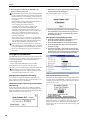
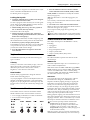
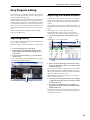
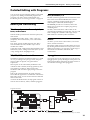
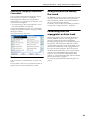
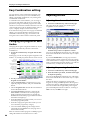
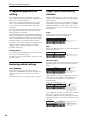
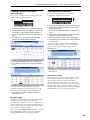
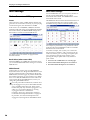
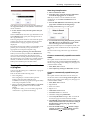
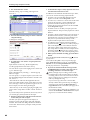
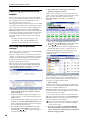
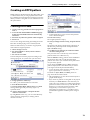
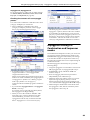
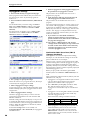
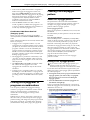
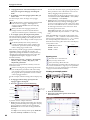
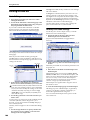
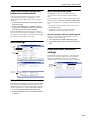
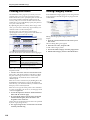
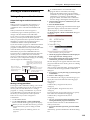
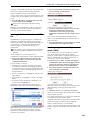
Using Drum Kits Sustaining the sound even after the key is released (Hold) Use the Hold function for instruments that should continue sustaining even after the key is released, such as a crash cymbal. The way this works will depend on the settings of the program and drum kit. Controlling pan for each key To use separate pan settings for each key: Set the Hold function as follows. 1. Access the Prog P4: Amp/EQ– Amp1/Driver1 or Amp2/Drive2 page. 1. Access the Prog P1: Basic/Controllers– Note‐On/ Scale page. 2. Under Pan, make sure that the Use DKit Setting check‐box is checked. If you jumped to the Global P5: Drum Kit page by pressing the Jump to Drum kit Edit button from Program mode, you can return to Program mode by pressing the Return to OSC button. When Use DKit Setting is on, the Program will use the pan settings for each key of the Drum Kit. 2. Under Key Zone, make sure that the Hold check‐ box is checked. Once you’ve turned on Hold for the Program, the function is controlled on a note‐by‐note basis according to settings within the Drum Kit. 3. Access the Global P5: Drum Kit– Voice/Mixer page. 4. For each key, set the Enable Note‐Off Receive parameter as desired. If this check box is not selected, notes will be held, and the sound will continue even after the key is released. If it is checked, the key will not be held. If you turn off Hold in the Program, no keys will be held ‐ regardless of their Enable Note‐Off Receive setting. Controlling effects for each key Drum Kits have their own, built‐in mixers. For each key, you can control the Insert Effects bussing, Master Effects sends, and pan. To use separate bus settings for each key: 1. Access the Prog P8: Routing/IFX– Routing page. 2. Make sure that the Use DKit Setting check‐box is checked. When Use DKit Setting is on, the Program will use the Bus Select and Effects Send settings for each key of the Drum Kit. When Use DKit Setting is off, the Program will ignore the Drum Kit’s Bus Select and Effects Send settings. 3. Access the Global P5: Drum Kit– Voice/Mixer page. 4. Use the Bus (IFX/Output) Select parameter to send drum sounds through their own Insert effects, or to the L/R outputs. If you like, you can send each note to its own Insert effect, or to the individual audio outputs, in addition to the L/R outputs. For example, you might send all snare sounds to IFX1, all kick sounds to IFX2, and the remaining sounds to L/ R. Tip: In most preloaded drum kits, the drum instruments have the same Bus (IFX/Output) Select settings according to their type, as follows. Snares IFX1 Kicks IFX2 Other IFX3 108 5. Use Send1 (to MFX1) and Send2 (to MFX2) to set the send levels to the master effects. 3. Access the Global P5: Drum Kit– Voice/Mixer page. 4. Use “Pan” to specify the panning for each key. Saving Drum Kits Once you’ve spent some time editing, you’ll want to save your work. The contents of your editing in Global mode are preserved as long as the power is on, but will be lost when you turn off the power. If you want to keep your edits, you must execute the Write Drum Kits function. This will save all drum kits.