1
HOW DO YOU ACCESS THE VM-3 MENUS?
Simply, press and hold down the (CTRL) KEY in the bottom left hand corner of the
keyboard.
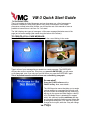
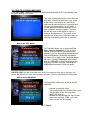
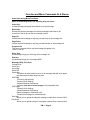
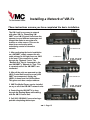
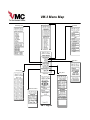
The Main Menu will appear listing all the sub menus:
To get into any menu, hold down the CTRL
KEY, select the menu with the UP AND DOWN
ARROW KEYS and press ENTER. To return to
the Main Menu press the ESC KEY while holding
down the CTRL KEY. (Notice how the font and
background colors are controlled by paragraph,
which is defined with by pressing the RETURN
KEY).
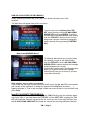
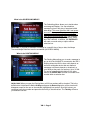
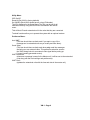
What is the MESSAGE Menu?
The Message Menu allows you to quickly select
the message you wish to edit. While holding
down the CTRL KEY, use the UP AND DOWN
ARROW KEYS to make a selection-the message
instantly appears on the screen.
(Notice that the bottom part of the Message Menu
allows you to perform some basic message
utilities that will save you much time if you learn
to use them effectively).
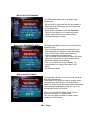
Want another way to select a message?
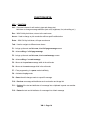
If you know the message number you wish to edit, press the (go to) KEY in the number
pad section of the Keyboard. A dialog box appears Go to Msg with brackets [
]
appearing below it. Type in the message number you want to select in the brackets and
press Enter.
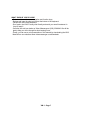
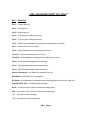
How DO I NAVIGATE THESE MENUS:
While holding down the CTRL KEY, tapping the TAB KEY will move the selection down
and to the right. If you hold down the CTRL KEY and the SHIFT KEY, tapping the TAB
KEY will move the selection up and to the left. Once you are in the right selection box,
the UP AND DOWN ARROW KEYS change the value of the message attribute selected.
VM-3 • Page 3