1
128
6.9
Elwin user manual
Select object(s)
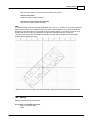
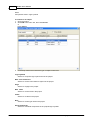
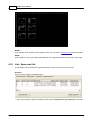
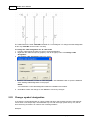
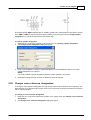
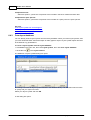
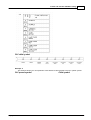
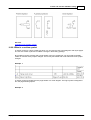
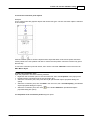
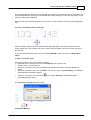
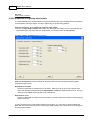
To select objects is useful when you want to copy, delete, move or edit several objects in one step. A
selected objected has one or several colored rectangles visible.
To select a object
· Click once the object.
To select several objects in one step
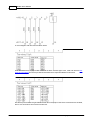
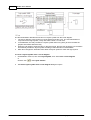
· Click an area without objects, then move the mouse pointer over the objects you want to select and
click.
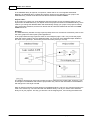
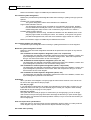
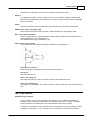
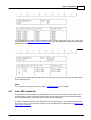
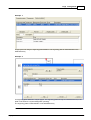
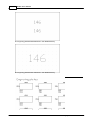
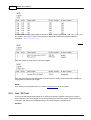
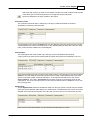
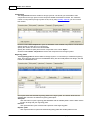
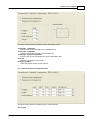
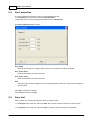
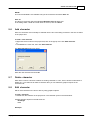
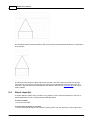
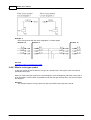
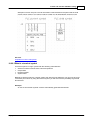
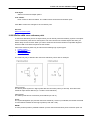
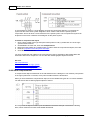
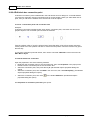
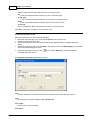
If you make a select window from left to right, then Elwin selects only objects that are fully in the
window.
If you make a select window from right to left, then Elwin selects objects that are partially or fully in
the window.
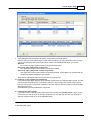
To select all objects on the page
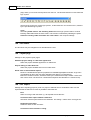
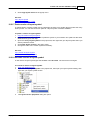
· Click Edit in the menu bar, then click Select all objects.
· Press Ctrl+A.
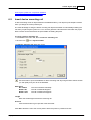
NOTE!
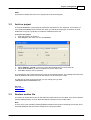
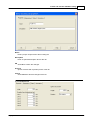
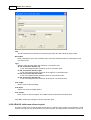
If the computer setting Invert selection when select object is set then objects will toggle it's select status
upon selection.
See also
Deselect objects
6.10
Deselect objects
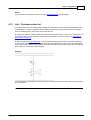
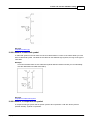
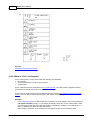
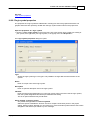
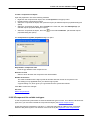
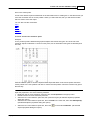
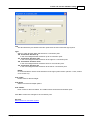
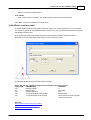
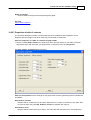
When you deselect an object it means the object will no longer be active when you use functions like
copy, delete, move or edit commands.
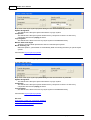
To deselect all selections for all objects on the page
· Press ESC.
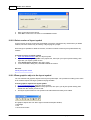
· Click Edit in the menu bar, then click Deselect all objects.
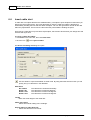
NOTE!
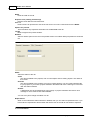
If the computer setting Invert selection when select object is set then objects will toggle it's select status
upon selection.
See also
Select object(s)
6.11
Copy object
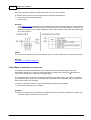
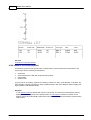
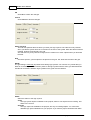
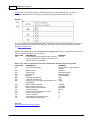
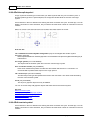
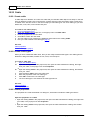
To copy one or several are possible in Elwin. The copied objects are stored in an internal Elwin
clipboard. The copied objects may be pasted how many times you require. Important to remember is
when you copy a new object the last copied objects will be over-written.
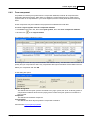
To copy one single object
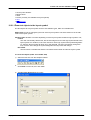
· Right-click the object and in the popup menu click Copy.
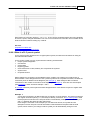
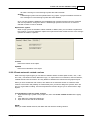
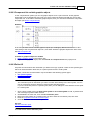
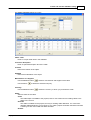
To copy one or several objects
Copyright © 2006-2015 3xM Software