1
6
Bryce 5: User Manual
EXERCISE 3: EDITING MATERIALS OR APPEARANCE
Steps:
1.
2.
3.
Create a sphere in your work area.
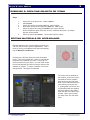
Click on the M and edit the materials.
Choose any material to apply and click the check mark in both the materials and
materials editor.
Notice that you cannot see what changes happened. That is because to see effects
besides scale, position and rotation, you need to render….rendering is letting the
computer generate an image based on the info you provided. In Bryce, this is done
with the render button on lower left.
EDITING MATERIALS OR APPEARANCE PART II:
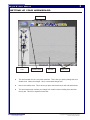
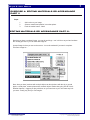
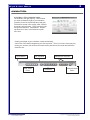
When you create something and are ready to see it rendered, use the following tools. First change
your view to the director view, denoted by the director chair in work window view area, then position
the image using the position tools…these do not move your objects, rather these change you view of
the entire picture.
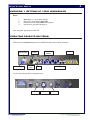
Pan right and left
Rotate and skew picture
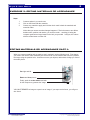
Finally, push the render button and wait
for the computer to generate the image.
YOU MUST RENDER an image to export it as an image, if you export a wire frame, you will get a
wire frame.
File name: Bryce5_User.pmd
Last modified: 03/06/02
Copyright Arizona Board of Regents, 2002
The University of Arizona