1
CD ROM user guide
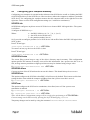
9.2.2 Scaling options
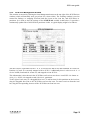
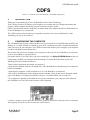
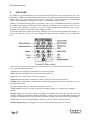
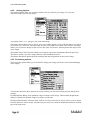
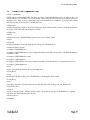
The Scaling options allow you to choose which scale you wish for your image. You can also
transform, rotate or mirror the image:
The option Scale 1:1 1:1 will give you a full sized image.
Choosing Custom allows you to specify your own scaling options. If you wish the image to 'scale to
exact pixel size', fill in the left boxes only and leave the right boxes blank. The Scale to fill option
allows you to scale the image so that it covers the entire screen area; this may distort the aspect ratio
of the image.
The Ignore Source Pixel Size box allows you to ignore any source information about the pixel size.
This can be useful if you have images that use a non-standard pixel size.
The Rotate and Mirror options perform rotations and mirror operations on the source image.
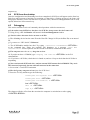
9.2.3 Processing options
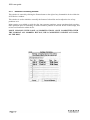
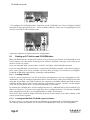
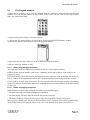
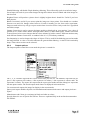
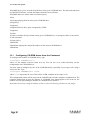
The Processing options allow you to control the image processing used in the conversion and display
of the image:
You'll notice that all of these options are 'off by default; you will not normally need to change these
settings.
Expand Dynamic Range will expand the range of colours in the image. This normally brightens the
image. It expands the dynamic range of a picture to full scale.
Histogram Equalisation will most often result in a worse picture but it can be used to recover detail
from an otherwise useless image. Alternatively you can use it to look at information locked in a small
part of the input scale.