1
2
Install the Silhouette Studio‰ Software
PC Installation
1. Insert the included Silhouette Studio® CD into the CD drive of your computer.
2. Proceed through the installation process by following the on-screen prompts. If the installation window
does not automatically appear, browse to the CD drive in My Computer and double-click the setup.exe
program to run it.
3. If a “New Hardware Found” dialog box appears, follow the recommended instructions to accept your
system’s installation of the Silhouette driver.
Mac® Installation
1. Insert the included Silhouette Studio® CD into the CD drive of your computer.
2. Drag and drop the Silhouette Studio® application icon into the applications folder to install Silhouette
Studio®.
3
Connect the Silhouette CAMEO
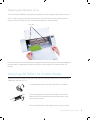
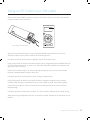
Once the Silhouette Studio® software is installed, connect the Silhouette CAMEO to the power supply.
Then connect the Silhouette to your computer with the included USB cable as shown in the diagram.
1
2
power
Turn the machine on by pressing the power button. If your PC displays a “New Hardware Found” dialog
box, follow the recommended instructions to accept your system’s installation of the Silhouette driver.
Getting Started with Silhouette CAMEO
2