Transcript
5
Quick Installation and Setup Guide
Z-CIM
Terminator
IN OUT
Z-Series Z4200U
4
IN OUT
IN OUT
Back of USTS
UKVMSPD
Optional UKVMSC Setup
™
5
1
2
3b
3a
Local Keyboard,
Monitor, Mouse
Local Access UKVMSC
DB25
CCPnn
Server
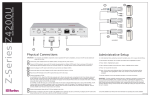
Physical Connections
Administrative Setup
IMPORTANT: All computers and Z4200U components must be powered OFF prior to installation, and each Z-CIM must be added
and set up one at a time.
IMPORTANT: Z-series installation requires that each computer be assigned a channel name as it is
added to the Z4200U chain. Computer channels are alphabetically organized by assigned name (or
a default name - the Z-CIM’s serial number), rather than in the order of their placement within the
Z4200U chain. Installers who first connect all computers and then attempt to assign channel names
will have difficulty locating the respective channel for each computer.
1
Connect a DC power adapter to the User Station (USTS), and plug it into an AC power source.
2
Connect a PS/2 keyboard, mouse, and VGA monitor to the appropriate User Station (USTS) ports. Plug in and power ON
the monitor. A blank Selection Menu will appear on the User Console monitor. The message banner across the bottom
will read “Searching.”
1..
At the Selection Menu, press <F5> to open the Edit Menu.
3a Connect a Category 5e UTP cable to the RJ45 Cat 5 port on the User Station (USTS).
2.
The Edit Menu will appear. The computer just added will be highlighted in yellow.
3b Connect the other end of the Category 5e UTP cable to the UTP OUT port on a Z-CIM.
3.
Press <Enter>. The highlight turns green.
4
Place the Z-CIM Terminator in the UTP IN port of the last Z-CIM in the chain.
4.
Type a desired computer name and press <Enter>. The highlight will turn yellow.
5
Connect the computer to the Z-CIM:
5.
Press <S> to save the new name.
For UKVMSPD Z-CIM: Connect the 6-pin mini-DIN keyboard and mouse and HD15 video connectors on the UKVMSPD
Z-CIM to computer's keyboard, mouse, and video ports. Power ON computer. The computer will appear on the Selection Menu of
the User Console of the USTS. A factory name and serial number for the Z-CIM will be displayed.
6.
Press <F2> to return to the Selection Menu. The Selection Menu will appear with the new
computer name highlighted in white. Press <Enter> to switch to this selected computer.
OPTIONAL:
For UKVMSC Z-CIM with local port: Connect DB25 male end of a CCPnn cable to the DB25 female port on back of
the UKVMSC Z-CIM. Connect other end to computer's keyboard, video, and mouse ports. Power ON computer. The
computer will appear on the Selection Menu of the User Console of the USTS. A factory name and serial number for the
Z-CIM will be displayed. See page 8 of the Z-Series 4200U User Manual for additional details on how to install a local
user console.
7.
Normal computer access and operation indicates a successful connection.
6
Perform Administrative Setup for the Z-CIM just added to the chain.
7
To add another Z-CIM to the chain, remove the Z-CIM Terminator and replace it with a Category 5e UTP cable. Place the
Z-CIM Terminator in the IN port of the last Z-CIM in the chain, and perform steps 5 and 6 for the Z-CIM just added.
Consult the Z4200U User Manual for more information on operating the Z-Series Z4200U.
Rev. E July 2003 255-34-8351