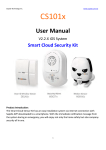
1
Sapido Technology Inc. www.sapido.com.tw CS105x User Manual V2.2.X Android System Smart Home Kit Security Alarm + Wireless Switch Product Introduction: CS105x is easy to install to your home network. Download Sapido APP, you can enjoy the remote control the security system, receive the instant push notification from your handheld devices if it detects any abnormal movement and view the 30 seconds video gram recording. With IP Cam's built-in microphone & speaker and Sapido APP, you can take real-time action to set up alarm or broadcast your voice to intruders. Keep your home safe and secured. With Smart Switch, you can do the power ON/OFF via Sapido APP Schedule Management Function. It provides electricity usage consumption and history record function to calculate electricity usage as the reference. Even you are in a frenzy of work, you can turn the electric appliances On/Off via your smartphone for saving energy and money, giving the experience of smart life with more convenience. 1 Sapido Technology Inc. www.sapido.com.tw Catalogue 1. 2. 3. 4. 5. 6. Hardware Instruction and Introduction ............................................................................................ 4 1.1 LED guide-light indicator ................................................................................................... 4 1.2 Hardware Instruction........................................................................................................ 8 1.3 Hardware Installation ..................................................................................................... 12 APP Download and Network Setup (Android system) ..................................................................... 16 Internet Settings ........................................................................................................................... 23 Security System Application .......................................................................................................... 26 4.1 Door & Window Sensor (DDLA0z) ..................................................................................... 27 4.2 Cloud Motion Sensor (MDKA0z) ....................................................................................... 33 Instruction of Security Alarm Router (WDG71n) ............................................................................... 39 5.1 Sound Sensor ................................................................................................................. 40 5.2 Temperature Sensor ....................................................................................................... 45 5.3 Light Sensor .................................................................................................................... 50 Application of IP Camera ............................................................................................................... 56 6.1. Surveillance Recording and Browse ................................................................................ 56 6.1.1. Real-Time Recording .................................................................................................. 56 6.1.2. Personalized Recording Schedule ............................................................................... 59 6.2. 6.3. 7. 8. 9. Real-Time Screenshot and Browse .................................................................................. 63 Music Play ...................................................................................................................... 65 6.3.1 Add the music to USB drive of IP Camera ................................................................... 65 6.3.2 Play music in USB drive .............................................................................................. 67 6.3.3 Schedule Setup of Music Play .................................................................................... 69 6.4. Setup for Alarm Siren ..................................................................................................... 72 6.4.1 Add the siren alarm to IP Camera’s USB ..................................................................... 72 6.4.2 Schedule Setup for Alarm Siren .................................................................................. 74 Smart Switch Application Instruction ............................................................................................... 77 7.1 Cloud Switch APP On/Off and Schedule Set-up .................................................................. 78 7.1.1 Set up Schedule of Power On/Off ................................................................................ 78 7.1.2 Schedule Setting ......................................................................................................... 81 7.1.3 Electricity Statistics ..................................................................................................... 86 7.1.4 History....................................................................................................................... 87 How to add Family Users to the CS105x ......................................................................................... 88 8.1 Advice: When the family user’s handheld device is around the same place as CS105x ..... 88 8.2 When the family user’s handheld device is not around the same place as CS105x ........... 90 Advanced Settings of CS105x ......................................................................................................... 91 9.1 How to mute the alarm and the message notification ........................................................ 91 9.1.1 ZigBee Cloud Motion Sensor (MDKA0z) ........................................................................ 91 2 Sapido Technology Inc. 9.1.2 www.sapido.com.tw ZigBee Door & Window Sensor (DDLA0z) ..................................................................... 92 9.2 How to change the security alarm sound........................................................................... 93 9.2.1 ZigBee Cloud Motion Sensor (MDKA0z) ........................................................................ 93 9.2.2 ZigBee Door & Window Sensor (DDLA0z) ..................................................................... 96 10. Application for Media Storage ....................................................................................................... 99 10.1 Upload the files in mobile device to IP Camera USB drive ................................................ 99 10.2 File download from USB drive of IP Camera .................................................................. 102 10.3 Directly stream the files of USB drive in mobile device .................................................. 105 11. Network Security ........................................................................................................................ 107 11.1 Network Security – Network security setup and internet device control ........................ 107 11.1.1 Client List ................................................................................................................ 107 11.1.2 Wireless Schedule ................................................................................................... 111 11.1.3 Keyword Blocked ..................................................................................................... 113 11.1.4 Website History ....................................................................................................... 115 11.1.5 Distributed Denial of Service (DDoS) .......................................................................... 118 11.1.6 Login History ........................................................................................................... 118 11.2 Download List – How to manage the files of mobile device (Smartphone / Tablet) ........ 119 11.2.1 Document Browse ................................................................................................... 120 11.2.2 Rename ................................................................................................................... 123 11.2.3 File Edit ................................................................................................................... 124 11.2.4 Offline Browse ........................................................................................................ 127 11.3 IOT Network – To review IP Camera and USB device status............................................ 128 11.4 IOT Settings- How to manage security device in system .................................................... 132 11.4.1 How to auto update the firmware version .................................................................. 133 11.4.2 The Function of GUI .................................................................................................. 134 12. “How to set up other sensor device or IP Cam” instruction .............................................................. 135 12.1 Set up a new Door & Window Sensor(DDLA0z) .......................................................... 135 12.2 Add a New IP Camera (IPJC2n) ........................................................................................ 137 13. How to connect security system to the existing Sapido devices at your home?.................................. 140 13.1 Wired network connecting- Transfer to wireless network mode........................................ 140 13.2 Wireless network connecting- Transfer to Wireless network mode.................................... 149 14. Q & A .......................................................................................................................................... 159 3 Sapido Technology Inc. www.sapido.com.tw 1. Hardware Instruction and Introduction 1.1 LED guide-light indicator (1) Security Alarm(WDG71n) Guide-light WAN/LAN ZigBee LED Wireless Status WPS Status Light Color Statue Instruction Orange Power on is being applied on the device. After 30 seconds, the LED light will be green. Green Wireless network is connected properly Steady:Security system working properly Green Flashing: Alarm, Door & Window sensors and motion detector are mapping the connection. Green Wi-Fi signal normal Orange Wi-Fi signal extending Green Wi-Fi signal extended successfully 4 Sapido Technology Inc. www.sapido.com.tw (2) Cloud Door & Window Sensor(DDLA0z)and Cloud Motion Sensor (MDKA0z) Product DDLA0z MDKA0z Guide-light Light Color Red ZigBee Connecting with WDG71n Green Connected with WDG71n successfully Orange Low Battery Red ZigBee Statue Instruction Connecting with WDG71n Green Connected with WDG71n successfully Orange Low Battery 5 Sapido Technology Inc. www.sapido.com.tw (3) Smart Cloud Night Vision Camera with Audio Wireless Router(IPJC2n) Guide-light Power WAN LAN Wireless Status WPS Status Light Color Statue Instruction Green IR Recording properly Green Wireless network is connected properly Green Wireless network is connected properly Green Wi-Fi signal normal Orange Wi-Fi signal extending Green Wi-Fi signal extended successfully 6 Sapido Technology Inc. www.sapido.com.tw (4) Smart Cloud Control Insight Switch Wireless Router(WSG70n) Guide-light WAN/LAN Manual Button Wireless Status WPS Status Light Color Statue Instruction Orange Power on is being applied on the device. After 30 seconds, the LED light will be green. Green Wireless network is connected properly Green Power ON No Light Power OFF Green Wi-Fi signal normal Orange Wi-Fi signal extending Green Wi-Fi signal extended successfully 7 Sapido Technology Inc. www.sapido.com.tw 1.2 Hardware Instruction (1) Security Alarm(WDG71n) Guide-light WAN/LAN Power Outlet Statue Instruction Connect to xDSL/Fiber, Static IP, Dynamic IP, PPTP, L2TP, Wi-Fi ISP AP, WiFi-AP Power supply 100V-240V ZigBee/ Alarm For ZigBee signal extend, it is also a button for turn on/off alarm manually power Off Button Please switch to the R mode while the RJ45 cable is connecting to the xDSL modem and WDG71n Please switch to A mode while RJ45 cable is connecting to Sapido router Network Mode Switch and WDG71n. Please switch to the W mode while connecting to Wi-Fi network by Sapido router. Please switch to the R mode while connecting to the network by other brand routers. Press over 10 seconds to factory default settings(like your Wi-Fi Reset Button password) Press about 3 seconds, the device will be rebooted 8 Sapido Technology Inc. www.sapido.com.tw (2) Cloud Motion Sensor(MDKA0z)and Cloud Door & Window Sensor (DDLA0z) Product DDLA0z Button Power Button ZigBee LED MDKA0z Power Button ZigBee LED Statue Instruction ON:Power On OFF:Power Off ZigBee signal connecting ON:Power On OFF:Power Off ZigBee signal connecting 9 Sapido Technology Inc. www.sapido.com.tw (3) Smart Cloud Night Vision Camera with Audio Wireless Router(IPJC2n) Button and Port WAN LAN USB Function Description Connect to xDSL/Fiber, Static IP, Dynamic IP, PPTP, L2TP, Wi-Fi ISP AP, WiFiAP * Connecting to on-line equipment, such as personal PC, web-cam, printer server, etc. * If more LAN ports are needed, please apply Switch/Hub for extension Connectable Micro USD Power Please connect with Sapido adapter. Port Volume (- +) Adjust the volume of speaker R/A/W Mode * Switch to R mode: connects between xDSL modem and IPJC2n. * Switch to A mode: Connects between Sapido router and IPJC2n. * Switch to W mode: Build WiFi bridge connection to Sapido router. * Connecting with other brand router via Ethernet cord, please switch to R mode. * Press over 10 seconds to factory default settings(like your Wi-Fi password) * Press about 3 seconds, the device will be rebooted RESET REBOOT 10 Sapido Technology Inc. www.sapido.com.tw (4) Smart Cloud Control Insight Switch Wireless Router(WSG70n) Guide-light WAN/LAN Power Outlet Statue Instruction Connect to xDSL/Fiber, Static IP, Dynamic IP, PPTP, L2TP, Wi-Fi ISP AP, WiFi-AP Power supply 100V-240V Switch power ON/OFF Manual Button Network Mode Switch RESET REBOOT Please switch to the R mode while the RJ45 cable is connecting to the xDSL modem and WSG70n Please switch to A mode while RJ45 cable is connecting to Sapido router and WSG70n. Please switch to the W mode while connecting to Wi-Fi network by Sapido router. Please switch to the R mode while connecting to the network by other brand routers. * Press over 10 seconds to factory default settings(like your Wi-Fi password) * Press about 3 seconds, the device will be rebooted 11 Sapido Technology Inc. www.sapido.com.tw 1.3 Hardware Installation Step 1. Please switch to R mode on the lateral side of Alarm (WDG71n), then plug on the power outlet. WDG71n is starting up when the WAN/LAN indicator turning red. The system is completely turn on when ZigBee light and all LED lights turn green after 30 seconds. The alarm (WDG71n) can not only deter the intruders by alert sound, but also warn the owner about any unusual circumstances are happening. For example, the door and window to which are attached Cloud Door & Window Sensors were opened by intruders, or the Cloud Motion Sensor detected intruders. Step 2. Please open the lid of the Cloud Door & Window Sensor (DDLA0z), and insert 2 x AAA batteries. 12 Sapido Technology Inc. www.sapido.com.tw Step 3. Please tear the double-sided tape and paste on the back of Cloud Door & Window Sensor (DDLA0z). Then paste the DDLA0z one part on the frame of Window, and the other part on the Window. The interval of both parts is no longer than 1 cm. (You can also fasten the DDLA0z by the attached fasteners.) Step 4. Please turn on the power. When the ZigBee light is blinking, which means the DDLA0z is mapping with alarm (WDG71n). Once the Window is opened, the alarm will start to have the alert sound. Step 5. Please open the lid of the Cloud Motion Sensor (MDKA0z) and insert 2 x AAA batteries. Before close the lid, switch the power to ON. 13 Sapido Technology Inc. Step 6. When the left light (ZigBee) of MDKA0z is blinking, means the MDKA0z is connecting properly with WDG71n. www.sapido.com.tw Step 7. After fastening the MKDA0z on the hallway or gate, it will trigger the alarm (WDG71n) if someone approaches the MDKA0z. Step 8. Put your IP Cam (IPJC2n) at your Step 9. Wait for 30 sec., when and entrance or window to monitor anytime. Power turns green, the boot is succeed. IP Cam will make alarm while both Window & Door Sensor on, turns red and blink to boot. and Motion Sensor been detected. 14 Sapido Technology Inc. www.sapido.com.tw Step 10. Switch your smart Switch to “W” network mode and Plug-in. Wait for 30 seconds to start up. When Wireless/WPS light turns to green, which means the start-up was successful. Plug in with the non-electronic control type of household appliances like below: One Switch for one electric appliance only. No extension cord recommend in order to avoid heavy electric tension. Step 11. There are two ways to make WiFi connection with Smart Switch (WSG70n) based on distance: (1) Get started to make the WPS wireless (Wi-Fi) connection of Security Alarm (WDG71n) and Smart Switch (WSG70n): Please press the WPS button on both Security Alarm Router (WDG71n) and WSG70n separately. When both of the lights stop blinking, it means the connection is completed. (2) Get started to make the WPS wireless (Wi-Fi) connection of IP Cam (IPJC2n) and Smart Switch (WSG70n): Please press the WPS button on both Smart Switch (WSG70n) and IPJC2n separately. When both of the lights stop blinking, it means the connection and encryption are completed. 15 Sapido Technology Inc. www.sapido.com.tw 2. APP Download and Network Setup (Android system) Step 1. Apply 3G smartphone and go to Play Store to search and download Sapido APP. Step 2. Click and type into key word “Sapido” for search. Step 3. Click “Install” to download APP. Step 4. After completing the installation, you can find Sapido APP icon in your smartphone desktop. Step 5. Go to “Settings” Step 6. Switch the Wi-Fi signal to ON and search for Security Alarm (WDG71n) WiFi signal. 16 Sapido Technology Inc. Step 7. Select WDG71n WiFi www.sapido.com.tw Step 8. Activate Sapido APP. Step 9. Click “New IOT”. signal to connect. Step 10. Sapido APP will show the network device name and user name. All you have to do is to give a name for the network domain in blank and enter the default password “admin” in blank. In order to protect your network domain security, please click <Change Password> and enter the new password. Then, click <New IOT> to finish the process. Now you have to enter your new password to access the domain security IOT name You can give your IOT Name in the blank. Device Name The Device name will show up automatically, doesn't need to change. User name of Domain The account will show up automatically, doesn't need to change Password of Domain Need to enter the default password “admin” The Options of Changing Password You can change the password for your domain 17 Sapido Technology Inc. Step 11. Connecting… www.sapido.com.tw Step 12. Click <IOT Settings> 18 Step 13. Entered the IOT Settings, you can see the security system is built-up (as below). : Security Alarm : Door & Window Sensor : Motion Sensor : IP Cam and Smart Switch : Battery Status Sapido Technology Inc. Step 14. In IOT Setting page, you can rename the device. Select IP Camera (IPJC2n) and click “Rename” Step 17. You can rename the name of device in IOT Setting. Please select the Security Alarm router (WDG71n) first, then click <Rename> www.sapido.com.tw Step 15. After typing in the new name, click “Apply” to confirm. Step 16. IP Camera has been shown with new device name. Step 18. After entering the new Step 19. The alarm (WDG71n) name, please click <Apply>, had been changed to the new then it will show the new name. name. 19 Sapido Technology Inc. Step 20. To rename the Cloud www.sapido.com.tw Step 21. After entering the new Step 22. The Cloud Door & Door & Window Sensor: Choose name, please click <Apply>, Window Sensor (DDLA0z_xxx) the Cloud Door & Window then it will show the new name. had been changed to the new Sensor (DDLA0z_xxx) in IOT name. Setting first, then click <Rename>. Step 23. To rename the Cloud Motion Sensor: Choose the Cloud Motion Sensor (MDKA0z_xxx) in IOT Setting first, then click <Rename> Step 24. After entering the new name, please click <Apply>, then it will show the new name 20 Step 25. The Cloud Motion Sensor (MDKA0z_xxx) had been changed to the new name. Sapido Technology Inc. Step 26. You can rename the name of device in IOT Settings. Please click the Switch (WSG70n) first, then click <Rename> Step 29. After renaming, click www.sapido.com.tw Step 27. After entering the new Step 28. The Switch (WSG70n) name, please click <Apply>, had been changed to the new then it will show the new name. name. to control the remote PC and click 21 to access GUI. Sapido Technology Inc. www.sapido.com.tw Step 30. Please turn on WiFi to connect the alarm (WDG71n) to control the security system. Security System Arm Once you are sleeping or go out, please set the shield as green, which represents the security system is working. When the security system was triggered, Alarm the shield will turn red. Click the shield Triggered from red to green to turn off the alert sound and stay security mode. Security To click the shield to turn gray represents System turn off the security system. Disarm 22 Sapido Technology Inc. www.sapido.com.tw 3. Internet Settings Make sure the network environment stable for any of your smartphone and handheld devices using first, this step will let you receive emergency messages successfully while you go out. Follow the security system set-up steps as below: Step 1. Connect the Ethernet cable to WDG71n's WAN/LAN port, and switch to R mode while Ethernet cable is connecting to the xDSL modem and WDG71n (modem mode). 23 Sapido Technology Inc. Step 2. Log in APP and click “Internet Settings”, and then your internet network will be automatically detected www.sapido.com.tw Step 3. Please enter your ISP account and password, and select WPA2 as the encryption mode (at lease 8 (included) digital characters), and finally click “Apply”. (Please memorize your Wi-Fi Step 4. Please wait for the setup operation. Do not turn off or return. security password) Step 5. After the update, the screen will subsequently goes back to Log-In page, you might directly connect to the network if you have 3G in your smartphone, to make sure it is available for remote use as well. Step 6. If your smart phone didn't have 3G network services, please turn on Wi-Fi of your smartphone and choose the network from WDG71n. Enter the password that setup by step 3, then your smart phone has been connected to the alarm (WDG71n). 24 Step 7. Back to the Sapido APP again, you will see the new name of domain that you just setup. Sapido Technology Inc. www.sapido.com.tw Step 8. The instruction of the symbols from the main page: Guide-light Light Statue Instruction Green- Domain and network is 1. The lights of connected. device of the Gray- Domain and network is domain disconnected Red- Event alert Green- Security System Arm. 2. The light symbols of the Cloud Security Gray- Security System Disarm. Red- Alarm is triggered. (Empty)-No Installed or Security System offline. 3. Change the password Key 4. Trash Can Symbol To change the password of domain. To delete the domain. Congratulations!!! The Internet Setting of Cloud Security Alarm (WDG71n) is completed. Please enter the Security System to utilize the functions. 25 Sapido Technology Inc. www.sapido.com.tw 4. Security System Application Once someone opened the door and windows when you're not home, or the Cloud Motion Sensor detects any unusual situation, your smartphone will receive an alert message, the alarm at home will make sound at the same time as well. In addition, you can control the situation by self via Sapido APP. Click the push notification to enter the APP main page, you will see the shield is red , and the event alert will show up in front of the network name. Meanwhile, you can enter the Message to obtain the detail of event (Ex: 2nd Floor Window is opened), and turn off the alert . Moreover, with 30 seconds real-time recording and monitor the environment via Cloud Camera function. Press “Arm ” and “Voice Sender ” to deter the intruder. When everything settle down, turn off the alarm and the security system is still working. The shield on the main page will stay green . ※ Press ZigBee button to directly turn off the alarm if you are at home. 26 Sapido Technology Inc. www.sapido.com.tw 4.1 Door & Window Sensor (DDLA0z) Door & Window Sensor has preinstalled the setting of “push notification” and “alert” already. Once it detects abnormal situation, the alarm system will be activated. Default of Door & Window Sensor Step 1. Click <Security> Step 2. Click <Door & Window Sensor>. Step 3. Select your specific Door & Window Sensor. Step 4. You can see the “message”, “alert”, “Speaker”, and “Recording” are selected already, means that WDG71n will send you an alert message and make alert at the same time. 27 Sapido Technology Inc. Step 5. If you want your lights on while window is opened, just select the Switch. (shown in red frame) www.sapido.com.tw Step 6. Select “Switch Mode” Step 7. To face your needed, you can choose ON, OFF, or Repeat mode of your Switch. Step 8. After click “Switch”, you will receive push notification and alarm will be triggered when window is opened. Also, 30 seconds recording and Switch will turn on at the same time. 28 Sapido Technology Inc. www.sapido.com.tw There are three ways to turn off the alarm when it the Door & Windows Sensor (DDLA0z) is triggered. Follow the steps as below. The 1st method to turn off the alarm If the alarm is triggered and you are at home, you can press the ZigBee button of the alarm (WDG71n) to mute the alarm. The 2nd method to turn off the alarm Step 1. You will receive the push Step 2. You will see the event notification as the photo below. alert , and the shield will turn Please click the push red . To mute the alarm, just notification and enter to the security system in APP. click the shield to return to green. 29 Step 3. Click <Message> to understand the situation immediately. It will show the event list included the event date and time. To understand more about event's detail, please select the “event”. Sapido Technology Inc. www.sapido.com.tw Step 4. Click “Camera” to view Step 5. Click “ the situation of event right away. smartphone screen. Step 6. Also, you can click “ Arm” once you find the intruder in the : Volume adjustor. Voice Sender” once you find the intruder. 30 Sapido Technology Inc. www.sapido.com.tw The 3rd method to turn off the alarm Step 1. The event list is sorted by date and time. If you enter the “event” to view the details while the shield is red . Please select the “event” again to view the page with more detail. Step 2. The event list is sorted by date and time. You can turn off the alert when you reenter the “event” again to view the page with more detail. Step 4. Click “Camera” to view the situation of event right away. Step 5. Click “ Arm” once you find the intruder in the smartphone screen. : Volume adjustor. 31 Step 3. Click the silence sign to mute the alarm and click Record Video to view the 30 seconds recording. Then back to the main list and enter “Camera” to view the real-time monitor. Sapido Technology Inc. Step 6. Also, you can click “ www.sapido.com.tw Voice Sender” once you find the intruder. Step 7. After disarming, the shield will turn back to green . Also, the event alert green dote , which means that the alert is turn off but the security keep working. 32 will turn to the Sapido Technology Inc. www.sapido.com.tw 4.2 Cloud Motion Sensor (MDKA0z) Cloud Motion Sensor (MDKA0z) has preinstalled the setting of “push notification” and “alert” already. Once it detects abnormal situation, the alarm system will be activated. Default of Cloud Motion Sensor (MDKA0z) Step 1. Click <Security> Step 2. Click <Motion Sensor> Step 3. Select your specific Cloud Motion Sensor Step 4. You can see the “message”, “alert”, “Speaker”, and “Recording” are selected already, means that WDG71n will send you an alarm notification and make alert at the same time. 33 Sapido Technology Inc. Step 5. If you want your lights www.sapido.com.tw Step 6. Select “Switch Mode” on while window is opened, just select the Switch. (shown in red frame) Step 7. To face your needed, you can choose ON, OFF, or Repeat mode of your Switch. Step 8. After click “Switch”, you will receive push notification and alarm will triggered when window is opened. Also, 30 seconds recording and Switch will turn on at the same time. 34 Sapido Technology Inc. www.sapido.com.tw There are three ways to mute the alarm when the Cloud Motion Sensor (MDKA0z) is triggered. Follow the steps as below. The 1st method to turn off the alarm If the alarm is triggered and you are at home, you can press the ZigBee button of the alarm (WDG71n) to mute the alarm. The 2nd method to turn off the alarm Step 1. You will receive the push notification as the photo below. Please click the push notification and enter to the security system in APP. Step 2. You will see the event alert Step 3. Click <Message> to understand the situation , and the shield will turn red immediately. It will show the . To mute the alarm, just click event list included the event date and time. To understand more the shield to return to green. about event's detail, please select the “event”. 35 Sapido Technology Inc. www.sapido.com.tw Step 4. Click “Camera” to view Step 5. Click “ the situation of event right away. smartphone screen. Step 6. Also, you can click “ Arm” once you find the intruder in the : Volume adjustor. Voice Sender” once you find the intruder. 36 Sapido Technology Inc. www.sapido.com.tw The 3rd method to turn off the alarm Step 1. The event list is sorted by date and time. If you enter the “event” to view the details while the shield is red . Please select the “event” again to view the page with more detail. Step 2. The event list is sorted by date and time. You can turn off the alert when you reenter the “event” again to view the page with more detail. Step 4. Click “Camera” to view the situation of event right away. Step 5. Click “ Arm” once you find the intruder in the smartphone screen. : Volume adjustor. 37 Step 3. Click the silence sign to mute the alarm and click Record Video to view the 30 seconds recording. Then back to the main list and enter “Camera” to view the real-time monitor. Sapido Technology Inc. Step 6. Also, you can click “ www.sapido.com.tw Voice Sender” once you find the intruder. Step 7. After disarming, the shield will turn back to green . Also, the event alert dote , which means that the alert is turn off but the security keep working. 38 will turn to the green Sapido Technology Inc. www.sapido.com.tw 5. Instruction of Security Alarm Router (WDG71n) WDG71n is not only an alarm but also a sensor that can detects intensity of the environmental factors such as sound, temperature, and light. It is suggested to place the alarm sensor in an area with an open space. For example, kitchen and living room. The sensor will alarm if it detects an abnormal movement in the level of sound, temperature, and light at home. At the same time, the Security Alarm Router WDG71n will send you an alert message to tell you the emergency immediately. In addition, you can control the situation by self via Sapido APP. Click the push notification to enter the APP main page, you will see the shield is red , and the event alert will show up in front of the network name. Meanwhile, you can enter the Cloud Message to obtain the detail of event (Ex: Unusual temperature in kitchen), and turn off the alert at the same time. ※ If you are at home, you can press the ZigBee button on the alarm (WDG71n) to turn off the alarm. 39 Sapido Technology Inc. www.sapido.com.tw 5.1 Sound Sensor Step 1. You can adjust the alarm sound level based on the level of Decibels (dB) in <Sensor> section. Step 2. Click <Sound Sensor> Step 3. Current alarm detected volume (dB) level will show on the right of the Sound Sensor page. Step 4. Please click <Warning Device> Step 5. When it detects the abnormal sound in the space, you will receive an alert message on your phone. Meanwhile, the alarm system will activate. Please choose <Notification Message> and <Sensor Alarm> Step 6. For setting up the condition of the alarm trigger, please click Sensor Alarm Device (shown below in red frame). 40 Sapido Technology Inc. www.sapido.com.tw Step 7. There are two different scenarios are provided from the function of "dB" section. You can adjust the sound level between 0dB ~ 110dB. (Increments 5dB a time) Step 8. The preinstall alarm setting is “continuity alarm”, means that the alarm will touch off when the intensity reaches the level of indoor maximum limit. Sirens will continue beeping until you turn off the alarm manually. If you want to change the setting to Define Alarm Sounds, then you can adjust alarm sounding time under any abnormal movement, such as: 1 second, 2 seconds, 5 minutes ... etc. 41 Sapido Technology Inc. www.sapido.com.tw Step 9. There are 5 types of different selectable beep length of "Siren”. When settle down alarm sounds and siren, please press "Done" at the top right of the page to return to the sensing feature page. Step 10. If you want your lights on while window is opened, just select the Switch. (shown in red frame) Step 11. Face your needed to setup dB, for example, higher than 60dB to make the Switch triggered. 42 Step 12. To face your needed, you can choose ON, OFF, or Repeat mode of your Switch. Sapido Technology Inc. www.sapido.com.tw There are two ways to mute the alarm when the alarm (WDG71n) triggers alarm. The 1st method to turn off the alarm If the alarm is triggered and you are at home, you can press the ZigBee button of the alarm (WDG71n) to mute the alarm. 43 Sapido Technology Inc. The 2nd www.sapido.com.tw method to turn off the alarm Step 1. Open the Sapido APP, Step 2. The event list is sorted by you can enter <Message> to date and time. If you enter the view the situation immediately. “event” to view the details while the shield is red. Please select the “event” again to view the page with more detail. Step 3. Click the silence sign to mute the alarm and click Record Video to view the 30 seconds recording. Then back to the main list and enter “Camera” to view the real-time monitor. Step 4. Click “Camera” to view Step 5. Also, you can click “ Voice Sender” to talk to your the situation of event right child once you find out your child is crying. : Volume away. adjustor. 44 Sapido Technology Inc. www.sapido.com.tw 5.2 Temperature Sensor Step1. Click <Sensor>, you can Step2. Click <Temperature set up your predetermined Sensor> temperature level to activate the alarm system. Step3. The page of Temperature Sensor will show the current in room temperature. The preinstall measurement setting is “Celsius”. Step 4. Click the <Sensor Device> Step 6. For setting up the condition of the alarm trigger by the limit of trigger temperature, please click Sirens Device (shown below in red frame). Step5. Select the “Notification Message” and “Sensor Alarm” options, you will receive a push notification on your phone and the alarm will make beeping sound when the temperature is in an abnormal situation. 45 Sapido Technology Inc. www.sapido.com.tw Step 7. There are two different scenarios are provided from the function of "Celsius" section. You can adjust the temperature level between 0 ° C ~ 50 ° C. (increments 1° C a time) Step 8. The preinstall setting of "Sensor Alarm" is “continuity alarm”, means that the alarm will touch off when the intensity reaches the level of indoor maximum limit. Sirens will continue beeping until you turn off the alarm manually. If you want to change the setting to Define Alarm Sounds, then you can adjust alarm sounding time under any abnormal movement, such as: 1 second, 2 seconds, 5 minutes ... etc. 46 Sapido Technology Inc. www.sapido.com.tw Step 9. There are 5 types of different selectable beep length of "Siren”. When settle down alarm sounds and siren, please press "Done" at the top right of the page to return to the sensing feature page. Step 10. If you want your lights on while window is opened, just select the Switch. (shown in red frame) Step 11. Face your needed to setup Celsius, for example, higher than 60C to make the Switch triggered. 47 Step 12. To face your needed, you can choose ON, OFF, or Repeat mode of your Switch. Sapido Technology Inc. www.sapido.com.tw There are two ways to mute the alarm when the Security Alarm Router (WDG71n) triggers alarm. The 1st method to turn off the alarm If the alarm is triggered and you are at home, you can press the ZigBee button of the alarm (WDG71n) to mute the alarm. 48 Sapido Technology Inc. The 2nd www.sapido.com.tw method to turn off the alarm Step 2. The event list is sorted Step 1. Open the Sapido APP, by date and time. You can turn you can enter <Message> to view the situation immediately. off the alert when you reenter the “Event” again to view the page with more detail. Step 3. Click the silence sign to mute the alarm and click Record Video to view the 30 seconds recording. Then back to the main list and enter “Camera” to view the real-time monitor. Step 4. Click “Camera” to view Step 5. Also, you can click “ Voice Sender” to talk to your the situation of event right family members once you find out your home is on fire. away. : Volume adjustor. 49 Sapido Technology Inc. www.sapido.com.tw 5.3 Light Sensor Step1. Click <Sensor> Step2. Click <Light Sensor> Step3. The page of Light Sensor will show the current in room brightness. Step4. Click the <Siren Step5. Select the “Notification Step 6. For setting up the Device> Message” and “Sensor Alarm” condition of the alarm trigger, please click Sirens Device (shown below in red frame). options, you will receive a push notification on your phone and the alarm will make beeping sound when the temperature is in an abnormal situation. 50 Sapido Technology Inc. www.sapido.com.tw Step 7. There are two different scenarios are provided from high to low for the brightness. You can adjust the brightness level between 0Lm ~ 2000Lm. Step 8. The preinstall setting of "Sensor Alarm" is continuity sounds, means that the alarm will touch off when the intensity reaches the level of indoor maximum limit. Sirens will continue beeping until you turn off the alarm manually. If you want to change the setting to Define Alarm Sounds, then you can adjust alarm sounding time under any abnormal movement, such as: 1 second, 2 seconds, 5 minutes ... etc. 51 Sapido Technology Inc. www.sapido.com.tw Step 9. There are 5 types of different selectable beep length of "Siren”. When settle down alarm sounds and siren, please press "Done" at the top right of the page to return to the sensing feature page. Step 10. If you want your lights on while window is opened, just select the Switch. (shown in red frame) Step 11. Face your needed to Step 12. To face your needed, setup brightness, for example, you can choose ON, OFF, or higher than 400 Lm to make Repeat mode of your Switch. the Switch triggered. 52 Sapido Technology Inc. www.sapido.com.tw There are two ways to mute the alarm when the Security Alarm Router (WDG71n) triggers alarm. The 1st method to turn off the alarm If the alarm is triggered and you are at home, you can press the ZigBee button of the alarm (WDG71n) to mute the alarm. 53 Sapido Technology Inc. The 2nd www.sapido.com.tw method to turn off the alarm Step 1. Open the Sapido APP, Step 2. The event list is sorted by you can enter <Message> to date and time. If you enter the view the situation immediately. “event” to view the details while the shield is red. Please select the “event” again to view the page with more detail. Step 3. Click the silence sign to mute the alarm and click Record Video to view the 30 seconds recording. Then back to the main list and enter “Camera” to view the real-time monitor. Step 4. Click “Camera” to view Step 5. Click “ Arm” once you find the intruder in the the situation of event right smartphone screen. : Volume adjustor. away. 54 Sapido Technology Inc. Step 6. Also, you can click “ www.sapido.com.tw Voice Sender” to yield to intruder. 55 : Volume adjustor. Sapido Technology Inc. 6. www.sapido.com.tw Application of IP Camera 6.1. Surveillance Recording and Browse 6.1.1. Real-Time Recording Step 1. Select “Camera”. Step 2. Click the functional key「 Step 4. When the recording starts, you can find the red pot on the top left corner. Step 3. Setting, please wait... Record」 Step 5. Video will be automatically stored in the USB drive of IP camera; please go「 View Videos」for video browse. 56 Step 6. Videos will be sorted by date and time, please directly choose the video you want to view. Sapido Technology Inc. www.sapido.com.tw Step 7. Select the video for Step 8. Click “Exit” when Step 9. Click “Download” if immediate play. finished, and goes back to the last page. (Rotating the device to enlarge for browse) you want to back up the files to your smartphone or other devices. Step 10. Video Downloading… Step 11. Once download successfully and then you can play it. 57 Step 12. Downloaded files will be directly stored in “Camera” of “Download List”. Sapido Technology Inc. Step 13. Please Click “ Stop” to stop recording. www.sapido.com.tw Step 14. Click “Apply” and Step 15. Once the red pot is await. disappeared, the recording has been stopped. 58 Sapido Technology Inc. www.sapido.com.tw 6.1.2. Personalized Recording Schedule You can set up the recording schedule at different time based on your requirement, such as personalize the recording time during day time or bedtime, the operating method are as below: Step 1. Select “ Camera” Step 2. Click “ below. Schedule” in Step 3. Click “New” to add new schedule Step 4. Cross day recording schedule of every 10pm to 6am of the next day. Set up 1st recording schedule: please first select “Record Schedule”, and set up the start time at 22:00 and end time at 23:59, choose “Everyday” for Day, and finally click “Done” for confirmation. 59 Sapido Technology Inc. Step 5. Choose the USB storage device. Step 8. Click “Camera” www.sapido.com.tw Step 6. Please await.... do not Step 7. After completing the schedule added, the screen shut down the APP will automatically go back to home page. Please click the network to log in. Step 9. Click “ Schedule” in Step 10. You can find the schedule you just added. Please again click “New” if you want to add new schedule. below 60 Sapido Technology Inc. Step 11. Set up the www.sapido.com.tw 2nd recording schedule: Recording from every 10pm to 6am of next morning. Choose “Record Schedule”, and select start time at 00:00, end time at 06:00, and “Everyday” for Day, and finally click “Done” for completion. Step 12. Choose USB storage device Step 13. Please await...do not Step 14. The APP screen will automatically go back to logshut down the APP. in page after completing schedule added, please click the network to log in. 61 Sapido Technology Inc. Step 15. Click “Camera” www.sapido.com.tw Step 16. Click “ in below 62 Schedule” Step 17. You can find the 2nd schedule added. To modify the schedule, please click To delete the schedule, please click Sapido Technology Inc. www.sapido.com.tw 6.2. Real-Time Screenshot and Browse Step 1. Click “Camera” Step 2. Click “Screenshot” in below to immediate save the image in your smartphone Step 3. Click “View Picture” to review the screenshot image. Step 4. The images will be sorted by date; please direct select the date you want to view. Step 5. Image checklist will be listed in order by time sequence. See left side to directly preview the image, and click the image for full screen review. Step 6. Click below Play icon to review all images in turn when browsing full screen image 63 Sapido Technology Inc. www.sapido.com.tw Step 7. Rotating the device to full screen review, and click “Exit” to leave. 64 Sapido Technology Inc. www.sapido.com.tw 6.3. Music Play 6.3.1 Add the music to USB drive of IP Camera IP Camera can be your music player, you are able to store your favorite music in USB drive of IP Camera via “Upload” and bring you more options. Step 1. Click “Upload” Step 2. Select “My Files” Step 3. Select the music you want to upload and click “Change” to choose path. Step 4. Click your IP Camera device name (nickname). Step 5. Click “New Folder” Step 6. Rename the folder, such as “Music Folder” and click “Apply”. 65 Sapido Technology Inc. Step 7. Select the new added www.sapido.com.tw Step 8. Click “Upload”. Step 9. Uploading… folder. Step 10. Upload succeeded. Click “Upload more files” to upload more music, or click “Home” to leave. 66 Sapido Technology Inc. www.sapido.com.tw 6.3.2 Play music in USB drive Step 1. Select “Camera” Step 2. Click “Play Step 4. Select the “play mode” per your needed In order: Play in order Step 5. If you want to play music for 2 hours and then stop, please first select Schedule Mode and set up the time, click “Done” to complete. Repeat: Repeat all selected music and play Timer: Play in scheduled hours/minutes and stop 67 ” Step 3. Click “Change” Step 6. First select the music you want to play (or whole folder), and click “Play” on the top right corner. Sapido Technology Inc. www.sapido.com.tw Step 7. In music play mode, Step 8. Click “Stop you can adjust the volume via stop. 68 ” to Step 9. Music play is stopped Sapido Technology Inc. www.sapido.com.tw 6.3.3 Schedule Setup of Music Play Step 1. Select “Camera” Step 2. Click “Schedule ” Step 3. Click “New” Step 4. For example, set up automatic music play at every 12:00 pm to 13:00 pm; please first select “Music Schedule” mode, and set the start time at 12:00 pm and end time at 13:00 pm and choose “Everyday” for Day. 69 Sapido Technology Inc. Step 5. Click “Song” www.sapido.com.tw Step 6. First select the music Step 7. Click “Done” in top (or whole folder), and then “Done” right corner for completion. Step 8. Please await for Step 9. Once the setup is Step 10. Click “Camera” setting...Do not turn off or return done, the screen will automatically go back to login page. Please again log in. 70 Sapido Technology Inc. Step 11. Click “ in below. www.sapido.com.tw Schedule” Step 12. You can see the music schedule you just added in the checklist. To modify, please click To delete, please click 71 Sapido Technology Inc. www.sapido.com.tw 6.4. Setup for Alarm Siren IP Cam can broadcast the siren. You can upload the favorite sirens to “Siren” folder of IP camera USB drive via “Upload” for more options. 6.4.1 Add the siren alarm to IP Camera’s USB Step 1. Click “Upload” Step 2. Select “My Files” Step 3. Select the music you want to upload and click “Change” to choose path. Step 4. Click your IP Camera device name (nickname). Step 5. Click “Alarm Siren” Step 6. Click “Upload” 72 Sapido Technology Inc. Step 7. Uploading… www.sapido.com.tw Step 8. Upload succeeded. Click “Upload more files” to upload more music, or click “Home” to leave. 73 Sapido Technology Inc. www.sapido.com.tw 6.4.2 Schedule Setup for Alarm Siren First complete the step to add siren (refer to 6.4.1) and enter into schedule setup to select the siren. Step 1. Click “Camera” Step 2. Click “Schedule” in below. Step 3. Click “New” Step 4. For example, to set up the morning alarm at every 6:00 am; please first select the mode as “Siren Schedule” and set the start time at 6:00 am, end time at 6:05 am, and select “Everyday” for Day. 74 Sapido Technology Inc. www.sapido.com.tw Step 5. Select “Alarm” Step 7. Settings, please await....do not turn off or return. Step 6. Click “Done” Step 8. After adding the Step 9. Click “Camera” schedule, APP will automatically return to home page, and click to log in again. 75 Sapido Technology Inc. Step 10. Select “ in below www.sapido.com.tw Schedule” Step 11. New added Alarm Schedules are showed in the checklist. To modify, please click To delete, please click 76 Sapido Technology Inc. www.sapido.com.tw 7. Smart Switch Application Instruction Sapido creates a new device “WSG70n”, Smart Cloud Switch, matches smartphone (iOS, Android) to control your electric appliances anytime anywhere. In addition, Sapido APP offers numerous functions: power consumption measurement, power switch set-up, schedule making, and start-up timing with the specific electric appliance for historical electric information reference. Also, it provides the function of over-heating protection. Giving you a lifestyle with smart protection, power saving, and energy conservation. *You can turn on/off the power directly click the power button on the Smart Switch (WSG70n) if you are home. *Turn on/off power via Sapido APP when you are out: 77 Sapido Technology Inc. www.sapido.com.tw 7.1 Cloud Switch APP On/Off and Schedule Set-up If you are out or on the way to work, and forget to turn off the electric appliances, such as fan, and light, etc. You can power ON/OFF the appliances via the Cloud Insight Switch APP power switch mode. In addition, you can operate the appliances in your house along with the set schedules of Smart Insight Switch through cycling time setting and schedule function, to surely accompany with daily routine and fully saving the energy and cost. 7.1.1 Set up Schedule of Power On/Off Step 1. Click <Switch> Step 2. Click one specific electric appliance's power button at the right next to device name, button is grey means OFF. 78 Step 3. Power button turns to red means ON Sapido Technology Inc. www.sapido.com.tw Step 4. Select one specific electric appliance Step 5. You can view different Step 6. If you want to change functions such as: Power on Reason, power consumption, Uptime & Since time of startup. the Switch Mode to “Repeat”, click <Switch Mode>. Step 7. Click <Repeat> Step 8. Get Started to set up Repeat Condition, for example, let it power on for 3 minutes and turn off for 1 minute in 10 minutes as a period. Click <Done> to finish setting. Step 9. Back to the front page automatically, and your electric appliance will follow the schedule you have set-up 79 Sapido Technology Inc. www.sapido.com.tw Step 10. Back to the front page, Step 11. After ten minutes in a period, the sign will turn to you will see the repeat sign at grey. the right next to the device name that means your setup was successful. Now turn the repeat sign to red represents turn on the repeat mode. 80 Step 12. If you want to stop the repeat mode, click the sign and it will turn to grey. Sapido Technology Inc. 7.1.2 www.sapido.com.tw Schedule Setting Smart Cloud Switch can turn on/off your electric appliances based on the schedule that you have set. You can decrease the trivial events, like turn on/off many electric appliances at home. Smart Cloud Switch will give you an energy-saving life style. 7.1.2.1 Set Up Schedule of Power On/Off Step 1. Click <Switch> Step 2. Select the specific electric appliance Step 3. Select <Schedule> Step 4. Click <New> on the top right corner to add your new schedule Step 5. There are three modes for power On/Off: OFF: power off ON: power on Repeat: power on/off circulation Step 6. If you want to select power mode in ON, just select it 81 Sapido Technology Inc. www.sapido.com.tw Step 7. Select <Day>, you will see the options from Monday to Sunday, and Everyday. You can select the days you like to set up your schedule. Step 8. Select <Start & End>, Step 10. After setting up, it will pop up on the main page of domain. Step 11. Click <Switch> for example, from 19:00 to 21:00. Click <Done> for saving, and your Switch will follow the schedule for powering on/off. 82 Step 9. Please wait for the setup operation. Do not turn off or return Step 12. Select the specific electric appliance. Sapido Technology Inc. Step 13. Select <Schedule> www.sapido.com.tw Step 14. You can see your schedule under the page. To delete or edit the schedule, click “delete ” or “edit Step 15. To add a new schedule, click <New> on the top right corner. ” button to do so. Step 16. Select the “OFF” time, then select the days to turn off your electric appliance Step 17. Select <Start & End>, for example, from 19:00 to 21:00. Click <Done> for saving, and your switch will follow the schedule for power off. Step 18. You can see your schedule is under the page. To delete or edit the schedule, click “delete ” or “edit button to do so. 83 ” Sapido Technology Inc. www.sapido.com.tw 7.1.2.2 Switch Repeat Schedule Setting Examples This function can let your electric appliances follow the schedule of repeating turn on/off in a circle within a period. For example, if you want your electric fan, which plug-in Smart Cloud Switch, working in such the rule: Turn on for 1.5 hours and turn off for 30 minutes within a 5hours circle schedule on every Friday. Please follow the steps below: Step 3. Select <Schedule> Step 1. Click <Switch> Step 2. Select the specific electric appliance Step 4. To add a new schedule, click <New> on the top right corner. Step 5. Select the “Repeat” of “Switch Mode” Step 6. Set up the schedule like this: ON: 1 Hour and 10 minutes OFF: 30 minutes Day: Friday Start: 10:00 End: 14:00 Then click <Done> to complete setting 84 Sapido Technology Inc. Step 7. Please wait for the setup operation. Do not turn off or return Step 10. You will see the repeat sign at the right next to the device name, and enter the www.sapido.com.tw Step 8. After setting up, it will pop up on the main page of domain. Step 9. Click <Switch> Step 11. Select <Schedule> Step 12. You can see your schedule is under the page. To delete or edit the schedule, specific electric appliance click “delete ” or “edit button to do so. 85 ” Sapido Technology Inc. 7.1.3 www.sapido.com.tw Electricity Statistics You can view the data of your specific electric appliance's total daily, weekly, monthly, and annual power consumption for known if your electric appliance saving power or not. Step 1. Click <Switch> Step 2. Select the specific electric appliance Step 4. You can view the data of your specific electric appliance's total “Day”, “Week”, “Month”, and “Year” power consumption, like the picture below Step 5. To delete all the data Step 3. Click <Electricity Statistics> Step 6. You will see the reset before, click <Reset> on the top data after deleting. Click power right corner. After deleting, the ON/OFF to start measuring device will show up the time of your specific electric reset. If you turn on the power appliance's total daily, weekly, button again, the data monthly, and annual power measurement will restart from the consumption. reset time. 86 Sapido Technology Inc. 7.1.4 www.sapido.com.tw History You can view the history record of your electric appliances power on/off and working schedule like below: Step 1. Click <Switch> Step 2. Select the specific electric appliance Step 3. Click <History> Step 4. History record of your electric Step 5. To delete all the data, click <Reset> Step 6. All history record were deleted appliances power on/off Cloud Switch Schedule: Use schedule set-up to turn on/off power Mobile APP Switch: Use mobile APP to turn on/off power Button: Press Button on the Smart Switch to turn on/off power 87 Sapido Technology Inc. 8. www.sapido.com.tw How to add Family Users to the CS105x 8.1 Advice: When the family user’s handheld device is around the same place as CS105x Step 1. Go to “Settings” Step 2. Switch on Wi-Fi of new device for searching. Step 3. Select WiFi signal of Security Alarm (WDG71n) or IP Cam (IPJC2n) or Smart Switch (WSG70n) to connect. Step 4. Type in the Security Password set by network creator and click “Connect” Step 5. Click “Play Store” and search “Sapido APP” or “Sapido” Step 6. Click “Install” 88 Sapido Technology Inc. Step 7. Click downloaded www.sapido.com.tw Step 8. Click “New IOT” Sapido APP Step 9. APP will automatically show device name and user name, please type in the password provided by network family administrator in column, and click “New IOT” to log in. Step 10. Connecting, please await… Step 11. Once log-in is success, Step 12. Click “Back” and handheld device could access the return to home page, and then you can see the network nickname set by the family administrator. security system (see below picture). The device can control the security system and receive push notification anytime and everywhere once it is connected to internet. 89 Sapido Technology Inc. www.sapido.com.tw 8.2 When the family user’s handheld device is not around the same place as CS105x Step 2. Click <New IOT> Step 1. Once the mobile device and the Security Alarm (WDG71n) are at the different places, please connect the internet and search, then download Sapido APP. Open the Sapido APP Step 3. Device Name: The Device name will show up automatically, doesn't need to change. User name of Domain: The account will show up automatically, doesn't need to change Password of Domain: Need to enter the default password “admin” Step 4. The network is under connecting, please wait... Step 5. Log in successfully, you can see the security system is built-up. 90 Step 6. Back to the APP home page, you will see the automatically setting network nickname. Sapido Technology Inc. 9. www.sapido.com.tw Advanced Settings of CS105x Sirens will continue beeping until you turn off the alarm manually. If you want to change the setting to Define Alarm Sounds, then you can adjust alarm sounding time under any abnormal movement, such as: 1 second, 2 seconds, 5 minutes ... etc. 9.1 How to mute the alarm and the message notification The security system has preinstalled setting with "Sensor Alarm" and “Notification Message”. Below are the steps of how to cancel those functions. 9.1.1 ZigBee Cloud Motion Sensor (MDKA0z) Step 1. Click <Security> Step 2. Click <Motion Sensor> Step 3. Enter the alarm system to the setting page. Step 4. Cancel the <Notification Message>: Once detected someone's movement, you will not receive the push notification but alarm keeps working. Step 5. Cancel the <Sensor Alarm>: Step 6. Cancel both <Notification Once detected someone's Message> & <Sensor Alarm>: Once movement, alarm will not make the detected someone's movement, beeping sound but you will receive you will not receive any message the push notification. notification and the alarm will not make the sound either. 91 Sapido Technology Inc. www.sapido.com.tw 9.1.2 ZigBee Door & Window Sensor (DDLA0z) Step 1. Click <Security> Step 2. Click <Door & Window Sensor> Step 3. Enter the alarm system to the setting page. Step 4. Cancel the <Notification Step 5. Cancel the <Sensor Message>: Once detected the Alarm>: Once detected the Step 6. Cancel all the function. door is opened, you will not receive the push notification but alarm keeps working. opened, you will not receive any door is opened, alarm will not make the beeping sound but you will receive the push notification. 92 Once detected the door is message notification and the alarm will not make the sound either. Sapido Technology Inc. www.sapido.com.tw 9.2 How to change the security alarm sound 9.2.1 ZigBee Cloud Motion Sensor (MDKA0z) Step 1. Click <Security> Step 2. Click <Motion Sensor> Step 4. Select the Sensor Alarm to the setting page(shown below in red frame) Step 5. Enter “Alarm Setting” to Step 6. Choose one of the adjust the system. options as you like to set up the alarm type and time. 93 Step 3. Enter the alarm system to the setting page Sapido Technology Inc. www.sapido.com.tw Step 7. There are 5 types of different selectable beep length of "Siren”. When settle down alarm sounds and siren, please press "Done" at the top right of the page to return to the sensing feature page. Step 8. Select the Speaker to the setting page(shown below in red frame) Step 9. Enter “Alarm Setting” to Step 10. Choose one of the options as you like to set up adjust the system. the alarm type and time. 94 Sapido Technology Inc. www.sapido.com.tw Step 11. There are 5 types of different selectable beep length of "Siren”. When settle down alarm sounds and siren, please press "Done" at the top right of the page to return to the sensing feature page. Step 12. Select the Video Record to the setting page(shown below in red frame) Step 13. Set up “Video Save” to “Auto” mode or other device for saving the 30 seconds video recording while alarm trigger. 95 Sapido Technology Inc. www.sapido.com.tw 9.2.2 ZigBee Door & Window Sensor (DDLA0z) Step 1. Click <Security> Step 2. Click <Door & Window Sensor> Step 3. Enter the alarm system to the setting page. Step 4. Select the Sensor Alarm to the setting page(shown below in red frame) Step 5. Enter the Sensor Alarm to adjust the system. Step 6. Choose one the options as you like to set up the alarm type and time. 96 Sapido Technology Inc. www.sapido.com.tw Step 7. There are 5 types of different selectable beep length of "Sirens”. When settle down alarm sounds and siren, please press "Done" at the top right of the page to return to the sensing feature page. Step 8. Select the Speaker to the setting page(shown below in red frame) Step 9. Enter “Alarm Setting” to Step 10. Choose one of the adjust the system. options as you like to set up the alarm type and time. 97 Sapido Technology Inc. www.sapido.com.tw Step 11. There are 5 types of different selectable beep length of "Sirens”. When settle down alarm sounds and siren, please press "Done" at the top right of the page to return to the sensing feature page. Step 12. Select the Video Record to the setting page (shown below in red frame). Step 13. Set up “Video Save” to “Auto” mode or other device for saving the 30 seconds video recording while alarm trigger. 98 Sapido Technology Inc. www.sapido.com.tw 10. Application for Media Storage 10.1 Upload the files in mobile device to IP Camera USB drive Besides saving the recording image, USB drive of IP Camera is a media storage center, you can upload photos, videos and files, etc. in your mobile device to USB drive for expanding your storage spaces, and share to you family members at the same time. Step 1. Click “Upload” Step 2. Click “My Files” Step 3. Tick the files you want to upload (ex: photos), and click “Change” to select the path. Step 4. Select your device name (nickname) Step 5. Click “New Folder” Step 6. Rename the folder, such as “Photo”, and click “Apply” 99 Sapido Technology Inc. Step 7. Select new added www.sapido.com.tw Step 8. Click “Upload” Step 9. Uploading the files… folder. Step 10. Please click “Upload more files” after upload succeeded. Step 11. Click “Back” to select Step 12. APP will memorize other files. (ex: video) the path of last upload, click “Upload” without changing path, or click “Change” to choose other path. 100 Sapido Technology Inc. www.sapido.com.tw Step 13. The device will Step 14. If you want to memorize your recent 5 upload paths as the shortcut. upload to other path, please select the device name (nickname) Step 16. Uploading Step 17. All file upload succeeded, click “Upload more files” to upload other files, or click “Home” to leave. 101 Step 15. Click “Upload” Sapido Technology Inc. 10.2 www.sapido.com.tw File download from USB drive of IP Camera Step 1. Click “Download” Step 2. Select your IP Camera device name (nickname) Step 3. Select the files you want to download (ex: video) and click “Download” Step 4. Downloading… Step 5. File download Step 6. You can select the succeeded files and click “Play” on the top right corner to browse the file. 102 Sapido Technology Inc. www.sapido.com.tw Step 7. During file play, please rotate the smartphone or tablet to enlarge the screen. Step 8. Return to download succeeded page and click “Download more files”. Step 10. Click “Back” to Step 9. Click right next to folder to set as “My Favorite”. return to the device selected page, and you will see “My Favorite” has been shown in download shortcut. Click the folder to directly access the folder. 103 Sapido Technology Inc. Step 11. Select the files you www.sapido.com.tw Step 12. Downloading… want to download and click “Download” at top right corner. Step 13. File download succeeded. You can see contracted photos, select the files and click “Play” at top right corner to browse. Step 14. During file play, rotate the smartphone and tablet to enlarge the photo. Click “Exit” to end the browse and return to download succeeded page. 104 Sapido Technology Inc. 10.3 www.sapido.com.tw Directly stream the files of USB drive in mobile device You can directly stream the files, such as video, music and document, etc. of USB drive via mobile device without downloading. (MP4 and AVI format video are supported; for document browse, such as word, excel, power point and pdf, please first install related APP.) Step 1. Click “Online Streaming” Step 2. Click IP Camera device name (nickname) Step 3. Select the files you want to play. (mp4 and AVI are supported) Step 4. During video play, rotate the smartphone or tablet to enlarge the screen. Click “Exit” at the top left corner to end and return to previous page. ※ Videos and music are in the same folder will be automatically played in all repeat mode, therefore, once the video play is end, next one will be played subsequently. 105 Sapido Technology Inc. www.sapido.com.tw Step 5. You can select more Step 6. Before opening the files to browse (PPT file are taken as the example in below.) document, the smartphone will ask you to apply APP for browse, please select the APP → choose “Just once”. (If you want to always browse the files via indicated APP, please choose “Always 106 Step 7. Document browsing…. Sapido Technology Inc. www.sapido.com.tw 11. Network Security 11.1 Network Security – Network security setup and internet device control Parents can review the website history to monitor, and control children on-line time and website, and enable to remote log in to check and see internet attack status. 11.1.1 Client List Step 1. Click “Network Security” Step 2. Click “Client List” Step 3. is to set up the internet block time, and make it block during a period. Step 4. Select the start and end time of block (in 24-hour time system), and then select “weekday” and click “Save” to save. Step 5. Setting, please await. Step 6. After setting, APP will automatically log out and return to the home page. Please log in again. 107 Sapido Technology Inc. www.sapido.com.tw Step 8. Click “Client List” Step 9. right next to block device is shown as light gray with “ON”, block setting is succeeded. Step 10. If you want to cancel Step 11. Click “Sure” to Step 12. Please await… the setup, just directly push the device switch to OFF confirm Step 7. Click “Network Security” 108 Sapido Technology Inc. Step 13. After setting is done, www.sapido.com.tw Step 14. Click “Network Step 15. Click “Client List” APP will automatically log out. Security” Please again log in. Step 16. The clock symbol of block device has become dark gray with “ON”, block setting is succeeded. Step 17. If you want to unlock Step 18. Click “Apply” to the block to a specific device, please directly push the unlock, and the device can be on-line again. device switch to OFF 109 Sapido Technology Inc. Step 19. Please await… Step 22. Click “Client List” www.sapido.com.tw Step 20. APP will Step 21. Click “Network automatically log out after finishing setting, please again log in. Security”. Step 23. When the block switch of device shows as gray and clock symbol shows as light gray the device can be on-line. 110 , Sapido Technology Inc. 11.1.2 www.sapido.com.tw Wireless Schedule Step 1. Click “Wireless Schedule” Step 2. Enter into checklist and click “New” on top right corner. Step 3. Select online start and end time (in 24-hour time system). Select “Weekday” and click “Save” to save. Step 4. Setting, please await. Step 5. After the setting, APP will automatically log out, please again log in. Step 6. Click “Network Security” 111 Sapido Technology Inc. Step 7. Click “Wireless Schedule” www.sapido.com.tw Step 8. You can review the list of wireless schedule, and click edit or delete 112 Sapido Technology Inc. 11.1.3 www.sapido.com.tw Keyword Blocked Step 1. Click “Keyword Blocked” Step 2. Enter the keyword you want to block, such as yahoo, and click “New” to confirm. Step 3. Please await… Step 4. APP will automatically Step 5. Click “Network Step 6. You can review the log out after setting, please again log in. Security” → “Keyword Blocked” block list, and new added keyword has been added. 113 Sapido Technology Inc. Step 7. To unlock the blocked www.sapido.com.tw Step 8. Please await… keyword, please first select the keywords you want to unlock, and click “Unlock” on top right corner. Step 10. Click “Network Security” Step 9. APP will automatically log out after setting, please again log in. Step 11. Click “Keyword Blocked” 114 Step 12. To review the block list, and you can find the unlock keyword has been removed from list. Sapido Technology Inc. 11.1.4 www.sapido.com.tw Website History Step 1. Click “Website History” Step 2. Access to the website to review all devices which are history checklist and select the connected to internet via this device you want to review. router. Step 4. You can first preview the visited website and decide if blocking the website or not. Click “Back” to end. Step 3. To review all visit website checklist of device, and you can select any of website and click “Preview”. Step 5. Again return to Step 6. Setting, please await… website checklist and select the website you want to block, click “Block” in below to confirm. 115 Sapido Technology Inc. www.sapido.com.tw Step 7. APP will automatically Step 8. Click “Network log out after setting, please again log in. Security” Step 10. You will find added block website is appeared in Step 11. To unlock the website, please first select the below block list. website you want to unlock and click “Unlock” on top right corner. 116 Step 9. Click “Website History” Step 12. Setting, please await. Sapido Technology Inc. www.sapido.com.tw Step 13. APP will automatically Step 14. Click “Network Step 15. Click “Website log out after setting, please again log in. History” Security” Step 16. You will see the website which is just unlocked has been removed from the block list. Unlock is succeeded. 117 Sapido Technology Inc. 11.1.5 www.sapido.com.tw Distributed Denial of Service (DDoS) Step 1. Click “Network Security” after log-in. Step 2. Click “DDoS” Step 3. When your network is attacked, you can review the attack type, situation and time. (If there's no event, the list will be blank) 11.1.6 Login History Step 1. Log in IOT and click “Network Security” Step 2. Click “Login History” 118 Step 3. You can review all device IP, and log-in date and time here. Sapido Technology Inc. www.sapido.com.tw 11.2 Download List – How to manage the files of mobile device (Smartphone / Tablet) Provide the management and edit function to the files and data downloaded from APP or originally saved in smartphone. You can even do the off-line browse under network disconnect status. Step 1. Click “Download List” to show all files. Step 2. The files downloaded via Sapido APP will be automatically sorted by file format (JPG, MP3, AVI, EXE...) and stored in first 5 folder (ex: JPG will be automatically stored in “Picture” folder) (If you never download any file via Sapido APP, and no file would be showed those 5 folders.) 119 Step 3. Photos and videos in “Camera Roll” are all from your mobile device, you can quickly browse via this shortcut. Sapido Technology Inc. www.sapido.com.tw 11.2.1 Document Browse Building in video and picture browser in APP, just click the file you want to review. In addition, both video format of MP4 and AVI are supported. Step 1. Click “Camera Roll” Step 2. Select the photos you want to browse. Step 3. During photo browse, click “Exit” to stop and return to the previous page. Step 4. Rotating the smartphone or tablet to enlarge the screen, Step 5. Return to “Download click “Exit” to stop and return to previous page. List” and click “My Files” (If the functional key are hidden after rotating, just slightly touch the screen to show) 120 Sapido Technology Inc. www.sapido.com.tw Step 6. Choose the file path Step 7. Directly select the Step 8. During video play, click you want to browse. video you want to watch. “Exit” to stop and return to the previous page. Step 9. Rotate the smartphone or tablet to enlarge the screen, click “Back” to stop and return to the previous page. (If functional key is hidden after rotating, it will be again appeared after rotate it back.) 121 Step 10. Return to Download List page and click “Music”. Sapido Technology Inc. www.sapido.com.tw Step 11. You can find the Step 12. Please again select the Step 13. Before document functions, such as pause, play, back/forward, repeat one and all, etc. in below functional bar. Click “Exit” to stop and return to the previous page. file your want to browse. open, your smartphone will ask which APP you want to apply for browse. Please select APP and click “Only Once”. (If you want to always browse via this APP, please click “Always”.) Step 14. Document browsing… 122 Sapido Technology Inc. www.sapido.com.tw 11.2.2 Rename Step 1. First find the path of files you want to rename, and click “Edit” on top right corner. Step 2. You will find the rename key and edit functional key appeared on the right and bottom side of page. Step 4. Enter new name and click “Apply” to confirm. Step 5. Rename succeeded, new name has been shown in checklist. 123 Step 3. Click the function key in the right hand side to rename the file. Sapido Technology Inc. www.sapido.com.tw 11.2.3 File Edit Step 1. First find the file you want to edit, and click “Edit” on the top right corner. Step 2. Function keys of Rename and Edit will appear in the right hand side and in the bottom (cut, copy, paste, folder and delete) Step 3. You can do the file and data edit here; please select the files you want to sort and click “Cut ” Step 1. Step 4. Click “Folder Step 5. Enter the name of new folder and click “Apply” to confirm. Step 6. Select the new added folder. ” 124 Sapido Technology Inc. Step 7. Click “Paste ” to paste the music file cut in Step 3 to complete file management and edit. Step 10. Copy the selected file to any folder of Download List or click “Folder ” to add new folder. www.sapido.com.tw Step 8. Congratulation! Music file has been moved to “Music” folder (Click “Done” to end the edit, or click “Back” to continue other file edit) Step 11. Enter the new folder, and click “Paste” to paste your photos you have selected. 125 Step 9. Return to the previous page and continue other edit. Please select the file you want to copy, and click below “Copy ” Step 12. Click “Back” to the front page. Sapido Technology Inc. Step 13. Return to the previous page to continue other file edit. Select the files you want to delete, and click “Delete ”in below function key. www.sapido.com.tw Step 14. Again confirm Step 15. File delete whether to delete the file or not; click “Apply” to confirm the delete. succeeded. To end the edit, click “Done” on the top right corner.。 Step 16. End up your editing. 126 Sapido Technology Inc. www.sapido.com.tw 11.2.4 Offline Browse Under the off-line status, you can still access “Download List” for browse and edit the files in Download List. Step 1. When the domain is disconnected, the light indicator will become gray . Please select the network. Step 2. Connecting, please await. Step 3. Please click “Offline Browse”. Step 4. After access the Step 5. Edit function key (cut, copy, paste, folder and delete) download list, you can browse will appear in bottom side of page. Refer to 11.2.3 File Edit for the video and music, etc. or detail operating method. click “Edit” on the top right corner to edit files. 127 Sapido Technology Inc. www.sapido.com.tw 11.3 IOT Network – To review IP Camera and USB device status In IOT network page, you can see IP camera internet connection type and IP information, and review the connection status of IP camera, USB drive and speaker. Step 1. Click “IOT Network” Step 2. Internet connection type and USB device connection status will be showed in this page. Click “PPPoE Step 4. Click “ ” Step 5. Click “LAN Information” 128 ”. Step 3. To review the IP information of IP Camera, click “Back” to the previous page. Step 6. You can see IP address, MAC address, SSID and Encryption mode here. Sapido Technology Inc. Step 7. Click www.sapido.com.tw to rename the Alarm (WDG71n), and click Step 8. Please refer to 11.1 “Apply” to confirm. Click “Back” and return to the Network Security page. Network Security for detail function. Click “Back” and return to IOT Network. Step 9. Click IP Cam (IPJC2n) Step 10. You can see IP Step 11. Click “ address, MAC address, SSID and Encryption mode here. the IP Cam (IPJC2n), and click “Apply” to confirm. Click “Back” and return to the Network Security page. ” 129 to rename Sapido Technology Inc. www.sapido.com.tw Step 12. Click “Speaker ” to play music in smartphone via speaker. Step 13. First select the music Step 14. Select IP Camera you want to play and click “Change” to select the speaker device. (nickname). Step 15. During music play, Step 16. Click “USB driver ” Step 17. Click click “Exit” to stop and return to network maps. to upload or download files. see 10.1 Upload. Click download, see 10.2 Download. 130 to upload, to Sapido Technology Inc. Step 16. Click “Camera go “Camera”. www.sapido.com.tw ” to Step 17. For the application of Camera, please refer to 7. Application of IP Camera for details. 131 Sapido Technology Inc. www.sapido.com.tw 11.4 IOT Settings- How to manage security device in system How to give a new name for your security system? Please operate in the IOT Settings page. The IOT Settings page offers several functions like rename, and the symbols of Graphic User Interface (GUI), security sensor update, and PC management. You can view the detail of all the wireless devices and ZigBee's (CS105x) number, name, and battery.。 132 Sapido Technology Inc. www.sapido.com.tw 11.4.1 How to auto update the firmware version Step 1. When the update symbol appear on the Step 2. Click <Sure> before double check Step 3. Under connecting... Do not turn off or log out. right next to one of the sensors, click it and complete the updating. Step 4. You will see Sensor Alarm Router (WDG71n) lights on green after updating. Enter Sapido APP then log in your security network Sapido APP then log in your security network. The latest firmware version is successfully upgraded. 133 Sapido Technology Inc. www.sapido.com.tw 11.4.2 The Function of GUI You can open GUI in IoT Settings page. GUI offers the function of viewing firmware version, today's date & time, time of power-on, and network status. Also, it can setup VPN, SSID...and so on. Step 1. Select one of the sensors, then click <GUI> on the top right corner. Step 2. Enter the page of GUI. (You will see the page as same as when you viewing from computer) 134 Step 3. You can arrange the screen for easier watching. Sapido Technology Inc. www.sapido.com.tw 12. “How to set up other sensor device or IP Cam” instruction 12.1 Set up a new Door & Window Sensor(DDLA0z) Even though there is a Door & Window Sensor (DDLA0z) already in a set of Smart Cloud Sensor kit (CS105x), you can still have several sensors to make your place more secure. Below are the steps of make connection of all of your sensors at home. Step 1. Please open the lid of the Door & Window Sensor (DDLA0z) and insert 2 x AAA batteries. Before close the lid, switch the power to ON. Step 2. Get started to connect WDG71n and ZigBee. Press the ZigBee button on both Security Alarm Router (WDG71n) and Door & Window Sensor (DDLA0z) separately once (about 1 sec). When the left light (ZigBee) of DDLA0z is blinking, it means the DDLA0z is connecting properly with WDG71n. 135 Sapido Technology Inc. www.sapido.com.tw Step 3. Enter Sapido APP then Step 4. You will see the new Step 5. Please select the new log in your security network then click <IOT Settings> DDLA0z under the page of IOT Settings DDLA0z, then click <Rename> Step 6. Enter the new name Step 7. Under connecting, Step 8. Complete DDLA0z and click <Apply> for easier manage events in the future. Please wait… setting with new name. 136 Sapido Technology Inc. www.sapido.com.tw 12.2 Add a New IP Camera (IPJC2n) The Smart Cloud Sensor kit (CS105x) can keep your home secure. In addition, you can add another Sapido Smart Cloud Night Vision Camera with Auto Wireless Router (IPJC2n) to improve your cloud security system. With Sapido Smart Repeater Technology, you can easily connect the Sensor Alarm Router (WDG71n) and IPJC2n by pressing WPS buttons. Therefore, you will have a new camera and updating security system. Step 1. Please switch to the W mode that located at the back side of IPJC2n, while connecting to WiFi network by Sapido router. Wait for about 30 seconds for starting up. Step 2. Get started to make the WPS wireless (Wi-Fi) connection of Security Alarm Router (WDG71n): Please press the WPS button on both Security Alarm Router (WDG71n) and IPJC2n separately. When both of the lights stop blinking, it means the connection and encryption are completed. ※ To connect more than 3pcs IPJC2n, follow the step 2 as the same way for pressing the WPS buttons on each device. 137 Sapido Technology Inc. www.sapido.com.tw Step 3. Depends on which device is closer to the new IP Cam and make the WPS connection. For example, new IP Cam is closer to the original IP Cam: Get started to make the WPS wireless (WiFi) connection of two IP Cam (IPJC2n): Please press the WPS button on both IP Cams (IPJC2n) separately. When both of the lights stop blinking, it means the connection and encryption are completed. ※ To connect more than 3pcs IPJC2n, follow the step 2 as the same way for pressing the WPS buttons on each device.。 Step 4. Enter Sapido APP then log in your security network then click <IOT Settings> Step 5. You can see the new IPJC2n device is already under the list, it means it is added in your network. 138 Step 6. Select IPJC2n, then click <Rename> Sapido Technology Inc. www.sapido.com.tw Step 7. Enter the new name Step 8. Under connecting... Step 9. Complete IPJC2n setting and click <Apply>, then complete rename the new IPJC2n device. Please wait with new name Step 10. Go back to the home page and click <Camera> for Step 11. Camera ten functions available below. Step 12. Please go back to the home page and click real-time monitoring from your phone. <Security> and <Sensor>, you will find the camera. 139 Sapido Technology Inc. www.sapido.com.tw 13. How to connect security system to the existing Sapido devices at your home? If you already have Sapido router, there are two ways (wired & wireless) to connect Sensor Alarm Router (WDG71n) to other Sapido devices at your home. 13.1 Wired network connecting- Transfer to wireless network mode Step 1. Use the Ethernet Cable to hook up Sapido router and Sensor Router (WDG71n), and switch to the A mode. Plug-in ※ To install Security Alarm Router(WDG71n) and Door & Window Sensor(DDLA0z), please reference 1.2 Hardware Installation instruction Step 2. WAN/LAN light will turn red to green while starting up. About after 30 seconds, both ZigBee lights and Wireless lights will turn on. 140 Sapido Technology Inc. www.sapido.com.tw Step 3. Please make sure that IPJC2n has already switch to the W mode, while connecting to Wi-Fi network by Sapido router. Wait for about 30 seconds for starting up. Step 4. Wait for 30 sec., when and turns green, the boot is succeeded. Step 5. Switch the WSG70n to “W” network mode and Plug-in. Wait for 30 seconds to start up. When Wireless/WPS light turns to green, which means the start-up was successful. 141 Sapido Technology Inc. www.sapido.com.tw Step 6. Get started to make the WPS wireless (Wi-Fi) connection of Security Alarm (WDG71n) and Smart Switch (WSG70n) if they are closer to each other: Please press the WPS button on both Security Alarm Router (WDG71n) and WSG70n separately. When both of the lights stop blinking, it means the connection is completed. Step 7. Wait for 30 sec., when and turns green, the boot is succeeded. Step 8. Open the <Settings> page on your phone. 142 Step 9. Turn on Wi-Fi and search the signal of your sensor Sapido Technology Inc. Step 10. Get on Wi-Fi from either www.sapido.com.tw Step 11. Open the Sapido APP Step 12. Click <New IOT> Sensor Alarm Router (WDG71n) or other Sapido routers. Step 13. Sapido APP will show the network device name and user name. All you have to do is to give a name for the network domain in blank and enter the default password “admin” in blank. In order to protect your network domain security, please click <Change Password> and enter the new password. Then, click <New IOT> to finish the process. Now you have to enter your new password to access the domain security. IOT name of Domain You can give your IOT Name in the blank. Device Name The Device name will show up automatically, doesn't need to change. User name of Domain The account will show up automatically, doesn't need to change Password of Domain Need to enter the default password “admin” The Options of Changing Password You can change the password for your domain 143 Sapido Technology Inc. Step 14. Under connecting... Please wait www.sapido.com.tw Step 15. Enter Sapido APP then log in your security network then click <IOT Settings> Step 16. You will see all the Sapido routers and devices under connecting after enter the page of IOT Settings. You can rename them. Later on, you will see all the devices with new name and battery status. Step 17. Rename the router: Step 18. Enter the new name and Step 19. The routers complete Select the router and click <Rename> click <Apply>, then complete rename the router setting with new name. 144 Sapido Technology Inc. www.sapido.com.tw Step 20. Rename the IP Cam Step 21. Enter the new name and Step 22. Complete the IP Cam (IPJC2n): Select the IPJC2n and click <Rename> click <Apply>, then complete rename the IP Cam (IPJC2n) setting with new name Step 23. Rename the Security Alarm Router: Select the Sensor Step 24. Enter the new name and click <Apply>, then complete Step 25. Complete the Security Alarm Router (WDG71n) Alarm Router and click <Rename> rename the Security Alarm setting with new name 145 Sapido Technology Inc. www.sapido.com.tw Step 26. Rename the Door & Step 27. Enter the new name and Step 28. Complete the Door & Window Sensor: Select the Door & Window Sensor and click <Rename> click <Apply>, then complete rename the Door & Window Sensor. Window Sensor (DDLA0z) setting with new name Step 29. Rename the Motion Step 30. Enter the new name and Step 31. Complete the Motion Sensor: Select the Motion Sensor and click <Rename>. click <Apply>, then complete rename the Motion Sensor. Sensor (MDKA0z) setting with new name. 146 Sapido Technology Inc. www.sapido.com.tw Step 32. Rename the Step 33. Enter the new name and Step 34. Complete the Smart Switch(WSG70n_xxx): Select the Switch and click <Rename> click <Apply>, then complete rename the Switch. Switch setting with new name. Step 35. After rename all devices, Step 36. You will see IOT Network of the router. Please select the type of encryption to “WPA2”, and enter the new password (at least 8 characters/numbers), click <Apply>. (You can arrange the screen for easier watching manually) please set up Wi-Fi password to protect your network for Sensor Alarm Router (WDG71n). Select the sensor and click <GUI> on the top right. 147 Sapido Technology Inc. www.sapido.com.tw Step 37. Under connecting... Please wait Step 38. After setting, back to the network main page to get started your security system. Security System Arm Alarm Triggered Once you are sleeping or go out, please set the shield as green, which represents the security system is working. When the security system was triggered, the shield will turn red. Click the shield from red to green to turn off the alert sound and stay security mode. Security System Disarm 148 To click the shield to turn gray represents turn off the security system. Sapido Technology Inc. www.sapido.com.tw 13.2 Wireless network connecting- Transfer to Wireless network mode Step 1. Switch to the W mode (Wi-Fi mode) and plug in. WAN/LAN light will turn red to green while starting up. After 30 seconds, both ZigBee lights and Wireless lights will turn on. Step 2. Step 3. Get started to make the WPS wireless (Wi-Fi) connection of Sensor Alarm Router (WDG71n): Please press the WPS button on both Sensor Alarm Router (WDG71n) and Sapido router separately. When both of the lights stop blinking, it means the connection and encryption are completed. ※ To understand more about Motion Sensor (MDKA0z) and Door & Window Sensor (DDLA0z), follow the 1.2 section of Hardware Installation instruction. 149 Sapido Technology Inc. www.sapido.com.tw Step 4. Please make sure that IPJC2n has already switch to the W mode, while connecting to Wi-Fi network by Sapido router. Wait for about 30 seconds for starting up. Step 5. Get started to make the WPS wireless (Wi-Fi) connection of Sensor Alarm Router (WDG71n): Please press the WPS button on both Sensor Alarm Router (WDG71n) and IPJC2n separately. When both of the lights stop blinking, it means the connection and encryption are completed. If they cannot auto make connection, press RESET for 10 seconds to reset the IP Cam. Step 6. Wait for 30 sec., when and 150 turns green, the boot is succeeded. Sapido Technology Inc. www.sapido.com.tw Step 7. Start to WiFi bridge connect IP Camera (IPJC2n) to the existing Sapido router via WPS (Wi-Fi): Please first press the WPS key of IPJC2n until the indicator blinks, and then press the WPS key of Sapido router until the indicator blinks as well, after both indicators stop blinking, the wireless connection is succeeded, and encryption is automatically done at the same time. Step 8. Switch the Smart Switch to the W mode (Wi-Fi mode) and plug-in. WAN/LAN light will turn red to green while starting up. About after 30 seconds, Wireless lights will turn green, means that starting-up was successful. 151 Sapido Technology Inc. www.sapido.com.tw Step 9. Get started to make the WPS wireless (Wi-Fi) connection of Security Alarm (WDG71n) and Smart Switch (WSG70n) if they are closer to each other: Please press the WPS button on both Security Alarm Router (WDG71n) and WSG70n separately. When both of the lights stop blinking, it means the connection is completed. ※ If it is closer to the IP Cam then make the WPS wireless (Wi-Fi) connection of IP Cam (IPJC2n) and Smart Switch (WSG70n): Please press the WPS button on both Smart Switch (WSG70n) and IPJC2n separately. When both of the lights stop blinking, it means the connection and encryption are completed. Step 10. WAN/LAN light will turn red to green while starting up. About after 30 seconds, Wireless lights will turn green, means that starting-up was successful. 152 Sapido Technology Inc. www.sapido.com.tw Step 11. Open “Settings” of Step 12. Switch on Wi-Fi and Step 13. Get on Wi-Fi from smartphone. search WiFi signal. either Sensor Alarm Router (WDG71n) or other Sapido routers. Step 14. Open Sapido APP and click “New IOT”. 153 Sapido Technology Inc. www.sapido.com.tw Step 15. Sapido APP will show the network device name and user name. All you have to do is to give a name for the network domain in blank and enter the default password “admin” in blank. In order to protect your network domain security, please click <Change Password> and enter the new password. Then, click <New IOT> to finish the process. Now you have to enter your new password to access the domain security. IOT name of Domain Device Name Step 16. Connecting, please await… You can give your IOT Name in the blank. The Device name will show up automatically, doesn't need to change. User name of Domain The account will show up automatically, doesn't need to change Password of Domain Need to enter the default password “admin” The Options of Changing Password You can change the password for your domain Step 17. Click “IOT Setting” Step 18. You can see the device name of existing Sapido router and IP Camera, the connection is succeeded. (see below photo) You might also rename the new device, and it will be showed with new name in the future. 154 Sapido Technology Inc. www.sapido.com.tw Step 19. Rename the router: Step 20. Enter the new name Step 21. The routers complete Select the router and click <Rename> and click <Apply>, then complete rename the router setting with new name. Step 22. Rename the IP Cam (IPJC2n): Select the IPJC2n and Step 23. Enter the new name and click <Apply>, then Step 24. Complete the IP Cam (IPJC2n) setting with new click <Rename> complete rename the IP Cam name 155 Sapido Technology Inc. www.sapido.com.tw Step 25. Rename the Security Step 26. Enter the new name Step 27. Complete the Alarm Router: Select the Sensor Alarm Router and click <Rename> and click <Apply>, then complete rename the Security Alarm Security Alarm Router (WDG71n) setting with new name Step 28. Rename the Door & Step 29. Enter the new name Step 30. Complete the Door & Window Sensor: Select the Door&Window Sensor and click <Rename> and click <Apply>, then complete rename the Door & Window Sensor. Window Sensor (DDLA0z) setting with new name 156 Sapido Technology Inc. www.sapido.com.tw Step 31. Rename the Motion Step 32. Enter the new name Step 33. Complete the Motion Sensor: Select the Motion Sensor and click <Rename>. and click <Apply>, then complete rename the Motion Sensor. Sensor (MDKA0z) setting with new name. Step 35. Enter the new name and click <Apply>, then complete rename the Switch. Step 36. Complete the Smart Switch setting with new name. Step 34. Rename the Switch(WSG70n_xxx): Select the Switch and click <Rename> 157 Security System finish set up already. Sapido Technology Inc. www.sapido.com.tw Step 37. After setting, back to the network main page to get started your security system. Security System Arm Once you are sleeping or go out, please set the shield as green, which represents the security system is working. When the security system was triggered, the Alarm Triggered shield will turn red. Click the shield from red to green to turn off the alert sound and stay security mode. Security System To click the shield to turn gray represents Disarm turn off the security system. 158 Sapido Technology Inc. www.sapido.com.tw 14. Q & A Q1. How to reconnect Door & Window Sensor (DDLA0z) and Motion Sensor (MDKA0z) to Security Alarm Router (WDG71n) after unplugging or sensor firmware updating? A1: Press the ZigBee button on both Motion Sensor(MDKA0z) and Door & Window Sensor(DDLA0z) separately once(about 1 sec) to reconnect with Security Alarm Router(WDG71n). Q2. How long is the Door & Window Sensor (DDLA0z)'s battery life? A2: It can remain about 6 months, normally use. Q3. Will the security system still working while powering cut? A3: The Security Alarm Router (WDG71n) has inserted lithium battery, and both Motion Sensor (MDKA0z) and Door & Window Sensor (DDLA0z) have inserted AAA batteries in order to remain the security system working. So that when it detects the door is opened, the alarm system will still on function. However, you cannot receive the alert message since there is no power on your router (EX: xDSL) Q4. How to know the battery status? A4: Sapido APP will send you a push notification to remind you to change battery. Also, you can check by self in “IOT Settings” page. When the battery symbol turn red represents lowpower, please change batteries soon. 159