1
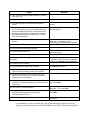
Steps
Actions
15. Click on the appropriate digital certificate if you have
more than one
Type in the correct password, click <OK>
16. The Certificate Retrieval page appears
Click <Finish> and the process is complete.
17. You have the option to keep the window open or
closed
Click <YES> if you want to close the
window
18. You must export your certificate and place it onto your
PC. This will allow your PC to be identified when you
submit your data through CDX. In simple terms, this
process is providing your computer with the ability to
sign digital forms you will be submitting to the EPA.
From your web browser
Click on the “Tools” menu and select
“Internet Options”
19. You then want to click on the “Content” tab and then
click the
20. Select on the certificate you wish to export
<Certificates> button near the center of the
dialog box. You should see your
certificate(s) in the dialog box that appears
Click the <Export> button
21. The Certificate Export Wizard appears
Read the page and click <Next>
22. Under Export Private Key
Select the “Yes, export the private key”
radio button option
click <Next>
23. Continue to the next step
25. Continue to the next step
Select the “Personal Information Exchange
– PKCS #12 (.PFX)” format, and check the
middle option (Enable strong protection)
Click <Next>
26. Type a password for your new certificate.
Click <Next> when done
27. Another screen appears asking you to specify the
name of the file you want to export “File to Export”
Click the <Browse> button
24. Do not select “Delete the private key if the export is
successful”
28. Specify a file name for your certificate. Note: the
export format should use the “Personal Information
Exchange (pfx)” automatically
29. Navigate to the directory where you want to save your
certificate file. Remember where you are saving the file
for later use
Type a “File Name” and click <Save> and
then click <Next>
30. Click “Finish” to close the wizard
You may see the following confirmation
dialog box. If so, click <OK>
Enter your password for the export process.
Click <OK>
31. The password must be entered to proceed to the
exporting. EPA suggests NOT checking the
“Remember password” box
32. Finish the export
Click <OK> to recognize the export was
successful!
Congratulations, you have finished the CDX registration and the Digital Certificate
export you may now login to the CDX and submit data to EPA’s Fuel Reporting System