1
CUmote User’s Manual
This manual describes the assembly of the CUmote hardware and its use in conjunction
with the CUmote software. It assumes a basic familiarity with CodeVisionAVR along
with basic soldering skills and access to the appropriate equipment. This manual and the
CUmote infrastructure is intended for use in an academic or laboratory environment. No
guarantees are made about the correctness or functionality of any of the technologies
described in this manual.
Introduction
1. CUmote: What it is
Figure 1: Fully Assembled CUmote
A CUmote is a small, low-power, highly-configurable wireless node operating in
any of the 16 channels between 2.40 and 2.48 GHz as defined by the IEEE
802.15.4 standard. A CUmote may run in several different modes and does not
need to be fully compatible with the 802.15.4 standard. CUmotes can be
configured to operate at several levels of complexity to best suit a variety of
student applications. Full compatibility with 802.15.4 or Zigbee is possible,
though not provided with the CUmote infrastructure.
The hardware comprising a CUmote is designed to be small yet flexible. It
consists of a radio board (utilizing Atmel’s AT86RF230 radio) and a
microcontroller, which is capable of controlling the radio. Requirements for
alternative microcontrollers will be mentioned later, but the CUmote
infrastructure supplies a standard microcontroller board which interfaces neatly
with the radio board and takes advantage of Atmel’s ATMega644
microcontroller. Additionally, either of the radio or microcontroller boards can
plug into a breadboard to allow easy system prototyping and experimentation.
The software which runs on a CUmote is designed for a single-application
system. The provided software offers lower-level software layers on which
applications may be built with ease. In its current version, the CUmote software
does not interface with any embedded operating systems, though the software
could be modified to suit such a purpose.
2. What system designers should know beforehand
While individual messages in a CUmote network are transmitted at 250kbps, such
a data-rate is only achievable in short bursts. In real systems, steady data-rates of
up to 20kbps have been achieved. This large disparity is due to network overhead
and the fact that the 2.4GHz spectrum in which these radios operate is extremely
noisy. At times, as few as 1/3 of all packets transmitted reach their destination. It
is critical to understand this before proceeding with a CUmote network, as it can
heavily influence network design. In one application, called CUmotive, a custom
networking protocol was designed specifically to meet system requirements in the
presence of noise and uncertainty.
The CUmote infrastructure is relatively inexpensive (roughly $21 per fully
assembled board), though students working on tight budgets may find it to be
rather pricey anyway. Many students will be limited to simple point-to-point
networks. In such a case, the complexities of 802.15.4 compatible networking are
not entirely necessary. Working with the simplest of code, the CUmote
infrastructure can, in theory, achieve transmission speeds of 250kbps. Where this
speed is not necessary, in simple remote-control applications for example, other
more budget-friendly solutions should be pursued.
Assembly of a full CUmote will take approximately 3-4 hours for a trained
student, and possibly as little as an hour for a well organized expert. The parts
used on the CUmote are very small surface-mount components and require some
special techniques to successfully hand-solder. The CUmote Hardware Assembly
Guide, included in this document, provides soldering tips that worked well for the
author, to make assembly as simple as possible. Those without much experience
soldering should practice before attempting to assemble a CUmote, or they will
likely be met with much frustration.
With that warning, this manual will attempt to provide everything that is
necessary for a fast and successful implementation of a CUmote system.
CUmote Hardware Assembly Guide
For a complete picture of the CUmote hardware, refer to the CUmote Hardware
Documentation. The hardware documentation will provide a fuller understanding
of the components and overall structure of the CUmote hardware.
Figure 2: Partially Assembled CUmote Prototype with Quarter
Figure 2 illustrates the size of the components to be soldered. The smaller board,
on the left, is the radio board, and on the right is the microcontroller board. The
black square on the microcontroller board is a QFN (quad flat no-lead) package
that is 5mm square and has 32 pins; each pin is smaller than a single ridge on a
quarter. This package is by far the most difficult to solder during assembly, but it
can be done successfully by hand and with minimal effort. This guide will strive
to make it easy.
1. Before You Begin
First, make sure you have a clean, well-lit environment to work in. You will need
to collect several tools, which are listed below.
•
Soldering Iron with 0.02 inch (or smaller) tip
•
•
•
•
•
•
•
•
•
•
Solder paste in syringe (Recommended Kester no-clean paste available at
Digikey, part number KE1507-ND)
Syringe Plunger (Digikey KE1505-ND)
Syringe Needle, sharp tip broken off for safety
Heat Gun (not required, but recommended)
Solder Wick
Wire cutters
Fine-tipped tweezers
Stereoscopic microscope
Digital Multimeter
Solder
This guide will assume that all of the above tools are available. Successful
assembly is possible without some of the above items, though all are immensely
helpful.
2. Assembling the Radio Board
Collect the following components, which are all available from Digikey.
Reference
Antenna
Balun
C1,C2
CB1-CB4
CX1
CX2
JP
R1*
R5
U2
X1
Table 1: CUmote Radio Components
Value
Digikey Number
2.4 GHz CHP
Series
ANT-2.45-CHPCT-ND
2450BL14C100T
712-1041-1-ND
22pF
PCC220ACVCT-ND
1uF
490-1544-1-ND
15pF
PCC150ACVCT-ND
15pF
PCC150ACVCT-ND
0 ohm
P0.0GCT-ND
10K
RHM10KGCT-ND
680 ohm
RHM680HCT-ND
AT86RF230
AT86RF230-ZU-ND
16MHz
644-1059-1-ND
Quantity
1
1
2
4
1
1
1
1
1
1
1
Note that R1 is only required if it is desired to enable the TEST mode of the radio,
which involves continuous transmission. Refer to the AT86RF230 datasheet for
more information about the radio’s TEST mode.
Next, print the following diagram for reference:
Figure 3: CUmote Radio Board Assembly Diagram
The diagram illustrates the top copper layer of the radio board. The text and
component outlines in gold do not appear on the board, but are offered here for
reference. In addition, the blue marks do not appear on the board, but are provided
here to reference the appropriate orientation of some of the components.
Step 1: Mount the Radio, U2
First, locate the footprint of the radio. This is the square labeled U2 along with
the 32 rectangular traces surrounding the square.
Next, properly orient the radio chip. The radio has a small depression near one
corner. Orient the radio so the depression is in the upper-left corner of the chip.
The pin that is on the left edge closest to the top edge is Pin 1. In Figure 3,
above, it is labeled “Pin 1” in blue text. Orienting the board exactly as the
diagram above illustrates, Pin 1 is the rectangular trace that is in line with the
top edge of the outline of C1.
Next, apply a very thin bead of solder paste from the syringe along the bottommost traces of the radio footprint. Apply the bead approximately 1/3 to 1/2 of
the distance along the trace away from the center square. Use the surface
tension of the solder paste to “pull” more paste out of the syringe to get the
finest possible bead. Too much solder paste will make the process of alignment
more difficult.
Then, place the chip on top of the footprint. Now, VERY carefully align the
pins of the radio to the traces on the board. The pins on the radio’s package are
very small and wrap around the bottom corner of the package. With bright
lighting, using one’s bare eye, it is possible to see the reflections of the pins in
the traces if they are in proper alignment. Spend time to make sure that all the
pins are in good alignment. This is the most critical step of the assembly
process! If you make a mistake here, it is likely that you will have to scrap what
you have and start from scratch.
Once in alignment, take the soldering iron and carefully apply heat to one of the
outermost rectangular traces which have solder paste on them. Be careful not to
disturb your aligned chip. The heat should, after a few seconds, melt the solder
paste which should wick up the pin of the radio. The tip of the soldering iron
should be very close to the radio for this to work properly. Repeat this process
for the other outermost pin. Then, test to make sure a decently strong
mechanical bond was formed by lightly tapping the radio. If it moves at all, realign the chip and re-apply heat until it remains firmly in place.
Once securely in place, apply solder paste to the other four sides of the radio
chip. In this case, you should actually apply a fine bead of solder paste to the
edge of the chip itself. Next, take a fine pick or the end of your tweezers, and
very carefully “paint” the solder-paste down over all of the pins and onto the
traces. The best joints are made when the solder paste is covering both the pin
and the trace it is to attach to. Remove any excess solder, as the excess will
form shorts between traces.
Next, apply heat to each of the traces until the solder paste melts. Continue until
heat has been applied to every pin. Be careful not to leave heat applied for too
long. It is best to work on one side of the chip at a time, and leave the board to
cool off. Overheating the radio can be destructive.
Once finished, inspect the joints under the microscope. It is likely that some
areas will require more solder paste to form proper joints. Also, other areas will
likely have un-melted solder paste. To clean up the part, make a few quick
passes with the heat gun to melt any of the extra solder and clean the part.
If there is extra solder and shorts between traces, use solder wick and the
soldering iron on the traces (not the pins of the part). To get a fine tip for the
solder wick to cover only one or two traces, cut the end of the solder wick at a
45 to 60 degree angle, and use only the very tip of the solder wick.
Step 2: Mount the RF capacitors, C1 and C2:
Next, apply a small bead of solder paste to the pads of capacitors C1 and C2.
Carefully mount the capacitors on their pads and make sure that the solder paste
touches both the pad and the pin of the component. Then, carefully apply heat to
one end of each capacitor in turn, until the solder paste melts. The part may
twitch slightly towards the soldering iron; this is the surface tension of the
solder paste pulling the capacitor. This is a good sign, indicating a good joint is
being formed. However, as soon as the part twitches, remove heat and let the
solder paste harden. If the component “tombstones”, or flips itself up on one
end, melt the solder while pushing lightly on the part with tweezers to set it
back down properly. Next, heat the other pad of the component until the solder
paste melts. Finally, check for electrical connectivity between the pin and the
pad with the multimeter.
Step 3: Mount JP or both JP and R1:
If the TEST mode capabilities are desired, mount both R1 and JP in their
marked locations using the same method as described in Step 2.
If the TEST mode capabilities are not desired, mount the JP part on the R1 pad.
Leave the JP pad un-mounted.
Step 4: Mount the Balun
The balun, like the radio, needs to be properly oriented before mounting. The
balun should have a vertical red stripe towards one end of the part. If the radio
board is oriented as in Figure 3, this red stripe should be at the left end of the
balun. Or, refer to the blue square on the balun’s footprint in figure 3. Line up
the red mark on the top of the chip with the blue mark on the diagram. Carefully
solder the balun with standard solder.
Step 5: Mount the Crystal, X1
The crystal oscillator’s footprint is composed of the four rectangular pads
between CX1 and CX2. Pin 1 of the footprint is the lower-right pad with the
board oriented as depicted in Figure 3. Carefully inspect the bottom of the
crystal (which is very sensitive to static electricity). There should be one pin
with a cut-off corner: this is pin 1. Put a small bead of solder paste on each of
the four pins and place the crystal on top of the footprint, matching pin 1 with
the lower right pad. Apply heat to each pad until the solder paste melts.
Step 6: Mount the Crystal Capacitors, CX1 and CX2
Mount in exactly the same fashion as described in step 2.
Step 7: Mount CB1, CB2, CB3, and CB4
Step 8: Mount R5
Be careful not to short R5 to the trace between its two pads.
Step 9: Mount the Antenna
The Antenna is marked with an arrow on the top. The antenna should be
oriented with the arrow pointing to the left, with the radio board oriented as
depicted above.
Step 10: Mount the 12-pin header
Mount with the pins extending from the bottom surface of the board.
With that, the assembly of the radio board is complete. Plug the board into your
own project or into the microcontroller board, and enjoy!
3. Assembling the Microcontroller Board
Collect the following components, which are available from Digikey.
Reference
C8
R2
R3
C3-C7
U1
Table 2: Microcontroller Board Bill of Materials
Value
Digikey Number
Quantity
2.2pF
490-1380-1-ND
100k
RHM100KGCT-ND
100 ohm
RHM100HCT-ND
0.1uF
399-1095-1-ND
ATMega644V
ATMEGA644V-10AU-ND
1
1
1
5
1
Note that Digikey offers a package of the microcontroller and radio together,
which should be purchased if both the microcontroller board and radio board are
to be built. This package is Digikey part number ATMEGA64RZAV-10AU-ND.
Next, print the following diagram for reference.
Figure 4: Microcontroller Board Assembly Diagram
This diagram illustrates the top layer of the board. The first part of the assembly
will focus on the top layer. Later steps will focus on assembly on the bottom layer
of the board. The outer row of pins are connected to match the 40-pin DIP
package of the ATMega644 microcontroller, with pin 1 labeled in blue text.
Step 1: Mount the Microcontroller, U1
First, apply a thin bead of solder paste along each row of pads that comprise the
microcontroller’s footprint. Be very careful not to apply too much solder paste,
especially around the pin-1 corner of the device. In that corner, there are many
traces under the microcontroller in close proximity. Any solder paste that gets
under the microcontroller could short these traces out; such a short will be very
difficult to repair, so try to avoid it in the first place. Next, place the
microcontroller down on top of the pads, with the depression in the surface of
the chip in the lower-left corner, if the board is oriented as depicted above. Be
sure to properly align each of the pins with the pads and that solder paste covers
part of both the pads and the pins. Next, apply heat with the soldering iron to
each pin in turn until all of the solder paste has melted. Be careful to melt as
much of the solder as possible with the iron. If extra solder makes shorts, use
solder wick to remove the excess. At this point, it is likely that some un-melted
solder paste is still present on the pins. Carefully use the heat gun on a low air
setting to melt the excess. Do not blow solder paste underneath the chip, as that
can cause short-circuits that are very difficult to repair.
Step 2: Mount the capacitors C6 and C7
After Step 2, the first stage of assembly is complete. Next, print the following
diagram for reference for the bottom layer of the board.
Figure 5: Microcontroller Board Assembly: Bottom Layer
The outline of the microcontroller is repeated on the bottom layer of the board for
clarity.
The pads of the resistors and capacitors on the bottom layer are difficult to discern
from the rest of the board. The pads, however, are directly beneath the text, as it
appears above. All the pads are oriented in the same direction as the text with the
exception of C8.
Step 3: Mount Capacitors C3 and C4
Step 4: Mount Resistor R3
Step 5: Mount Capacitor C8
Step 6: Mount Capacitor C5
Note that one pad of the footprint of C5 is embedded in the thick trace that runs
through the ‘5’ in Figure 5.
Step 7: Mount Resistor R2
Next, solder in a 6-pin programming header at J. Finally, solder pins along the
edges of the board so the board can be plugged into a breadboard or proto-board.
This completes the assembly of the microcontroller board.
4. Connecting the Boards
Step 1: Program the Microcontroller Board
Before connecting the radio and microcontroller boards, it is recommended that
a simple test program be loaded onto the microcontroller. This is to aid in
debugging. If there is a soldering problem on the microcontroller board, it will
be easier to locate and fix before the radio is mounted overtop than afterwards.
Refer to “Programming the CUmote,” later in this document.
Step 2: Attach Radio Structural Support Pins
Two holes are provided at the corners on the left edge of the radio board. Insert
single pins into each and solder into place. The pins should protrude from the
bottom surface of the board and soldering should be done on the top surface of
the board. This step is optional, however. Mounting these structural support pins
will make it difficult to access Port B6 and Port A6 on the microcontroller. If
those pins are required, the structural supports may be left out.
Step 3: Connect Radio board and Microcontroller Board
Carefully place the radio board on top of the microcontroller board. The 12-pin
header on each board should line up. Solder all pins in place.
5. Assorted Soldering Tips
Soldering IC’s Rapidly
An alternative technique for soldering integrated circuits with ease is described
here. This requires another ingredient: solder flux. This is readily available at
Digikey. If you don’t have solder flux, this technique may work if you have
previously applied solder paste but failed to successfully pin the component
down. Solder paste contains a good deal of solder flux that will be left over when
all the solder has been melted away.
First, align the part and make sure that the part is secured. Use standard soldering
techniques to solder one or two corner pins of the IC in place. Next, melt a
generous quantity of solder onto the tip of the soldering iron to make a solder
blob. This blob should be large, but not so large that it will cover too much of the
part to be soldered.
Next, make sure that solder flux has been applied liberally over the pads and the
pins to be soldered. The flux will make the solder wick to the copper pins more
readily. Now, run the tip of the soldering iron along the row of pins to be
soldered, touching the solder blob to each pin in turn. If all went well, a nice
solder joint should have been formed on every pin. If solder bridges form between
traces, just use a little bit of solder wick to repair. This technique, when mastered,
can be a huge time-saver.
CUmote Hardware: Design Documentation
What follows is a description of the design of the CUmote hardware. Consult the
Recommended Reading section for further information. The documentation begins with a
description of design constraints imposed by the CUmote’s intended use. Afterwards, the
circuit schematic and printed circuit board designs are introduced and explained.
1. Top-Level Design Requirements
The CUmote platform is designed with the intent to be used in the future in Cornell’s
ECE 476 class projects. These projects have a $50 budget, and typical modern
wireless links would be prohibitively expensive. A low-cost alternative is needed.
To provide a minimally expensive solution, the radio selected should require a
minimum of external components, and also be cheap itself. The radio should be
compatible with the 8-bit AVR microcontrollers used in ECE 476 and the software
necessary to operate the radio should be simple and the code size should be small.
The cost can also be minimized by selecting inexpensive PCB manufacturing and
then minimizing the area required by each board. Therefore, fewer and smaller
components offer a secondary benefit, by minimizing the cost of the printed circuit
board.
The CUmote platform should also be versatile and easy to interface with.
2. Circuit Schematic Design
Atmel’s AT86RF230 radio was chosen as it offered one of the lowest external
component counts available along with a very low cost. Also, it comes packaged with
an 8-bit AVR microcontroller that is nearly identical to the microcontrollers used in
ECE 476. The radio-MCU package is available at Digikey for $11.80. Though this is
significant for a project with a $50 budget, it is a very reasonable price compared with
various alternatives.
As the circuit design should be configurable for various applications, the initial circuit
design required two crystal oscillators, one to run the radio and one to run the
microcontroller. This allowed for the user to customize the operating frequency of the
microcontroller to optimize power consumption and processing speed for their
application.
However, crystal oscillators are generally expensive and large. A couple different
options were considered for consolidating the design, including using a TTL clock
driver to simultaneously drive both the radio and the microcontroller. The final
solution, which offers a low component count and still allows for the microcontroller
to run at different clock speeds, relies upon the CLKM signal of the radio. A 16MHz
crystal oscillator drives the radio and the CLKM signal from the radio drives the
microcontroller. At reset, the CLKM signal goes to its default frequency, which is 1
MHz. Writing to a register in the radio can set the CLKM frequency to 2, 4, 8, or 16
MHz. Crystals are recommended in the AT86RF230 datasheet for their tight
tolerances and good frequency stability.
Figure 6: Current Schematic Diagram, below, shows the current schematic. The
components around the AT86RF230 radio are defined by Atmel’s AT86RF230
datasheet. CX1 and CX2 are tailored to the crystal used, in order to get the best
frequency accuracy and radio performance. The load capacitance of the crystal should
be equal to ½(Cx + Ctrim + Cpar) where Cx represents one of the CX capacitors,
Cpar is the parasitic capacitance of the components and surrounding wires, and Ctrim
is the value of trimming capacitors internal to the radio.
Figure 6: Current Schematic Diagram
The circuit is designed to offer a just what is needed for a full 802.15.4 wireless link,
and nothing more. This minimizes the cost of the wireless link. Pins on the physical
board will be provided to connect to each of the pins on the microcontroller (which
comes in a surface mount package) so students may add peripherals to the
microcontroller as they wish.
The communications link between the microcontroller and the radio consist of 7
wires, plus one optional wire for testing purposes. One line also exists for the CLKM
signal, which drives the clock of the microcontroller. To minimize the impact of the
connections to the AT86RF230 on the available functions and I/O ports, the
connections were confined to Port B. Port B contains the SPI communication port
pins, which are required to communicate with the AT86RF230. The IRQ line, or
Interrupt Request line, is connected to PortB2, which doubles as an I/O pin and an
external interrupt pin, to allow events on the radio to trigger physical interrupts on the
microcontroller. The SPI interface pins were clearly defined by the radio and the
microcontroller. All the other pins were mapped arbitrarily to pins in PortB. The TST
line on the radio is an optional line that was included in this design to allow for a
straightforward testing mode. Connecting the jumper and pulling PortB0 high will put
the radio in testing mode, in which it continually transmits. This feature may be
useful for debugging.
The microcontroller is reprogrammable via an SPI connection to a programmer board.
The physical connection is provided with a 6-pin ISP programming header. This SPI
connection is, however, shared with the radio, and the radio must not interfere with
reprogramming. During reprogramming, the microcontroller is held in its reset state.
When the radio is in its reset state, its SPI pins are deactivated. Connecting the reset
pins of the microcontroller and radio prevents the radio SPI connections to be
activated during microcontroller reprogramming, and thus prevents interference
between the two.
Additionally, the radio and microcontroller are designed to operate between 1.8 and
3.6V, and the programming boards available typically operate around 5V. Because of
this, it is critical to configure the programming board to operate at the voltage that is
applied to the CUmote circuit. This is explained in further detail in the Programming
the CUmote Section.
3. Component Selection
Table 1 is a bill of materials for the circuit. Components were selected to minimize
price and printed circuit board footprint while still being reasonable to assemble by
hand. The surface mount resistors and capacitors are all size 0603, as this is the
largest size recommended by the AT86RF230 datasheet regarding the 2.4 GHz line to
the antenna. Size 0805 components could be used, though the space savings of the
0603 components over the 0805 components is attractive. Additionally, use of a
stereoscopic microscope, which is required for soldering the radio, renders 0603
components easy to solder by hand. The printed circuit board is designed to be
approximately the size of the DIP package of the microcontroller, so printed circuit
board space is very valuable. All of the components listed in Table 2 are available
from Digikey.
The crystal and capacitors required very careful selection, as they are critical to the
radio’s performance. The requirements for the 16MHz crystal were extracted from
Atmel’s AT86RF230 datasheet. These requirements are listed below.
Table 3: 16MHz Crystal Requirements
Characteristic
Frequency and Stability
Load Capacitance
Static Capacitance
Series Resistance
Requirement
16 MHz +/- 60 ppm
8pF <= CL <= 14pF
Co <= 7pF
ESR <= 100 Ω
Additionally, due to the size constraints of the radio board, the selected crystal should
be as small as possible. An NDK surface mount crystal oscillator, measuring just
2mm x 2.5mm, was selected. This crystal offers 10pF load capacitance, and ESR of
80 Ω, and a stability of +/- 10 ppm.
The AT86RF230 Datasheet specifies a formula to determine the value of the crystals
CX1 and CX2 from the value of the load capacitance of the crystal. The load
capacitance of the crystal, CL, should be equal to the sum of the parasitic capacitance
(Cpar estimated at 3pF), the trim Capacitance (Ctrim), and the physical capacitors (Cx).
So, CL = 1/2 * (Cx + Ctrim + Cpar). In this case, Cx is determined to be 15pF.
The microcontroller used in this design is the ATMega644V, which offers a very
simple interface with the AT86RF230 radio. Any alternative microcontroller must
include an SPI interface and at least four digital I/O ports to properly interface with
the AT86RF230 radio.
The following is a Bill of Materials and price list for the radio and microcontroller
boards combined. An appendix will include full BOMs with Digikey part numbers
and separate lists for the radio and microcontroller boards.
Reference
Antenna
Balun
C1,C2
C3-C7
C8
CB1-CB4
CX1, CX2
JP
R1
R2
R3
R5
U1+U2
X1
Table 4: Complete Bill of Materials
Value
Quantity
2.4 GHz CHP Series
2450BL14C100T
22pF
0.1uF
2.2pF
1uF
15pF
0 ohm
10K
100k
100 ohm
680 ohm
ATMega644V +
AT86RF230
16MHz
1
1
2
5
1
4
2
1
1
1
1
1
Price per
$1.51
$0.28
$0.033
$0.023
$0.069
$0.131
$0.033
$0.08
$0.069
$0.069
$0.076
$0.076
1
1
$11.48
$1.5
Total
$15.98
Estimating the cost of a single set of boards at $5, the total cost of a full CUmote is
approximately $21. To ease the cost somewhat, Atmel can be rather generous and
may provide samples of their microcontroller and radio.
4. Layout Considerations
With the circuit finalized and the electronic components all selected, a printed circuit
board design can be created. This design seeks to minimize the printed circuit board
area in order to minimize the cost of the system. The targeted size is approximately
the size of a 40-pin DIP package, which is one possible package for the
microcontroller. The board would also have the same pinout as the 40-pin DIP
package microcontroller to allow for very simple integration into other designs. This
section describes the design process behind creating the final printed circuit boards.
Atmel provides an application note in regards to layout considerations for the
AT86RF230. The bulk of the application note describes the care that must be taken
when designing the ground planes for the board. Separate ground planes are
recommended for the RF, Analog, and Digital sections of the board to minimize
crosstalk and noise and to maximize radio performance. Also, the ground pad of the
AT86RF230 radio should be used as a star ground point.
The application note also emphasizes the importance of careful layout around the RF
output pins. The balanced 100-ohm path should be designed symmetrically, and the
unbalanced path should be a 50-ohm transmission line. As the printed circuit boards
being used are very inexpensive and are only two-sided, a microstrip transmission
line topology will be used. Careful trace width calculations are needed in order to get
the proper impedance of the microstrip.
A Linx application note for their Linx CHP-series antennas also discusses the
importance of proper ground-plane design. The RF ground-plane serves as a
counterpoise for the antenna, and affects the radiation pattern of the antenna. Extra
care must be taken to ensure that the ground plane is a sufficient size to work properly
with the antenna.
Initial printed circuit board layout demonstrated just how difficult it would be to meet
the board’s target size, that of approximately the size of a 40-pin DIP package. Due to
the surface area required by the traces to connect the pins of the microcontroller to the
rows of pins on the edge of the board. One initial design is illustrated below.
Figure 7: Initial Printed Circuit Board Design
The design above is far more than twice as wide as a single DIP package. One
possibility to shrink the overall footprint and would be to create two separate
circuits, one for the microcontroller, and one for the radio, which would be
designed to stack, one on top of the other. This would reduce routing conflicts
between the radio and the microcontroller with the added benefit of offering an
even more flexible design. Students could buy the radio board stand-alone, to
integrate into an existing design, or they could by the microcontroller-radio
combination and create a very small wireless node.
This stacked design was pursued. An early draft of the layout of this stacked
design appears below.
Figure 8: Stacked Layout
On the left is the radio board, and on the right is the microcontroller board. Though
designed to be used with the microcontroller board, the radio board can be used
independently to be integrated into existing designs. The remainder of this section
discusses important aspects of the printed circuit board design.
Microcontroller Board Ground Plane
The microcontroller board ground plane required careful design to ensure a relatively
obstruction-free ground path for all the component pins that needed to be connected
to ground. In the microcontroller board design in Figure 8, there are many copper
islands on the ground plane, which is not desirable. However, after a good deal of
experimentation, the copper islands were minimized, and islands that required ground
connections were bridged to the rest of the ground plane.
12-pin Header
A 12-pin header was designed to provide the necessary electrical connections
between the radio board and the microcontroller board. The pin centers are spaced
0.1” apart, a standard spacing, which will allow for many different headers to be
purchased, for different applications and configurations.
The pinout of the header is illustrated below, in Figure 9.
Figure 9: Radio/Microcontroller Board Connector Pinout (Top View)
Table 5: Radio/Microcontroller Board Connector Pinout
Pin Number
1
Pin Name
TST
2
3
4
VCC
/RST
SLP_TR
5
MISO
6
SCK
7
CLKM
8
MOSI
9
/SEL
Description
Enable Test mode on radio. Connects to
TST pin on radio. Pull high to enable.
Supply Voltage (1.8 – 3.6 V)
Reset. Active low.
Connects to SLP_TR pin on radio.
Behavior depends on radio state. Active
high.
Master In Slave Out, for SPI. Named
with respect to microcontroller.
Serial Clock. Connects SCLK of radio
to SCK of MCU for SPI.
Master Clock from radio to run
microcontroller. Adjustable 1,2,4,8,16
MHz.
Master Out Slave In, for SPI. Named
with respect to microcontroller.
Select line, for SPI. Active low.
10
IRQ
11
12
GND
NC
Interrupt Request Line. Connects to IRQ
pin of radio. Switches high to signal the
microcontroller.
System Ground
Not Connected
The pins on the radio board will extend from the bottom surface of the radio board
and connect through the top surface of the microcontroller board. In other words,
from the top view, the header pins are exactly the same on the radio board and the
microcontroller board. Full pinouts for both the radio and microcontroller boards will
appear in an appendix.
Board Size and Geometry
In regards to sizing, the microcontroller board is the same length as the 40-pin DIP
version of the ATMega644 microcontroller, or 2 inches long. The two rows of pins
are separated by 0.7”, which is 0.1” wider than the 40-pin DIP. The 0.7” spacing
allows the microcontroller board to be inserted into a breadboard, but does not allow
it to be integrated directly into designs previously using the DIP version of the
ATMega644 microcontroller. The pins of the microcontroller board however, with
the top-left pin as pin 1, are pin-for-pin compatible with the DIP version of the
ATMega644, to make the board as student-friendly as possible. For a full pin listing,
refer to Atmel’s ATMega644 datasheet, or to an appendix. In addition, the only
external circuitry necessary are connections for VCC, GND, AVCC, and the clock.
The clock may be either a crystal or an external clock source. In the former case, C8
must be replaced with a jumper, as the clock of the circuit is designed to be taken
from the CLKM (Master Clock) output of the radio board.
The radio board is designed to mount directly over top of the microcontroller board,
with some air gap clearance between the bottom of the radio board and components
on top of the microcontroller board. The through-holes in the four corners of the radio
board have no electrical connectivity and are included for structural stability when
mounted on top of the microcontroller board.
1. RF Design Issues
The printed circuit board illustrated in Figure 8, as noted before with the 12-pin
header, is not quite a finalized design, as it does not illustrate the 2.4 GHz RF
connections. These connections are critical to the performance of the radio link.
Transmission Line Design
First, consider the RF connections between the radio and the antenna. The RF output
port of the radio is actually a balanced two-pin output. The antenna, however, is
single-ended, and a balun is required in order to interface the two. The traces
connecting the radio pins to the balun should have 100 ohm impedance, and the trace
connecting the unbalanced end of the balun to the antenna should have 50 ohm
impedance. As such, the lines on the printed circuit board should be designed as
transmission lines; in this case, the microstrip transmission line topology is selected
as it is the simplest to manufacture. The microstrip topology is simply a rectangular
printed circuit board trace routed directly above a ground plane with the printed
circuit board material in between.
The impedance of a microstrip transmission line depends upon the thickness of the
printed circuit board material, the dielectric constant of the material, the thickness of
the printed circuit board trace, and the width of the trace. All of these parameters,
except for the trace width, are set by the manufacturing process. The parameters for
the Express PCB Miniboard service, which was used to manufacture the CUmote
prototypes, are summarized in the table below, and can be found on the Express PCB
website.
Table 6: Critical Printed Circuit Board Parameters
Parameter
Board Thickness
Dielectric Constant of
Board Material (FR-4)
Trace Thickness
Value
0.062 inches
4.2εo to 5.0εo
1.25 oz copper
Initial estimates of the appropriate trace widths were calculated using an online
microstrip-topology impedance calculator. This calculator can be located at
www.emclab.umr.edu/microstrip.html. Trace widths required to create both 50 Ω and
100 Ω lines were calculated each for the upper and lower bound of the dielectric
constant. The results of these calculations are summarized in the following table.
Table 7: Microstrip Trace Width Calculations for Upper and Lower Bounds
Dielectric Constant
4.2
5.0
Impedance
100 Ω
50 Ω
100 Ω
50 Ω
Required Trace Width
28 mils
117 mils
23 mils
106 mils
So, for a 100 Ω line, the trace should be approximately 25 mils wide, and for a 50 Ω
line, the trace should be approximately 111 mils wide.
As a complicating factor, the RF output pins of the radio are far smaller than 25 mils,
and the pins on the balun are far smaller than 111 mils. Somehow, the trace widths
must be graded up so the lines are of the appropriate width. Without a solid
understanding of RF printed circuit board design, such design issues may be left to a
“best guess” approach, at least for the first revision. Later revisions of the CUmote
will require proper testing and RF design techniques.
In addition, Atmel’s design note, AVR2005: Design Considerations for the
AT86RF230, recommends making the traces connecting the balanced output of the
microcontroller to the balun completely symmetric to ensure both sides have exactly
the same impedance. Care is being taken to ensure that this condition is met.
To minimize the effects of these complications in the design, the length of
transmission lines are kept as short as possible. If the lines are kept short enough, the
impedance transformation would be minimal, and there would be no need to create
traces that are λ/2 long to get a reasonable impedance match. So, the radio board
design attempts to minimize RF trace length to create a design that is as compact as
possible. Without any simulations or computational models, however, the
performance of this design relative to other designs is unknown. This design has in no
way been tested rigorously and would likely not meet FCC regulations due to
spurious emissions.
A close-up of the RF microstrip design appears below.
Figure 10: Close-Up of RF Transmission Line Design
Ground Plane Design
Another important design issue is the design of the ground planes on the radio board.
The design last semester used one contiguous ground plane which covered the entire
bottom surface of the board. However, Atmel’s application note, AVR2005: Design
Considerations for the AT86RF230, explains why such a design would be a bad idea.
The antenna, 16MHz crystal, and digital signals would all inject noise into the ground
plane which could degrade radio performance. Instead, it suggests creating separate
ground planes for the RF section, the clock section, and the digital section, and to
connect them all using the bottom paddle of the AT86RF230 Radio as the star-point
ground. An example ground plane design from the application note is reproduced
below.
Figure 11: Reference Ground Plane Design from Atmel Application Note
The design that appears below is an attempt to replicate this sort of ground plane
structure.
Figure 12: Modified Radio Board Ground Plane Design
One major concern about this design, however, is the size of the RF ground plane
area. The RF ground plane acts as part of the antenna, and the size and shape of the
ground plane will affect the performance of the antenna. All attempts will be made to
maximize the size of the RF ground plane, though the targeted board size may simply
be too small. The first revision of the CUmotes included both ground plane designs,
the fully contiguous plane and the separated planes. Further tests are required to
identify which board operates best.
CUmote Software Design Documentation
The CUmote software is designed to be simple to use and compact. It is designed to be
very flexible to enable easy reconfiguration for a wide variety of hardware
configurations. Both goals are achieved through a simple layered structure. Also,
applications may be written on top of different layers, allowing the system designer to
make tradeoffs between on the complexity of the protocol and the code size. An optional
debugging layer is also introduced to allow users to easily insert and remove debugging
code.
The CUmote software is designed for stand-alone applications. It is not designed for any
embedded operating systems, although the software could be modified to suit that
purpose. At the time of writing, the code was still under heavy development, and as
changes are made to the code, this documentation may change with it.
Full documentation on the software will appear in an appendix. System developers
should familiarize themselves with the basic structure of the code in this section, and
proceed by reading through the code documentation. Another appendix will include a
couple example applications, illustrating the proper use of the CUmote software for
various purposes.
Layered Design
The design of the CUmote software defines several layers, each at a higher level of
abstraction from the previous. Each higher layer interfaces directly only with the layer
immediately below it. The initial design defines the PHY (Physical Layer), the HAL
(Hardware Abstraction Layer), the COM (Communication Layer), the MAC (Medium
Access Control Layer), and the APP (Application Layer). All layers, except for the APP
layer and the COM layer, are defined by the 802.15.4 standard. An abstraction of these
layers and their relationships is illustrated in Figure 13, below.
Figure 13: CUmote Layers and Their Relationships
The COM appears between the PHY and the HAL, as it is designed as a communications
interface between the layers and abstracts out details about the microcontroller. Each
layer will now be discussed in detail.
1. PHY (Physical Layer)
The PHY layer constitutes the services provided by the AT86RF230 radio itself. It
represents all aspects of the system from signal encoding to transmission and reception
over the wireless medium. The services provided by the PHY layer are defined by the
802.15.4 standard, and the AT86RF230 radio was designed specifically to meet the
802.15.4-2003 standard.
2. HAL (Hardware Abstraction Layer)
The MAC is the next layer that is defined by the 802.15.4 standard. However, the HAL is
included as a buffer between the two layers so details of the hardware and the specific
radio implementation do not appear in the MAC. The HAL provides a standard interface
to the MAC and abstracts out the specifics of the operations of the radio to several simple
commands.
A typical HAL would include details about the specific physical implementation of the
radio link. In this design, the specific physical implementation includes both the
microcontroller and the radio. In order to improve the modularity of the design, the HAL
is written specifically to abstract out the details of the AT86RF230 radio. The HAL
accepts messages (defined by the 802.15.4 standard) from the MAC, acts on those
messages, and sends data and status information back to the MAC layer.
The functionality that is implemented by the HAL is heavily based on Atmel’s
AT86RF230 Programming Guide, which gives step-by-step instructions about the
programming sequences necessary to perform every basic radio operation. One such
procedure that requires special attention is the frame upload procedure. This operation
requires some careful timing in order to be as fast as possible. To streamline reception,
the microcontroller should start to download the frame data from the radio while the
frame is still being downloaded from the wireless link. However, as the link between the
radio and the microcontroller runs faster than the wireless link, the microcontroller must
wait and start downloading the information at just the right time so the two processes
finish at the same time.
Applications may be built successfully on top of the HAL, though they will not be
802.15.4 compatible. For simple wireless communication, the HAL would be sufficient.
For more sophisticated networks and technologies, such as the use of guaranteed time
slots in star-networks or the use of peer-to-peer networks, the use of the 802.15.4 MAC is
required.
3. COM (Communication Layer)
The COM layer is included as a subset of the HAL to abstract out details that are specific
to the microcontroller used to implement the software stack. These details just pertain to
the physical communications interface between the radio and the microcontroller, which
is why it is named COM. Isolating all the details specific to the physical microcontroller
implementation into this one file allows changes relating to the microcontroller to require
minimal changes to the code. In this case, any change in the pins used on the
microcontroller, or even any change to a completely different microcontroller, should
only require changing the COM layer. The rest of the HAL should remain untouched.
This will allow students to integrate this software into their own designs with relative
ease.
4. MAC (Medium Access Control Layer)
The MAC layer is very well defined by the 802.15.4 standard. The 802.15.4 MAC is not
provided as part of the CUmote infrastructure, but various open-source libraries are
available online. These often come with an alternative HAL, though the CUmote HAL
could be modified to interface with an 802.15.4 MAC.
5. APP (Application Layer)
The application layer simply represents the application code. In a general case, the
student’s application will interface with the radio through the MAC layer. Due to the
layered approach, however, students may write their application code to interface directly
with lower levels. If 802.15.4 compatibility is not desired, code size and overhead can be
minimized by directly controlling the HAL. The layered approach makes this possible
and easy to do.
The CUmote software layers are designed to pass messages up to the application layer,
which must respond to the messages appropriately. For example, when an incoming
message is detected, the radio will signal the COM layer through an external interrupt
line. The interrupt handler will set a flag that indicates that the radio has triggered an
interrupt. The application layer must periodically check this flag and call the appropriate
routines to determine what caused the interrupt (in this case an incoming message) and
respond appropriately (begin receiving the message).
If CUmote interrupts cannot be enabled, alternative polling routines must be called
periodically. This, however, will likely result in longer communications latencies and
limit the maximum achievable bandwidth in the communications link.
6. DEBUG (Debugging Layer)
The debugging layer is defined in parallel with all the other layers. It is simply a list of
pre-defined error messages, and values associated with the messages. It also includes an
8-bit global variable to keep track of the current error message status. If this layer is
included (by including a #define _DEBUG_ENABLE statement), then debugging code
which sets the error message variable in various cases is included in compilation. If the
define statement is not included, no debugging code will appear in the final compiled
version. This is accomplished through the use of preprocessor directives, especially
#ifdef blocks. Students may, if they wish, dedicate an I/O port of the microcontroller to
the error message value. Monitoring the value of the I/O pins should let the student know
exactly which error message was triggered. Each error message that is pre-defined in the
CUmote code will be specific to a certain block of code. Thus, if any error message
appears, its cause will be very easy to trace.
7. Radio Interface Details
Atmel’s AT86RF230 datasheet describes the interface between the radio and the
microcontroller. The core of this communication is the SPI communications interface,
which is supplemented by four extra digital control lines. The SPI interface allows the
microcontroller to send specific control messages and enables the transfer of data
between radio and microcontroller.
In the CUmote design, the microcontroller is configured as the SPI Master. The
AT86RF230 Radio implements the SPI interface with the leading edge being the rising
clock edge and samples on the rising clock edge. This is configured by setting bits CPOL
and CPHA (bits 3 and 2, respectively) of the SPCR register to 0. If the user application
requires a peripheral with SPI communication, the SPI lines may be shared. However, the
radio and the additional peripherals may require different clock phase and polarity
settings; before using the radio, the clock phase and polarity settings should be reset, as
explained above.
Additionally, before communicating with the radio, it is required that the /SEL line
attached to the radio is driven low. This line cannot be shared with other peripherals, as it
is intended to open up an exclusive communication channel between the radio and the
microcontroller.
The radio may occasionally need to alert the microcontroller to certain events (reception
beginning, transmission complete, battery low, etc). When a special event has been
detected, the radio will pull the IRQ line high. When this line goes high, the user code
must call the appropriate functions to read the IRQ_STATUS register within the radio.
This register will return a bit mask representing every event that has triggered the
interrupt.
The SLP_TR line is an extra control line which the microcontroller must control. This
line is controlled within the CUmote code, and its behavior should be completely
transparent to the user. For details about its operation, refer to the code documentation or
to the AT86RF230 Programmer’s Guide.
8. Test Mode
The AT86RF230 comes with a /TST pin, which is used to enable the radio’s test mode.
While the option for this feature has been included in the CUmote hardware, the test
mode has not itself been tested. It is recommended, instead, to use one of the CUmote
example applications to test the radio link.
CUmote Packet Sniffer Design (CUPS)
Introduction and Disclaimer
The CUmote Packet Sniffer is designed to be a debugging utility for CUmote devices.
Further development of the CUmote software will enable 802.15.4 network debugging
with the packet sniffer. The use of the CUmote Packet Sniffer must be limited to
debugging CUmote networks, and should not be used maliciously against commercial
802.15.4 networks. Malicious snooping with this packet sniffer is also infeasible, as any
scheme employing encryption or channel-hopping will remain secure. Regardless, this
information is provided for educational purposes only.
Hardware Design and Fabrication
The CUmote Packet Sniffer (CUPS) is comprised of two elements: a standard CUmote
and a simple USB module. The USB module used is a USB232R module from Elexol
(www.elexol.com). The module is slightly modified, with two jumpers moved on the
bottom layer of the board to configure it to operate at 3.3V rather than 5V. The USB232R
module interfaces with the microcontroller’s USART and with a computer through freely
available virtual COM drivers. Before using the module, the appropriate drivers should
be installed. The drivers and installation guides can also be found on Elexol’s website.
The USB functionality is completely transparent, making its use incredibly simple. The
module also incorporates functionality to draw power directly from the USB bus, and to
supply 3.3V to an external device, which in this case is a CUmote. The 3.3V supply can
source a maximum of 50mA, which is sufficient for a CUmote.
Before connecting the USB232R module to the CUmote, the voltage level of the USART
connections must be properly configured. The factory default voltage level is 5V, which
would overdrive the CUmote. To change this to a 3.3V level, the jumper LK3 must be
removed and LK4 must be mounted. These jumpers can be located on the back of the
device, under a sticker. Removing the sticker voids the warranty on the USB232R
module, but is necessary for this modification.
Once this is complete, two wires are required to fully interface the CUmote and the
USB232R module. Connect the RXD0 pin (pin 14) of the microcontroller to the TXD pin
(pin 13) of the USB232R module. Then, connect the TXD0 pin (pin 15) of the
microcontroller to the RXD pin (pin 17) of the USB232R module.
Then, simply plug the USB232R module into a USB port on the computer with the
appropriate drivers installed. To test the connection, load a simple program onto the
microcontroller to test the USART0 connection. Make note of the baud rate, parity, and
data frame settings. Then, open up a Hyperterm connection on the appropriate COM line
that represents the virtual COM driver for the USB232R module. Assign the same baud
rate, parity, and data frame settings. Also, turn flow control off. An active link should
then be available between Hyperterm and the microcontroller, through the UBS232R
module.
Software Introduction
The CUPS is written in Visual C++ and relies on the Microsoft Foundation Classes
(MFC). The application offers a GUI front-end to make debugging CUmote hardware
simple. The sniffer serves as a reference device to detect any messages on the network,
which may be generated by a working CUmote. All information received is displayed in
a raw format, and no data interpretation is attempted. 802.15.4 communications can be
detected, but the CUPS GUI will not separate out the various headers from the data.
Rather, every raw byte received will be displayed as a decimal number.
With the CUPS, one can monitor the energy on the 16 channels defined in the 802.15.4
protocol and record any message broadcast on a particular channel. Logs of the messages
may be saved and loaded for future reference. Some simple statistics are collected and
recorded as well, including the number of bytes received in a certain interval, the duration
of the recording, and the average overall baud rate. Multiple capture sessions may be
logged in a given document, and each is separated by a header and footer block, for quick
visual identification of the beginning and end of a capture session.
Assorted Software Design Notes
The application has two main threads: one for the user interface and another to monitor
the USB driver for input from the CUmote. This enables the capture process to run
without making the user interface unresponsive. The application fits the standard
Windows document/view architecture, where the data and the on-screen representation of
the data are decoupled. This allows for relatively easy visual manipulation of data. As for
the data, two lists are maintained to handle all the packets detected. Every packet
received has its own space allocated, but is referenced in both of these separate lists. The
first list maintains a list of every packet logged in the current document. The other
maintains a list of every packet logged in the current capture session. This is done to
make it easy to calculate network statistics on a per-capture-session basis.
A wrapper class was written for the Elexol driver for the USB interface. This class
handles actions such as loading the dll, loading all of the required functions, unloading
the dll, and accessing each of the individual functions of the dll. The class is instantiated
in the thread which handles I/O from the CUmote.
Although the majority of messages are sent from the CUmote to the thread, some twoway communication exists between the thread and the CUmote. This allows the user to
command the CUmote to switch to different channels, to turn its radio on, or to turn its
radio off. To robustly decode messages between the thread and the CUmote, every
message to be transmitted has a 4-byte header. The first 3 bytes are a preamble to the
message, and the last byte is a control byte. After messages are received, an
acknowledgement message is sent back, to complete the control transaction.
The real-time RSSI measurements, which are displayed in the configuration dialog, are
stored in a time-sensitive buffer in order to smooth out the animation so the user can see
the progress bar updates. Whenever a new sample is taken, it is compared with the
current maximum. If the current sample is greater than the maximum, the progress bar is
updated to reflect the new maximum, and a timer is reset. If the timer times out, the
maximum is lost and reset to 0. In this way, the user can watch for maximums in the
energy spectrum, which are maintained for a reasonable time period so as to be seen.
Use of the CUPS GUI
While the previous section described some of the details of the under-the-hood structure
of the CUPS GUI, this section will describe how to actually use the program.
1. Introduction
Debugging CUmote systems can be a tricky affair. To make this process easier,
one can use the CUmote Packet Sniffer (CUPS). The CUPS is configured to listen
for any 802.15.4 PHY compatible traffic on a specified channel and display it onscreen. This allows for easy debugging as the contents of network traffic are
easily viewable.
2. What is “Sniffable”
The CUPS GUI utilizes a CUmote, which contains an Atmel AT86RF230
transceiver. This transceiver is designed for use with 802.15.4 networks.
Specifically, the CUPS is configured to operate on the 15 channels (11 through
26) between 2.40 and 2.48 GHz as specified by the IEEE 802.15.4 standard. The
transceiver is sensitive to O-QPSK signals corresponding to the IEEE 802.15.4
standard. The received signals need not be fully 802.15.4 compliant, however.
Simply the physical link layer characteristics must be 802.15.4 compliant.
Note that the CUPS GUI is only available for Windows, and has only been tested
in Windows XP.
3. Installing the CUPS
Note: the device driver must be installed BEFORE plugging CUPS in.
The CUPS requires a D2XX Direct Driver from Future Technology Devices
International (FTDI). Select the appropriate version to install from
http://www.ftdichip.com/Drivers/D2XX.htm. Follow the appropriate installation
guide from: http://www.ftdichip.com/Documents/InstallGuides.htm
4. Setting up a connection
First, connect the CUPS to your computer via the USB cable. Next, run
PacketSniffer.exe, which is provided with this documentation. If this program is
run without the CUPS connected, a warning message will appear, and the
program will close itself before starting completely.
When the CUPS is connected and the program opens, you will be greeted with the
following screen:
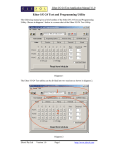
To configure the Packet Sniffer, click on the icon in the toolbar furthest to the
right, go to Edit Config, or press CTRL+g. This will open the following dialog
box:
First, select the device to interface with. If there is only one CUPS connected,
there will be only one option. After selecting a device, the CUPS will start
gathering RSSI data from every channel in real-time. The 16 vertical progress
bars indicate the values of the real-time measurements of the RSSI measurements.
This gives the user an idea of how much energy is on a given channel. There is
usually a lot of noise from 802.11 or Bluetooth networks. However, if there is a
CUmote in close proximity that is transmitting on a given channel, a consistently
strong signal will appear. Typically, you would then select that channel to
monitor. Once you have selected a channel to monitor, click “OK”.
Now, to begin a capture session, press the green arrow button in the toolbar, or
click on EditRun, or press CTRL+r. If there are packets detected, they will
appear as alternating grey and white blocks. The beginning of a capture session
will be marked with a green block. The beginning of an example capture session
appears below:
Every block indicates the channel being used and the time at which the packet
was detected, followed by the data, byte by byte. Each byte is represented in
decimal format and is separated by a ‘|’ character.
When you wish to end a capture session, click on the red pause icon in the tool
bar, or click EditPause, or press CTRL+a. The capture will stop immediately
and a message box will appear which will present a few capture statistics. In
addition, a red footer block will be printed, as appears below:
Captures may be saved so they may be loaded and read in the future.
Programming the CUmote
The CUmote is programmed via a 6-pin ISP header. This section will describe the
process necessary to successfully program the CUmote using the STK-500 and the
AVR Dragon programming boards. This guide assumes that the programming will be
done with CodeVisionAVR and for the full CUmote assembly, with the radio and
microcontroller board. Also, it is assumed that the radio will provide the clock for the
microcontroller board.
1. Set the appropriate target voltage
a. STK-500
The STK-500 operates at a default of 5.0V. The CUmote, however, has a
maximum operating voltage of 3.6V. There are two ways of reconciling
this difference, as described in Atmel’s datasheet for the STK-500. You
may either use software to set the target voltage, or move jumpers on the
STK-500. Follow the instructions in Atmel’s datasheet to appropriately set
the target voltage.
b. AVR Dragon
The AVR Dragon requires no special considerations as it will
automatically detect the target voltage of the CUmote, adjust itself to the
appropriate programming voltage level, and program normally.
2. Connect the 6-pin ISP Header
Both the STK-500 and the AVR Dragon have 6-pin ISP headers. The CUmote
also comes with a 6-pin ISP header, but there are no markings on the board to
indicate which pin is pin 1. Improper pin alignment will obviously result in
programming errors. Refer to the following diagram to locate pin 1 of the ISP
header, and connect the ISP cable appropriately. The ISP header is denoted by “J”
on the left side of the board, and pin 1 is the lower-rightmost pin.
3. CodeVision Project Configuration
In CodeVisionAVR, open up the project configuration menu and select the “C
Compiler” tab. The menu should appear as below.
a. Select the appropriate chip. For the full CUmote assembly, with radio and
microcontroller board, this will most likely be the ATmega644V.
b. Change the Clock speed to 1 MHz. This is necessary as, on reset, the radio
will clock the microcontroller board at 1 MHz.
c. Change the Heap Size to a minimum of 256 bytes, as this is the minimum
that is required by the CUmote software. If your application requires heap
space, increase the heap size accordingly.
Next, select the “After Make” tab. The menu should appear as below.
Then, select the “Program Fuse Bit(s)” checkbox, as the appropriate fuse bits
must be programmed to let the microcontroller run from an external clock source.
If using the ATMega644, refer to the image above. The CKSEL0 – CKSEL3 fuse
bits should be programmed, along with the SUT0 fuse bit. For other AVR
microcontrollers, refer to the associated documentation to ensure the appropriate
fuse bits are programmed.
4. Program the CUmote
5. Power-cycle the CUmote to fully reset
Power-cycling is necessary to ensure a full reset of the microcontroller and radio.
Recommended Reading
•
•
•
•
•
•
•
Atmel’s AT86RF230 Datasheet
(http://www.atmel.com/dyn/resources/prod_documents/doc5131.pdf)
Atmel’s AT86RF230 Programmer’s Guide
(http://www.atmel.com/dyn/resources/prod_documents/doc8087.pdf)
Atmel’s Mega644 Datasheet
(http://www.atmel.com/dyn/resources/prod_documents/doc2593.pdf)
IEEE 802.15.4-2003 Standard (download from
http://standards.ieee.org/getieee802/download/802.15.4-2003.pdf)
Low-Rate Wireless Personal Area Networks: Enabling Wireless Sensors with
IEEE 802.15.4, by Gutierrez, Callaway, Barrett. ISBN 0-7381-4977-2
Atmel Application Note AVR2005: Design Considerations for the
AT86RF230
(http://www.atmel.com/dyn/resources/prod_documents/doc8092.pdf)
Linx Antenna Application Note: AN-00500 Antennas: Design, Application,
Performance (http://www.linxtechnologies.com/Documents/AN-00500.pdf)