1
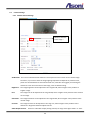
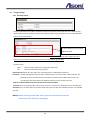
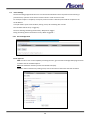
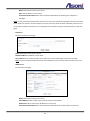
They can either be H.264 or Motion JPEG video streams that are configured according to each user’s need.
Other applications and clients can also access these video streams/images directly, without going via the
Live View page.
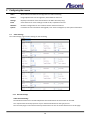
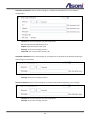
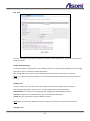
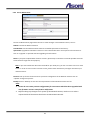
Stream Types: Stream 1, 3, 5 and 7: H.264
Stream 2, 4, 6 and 8: MJPEG
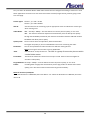
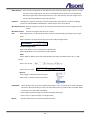
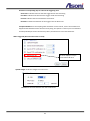
URL ID:
Sets the name for the streaming; input an appropriate name to indicate the stream type
which is being used.
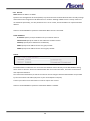
Video Mode:
CBR:512 Kbps ~ 4Mbps – Increase CBR to increase the picture quality; or vice versa
VBR:The network camera will adjust itself automatically to fit the best picture quality
through the bandwidth provided by the network. The balance between VBR and network
bandwidth will affect picture quality.
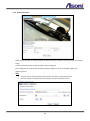
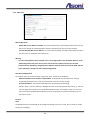
Quality Level:
There are three levels to adjust: Best, Good and Standard
The higher the quality is, the more bandwidth it will use for streaming the video.
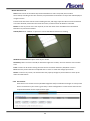
Resolution:
You can set up a different video resolution for different viewing devices.
Note that a larger frame size takes up more bandwidth.
GOP:
GOP stands for "Group of Pictures". The GOP is a group of successive pictures within
a coded video stream.
Frame Rate:
This limits the maximum refresh frame rate per second. Set the frame rate higher for
smoother video quality.
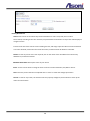
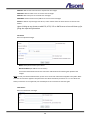
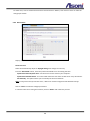
Target Bit Rates: 512 Kbps ~ 4Mbps – Increase CBR to increase the picture quality; or vice versa.
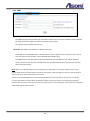
Profile:
Providing both of high profile and baseline profile. High profile can deliver better video
quality, but it will cause network camera have larger load relatively.
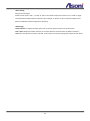
Notes for Stream 1 (H.264) HD:
When the Resolution is 1600x1200, the Frame Rate is “15”. When the Resolution is 1280x720, the Frame
Rate is 30.
20