1
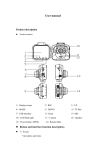
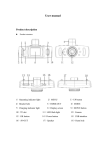
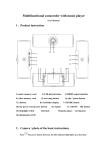
User Manual Product Introduction Product structure 1)UP 2)MENU 3) DOWN 4)USB 5)Bracket Hole 6)AV Port 7)Power 8)TF Slot 10)Mode 11)OK Description of Function Keys: 9)HOLD 1)UP In standby mode, short press “UP” for changing recording mode only front lens or rear lens or the two together. LCD display shows A when front lens working, shows B when rear lens working,A+B for dual lens working; 2)MENU Short press: Setting menu. Long press: change setting options 3)DOWN In menu status, down to select options keys; In dual camera working status, short press to switch recording mode between front lens and rear lens. 4)USB USB Data Interface,①Connecting PC to transfer data;②Connecting external power for charging or working; 5)Bracket Hole For Bracket installation. 6)AV Port Analog video signal input interface, for connecting external analog signals. 7) Power Long press to turn device on/off. Short press to turn on/off the night vision led lights; 8) TF Slot TF Memory Card Slot 9)HOLD Press this button when recording, the current video is saved and can not be deleting. 10) MODE Short press to switch recording/photographing/replay 11)OK Video and photographs confirmation button. Video mode, short press to start recording, press again for ending. Photograph mode, short press to take photos Menu mode, press ok to confirm. Special Function Description: Support AV input AV-IN port connect external Len to record synchronization with front digital Len and save as corresponding files: Front Len –A files, External Len-B files ,convenient for customers to distinguish Front Len and Rear Len video. Connecting picture: G-sensor function When gravitational acceleration reach 1g(1g=9.80m/s^2), machine automatically save present video as undeletable files, and file is begin with ZW. G-sensor is adjustable in Menu among 2G-4G-6G-8G, 4G original. HOLD function Press on this button when recording, 20seconds around press the video file saved as undeletable file begin with ZW Automatic power on/off function Support recording Start and shutdown synchronization with Auto and save the video files After connect to the vehicle power supply Seamless loop recording, don’t leak second REC/photo operation specifications Power on/off Press on one time to start, Blue indicator light will shine when power on Then press again on to shutdown and the blue indicator light go out Notice: video instrument will automatically power off after waning of low battery REC mode Short press on shift to REC mode, REC icon is on the top left corner Short press on to start recording, recording icon and indicator light shinning indicate the recording is on the way Photo mode Short press on shift to photo mode, an photo icon is on the top left corner Then short press on Video/photo playback Short press on to take a photo, screen flash one time means photo completed , shift to playback mode , playback icon is on the top left corner Short press on key can choose files up Short press on key can choose files down Short press on to play the selected video files Menu setting Short press on enter video set status, re-press to shift among “resolution” “video duration” “setting” Press or keys to choose up and down in setting items. Select the items which needed change, short press to modify. Time settings Continuous short press to enter “setting item”, here short press on short to press on enter, then short press year/month/date/hour/minutes/second. Adjust figure through to choose Time Setting, can make shifts among buttons, then press “OK” button to confirm modification. Display switchover In A+B REC mode, short press button can switch between front and rear lens. USB mode Separate USB cable and computer, press “power on” button, car DVR will automatically show USB menu ,there are three modes available : 1:USB-Disk In this mode we can access video files and photo files 2:PC-Camera In this mode USB video equipment are shown, can take photo or make video chat 3.REC-Mode Choose this mode can take video recording when connected to PC Battery instruction Battery indication image: Full battery slightly low battery low battery battery empty There are three methods to charge, the red indicator light up when charging, the entire charging time is about 180 minutes, and the red indicator light automatically off when charging completed. 1. Use power adapter to charge 2. Use PC-USB to charge 3. Use vehicle power to charge Remark: when appear crash because of improper operation, remove battery or press “reset” button to restart. Products specifications External len acceptable Features HD camera, HD video recording Program All-wise G-sensor Built-in (car accident case of emergency save, will not be deleted) LCD screen size 2..4LTPS Front len:140 degree A + grade high-resolution ultra wide-angle len Lens Rear len: 90 degree analogue signal output wide-angle len Russian, Japanese, English, Chinese Language (Traditional), Korean, etc… Files format MOV Resolution Internal len 1280*720 pixels External len 720*490 pixels (max) Recording video format Color Continuous loop video Automatically power H.264, Audio: AAC standard seamless loop recording, don’t leak second Support auto ignition boot, turn off shutdown on/off Motion Detection Function support (simplified), Chinese Time synchronization Carrier media Support (Y/M/D/H/M) Built-in memory ( total:64MB) Photo mode 5million Photo format JPEG Memory card TF (max 32GB) MIC Support Built-in stereo Support Infrared night vision Support Video input Support Video format PAL/NTSC Current frequency 50HZ/60HZ USB function USB-Disk Power interface 5V 800ma Battery Built-in 300mAh Trouble shooting: For problems in normal operating situation ,please try these methods below: Can’t take photo and recording Check the if the TF card has enough space or locked Automatically stop when recording Use the compatible high-speed TF card with SDHC because of big HD video data, the high-speed TF card have identifying of C4 and C6 Appear “files error” when replay photo or video Uncompleted files because of TF card storage error, please use formatting function to format your TF card Unclear video Checks if there are any dirt or fingerprint; and use lens paper to clear the camera len. Black image when recording sky or water scene Scenes with big contrast will influence the automatic exposure function of camera; you can adjust “EV in setting mode to correct. Color is not perfect in cloudy day and outdoor light Set the “white balance” function to automatic cross stripe interference in image Because of wrong “light frequency” ,please set it to 50Hz or 60Hz according to the local power supply frequency Can’t change to rear-len mode Check if rear-len connected and well-connected; or reconnect it. Black image with rear-len Check if rear-len is well-connected; or reconnect it. Crash Restart by pressing shortly on” RESET” button after crash