1
ARS-2212 Chapter 4 Troubleshooting
Chapter 4 Troubleshooting
1If
you encounter any problems with the use of the ARS-2212 please check the
following troubleshooting guide first. If this still does not solve the problem,
please fill out the Technical Support Application Form and send it back to
ACARD. Our technicians will respond as soon as possible.
1.
System detects unknown device or incorrect hard disk
This usually happens if there are no hard disks connected to the ARS-2212.
If an incorrect hard disk is detected, the hard disk might not be properly
connected to the ARS-2212 or not be a supported model. Please visit the
ACARD website for the latest list of supported hard disks or download the
latest ARS-2212 firmware that supports your hard drive.
2.
Error occurs while accessing the ARS-2212 or when system is on standby
◆
Check that the ARS-2212 and the USB cable are properly connected.
◆
Check that the USB cable is not damaged.
◆
If it is a hard disk problem, try replacing one hard disk and setting up
the ARS-2212 again.
3.
Update the ARS-2212 firmware and change the size of the hard disk
image. Please refer to Appendix 2.
4.
System unable to detect the ARS-2212 hard disk
◆
◆
◆
5.
Check that the ARS-2212 is properly connected to each hard disk and
that the power supply is corrected connected.
Check that the ARS-2212 is connected to the computer with the USB
cable.
Check that the USB drivers are installed properly.
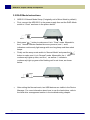
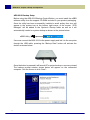
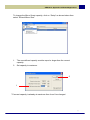
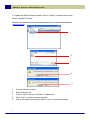
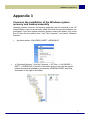
Check that the correct USB drivers are installed (please see steps 1~3
listed below).
6.
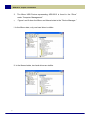
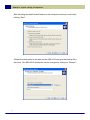
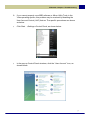
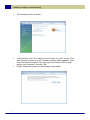
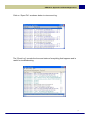
If the drivers are properly installed, please check that the ARS-2212 drive
is detected by Device Manager (see step 4).
7.
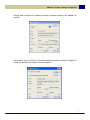
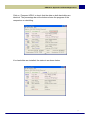
If it’s a new hard disk that has not yet been partitioned and formatted,
please initialize the hard disk by using Disk Management (See step 5).
21