1
CAD/CAM SYSTEM
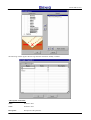
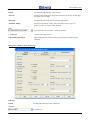
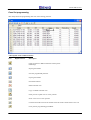
Panel data and machinings programming
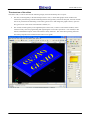
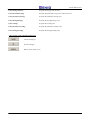
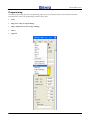
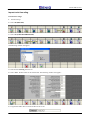
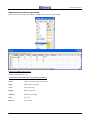
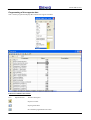
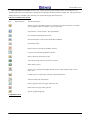
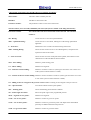
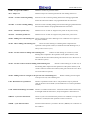
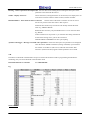
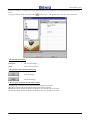
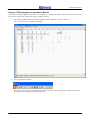
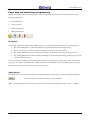
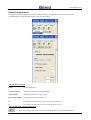
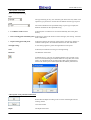
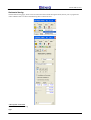
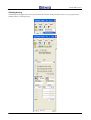
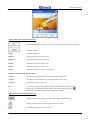
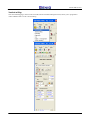
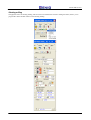
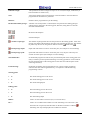
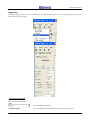
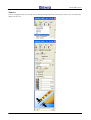
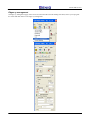
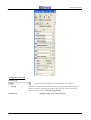
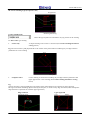
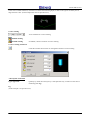
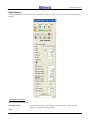
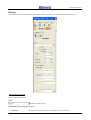
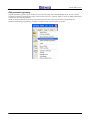
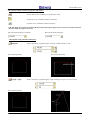
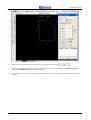
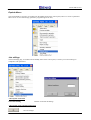
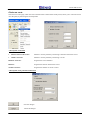
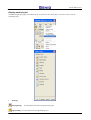
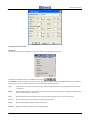
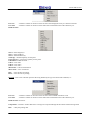
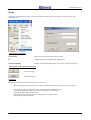
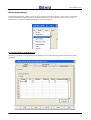
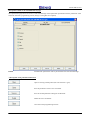
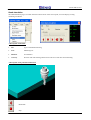
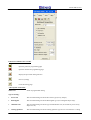
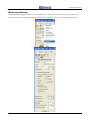
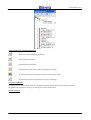
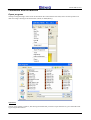
Genio's working parameters programming pages, can be accessed from the Control Panel's Toolbar by means of the
following push-buttons:
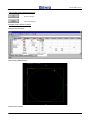
•
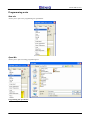
Panel management
•
Active work face
•
Boring management
•
Milling management
In general
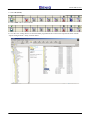
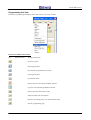
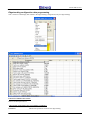
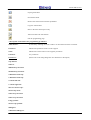
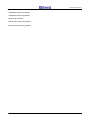
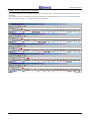
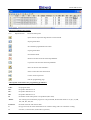
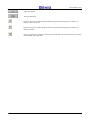
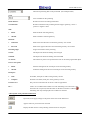
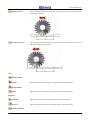
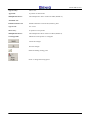
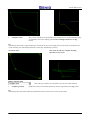
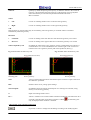
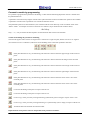
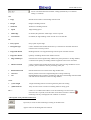
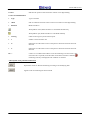
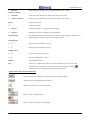
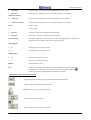
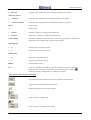
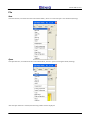
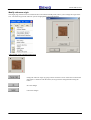
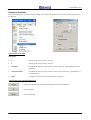
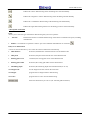
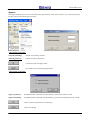
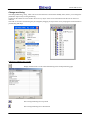
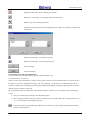
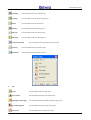
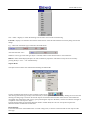
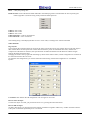
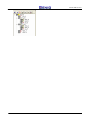
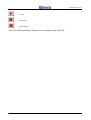
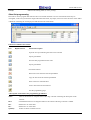
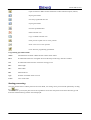
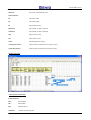
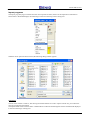
The Tool Bar buttons contain those sub-headings that allow access to the functions provided by the machining class:
•
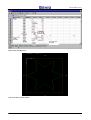
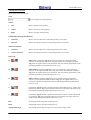
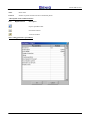
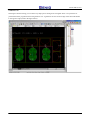
The “Panel Management” contains the headings for programming the panel and supports' data;
•
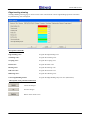
The “Active Work Face” button contains the headings for the choice of face to activate;
•
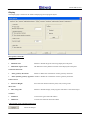
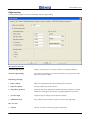
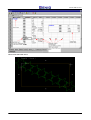
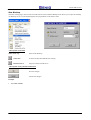
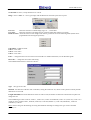
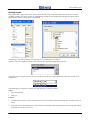
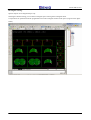
The “Boring Management" button contains the headings for programming the boring working processes;
•
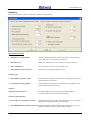
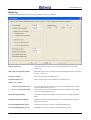
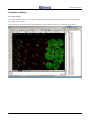
The “Milling Management” button contains the headings for programming the milling, pocketing, carving, and
cutting machining processes.
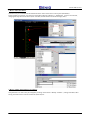
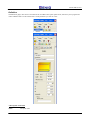
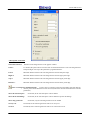
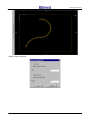
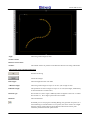
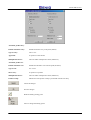
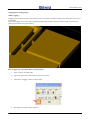
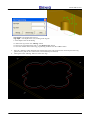
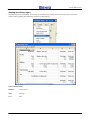
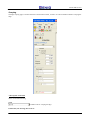
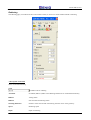
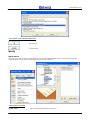
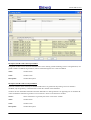
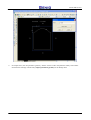
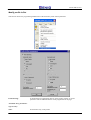
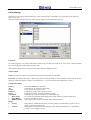
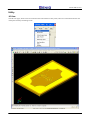
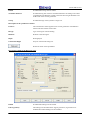
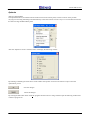
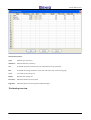
Just select the relative heading for programming the working process, program the relative pages on the Control Panel
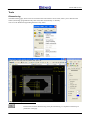
page, press the “APPLY” push-button: the working parameters will be applied to the corresponding geometry that has
been drawn on the Genio video and can be sent to the work center.
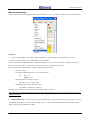
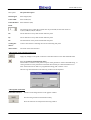
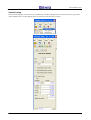
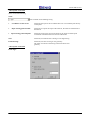
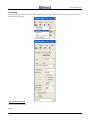
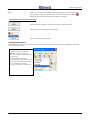
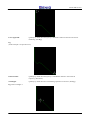
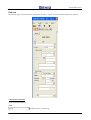
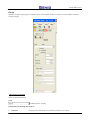
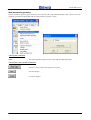
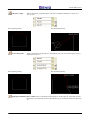
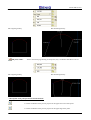
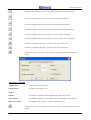
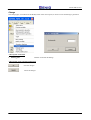
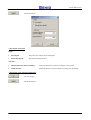
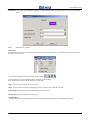
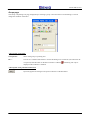
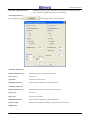
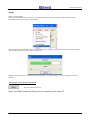
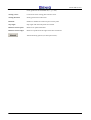
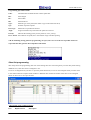
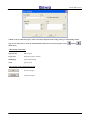
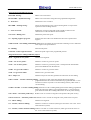
Apply button
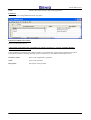
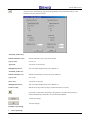
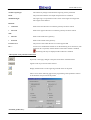
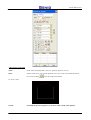
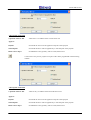
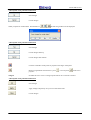
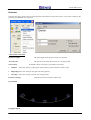
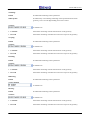
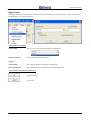
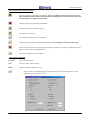
The APPLY button is present on all Control Panel programming pages and is used to confirm programming page data.
Introduces changes to the panel according to programmed data
N.B.
The APPLY button function may be accessed directly from the keyboard using the keys <ALT> + <SEND>.
68